

(KooGallery HyperBDR) SaaS Purchasing Guide
(KooGallery HyperBDR) SaaS Purchasing Guide
1. Initial purchase
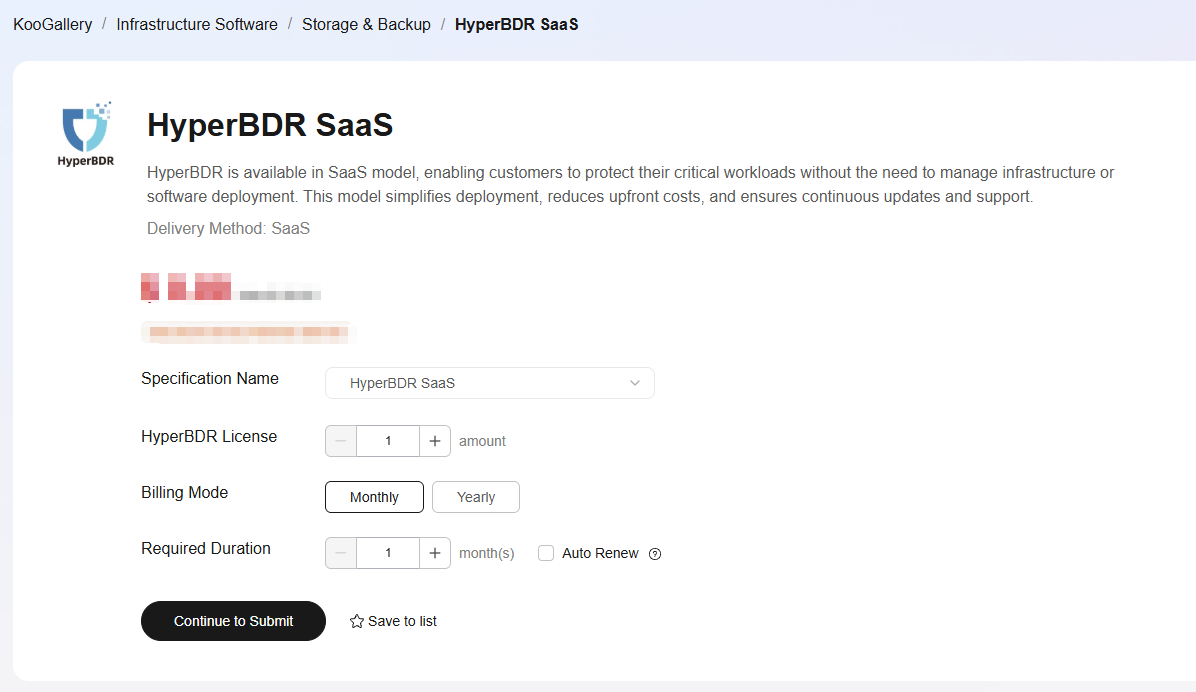
1.1 Visit the Order Page
Select the Specification Name, HyperBDR License, Billing Model, and Required Duration
Click the “Continue to Submit” button to proceed to the next step.
If continuous subscription is required, select “Auto Renew.”
1.2 Purchase Confirmation
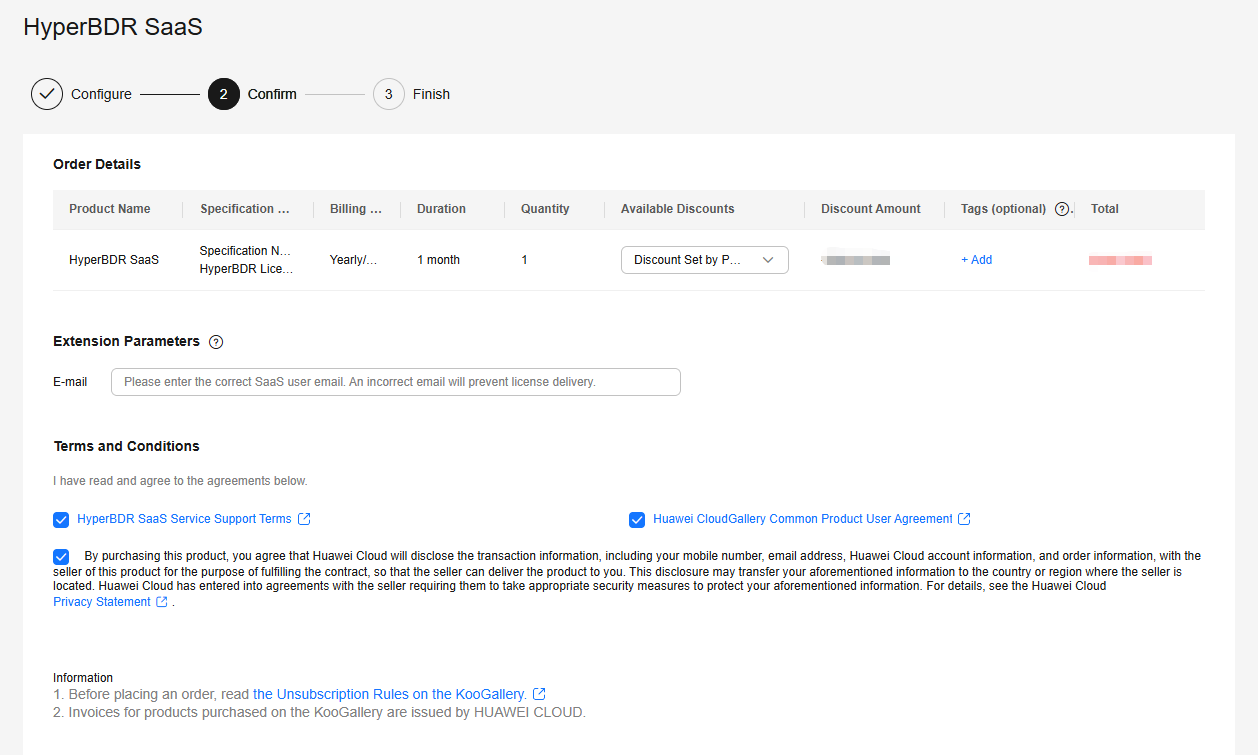
Enter E-mail (required)
Review and check the “Terms and Conditions”
Click the “Pay Now” button to proceed to the next step
1. The email address must match the one associated with your OnePro-DR-SaaS platform account. The license will be automatically activated for that account.
2. If you have already created a OnePro-DR-SaaS platform account, enter the registered email address. The license will be automatically activated for the corresponding account.
1.3 Finalize the Order
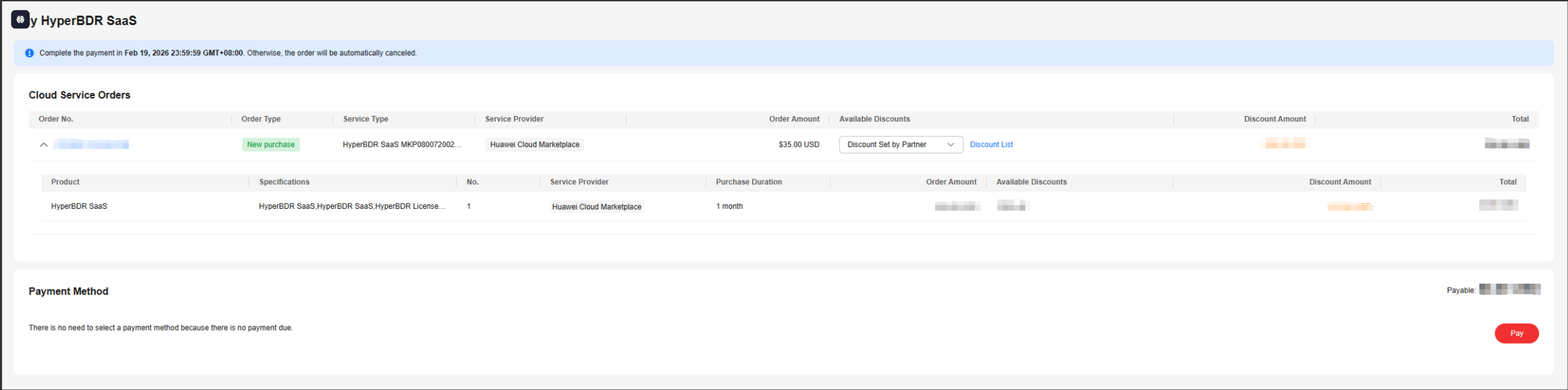
Confirm the purchased product details (record the Order No.)
Click “Pay” to complete the payment
1.4 Retrieve License Information
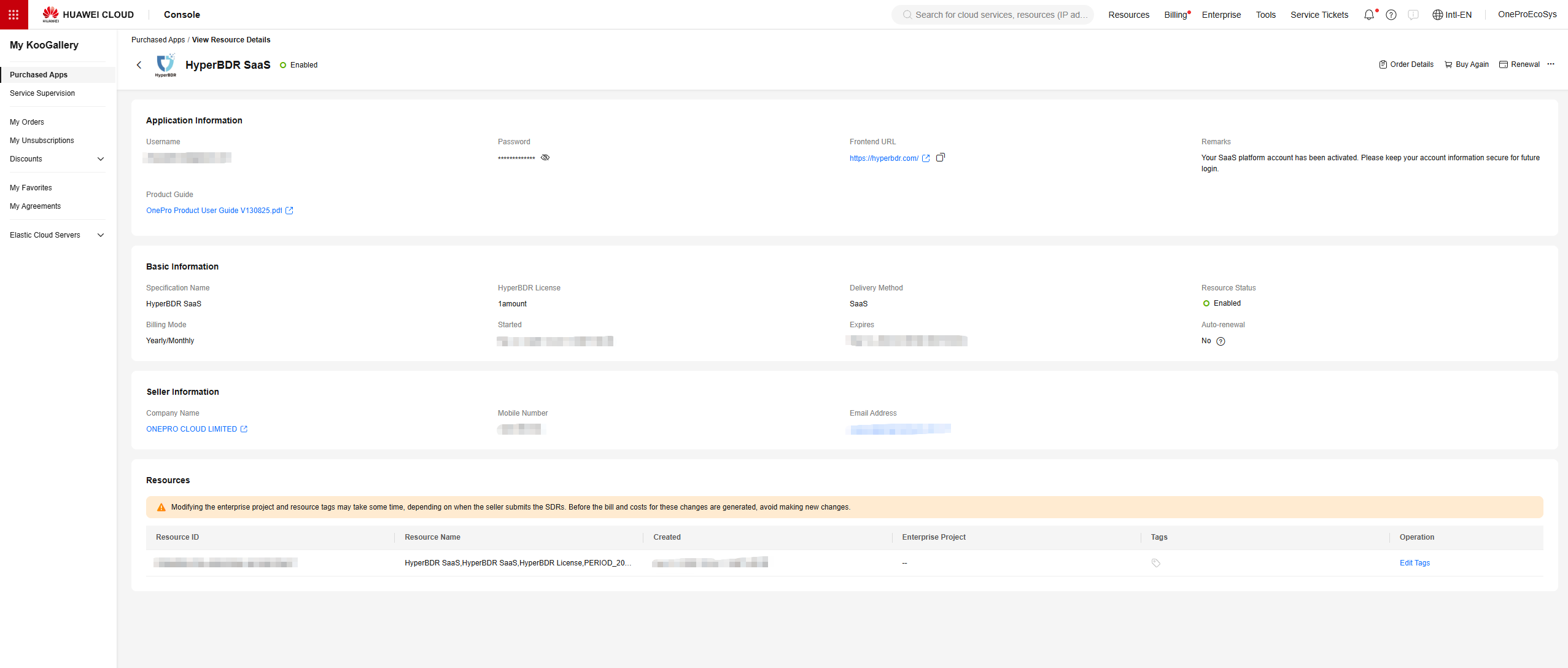
Navigate to the My KooGallery console
Go to “Purchased Apps” and search for the purchased service using the Order No.
Click “Resource Details” to view the service details
Record the Username and Password under “Application Information”
The Username and Password correspond to the Business email and Password used to log in to the DR-SaaS platform. The DR-SaaS platform homepage is the Frontend URL.

1.5 Automatic license activation on the OnePro-DR-SaaS platform
Log in to the OnePro-DR-SaaS platform using the information provided in the KooGallery service details
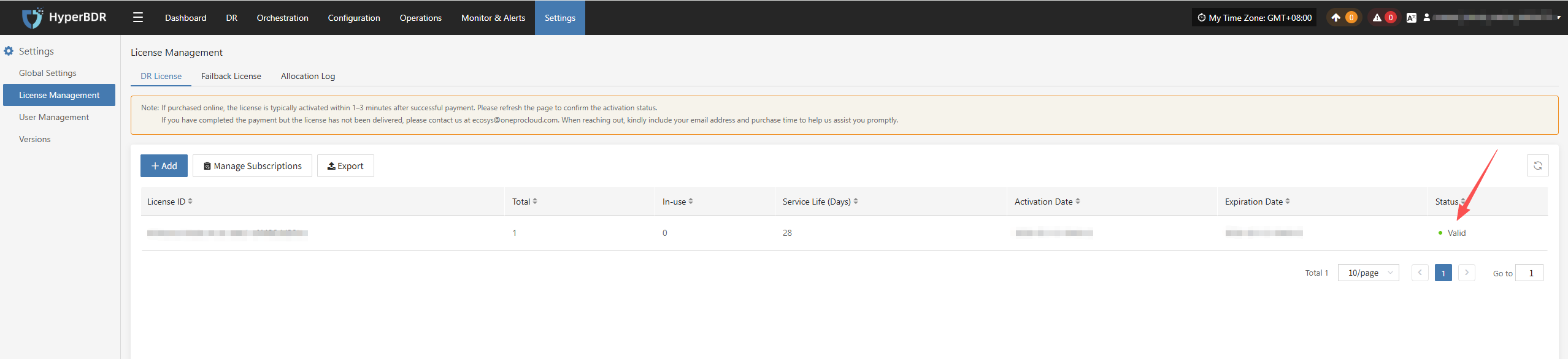
Go to Settings → License Management → DR License to view the automatically activated license
2. Renewal
2.1 Automatic Renewal via KooGallery
Go to the My KooGallery console
Open Purchased Apps to view the new service. If the status is Enabled, it means the license has been automatically activated
2.2 Automatic License Activation on the OnePro-DR-SaaS Platform
Log in to the OnePro-DR-SaaS platform
Click Settings → License Management → DR License to view the automatically activated license