

HyperBDR Manual
HyperBDR Manual
Register
Register
The registration function allows new users to create a platform account for future login, use, and receiving system notifications. During registration, users need to provide required identity information and contact details. The platform will verify user identity through the configured verification method to ensure account security.
The platform supports two registration methods: email registration and Google account sign-in.
Registration Methods
Register with Email
Access the Registration Page
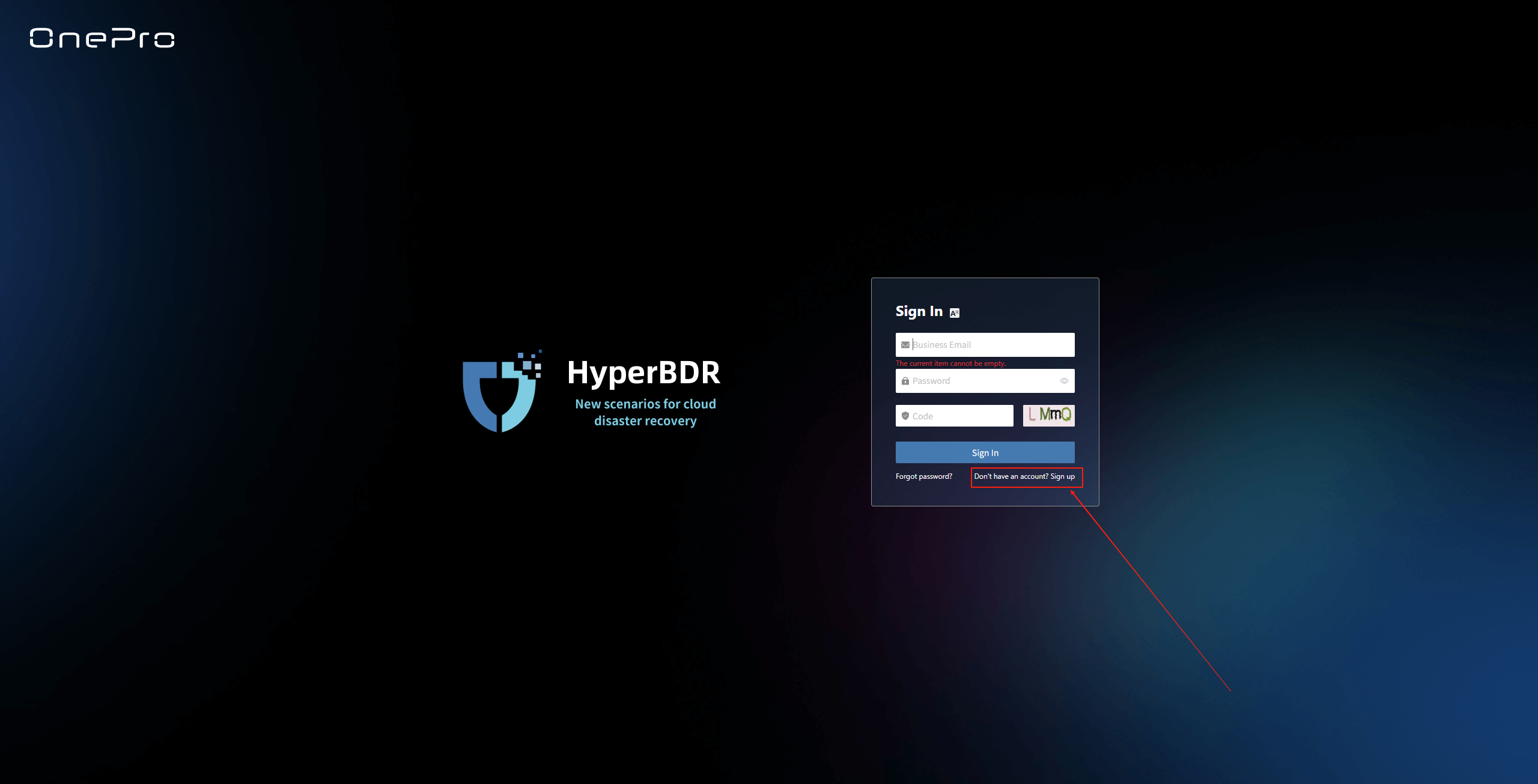
Open the login page and click "Don't have an account? Sign up" to enter the account registration page.
Fill in Registration Information
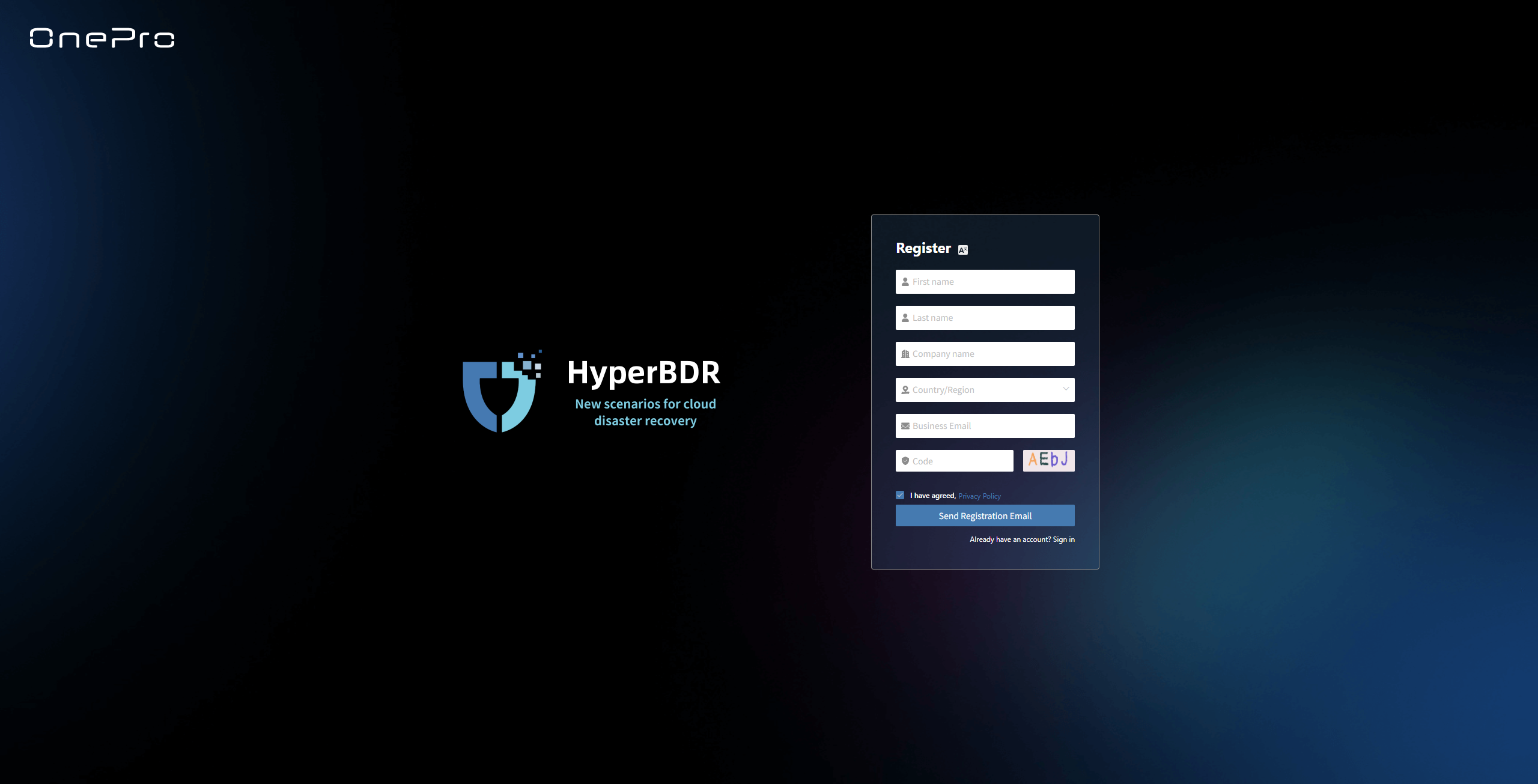
Enter the required information, including: first name, last name, company name, country/region, email, and other authentication details.
The email address must be valid and accessible to receive system verification codes and notifications.
Submit Registration Application
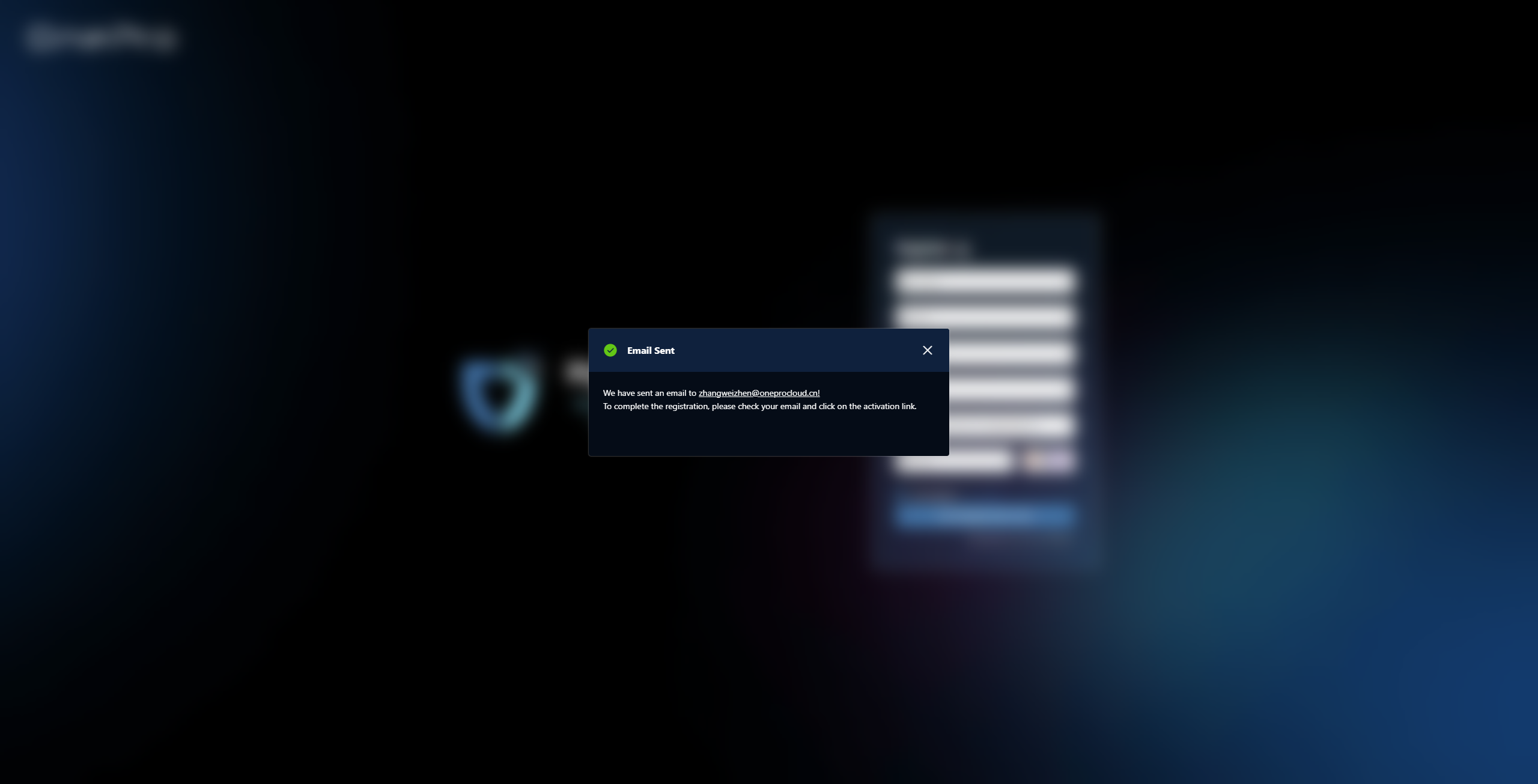
After filling in the authentication information, click "Send Registration Email". The system will send a verification email.
Activation Confirmation
Please check your registration email inbox, click "Activate Registration" in the email to complete the verification. Your account will be activated and the system will redirect you to the "Set Password" page.

Set Password
After account activation, you need to enter and confirm a new password to complete the registration process.
The password must meet the platform's complexity requirements. It is recommended to include uppercase and lowercase letters, numbers, and special characters. Please keep your password safe to ensure account security.
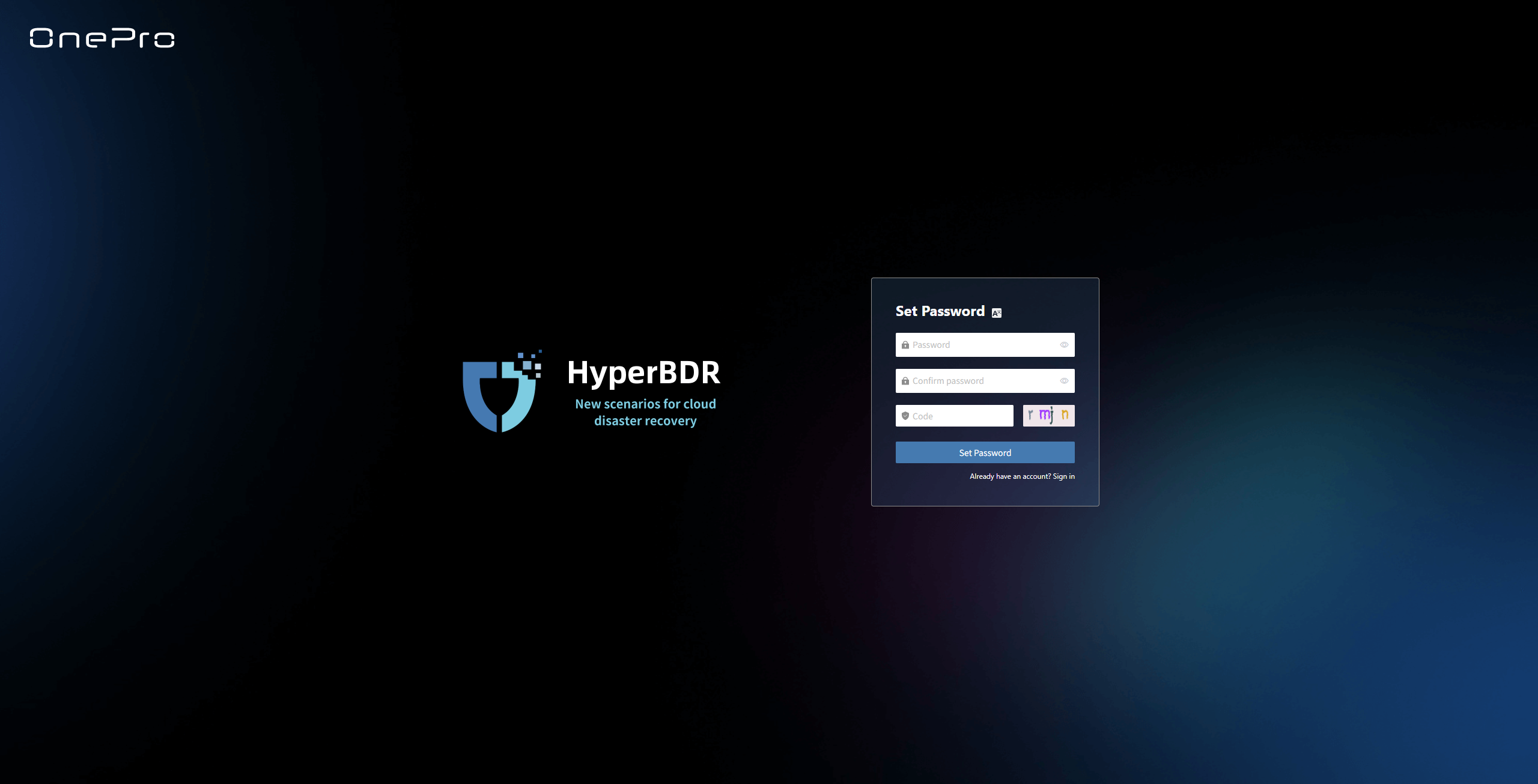
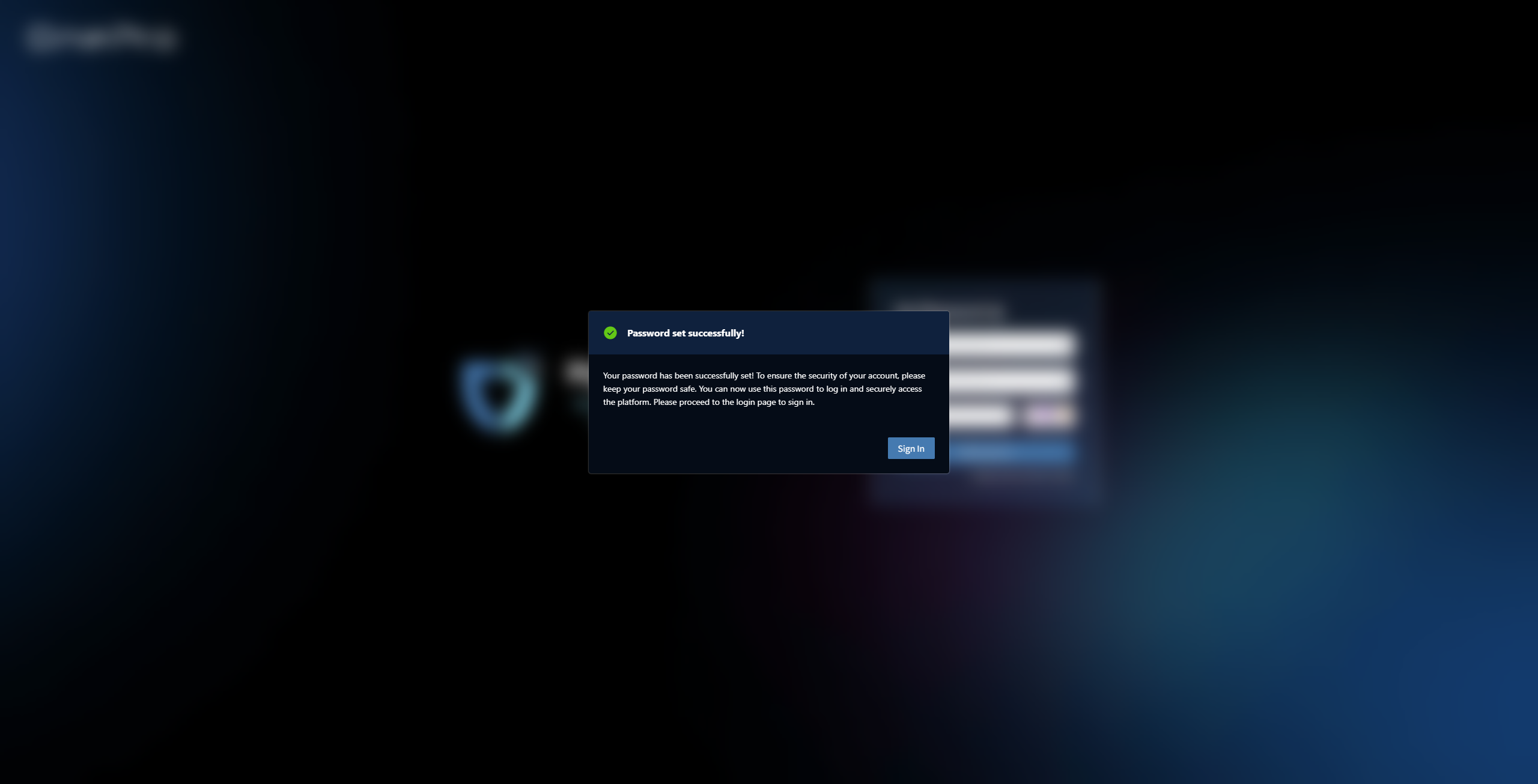
After setting the password, you can now use it to log in and securely access the platform. Please go to the login page to sign in.
Sign Up with Google
Open the login page and click "Continue with Google".

The system will redirect you to the Google authorization page. Select the Google account you want to use and complete the authorization.
After authorization, the system will automatically create a platform account and log you in. No email verification is required.
Forgot Password
Access Password Recovery
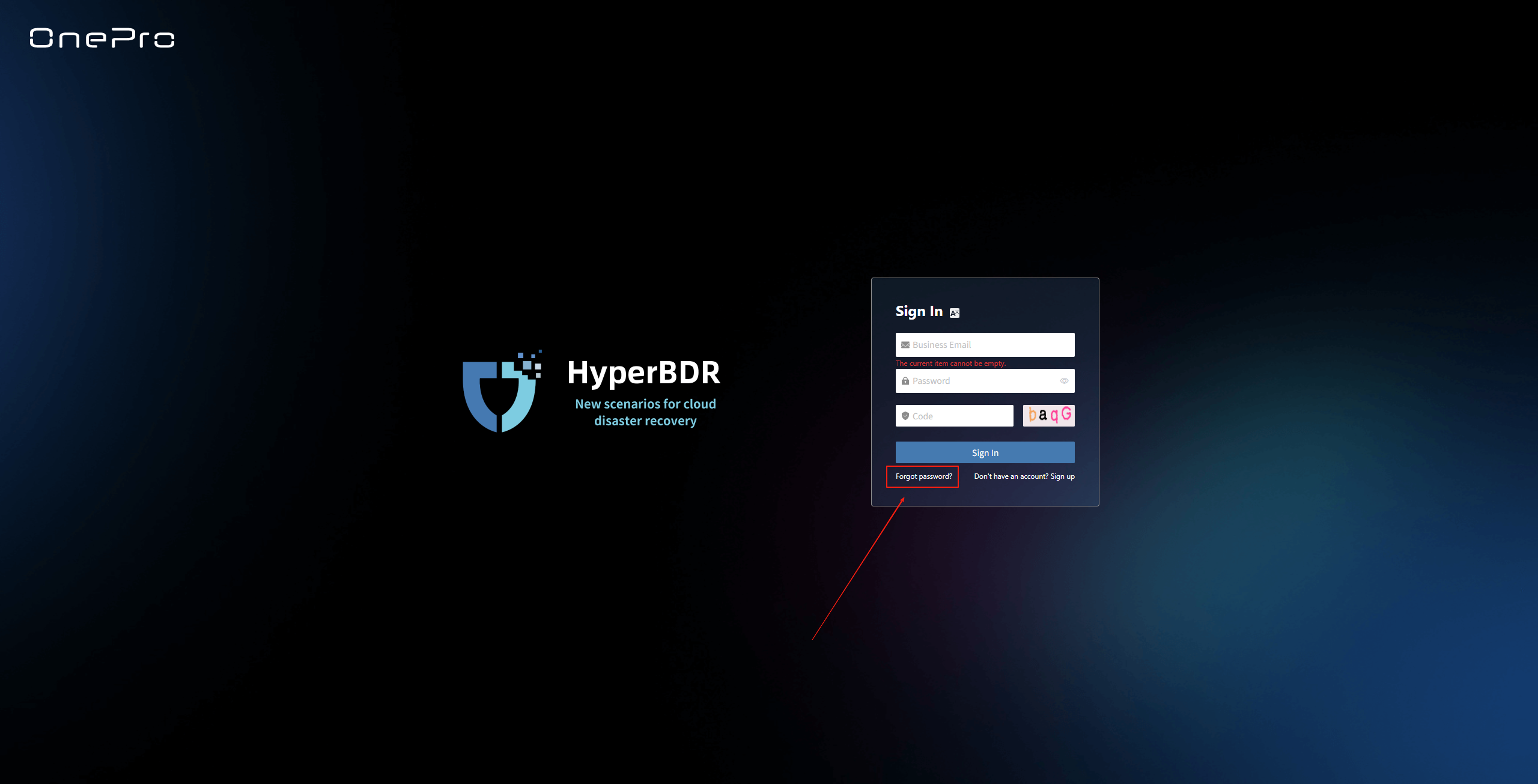
Open the login page and click "Forgot password?" to enter the password recovery page.
Fill in Recovery Information
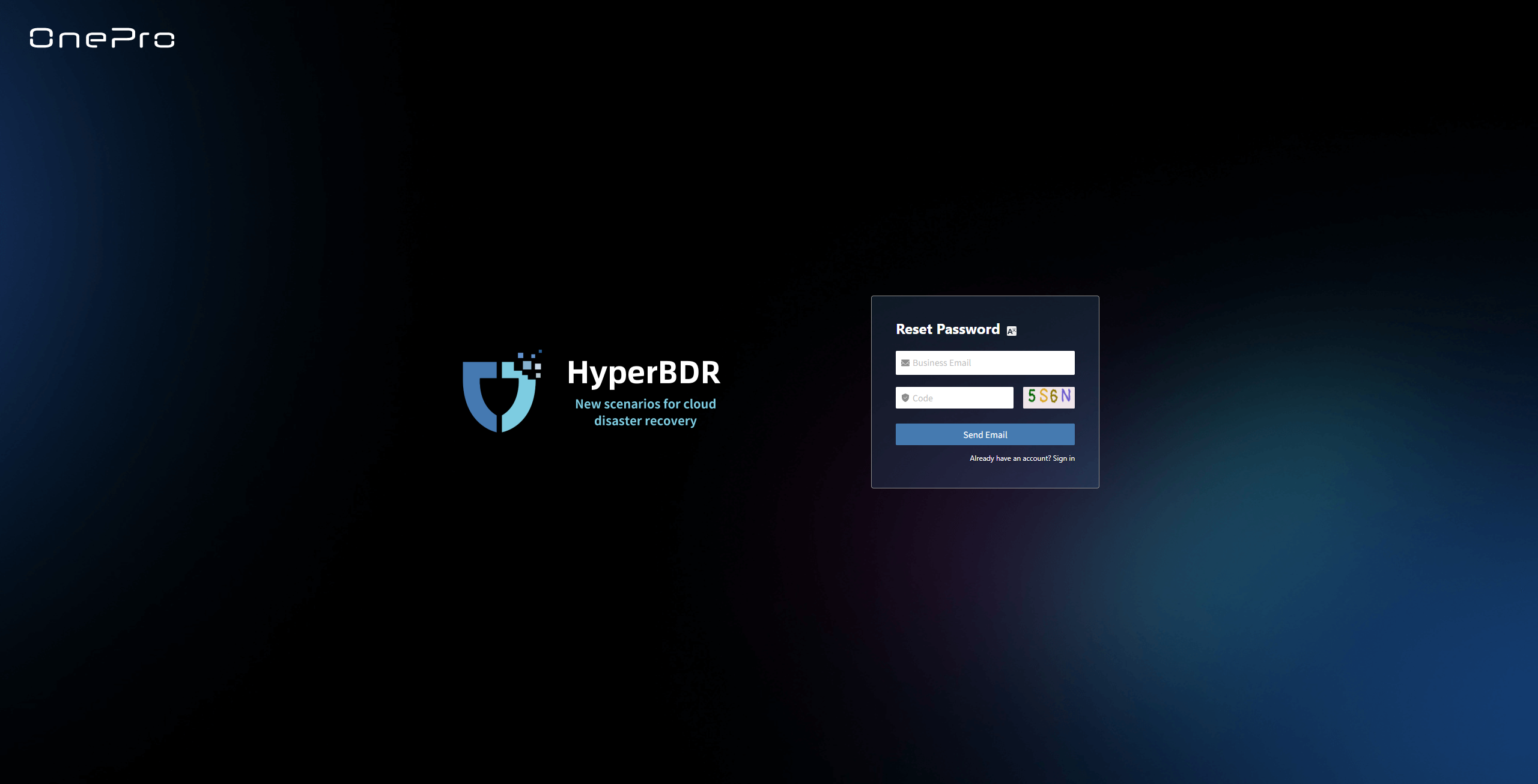
Enter your registered email address. The system will send a password reset email to start the reset process.
Submit Reset Request
After entering the required information, click "Send Email". The system will send a verification email.
Reset Confirmation
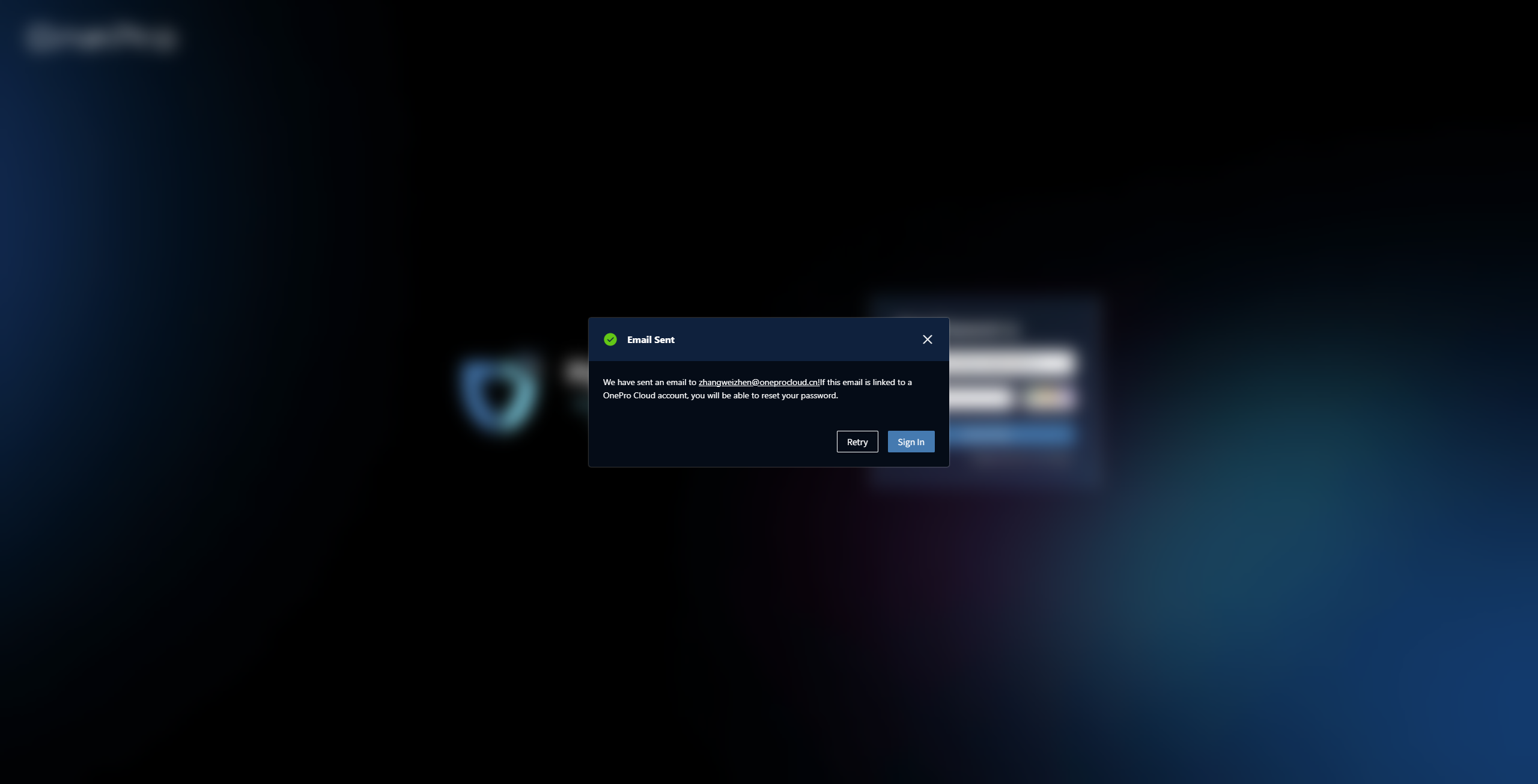
Please check your registered email inbox, click "Reset Password" in the email to complete the verification. The system will redirect you to the "Reset Password" page.

Set Password
After setting the password, you can use it to log in and securely access the platform. Please go to the login page to sign in.
The password must meet the platform's complexity requirements. It is recommended to include uppercase and lowercase letters, numbers, and special characters. Please keep your password safe to ensure account security.
Login
Login
Login Entry
The platform supports two service modes: private deployment and SaaS. Please select the appropriate access entry based on your actual needs.
Private Deployment
Username & Password Login
Enter the console access address in the browser address bar:
https://<Your-Server-IP>:10443After the login page opens, sign in with the default administrator account:
Username:
adminInitial Password:
P@ssw0rd
💡 Security Notice: To keep your account secure, please change the default password promptly after your first successful login.
SaaS Service
- Access the official platform at: https://hyperbdr.com/
Username & Password Login
Existing account: Sign in directly with the email bound to your account during registration.
New user: Please refer to the Account Registration Guide to create an account first, then sign in.
Google Quick Sign-in
- Supports one-click quick sign-in with an authorized Google account. See Google Sign-in Guide.
Dashboard
Dashboard Overview
The dashboard provides an overview of the production platform, data storage, and disaster recovery (DR) platform in the current environment. It helps users quickly understand the status of system resources, sync progress, task results, alert events, and other key information, supporting unified monitoring and decision-making for administrators.
Top Navigation Bar
The top navigation bar provides quick access to the main system modules, including: Dashboard, DR, Orchestration, Configuration, Operations, Monitor & Alerts, Settings.
The upper right area displays the current logged-in user, system time (with time zone), and language settings for easy viewing and personalization.
Core System Structure Overview
Shows the three core components of the system architecture: Production → Storage → DR Site

Section Descriptions
The dashboard displays the current status and operational data of various resources, including production platform, DR policies, sync progress, storage configuration, resource recovery drills, and alert events. Each section supports navigation to the corresponding module page for more details and actions.
Production
Displays an overview of production resources connected to the system, including the total number of hosts and their running status, helping users quickly understand the overall load of the production environment.
Click the Details button in the lower right to go to the DR resources page for detailed host information and DR configuration status.

DR Group
Shows the number of DR groups configured in the system, helping users understand the DR configuration status of resource groups.
Click the Details button in the lower right to go to the DR group page for detailed configuration and DR status of each group.

DR Policy
Displays the DR policy configuration status for production hosts, helping users quickly identify how many hosts are protected by DR.
Click the Details button in the lower right to go to the "Start DR" page, where you can select target hosts and associate policies.

Data Sync
Shows the overall progress of data synchronization from source hosts, which is an important indicator of DR readiness.
Click the Details button in the lower right to go to the "Start DR" page, where you can select hosts and perform immediate sync operations.
Storage Pool
Object Storage
Displays the number of configured object storage pools and their capacity usage, helping users understand overall storage resource usage.
Click the Details button in the lower right to go to the storage configuration page for object storage management.

Cloud Sync Gateway
Click the Details button in the lower right to go to the storage configuration page for block storage management.

Restore / DR
The "Restore / Drill" area shows the recovery status of DR resources on the platform, helping users quickly understand resource protection and drill status.
Restore
Shows the number of resources under "Restore" management, as well as the number of resources in restoring, restored, and failed states.
DR
Shows the number of resources under "Drill" management, as well as the number of resources in drilling, drill success, and drill failure states.
Click the Details button in the lower right to go to the "Start DR" page for drill and takeover operations on hosts.
DR Site
Displays the number of successfully and unsuccessfully connected DR sites, as well as detailed configuration information.
Click the Details button to go to the "Start DR" page for related operations.
DR Resources Monitoring & Analysis
This module provides real-time statistics and visualizations of the overall health, configuration, and usage of key DR resources, helping users quickly understand the stability of the DR system.
Users can select different monitoring resources from the dropdown list. Supported resource types and monitoring metrics include:
| Resource Type | Monitoring Metrics |
|---|---|
| Sync Proxy | CPU Usage, Network (bytes) |
| Cloud Sync Gateway | CPU Usage, Network (bytes) |
| Linux Agent | CPU Usage, Network (bytes) |
| Windows Agent | CPU Usage, Network (bytes) |
Click the Details button in the upper right to go to the system monitoring page for more information.

Events
This module displays key dynamic information related to the user, helping users quickly understand system status and task progress through real-time event aggregation and classification.
Click the Operation Log button in the upper right to go to the audit log page for detailed event logs.

Alert
Displays alert messages triggered by the alarm system, helping users stay informed of system exceptions.
Click the Details button in the upper right to go to the alert messages page for more information.

License Status
Shows the number, usage status, and validity of activation codes, helping administrators efficiently manage license resources.
Click the Details button in the upper right to go to the license management page for more information and to add or export licenses.

Carbon Footprint
User's carbon emission data is calculated based on the usage of cloud resources. When calculating the carbon emissions data for cloud products, factors such as Power Usage Effectiveness (PUE) of different cloud data centers in different countries or regions, resource sales, the proportion of renewable energy usage, and technological carbon reduction measures are taken into account. Therefore, the calculated carbon emissions data may vary for different regions or within different months, which is considered normal.
The cloud product carbon footprint covers various cloud products, including computing, storage, networking, databases, CDN, etc. During the calculation process, only the resources generated in actual business scenarios are taken into account.
Profile
Our system provides comprehensive account management features, allowing you to easily view, update, and manage your account details while ensuring security.
Account
After logging in, click your username at the top right corner and select "Account" from the dropdown menu to view your account details.

The basic information page displays the following account details:
- Nickname: admin
- Username: admin
- User ID: c1e9206442914-XXXXXXXXXXXXX
- Registration Date: 2025-05-13 14:05:39
Security:
- Login Password: Set
Tip: Using a strong password significantly improves your account security. We recommend updating your password regularly.

Change Account Information
Your account information includes basic details such as username and registration time. If you need to update certain information, please follow the system instructions.
On the "Account" page, click the "Edit" button to modify your username and nickname.


- Nickname: Used for display purposes only and does not affect login.
- Username: The unique identifier for logging into the system. After changing it, please use the new username for future logins.
Note: After changing your username, make sure to remember your new login name to avoid access issues. The login account for the Operations Management Platform will also be updated accordingly.
Change Password
To keep your account secure, we recommend changing your password regularly, especially using a strong and unique password.
On the "Account" page, click the "Change Password" button to start the password update process.


Note: Your new password must be 8-20 characters long, contain both uppercase and lowercase letters and numbers, and may include special characters (except spaces). After changing your password, please remember it to avoid login issues. The password for the Operations Management Platform will also be updated.
Password Management Tips
- Change your password regularly, especially if you suspect your account security may be compromised.
- Avoid using the same password across multiple platforms. Use complex and unique passwords to enhance your account security.
Change Email
The email address demouser@oneprocloud.com is associated with your account. It will be used to receive system messages, service notifications, and for login purposes.
On the "Account" page, click the "Change Email" button to start the Change Email process.


Logout
To safely log out of your account, follow these steps:
Click your username in the upper right corner of the page to open the dropdown menu.
Click the "Sign Out" option. You will be securely logged out and returned to the login page.

dashboard-logout-signout-hover
Note: Simply closing the browser window may not end your session. It is recommended to use the logout option above to prevent unauthorized access to your account and avoid unnecessary risks.
Language Switch
The system currently supports the following languages:
简体中文
English
Español
日本語
To change the display language in the system interface:
Click the "A icon" in the upper right corner to open the dropdown menu.

dashboard-language-entry In the language list that appears, select your preferred language, such as "Simplified Chinese" or "English".
The default language is Simplified Chinese.

dashboard-language-zh-hover
After switching, the system will automatically refresh and display the selected language.
DR
Host DR
Resource Disaster Recovery is the core workflow in HyperBDR. All disaster recovery operations are managed from this section, including forward host disaster recovery and host failback.
The Host DR workflow consists of three main steps: Select Host, Setup DR, and Start DR. Follow these steps to complete the end-to-end process from initial protection to drills and failover takeover.
To access the workflow, click the top "DR" navigation bar, then select "Host DR" in the left sidebar.
Operation Process
| Step | Description |
|---|---|
| Preparation | Register a HyperBDR account and activate a product license. |
| Step 1: Select Host | Go to DR > Host DR > Select Host to choose the source hosts for disaster recovery. |
| Step 2: Setup DR | Go to DR > Host DR > Setup DR to configure disaster recovery parameters. |
| Step 3: Start DR | Go to DR > Host DR > Start DR to initiate synchronization, drills, or takeover. |
Preparation
Register a HyperBDR User
Before adding a disaster recovery host, make sure that at least one disaster recovery account has been created on the platform. The platform uses a multi-tenant architecture, allowing accounts and permissions to be configured independently for different teams or projects for flexible resource management and isolation.
Click here to learn how to create a new disaster recovery account
If you already have an account, skip this step.
Add a HyperBDR Product License
Before using the disaster recovery service, request a product license. Contact your project manager or email support@oneprocloud.com to obtain a valid license.
Click here to view the license application guide
If you have already added a license, skip this step.
Complete Production Site Configuration
This step applies when the source uses Agentless mode. Complete the corresponding site configuration according to the source production platform.
| Production Platform | Configuration Guide |
|---|---|
| VMware | View the guide |
| OpenStack | View the guide |
| AWS | View the guide |
| FusionCompute | View the guide |
| Oracle | View the guide |
| HCS 8.0.2 | View the guide |
| HCS Online | Configuration guide to be added. |
| Huawei Cloud | View the guide |
If the source uses Agent mode or the production site has already been configured, skip this step.
Complete DR Target Configuration
This step applies to DR target platforms that have completed automated integration. Complete the corresponding DR target configuration according to the storage type you intend to use before continuing.
| Storage Type | Configuration Description | Configuration Guide |
|---|---|---|
| Block Storage | Block storage configuration | View the guide |
| Object Storage | Object storage configuration | View the guide |
| Object Storage | Object-storage DR target platform configuration | View the guide |
If the preceding configuration is incomplete, complete the required preparation first.
Activate Network Policies
Before performing the Select Host, Setup DR, and Start DR steps, enable network access from the source production platform to the HyperBDR DR console and the DR target. This is required for the source production platform to be added and registered correctly and for subsequent data synchronization. Otherwise, hosts cannot be added.
| Storage Type | Agent | Agentless |
|---|---|---|
| Object Storage | View Details | View Details |
| Block Storage | View Details | View Details |
Plan VPCs, Subnets, and Other Network Resources for the DR Target Platform
During Setup DR, specify target resources for the hosts to be protected. Select the pre-planned VPCs, subnets, security groups, and other network resources. If these resources have not been created and planned in advance, you cannot continue with the subsequent steps.
Make sure that the DR target cloud account contains at least one available VPC, subnet, and security group.
This step applies to DR targets that use automated block storage mode or automated recovery mode with object storage. Other common methods can skip this step.
Select Host
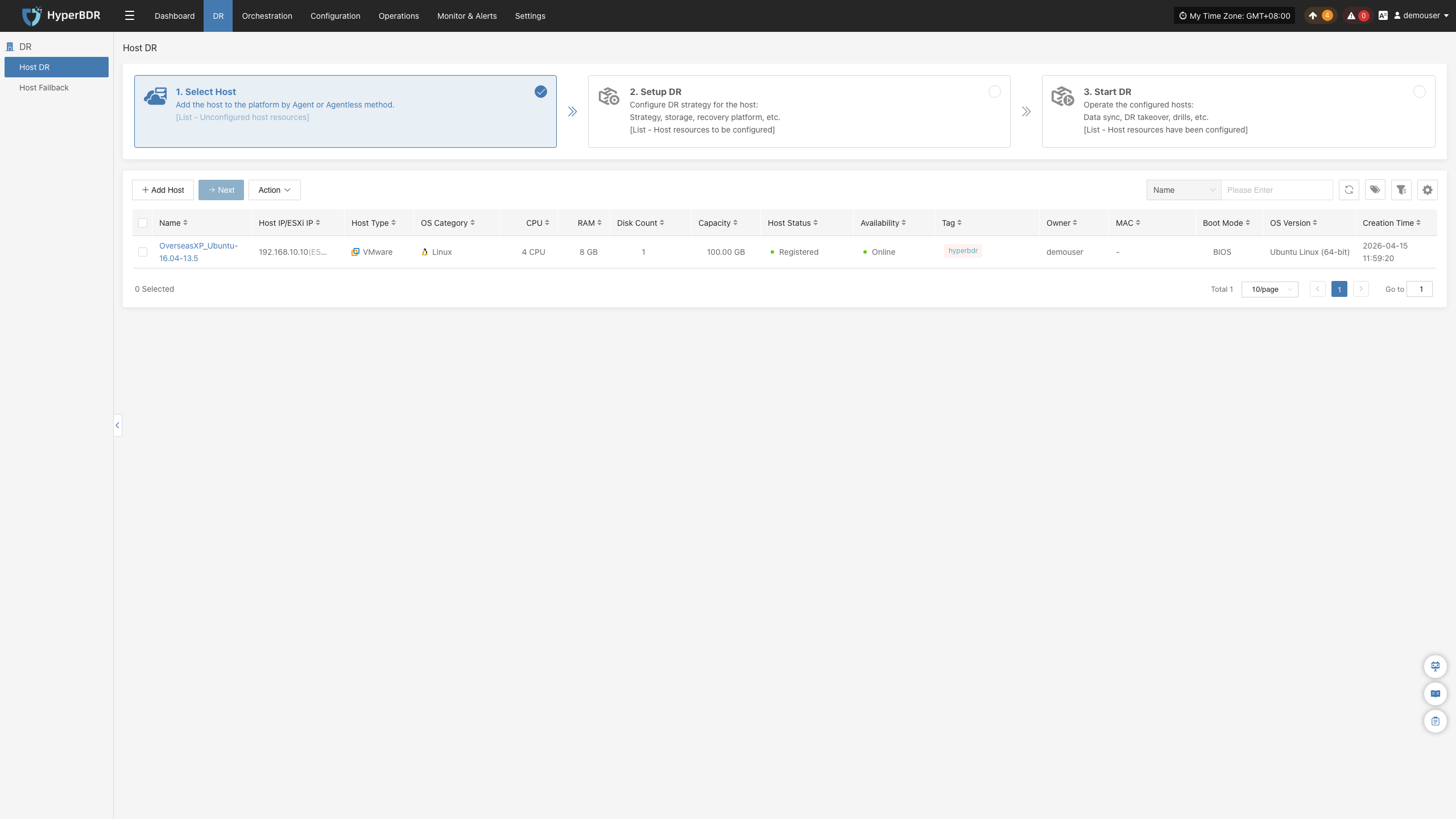
Go to DR > Host DR > Select Host to view and manage protected hosts.
The "Select Host" page provides three primary actions: "Add Host", "Next", and "Action".
On the Add Host page, choose between two deployment modes: Agentless and Agent.
| Production Platform Type | Supported Resources | Description |
|---|---|---|
| Agentless | VMware, OpenStack, AWS, FusionCompute, Oracle, HCS 8.0.2, HCS Online, Huawei Cloud | Backs up virtual machines directly without installing software inside the guest OS. |
| Agent | Linux Windows | Installs an agent directly inside source Linux or Windows hosts. OS Support Matrix (Agentless): View Here OS Support Matrix (Agent): View Here |
Add Host
Click "Add Host" to register source hosts for disaster recovery, then select "Agentless" or "Agent".
Agentless
Agentless mode supports the following platforms: VMware, OpenStack, AWS, FusionCompute, Oracle, HCS 8.0.2, HCS Online, and Huawei Cloud.
Agentless protection requires deploying one or more Sync Proxy instances in the source environment. The Sync Proxy connects to the source platform APIs to read and transfer disk data. Ensure network planning is completed beforehand.
- Deploy Sync Proxy for VMware
Download the OVA template and deploy it in your VMware vSphere environment:
OVA template: Download OVA
- Deploy Sync Proxy for other platforms
Deploy an Ubuntu 24.04 instance. For OpenStack or KVM environments, download and import the standard cloud-init QCOW2 image:
QCOW2 image: Download Image
Note: The Ubuntu 24.04 image has no default password. It relies on cloud-init for credential injection; ensure your cloud platform supports cloud-init before deploying.
- Prerequisites
| Production Platform | Prerequisites | Documentation |
|---|---|---|
| VMware | Deploy and install Sync Proxy, then add the source VMware platform. | Add VMware Platform |
| OpenStack | Deploy and install Sync Proxy, then add the source OpenStack Ceph platform. | Add OpenStack Platform |
| AWS | Deploy and install Sync Proxy, then add the source AWS platform. | Add AWS Platform |
| FusionCompute | Deploy and install Sync Proxy, then add the source FusionCompute platform. | Add FusionCompute Platform |
| Oracle | Deploy and install Sync Proxy, then add the source Oracle platform. | Add Oracle Platform |
| HCS 8.0.2 | Deploy and install Sync Proxy, then add the source HCS 8.0.2 platform. | Add HCS 8.0.2 Platform |
| HCS Online | Deploy and install Sync Proxy, then add the source HCS Online platform. | Add HCS Online Platform |
| Huawei Cloud | Deploy and install Sync Proxy, then add the source Huawei Cloud platform. | Add Huawei Cloud Platform |
Example: Adding a Host
- Click "Add Host", select "Agentless", and choose your platform. In the platform list, select the configured site and click "Next" to view virtual machines.
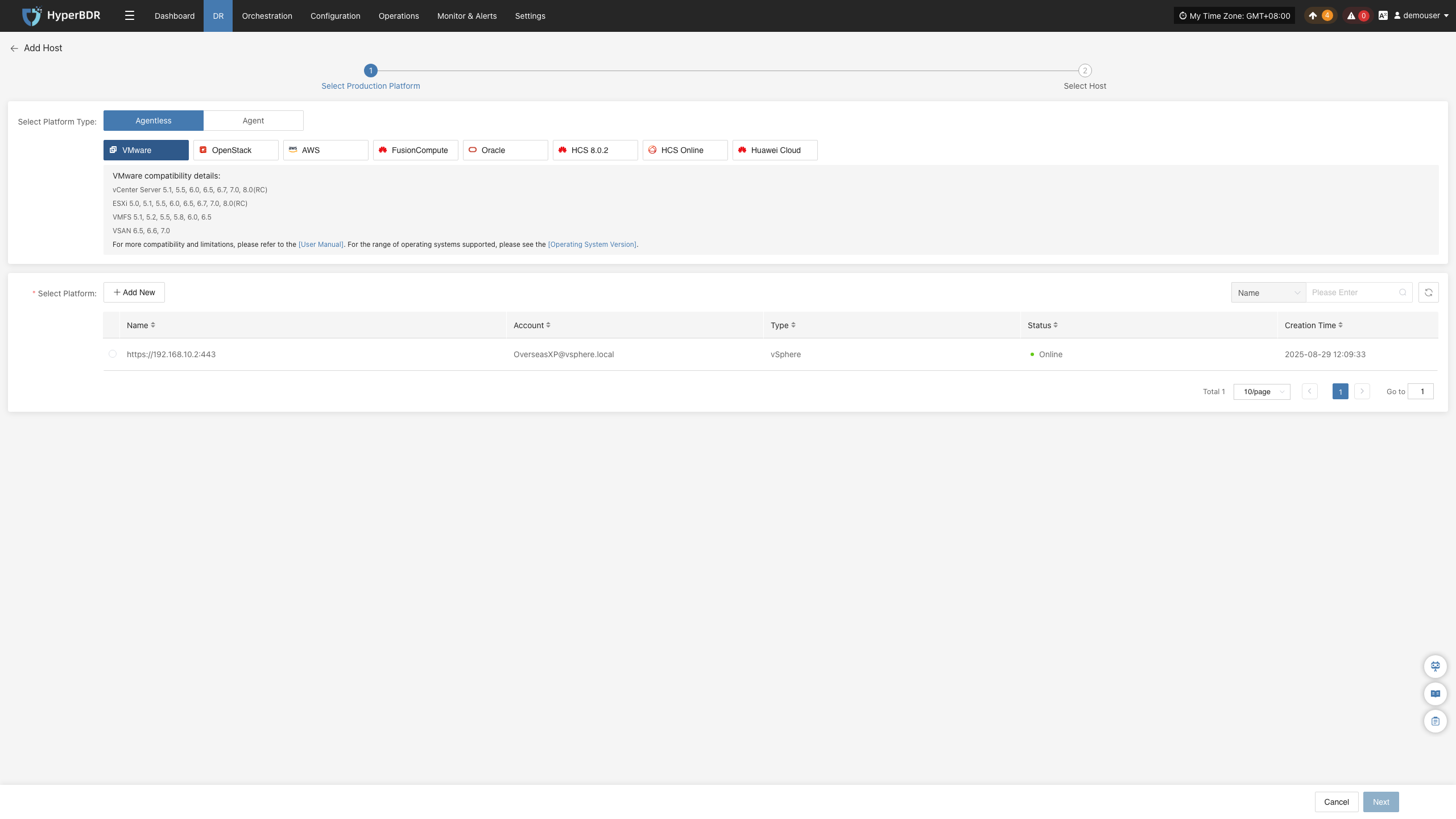
Note: If you have not added a production platform, click "Add New" to add one first. Refer to the prerequisites table above.
- Select the virtual machines to protect. You can select hosts across multiple pages or search by name or operating system.
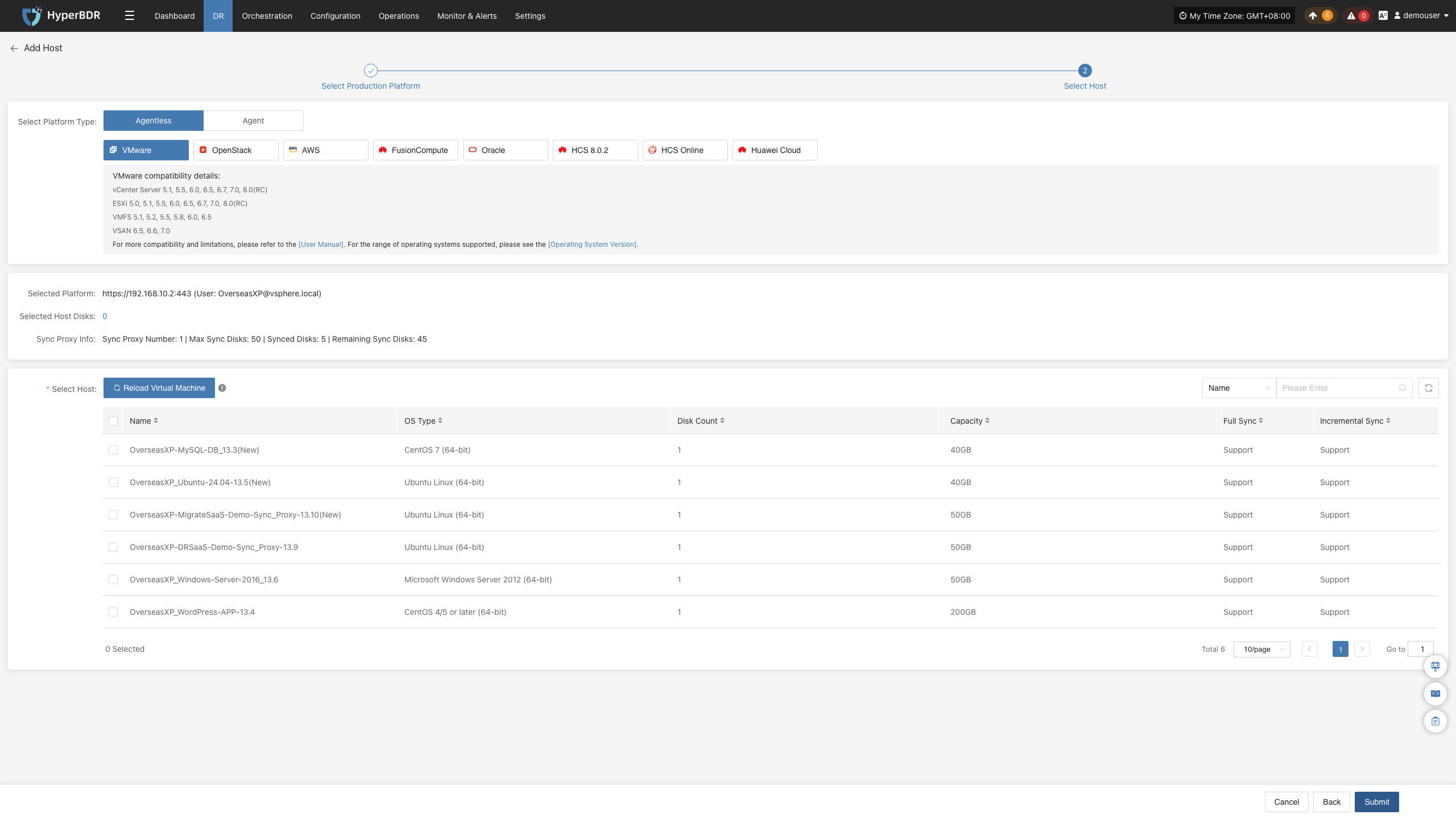
Note: Check the host disk count and Sync Proxy metrics (current proxies, maximum mountable disks, mounted disks, and remaining capacity). Scale proxy resources or deploy additional proxies to handle large-scale workloads. The table details operating systems, disk counts, total capacity, and support for initial and incremental synchronization.
If newly created virtual machines do not appear in the list, click "Reload Virtual Machines" to refresh.
- After selecting the virtual machines, click "Submit" to register them with the platform.
Agent
Agent mode installs an agent inside the guest operating system to capture and replicate data.
Linux
Go to Select Host > Add Host, choose "Agent", and select "Linux". Verify compatibility using the displayed OS support list.
Copy the generated installation command and execute it in the terminal of the source Linux host.
For detailed installation steps, see Linux Agent Guide.
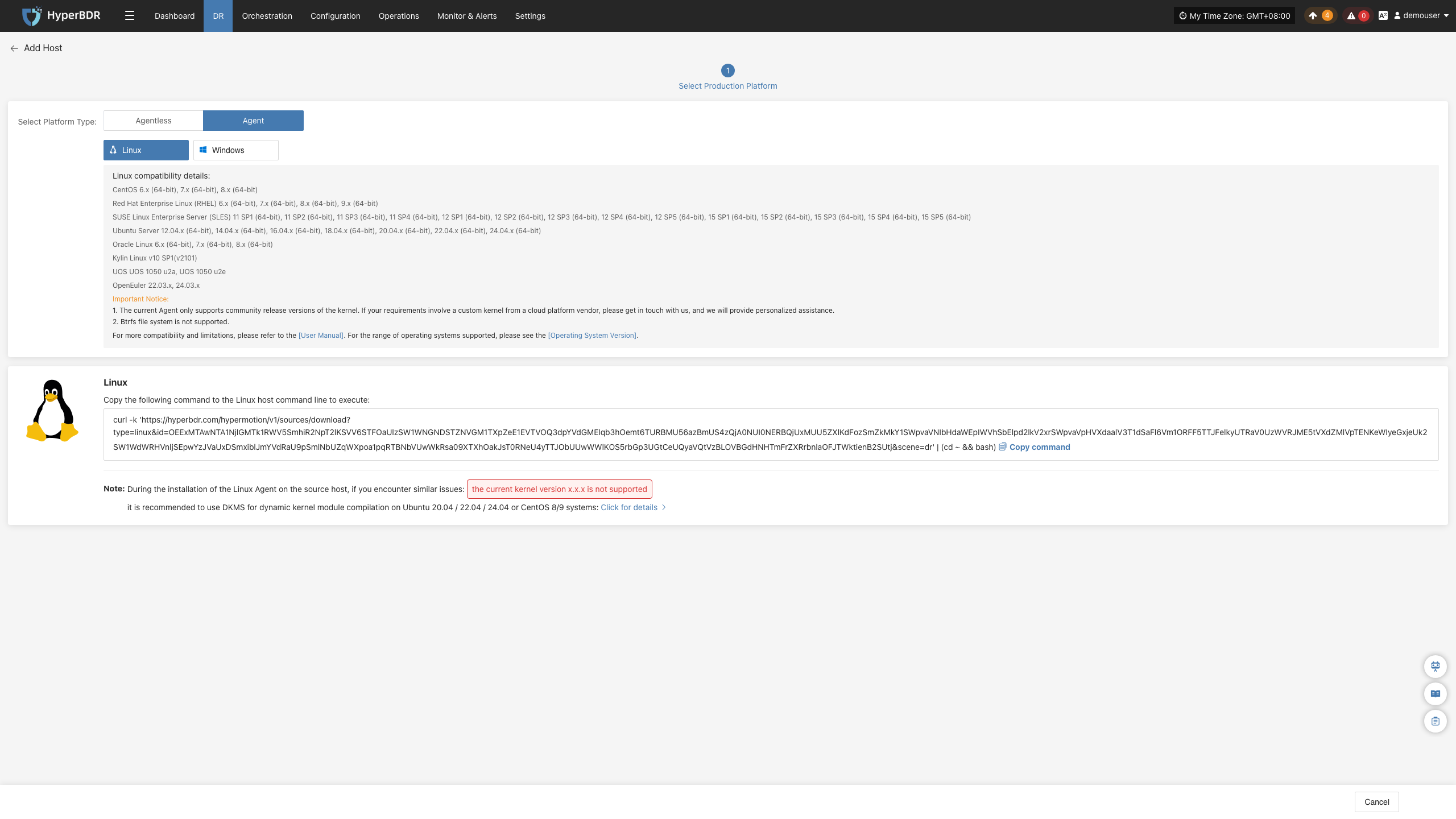
Once installation completes, the host registers automatically. Verify the host in the host list.
Windows
Go to Select Host > Add Host, choose "Agent", and select "Windows". Verify compatibility using the displayed OS support list.
Click "Download Now" to download the Windows Agent installer matching your OS version, then transfer and install it on the source host.
For detailed installation steps, see Windows Agent Guide.
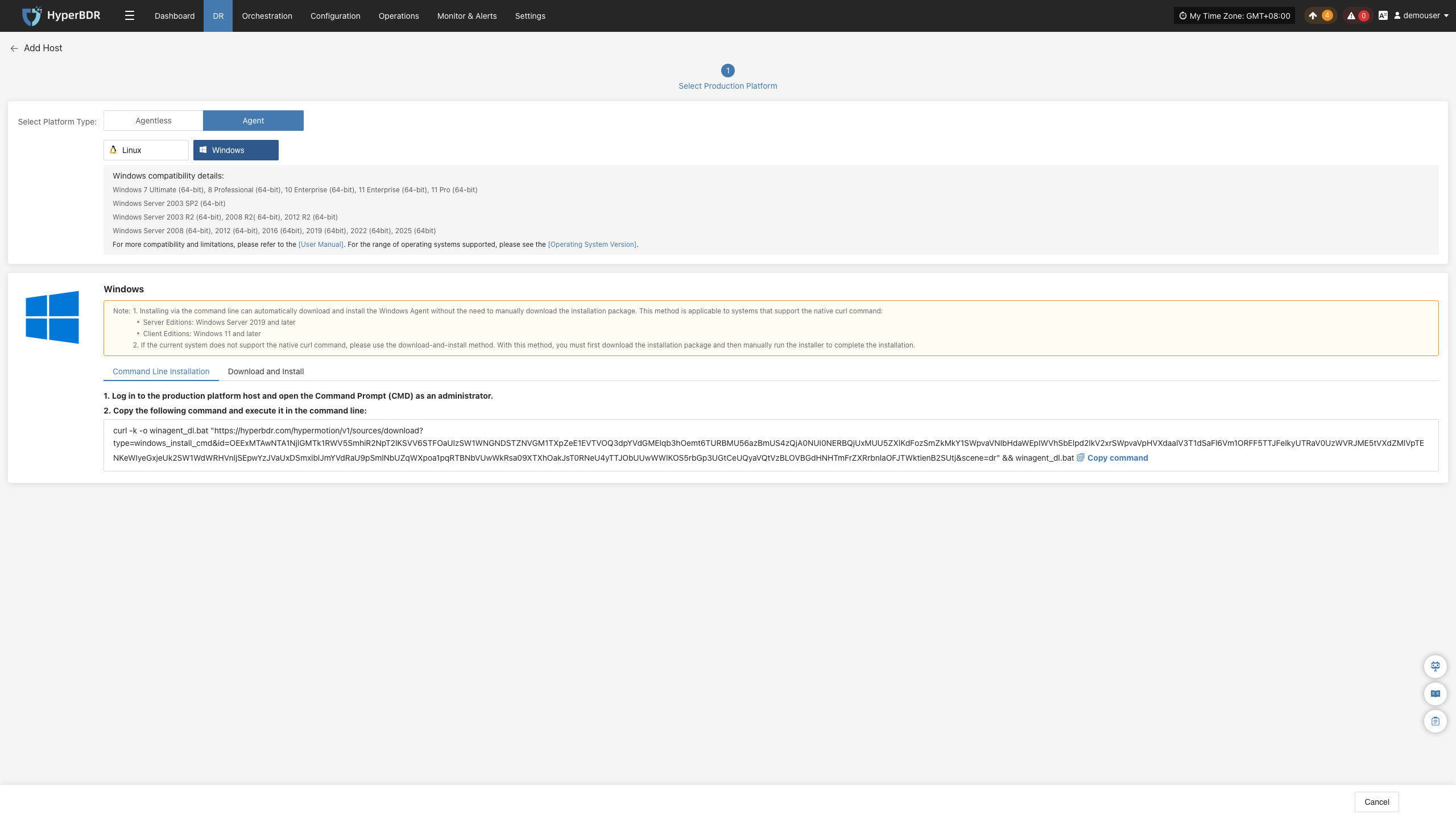
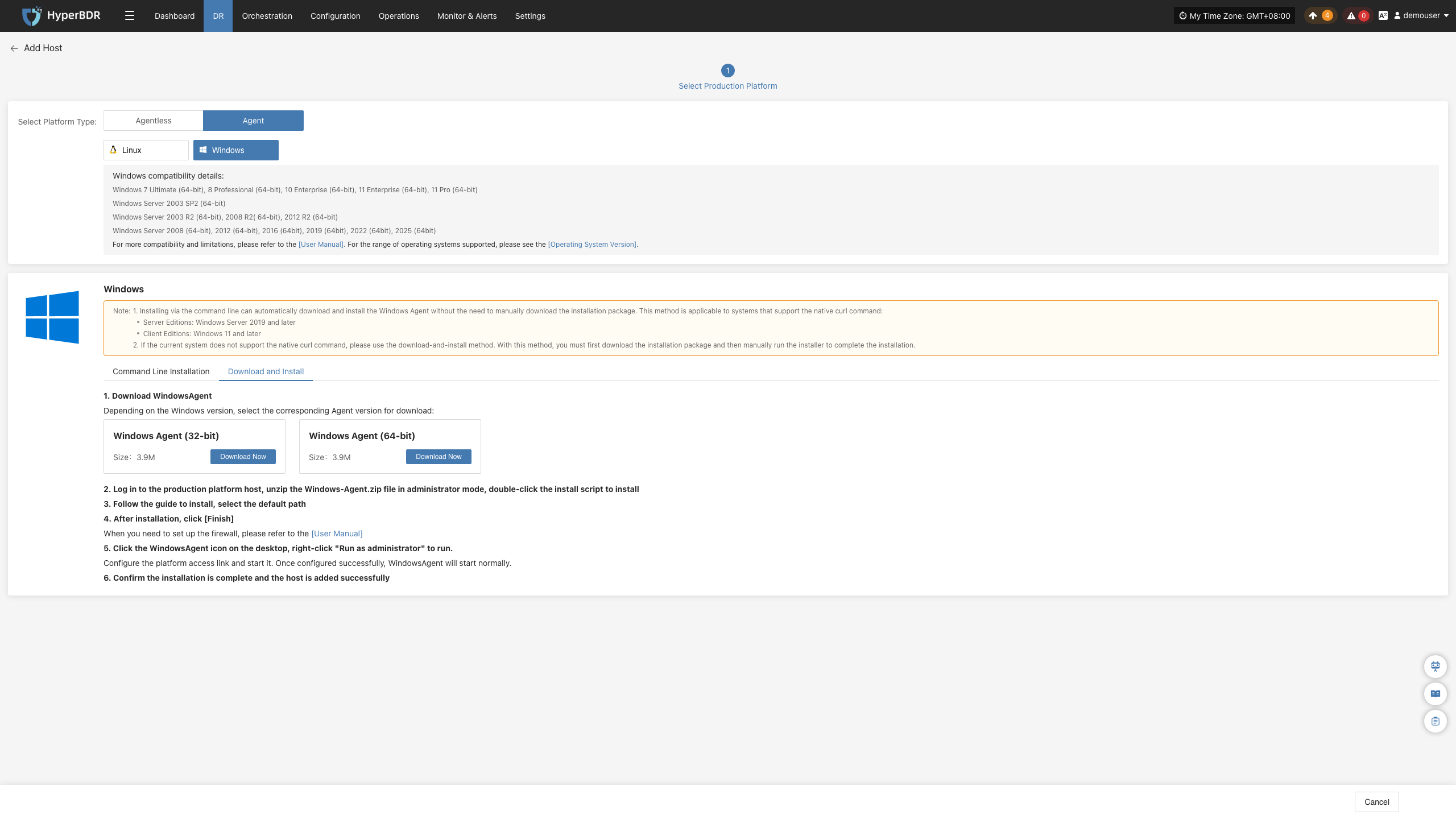
Once installation completes, the host registers automatically. Verify the host in the host list.
Next
After registering source hosts, select the hosts to protect and click "Next" to proceed to Step 2, "Setup DR".
Action
Source Sync Settings
Configure data synchronization parameters for protected hosts to optimize performance and bandwidth usage across different network conditions.
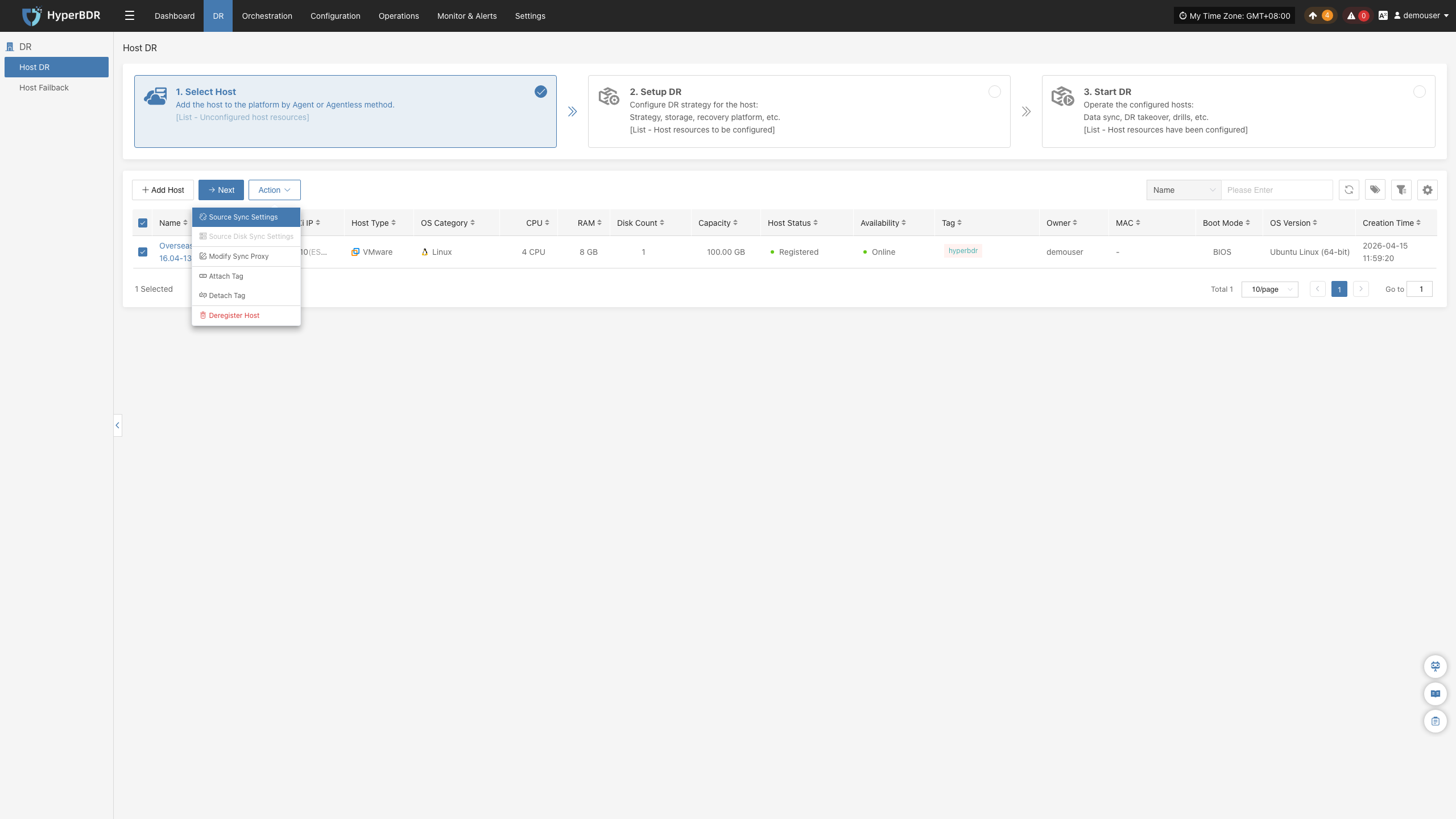
General Settings
This configuration applies to Linux Agent, Windows Agent, and Agentless modes. The interface layout or configuration location may vary slightly between modes. Refer to the actual interface.
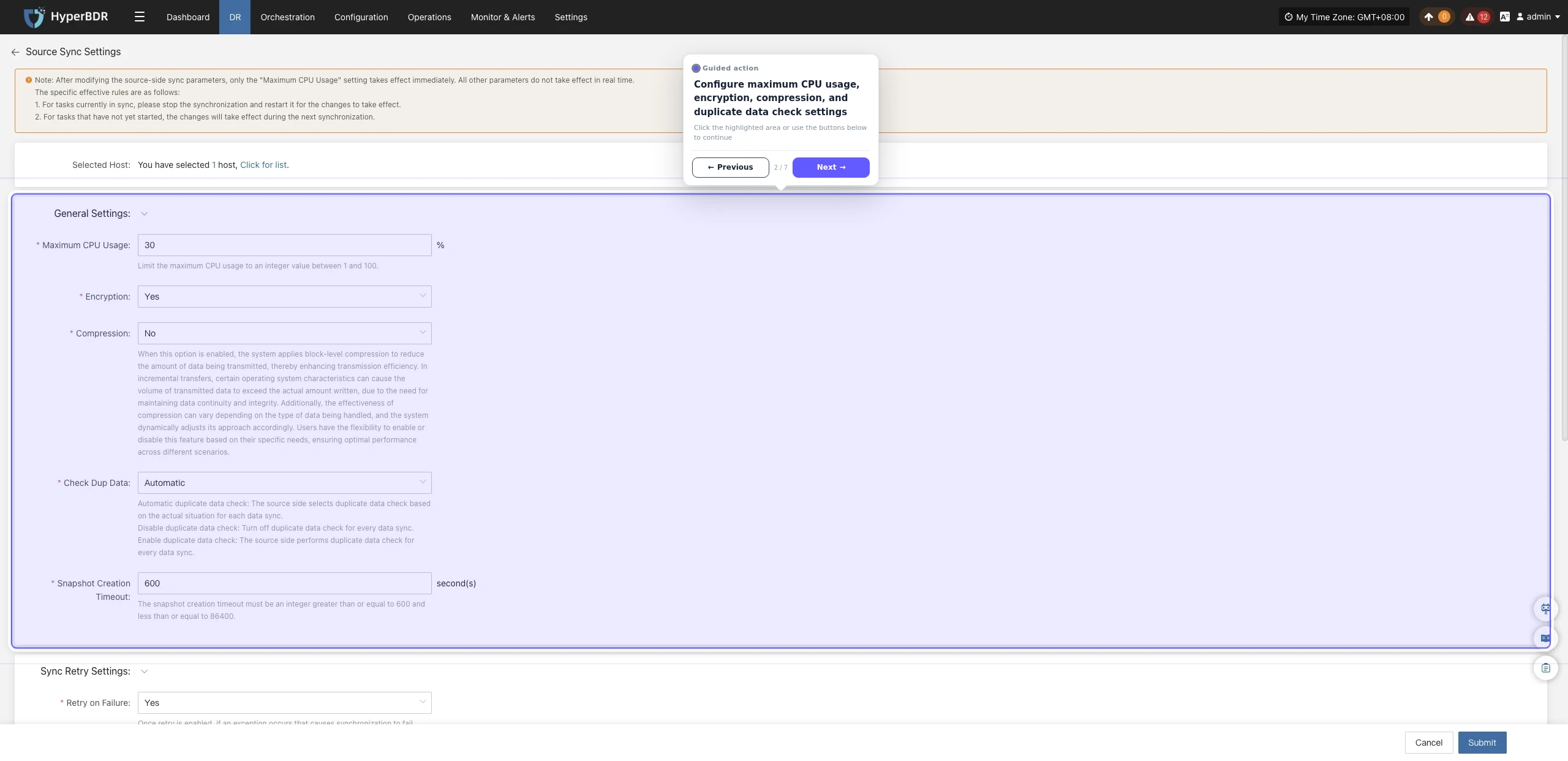
| Parameter | Setting | Description |
|---|---|---|
| Maximum CPU Usage (%) | 30 | Limits the maximum CPU percentage that backup tasks can use. A higher value increases backup speed but also has a greater impact on source-host services. Keep the default value unless the workload requires adjustment. |
| Available Memory | 1024 | The amount of available system memory. Valid range: 700–1024. |
| Encryption | Yes | Encrypts transmitted data to improve security, but consumes additional CPU resources and may slightly reduce backup speed. |
| Compression | No | Compresses data before transmission to reduce the amount of data transferred. This is suitable for networks with limited bandwidth. The actual space saved varies by data type, and the system automatically selects an appropriate compression strategy. |
| Duplicate Data Check | Automatic | Detects and skips duplicate data to reduce data transfer. Automatic: the system determines whether to perform the check based on actual conditions (recommended). Enable: perform the check for every synchronization. Disable: do not perform the check. |
| Volume Reserved Space | 3 | The percentage of available space on a Windows Agent volume. Valid range: 0–99. |
| Snapshot Creation Timeout (seconds) | 600 | The maximum wait time for snapshot creation. Valid range: 600–86400 seconds. If creation is not completed within this time, the task is marked as failed. |
Sync Thread Settings
This configuration applies to Agentless mode. The interface layout or configuration location may vary slightly between modes. Refer to the actual interface.
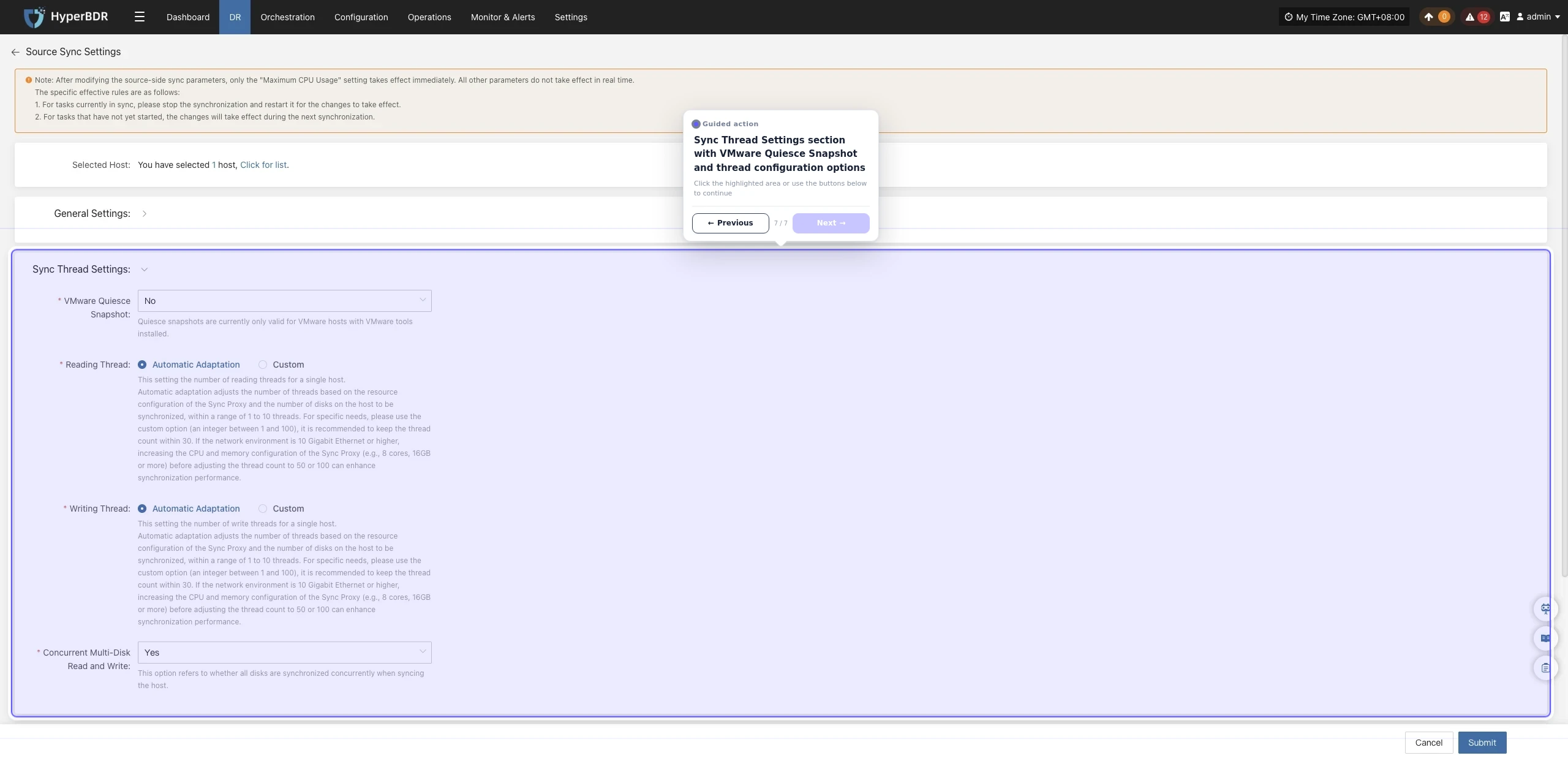
| Parameter | Setting | Description |
|---|---|---|
| VMware Quiesced Snapshot | No | Applies only to VMware VMs with VMware Tools installed. When enabled, it provides the greatest possible file-system consistency during snapshot creation. Enable it according to business requirements. |
| Read Threads | Automatic Adaptation | Sets the number of data-read threads for a host. In Automatic Adaptation mode, the system automatically adjusts the number of threads (1–10) based on Sync Proxy resources and the number of disks to synchronize. Custom mode supports 1–100 threads and should generally remain within 30. In 10-Gigabit or faster networks, increasing the Sync Proxy resources, such as to 8 CPU cores and 16 GB or more memory, may allow a higher thread count to improve synchronization performance. |
| Write Threads | Automatic Adaptation | Sets the number of data-write threads for a host. The automatic and custom modes follow the same behavior and recommendations as Read Threads. |
| Concurrent Multi-Disk Read/Write | Yes | Controls whether multiple disks are read and written concurrently. Enabling it can improve synchronization efficiency; disabling it synchronizes disks sequentially and is suitable when system-resource usage must be controlled. |
Sync Retry Settings
This configuration applies to Linux Agent, Windows Agent, and Agentless modes. The interface layout or configuration location may vary slightly between modes. Refer to the actual interface.
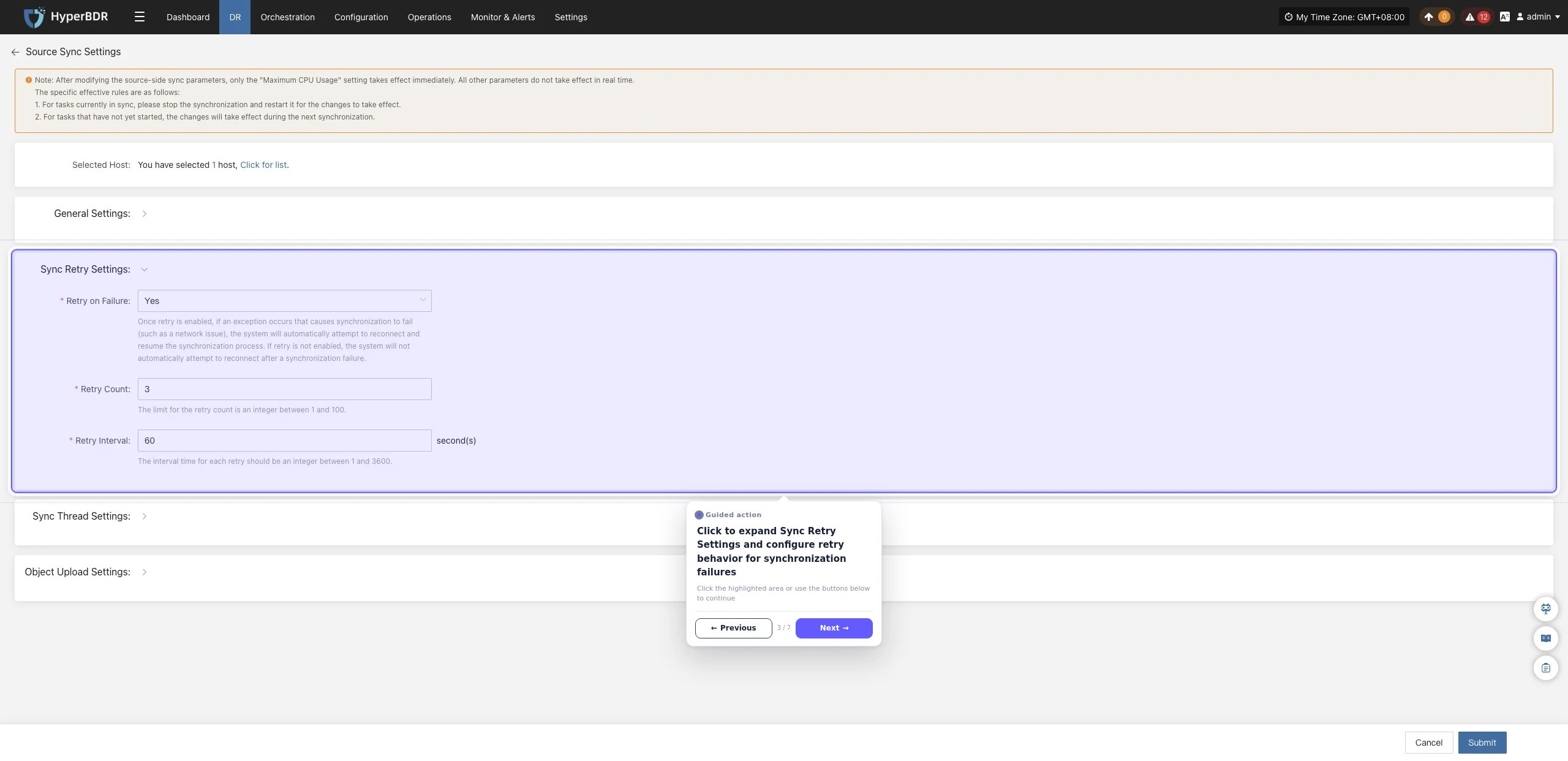
| Parameter | Setting | Description |
|---|---|---|
| Retry on Failure | Yes | Automatically reconnects and resumes synchronization when a temporary failure, such as a network error, interrupts synchronization. When disabled, synchronization ends after a failure and is not retried automatically. |
| Retry Count | 3 | The maximum number of retries after synchronization fails. Valid range: 1–100. If the connection is not restored after the maximum is reached, the synchronization task is marked as failed. |
| Retry Interval | 60 | The wait time between retries, in seconds. Valid range: 1–3600. A longer interval allows more time for network recovery and avoids frequent retries. |
Sync Thread Settings
This configuration applies to Linux Agent and Windows Agent modes. The interface layout or configuration location may vary slightly between modes. Refer to the actual interface.
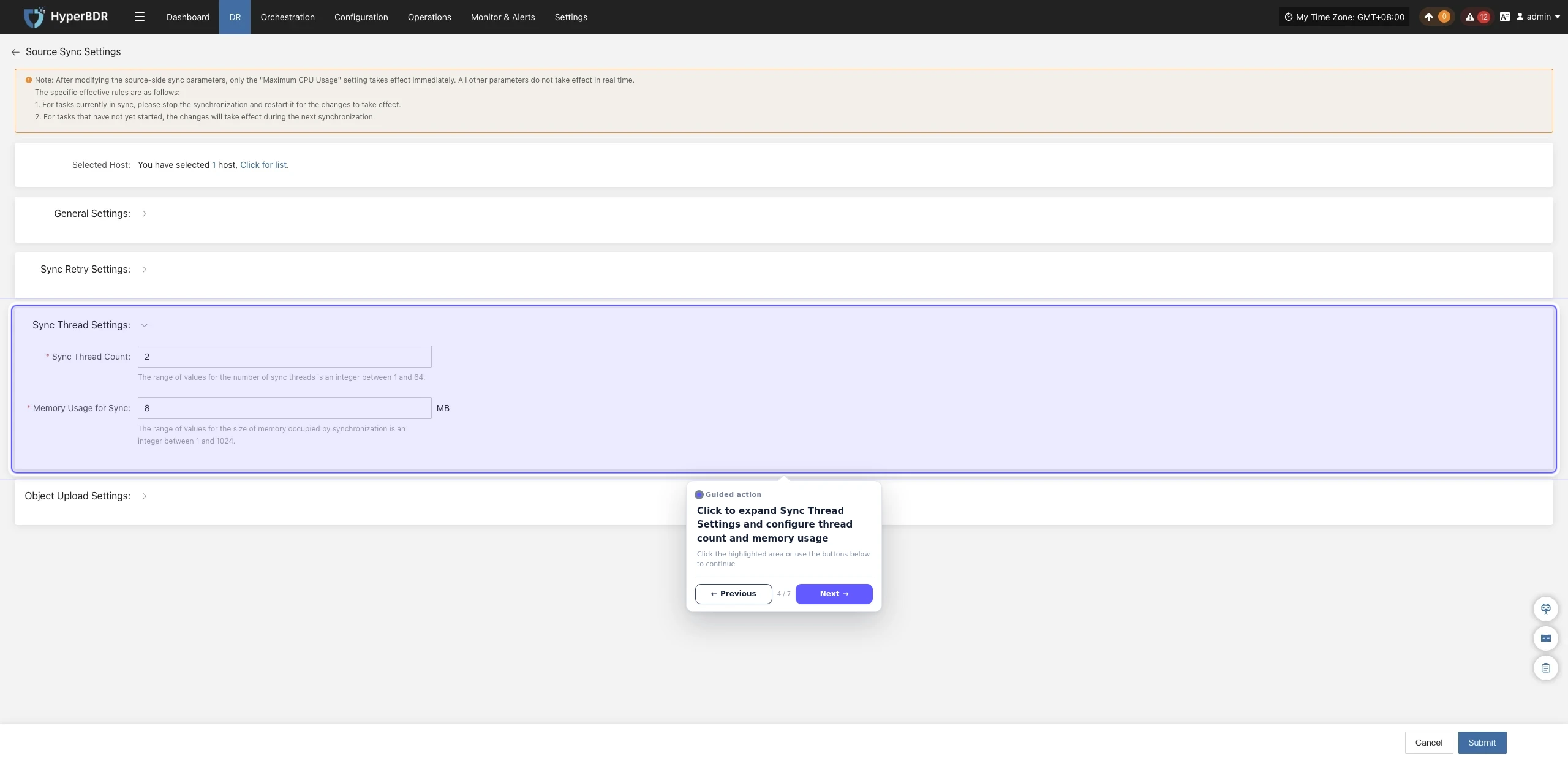
| Parameter | Setting | Description |
|---|---|---|
| Sync Thread Count | 2 | The number of threads used by the synchronization task. Increasing it may improve synchronization performance but consumes more system resources. Valid range: 1–64. Adjust it according to the host resources. |
| Sync Memory Size | 8 | The amount of memory available to the synchronization task. Increasing it may improve synchronization performance but consumes more memory. Valid range: 1–1024. Adjust it according to available host memory. |
Object Upload Settings
This configuration applies to Linux Agent mode. The interface layout or configuration location may vary slightly between modes. Refer to the actual interface.
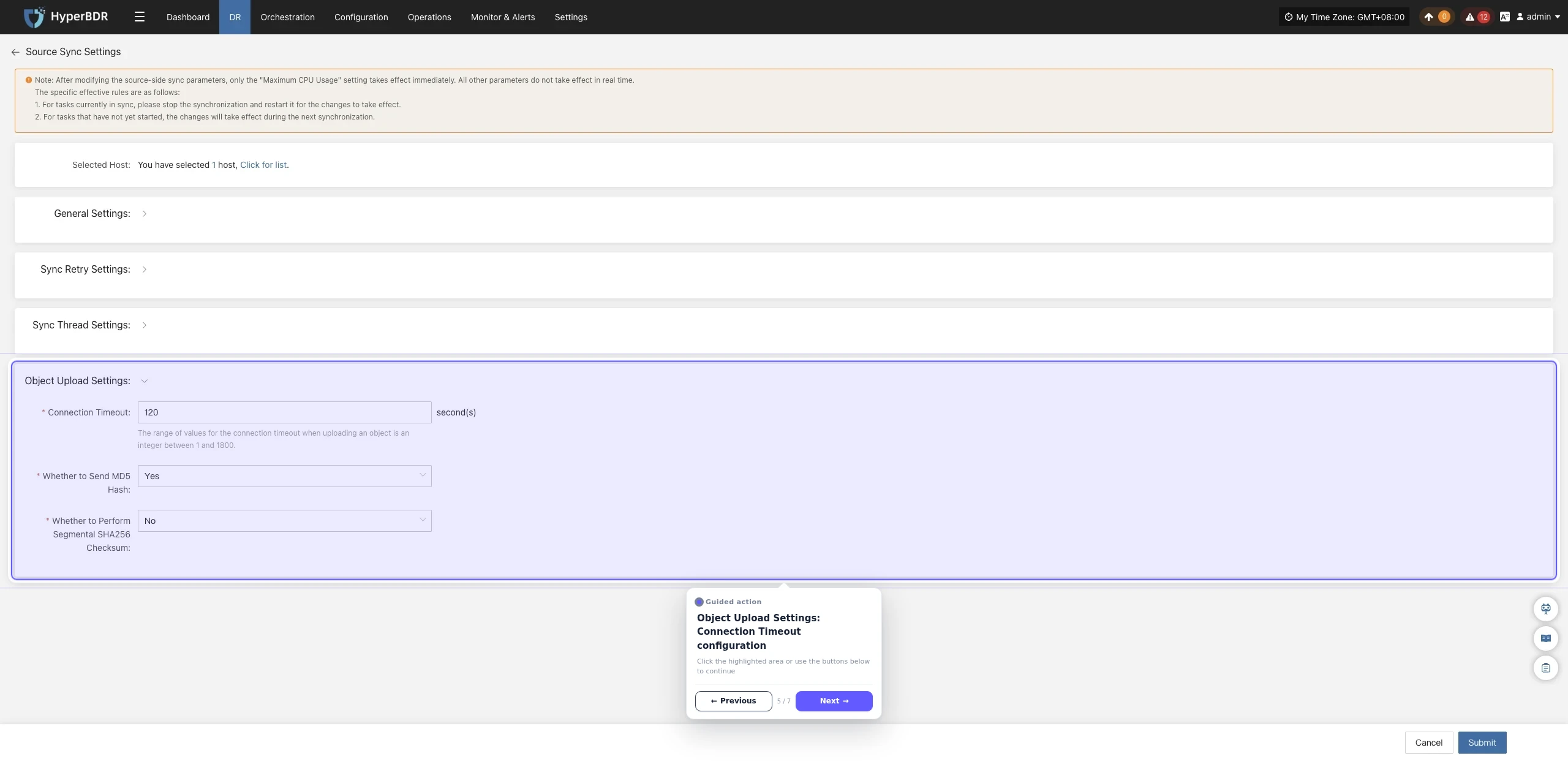
| Parameter | Setting | Description |
|---|---|---|
| Connection Timeout | 120 | The maximum time to wait for a connection when uploading an object, in seconds. Valid range: 1–1800. If a connection is not established within this time, it is marked as timed out. |
| Send MD5 Digest | Yes | Sends an MD5 digest during object upload to verify data integrity and help detect data corruption during transmission. |
| Perform Segmented SHA256 Checksum | No | Performs SHA256 verification for each data segment during multipart upload. This improves integrity verification but may increase CPU overhead. |
Volume VSS Storage Settings
This configuration applies to Windows Agent mode. The interface layout or configuration location may vary slightly between modes. Refer to the actual interface.
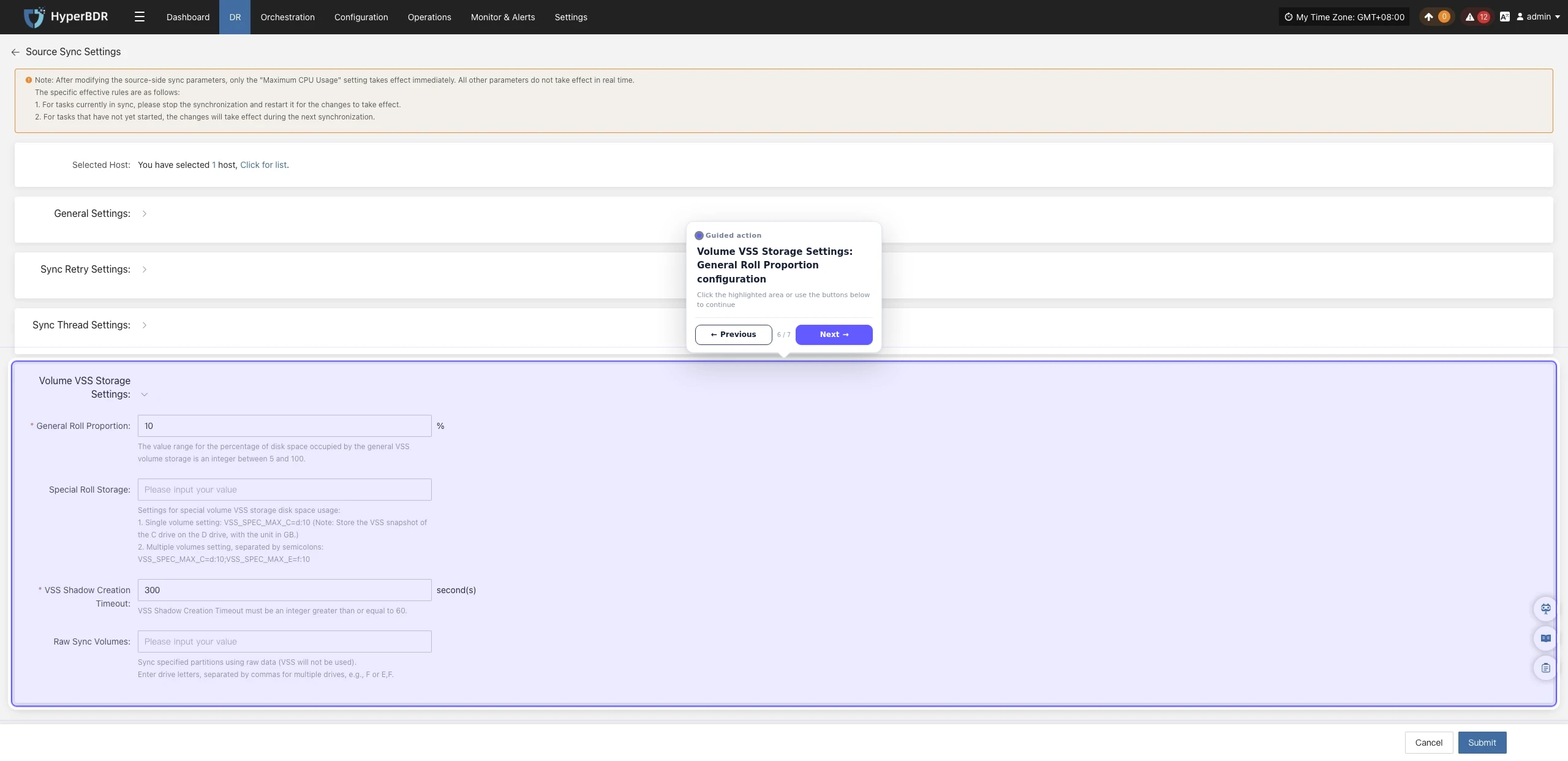
| Parameter | Setting | Description |
|---|---|---|
| General Volume Ratio | 10 | The default percentage of disk space that VSS snapshot storage may occupy, in %. Valid range: 5–100. This value is used when no volume-specific VSS storage is configured. |
| Volume-Specific Storage | VSS_SPEC_MAX_C=d:10 | Sets the VSS snapshot location and capacity for a specified volume. Single-volume example: VSS_SPEC_MAX_C=d:10 stores the VSS snapshots of volume C on volume D and allocates 10 GB. Multiple-volume example: VSS_SPEC_MAX_C=d:10;VSS_SPEC_MAX_E=f:10; separate entries with semicolons (;). Leave blank by default unless special requirements exist. |
| VSS Snapshot Creation Timeout | 300 | The maximum wait time for creating a VSS snapshot, in seconds. The value must be at least 60. If creation is not completed within this time, the operation is marked as failed. |
| Raw Data Sync Volumes | F | Specifies partitions to synchronize as raw data without VSS snapshots. Enter drive letters; separate multiple letters with commas, for example, F or E,F. Leave blank by default unless special requirements exist. |
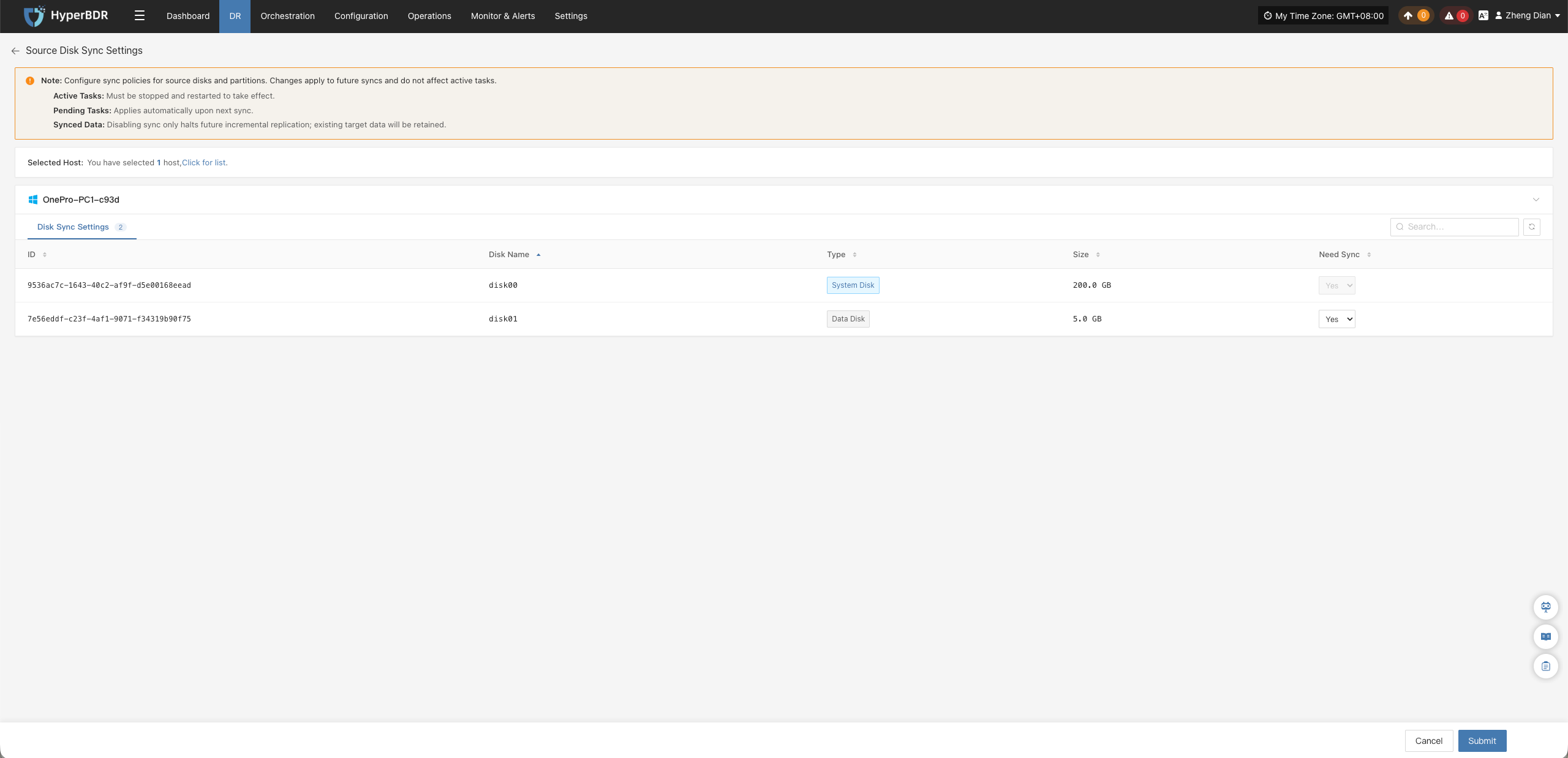
Source Disk Sync Settings
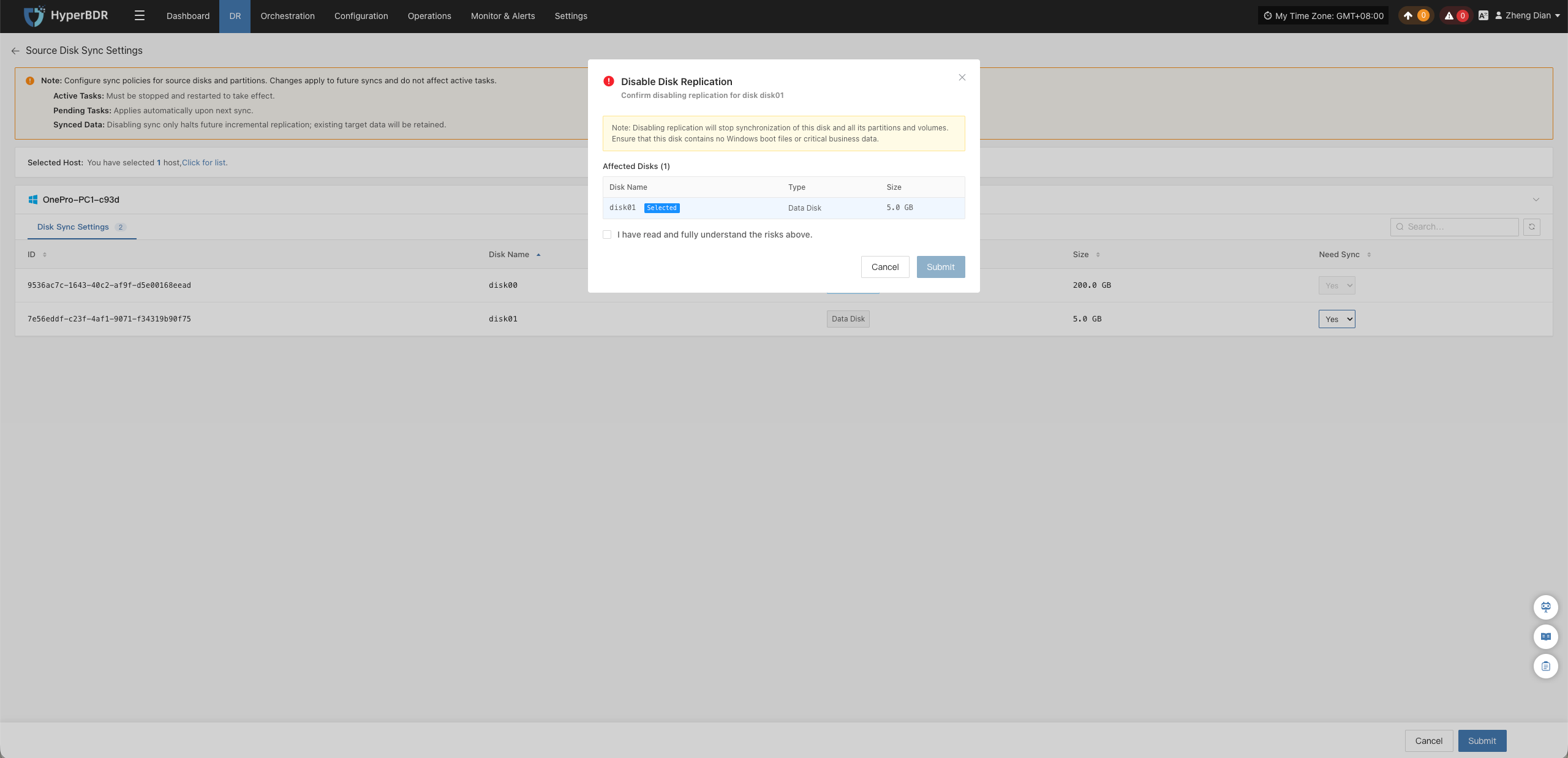
Exclude specific disks from data synchronization on multi-disk hosts. This feature is available only for hosts added in Agent mode.
Note: This setting can be modified only before initial data synchronization starts. Once synchronization begins, disk inclusion cannot be modified.
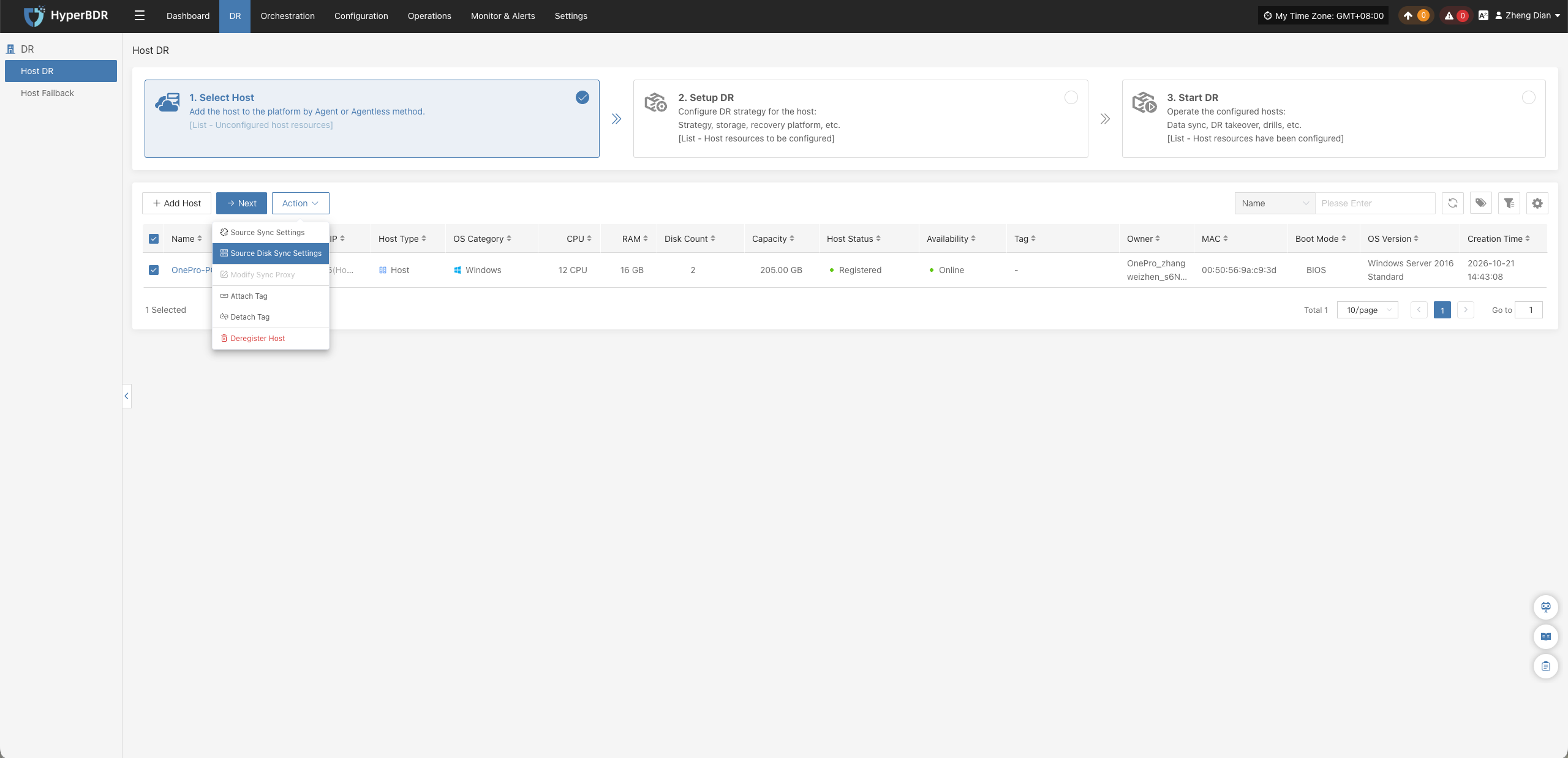
Locate the disk to exclude, change the synchronization status from Yes to No, and click Confirm. Excluded disks are skipped during all subsequent synchronization tasks.
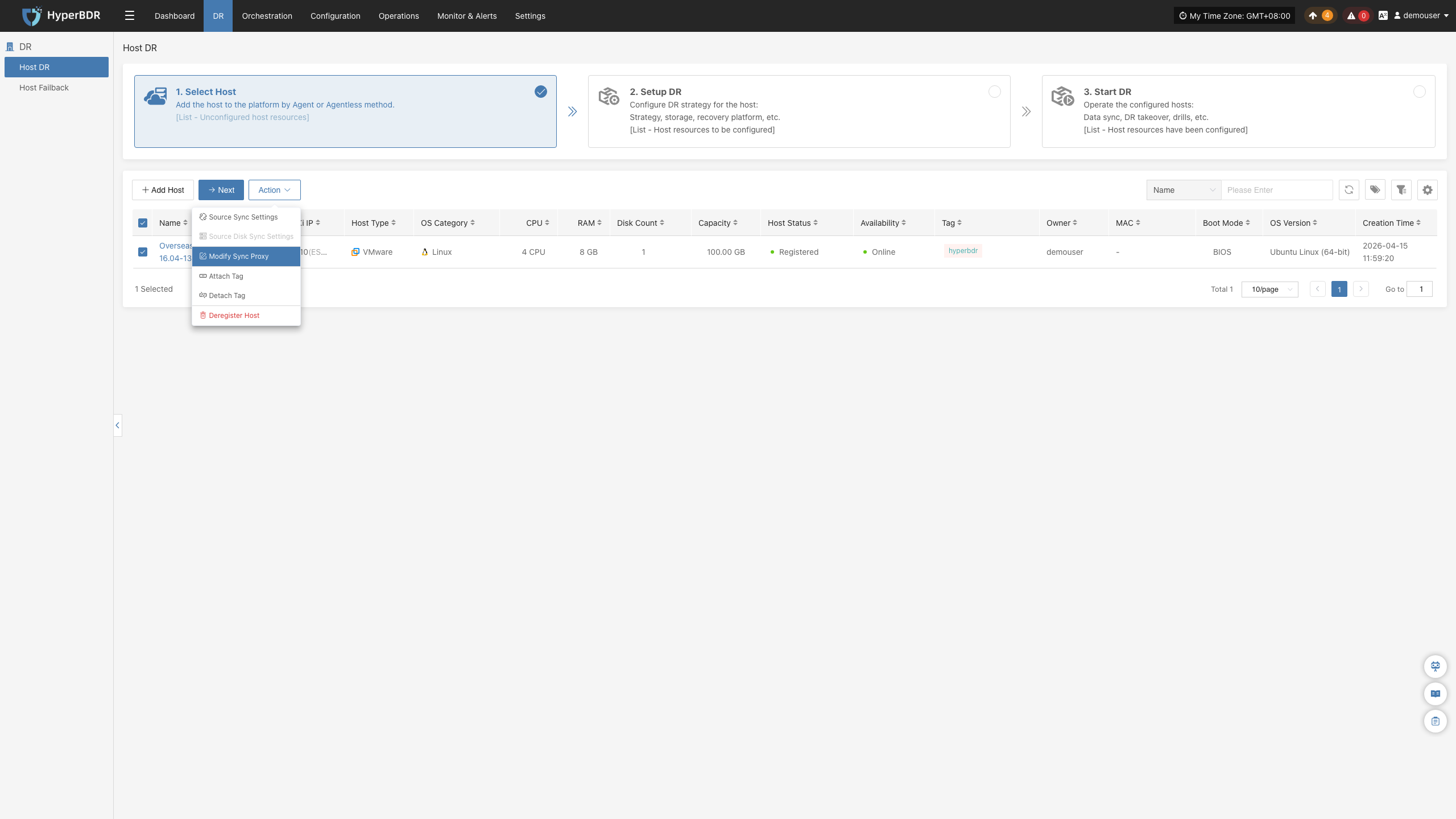
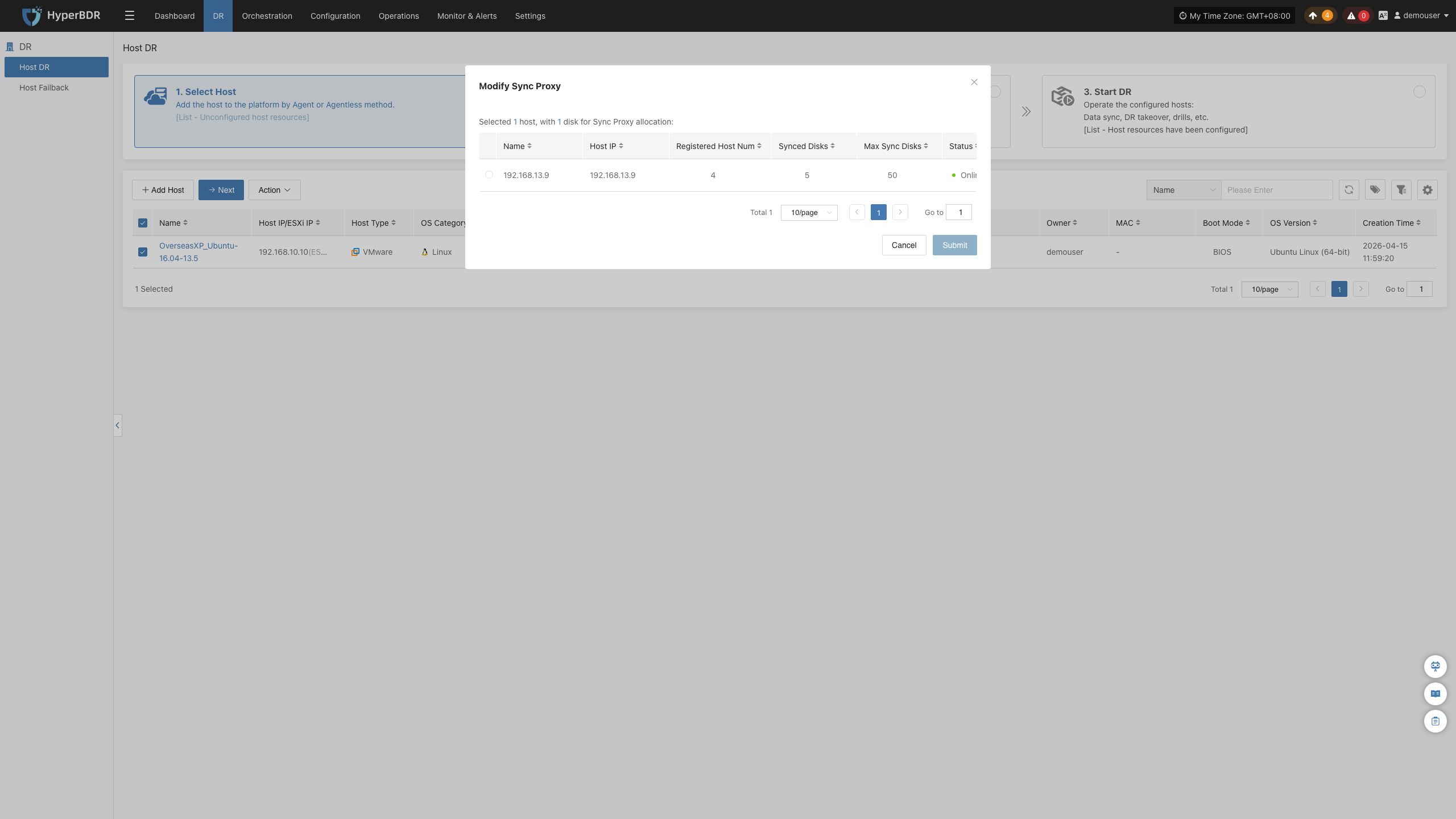
Modify Sync Proxy
Reassign the Sync Proxy node used for host data transfer.
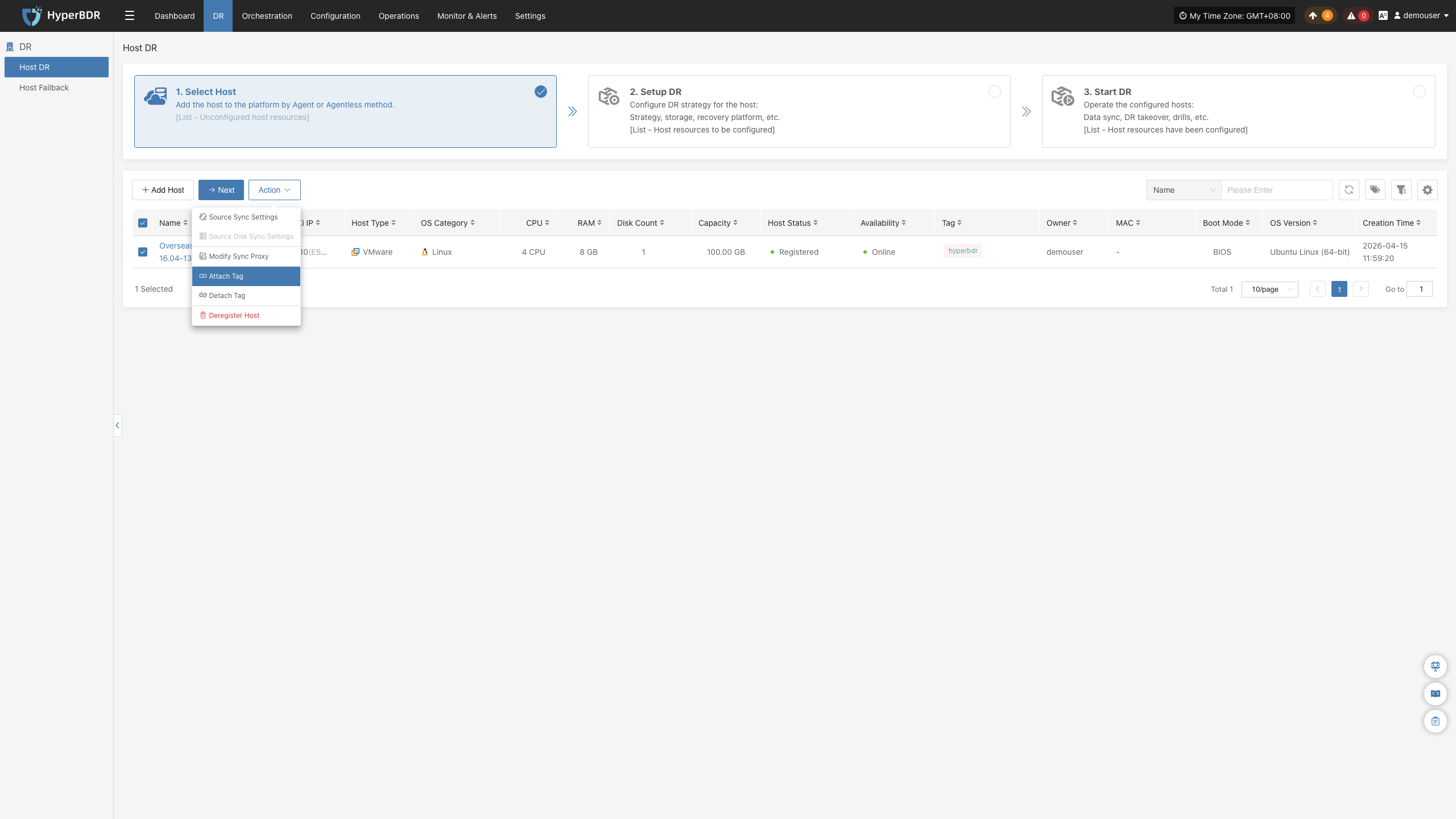
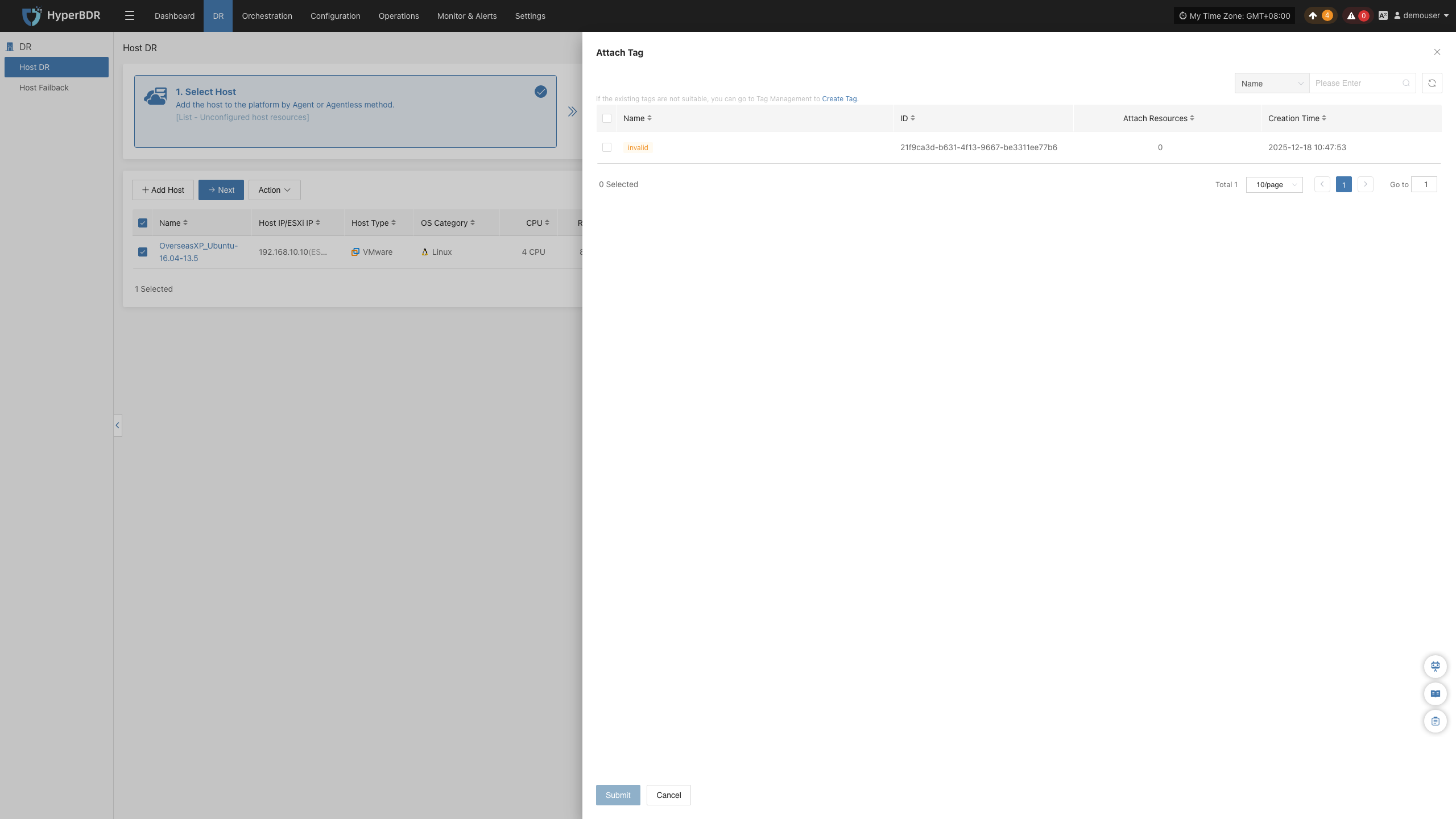
Attach Tag
Assign tags to organize and manage hosts by environment, application, or owner.
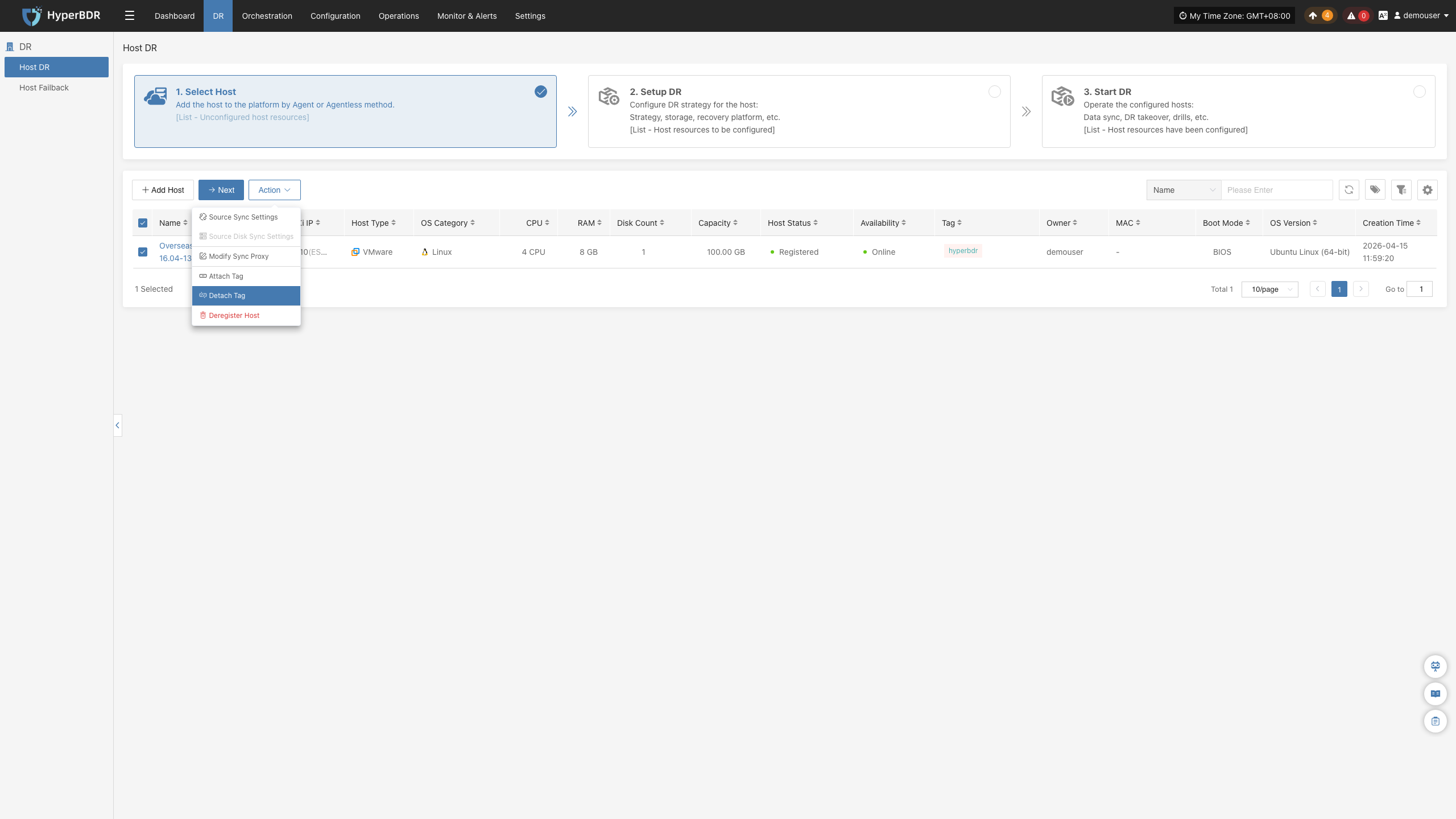
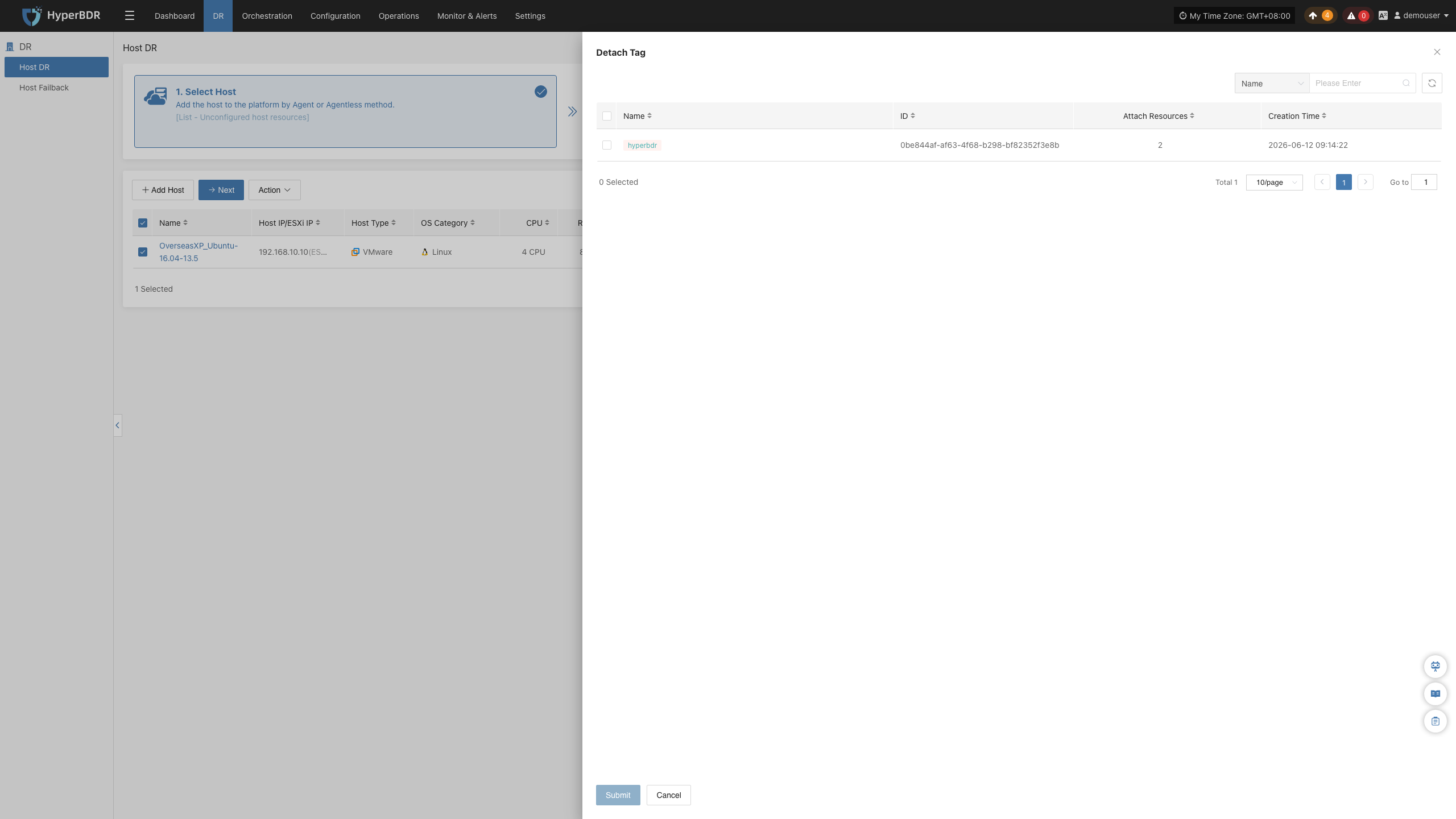
Detach Tag
Remove tags previously assigned to the host.
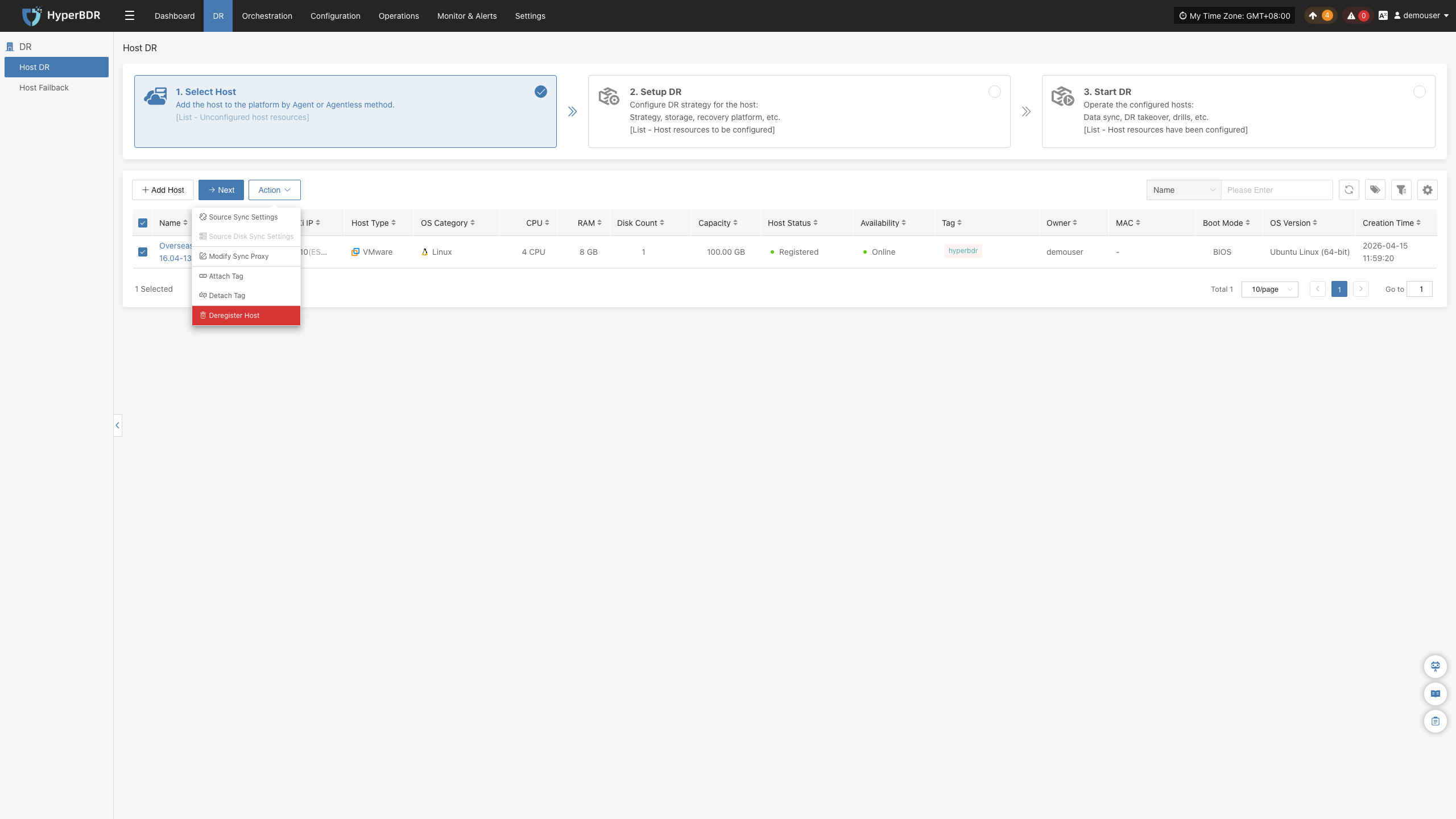
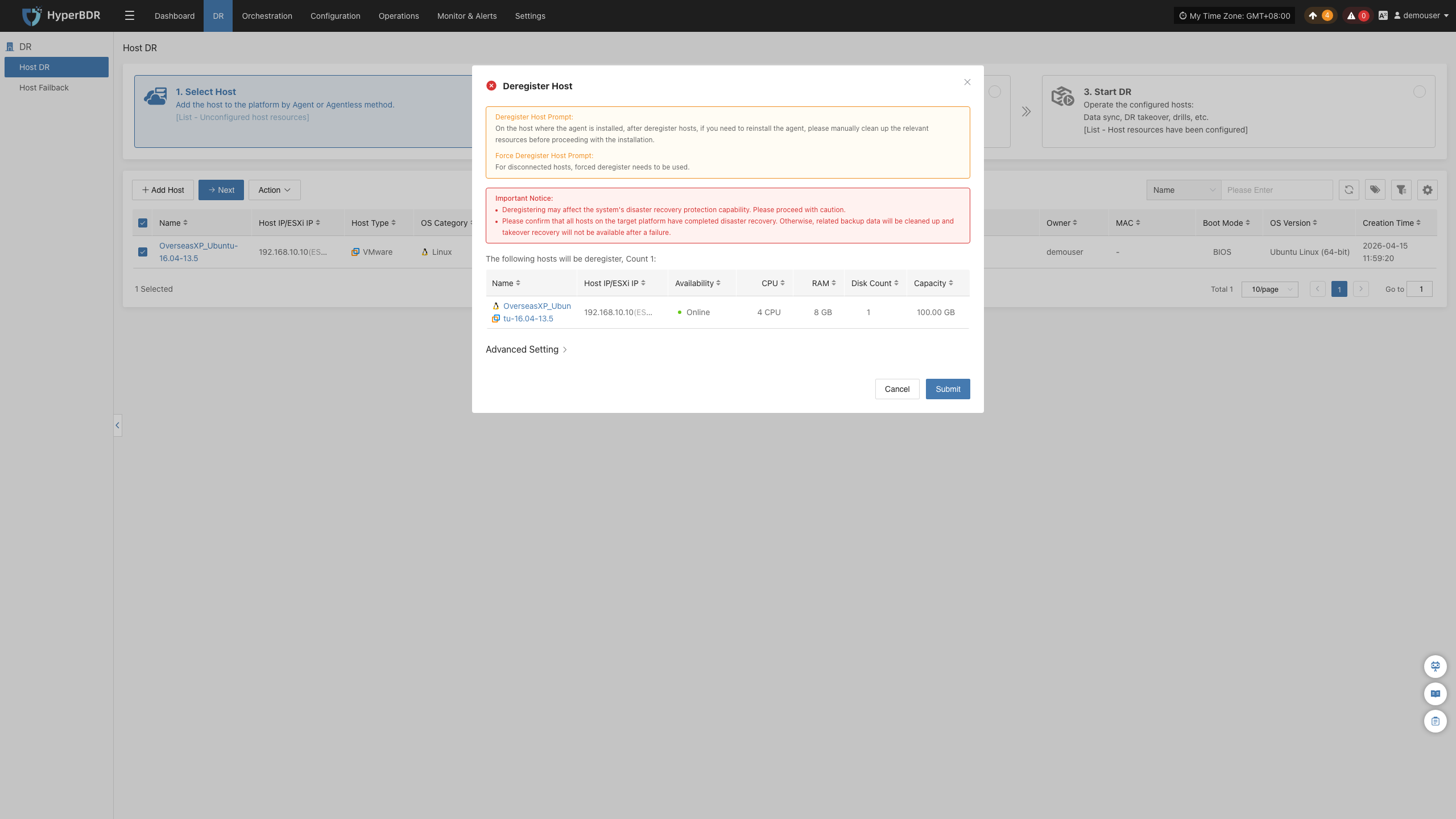
Deregister Host
Unregister a host and remove it from the HyperBDR management console.
Block Storage
When configuring Block Storage, complete the following steps in sequence: Specify DR Platform, Specify Cloud Sync Gateway, Computing Resource Configuration, Specify Volume Type, Network Configuration, Advanced Configuration, and Associate Policy.
Note: Available configuration options may vary depending on the target cloud platform, but the general workflow remains identical. This section illustrates the procedure using Huawei Cloud.
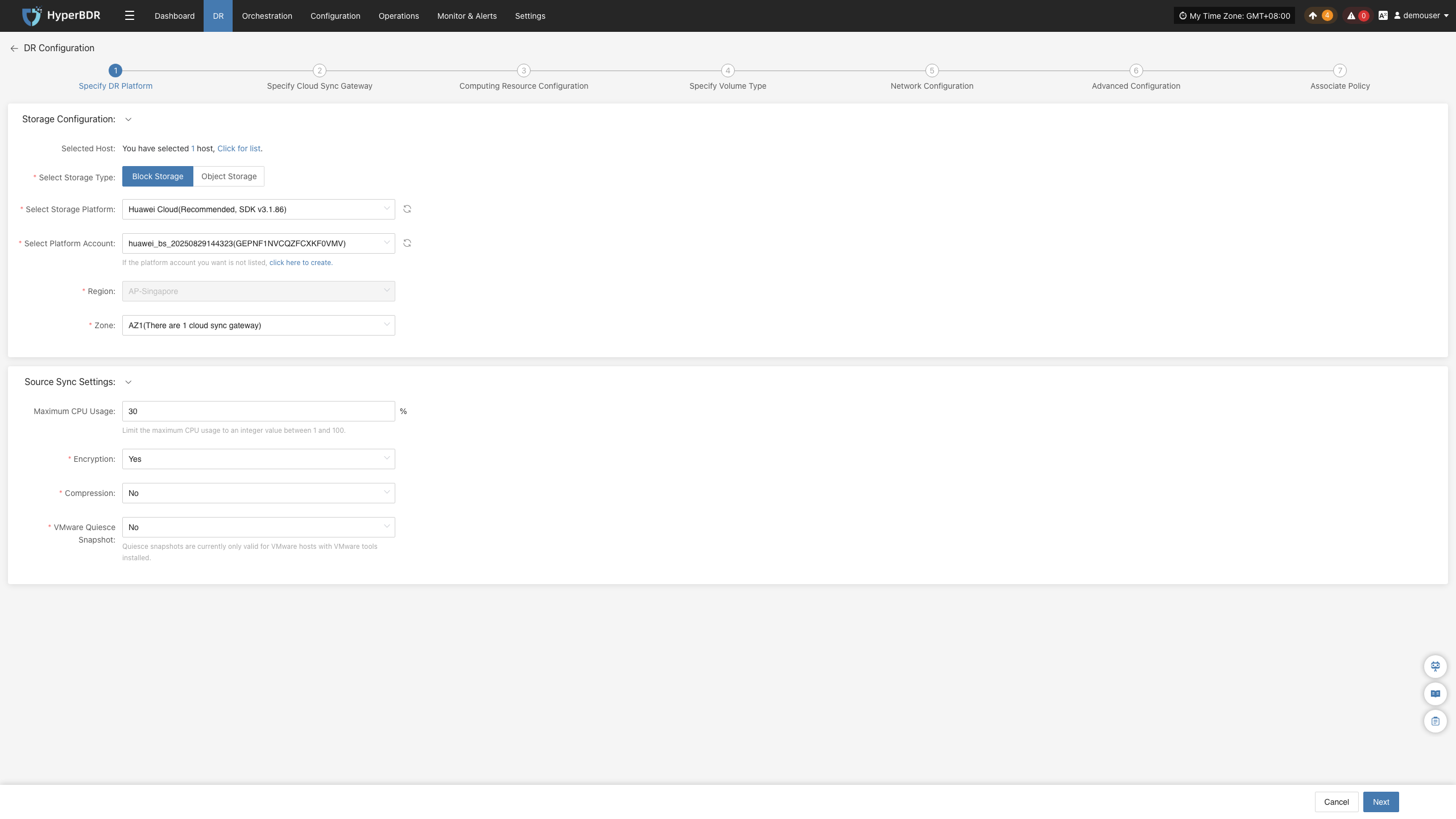
Specify DR Platform
Prerequisites:
- Completed block storage target configuration (see "Complete DR Target Configuration" in Preparation).
- Completed Cloud Sync Gateway initialization (the gateway initializes automatically once block storage is properly configured).
Operation Steps:
- Under "Storage Configuration", set "Select Storage Type" to "Block Storage".
- In the "Select Storage Platform" dropdown, select your configured block storage platform.
- In the "Select Platform Account" dropdown, select the target cloud account.
- Select the Region and Zone where the Cloud Sync Gateway is deployed.
- Click "Next" to proceed to "Specify Cloud Sync Gateway".
Storage Configuration
| Parameter | Configuration | Description |
|---|---|---|
| Select Storage Type | Block Storage | Select block storage as the disaster recovery storage type. Block storage must be configured before use. |
| Select Storage Platform | Added block storage platform | Select the block storage platform that has been added and configured. |
| Select Platform Account | Configured cloud account | Select the cloud account corresponding to the selected storage platform. If no account is available, click "Please click here to create" on the page to jump to the block storage configuration page. For details, see Block Storage Configuration. |
Source Sync Settings
Note: This is an optional advanced configuration. Unless you have specific requirements, it is recommended to keep the default settings.
| Parameter | Configuration | Description |
|---|---|---|
| Maximum CPU Usage (%) | 30 | Effective only for VMware hosts with VMware Tools installed. |
| Encryption | Yes / No | Effective only for VMware hosts with VMware Tools installed. |
| Compression | Yes / No | Effective only for VMware hosts with VMware Tools installed. |
| VMware Quiesced Snapshot | Yes / No | Effective only for VMware hosts with VMware Tools installed. |
Specify Cloud Sync Gateway
Prerequisites: Completed the "Specify DR Platform" configuration.
Operation Steps:
- In the Cloud Sync Gateway list, select the Cloud Sync Gateway to use.
- In the "Unassigned Hosts" list, find the host to synchronize, and click "+" in the corresponding row to add it to the assigned hosts list.
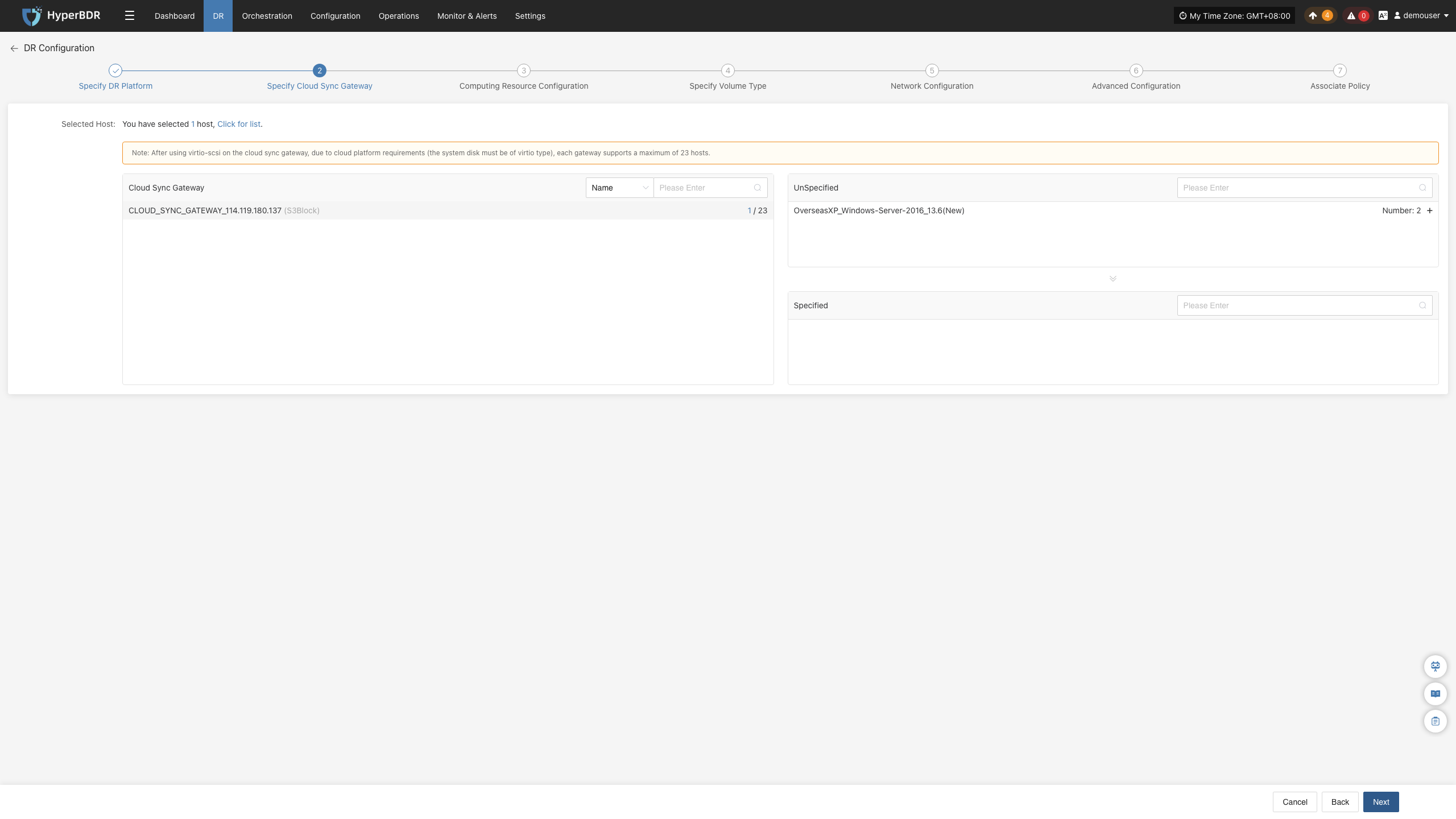
- In the "Assigned Hosts" list, you can view the assigned hosts. To unassign a host, click "x" in the corresponding row.
- After confirming that the Cloud Sync Gateway and host assignments are correct, click "Next" to enter "Computing Resource Configuration".
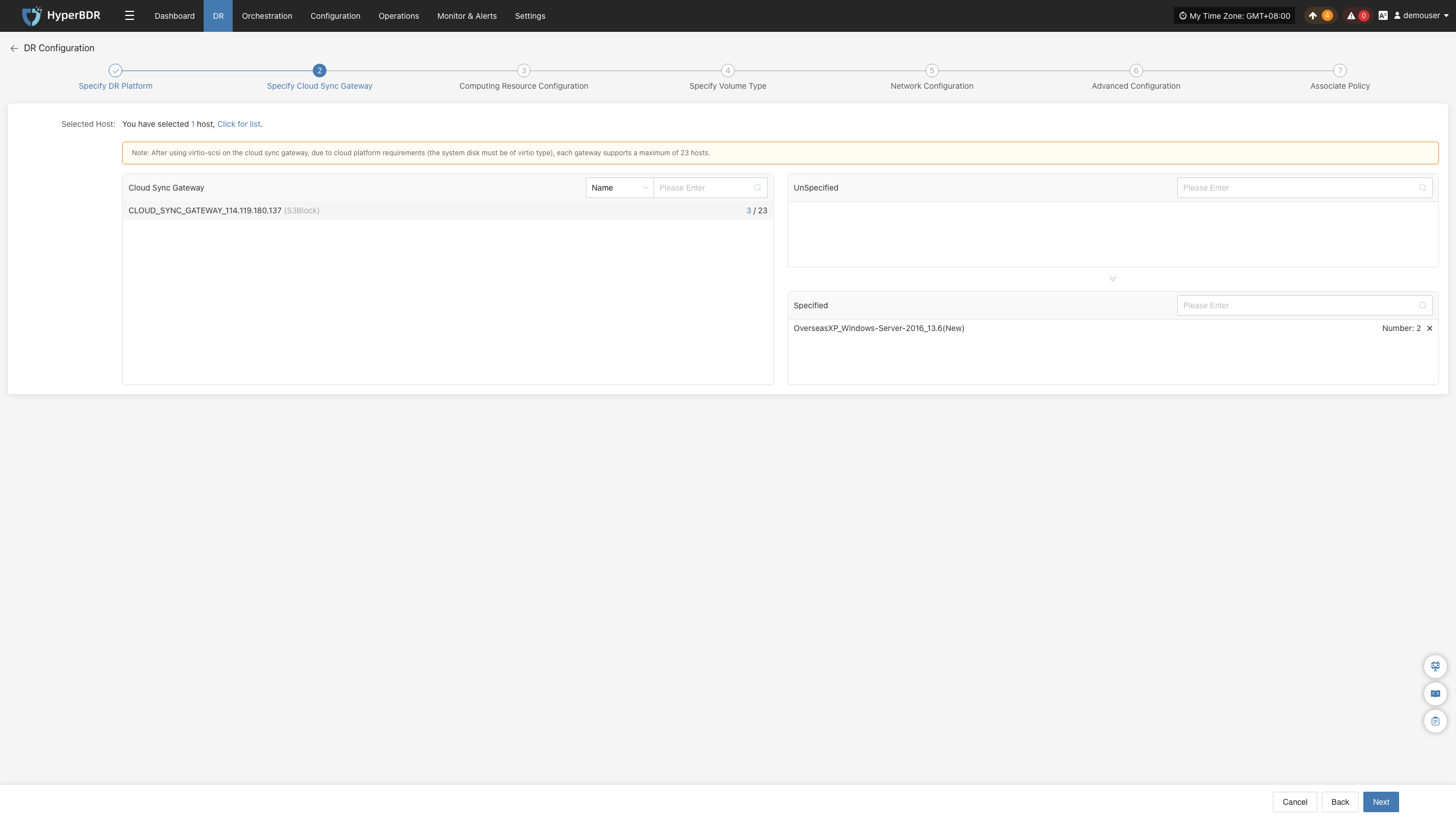
Configuration Parameter Description:
| Parameter | Configuration | Description |
|---|---|---|
| Cloud Sync Gateway | Available Cloud Sync Gateway list | Used to select the Cloud Sync Gateway that executes data synchronization tasks. |
| Unassigned Hosts | List of hosts to assign | Displays hosts that have not yet been assigned a Cloud Sync Gateway. Click "+" to add a host to the assigned hosts list. |
| Assigned Hosts | List of assigned hosts | Displays hosts assigned to the Cloud Sync Gateway. Click "x" to cancel assignment. |
Computing Resource Configuration
Configure parameters such as CPU, memory, and operating system type for the hosts to be recovered, and set the target boot mode.
Operation Steps:
- In the host list, select the virtual machines to configure.
- The system automatically matches target boot specifications consistent with the source host by default. If the auto-matched result does not meet your needs, or if you need to adjust target instance specifications, click "Modify Flavor" to configure CPU and memory specifications for the selected virtual machine in the pop-up list.
Flavor Matching Note: If a preset template consistent with the resource type exists, the system automatically matches it; otherwise, you need to manually select the appropriate configuration.
- The system automatically matches a target boot mode consistent with the source host by default. If the auto-matched result is incorrect or unrecognized, click "Modify" to adjust manually.
Note: When the source host uses UEFI boot mode, the target boot mode can be BIOS or UEFI. If the system disk capacity exceeds 2 TB, BIOS boot mode cannot be selected. Not all target platforms support configuring target boot modes; please refer to the actual page display.
- The system automatically matches an operating system type consistent with the source host by default. If the automatic identification is incorrect or unrecognized, you can manually select the target boot mode via the drop-down list.
- After completing computing resource configuration, click "Next" to enter "Specify Volume Type".
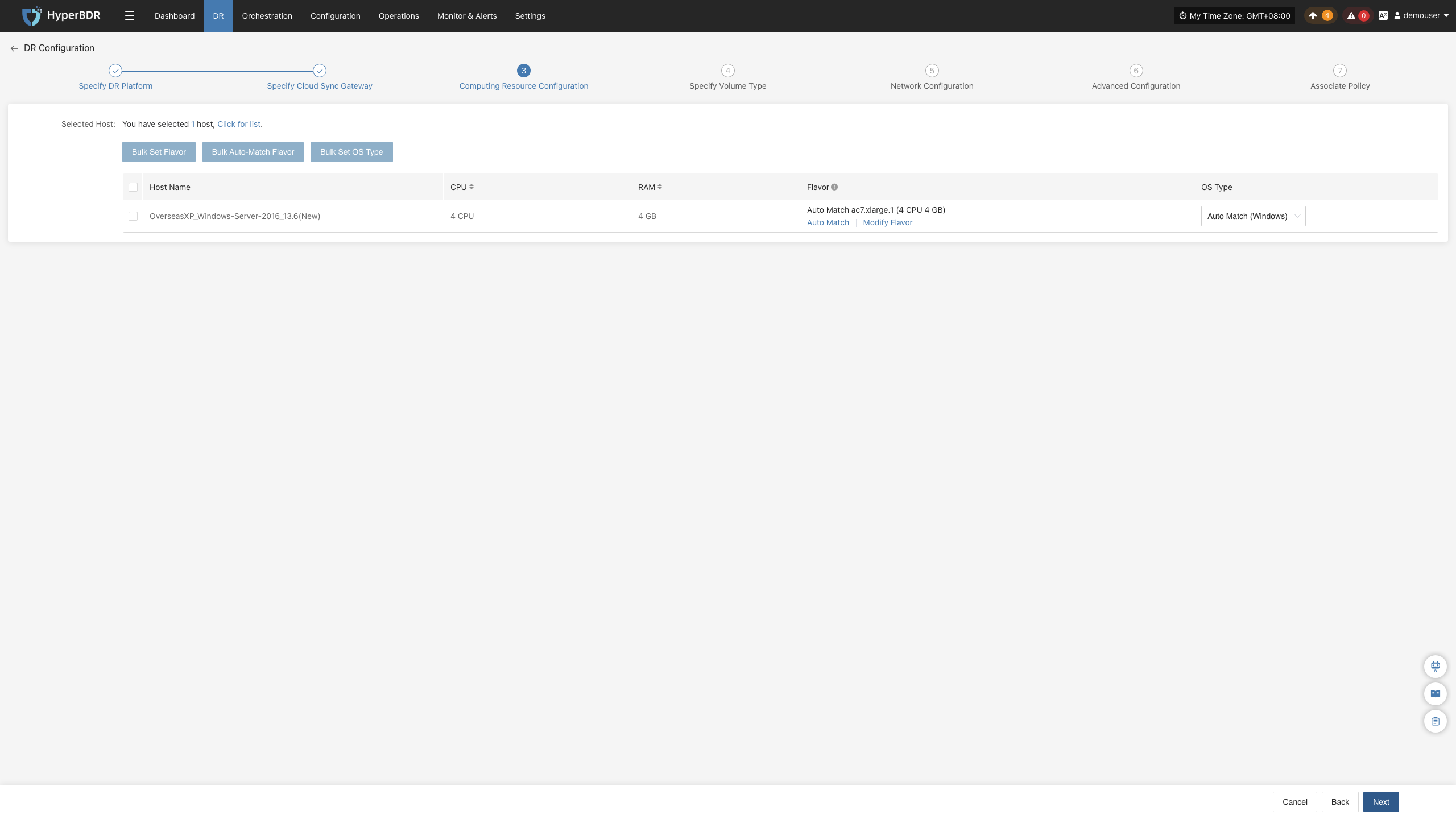
Batch Configuration Description
Supports batch configuration of flavor, target boot mode, and OS type.
Operation Steps:
- In the host list, select the hosts to configure in batch.
- Click the corresponding batch operation button based on the parameters to configure:
- Bulk Set Flavor: Batch configure target instance specifications for selected virtual machines.
- Bulk Auto Match Flavor: Batch auto-match target instance specifications for selected virtual machines.
- Bulk Set Target Boot Mode: Batch configure target boot modes for selected virtual machines.
- Bulk Set OS Type: Batch configure operating system types for selected virtual machines.
- In the pop-up dialog box, complete the corresponding configurations, and follow the page prompts to confirm and submit.
Specify Volume Type
Specify the volume type on the target cloud platform for the disks of the hosts to be recovered.
Operation Steps:
In the host list, set the target volume type for system disks, data disks, and newly added disks. You can configure in batch using the list above or configure host by host in the host list.
When a host contains multiple disks, select the boot disk individually for each host in the "Set Boot Disk" column.
Note: When a host contains multiple disks, you must select the boot disk individually for each host to ensure the system can boot properly.
After completing volume type configuration, click "Next" to enter "Network Configuration".
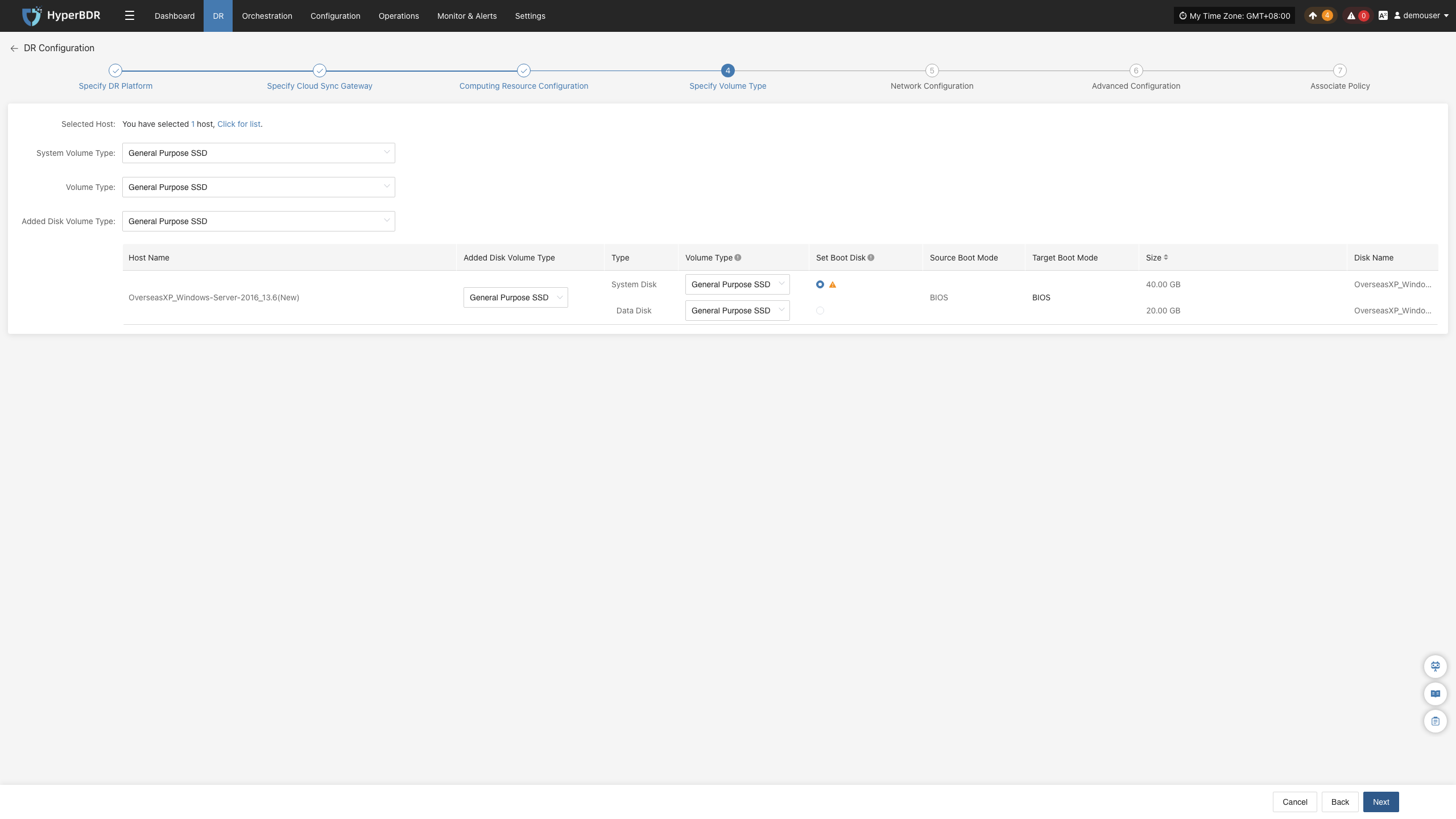
Parameter Description:
| Configuration Item | Example Value | Description |
|---|---|---|
| System Volume Type | Ultra-high / IO | Set the cloud disk type used when the system disk is recovered to the target cloud platform. The system disk is usually also the boot disk; ensure the volume type is configured properly, otherwise host boot may be affected. Once block storage synchronization starts, modifying this configuration is not supported. |
| Data Volume Type | Ultra-high / IO | Set the cloud disk type used when existing data disks are recovered to the target cloud platform. You can configure in batch using the list above or configure host by host in the host list. |
| Target Volume Type for New Disks | Ultra-high / IO | Set the default target volume type for disks newly added to the source host after disaster recovery configuration is completed. This configuration only takes effect for newly added disks and does not affect existing disks. |
Network Configuration
Configure target network, private IP, public IP, security group, and MAC address parameters for the hosts to be recovered to satisfy network connection requirements on the target platform.
Single NIC
Operation Steps:
If a host has multiple NICs that need separate configurations, follow the "Multiple NICs" section.
- Select the network and subnet according to the deployment requirements of the DR host.
- By default, private IP is set to Not Specified. You can set a specified private IP or retain the original IP according to your requirements.
- By default, public IP is set to Do Not Assign. You can choose Assign Public IP, Apply for Public IP, or Shared Bandwidth according to your requirements.
- Set the MAC address according to cloud platform support.
- Select a security group based on the target network, defaulting to default.
- After Network Configuration is complete, click "Next" to enter "Advanced Configuration".
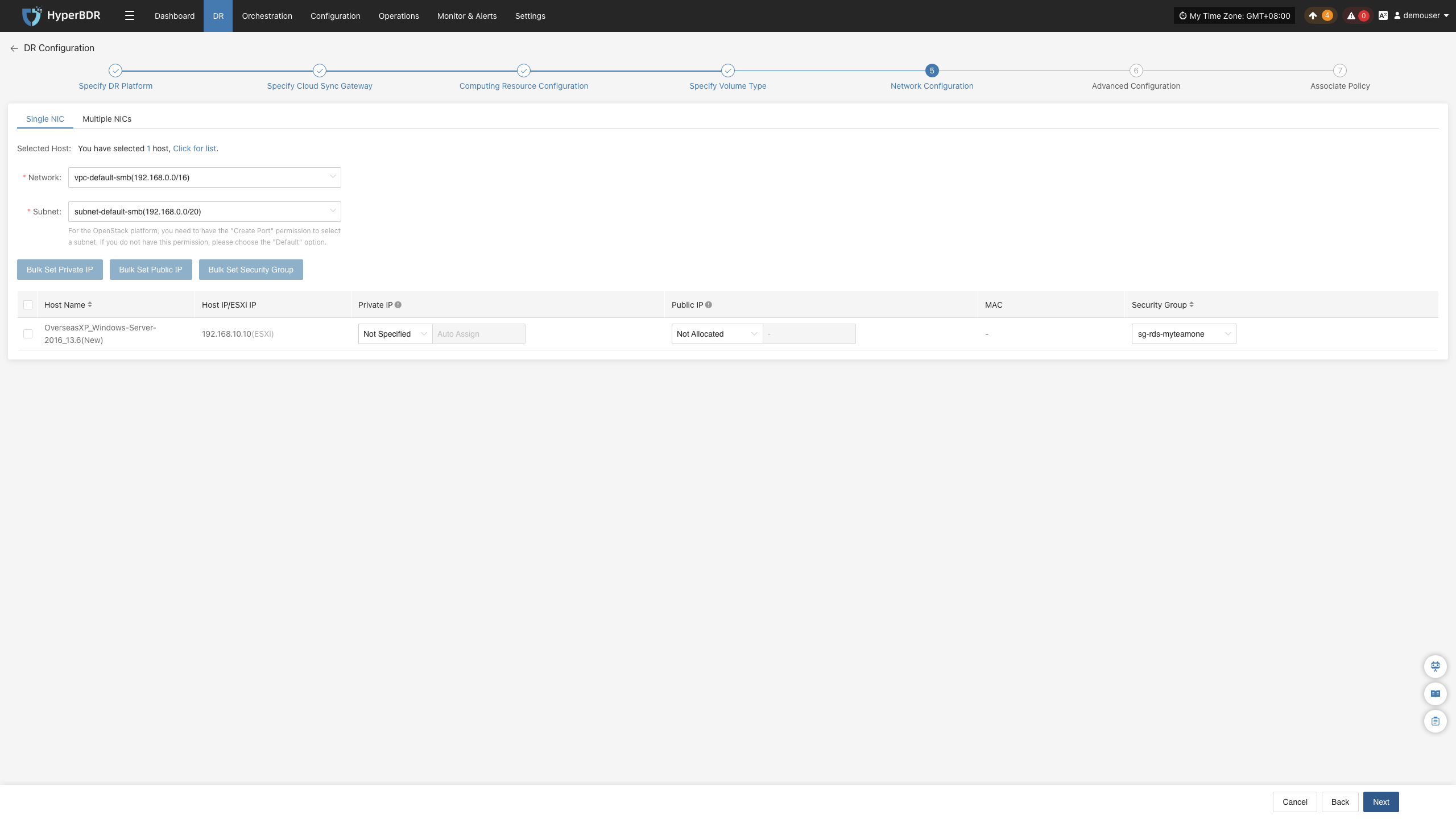
Batch Configuration Description
Supports batch configuration of private IP, public IP, specified MAC address, and security group.
Operation Steps:
- In the host list, select the hosts to configure in batch.
- Click the corresponding batch operation button based on the parameters to configure:
- Bulk Set Private IP: Set private IP allocation type.
- Bulk Set Public IP: Set public IP allocation type.
- Bulk Set Fixed MAC: Set MAC address allocation type.
- Bulk Set Security Group: Select the security group to configure.
- In the pop-up dialog box, complete the corresponding configurations, and follow the page prompts to confirm and submit.
Multiple NICs
Operation Steps:
- Add NIC:
Note: Adding a NIC is optional. If you do not need to add a new NIC, you can directly configure existing NICs of the source host and skip this step.
In the host list, find the host where a NIC needs to be added, click "Add NIC", and add a new NIC for the selected host.
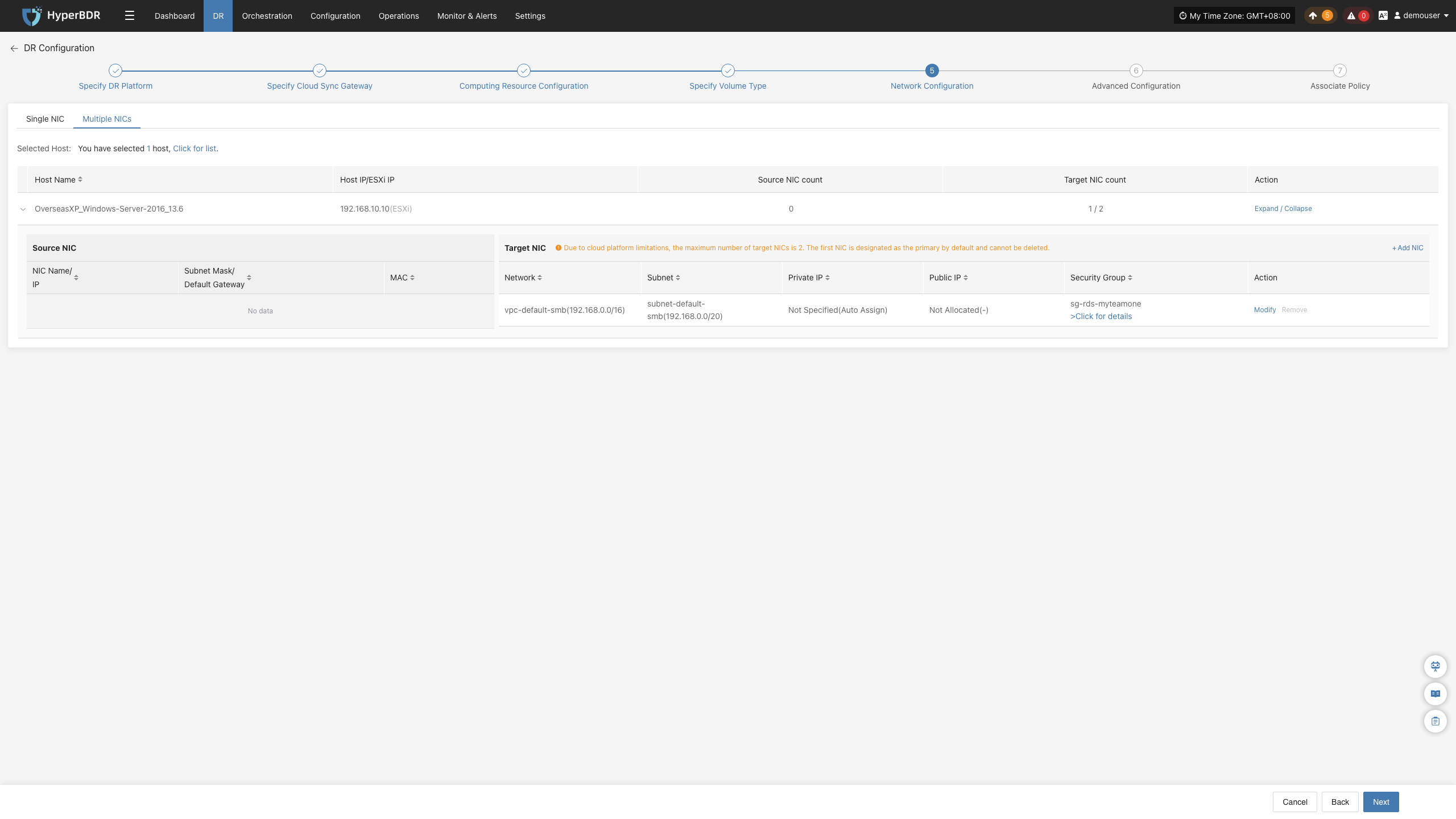
hostdr-setup-block-network-add-nic.png
- Modify or Remove NIC:
In the NIC list, find the NIC to operate on.
To modify NIC configuration, click "Modify", and configure parameters such as network, subnet, private IP, public IP, MAC address, and security group for the NIC according to actual needs.
To delete a NIC, click "Remove".
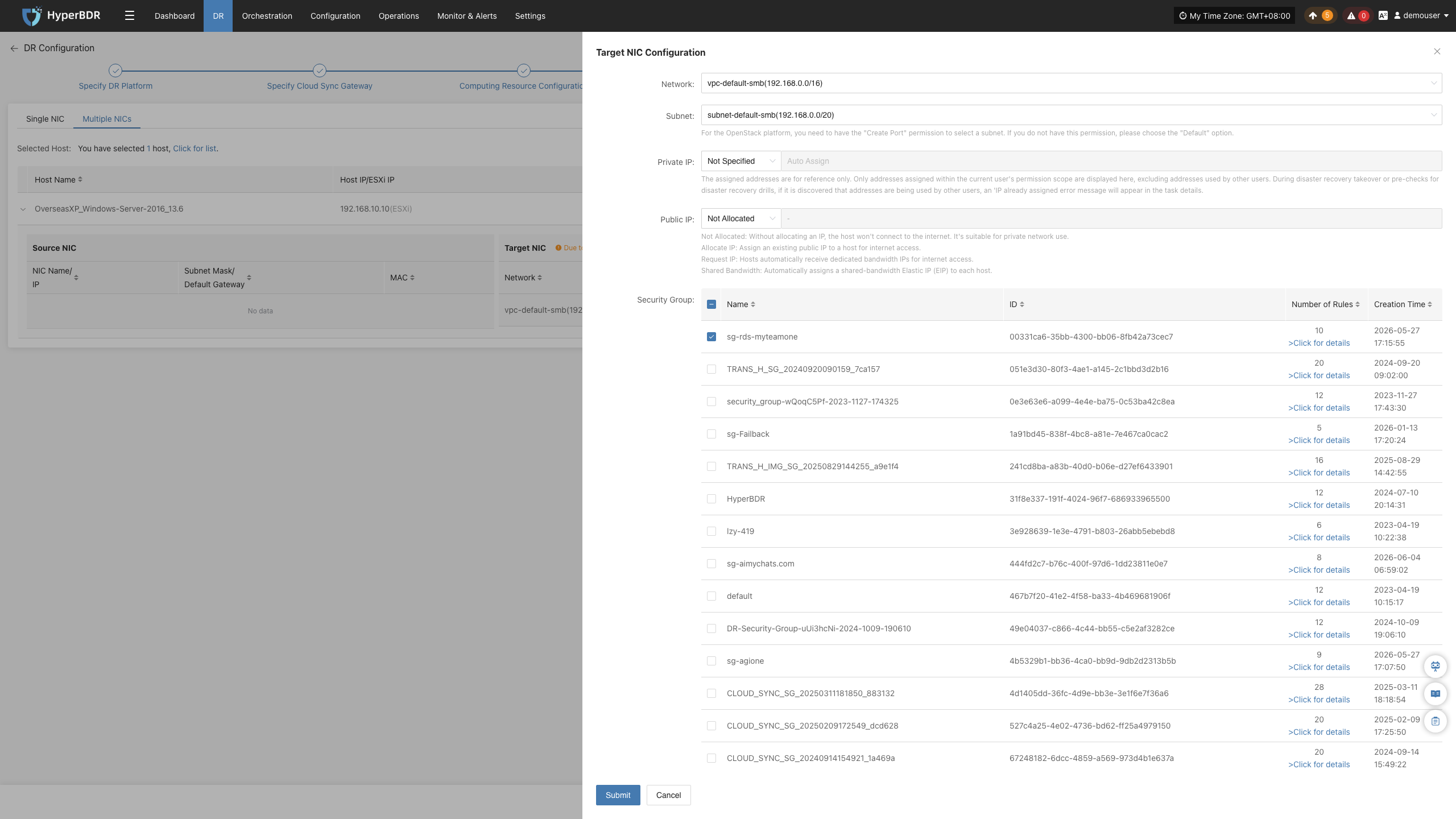
hostdr-setup-block-network-modify-nic
- After completing network configuration, click "Next" to enter "Advanced Configuration".
IP Setting Rules
Support for the following functions varies slightly across different cloud platforms; please refer to actual conditions.
| Parameter | Configuration Option | Description |
|---|---|---|
| Network | Target DR network name | Specify the target network accessed by the DR host. |
| Subnet | Target DR subnet name | Specify the subnet in the target network. |
| Private IP | Original IP | Retain the source host IP address. Requires that the target subnet matches the source host original network and ensures no IP conflict occurs after allocation. The system assigns IP addresses via DHCP service. |
| Specified IP | Manually specify a private IP. The specified IP address range must match the target subnet. The system assigns the specified IP address via DHCP service. | |
| Not Specified | Do not manually specify a private IP; the DHCP service automatically assigns an IP address based on the target network. If DHCP service is unavailable, the system cannot automatically configure an IP. | |
| Public IP | Do Not Assign | Do not assign an Elastic IP to the host. The host cannot communicate directly with the Internet via Elastic IP. |
| Assign IP | Select an existing Elastic IP from the drop-down list and assign it to the host. | |
| Apply for IP | Automatically apply for an Elastic IP for each host and assign dedicated bandwidth. | |
| Shared Bandwidth | Select an existing shared bandwidth Elastic IP from the drop-down list and assign it to the host. | |
| MAC Address | Original MAC | Retain the source host MAC address. This capability is not supported by all cloud platforms; please refer to actual conditions. |
| Specified MAC | Manually specify the target host MAC address. This capability is not supported by all cloud platforms; please refer to actual conditions. | |
| Do Not Assign | Do not specify a MAC address; the target cloud platform will automatically create the corresponding MAC address for the host, subject to the cloud platform. | |
| Security Group | Configured by target network | Select security groups based on the target network; specific options are subject to the actual page display. |
Advanced Configuration
Configure parameters such as custom scripts, driver adaptation, network recovery, and boot advanced settings for the hosts to be recovered to satisfy recovery and boot requirements on the target platform.
Operation Steps:
Advanced configuration is optional; usually no modification is needed, and you can proceed directly to the next step. If you have special requirements, please adjust with caution.
- In the host list, click "Configure" on the right side of the row for the host to configure.
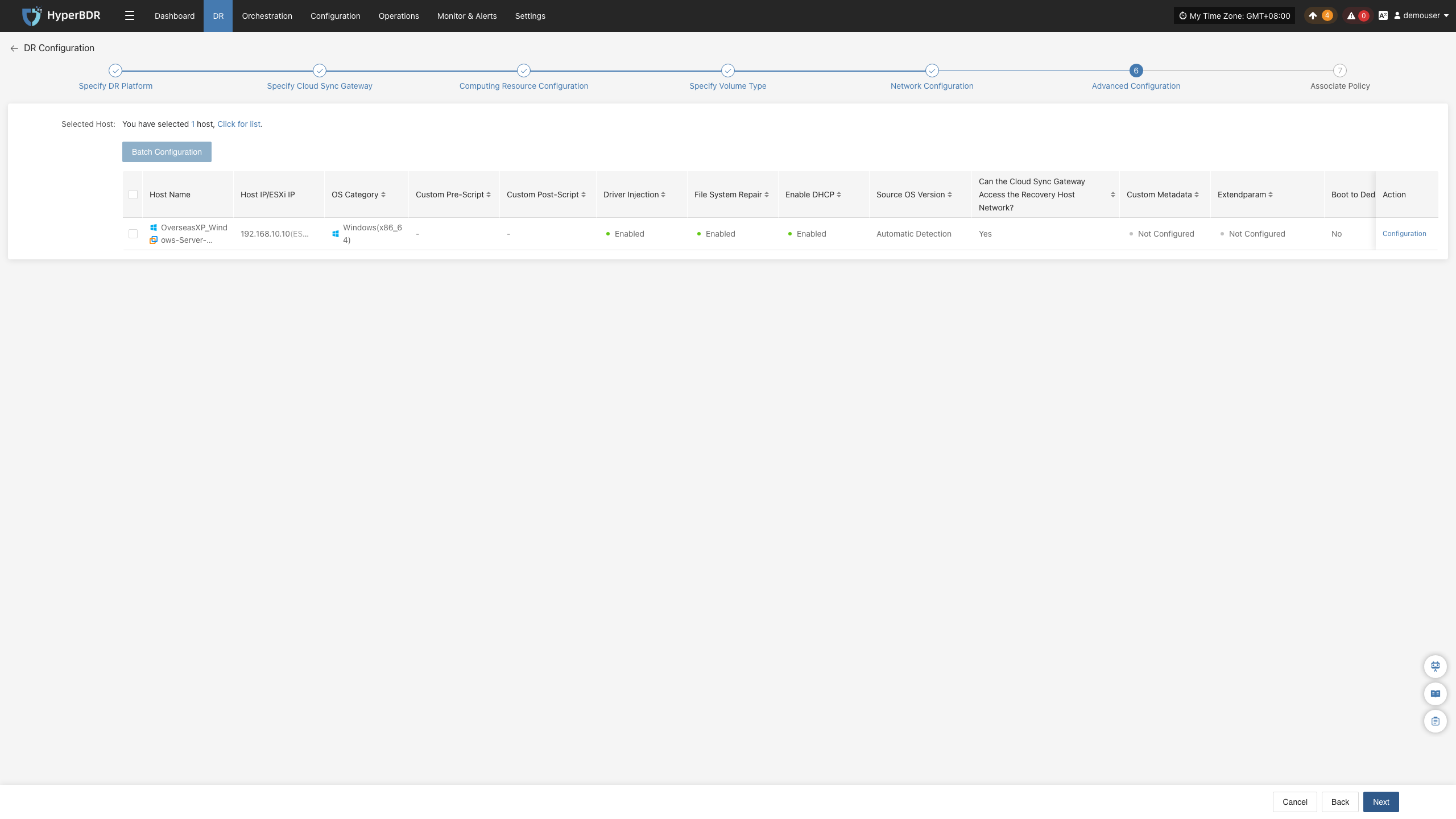
- Configure parameters such as custom pre/post scripts, driver adaptation, recovery host network, and boot advanced settings according to actual needs and page prompts.
- After completing advanced configuration, click "Next" to enter "Associate Policy".
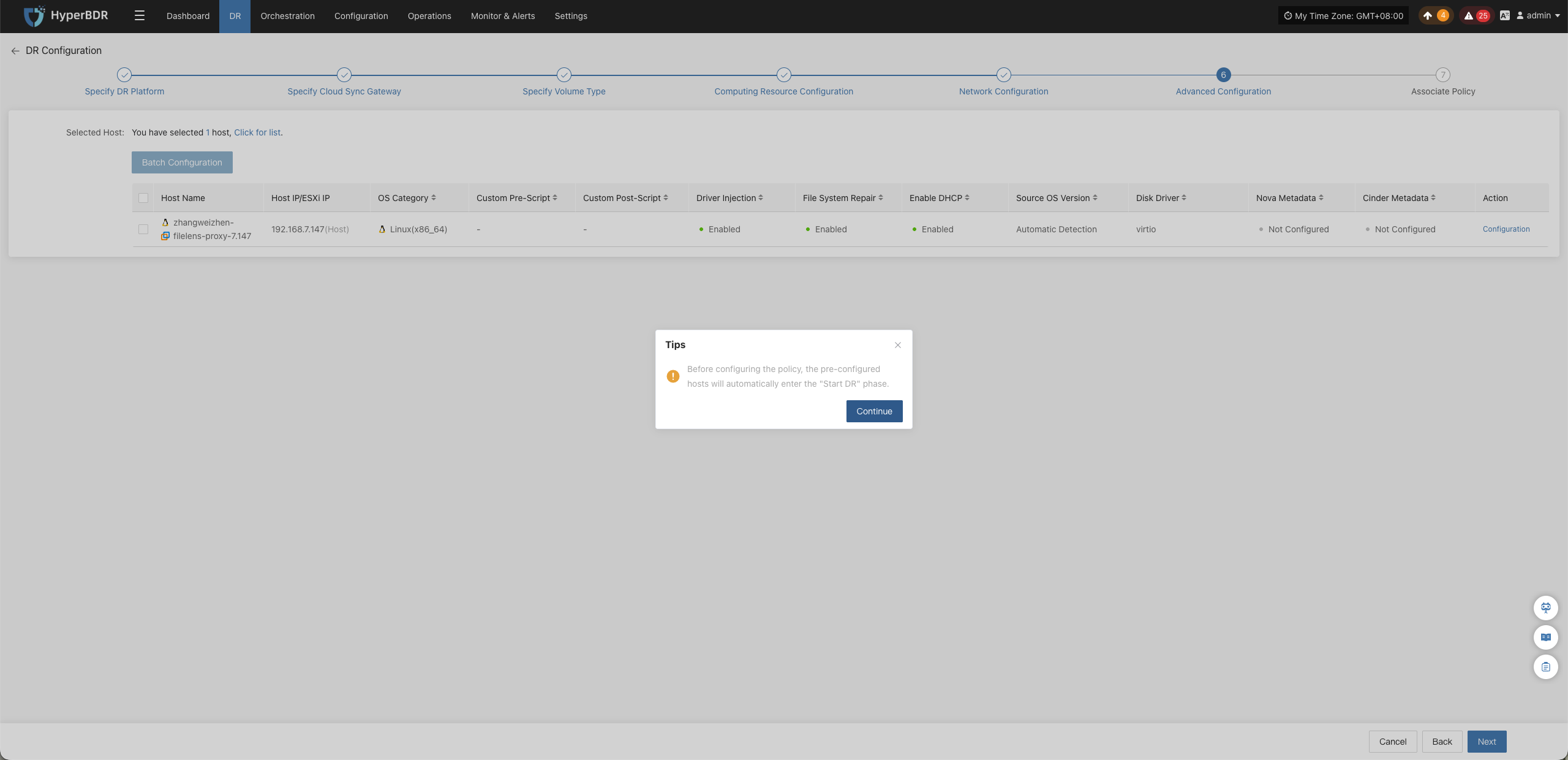
Note: At this point, the page will prompt: "Before configuring policies, already configured hosts will automatically enter the third step 'Start DR'." Please confirm the prompt and click confirm to continue.
Description: The host entering the "Start DR" state does not mean initial synchronization has started. The initial full synchronization still requires clicking "Sync" in the third step "Start DR"; for specific operations, see Sync Operation Description.
Custom Pre & Post Scripts
Custom pre and post scripts are used to execute specified operations during the host recovery process, including modifying configuration files, starting or stopping services, etc.
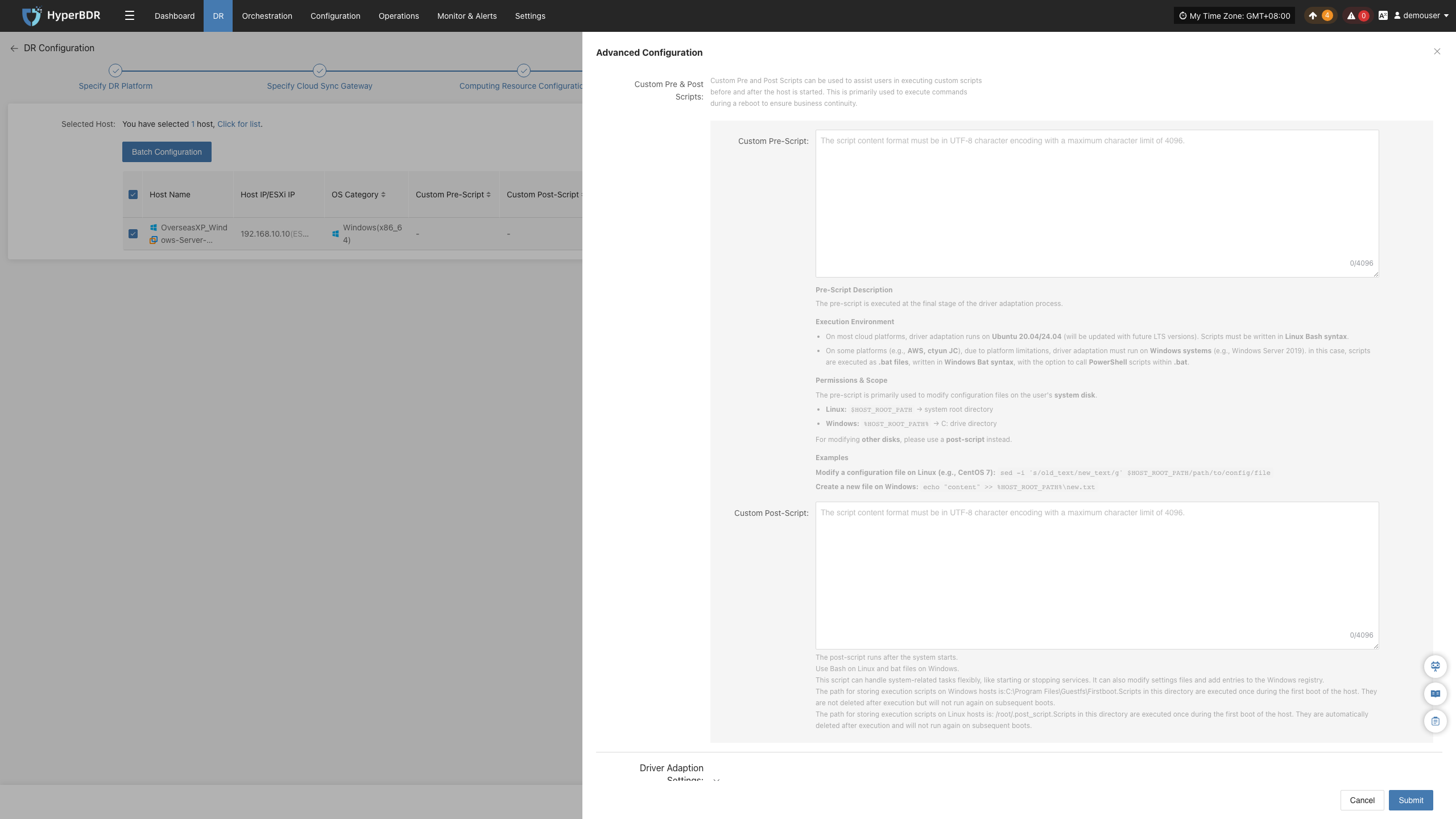
| Configuration Item | Function Description |
|---|---|
| Custom Pre-script | Executed before the host boots, can be used to modify configuration files on the system disk. When modifying data on other disks, post-scripts are recommended. Linux uses Bash syntax, Windows uses bat format. |
| Custom Post-script | Executed after system boots, can be used to start or stop services, modify configuration files, write to Windows registry, etc. Linux uses Bash syntax, Windows uses bat format. |
For specific usage, see Custom Pre & Post Scripts Best Practices.
Driver Adaptation Settings
Driver adaptation is used to configure driver processing and network adaptation options before host boot to improve host boot success rate on the target platform.
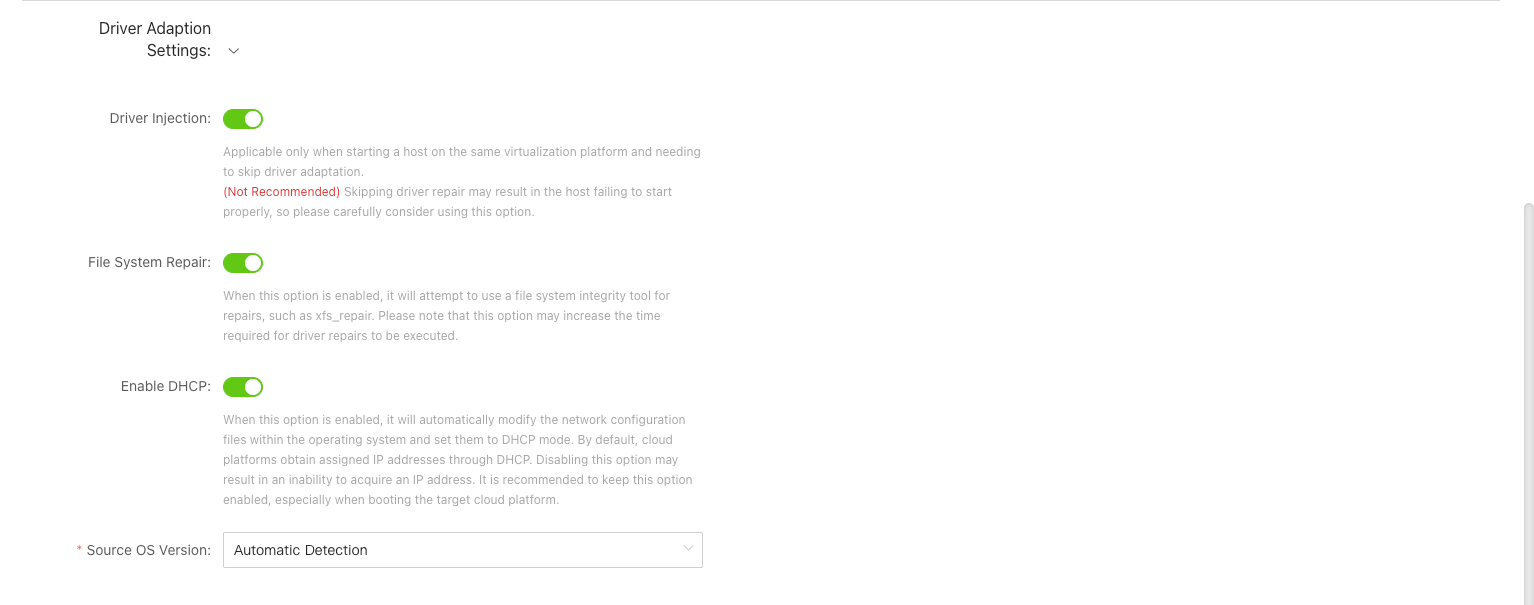
| Configuration Item | Function Description |
|---|---|
| Driver Injection | Applicable to scenarios where driver adaptation needs to be skipped; recommended only when booting hosts on the same virtualization platform. Skipping driver adaptation may cause the host to fail to boot properly; proceed with caution. |
| File System Repair | When enabled, attempts to repair the file system using file system integrity check and repair tools, such as xfs_repair. This option may increase driver adaptation execution time. |
| Enable DHCP | When enabled, automatically modifies operating system network configuration files to adjust network configuration to DHCP mode. Target cloud platforms usually allocate IP addresses via DHCP; it is recommended to enable this when targeting cloud platforms, otherwise the host may fail to obtain an IP address. |
| Source OS Version | Supports automatic detection of source operating system version. |
Transition Host Network Settings
Used to configure whether the Cloud Sync Gateway can access the recovery host network, allowing flexible system configuration based on actual network connectivity.
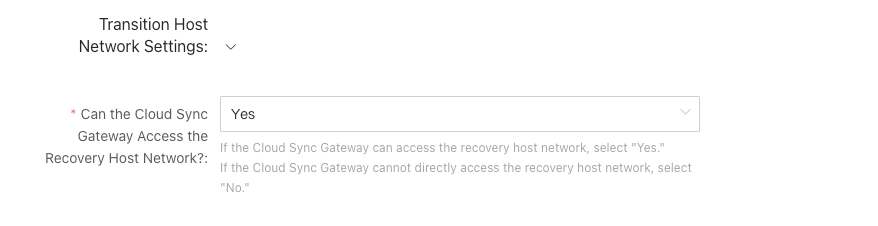
| Configuration Item | Function Description |
|---|---|
| Can the Cloud Sync Gateway Access the Recovery Host Network? | Select based on connectivity between Cloud Sync Gateway and recovery host network. If the Cloud Sync Gateway can access the recovery host network, select "Yes"; if it cannot access directly, select "No". |
Boot Advanced Settings
Used to configure custom metadata, extended parameters, and dedicated host options when the recovery host boots to satisfy specific cloud server creation and boot requirements.
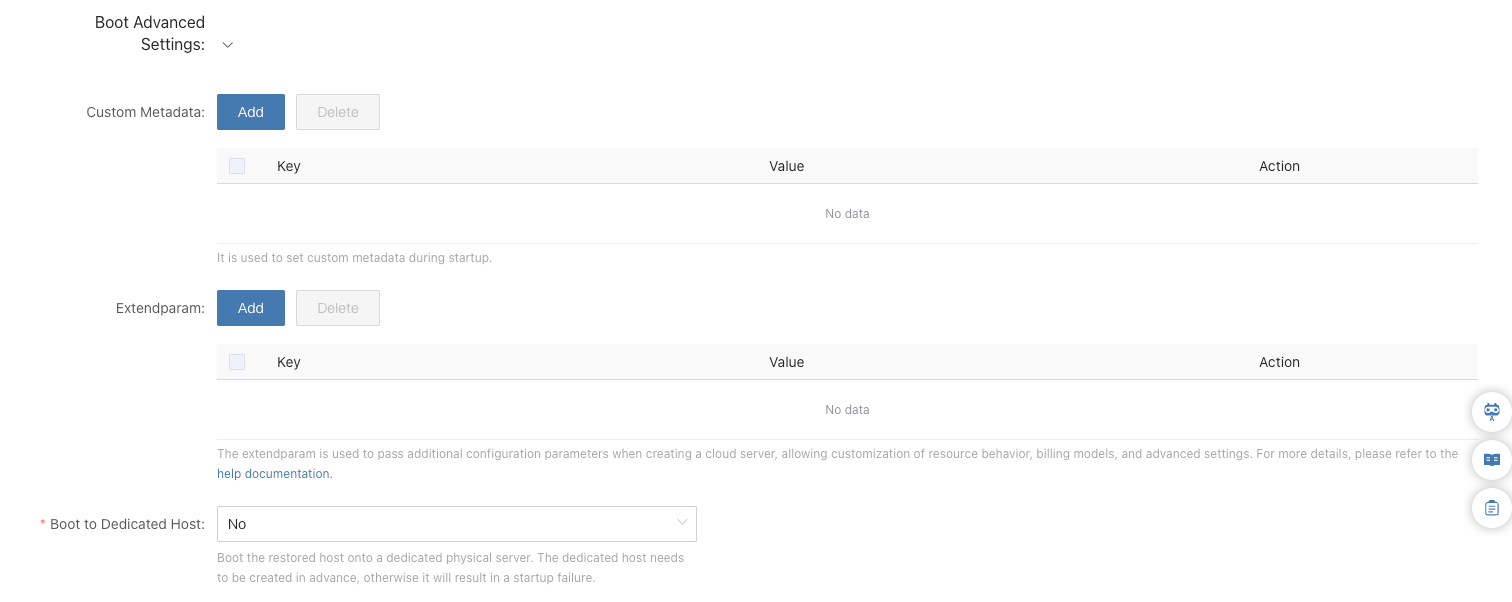
| Configuration Item | Function Description |
|---|---|
| Custom Metadata | Used to set custom metadata needed when the host boots; configuration items can be added or deleted via Key and Value. |
| Extended Parameters (Extendparam) | Used to pass additional configuration parameters when creating cloud servers to customize resource behavior, billing mode, and advanced settings. For details, please refer to help documentation. |
| Boot to Dedicated Host | Select whether to boot the recovered host onto a dedicated host. When selecting "Yes", the dedicated host must be created in advance, otherwise boot failure may occur. |
Associate Policy
Associate disaster recovery policies with hosts to be recovered to configure parameters such as data synchronization execution time, sync speed, and snapshot retention count to satisfy different DR management requirements.
Prerequisites:
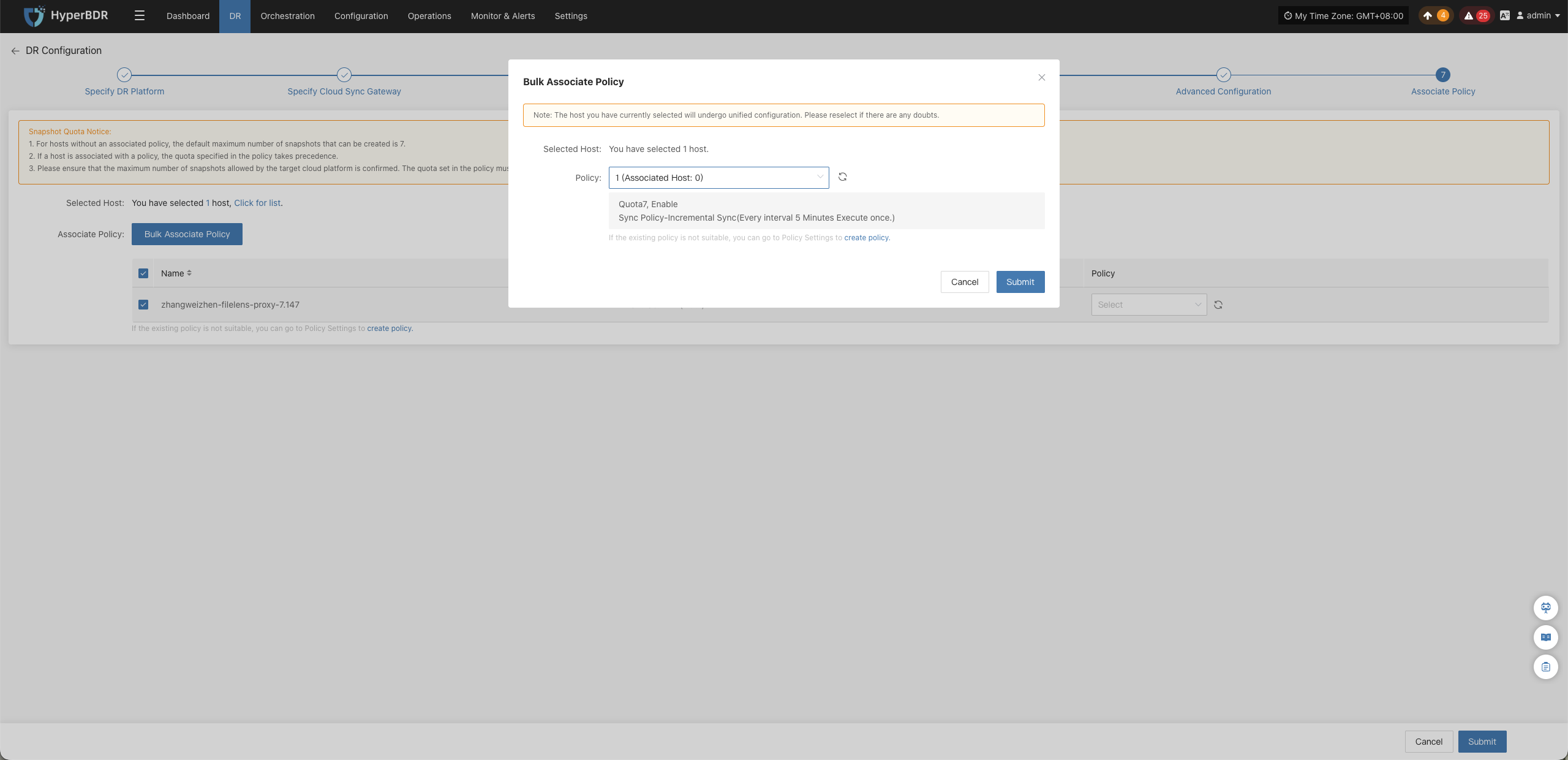
A corresponding policy must be created before association. If no policy exists in the system to bind to the host or existing policies cannot meet requirements, click the create policy button on the page. For creation methods, see Policy Settings.
Operation Steps:
Description: You can choose to associate a policy in the current step, or temporarily skip this step and click confirm directly to enter the third step "Start DR", and associate later according to actual requirements.
- In the host list, find the host to associate with a policy.
- In the drop-down list on the right side of the corresponding row, select the policy to associate. If a created policy is not displayed, click the refresh button next to the drop-down list to refresh the policy list.
- After selection, click "Confirm" to complete policy association and enter the third step "Start DR".
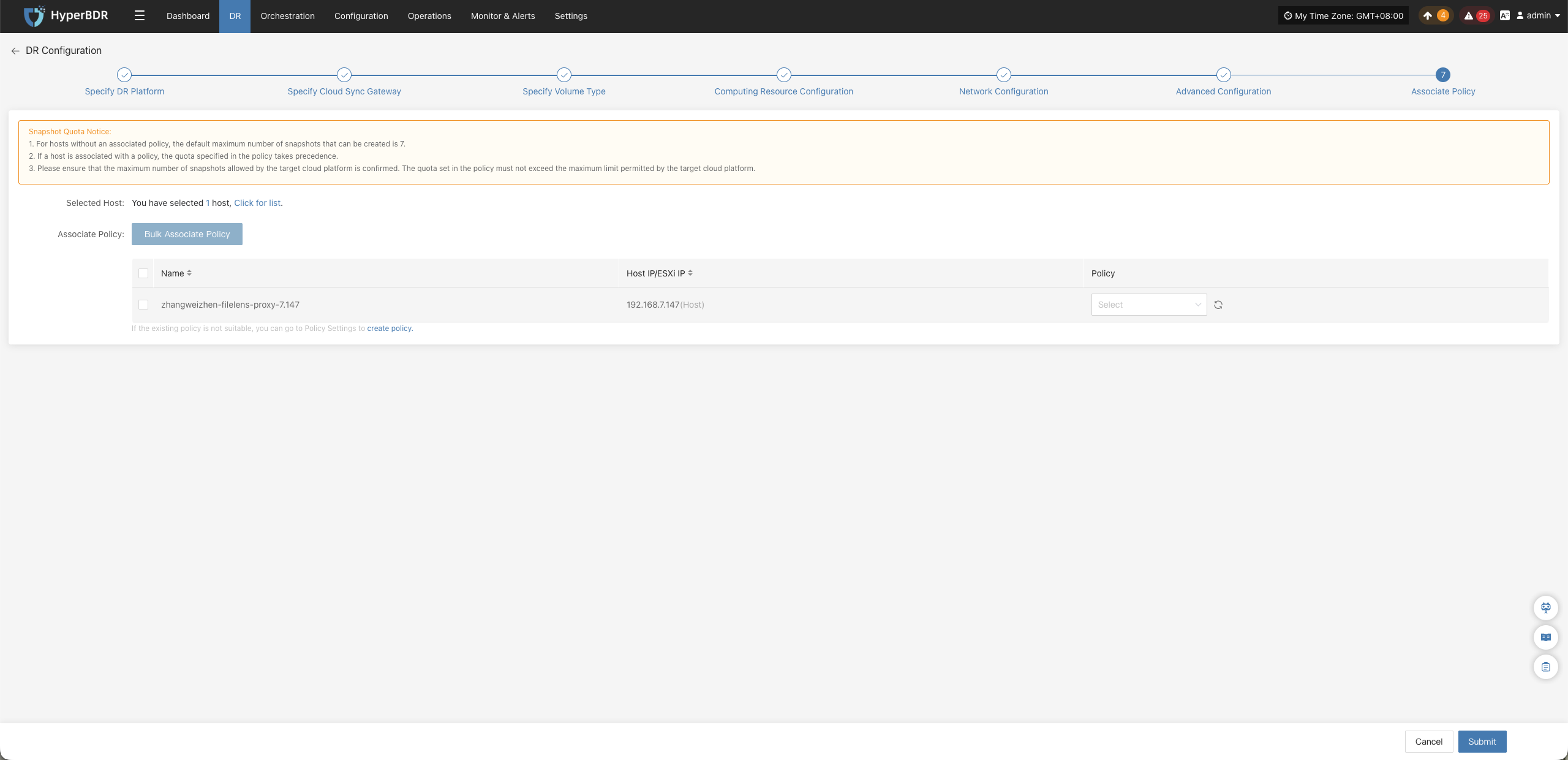
Batch Associate Policy
- In the host list, select the hosts to associate with policies.
- Click "Batch Associate Policy".
- In the pop-up dialog box, select the policy to associate.
- Click "Confirm" to complete batch association.
- After selection, click "Confirm" to complete policy association and enter the third step "Start DR".
Object Storage
When configuring Object Storage, complete the following steps in sequence: Specify DR Platform, Computing Resource Configuration, Specify Volume Type, Network Configuration, Advanced Configuration, and Associate Policy. (Unlike Block Storage mode, Object Storage mode does not require the "Specify Cloud Sync Gateway" step.)
Note: Available configuration options may vary depending on the target cloud platform, but the general workflow remains identical.
Specify DR Platform
Prerequisites:
- Completed object storage configuration (see Object Storage Configuration).
- Completed DR target platform configuration for object storage (see Object Storage DR Target Platform Configuration).
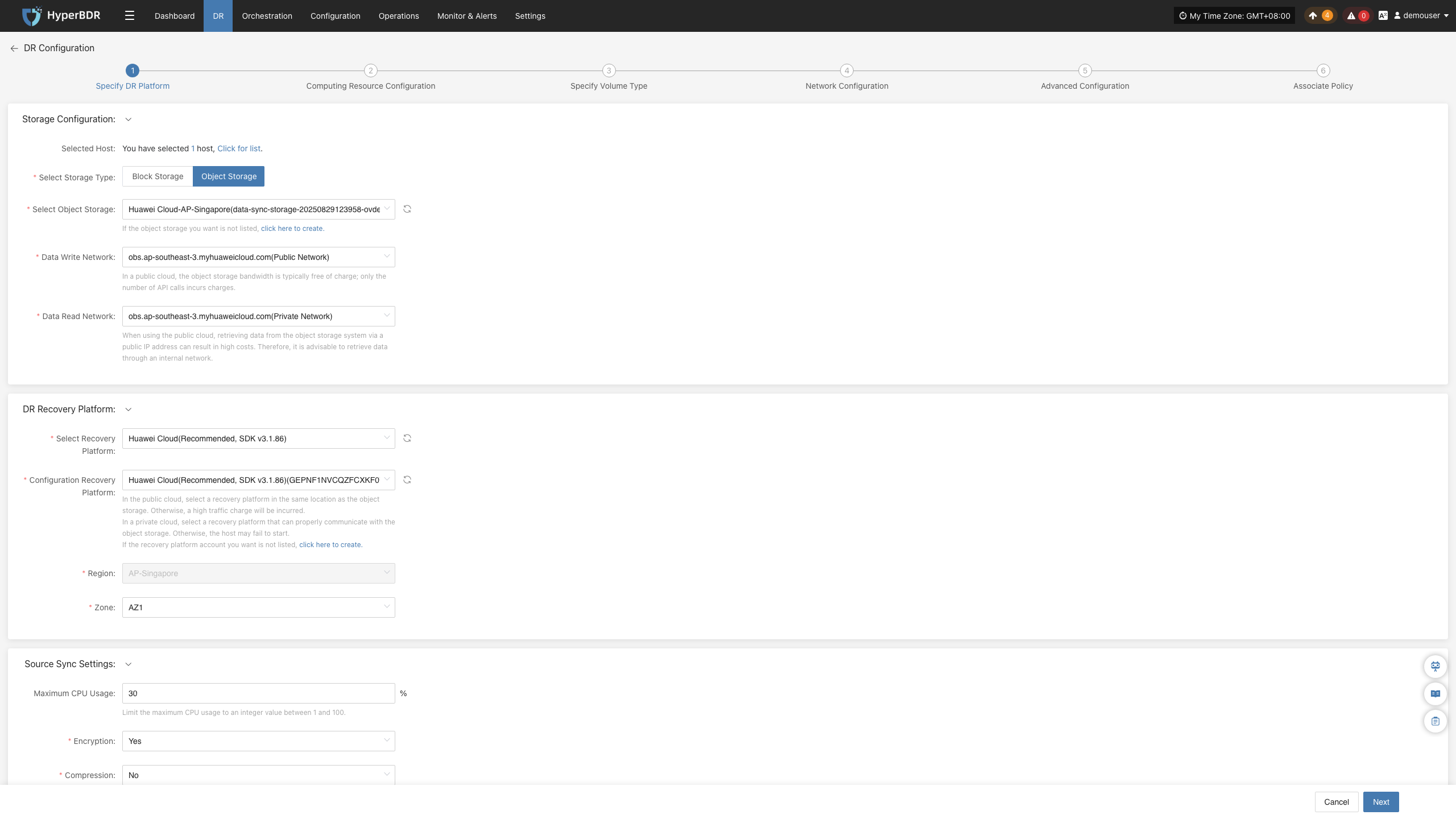
Operation Steps:
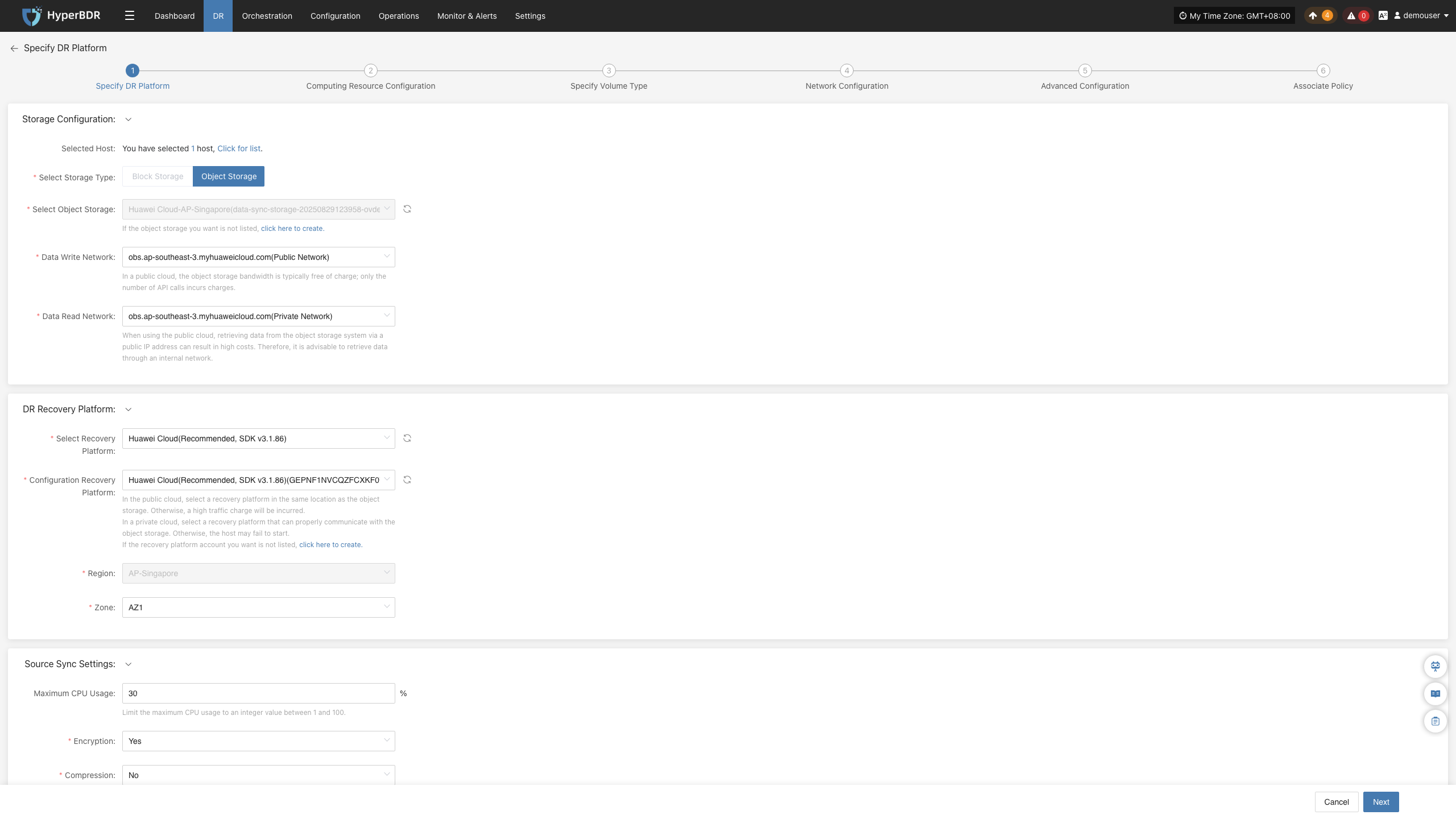
- Under "Storage Configuration", set "Select Storage Type" to "Object Storage".
- Select your configured object storage, then configure data write and data read network paths.
- Under "DR Recovery Platform", select the recovery target platform, Region, and Zone.
The Region is locked during object storage configuration and cannot be modified here.
- Click "Next" to proceed to "Computing Resource Configuration".
Storage Configuration
| Parameter | Configuration | Description |
|---|---|---|
| Select Storage Type | Object Storage | Select the configured object storage for disaster recovery backup. |
| Select Object Storage | Added object storage | Select the object storage that has been configured. |
| Data Write Network | Selected object storage network | Used to write backup data to object storage. |
| Data Read Network | Selected object storage network | Used to read data from object storage. |
DR Recovery Platform
| Parameter | Configuration | Description |
|---|---|---|
| Select Recovery Platform | Configured recovery platform | Select the configured recovery platform according to actual needs. |
| Configure Recovery Platform | Configured cloud provider information | Select the corresponding cloud provider configuration according to the actual page display. |
| Region | AP-Singapore | Specified during object storage configuration and cannot be modified here once configured. |
| Zone | AZ1 | Select according to options displayed on the actual page. |
Source Sync Settings
| Parameter | Configuration | Description |
|---|---|---|
| Maximum CPU Usage (%) | 1–100 | Sets the source CPU resources that can be used during backup. Note: setting this too low may affect backup efficiency. |
| Encryption | Yes / No | Configured specifically for object storage mode. Enabling increases CPU consumption. |
| Compression | Yes / No | Configured specifically for object storage mode. Enabling increases CPU consumption. |
| VMware Quiesced Snapshot | Yes / No | Effective only for VMware hosts with VMware Tools installed. |
Computing Resource Configuration
Configure parameters such as CPU, memory, and operating system type for the hosts to be recovered, and set the target boot mode.
Operation Steps:
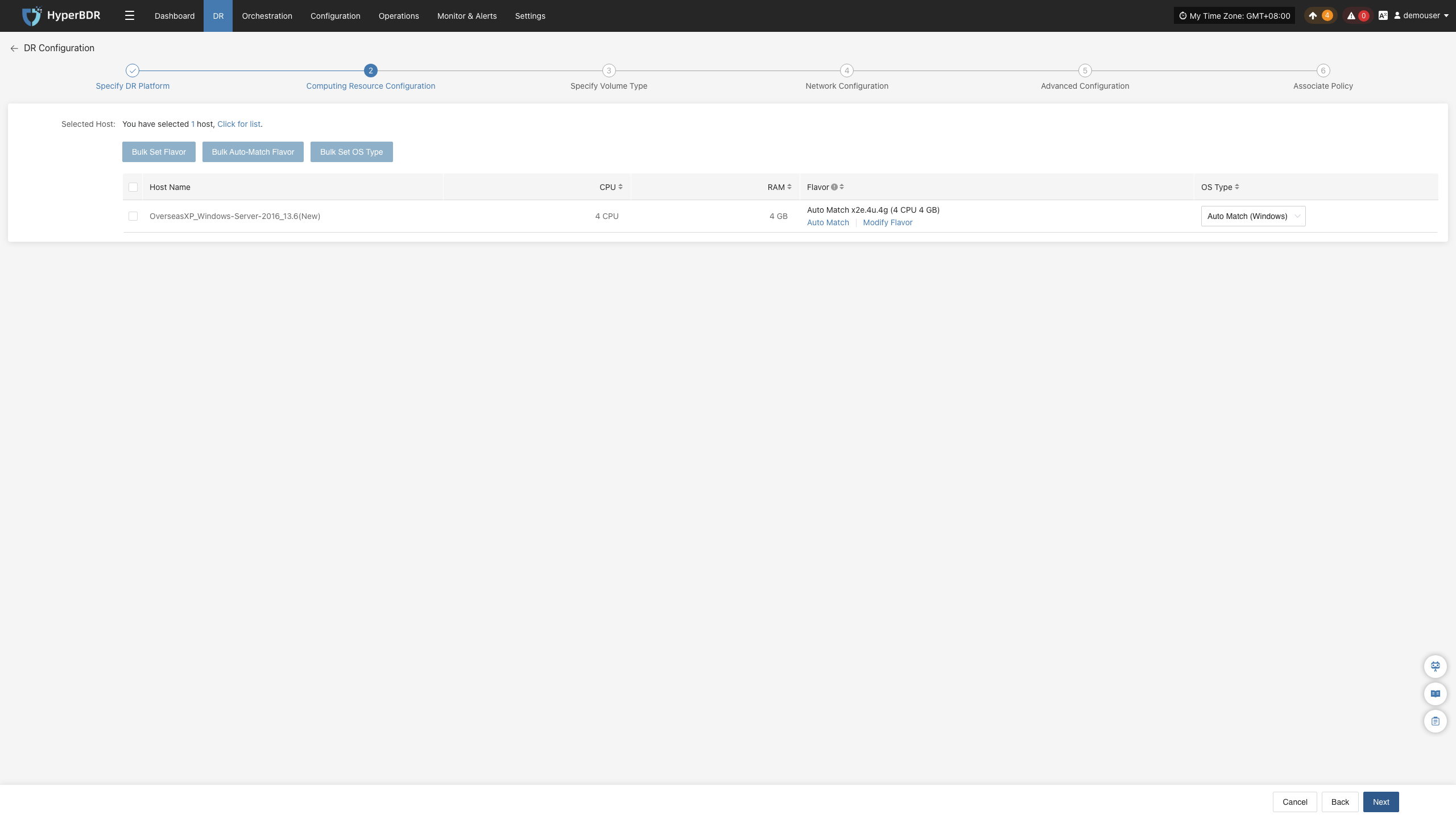
- In the host list, select the virtual machines to configure.
- The system automatically matches target boot specifications consistent with the source host by default. If the auto-matched result does not meet your needs, or if you need to adjust target instance specifications, click "Modify Flavor" to configure CPU and memory specifications for the selected virtual machine in the pop-up list.
Flavor Matching Note: If a preset template consistent with the resource type exists, the system automatically matches it; otherwise, you need to manually select the appropriate configuration.
- The system automatically matches a target boot mode consistent with the source host by default. If the auto-matched result is incorrect or unrecognized, click "Modify" to adjust manually.
Note: When the source host uses UEFI boot mode, the target boot mode can be BIOS or UEFI. If the system disk capacity exceeds 2 TB, BIOS boot mode cannot be selected. Not all target platforms support configuring target boot modes; please refer to the actual page display.
- The system automatically matches an operating system type consistent with the source host by default. If the automatic identification is incorrect or unrecognized, you can manually select the target boot mode via the drop-down list.
- After completing computing resource configuration, click "Next" to enter "Specify Volume Type".
Batch Configuration Description
Supports batch configuration of flavor, target boot mode, and OS type.
Operation Steps:
- In the host list, select the hosts to configure in batch.
- Click the corresponding batch operation button based on the parameters to configure:
- Bulk Set Flavor: Batch configure target instance specifications for selected virtual machines.
- Bulk Auto Match Flavor: Batch auto-match target instance specifications for selected virtual machines.
- Bulk Set Target Boot Mode: Batch configure target boot modes for selected virtual machines.
- Bulk Set OS Type: Batch configure operating system types for selected virtual machines.
- In the pop-up dialog box, complete the corresponding configurations, and follow the page prompts to confirm and submit.
Specify Volume Type
Specify the volume type on the target cloud platform for the disks of the hosts to be recovered.
Operation Steps:
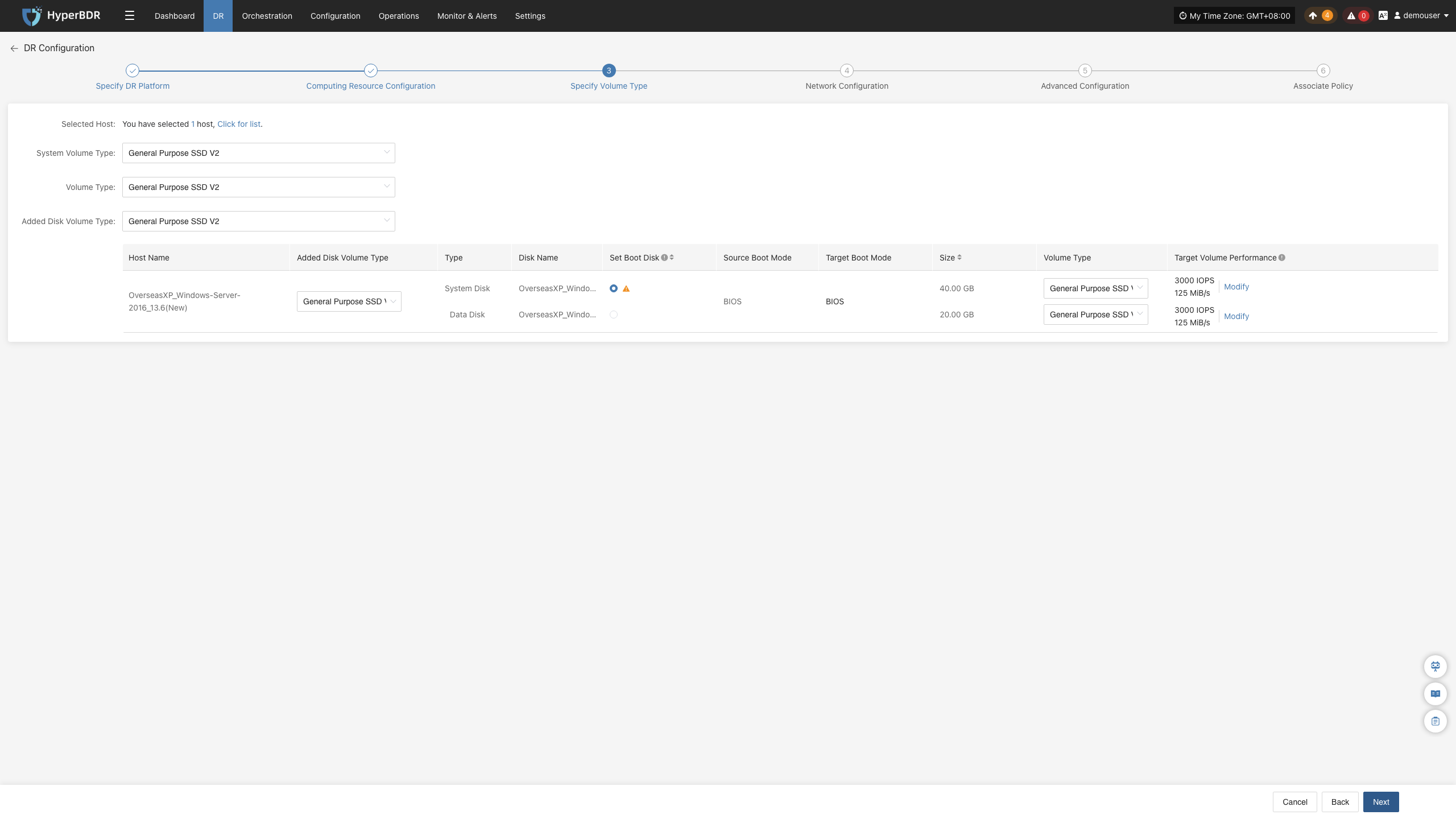
In the host list, set the target volume type for system disks, data disks, and newly added disks. You can configure in batch using the list above or configure host by host in the host list.
When a host contains multiple disks, select the boot disk individually for each host in the "Set Boot Disk" column.
Note: When a host contains multiple disks, you must select the boot disk individually for each host to ensure the system can boot properly.
If you need to adjust target disk performance based on actual business needs, find the disk to modify in the disk list of the corresponding host, click "Modify", and adjust target volume performance parameters according to actual needs.
After completing volume type configuration, click "Next" to enter "Network Configuration".
Parameter Description:
| Configuration Item | Example Value | Description |
|---|---|---|
| System Volume Type | Ultra-high / IO | Set the cloud disk type used when the system disk is recovered to the target cloud platform. The system disk is usually also the boot disk; ensure the volume type is configured properly, otherwise host boot may be affected. Once object storage synchronization starts, modifying this configuration is not supported. |
| Data Volume Type | Ultra-high / IO | Set the cloud disk type used when existing data disks are recovered to the target cloud platform. You can configure in batch using the list above or configure host by host in the host list. |
| Target Volume Type for New Disks | Ultra-high / IO | Set the default target volume type for disks newly added to the source host after disaster recovery configuration is completed. This configuration only takes effect for newly added disks and does not affect existing disks. |
| Target Volume Performance Parameters | 3000 IOPS 125 MiB/s | Used to configure performance parameters for the target cloud disk, including IOPS (input/output operations per second) and throughput, adjustable according to business requirements. |
Network Configuration
Configure target network, private IP, public IP, security group, and MAC address parameters for the hosts to be recovered to satisfy network connection requirements on the target platform.
Single NIC
Operation Steps:
If a host has multiple NICs that need separate configurations, follow the "Multiple NICs" section.
- Select the network and subnet according to the deployment requirements of the DR host.
- By default, private IP is set to Not Specified. You can set a specified private IP or retain the original IP according to your requirements.
- By default, public IP is set to Do Not Assign. You can choose Assign Public IP, Apply for Public IP, or Shared Bandwidth according to your requirements.
- Set the MAC address according to cloud platform support.
- Select a security group based on the target network, defaulting to default.
- After Network Configuration is complete, click "Next" to enter "Advanced Configuration".
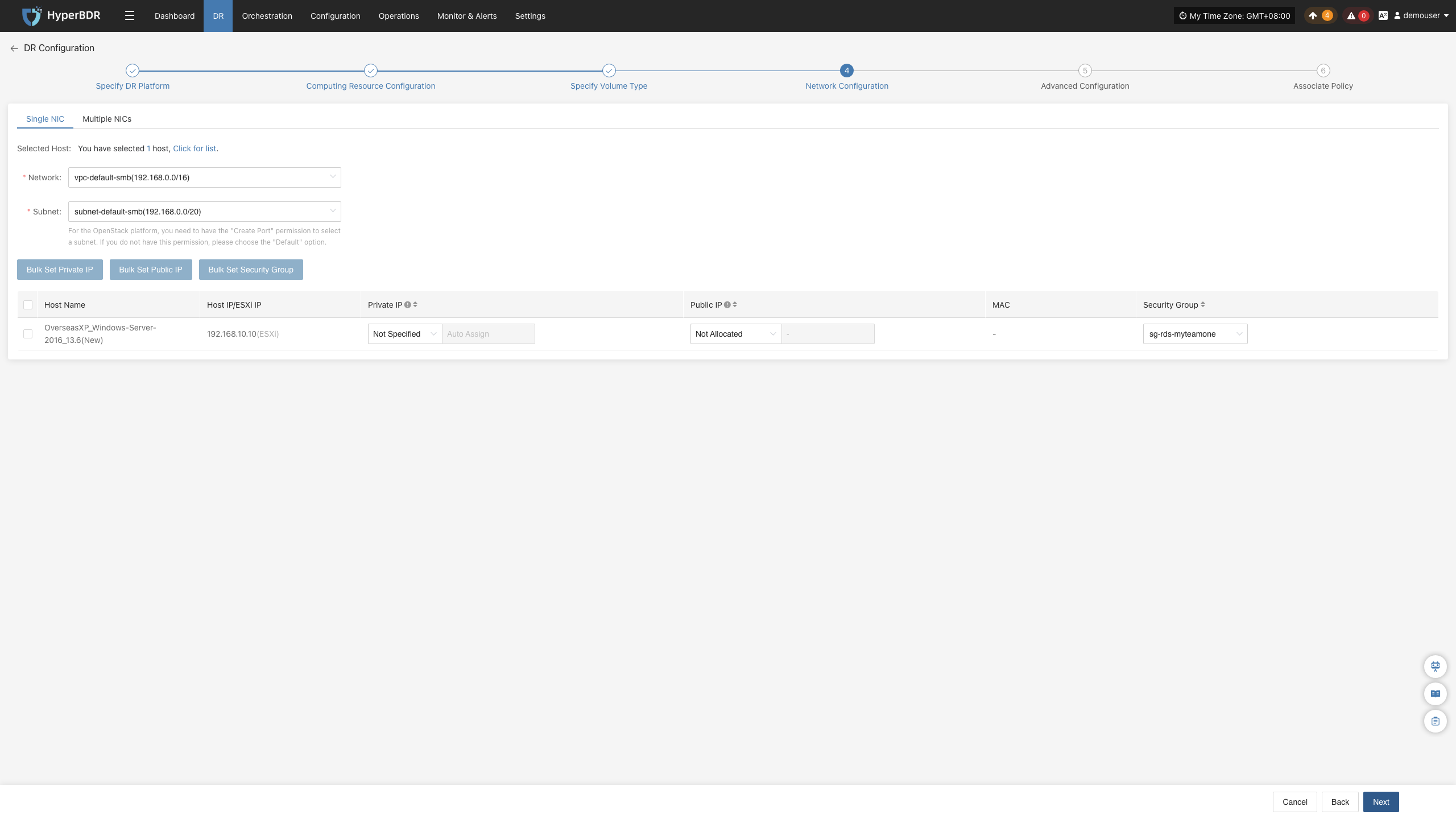
Batch Configuration Description
Supports batch configuration of private IP, public IP, specified MAC address, and security group.
Operation Steps:
- In the host list, select the hosts to configure in batch.
- Click the corresponding batch operation button based on the parameters to configure:
- Bulk Set Private IP: Set private IP allocation type.
- Bulk Set Public IP: Set public IP allocation type.
- Bulk Set Fixed MAC: Set MAC address allocation type.
- Bulk Set Security Group: Select the security group to configure.
- In the pop-up dialog box, complete the corresponding configurations, and follow the page prompts to confirm and submit.
Multiple NICs
Operation Steps:
- Add NIC:
Note: Adding a NIC is optional. If you do not need to add a new NIC, you can directly configure existing NICs of the source host and skip this step.
In the host list, find the host where a NIC needs to be added, click "Add NIC", and add a new NIC for the selected host.
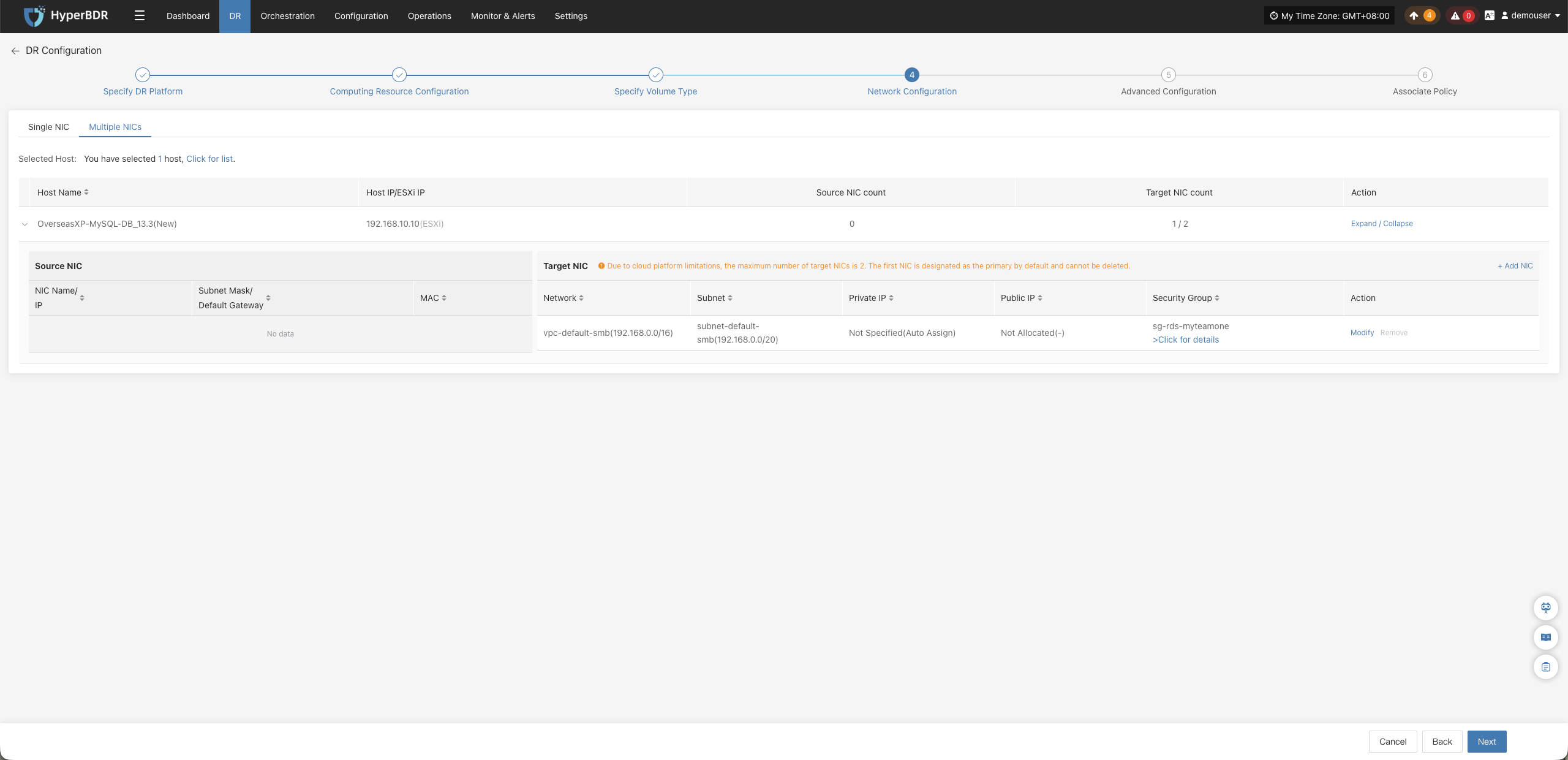
hostdr-setup-object-network-add-nic
- Modify or Remove NIC:
In the NIC list, find the NIC to operate on.
To modify NIC configuration, click "Modify", and configure parameters such as network, subnet, private IP, public IP, MAC address, and security group for the NIC according to actual needs.
To delete a NIC, click "Remove".
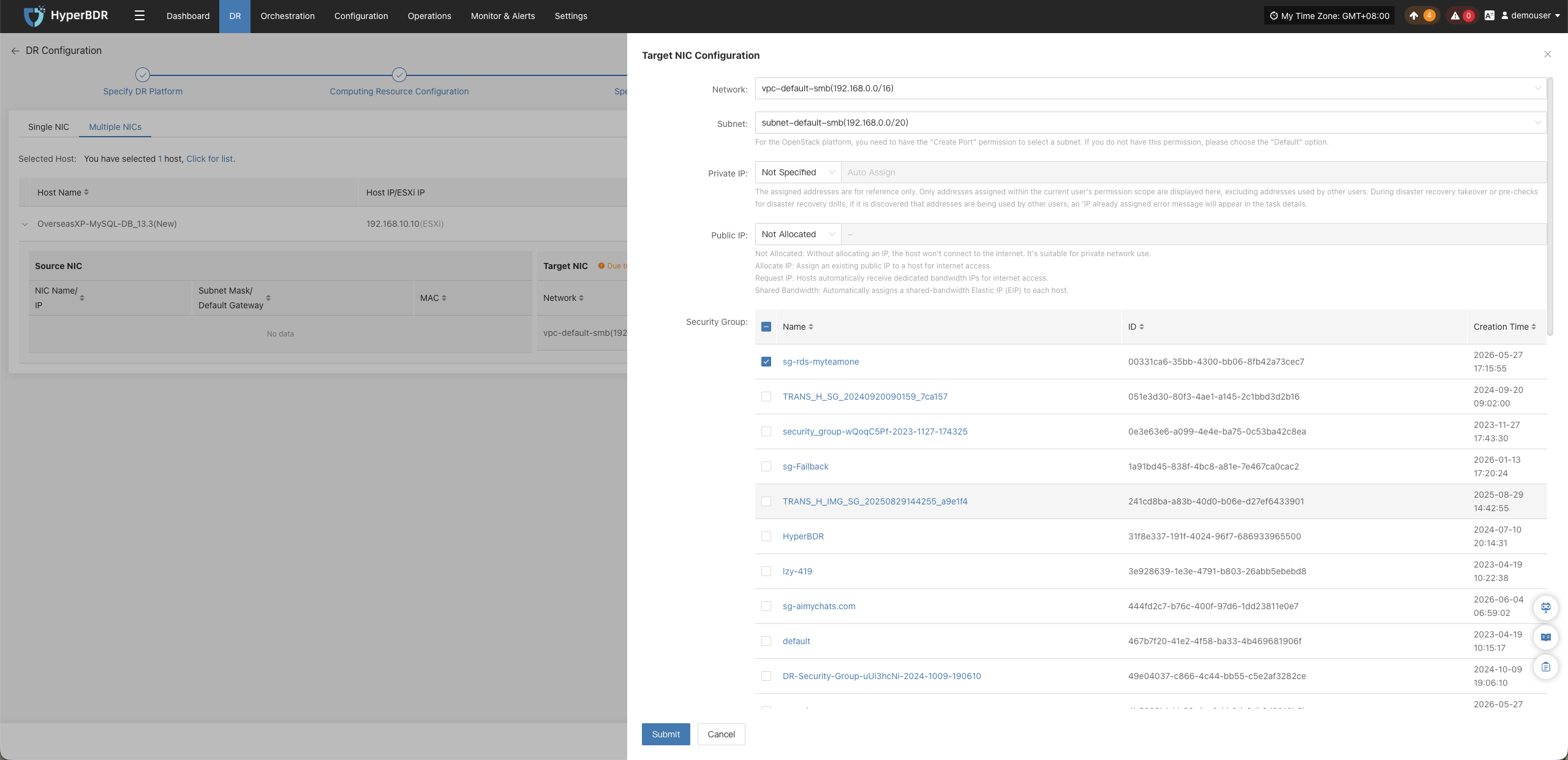
hostdr-setup-object-network-modify-nic
- After completing network configuration, click "Next" to enter "Advanced Configuration".
IP Setting Rules
Support for the following functions varies slightly across different cloud platforms; please refer to actual conditions.
| Parameter | Configuration Option | Description |
|---|---|---|
| Network | Target DR network name | Specify the target network accessed by the DR host. |
| Subnet | Target DR subnet name | Specify the subnet in the target network. |
| Private IP | Original IP | Retain the source host IP address. Requires that the target subnet matches the source host original network and ensures no IP conflict occurs after allocation. The system assigns IP addresses via DHCP service. |
| Specified IP | Manually specify a private IP. The specified IP address range must match the target subnet. The system assigns the specified IP address via DHCP service. | |
| Not Specified | Do not manually specify a private IP; the DHCP service automatically assigns an IP address based on the target network. If DHCP service is unavailable, the system cannot automatically configure an IP. | |
| Public IP | Do Not Assign | Do not assign an Elastic IP to the host. The host cannot communicate directly with the Internet via Elastic IP. |
| Assign IP | Select an existing Elastic IP from the drop-down list and assign it to the host. | |
| Apply for IP | Automatically apply for an Elastic IP for each host and assign dedicated bandwidth. | |
| Shared Bandwidth | Select an existing shared bandwidth Elastic IP from the drop-down list and assign it to the host. | |
| MAC Address | Original MAC | Retain the source host MAC address. This capability is not supported by all cloud platforms; please refer to actual conditions. |
| Specified MAC | Manually specify the target host MAC address. This capability is not supported by all cloud platforms; please refer to actual conditions. | |
| Do Not Assign | Do not specify a MAC address; the target cloud platform will automatically create the corresponding MAC address for the host, subject to the cloud platform. | |
| Security Group | Configured by target network | Select security groups based on the target network; specific options are subject to the actual page display. |
Advanced Configuration
Configure parameters such as custom scripts, driver adaptation, network recovery, and boot advanced settings for the hosts to be recovered to satisfy recovery and boot requirements on the target platform.
Operation Steps:
Advanced configuration is optional; usually no modification is needed, and you can proceed directly to the next step. If you have special requirements, please adjust with caution.
- In the host list, click "Configure" on the right side of the row for the host to configure.
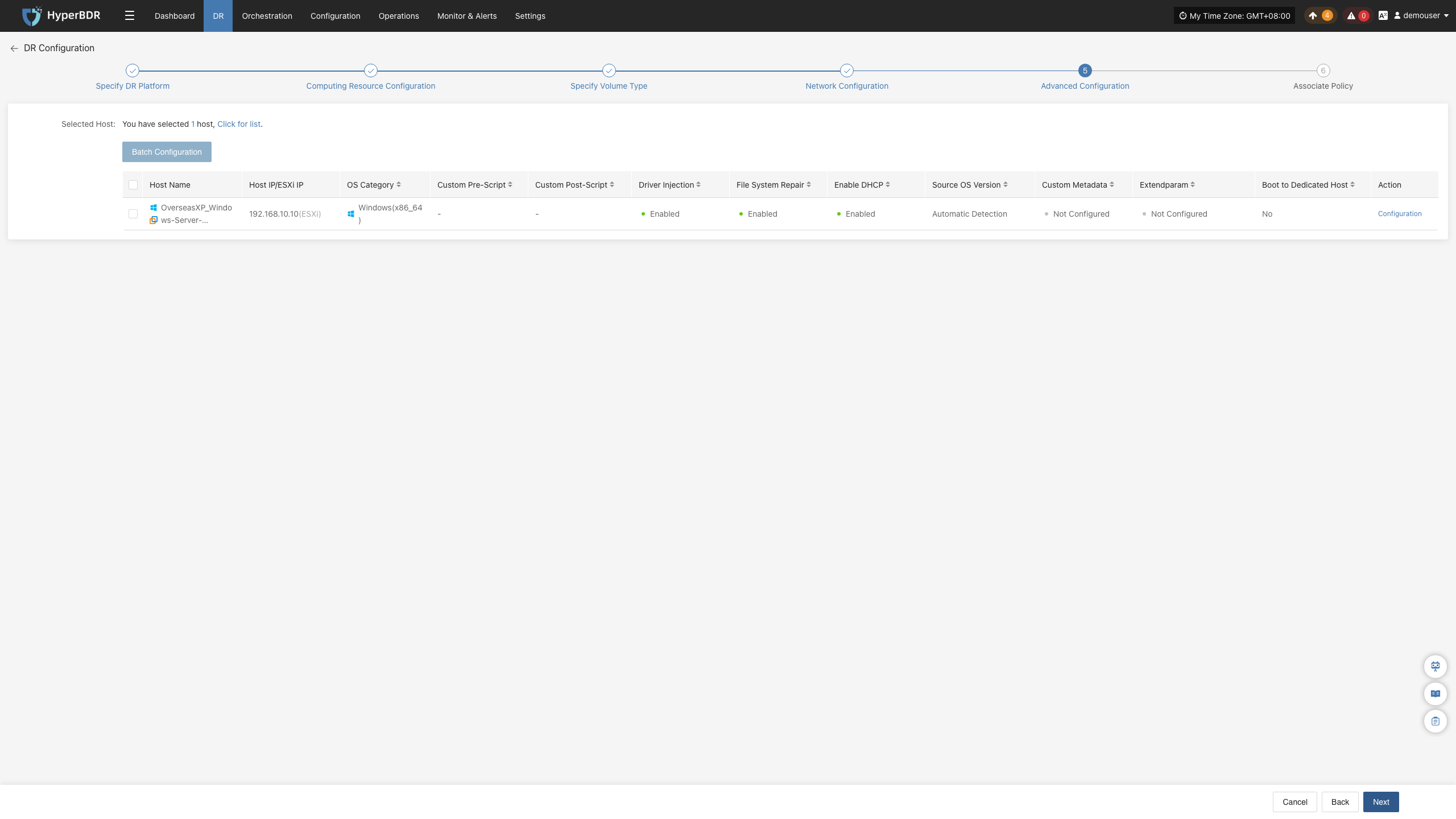
- Configure parameters such as custom pre/post scripts, driver adaptation, recovery host network, and boot advanced settings according to actual needs and page prompts.
- After completing advanced configuration, click "Next" to enter "Associate Policy".
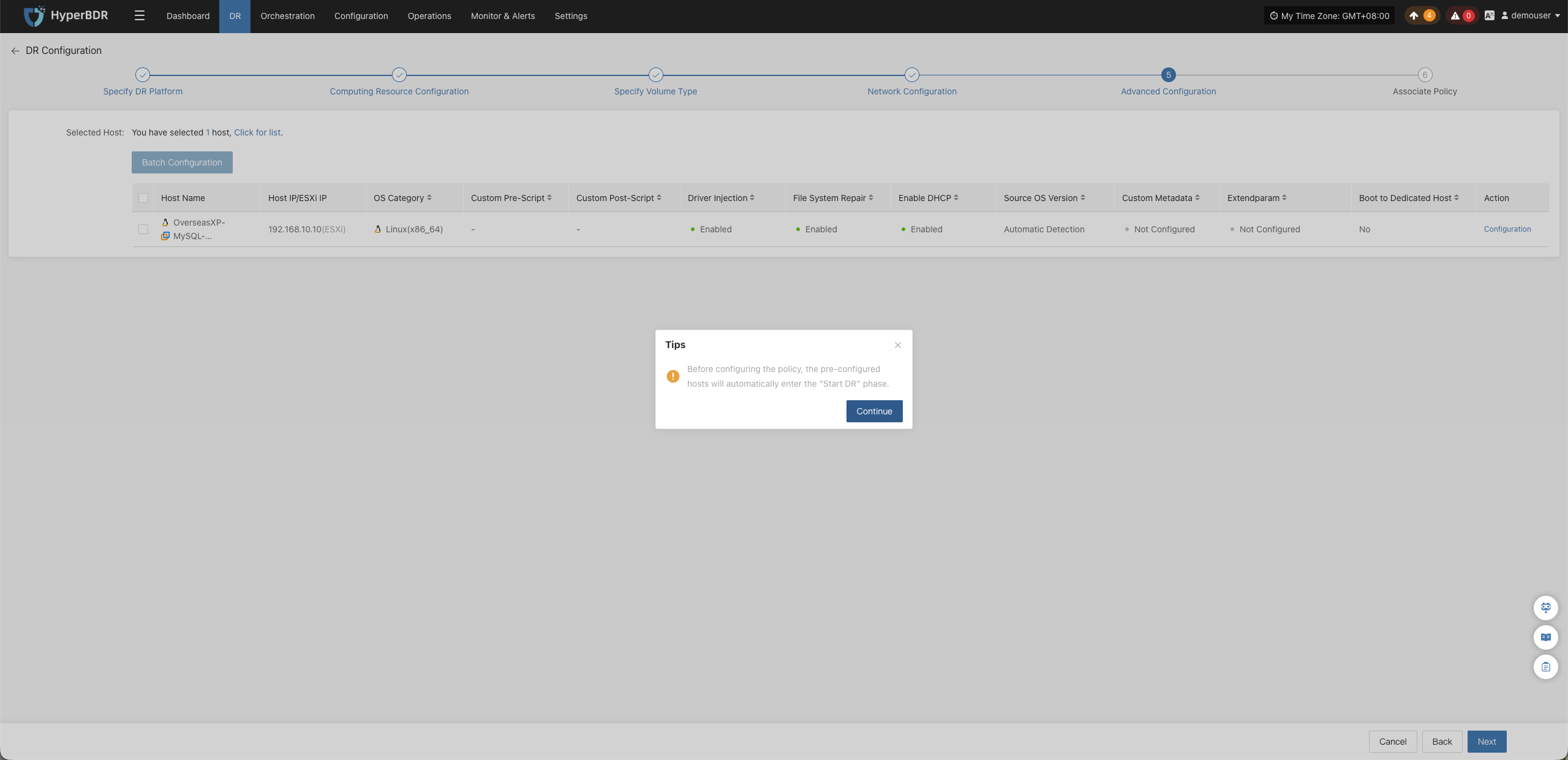
Note: At this point, the page will prompt: "Before configuring policies, already configured hosts will automatically enter the third step 'Start DR'." Please confirm the prompt and click confirm to continue.
Description: The host entering the "Start DR" state does not mean initial synchronization has started. The initial full synchronization still requires clicking "Sync" in the third step "Start DR"; for specific operations, see Sync Operation Description.
Custom Pre & Post Scripts
Custom pre and post scripts are used to execute specified operations during the host recovery process, including modifying configuration files, starting or stopping services, etc.
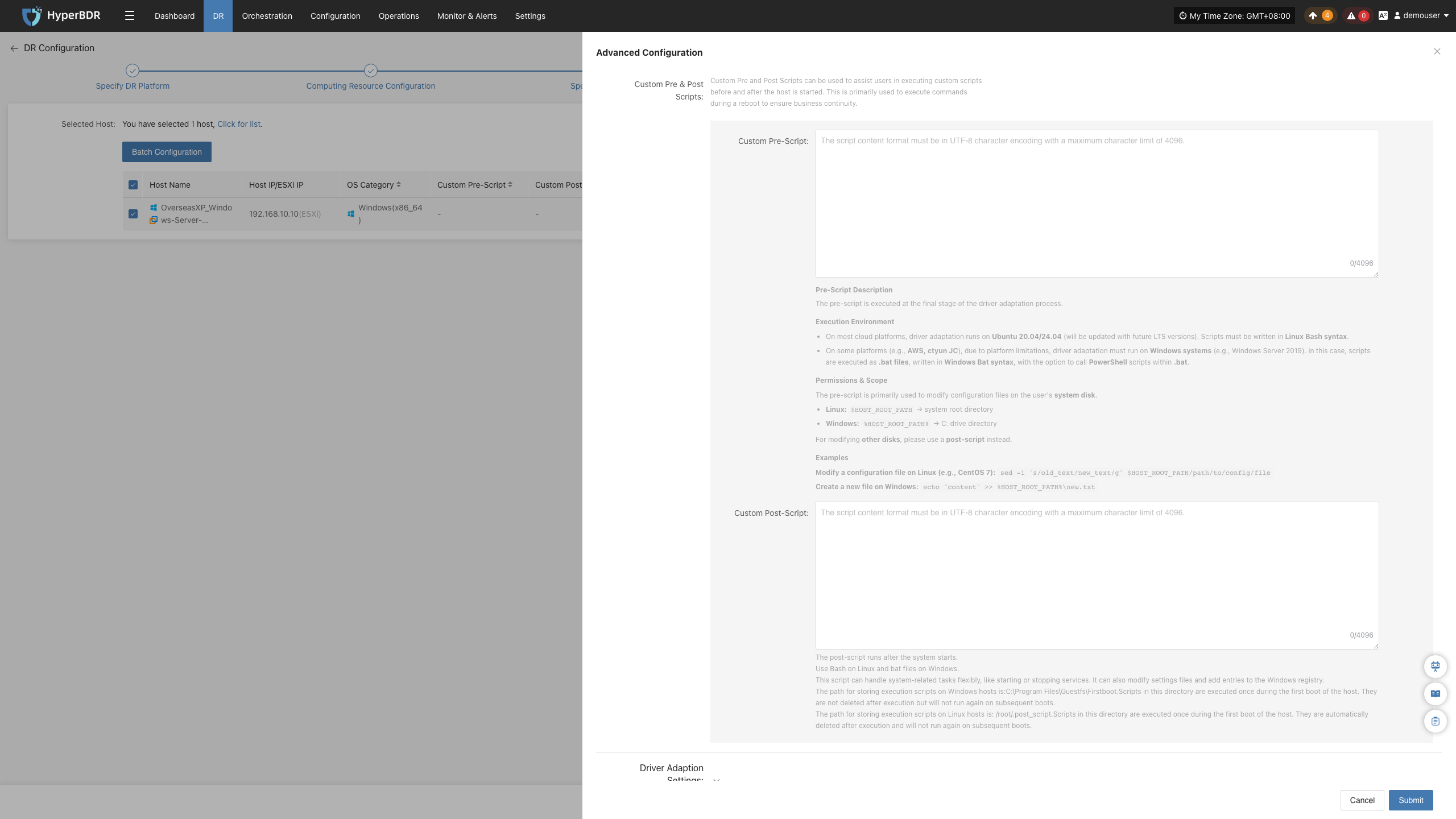
| Configuration Item | Function Description |
|---|---|
| Custom Pre-script | Executed before the host boots, can be used to modify configuration files on the system disk. When modifying data on other disks, post-scripts are recommended. Linux uses Bash syntax, Windows uses bat format. |
| Custom Post-script | Executed after system boots, can be used to start or stop services, modify configuration files, write to Windows registry, etc. Linux uses Bash syntax, Windows uses bat format. |
For specific usage, see Custom Pre & Post Scripts Best Practices.
Driver Adaptation Settings
Driver adaptation is used to configure driver processing and network adaptation options before host boot to improve host boot success rate on the target platform.
| Configuration Item | Function Description |
|---|---|
| Driver Injection | Applicable to scenarios where driver adaptation needs to be skipped; recommended only when booting hosts on the same virtualization platform. Skipping driver adaptation may cause the host to fail to boot properly; proceed with caution. |
| File System Repair | When enabled, attempts to repair the file system using file system integrity check and repair tools, such as xfs_repair. This option may increase driver adaptation execution time. |
| Enable DHCP | When enabled, automatically modifies operating system network configuration files to adjust network configuration to DHCP mode. Target cloud platforms usually allocate IP addresses via DHCP; it is recommended to enable this when targeting cloud platforms, otherwise the host may fail to obtain an IP address. |
| Source OS Version | Supports automatic detection of source operating system version. |
Transition Host Network Settings
Used to configure whether the Cloud Sync Gateway can access the recovery host network, allowing flexible system configuration based on actual network connectivity.
| Configuration Item | Function Description |
|---|---|
| Can Cloud Sync Gateway access recovery host network | Select based on connectivity between Cloud Sync Gateway and recovery host network. If the Cloud Sync Gateway can access the recovery host network, select "Yes"; if it cannot access directly, select "No". |
Boot Advanced Settings
Used to configure custom metadata, extended parameters, and dedicated host options when the recovery host boots to satisfy specific cloud server creation and boot requirements.
| Configuration Item | Function Description |
|---|---|
| Custom Metadata | Used to set custom metadata needed when the host boots; configuration items can be added or deleted via Key and Value. |
| Extended Parameters (Extendparam) | Used to pass additional configuration parameters when creating cloud servers to customize resource behavior, billing mode, and advanced settings. For details, please refer to help documentation. |
| Boot to Dedicated Host | Select whether to boot the recovered host onto a dedicated host. When selecting "Yes", the dedicated host must be created in advance, otherwise boot failure may occur. |
Associate Policy
Associate disaster recovery policies with hosts to be recovered to configure parameters such as data synchronization execution time, sync speed, and snapshot retention count to satisfy different DR management requirements.
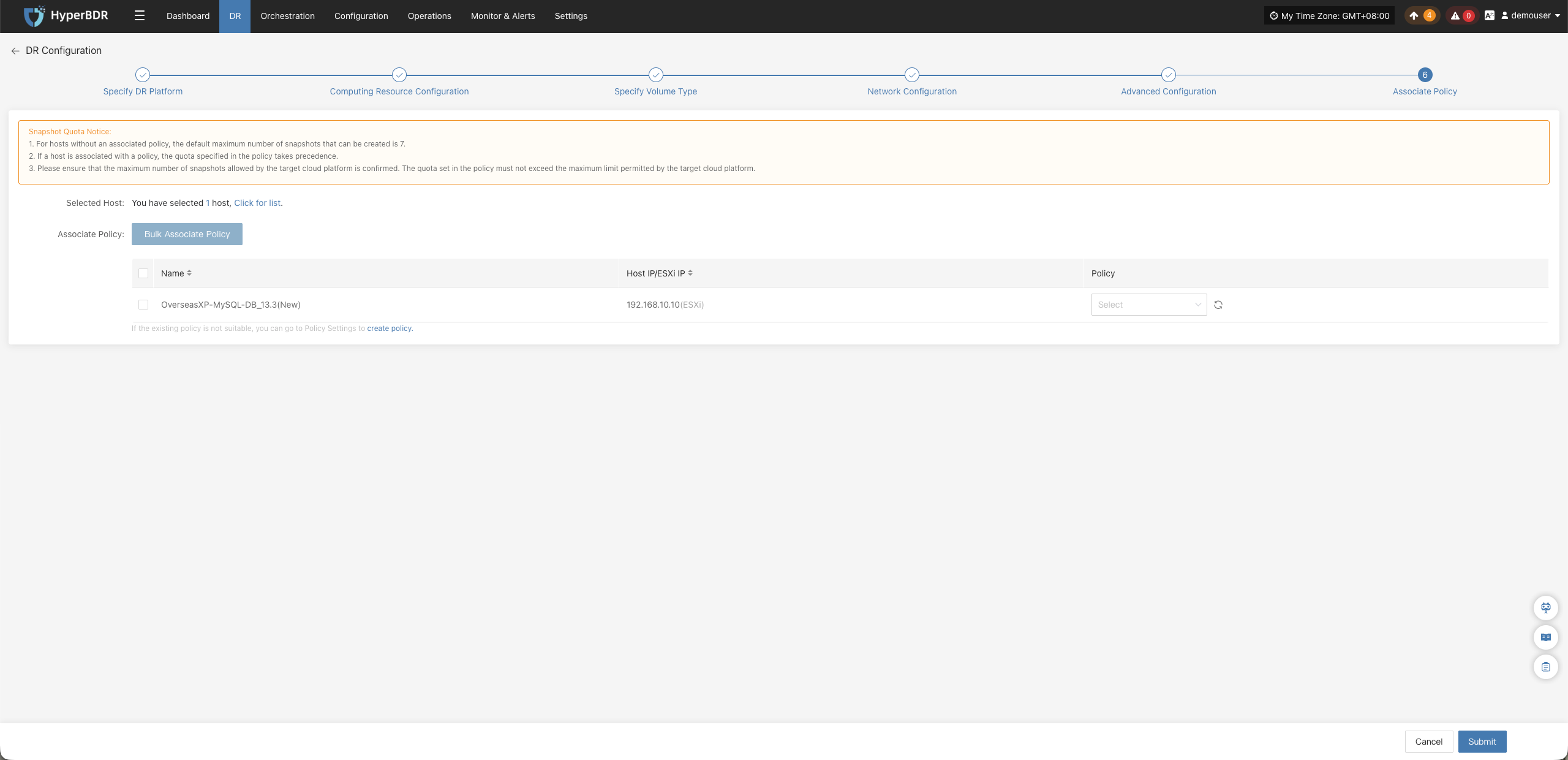
Prerequisites: Completed the corresponding policy configuration before association. If no policy exists in the system to bind to the host or existing policies cannot meet requirements, click the create policy button on the page. For creation methods, see Policy Settings.
Operation Steps:
Description: You can choose to associate a policy in the current step, or temporarily skip this step and click confirm directly to enter the third step "Start DR", and associate later according to actual requirements.
- In the host list, find the host to associate with a policy.
- In the drop-down list on the right side of the corresponding row, select the policy to associate. If a created policy is not displayed, click the refresh button next to the drop-down list to refresh the policy list.
- After selection, click "Confirm" to complete policy association and enter the third step "Start DR".
Batch Associate Policy
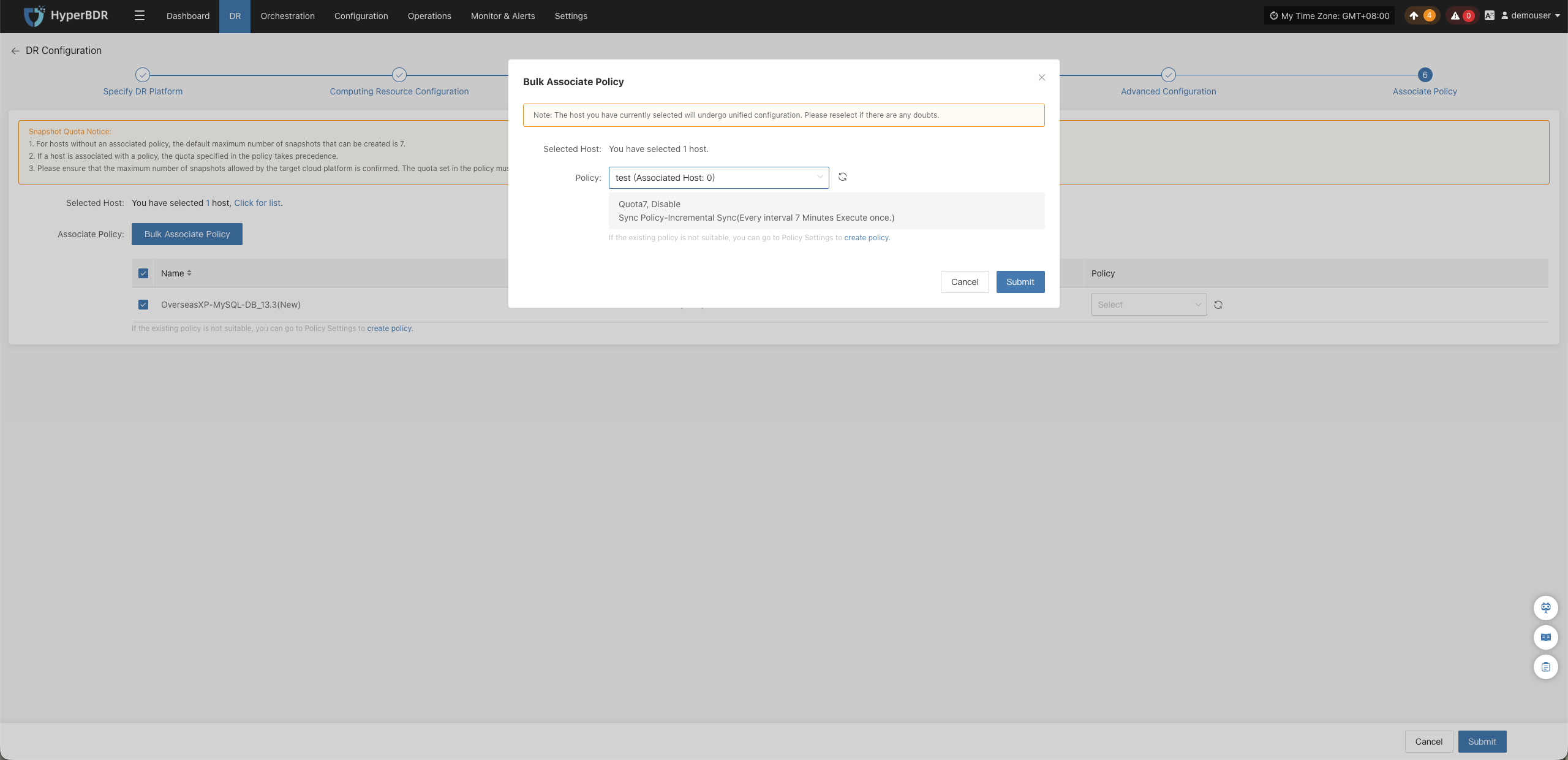
- In the host list, select the hosts to associate with policies.
- Click "Batch Associate Policy".
- In the pop-up dialog box, select the policy to associate.
- Click "Confirm" to complete batch association.
- After selection, click "Confirm" to complete policy association and enter the third step "Start DR".
Start DR
Go to DR > Host DR > Start DR, select one or more hosts, and click "Sync" to start the initial full data synchronization.
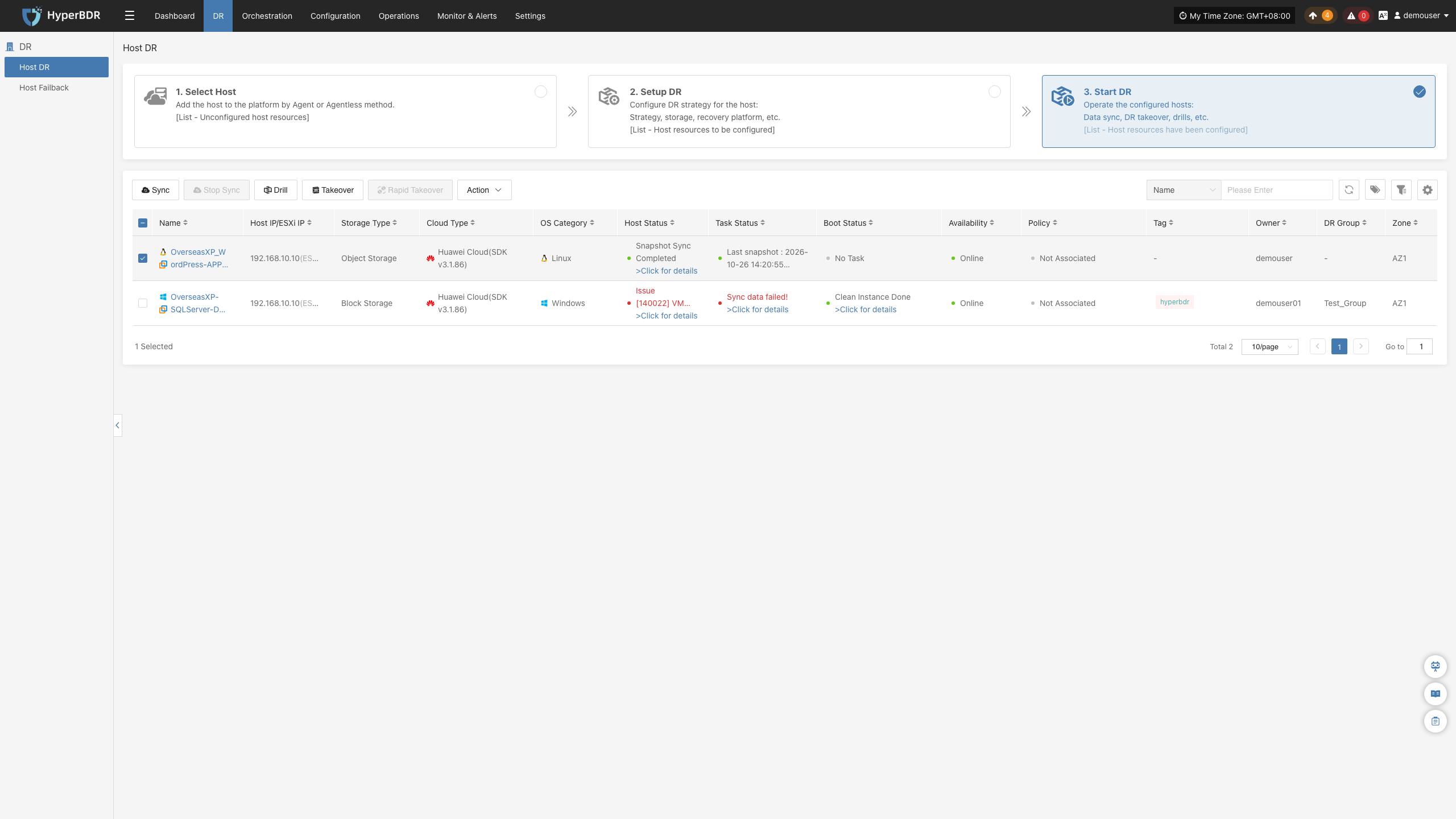
Note: Initial data synchronization must complete successfully before executing drills or takeover.
Sync
Select the hosts to replicate and click "Sync" to initiate the initial full synchronization.
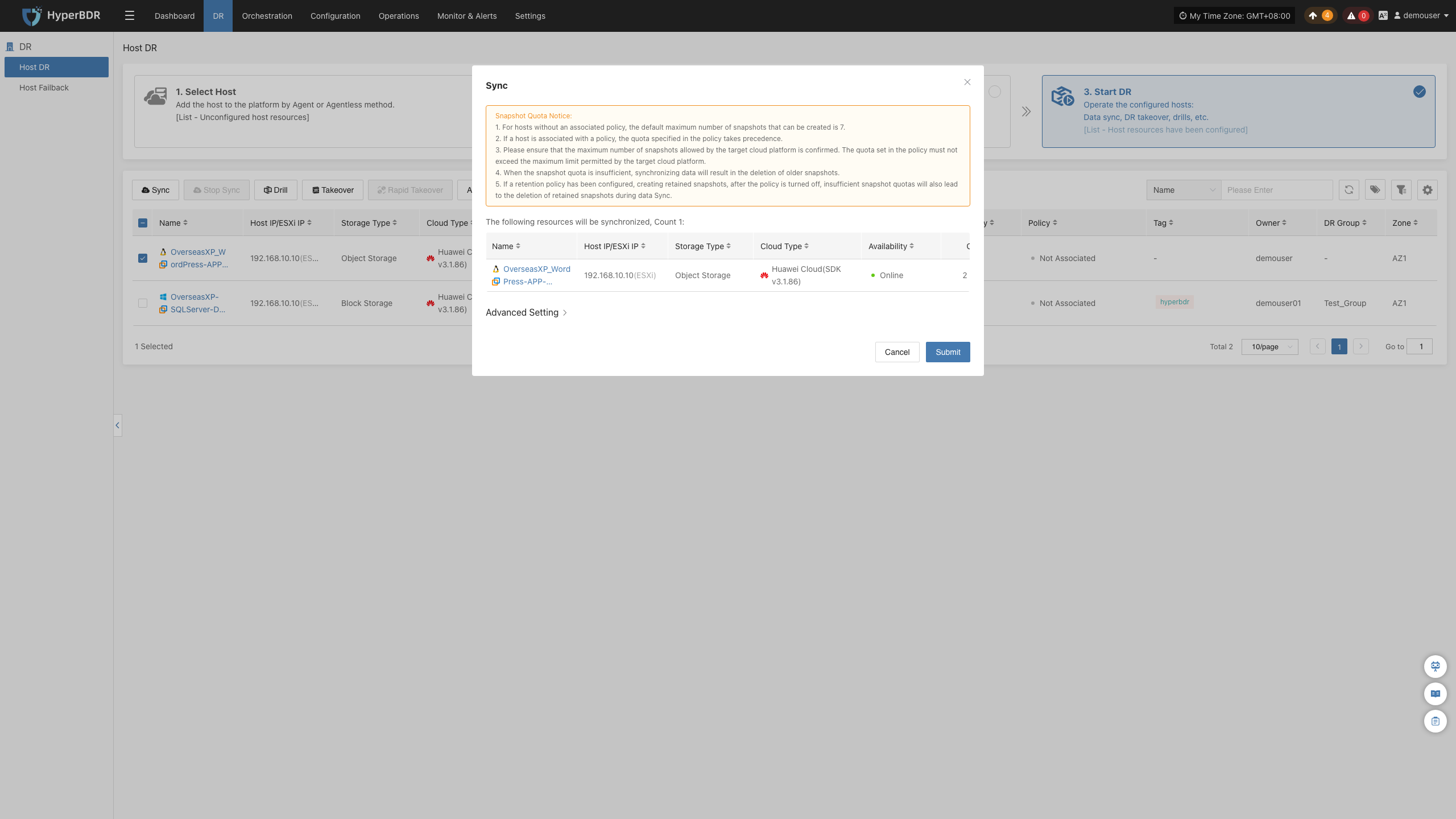
Review the prompt in the confirmation dialog, then click "Confirm" to start syncing.
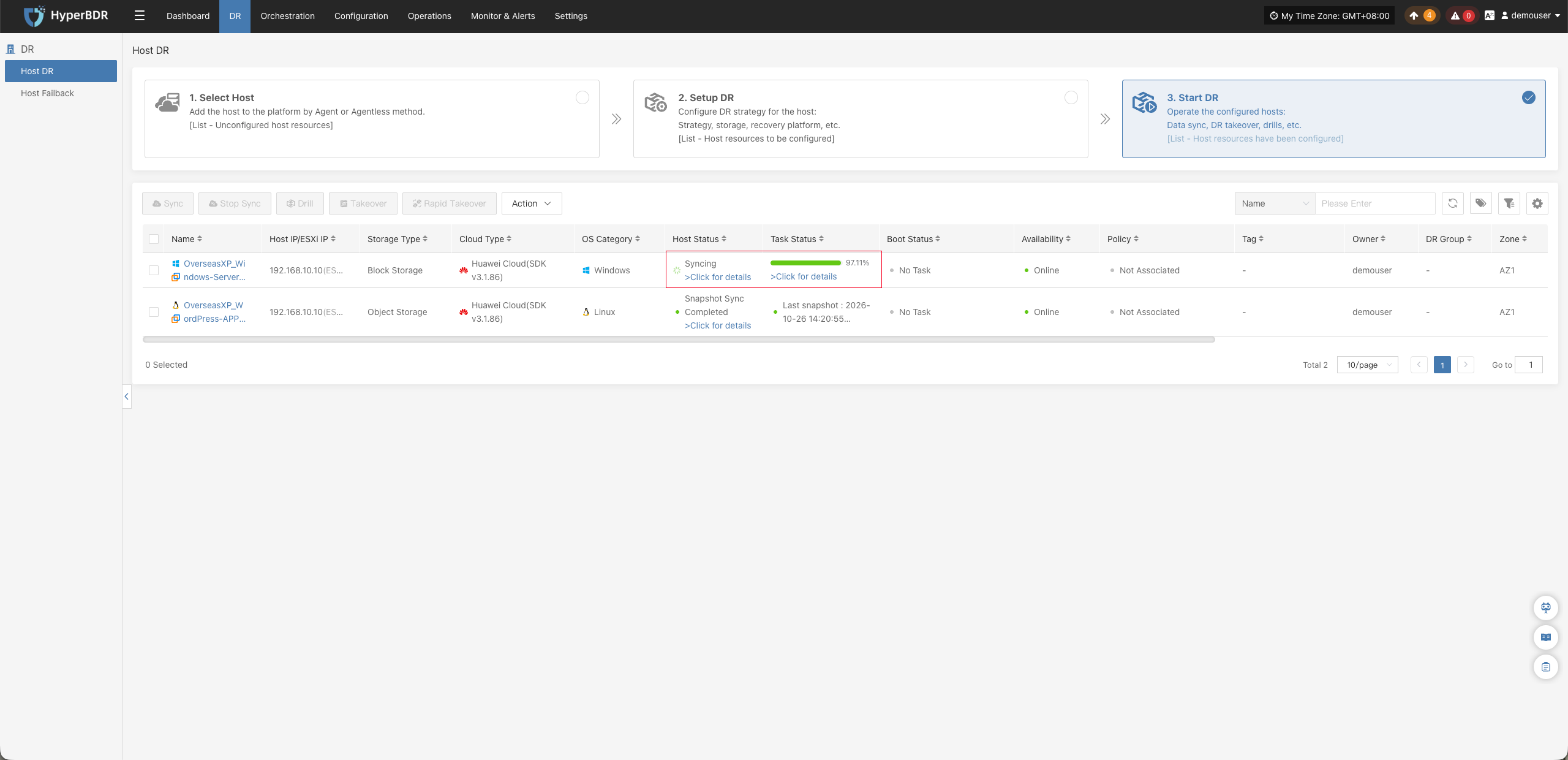
Wait for data synchronization to complete before proceeding. You can click "Click for details" in the table to monitor synchronization progress and host status.
| View Entry | Description |
|---|---|
| Host Status | Click "Click for details" to view host running status and data synchronization details. |
| Task Status | Click "Click for details" to view task execution status and data synchronization progress. |
| Startup Status | Click "Click for details" to view host startup status and boot progress. |
Stop Sync
While synchronization is in progress and after volume preparation has completed, you can click "Stop Sync" to cancel the synchronization task.
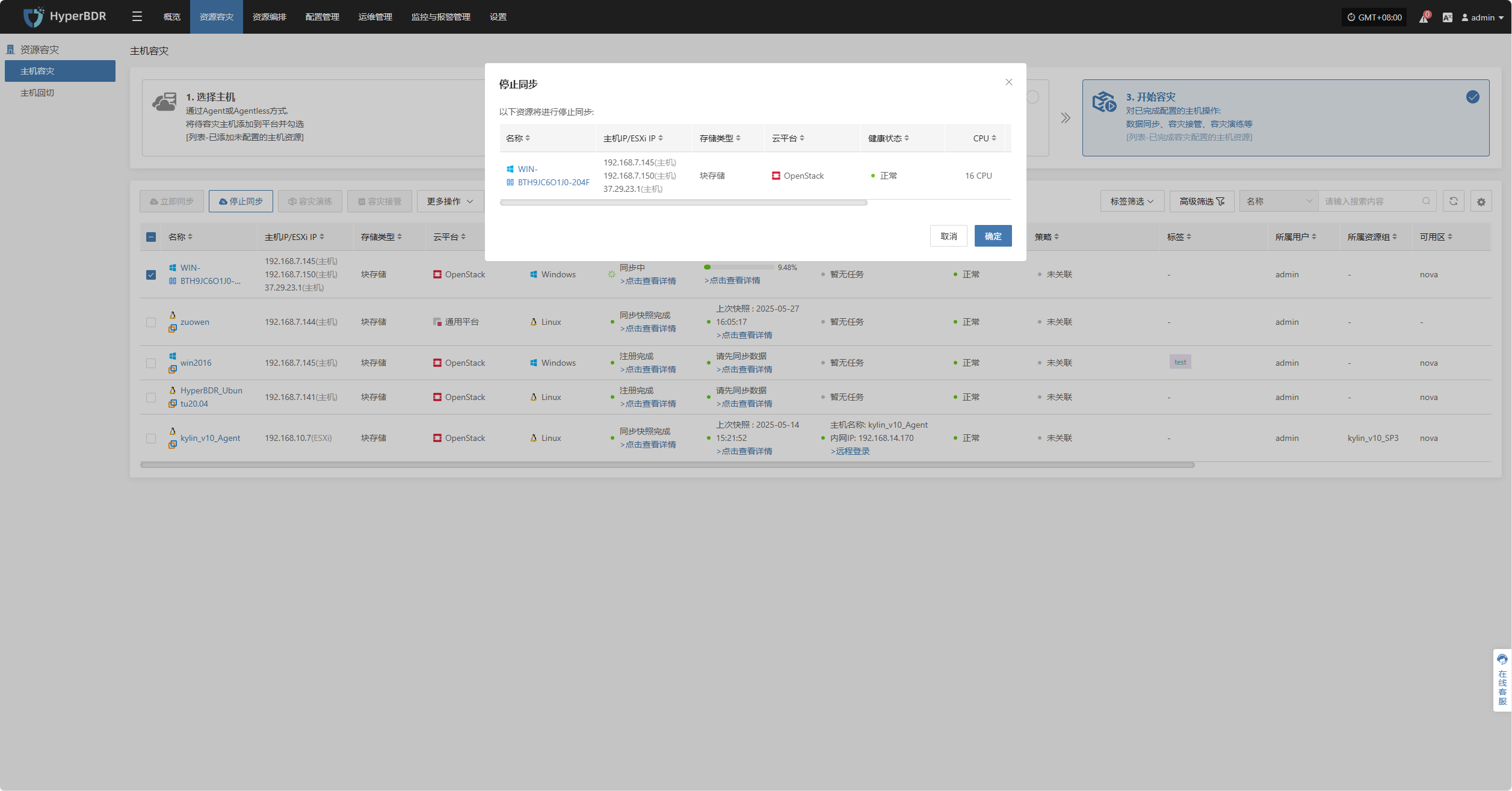
Note: Stopping synchronization is only supported while a sync task is actively running.
Drill
Select the host, click "Drill", choose a recovery point, and restore the host to the target environment for testing.
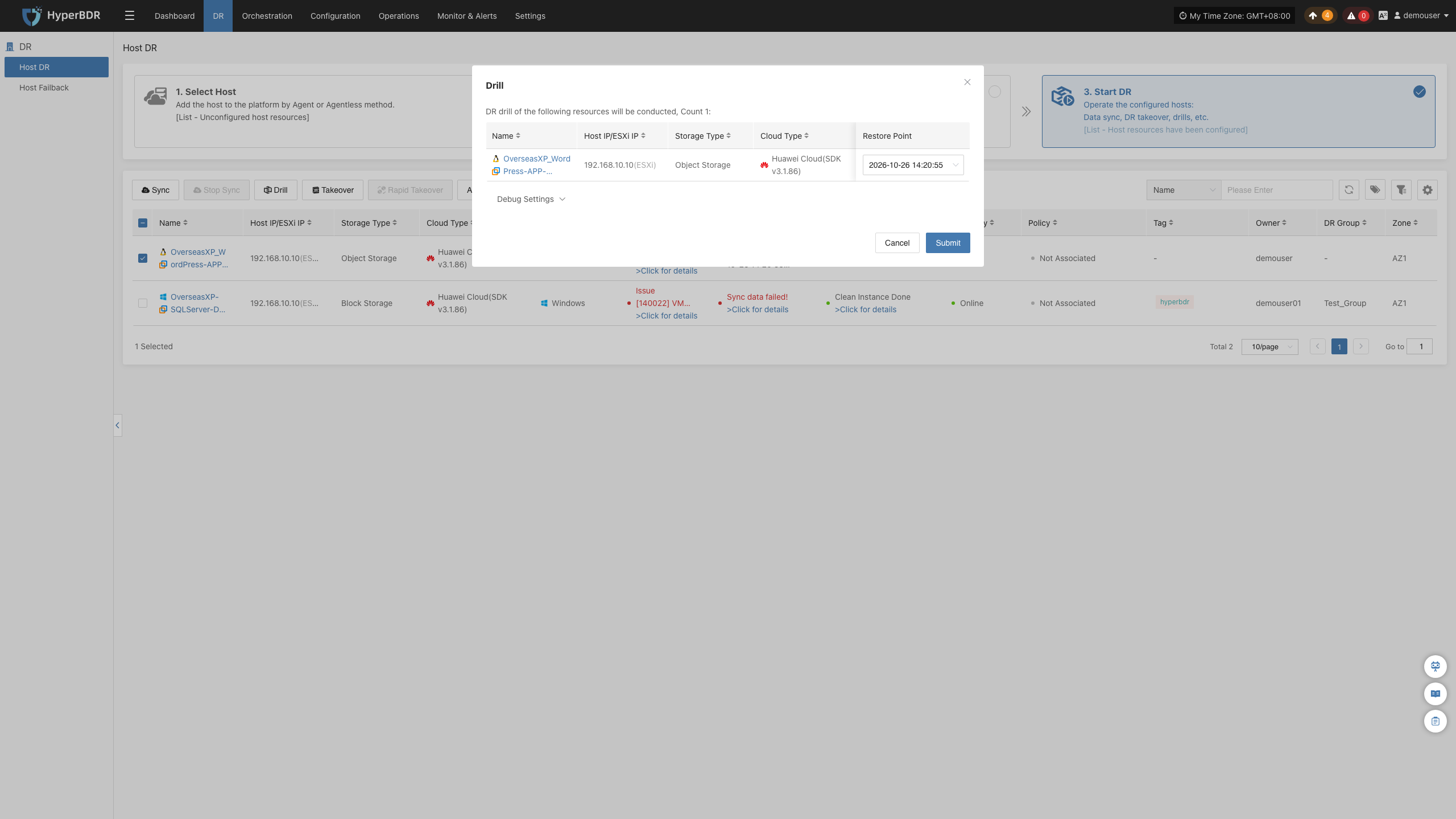
HyperBDR automatically launches instances on the target platform based on your preconfigured compute, storage, and networking resources. Once the instance is running, log in to verify configurations and test application services.
After recovery, verify that application services, databases, and network connectivity function properly.
Takeover
Select the production host, click "Takeover", choose a recovery snapshot point, and click "Confirm" to perform failover takeover.
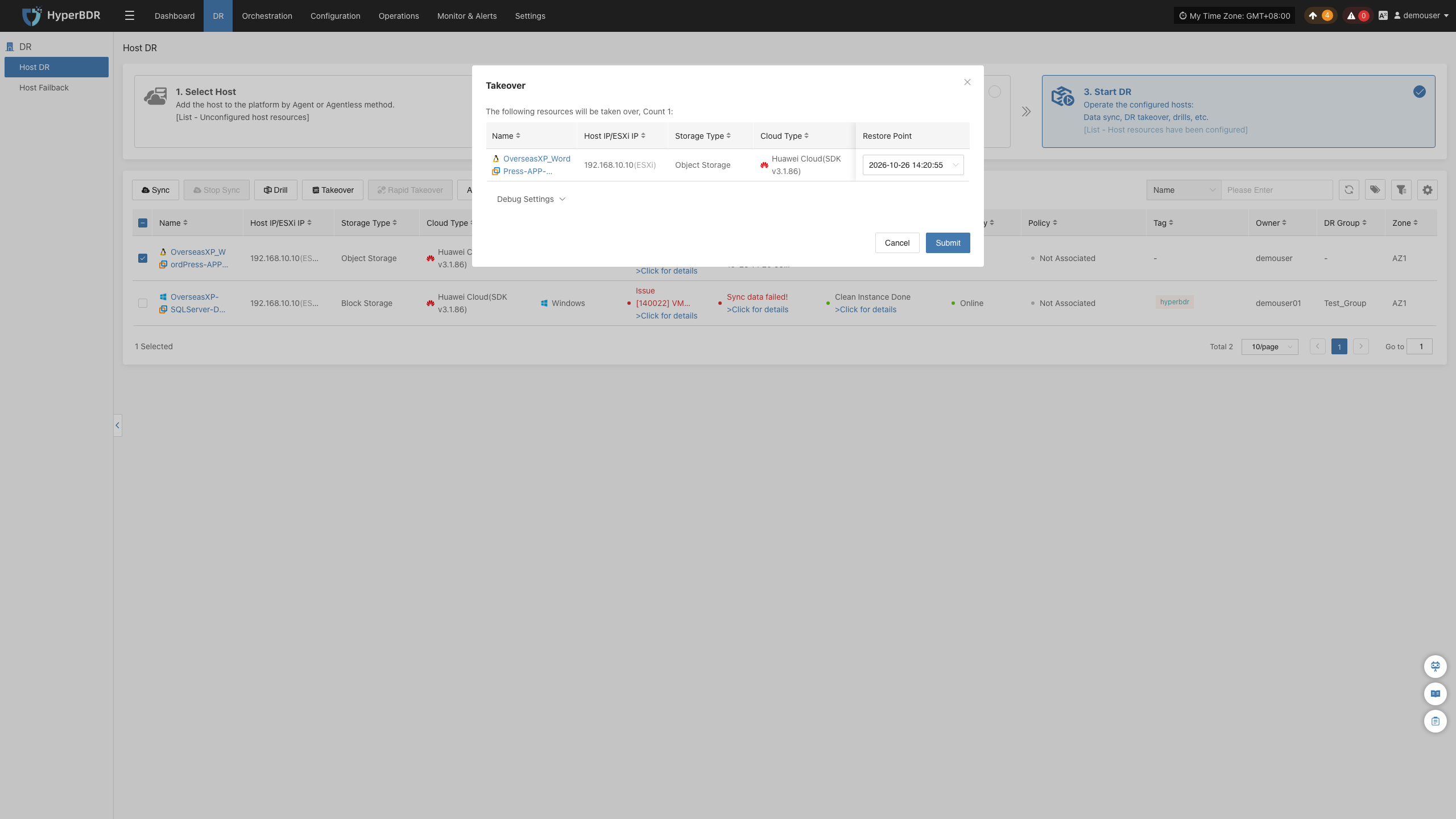
HyperBDR launches target instances based on your configured resource orchestration. Once instances start, log in to the target platform to validate business operations and switch production traffic.
After services are online, verify database consistency, application configurations, and dependent services (such as caches and message queues).
Rapid Takeover
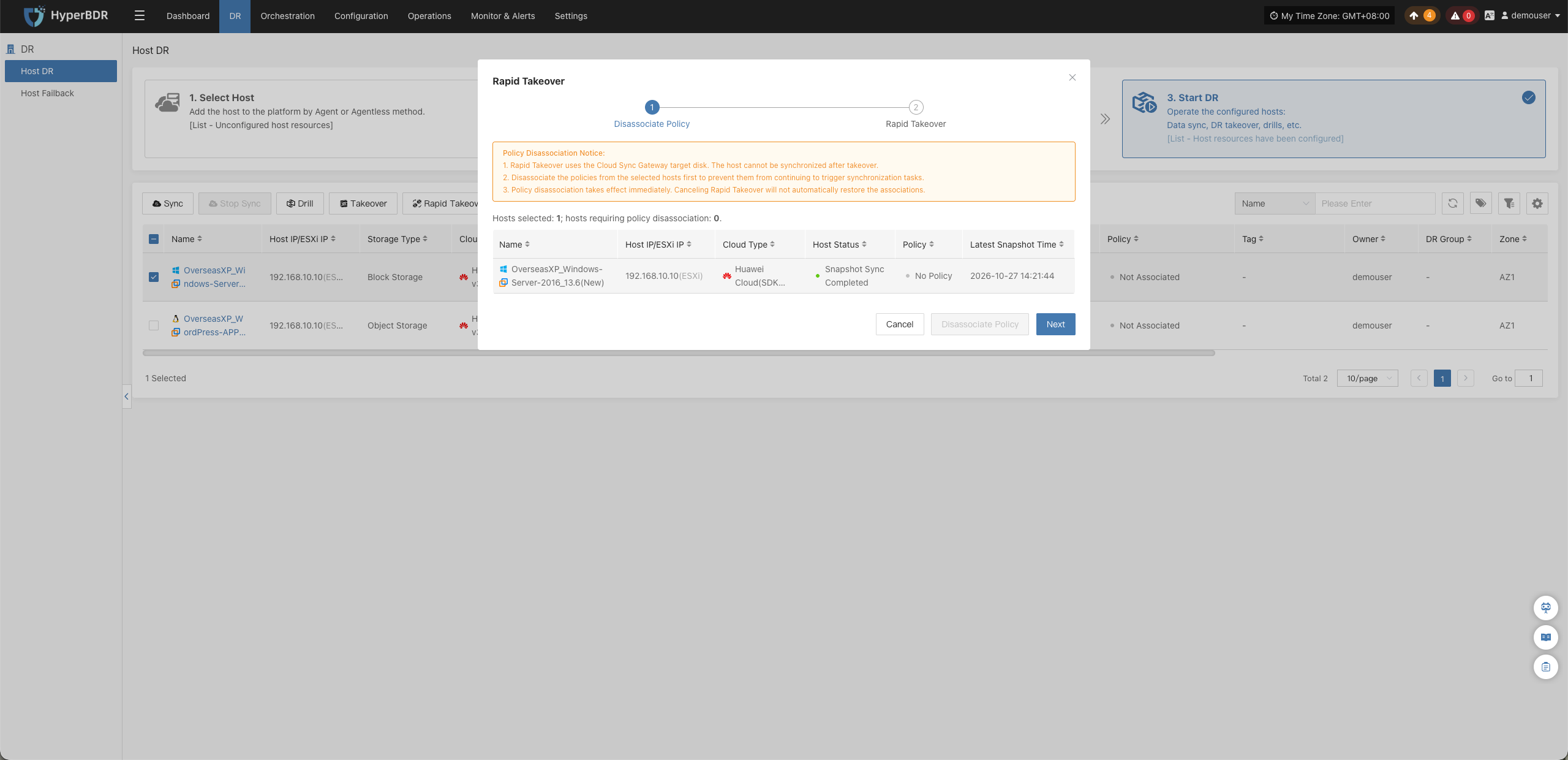
Rapid Takeover allows you to take over workloads instantly by directly utilizing target disks on the Cloud Sync Gateway without creating new cloud storage volumes. Once Rapid Takeover is executed, ongoing synchronization is stopped and cannot be resumed. This feature is supported only in Block Storage mode.
- Select one or more hosts and click "Rapid Takeover" on the Host DR page.
- In the dialog, click "Disassociate Policy". Once the policy status updates to "No Policy", click "Next".
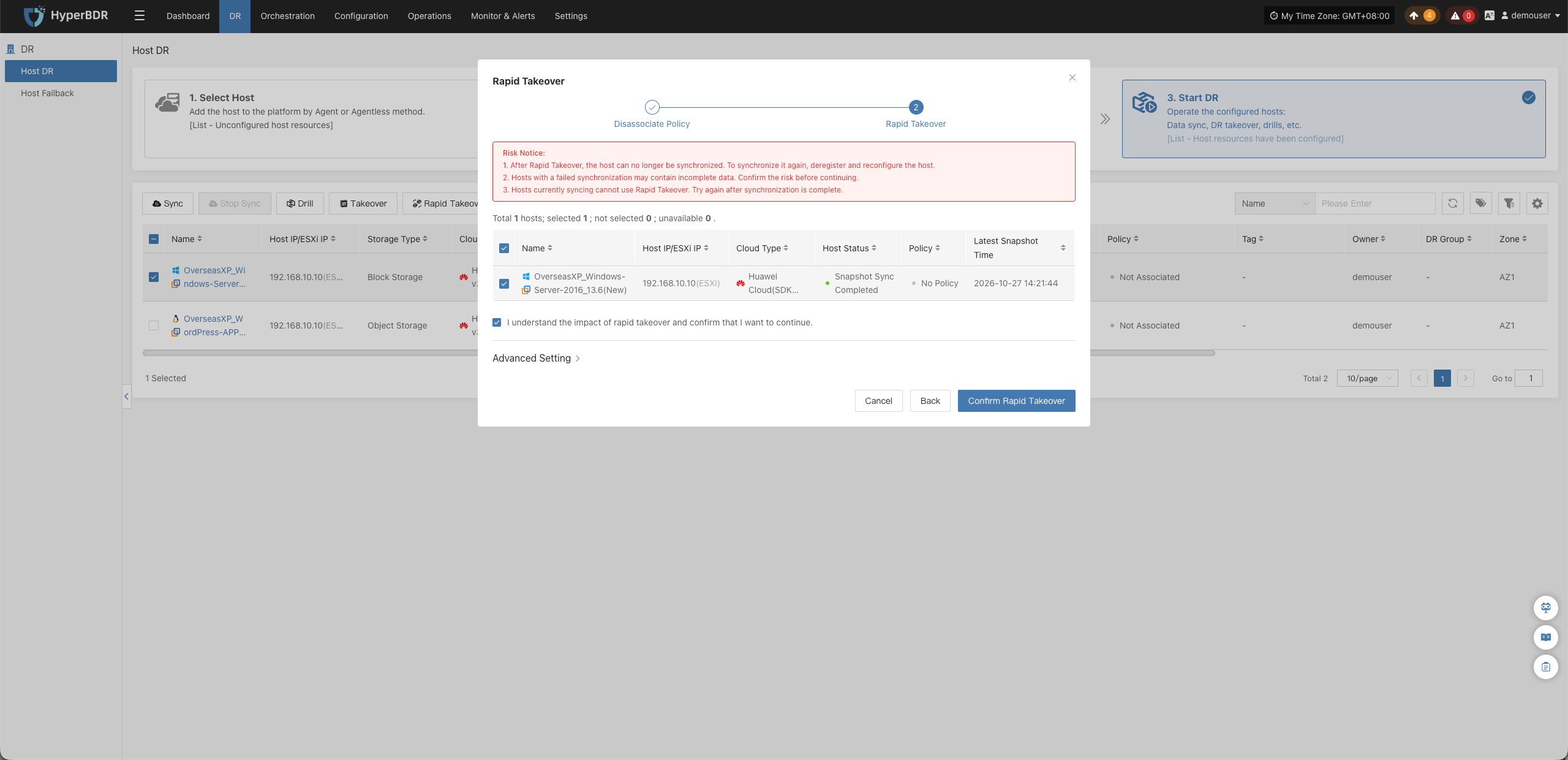
- Select the hosts for rapid takeover, check "I acknowledge the impact of rapid takeover and confirm to continue.", and click "Confirm Rapid Takeover" to begin takeover.
Action
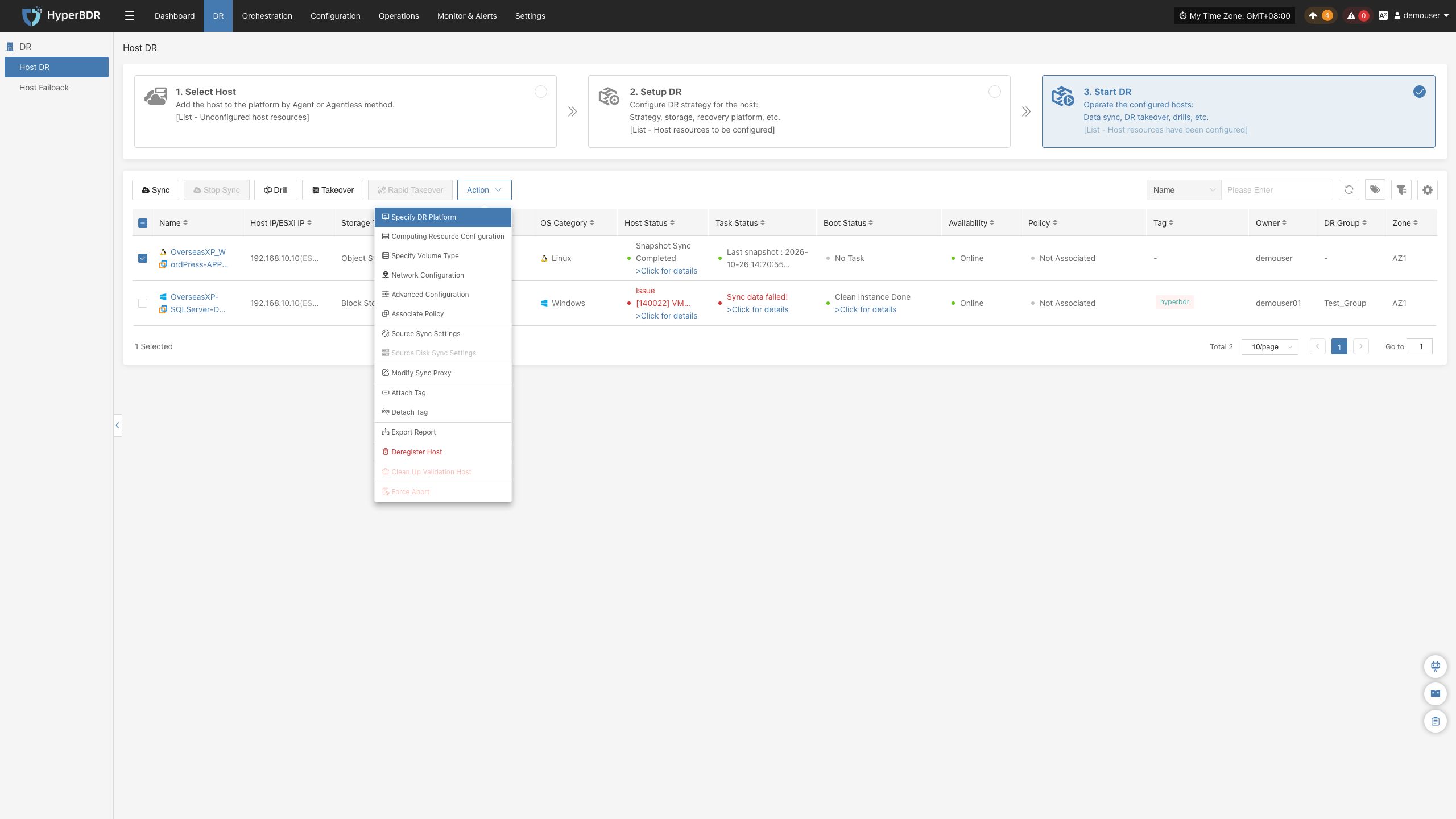
Click "Action" to perform configuration adjustments and other management operations on already configured hosts.
Specify DR Platform
Note: Hosts that have completed data synchronization do not support modification.
Click "Specify DR Platform" to modify the disaster recovery target platform used by the host. For specific operations, see:
Block Storage: Click here to view
Object Storage: Click here to view
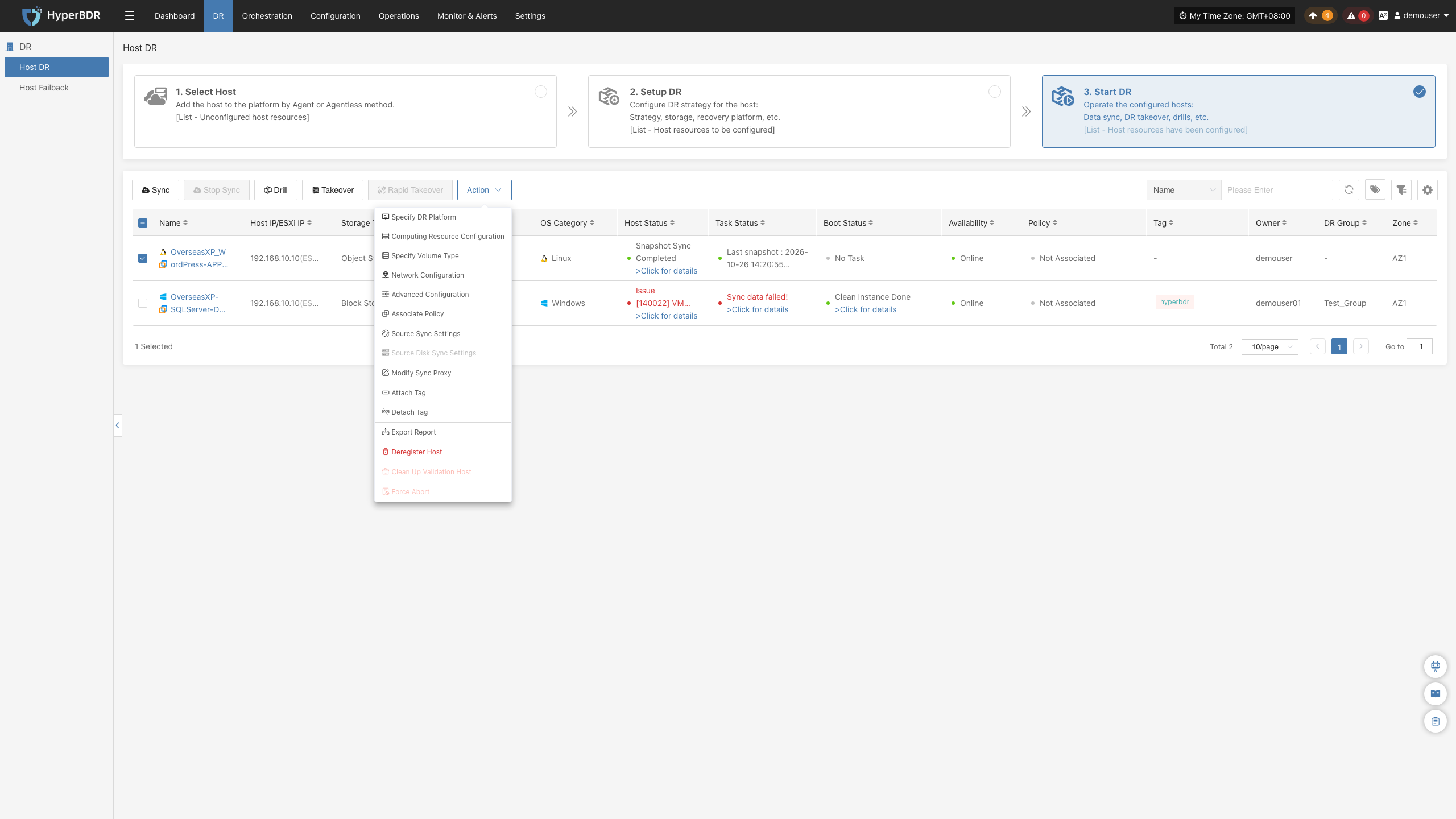
Specify Cloud Sync Gateway
Note: Hosts that have completed data synchronization do not support modification.
Click "Specify Cloud Sync Gateway" to modify the Cloud Sync Gateway used by the host. For specific operations, see:
Block Storage: Click here to view
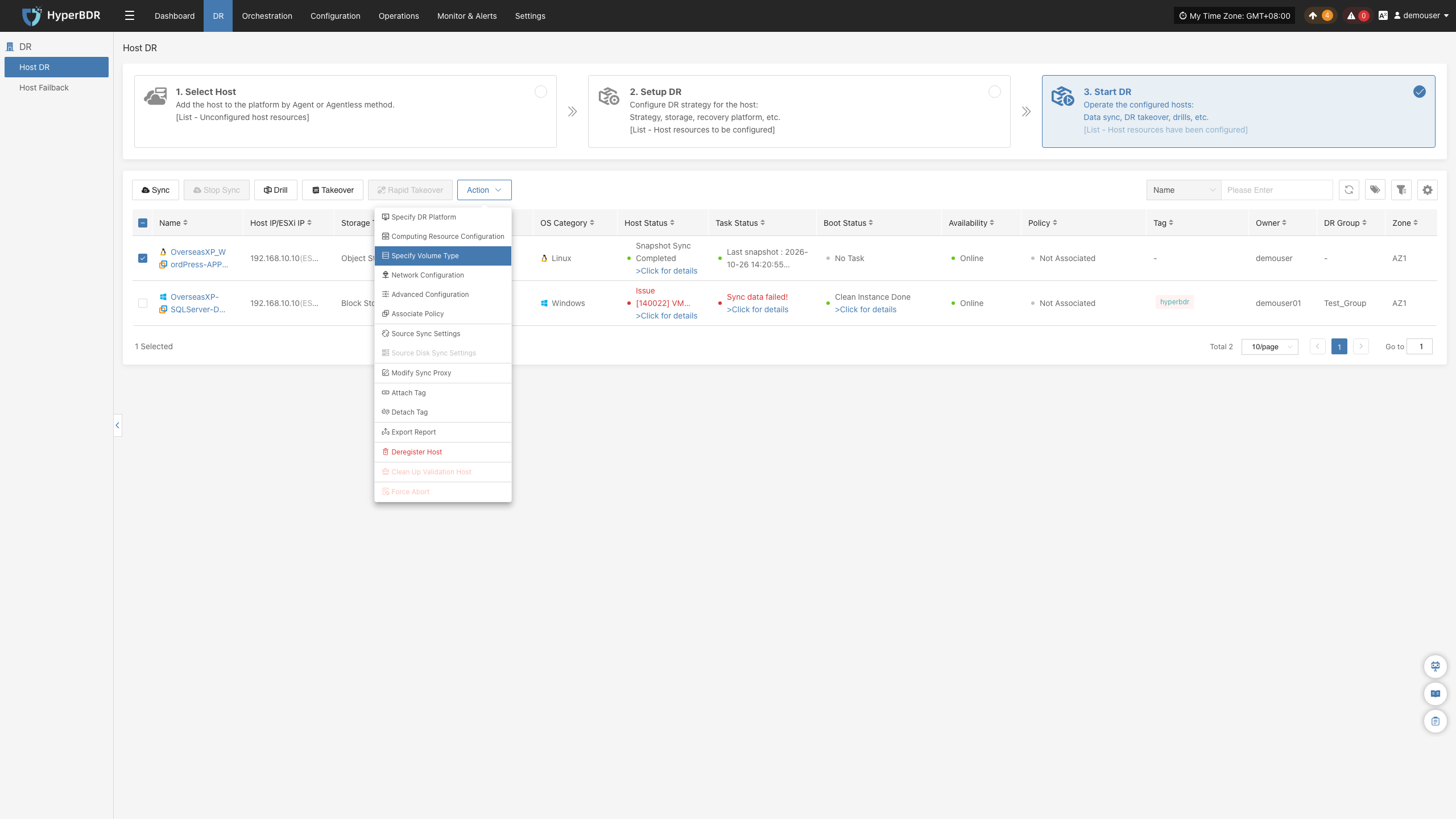
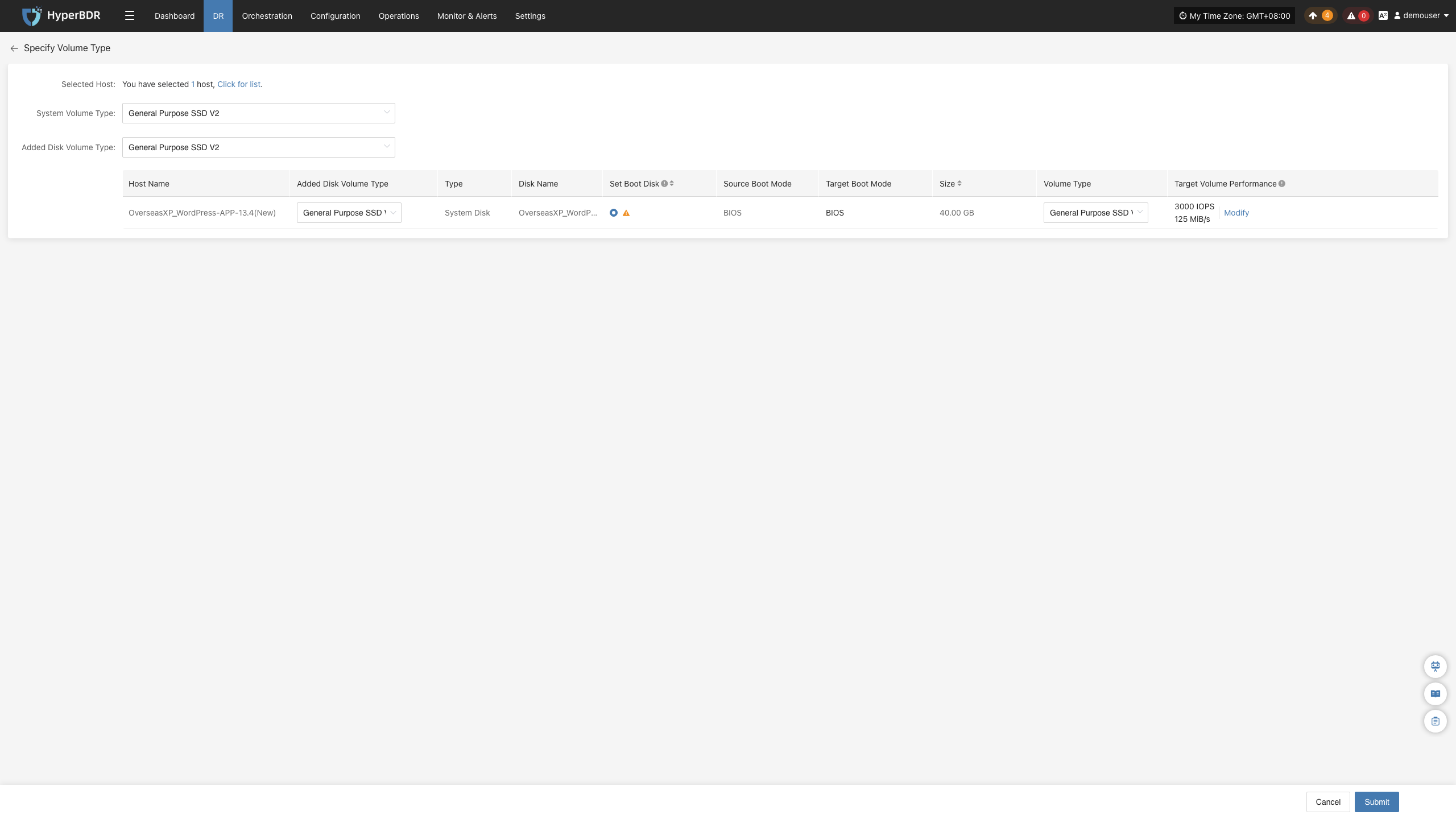
Specify Volume Type
Note: Hosts that have completed data synchronization do not support modification.
Click "Specify Volume Type" to modify the target volume type. For specific operations, see:
Block Storage: Click here to view
Object Storage: Click here to view
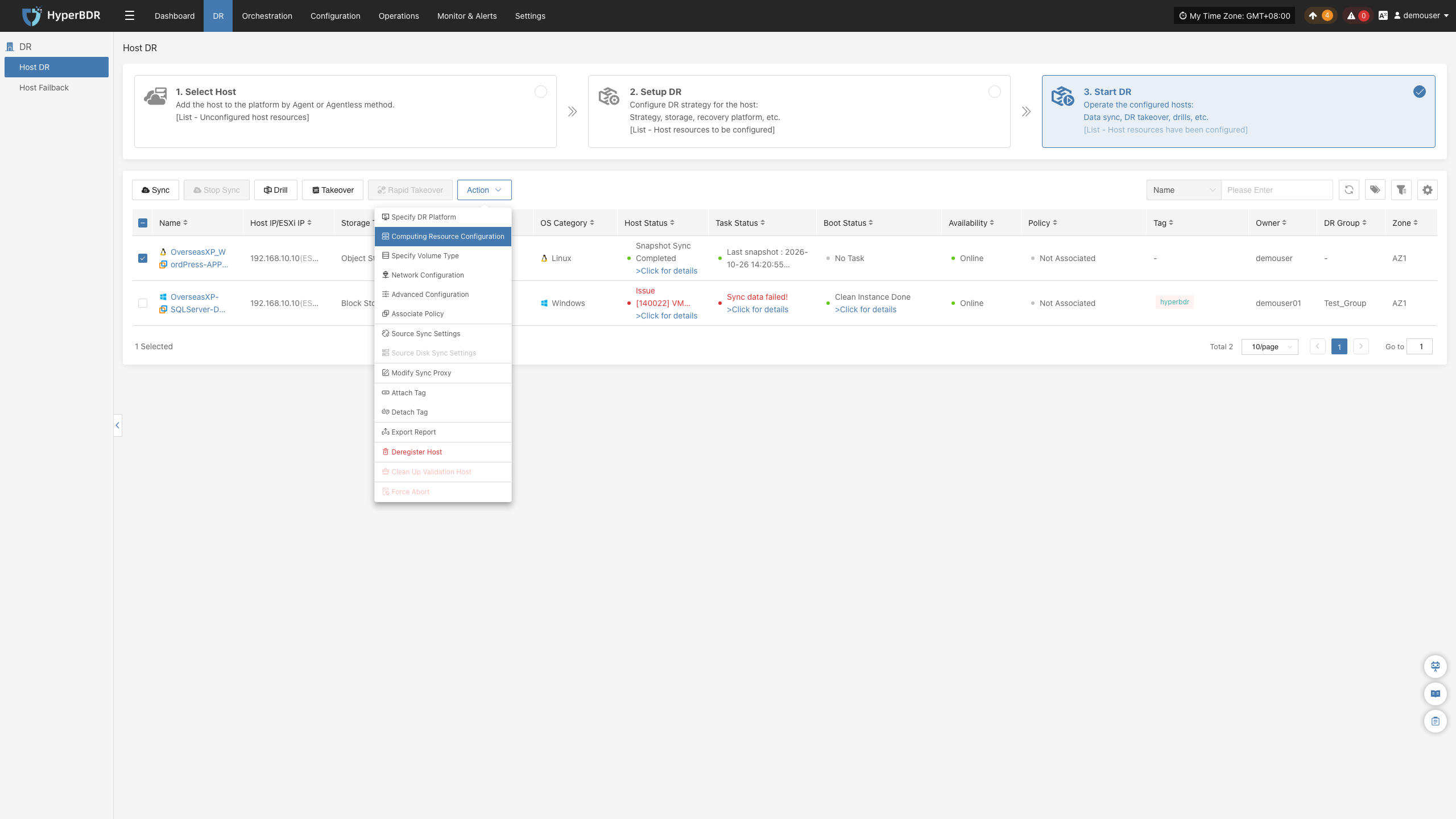
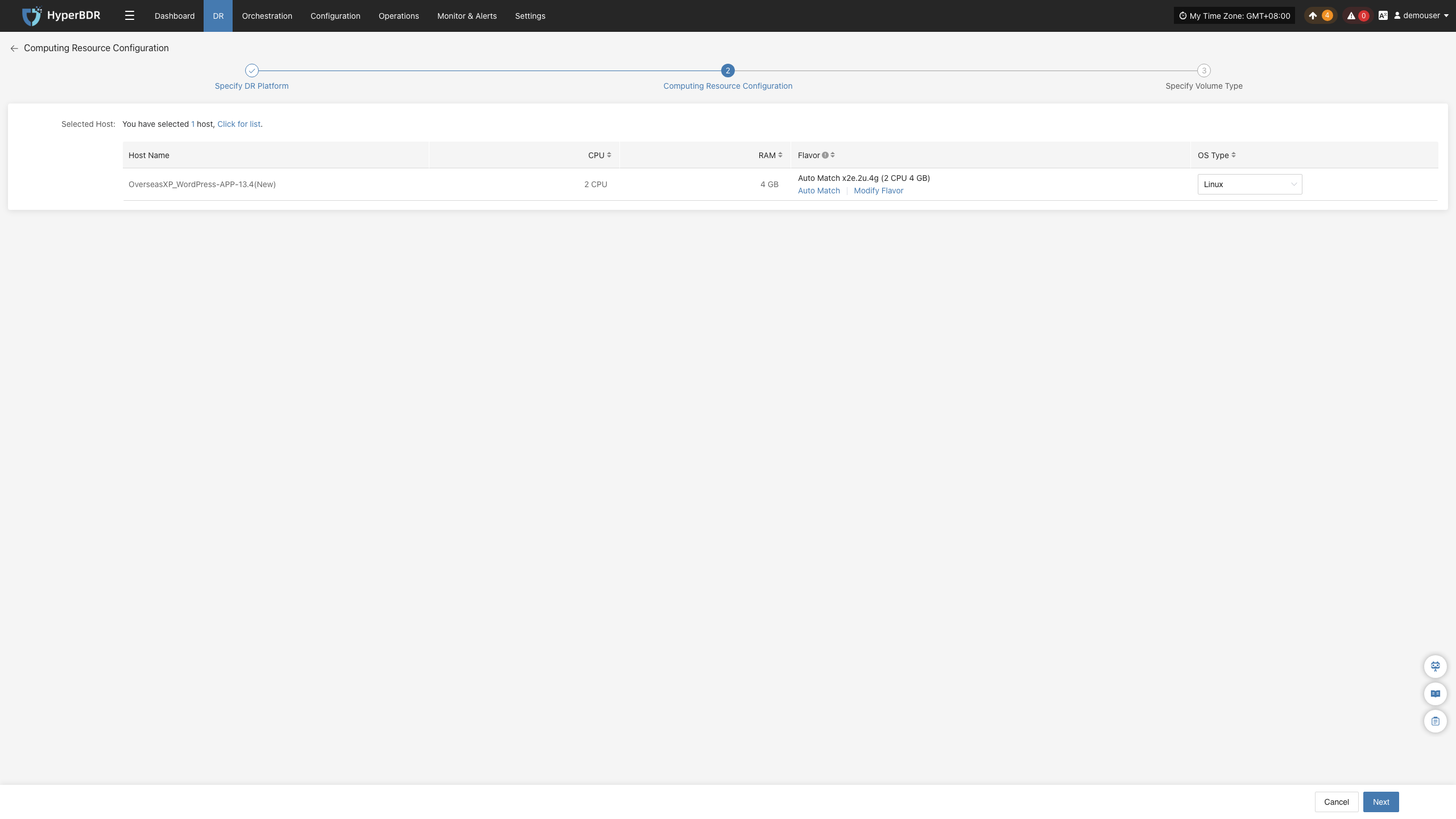
Computing Resource Configuration
Note: Hosts that have completed data synchronization do not support modification.
Click "Computing Resource Configuration" to adjust computing resource configuration on the target side. For specific operations, see:
Block Storage: Click here to view
Object Storage: Click here to view
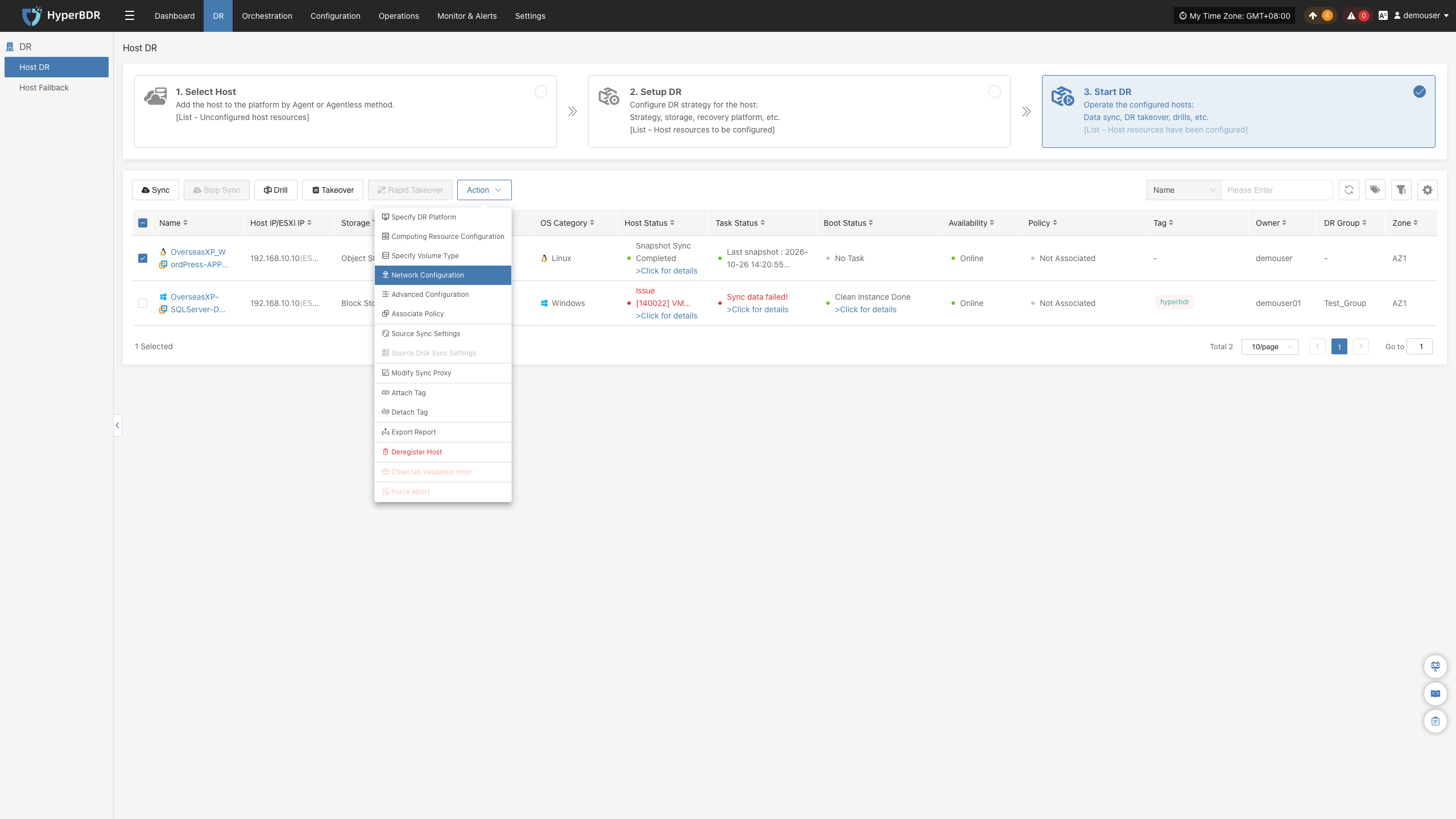
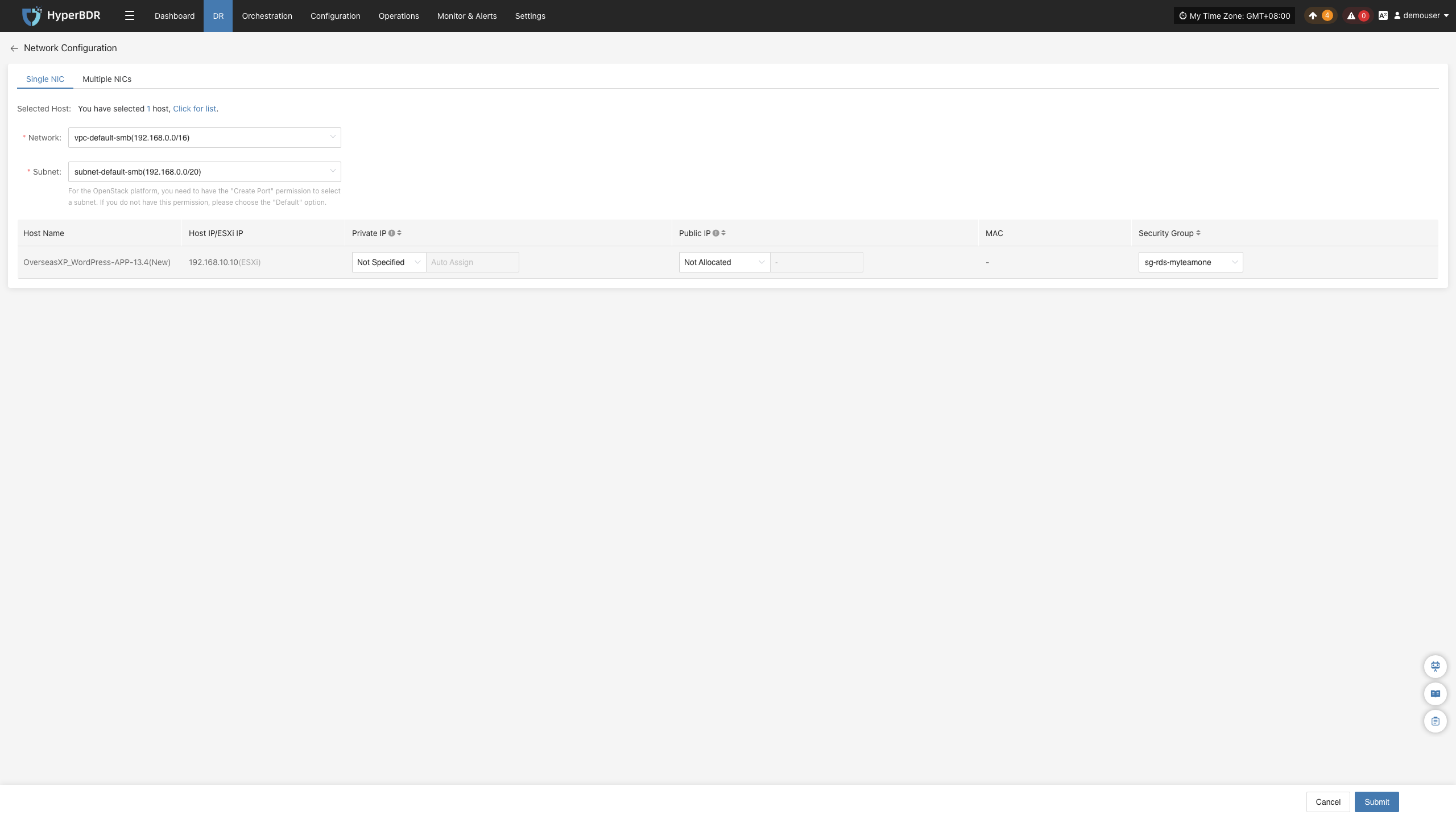
Network Configuration
Note: Hosts that have completed data synchronization do not support modification.
Click "Network Configuration" to adjust network configuration on the target side. For specific operations, see:
Block Storage: Click here to view
Object Storage: Click here to view
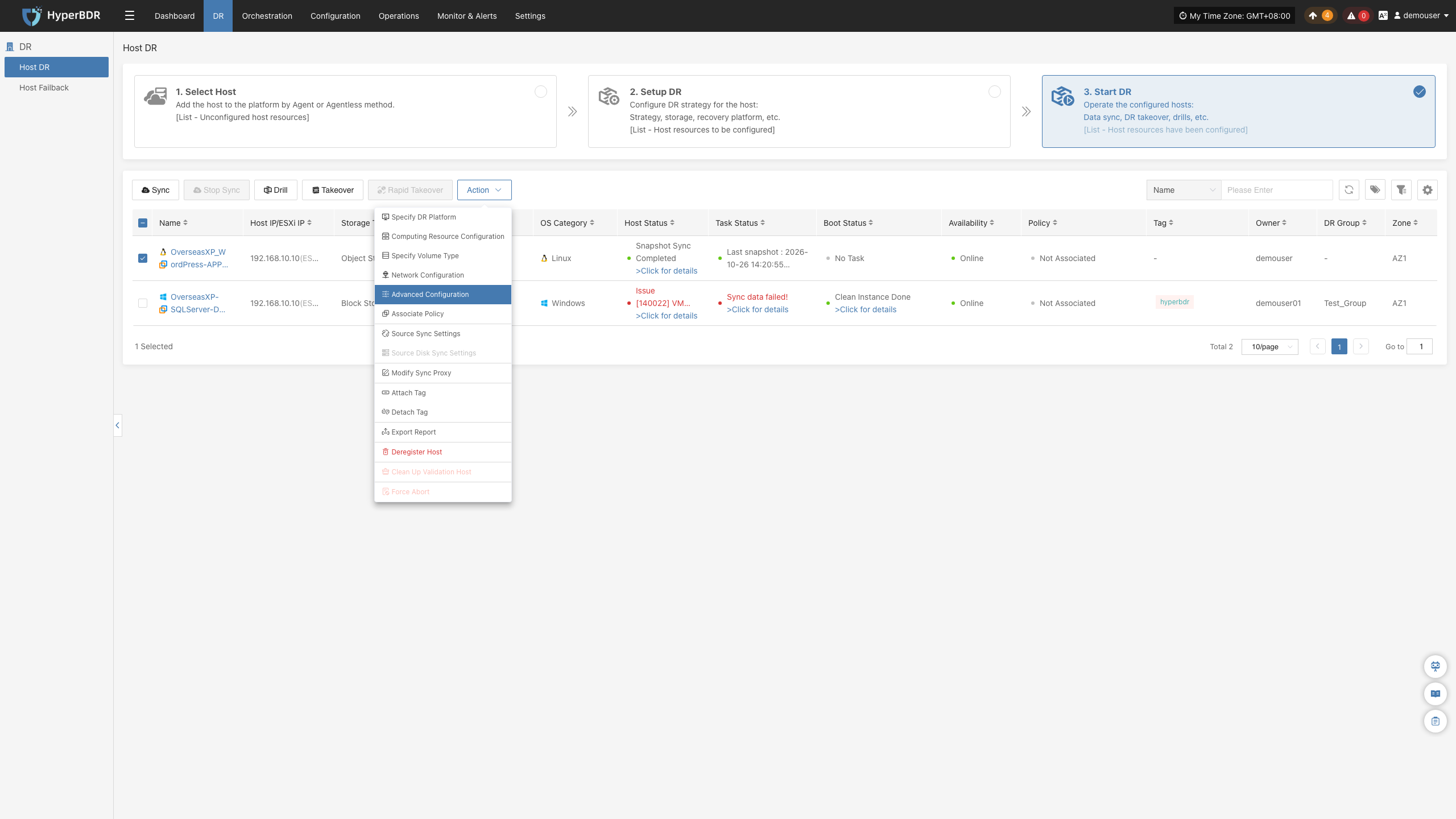
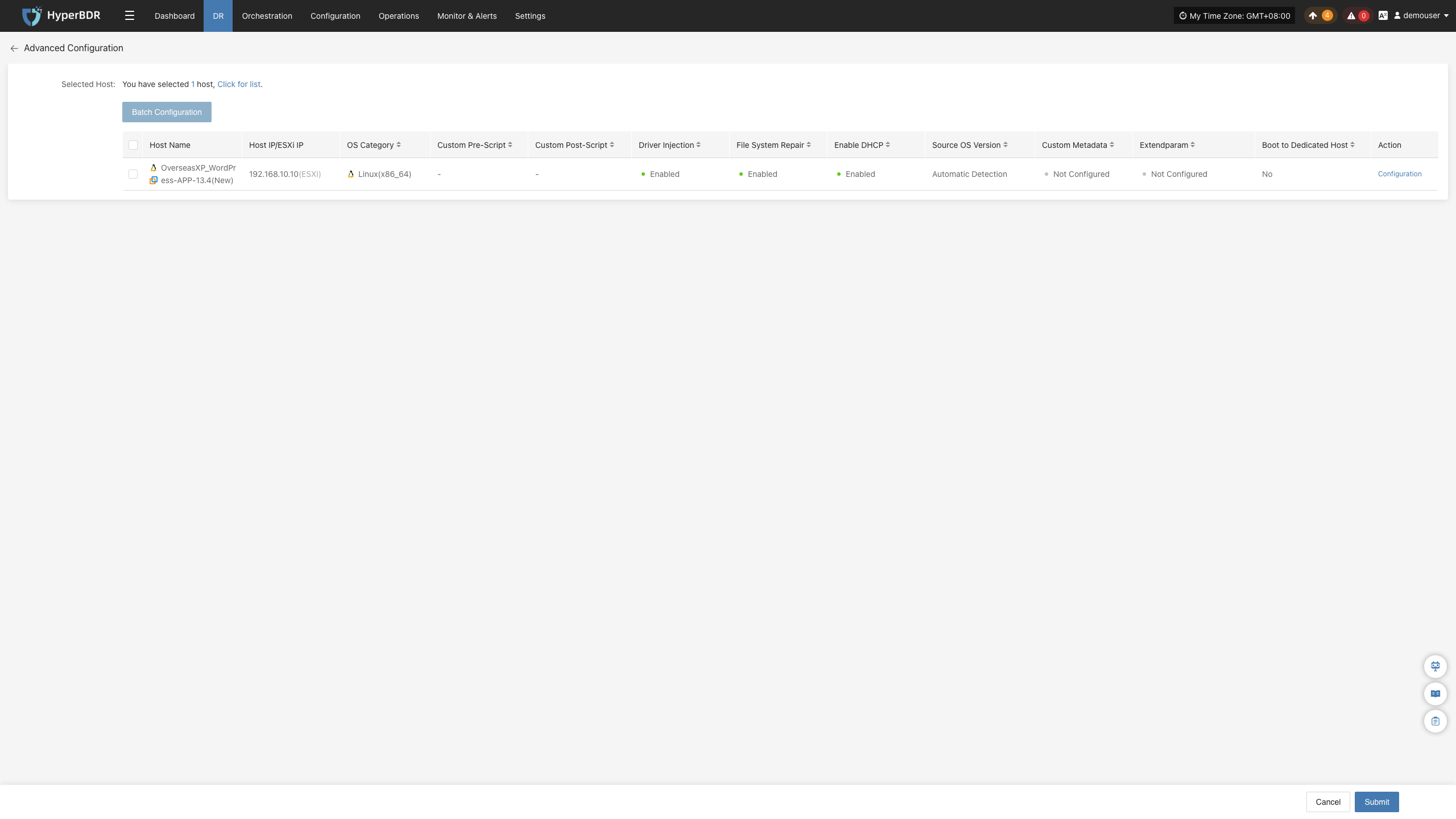
Advanced Configuration
Click "Advanced Configuration" to adjust advanced configuration items on the target side. For specific operations, see:
Block Storage: Click here to view
Object Storage: Click here to view
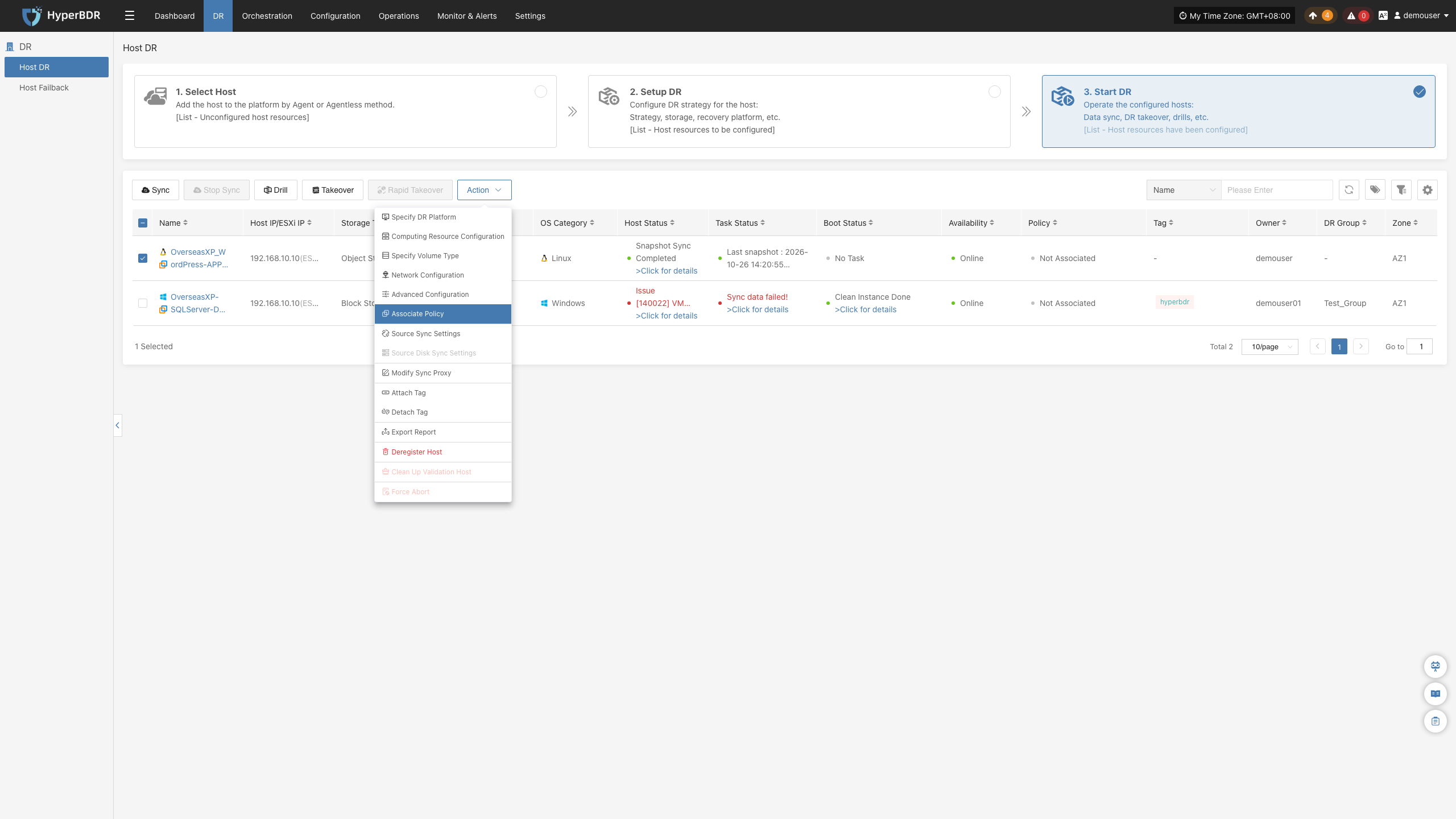
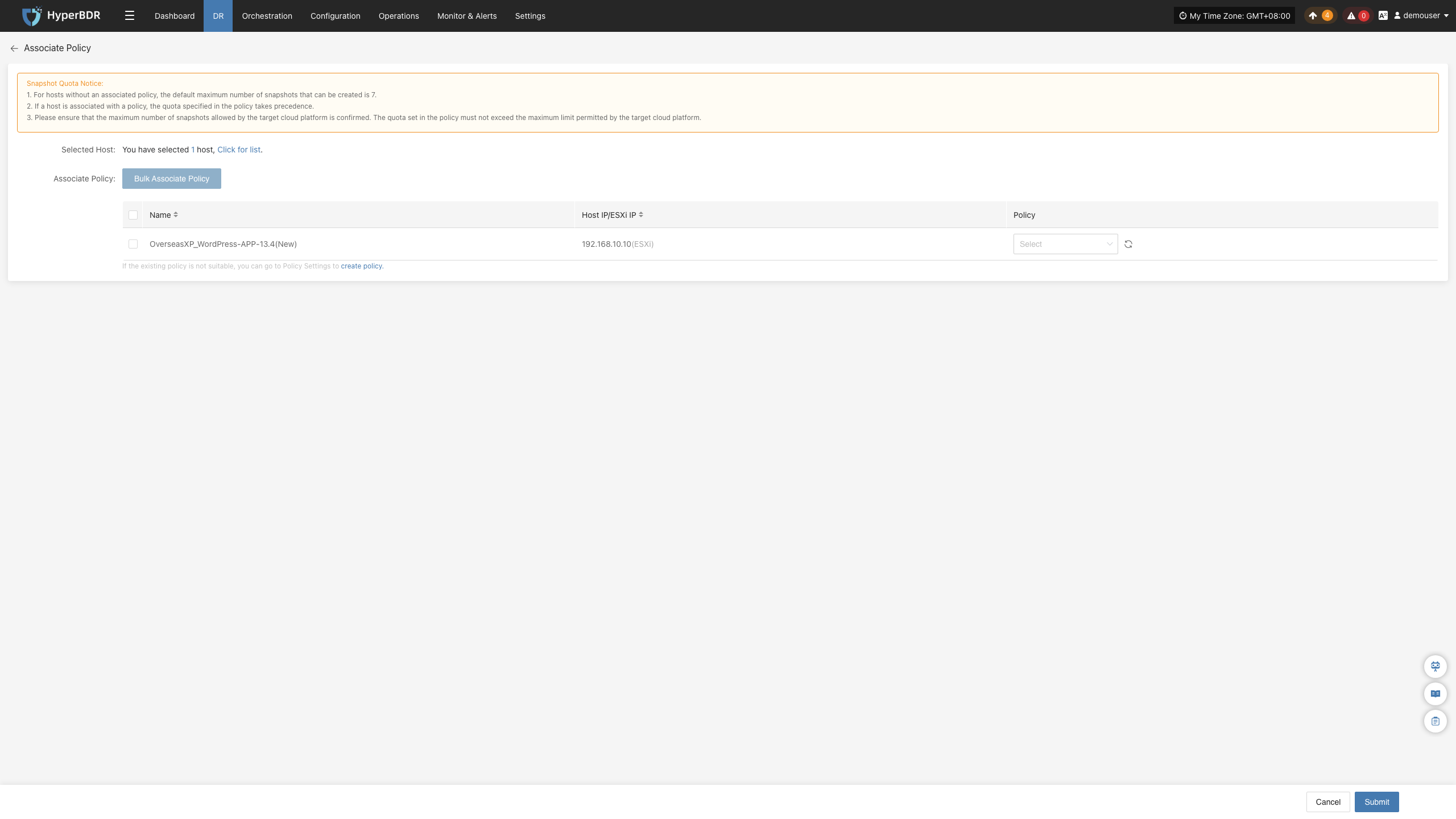
Associate Policy
Click "Associate Policy" to adjust disaster recovery policies associated with the host. For specific operations, see:
Block Storage: Click here to view
Object Storage: Click here to view
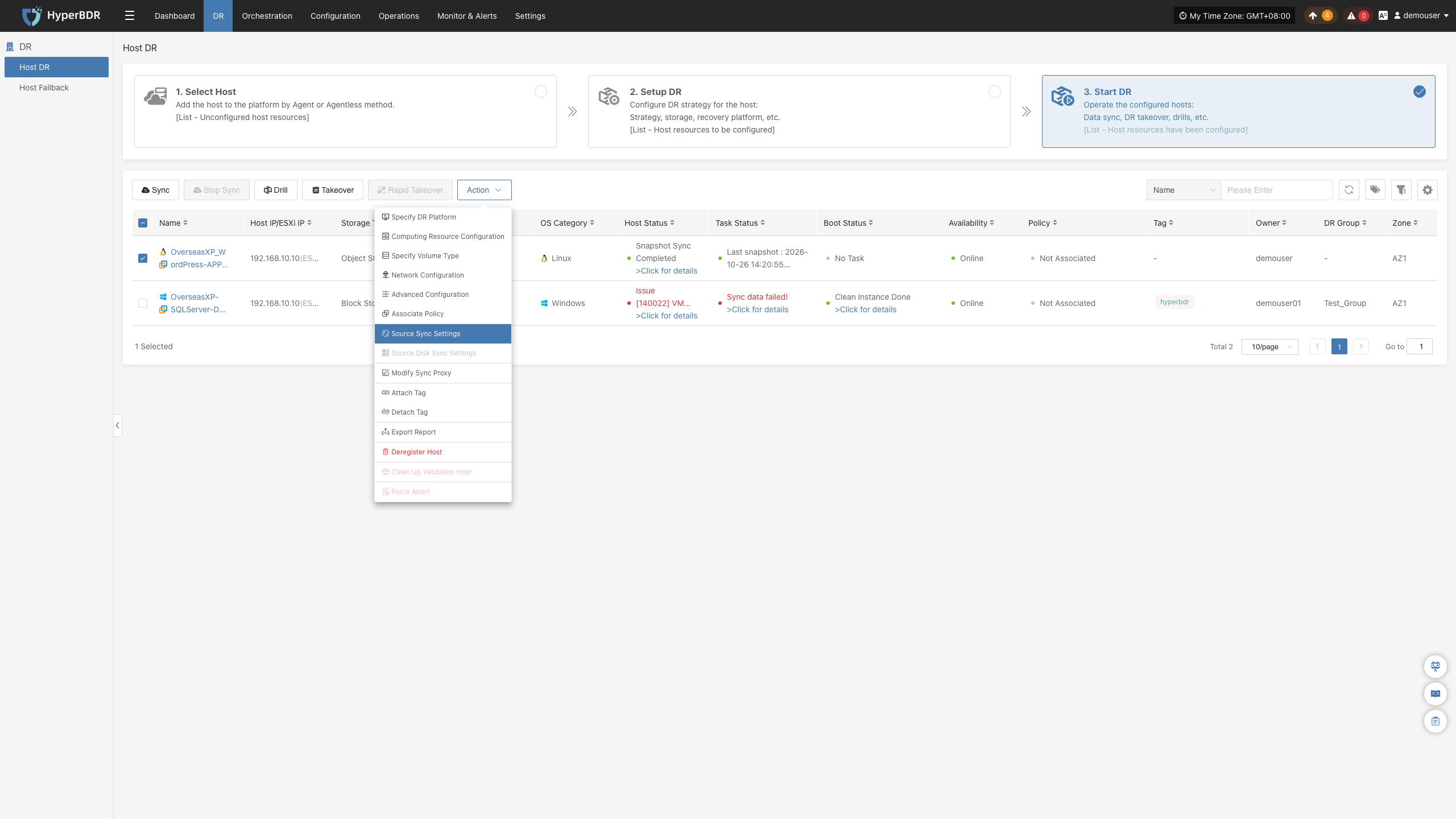
Source Sync Settings
Used to configure source synchronization parameters for backup hosts to satisfy synchronization requirements in different scenarios.
General Settings
This configuration applies to Linux Agent, Windows Agent, and Agentless modes. Interface layout or configuration location may vary slightly across different modes; please refer to the actual interface display.
| Parameter | Configuration | Description |
|---|---|---|
| Maximum CPU Usage (%) | 30 | Limits the maximum CPU percentage available for backup tasks. A higher value increases backup speed but also has a greater impact on source host services. It is recommended to set reasonably based on service load; usually keep the default. |
| Available Memory (MB) | 1024 | Remaining available memory size in the system, range: integer from 700 to 1024. |
| Enable Encryption | Yes | When enabled, transmitted data will be encrypted to improve data security, but increases CPU consumption and may cause backup speed to slightly decrease. |
| Enable Compression | No | When enabled, data is compressed before transmission to reduce network transmission volume, suitable for scenarios with low network bandwidth. Since different data types have different compression effects, actual data savings vary, and the system automatically selects an appropriate compression strategy. |
| Deduplication Check | Automatic | Used to detect and skip duplicate data to reduce data transmission volume. Automatic: The system automatically determines whether to perform deduplication checks based on actual conditions (recommended). Enabled: Performs deduplication checks on every synchronization. Disabled: Does not perform deduplication checks on any synchronization. |
| Reserved Volume Space (%) | 3 | Proportion of remaining available space on Windows Agent volumes, range: greater than or equal to 0 and less than or equal to 99. |
| Snapshot Creation Timeout (s) | 600 | Maximum wait time allowed for snapshot creation, in seconds. Range: 600–86400. If snapshot creation is not completed within this time, the task is judged as failed. For environments with longer snapshot creation times, this value can be appropriately increased. |
Sync Thread Settings
This configuration applies to Agentless mode. Interface layout or configuration location may vary slightly across different modes; please refer to the actual interface display.
| Parameter | Configuration | Description |
|---|---|---|
| VMware Quiesced Snapshot | No | Applicable only to VMware virtual machines with VMware Tools installed. When enabled, helps ensure file system consistency as much as possible during snapshot creation; recommended to enable based on business needs. |
| Read Threads | Auto-adapt | Sets the number of data read threads for a single host. Uses Auto-adapt mode by default; the system automatically adjusts threads (1–10) based on source sync proxy resource configuration and number of disks to synchronize without manual configuration. Only when further synchronization performance optimization is needed, use Custom mode (1–100), recommended not to exceed 30 threads. In 10GbE and higher network environments, threads can be appropriately increased after upgrading source sync proxy resources (e.g., 8-core CPU, 16 GB memory and above) to boost performance. |
| Write Threads | Auto-adapt | Sets the number of data write threads for a single host. Uses Auto-adapt mode by default; the system automatically adjusts threads (1–10) based on source sync proxy resource configuration and number of disks to synchronize without manual configuration. Only when further synchronization performance optimization is needed, use Custom mode (1–100), recommended not to exceed 30 threads. In 10GbE and higher network environments, threads can be appropriately increased after upgrading source sync proxy resources (e.g., 8-core CPU, 16 GB memory and above) to boost performance. |
| Multi-disk Concurrent Read/Write | Yes | Controls whether to read and write data to multiple disks concurrently during synchronization. When enabled, synchronizes multiple disks concurrently to improve efficiency; when disabled, disks are synchronized sequentially, suitable for scenarios requiring lower system resource consumption. |
Sync Retry Settings
This configuration applies to Linux Agent, Windows Agent, and Agentless modes. Interface layout or configuration location may vary slightly across different modes; please refer to the actual interface display.
| Parameter | Configuration | Description |
|---|---|---|
| Retry | Yes | When enabled, if synchronization is interrupted due to temporary faults such as network anomalies, the system automatically attempts to reconnect and continue synchronization; when disabled, failed synchronization ends directly without automatic retries. |
| Max Retries | 3 | Sets the maximum number of retries after synchronization fails, range: 1–100. If connection is still not recovered after reaching maximum retries, the synchronization task is judged as failed. |
| Interval (s) | 60 | Sets the waiting time between two retries, in seconds, range: 1–3600. Appropriately increasing interval time helps wait for network recovery and avoid frequent retries. |
Sync Thread Settings
This configuration applies to Linux Agent and Windows Agent modes. Interface layout or configuration location may vary slightly across different modes; please refer to the actual interface display.
| Parameter | Configuration | Description |
|---|---|---|
| Sync Threads | 2 | Sets the number of threads used by synchronization tasks. Appropriately increasing threads boosts synchronization performance but consumes more system resources. Range: 1–64, recommended to adjust reasonably based on host resource configuration. |
| Sync Memory Size (MB) | 8 | Sets the memory size available for synchronization tasks. Appropriately increasing this value helps boost synchronization performance but increases memory consumption. Range: 1–1024, recommended to set reasonably based on host available memory. |
Object Upload Settings
This configuration applies to Linux Agent mode. Interface layout or configuration location may vary slightly across different modes; please refer to the actual interface display.
| Parameter | Configuration | Description |
|---|---|---|
| Connection Timeout (s) | 120 | Sets the maximum waiting time to establish a connection when uploading objects, in seconds. Range: 1–1800. If a connection is not established within this time, the connection is judged as timed out. |
| Send MD5 Digest | Yes | When enabled, sends an MD5 digest during object upload for data integrity validation to help detect potential data corruption during transmission. |
| Multipart SHA256 Verification | No | When enabled, performs SHA256 verification on each data part during multipart upload to further enhance data transmission integrity verification, but may increase computational overhead. |
Volume VSS Storage Settings
This configuration applies to Windows Agent mode. Interface layout or configuration location may vary slightly across different modes; please refer to the actual interface display.
| Parameter | Configuration | Description |
|---|---|---|
| Volume General Ratio (%) | 10 | Sets the default proportion of disk space that VSS snapshot storage can occupy, in %. Range: 5–100. This configuration is used when VSS storage space is not individually configured for a volume. |
| Volume Special Storage | VSS_SPEC_MAX_C=d:10 | Separately set VSS snapshot storage location and capacity for specified volumes. Single volume example: VSS_SPEC_MAX_C=d:10, indicating storing volume C's VSS snapshot on volume D with 10 GB allocated storage space.Multi-volume example: VSS_SPEC_MAX_C=d:10;VSS_SPEC_MAX_E=f:10, separated by semicolons (;). Leave blank by default unless special requirements exist. |
| Create VSS Snapshot Timeout (s) | 300 | Sets the maximum waiting time for creating VSS snapshots, in seconds. Value should be greater than or equal to 60. If snapshot creation is not completed within this time, the operation is judged as failed. |
| Raw Data Sync Volume | F | Specifies partitions to synchronize using raw data mode without using VSS snapshots. Enter drive letters, separated by commas (,), for example: F or E,F. Suitable for partitions that do not require VSS consistency snapshots. Leave blank by default unless special requirements exist. |
Source Disk Sync Settings
Used to configure source disk synchronization policies. When the source host contains multiple disks, you can configure whether each disk participates in synchronization. This feature applies only to hosts added via Agent mode.
Note: This configuration is only supported before initial data synchronization; once synchronization starts, modification is no longer supported.
Select disks that do not need synchronization, change Yes in the last column of the corresponding row to No, and select confirm in the pop-up window to complete exclusion settings. Once set, subsequent synchronization tasks will no longer synchronize that disk.
Modify Sync Proxy
Note: Hosts that have completed data synchronization do not support modification.
Used to modify the source sync proxy associated with backup hosts to adjust the proxy node used for data synchronization.
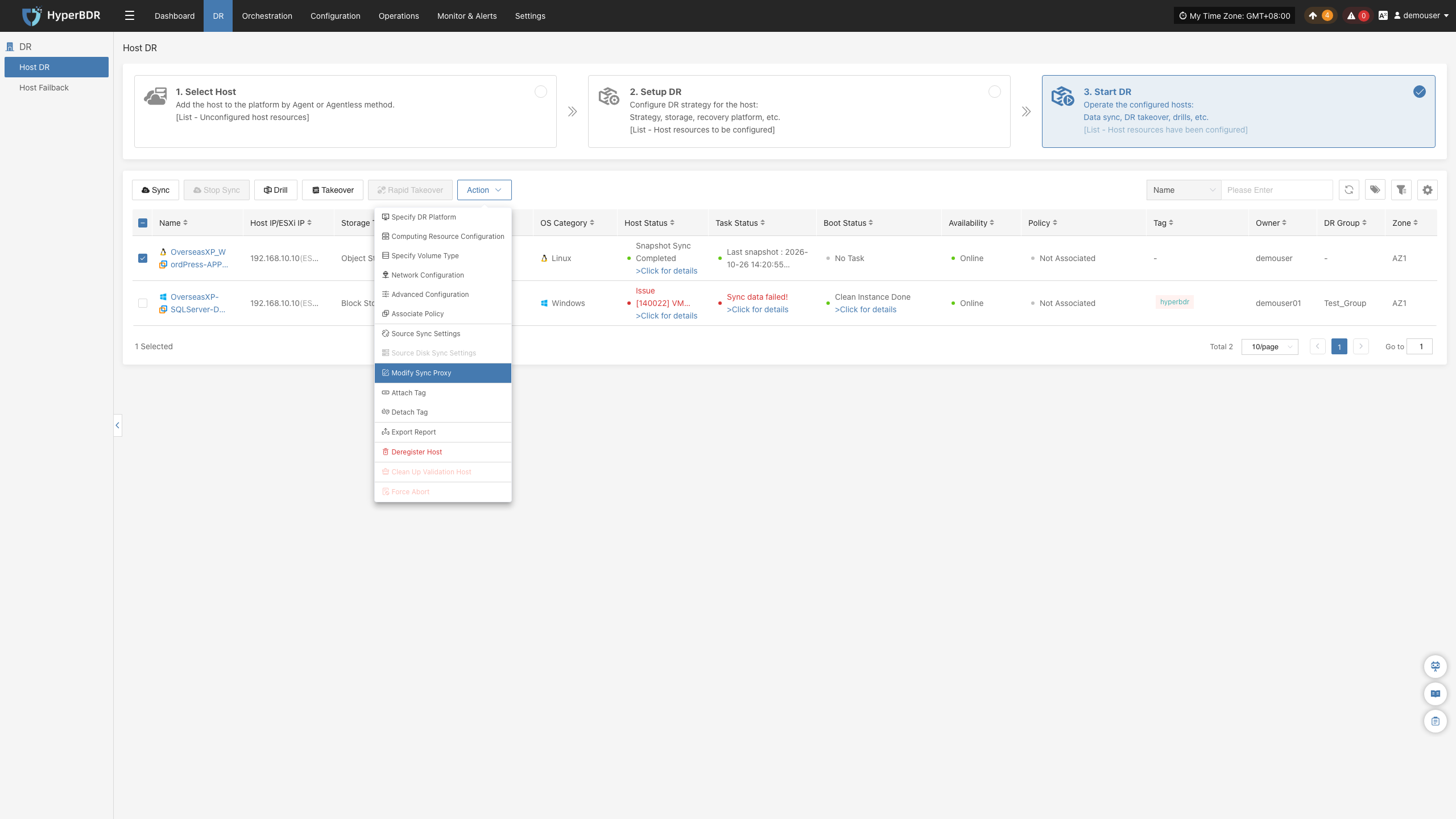
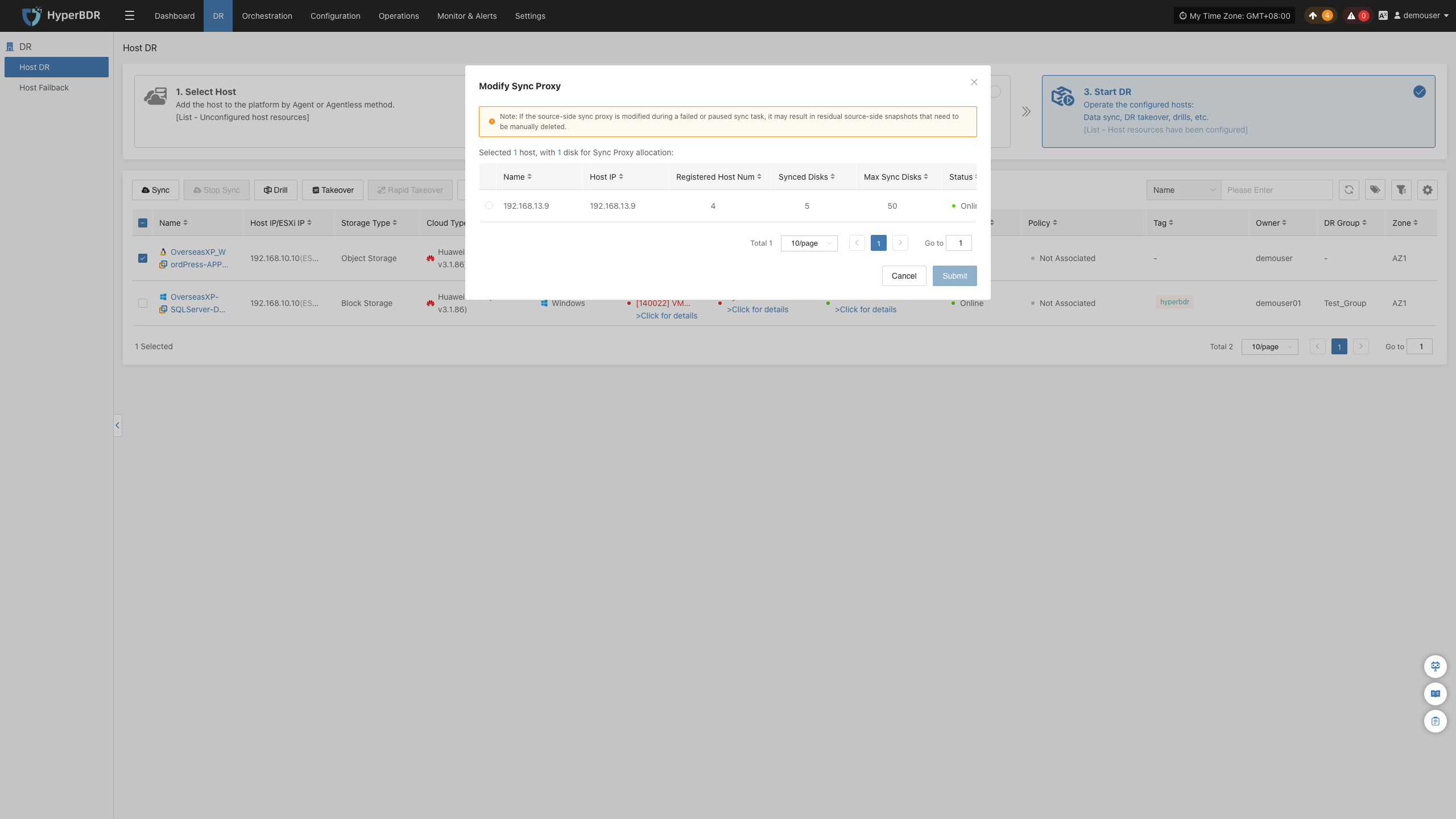
Attach Tag
Used to attach one or more tags to backup hosts for classified management based on business, environment, or purpose.
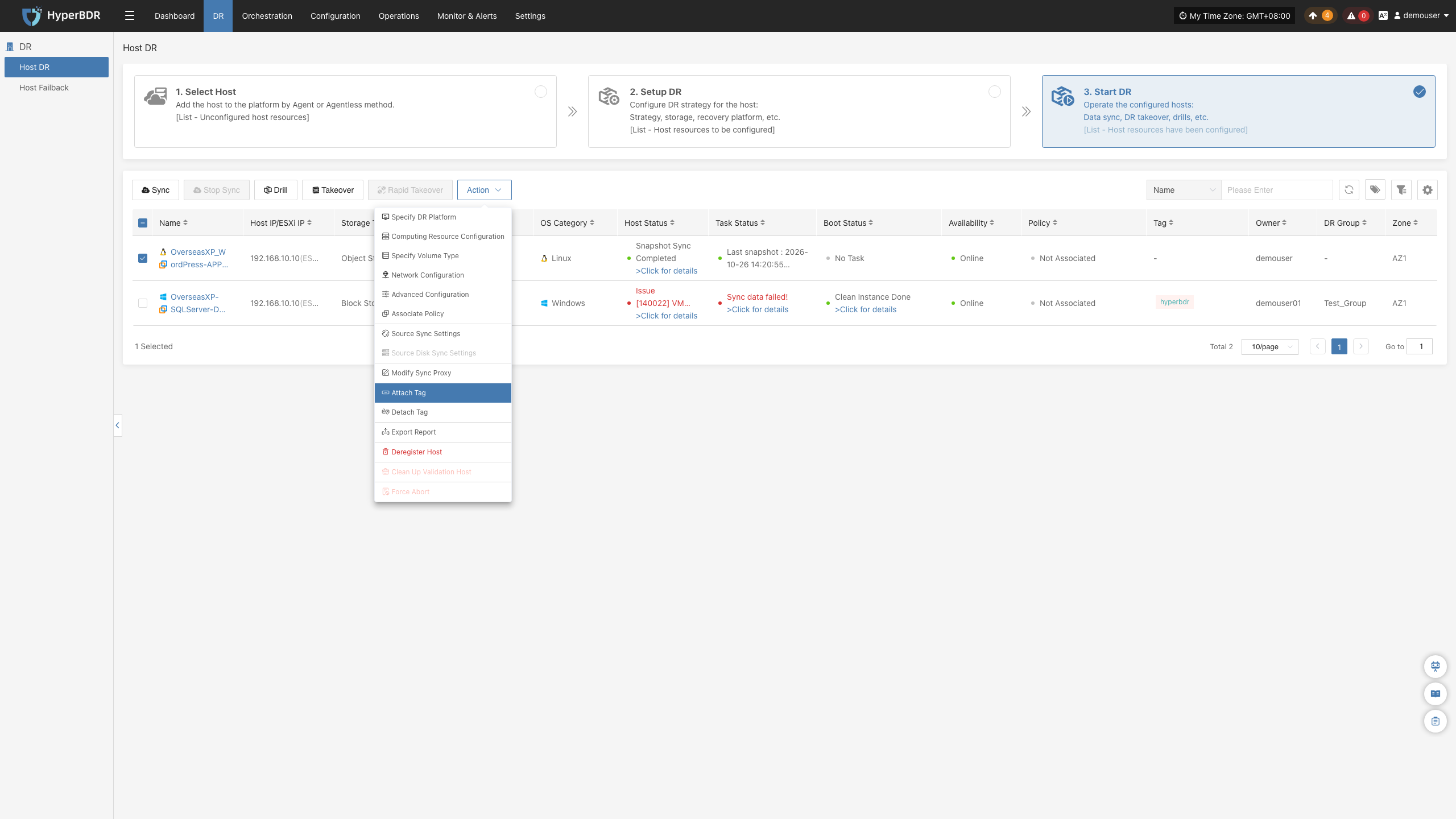
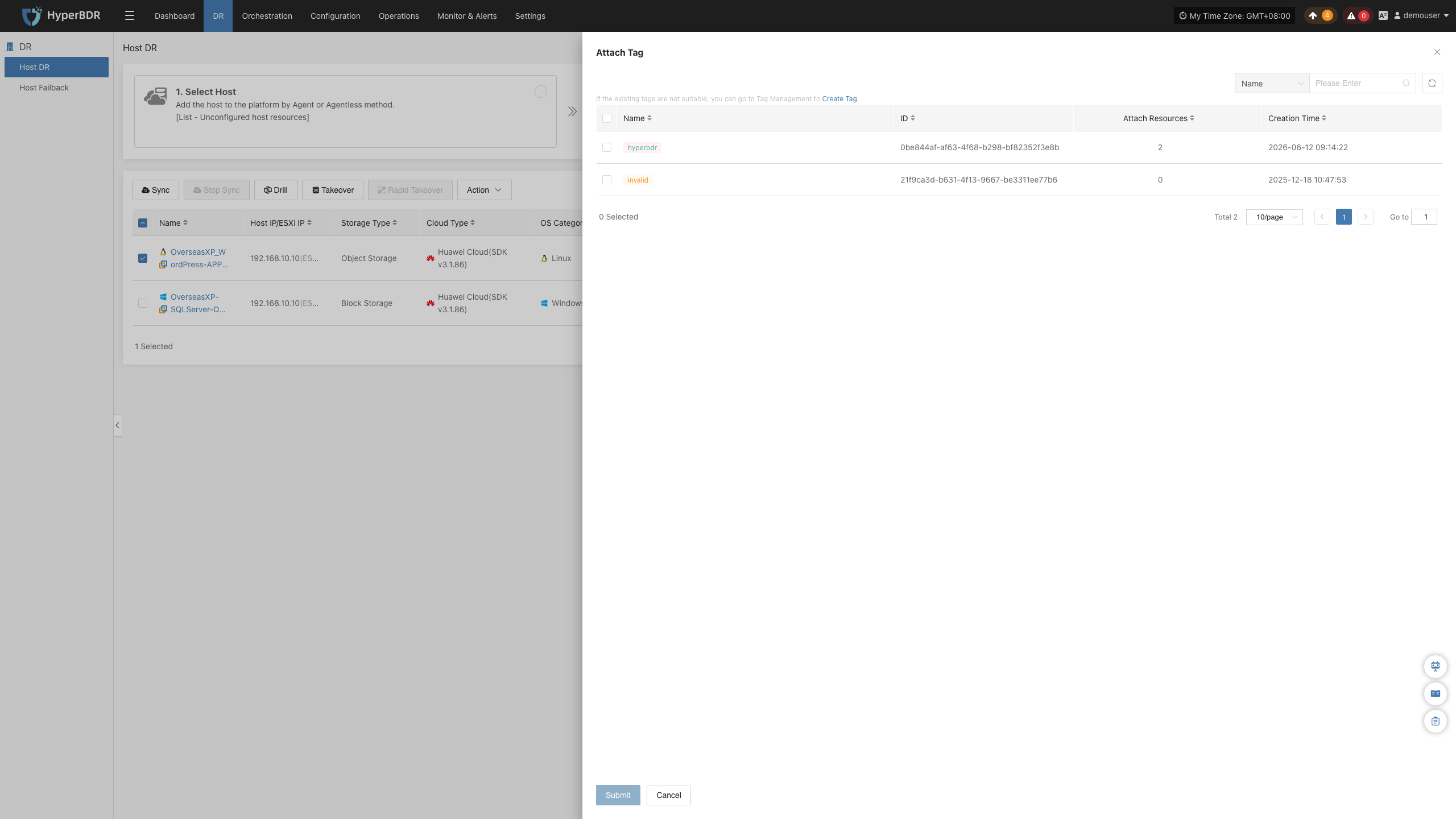
Detach Tag
Used to detach specified tags from backup hosts to adjust host tag classifications.
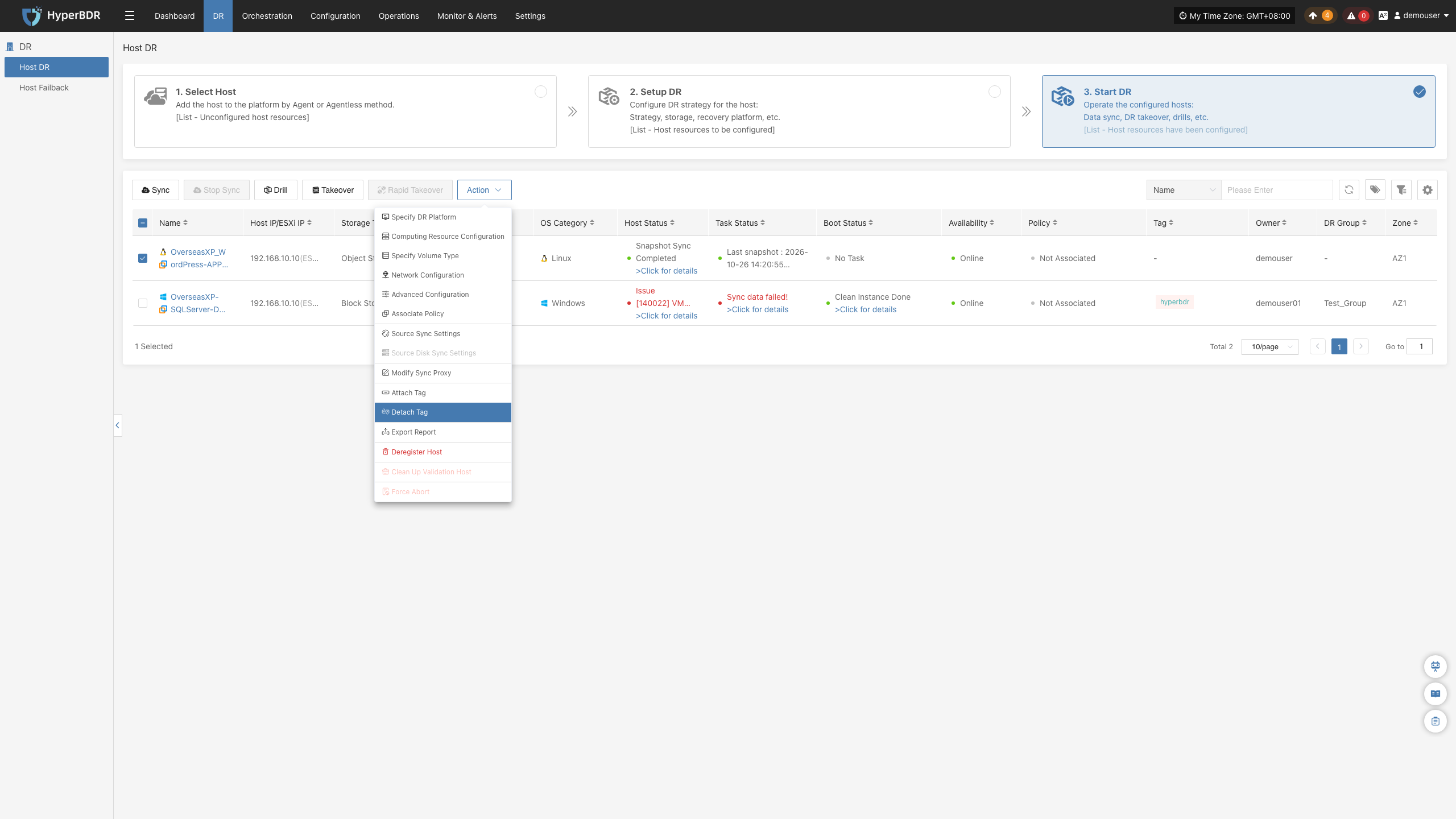
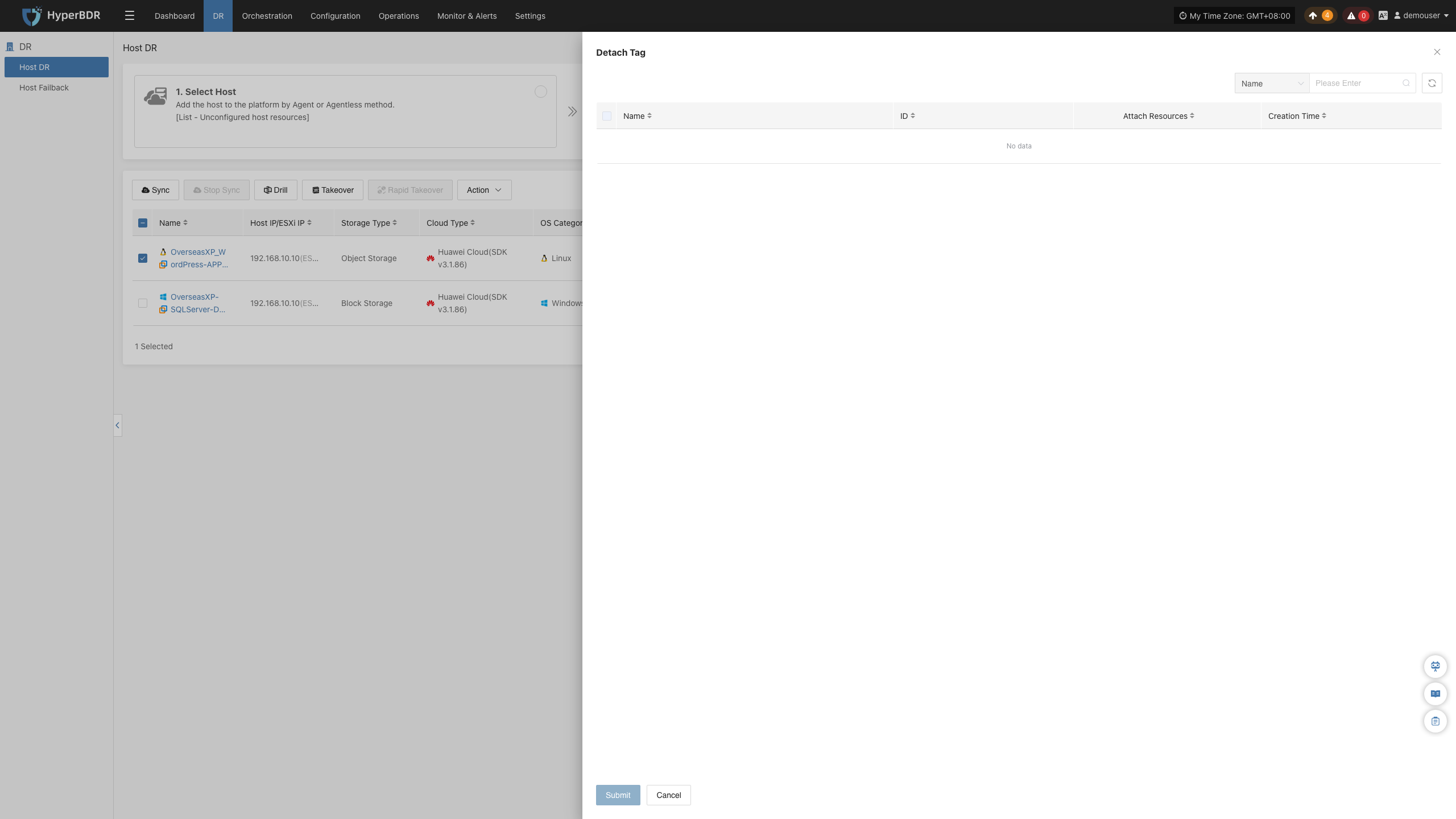
Reports
Click "Report" to export disaster recovery reports for selected hosts for viewing and archiving. You can select report types during export; for specific details, see Report Export.
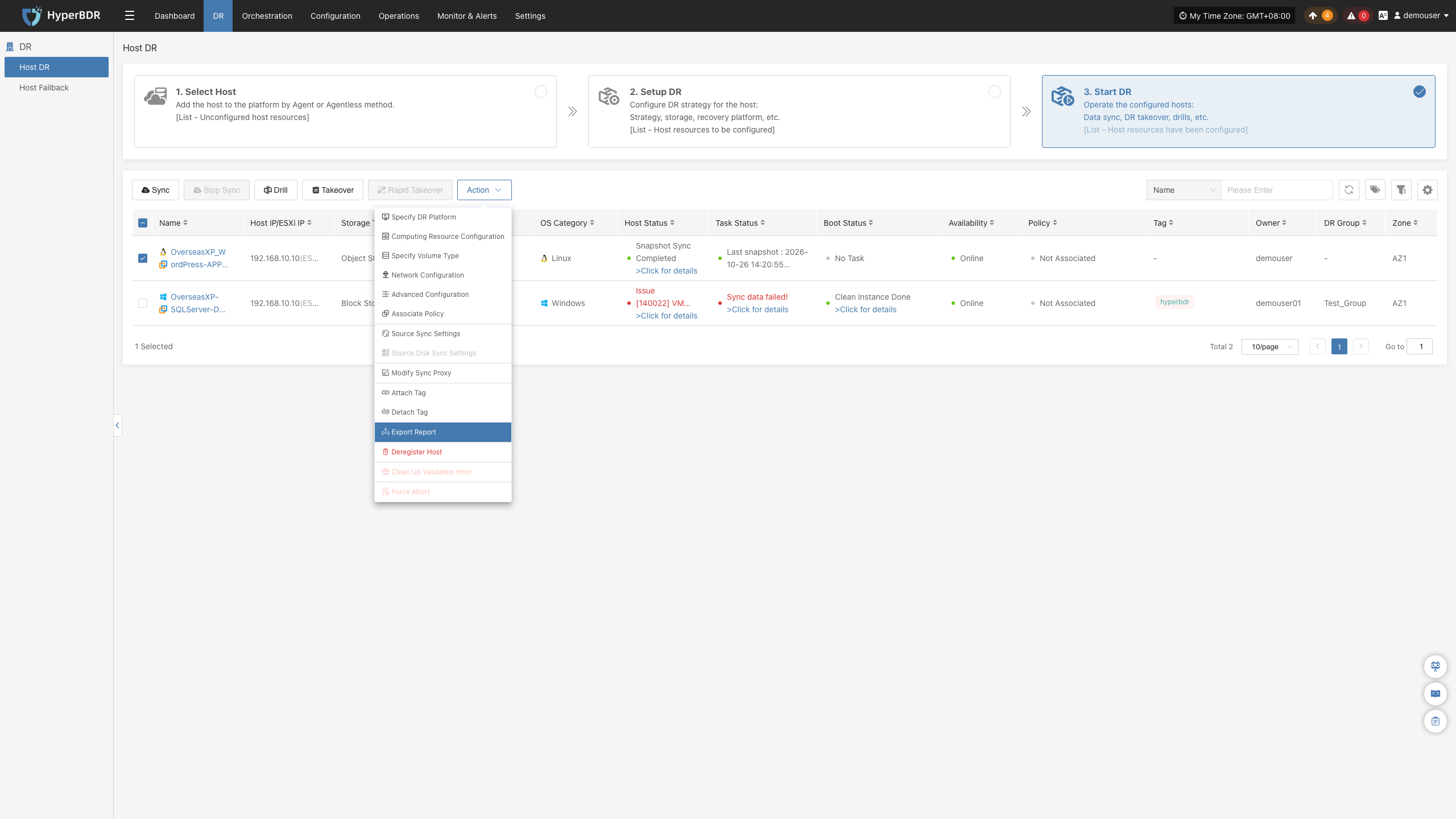
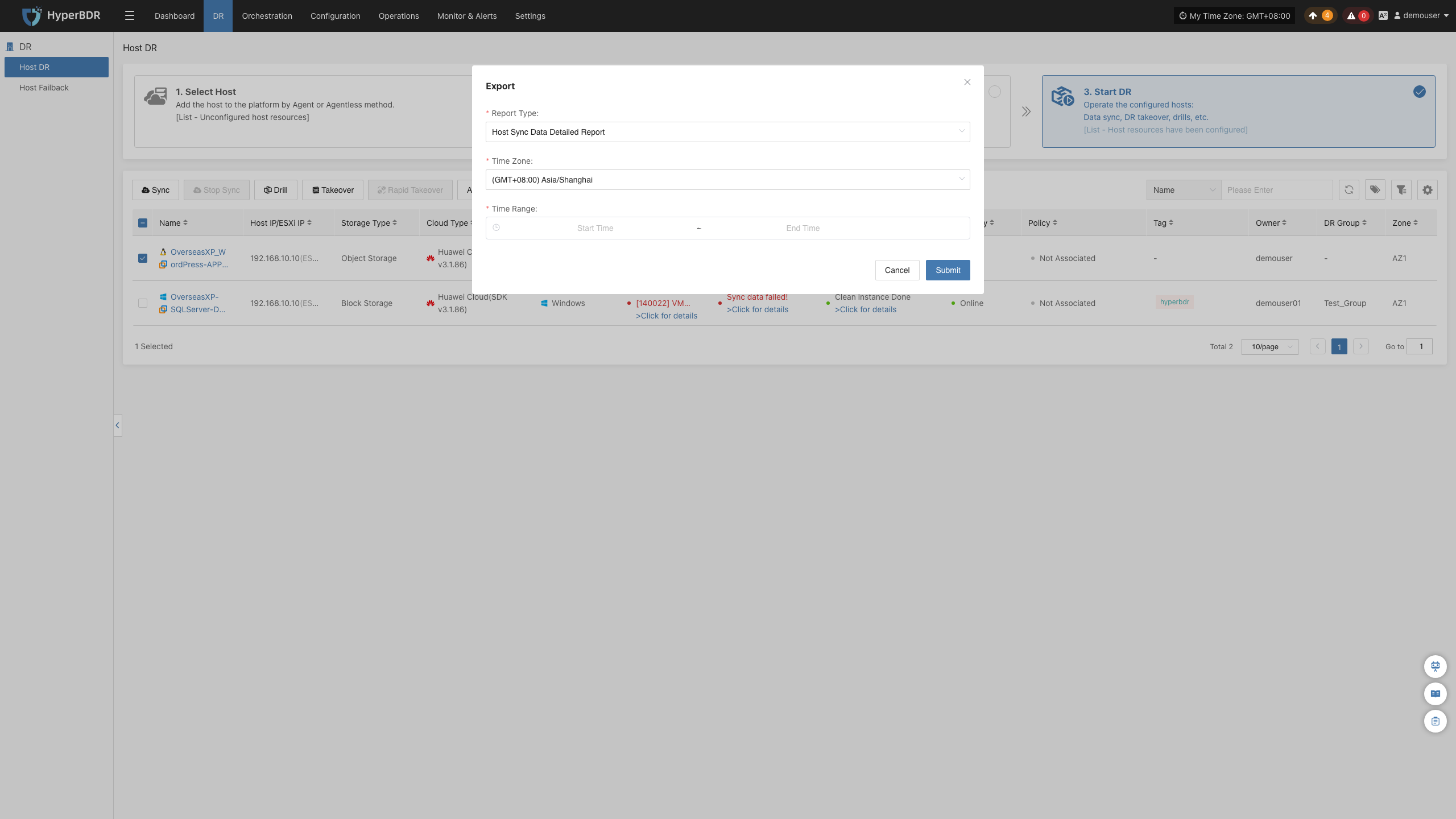
Deregister Host
Used to deregister backup hosts from the disaster recovery management platform and cancel the host's registration association with the platform. Click the "Deregister Host" button, carefully review precautions in the pop-up dialog box, and click confirm to complete deregistration.
Note: Deregistration automatically cancels the service. Please reload hosts or restart Agent services based on the access mode:
- Agentless Mode: In the "Select Host" step, select the corresponding production platform site, and then select the hosts to register.
- Agent Mode: Log in to the source host and restart the Agent service.
Advanced Functions:
- Clean Up Resources (Without Deregistering): Applicable to hosts that need to reconfigure the DR platform after synchronization. This operation restores the host to its initial disaster recovery configuration state and clears all synchronized data. After cleanup is complete, you can reconfigure in the "Setup DR" step.
- Force Deregister: Applicable to hosts that have lost connection. Check "I confirm that I want to force deregister the host, which may cause residual resources", and then select "Force Deregister".
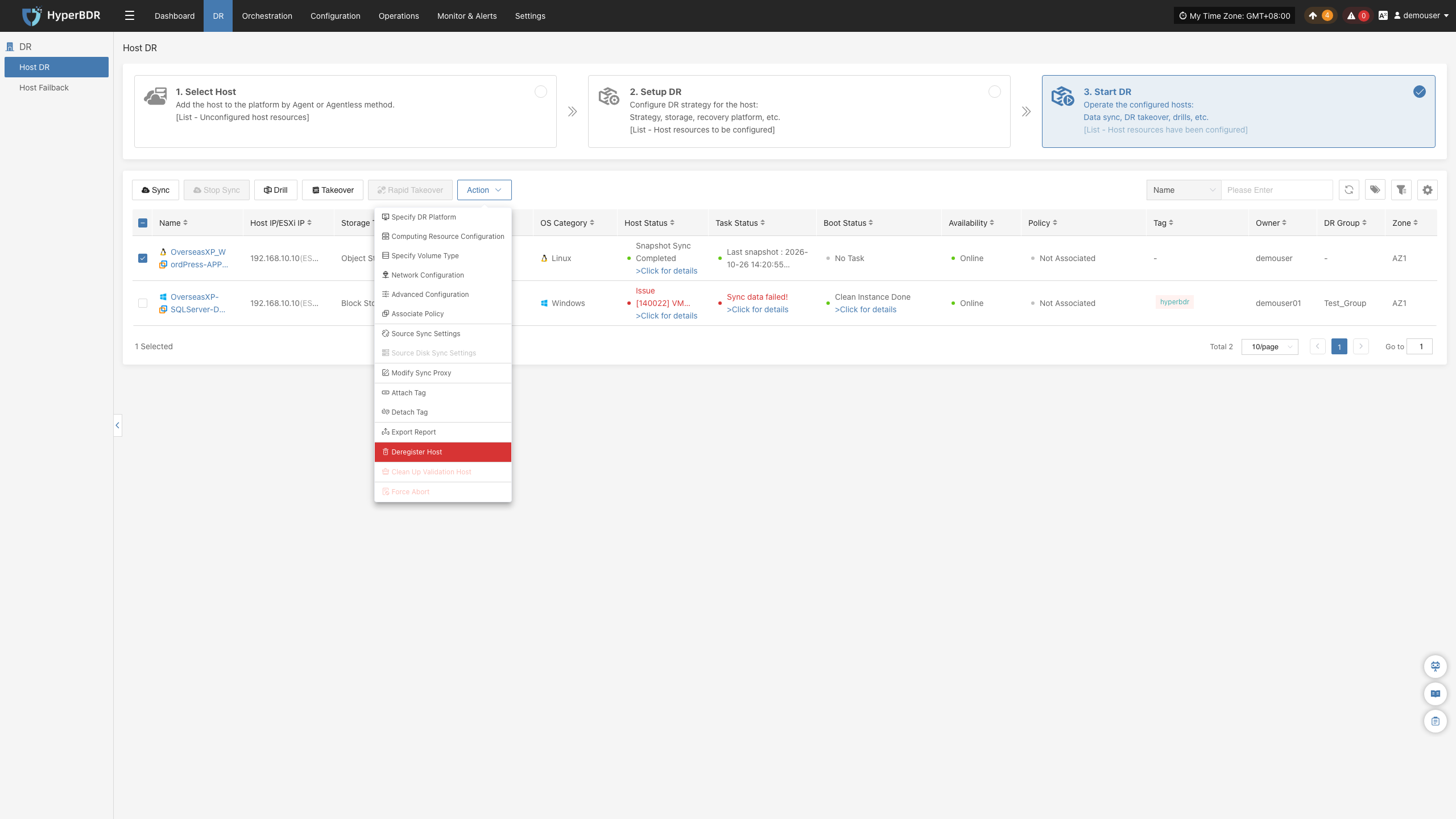
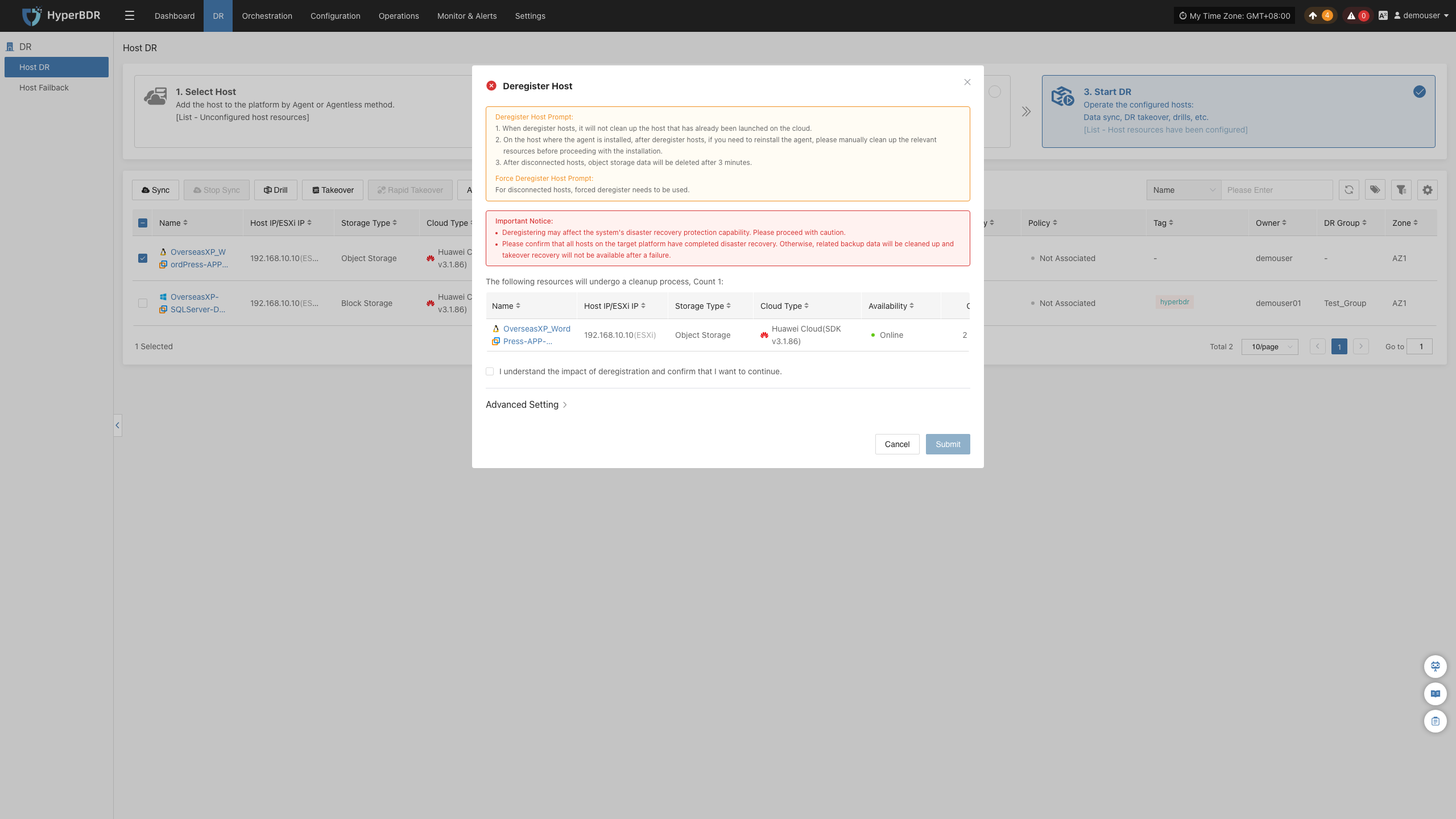
Clean Up Validation Host
Used to clean up validation hosts booted in the cloud for the current host. This operation only cleans up hosts that have been booted in the cloud. Click the "Clean Up Validation Host" button, enter "Yes" in the pop-up dialog box, and click confirm.
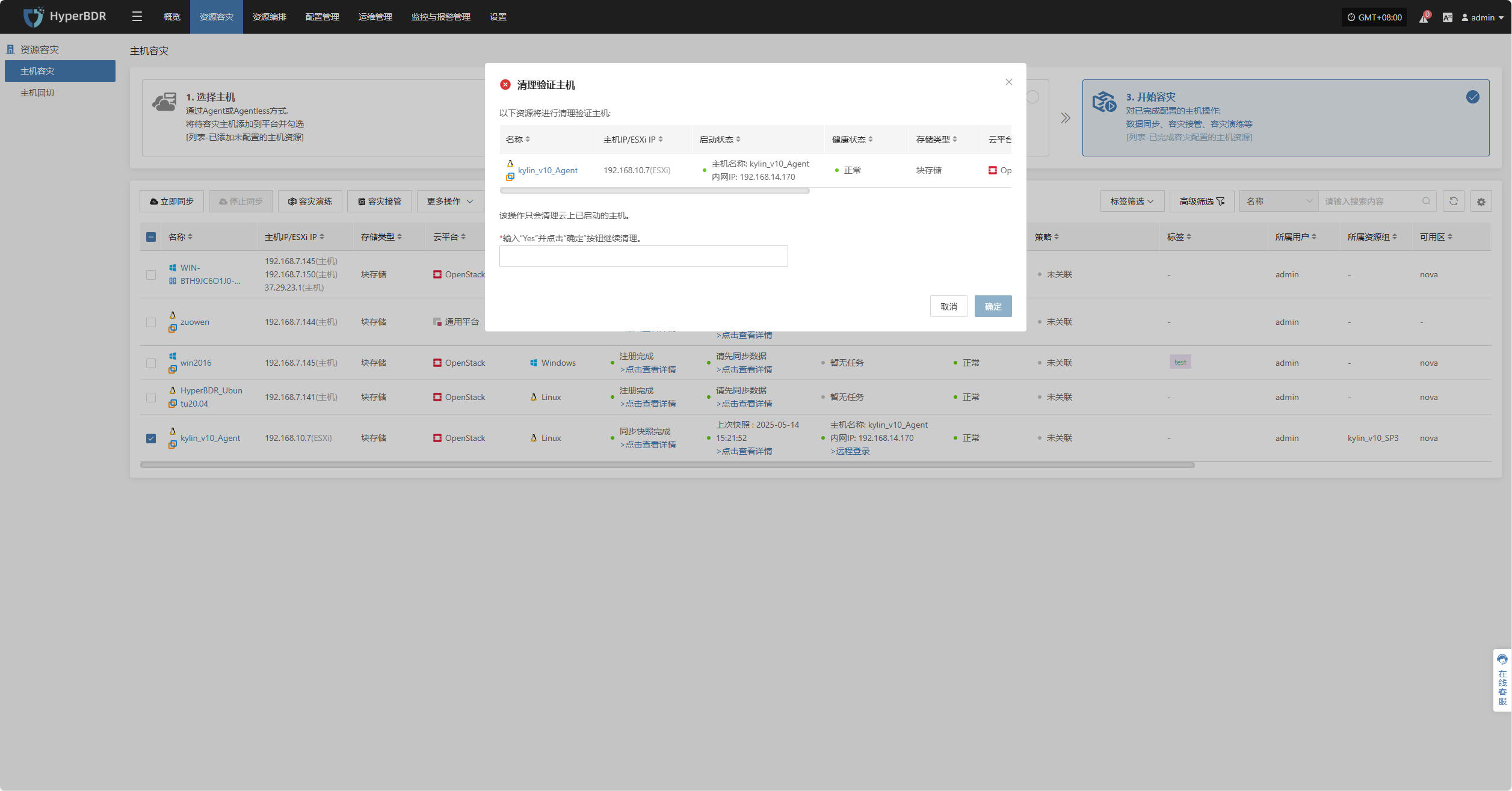
Force Abort
Note: When operations such as synchronization or drills freeze for a long time or encounter uncontrollable exceptions, this function can be used to forcibly terminate tasks.
Click the "Force Abort" button to immediately stop execution of the current task.
Host Failback
Host Failback guides you through restoring workloads back to the source production environment after a drill or takeover has completed and the source site is recovered. The workflow mirrors the forward DR process in three key steps: Select Host, Setup Failback, and Start Failback.
To begin, click the top "DR" navigation bar and select "Host Failback" in the left sidebar.

The configuration logic in the failback setup stage follows the same principles as the Host DR workflow. For detailed descriptions and instructions for each setting, refer to the Host DR guide. Once configuration is complete, proceed with the failback execution.
Orchestration
DR Group
The "DR Group" feature allows unified disaster recovery configuration and scheduling at the resource group level. It is suitable for scenarios where multiple related resources (such as hosts, networks, and storage) need to be protected and recovered together.
Create DR Group
Click "Create DR Group" to group hosts that have completed resource configuration. This makes it easier to manage and schedule disaster recovery for multiple resources at once.

Set the resource group name, add notes, select the corresponding host resources, and click "Finish" to create the resource group.
Orchestration
Resource orchestration lets you predefine the startup order and dependencies of hosts, networks, and storage. This ensures that in the event of a disaster, the system can quickly and orderly recover according to the correct process.
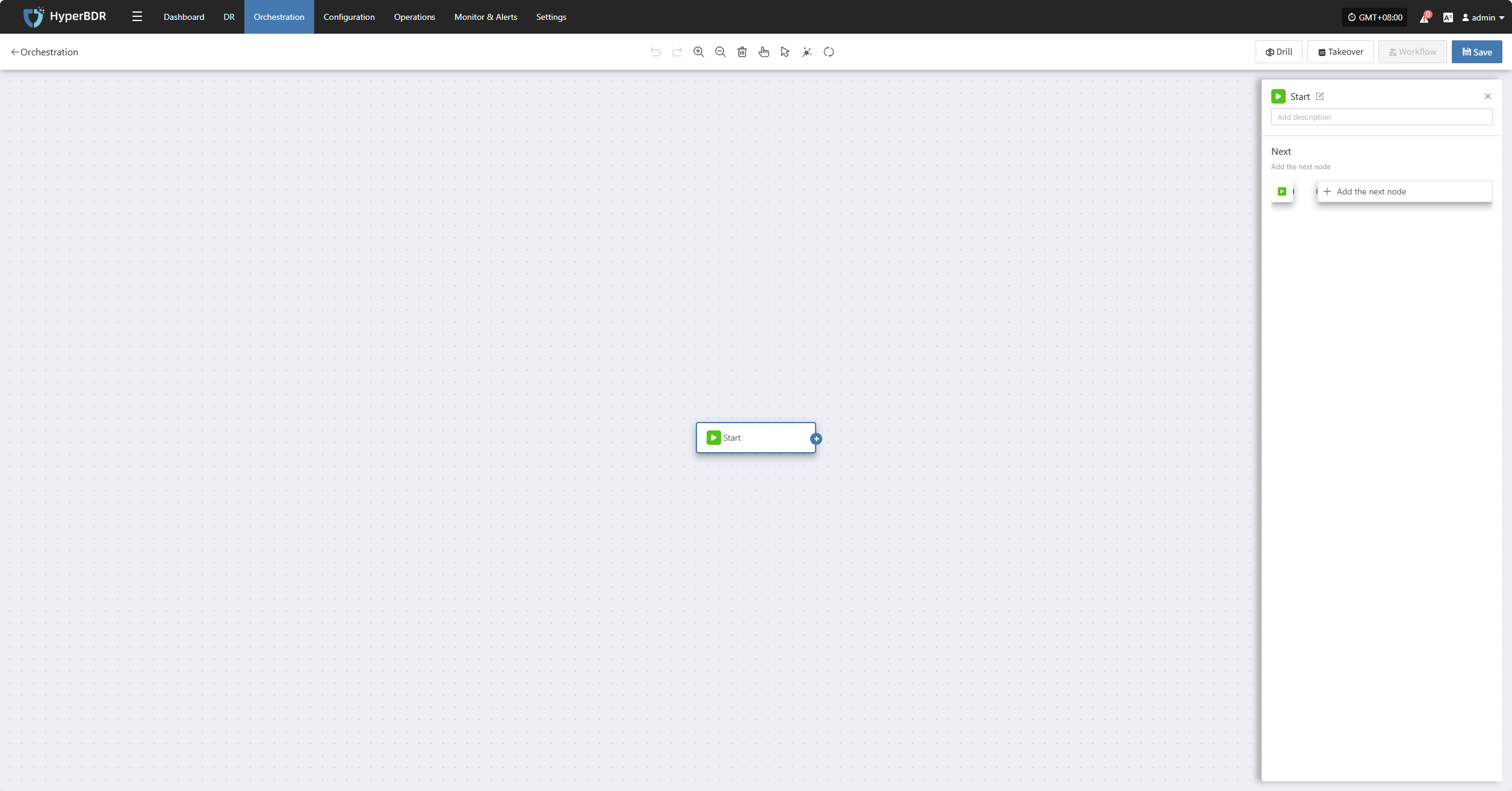
Click the "Start" button to begin adding nodes. Complete the configuration for each node and add them as needed.
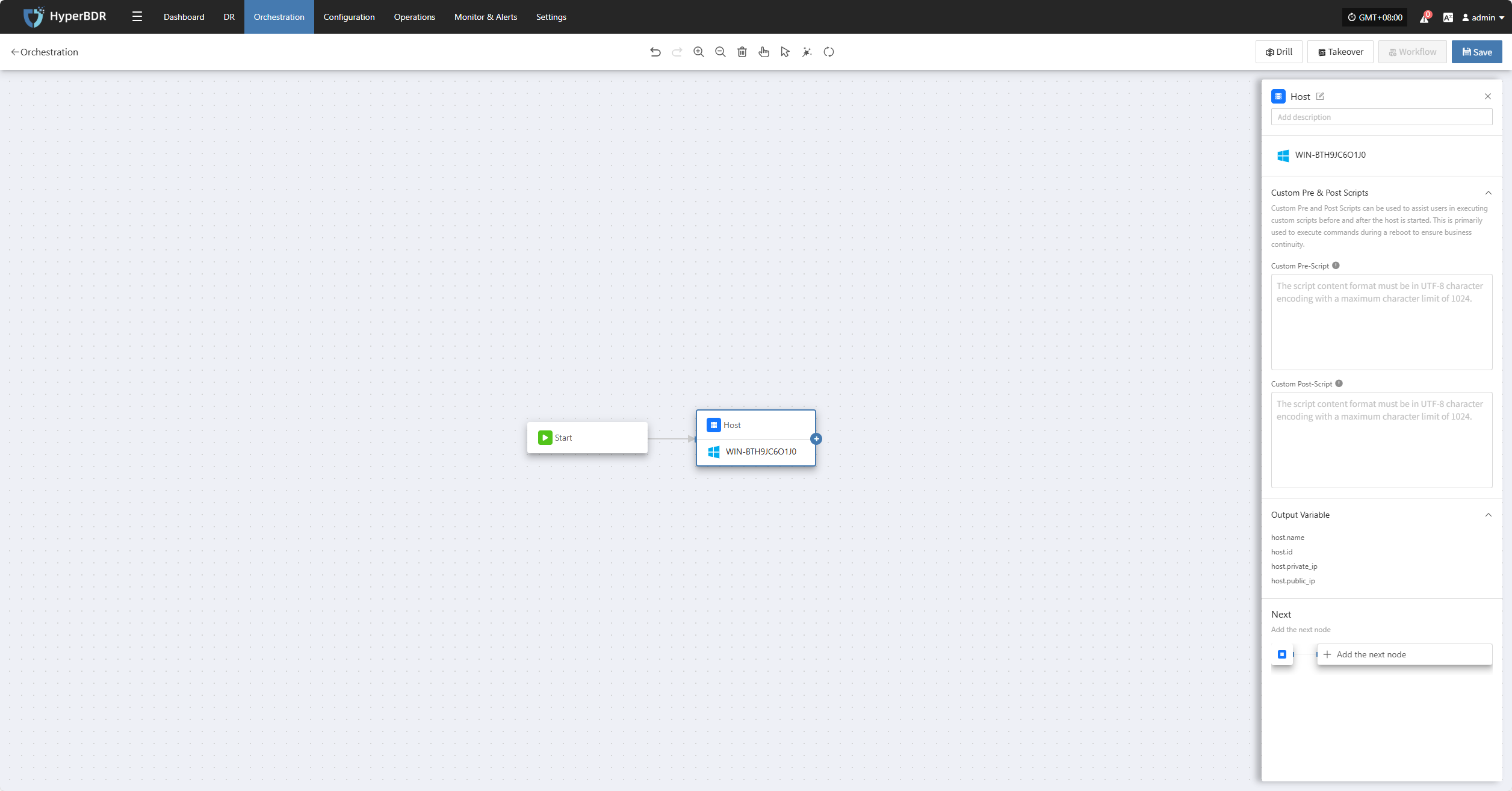
After clicking "Add Host Node," the settings panel will appear on the right. Here, you can add pre-start scripts, post-start scripts, and other configurations before adding the next node or parallel nodes.
Sync
Select the resource group you want to protect, then click "Sync" to start data synchronization according to your business needs.
Note: By default, the first sync is a full sync. Subsequent syncs are incremental. If you need to perform a full sync again after incremental syncs to ensure data integrity, you can choose to force a full sync.
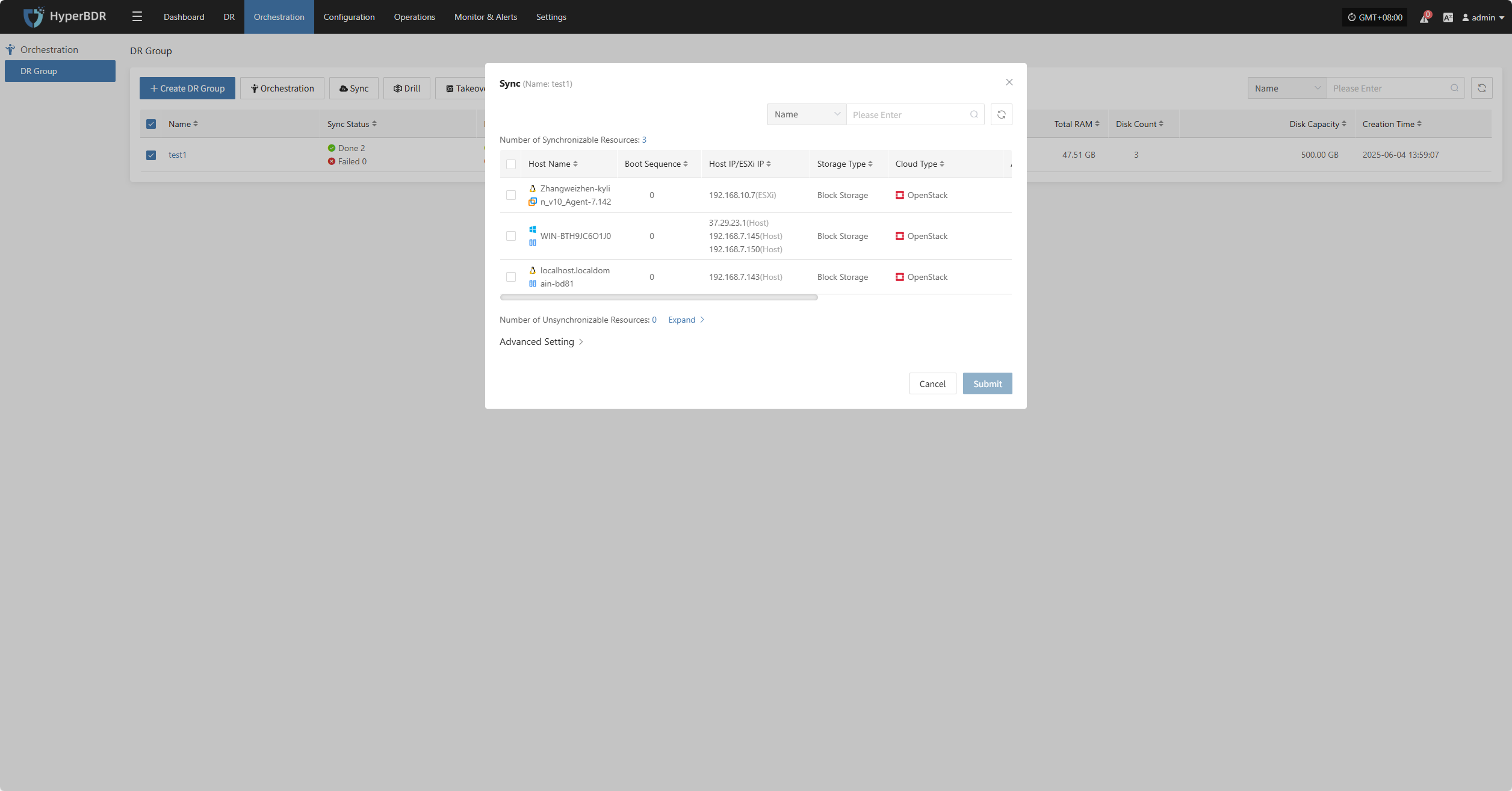
Advanced Setting
In "Advanced Settings," you can enable the Force Full Synchronization option to ensure all data is fully synchronized again.
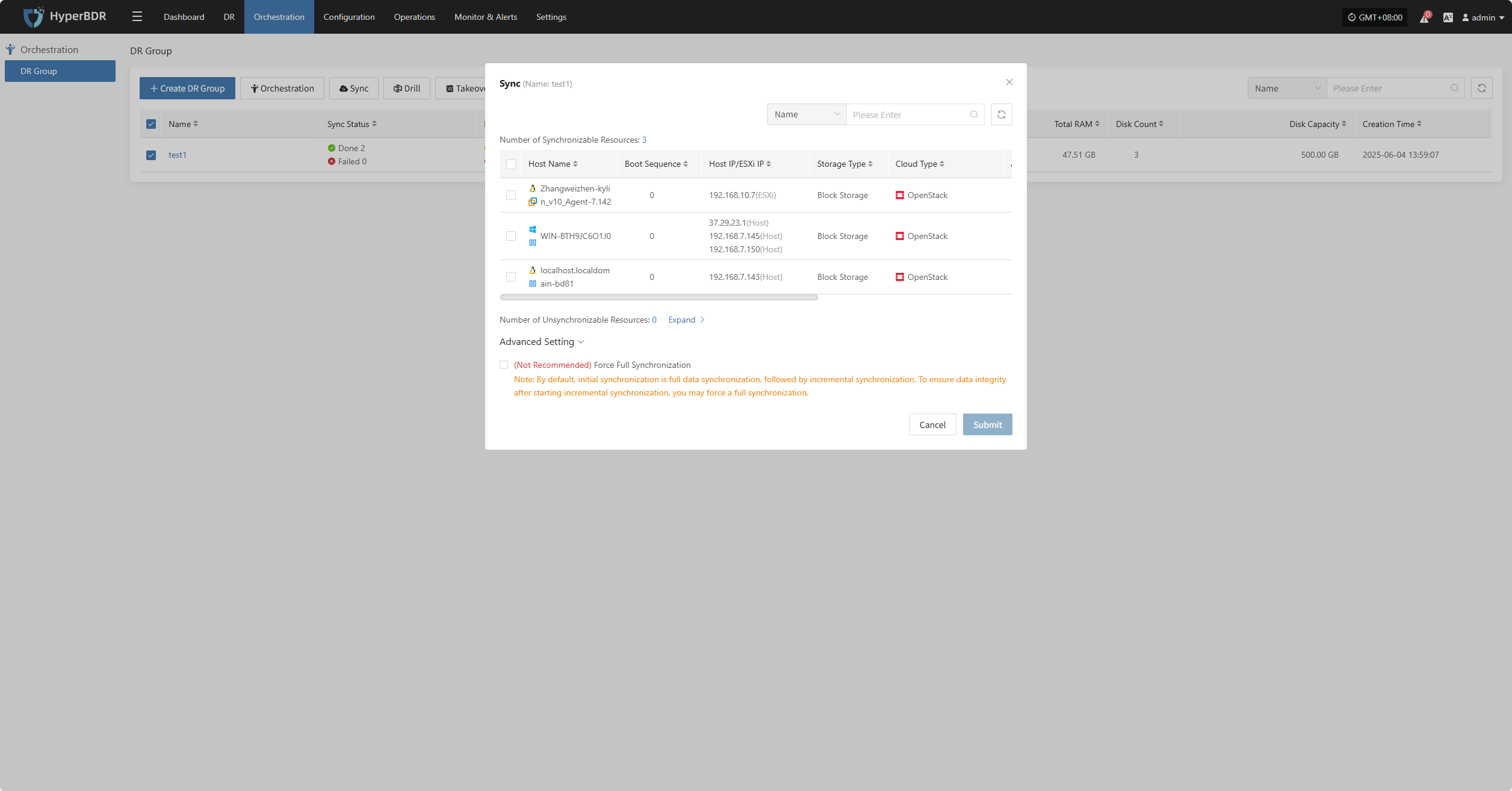
Drill
Select the resource group, click "Drill," choose the host and recovery point, and restore the disaster recovery host to the target environment with one click.
Note: Only hosts that have completed synchronization can participate in drills. Hosts with unsynchronized data will be excluded and cannot be started.
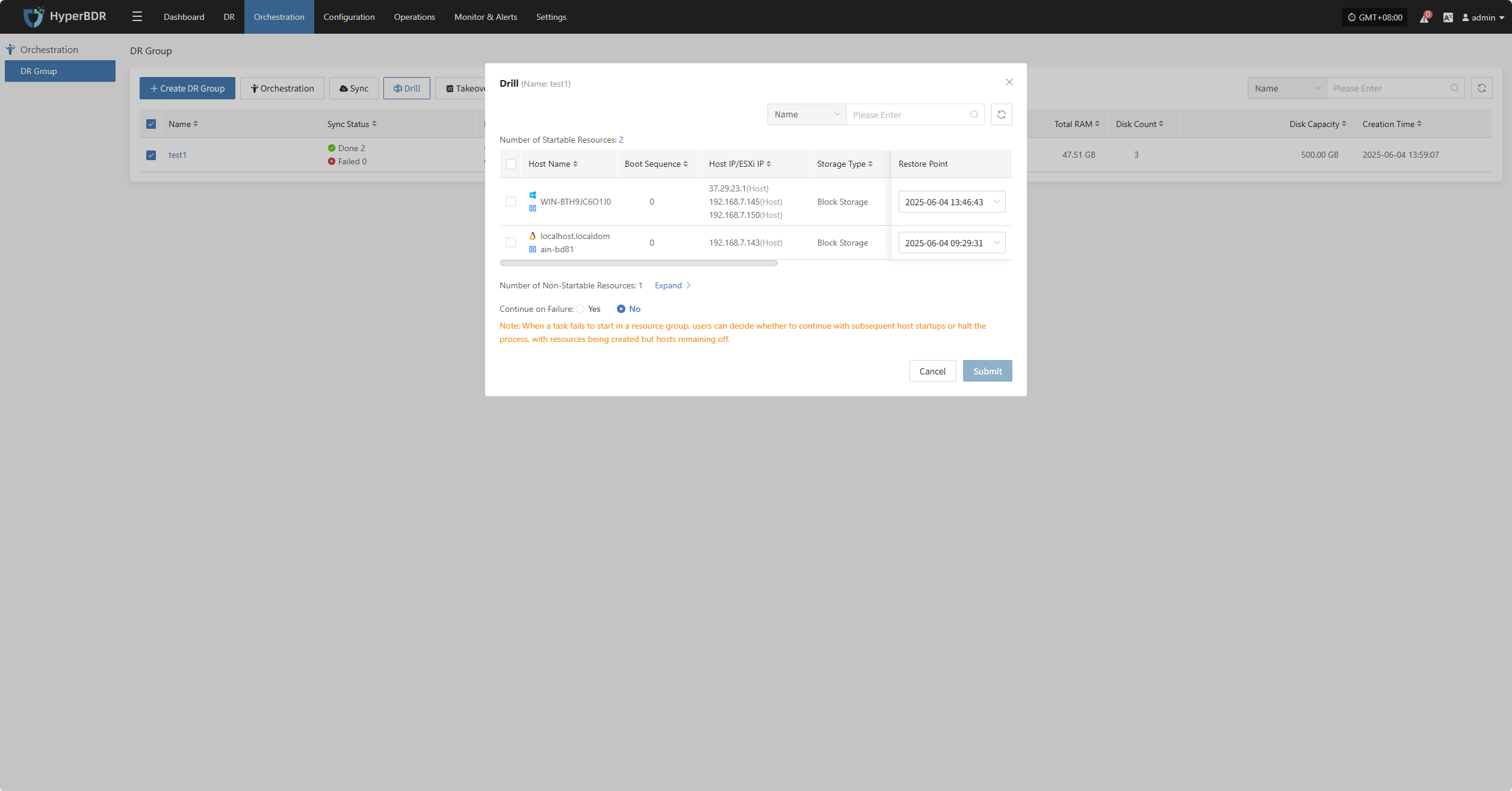
The system will automatically create or start the target instances based on the predefined orchestration (compute, storage, network, etc.). Once started, you can log in to the target platform to verify configurations and perform business drills.
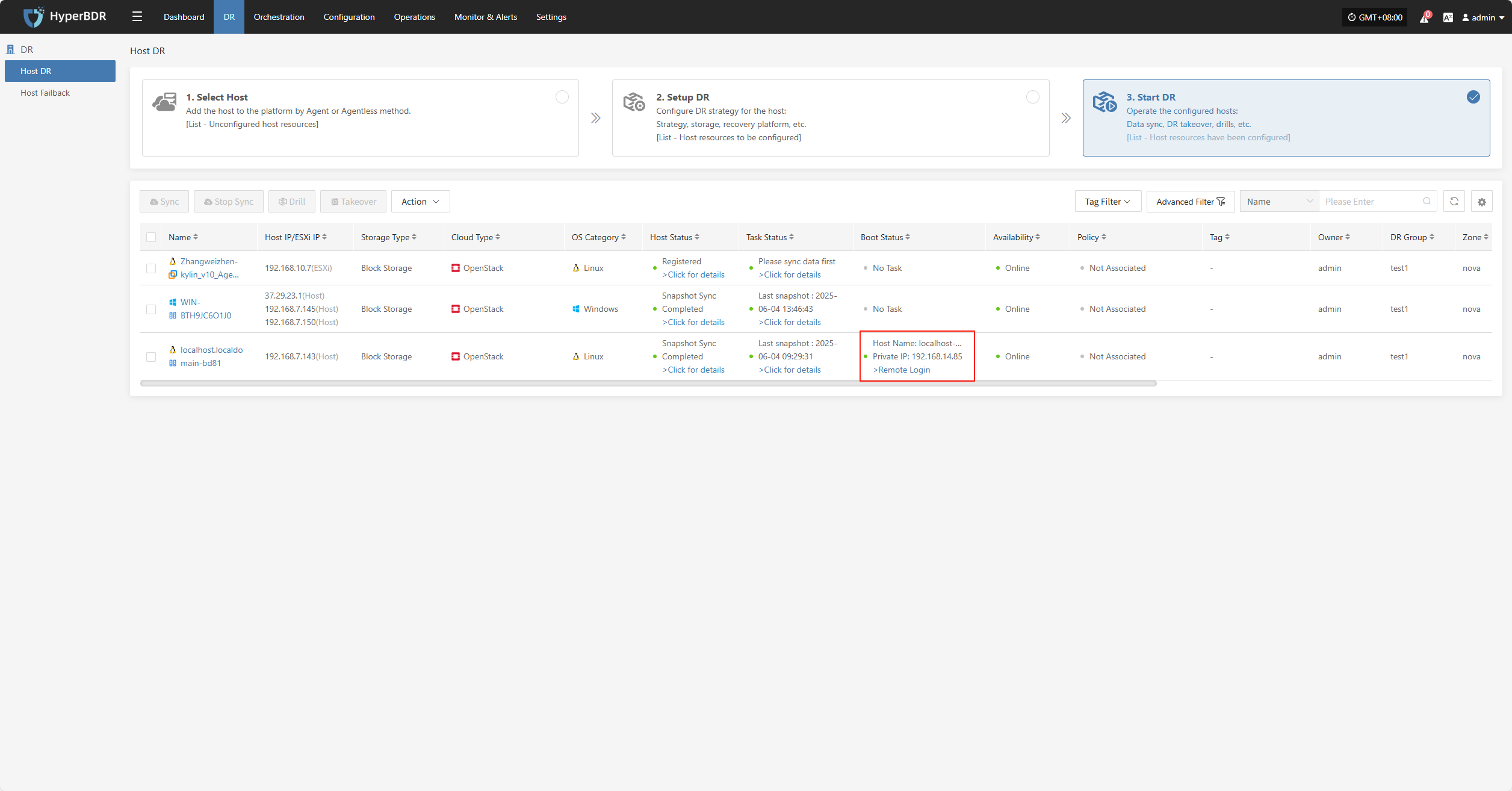
After recovery, check if application services, databases, and load balancers are working properly.
Takeover
Select the resource group, click "Takeover", choose the recovery snapshot point, and confirm to proceed.
Note: Only hosts that have completed synchronization can participate in takeover. Hosts with unsynchronized data will be excluded and cannot be started.
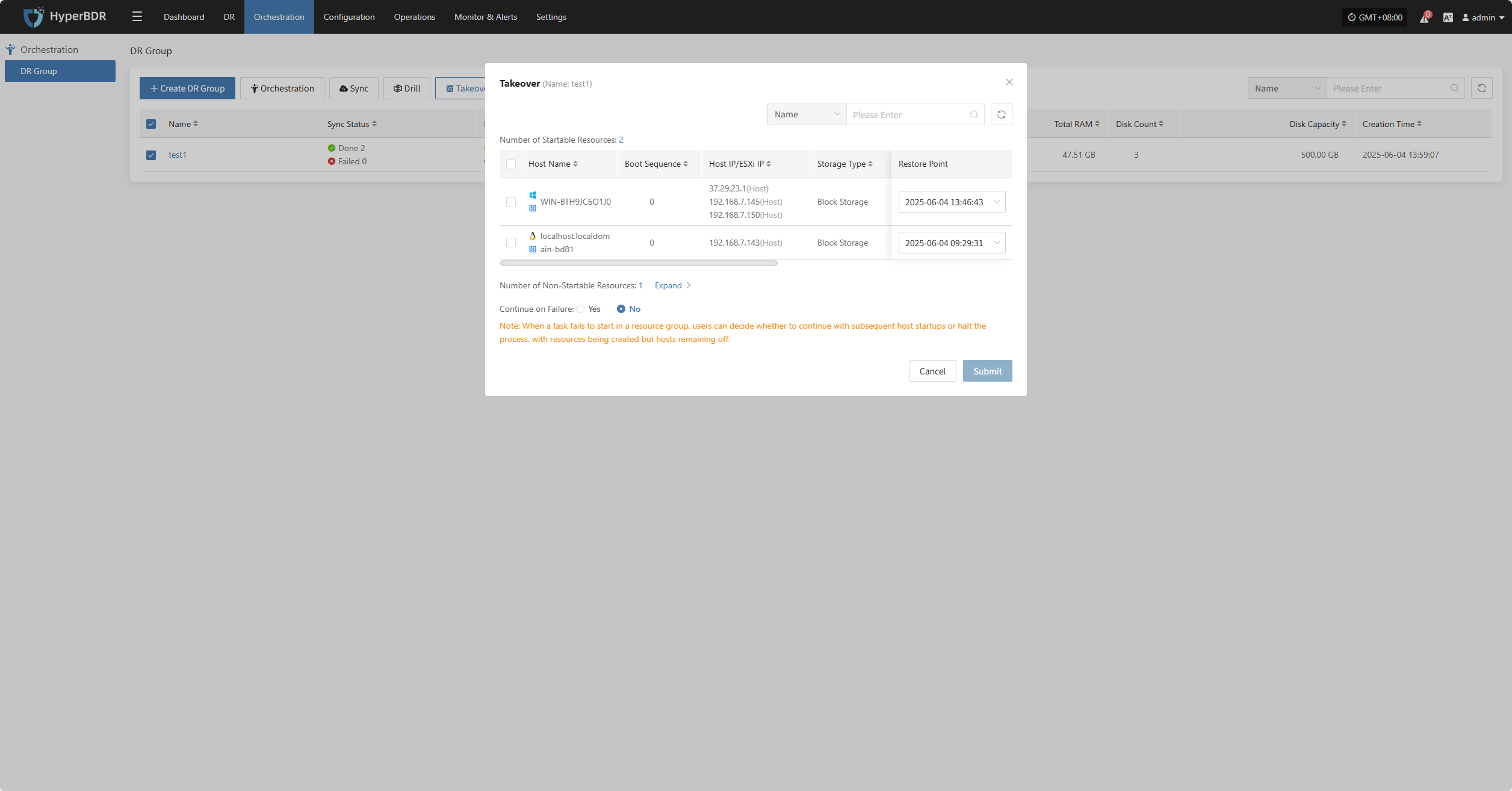
The system will automatically create or start the target instances based on the predefined orchestration (compute, storage, network, etc.). Once started, you can log in to the target platform to verify configurations and take over business operations.
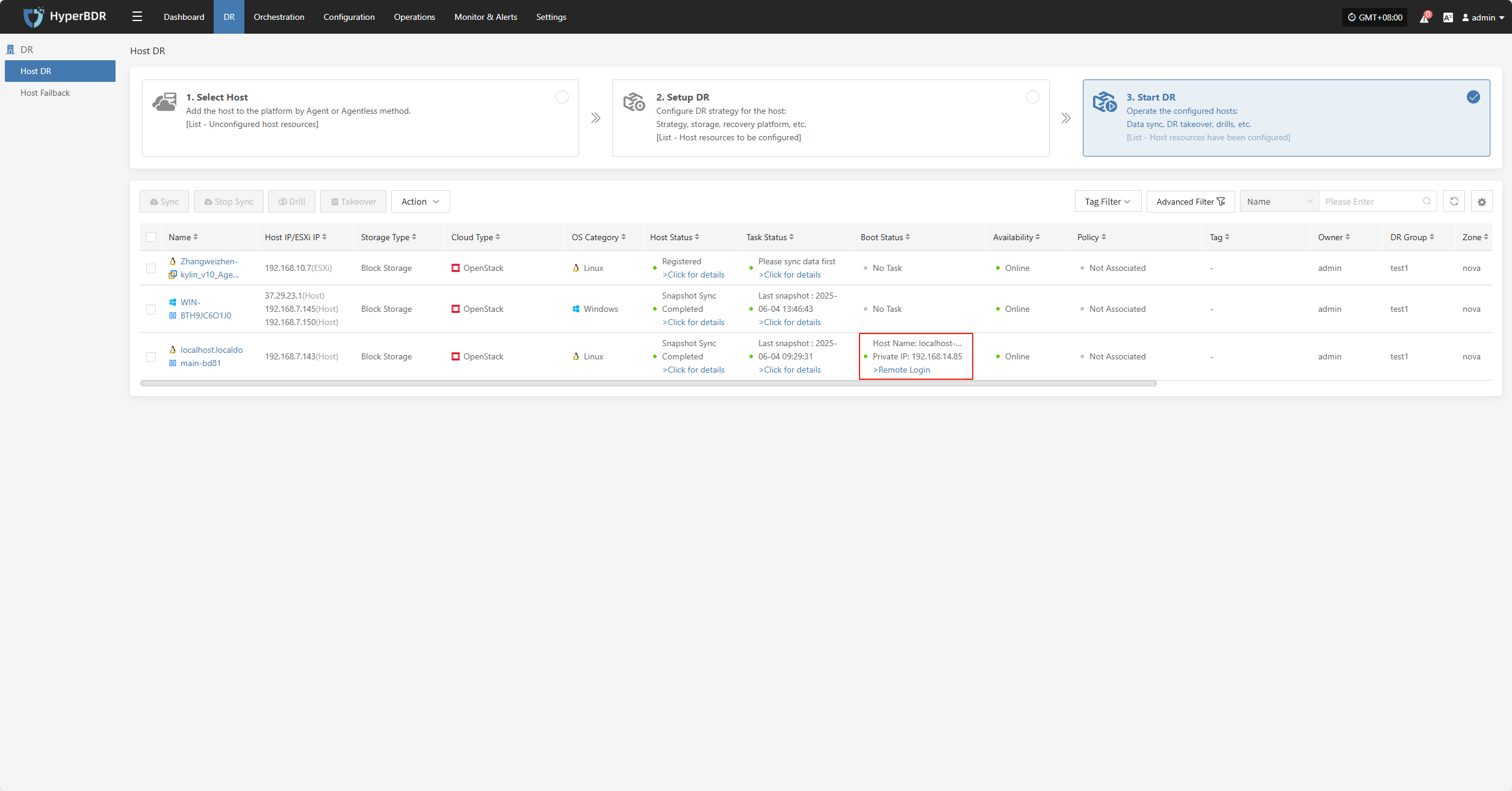
After takeover, check database versions, application service configurations, and dependent services (such as cache and message queues) to ensure everything is working normally.
Action
Basic Info
Click "Basic Info" to view the resource group's name, notes, and other information.
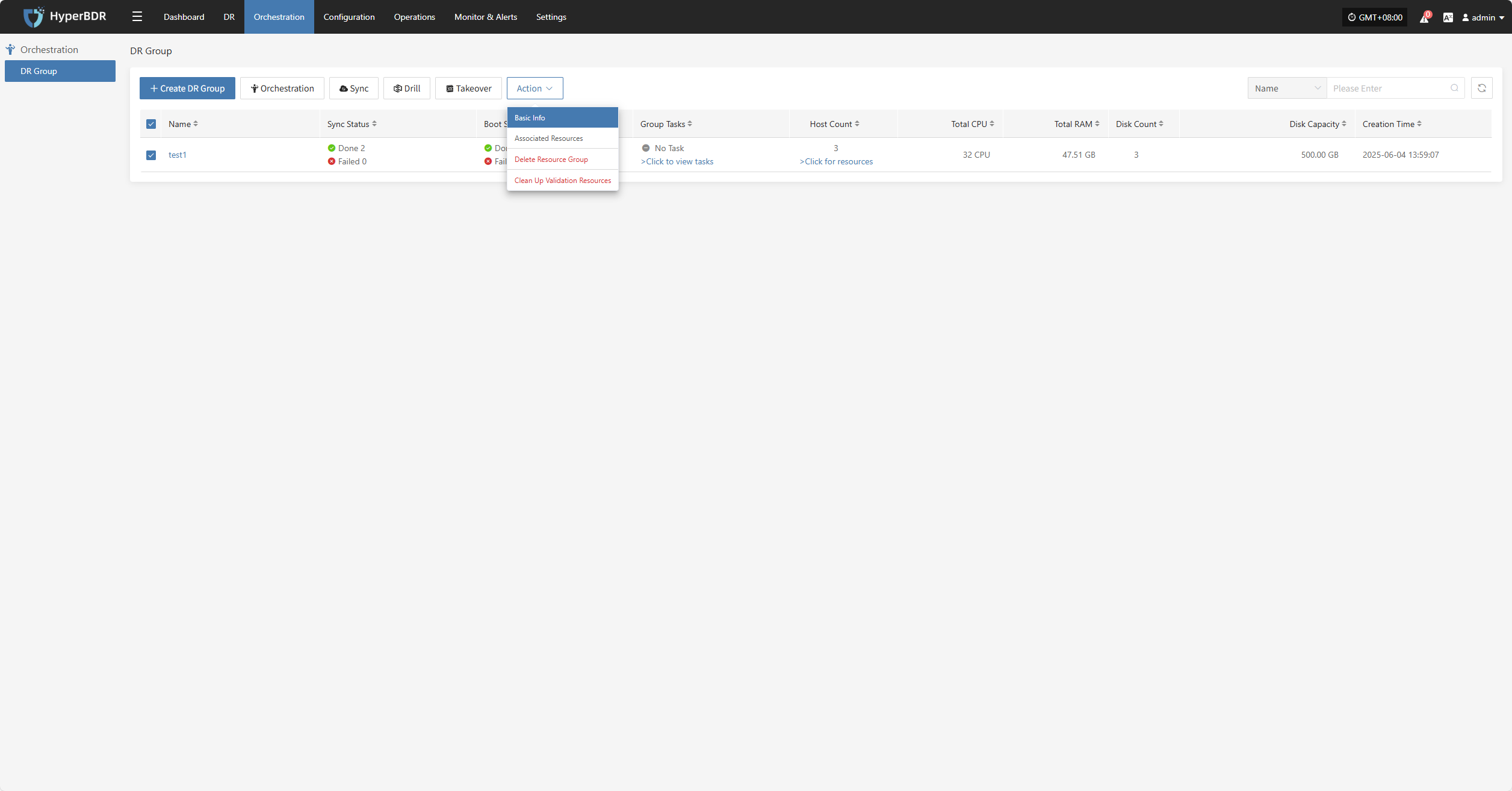
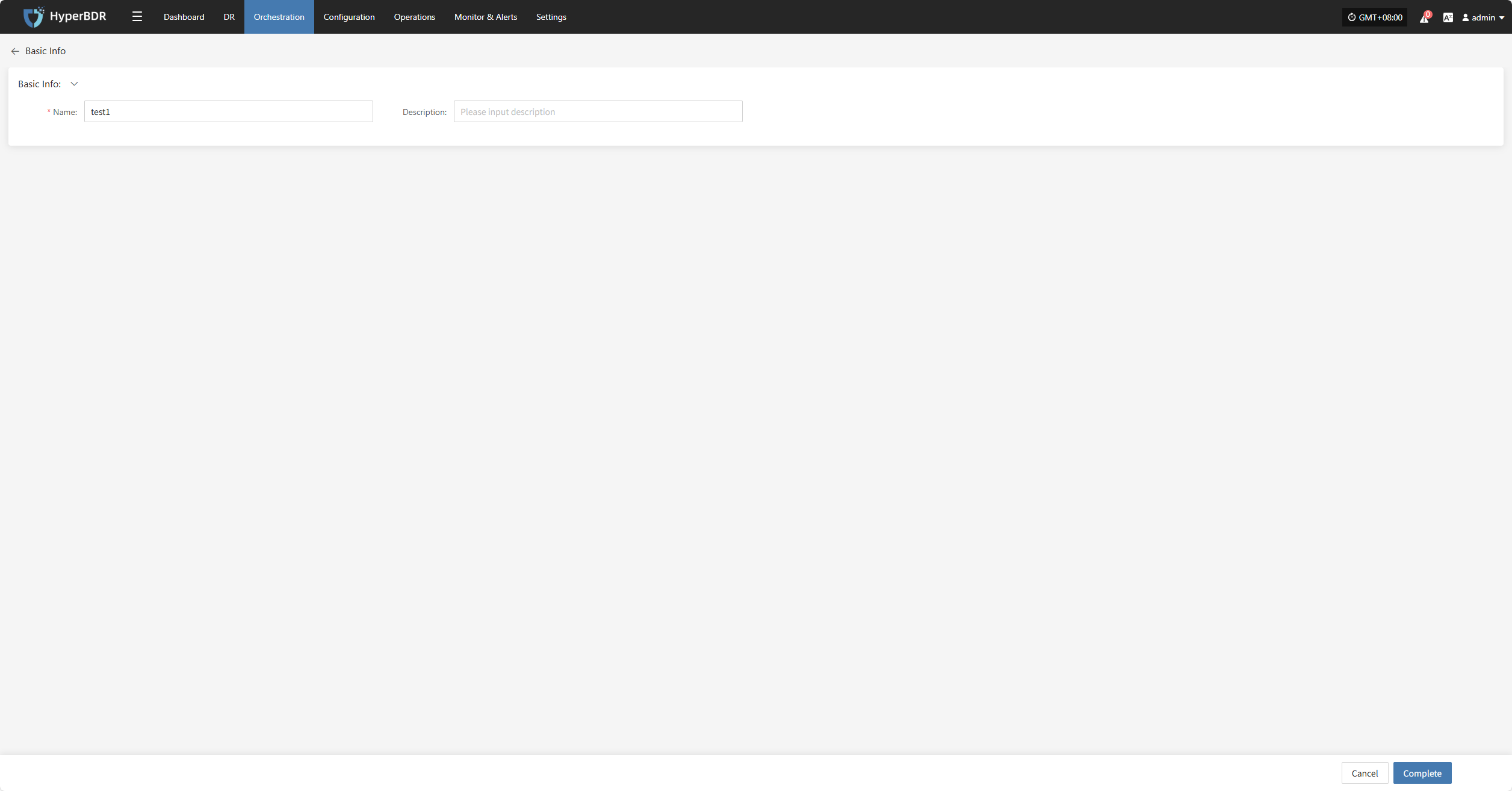
Associated Resources
Click "Associated Resources" to manage the hosts in the resource group. You can add or remove hosts as needed.
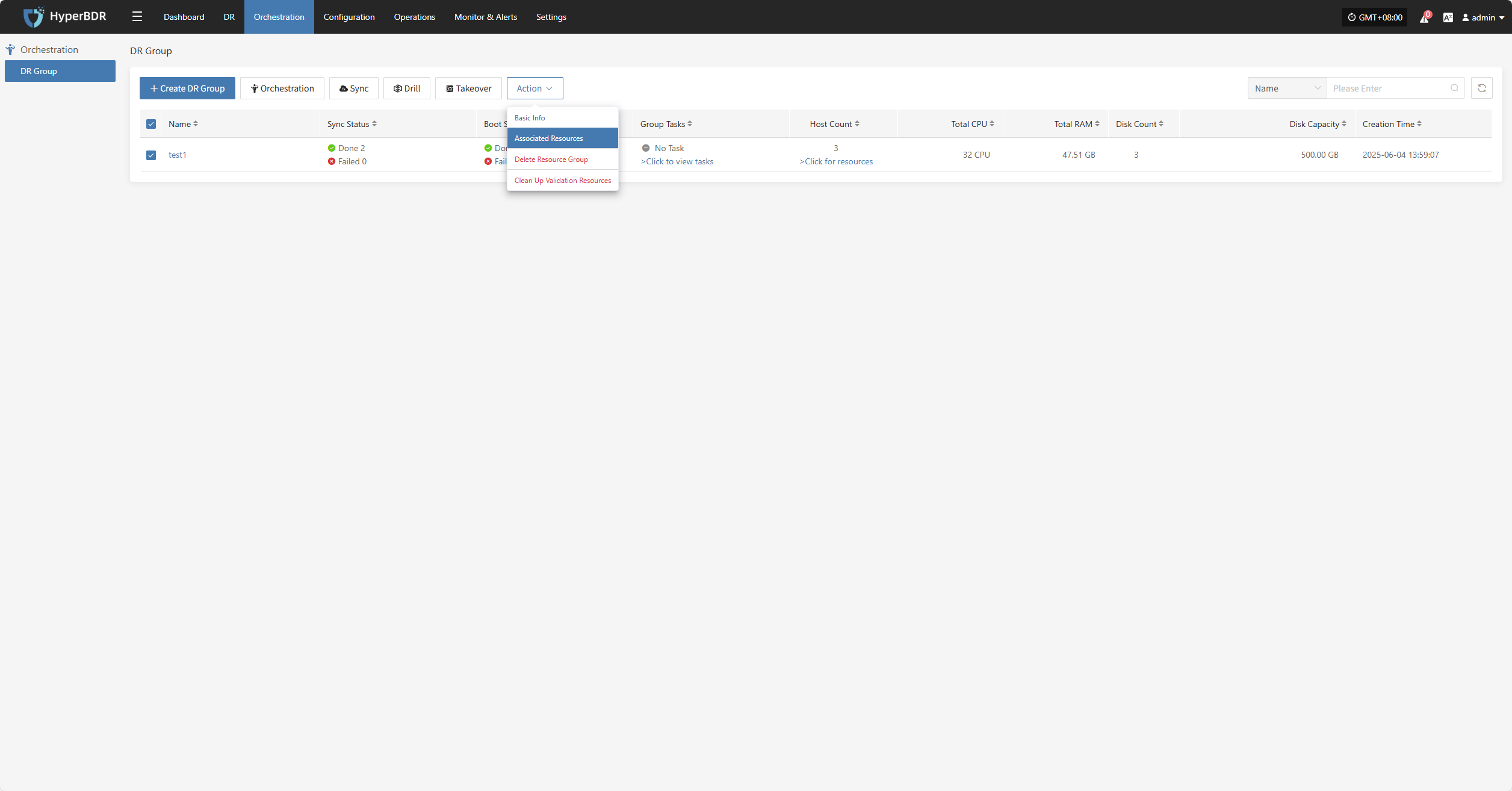
To remove a host, click the "x" next to the host in the resource list.
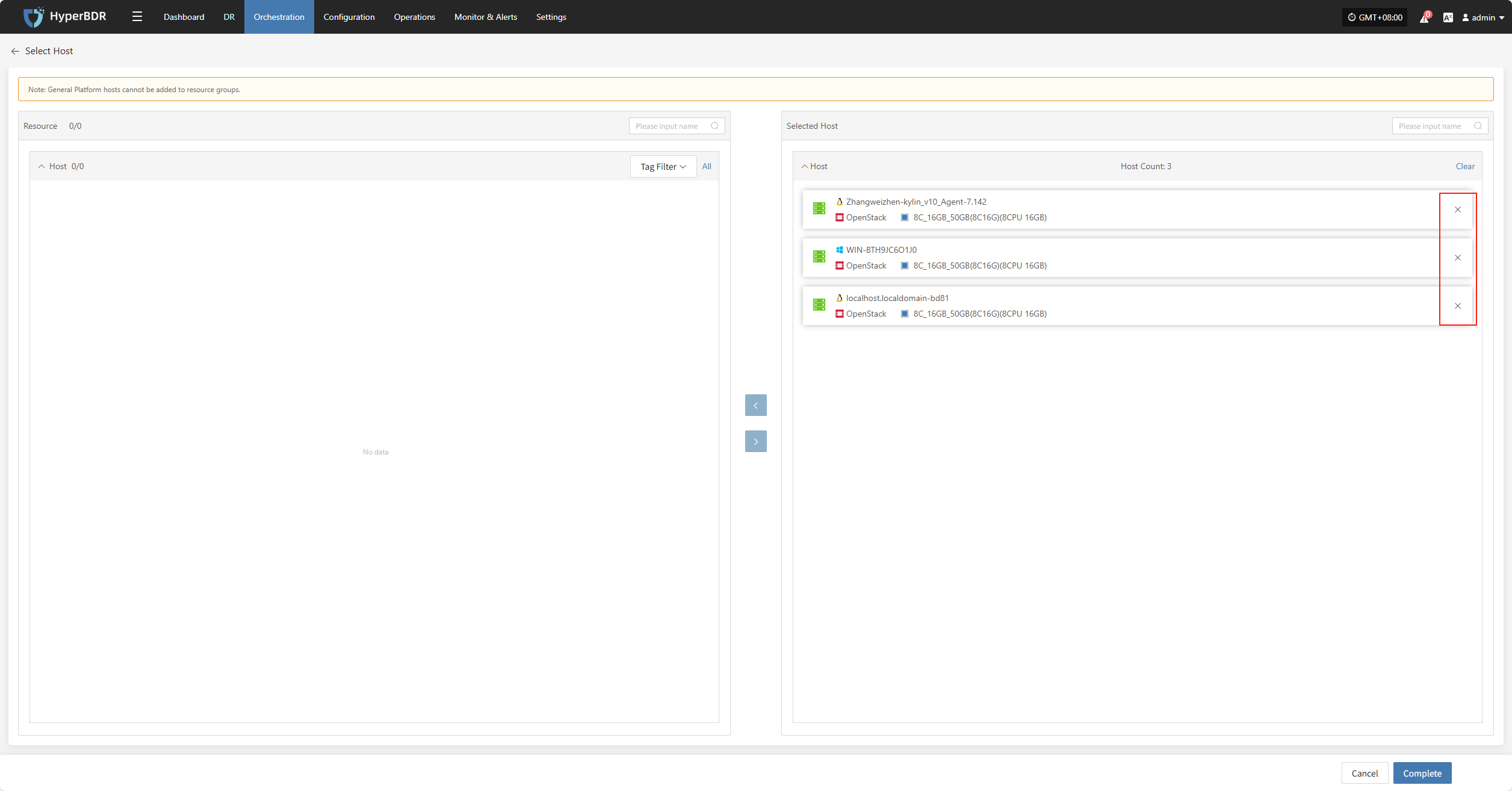
To add a host, select the host and click confirm to add it to the resource group.
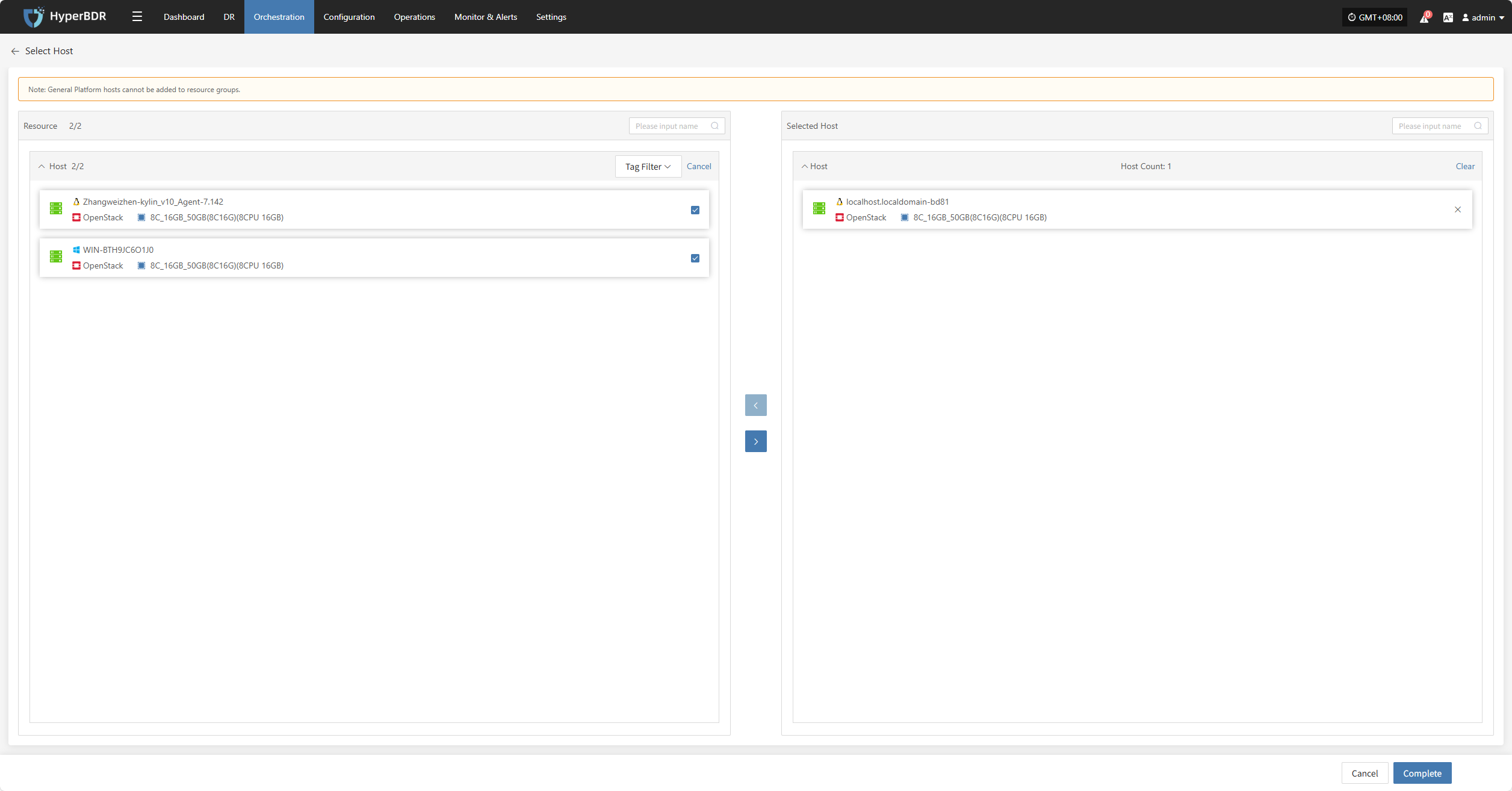
Delete Resource Group
Note: This operation only deletes the resource group. The resources within the group will be retained.
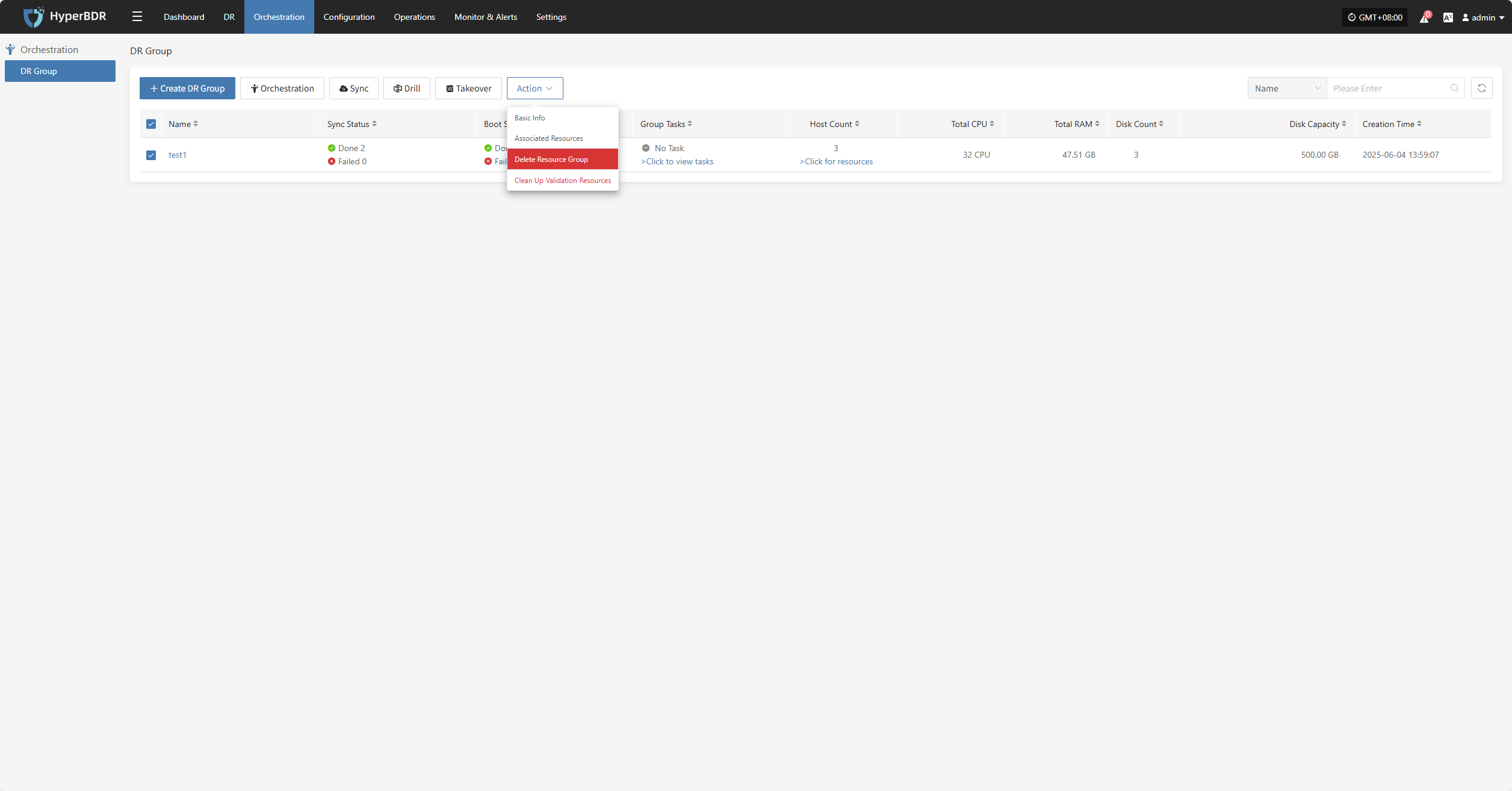
Clean Up Validation Resources
Note: This operation only cleans up resources that have been started in the cloud.
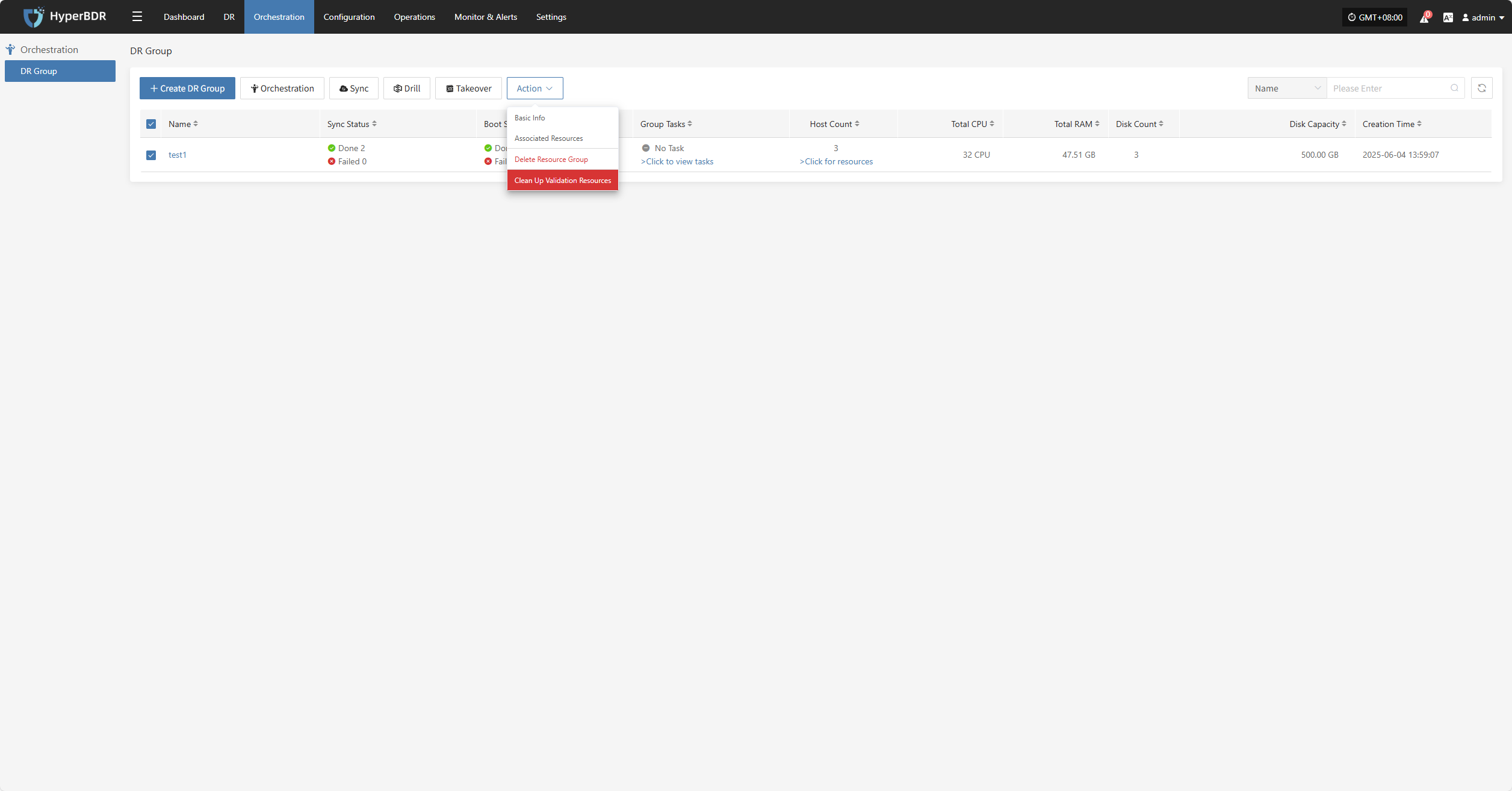
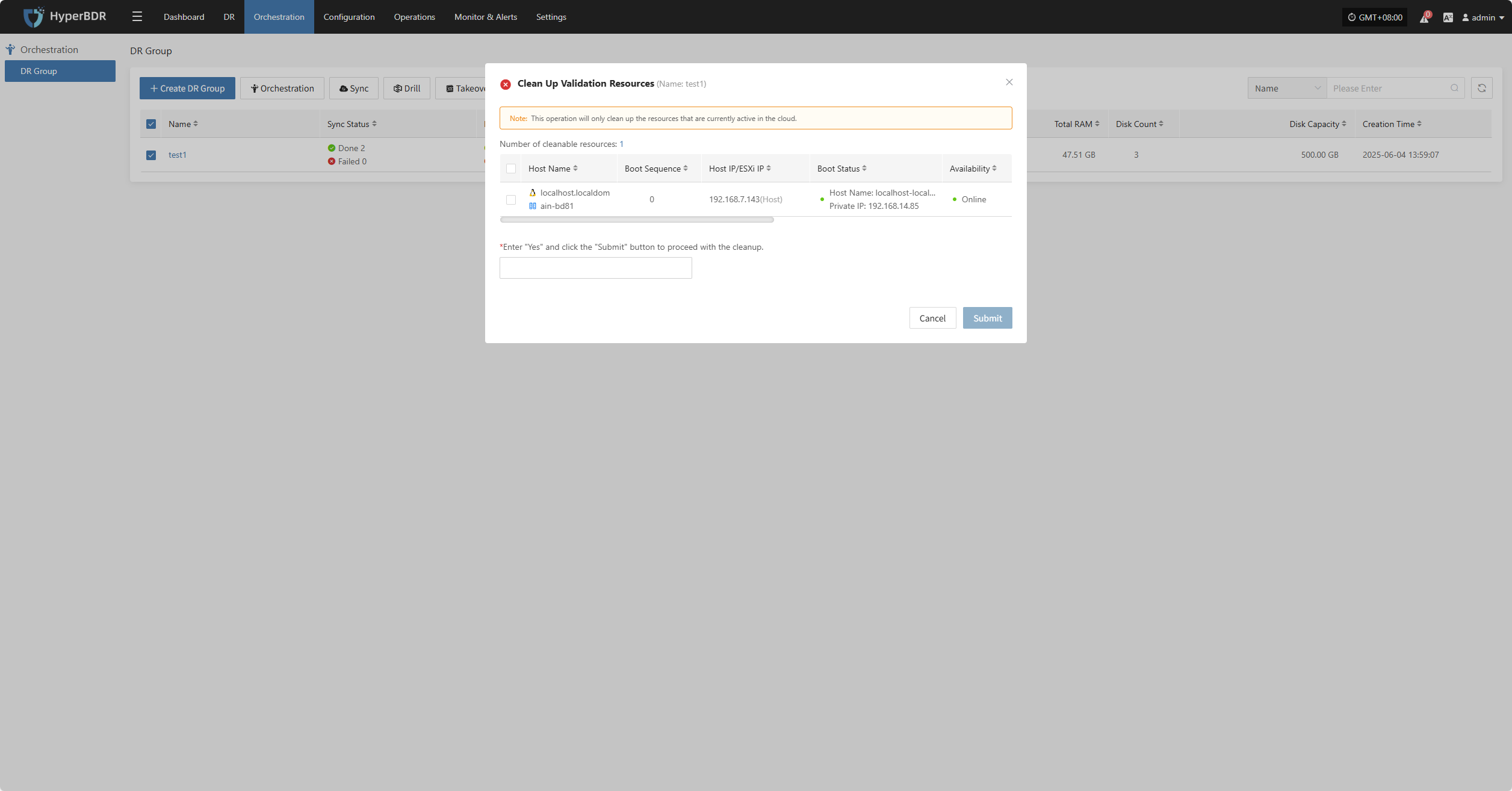
Configuration
Production Site
In the HyperBDR disaster recovery architecture, a Production Site represents the source environment hosting your core business workloads. The system supports two data replication modes to balance universal compatibility with agentless, non-intrusive deployment:
- Agent Mode: A lightweight Agent program is installed inside the source operating system. It is suitable for complex heterogeneous environments, including x86 physical servers, standalone private cloud virtual machines (such as KVM, Xen, Hyper-V), and public cloud hosts.
- Agentless Mode: Requires zero software installation inside workload hosts. It captures differential disk block changes directly via native hypervisor/cloud APIs and snapshot mechanisms. Currently supported platforms include: VMware, OpenStack + Ceph, AWS EC2, FusionCompute, Oracle Cloud, HCS 8.0.2, HCS Online, and Huawei Cloud.
OS Compatibility Support Matrix
DR
VMware
The VMware page is used to configure and manage the VMware agentless (Agentless) production platform, including platform authentication, Sync Proxy binding, and connection status monitoring.
Add VMware Platform
In the left navigation bar of the console, click "Production Site" > "VMware", and click the "Add" button. Follow the wizard in the pop-up window to complete platform connection.

Deploy Sync Proxy
The VMware platform uses agentless (Agentless) mode and requires deploying a Source Sync Proxy (Sync Proxy) in the source VMware cluster:
- Download OVA Template:
- Click the download link in the wizard, or download directly via the following link: https://downloads.oneprocloud.com/proxy-agent_BaseOS.ova
- Import Virtual Machine:
- Import the OVA file into the source VMware cluster, deploy one or more Source Sync Proxy virtual machines, and configure network IP addresses.
- Log in to the Virtual Machine:
- Log in to the newly created Sync Proxy VM. The system default initial credentials are
root/Acb@132.Inst.
- Log in to the newly created Sync Proxy VM. The system default initial credentials are
- One-Click Installation & Registration:
- Copy the installation command from the wizard interface, paste and execute it in the Sync Proxy terminal. Upon completion, the node will automatically register with the HyperBDR platform.
Note: The recommended specification for Sync Proxy is 4 vCPU / 8 GB RAM / 50 GB Disk, supporting concurrent mounting and synchronization of up to 50 disks per node. For detailed specifications and multi-node scale-out instructions, see Source Sync Proxy.

Create VMware Production Platform
In step 2 of the wizard, configure VMware connection authentication details and verify network connectivity:
- Authentication Parameter Configuration
| Parameter | Example / Format | Description |
|---|---|---|
| Auth Address | https://<vCenter_or_ESXi_IP_or_Domain>:443 | Access address of the vCenter or standalone ESXi host. If using a domain name, configure the corresponding hosts resolution in the HyperBDR console in advance. |
| Username | Administrator or backup account | Username with necessary API invocation permissions (e.g., administrator@vsphere.local or a custom role account). |
| Password | Account password | Password used to connect to vCenter or ESXi. |
| Source Sync Proxy | Select from dropdown | Select the deployed Source Sync Proxy node from the dropdown list, no need to enter the IP manually. |
- Network Policy Requirements
| Source | Target | Port / Protocol | Description |
|---|---|---|---|
| Sync Proxy | vCenter / ESXi | 443 / TCP | Management authentication and virtual machine metadata exchange |
| Sync Proxy | ESXi Hosts | 902 / TCP | VMware native data stream channel. If protected virtual machines are distributed across multiple ESXi hosts, ensure bidirectional connectivity between Sync Proxy and port 902 on all relevant ESXi hosts. |
- Permissions and CBT Mechanism
HyperBDR relies on VMware's native CBT (Changed Block Tracking) technology to achieve fast incremental backups. The vCenter account used must possess minimum permissions for snapshot management, virtual machine configuration, and CBT. For a detailed permission list, see VMware User Permission Requirements.
After confirming all configurations are correct, click "Confirm" to submit.

Complete VMware Addition
After adding, return to the VMware production platform list. Wait until the platform status becomes "Normal" and the number of cluster hosts and virtual machines is successfully retrieved, indicating a successful connection. You can then proceed with subsequent disaster recovery protection.
Note: Repeat the above steps to add multiple vCenter clusters or standalone ESXi hosts.
Action
In the VMware production platform list, click the "Action" dropdown menu on the right side of the target platform row to perform operations such as Settings, Bind, Unbind, Reload Virtual Machine, Modify Authentication Information, and Delete. For detailed instructions, refer to Production Site Management.
OpenStack
The OpenStack page is used to configure and manage the OpenStack + Ceph agentless (Agentless) production platform, including Keystone authentication, Ceph storage pool integration, Sync Proxy binding, and connection status monitoring.
Add OpenStack Platform
In the left navigation bar of the console, click "Production Site" > "OpenStack", and click the "Add" button. Follow the wizard to complete platform connection.

Deploy Sync Proxy
Create a cloud virtual machine in the OpenStack environment to deploy the Source Sync Proxy (Sync Proxy):
- Prepare Image:
- Use a standard native Ubuntu 24.04 image from OpenStack, or download the official QCOW2 image and import it into the image repository:
- Download Ubuntu 24.04 QCOW2 Image
Note: This QCOW2 image has no preset static password and relies on
cloud-initto inject passwords or SSH Keys. Ensure the platform supports cloud-init. - Create Cloud Host:
- Launch a virtual machine in OpenStack based on this image and associate a network IP. Recommended specification: 4 vCPU / 8 GB RAM / 50 GB Disk.
- One-Click Installation & Registration:
- Log in to the cloud host, paste and execute the installation command provided in the wizard terminal. Upon completion, the node will automatically register with the HyperBDR platform.
Note: For detailed specifications and network planning, see Source Sync Proxy.

Create OpenStack Production Platform
- Keystone Authentication Configuration
| Parameter | Example / Format | Description |
|---|---|---|
| Auth Address | http://<Keystone_IP>:5000/v3 | OpenStack Keystone Public Endpoint (v3 recommended). If using a domain name, configure DNS resolution in advance. |
| User Domain ID | default | Domain ID to which the user belongs. |
| Username | Administrator account | Username with platform query and volume management permissions. |
| Password | Account password | Login password for the user account. |
| Project Domain ID | default | Domain ID to which the project belongs. |
| Project Name | admin | Tenant project name to which the user belongs. |
| Region | RegionOne | Region name of the target OpenStack cluster. |
| Source Sync Proxy | Select from dropdown | Select the deployed Source Sync Proxy node from the dropdown list. |
- OpenStack Service Network Policy Requirements:
| Source | Target | Port / Protocol | Description |
|---|---|---|---|
| Sync Proxy | OpenStack Controller Nodes | 5000, 9696, 8774, 8776, 9292 / TCP | Corresponding to Keystone, Neutron, Nova, Cinder, and Glance API endpoints respectively |

- Ceph Storage Cluster Authentication Configuration
In OpenStack scenarios, HyperBDR directly connects to the underlying Ceph storage pools to read differential snapshot data without agents:
| Parameter | Example / Format | Description |
|---|---|---|
| Control Node Addresses | 10.0.0.201,10.0.0.202 | Ceph Monitor node IPs, separated by commas ,. |
| Enable CephX Auth | Yes | Whether to enable CephX authentication (recommended). |
| Username | cinder or admin | Ceph username used to access the specified storage pool. |
| Keyring | AQBBY9hf...== | Client access key. Run cat /etc/ceph/ceph.client.cinder.keyring on a Ceph node to obtain it. |
| Storage Pool | volumes | Ceph Pool where protected virtual machine disks reside (view via ceph osd ls pools). |
| Incremental Fetch Type | rbd diff | Incremental read mode: + rbd diff: Snapshot-based precise differential comparison, high data accuracy (recommended);+ rbd du: Fast overview comparison. |
| Cluster Name | ceph | Ceph cluster name, defaults to ceph. |
| OpenStack Volume Types | DEFAULT_VOLUME_TYPE, ssd | Associated Cinder Volume Types, queried via openstack volume type list. |
- Ceph Storage Network Policy Requirements:
| Source | Target | Port / Protocol | Description |
|---|---|---|---|
| Sync Proxy | Ceph Monitor / OSD | 6789, 3300, 6800-7300 / TCP | Ceph Mon authentication communication and direct disk block data retrieval from OSD nodes |
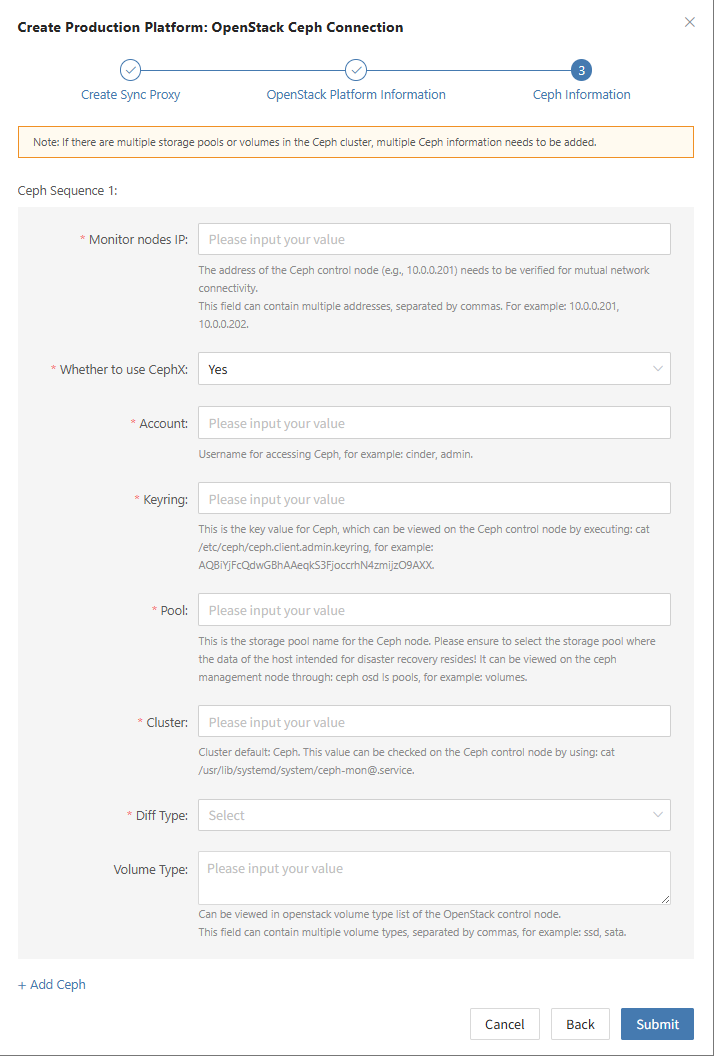
Complete OpenStack Addition
After clicking "Confirm" to save, the platform automatically validates Keystone and Ceph cluster connectivity. Wait until the platform status becomes "Normal" and the number of cluster cloud hosts is retrieved, indicating a successful connection.
Note: If the system contains multiple backend Ceph storage pools or multiple OpenStack clusters, repeat the steps to add and bind them.
Action
In the OpenStack production platform list, click the "Action" dropdown menu on the right side of the target platform row to perform operations such as Settings, Bind, Unbind, Reload Virtual Machine, Modify Authentication Information, and Delete. For detailed instructions, refer to Production Site Management.
AWS
The AWS page is used to configure and manage the AWS agentless (Agentless) production platform, including IAM credentials, region selection, Sync Proxy binding, and connection status monitoring.
Add AWS Platform
In the left navigation bar of the console, click "Production Site" > "AWS", and click the "Add" button. Follow the wizard to complete platform connection.

Deploy Sync Proxy
Launch an EC2 instance in the target AWS Region to deploy the Source Sync Proxy (Sync Proxy):
- Launch EC2 Instance:
- In the AWS EC2 console, launch an instance using the official native Ubuntu 24.04 LTS image (recommended instance types such as
t3.xlarge/c6i.xlargeor meeting the 4 vCPU / 8 GB RAM / 50 GB Disk specification).
- In the AWS EC2 console, launch an instance using the official native Ubuntu 24.04 LTS image (recommended instance types such as
- Configure Network & Security Group:
- Ensure the instance can access the HyperBDR Console (ports 10443 and 30080) and has outbound access to AWS service endpoints (port 443).
- One-Click Installation & Registration:
- Log in to the EC2 instance, paste and execute the installation command provided in the wizard terminal. Upon completion, the instance will automatically register with the platform as a Sync Proxy.
Note: For detailed specifications and network planning, see Source Sync Proxy.

Create AWS Production Platform
- AWS Authentication Information Configuration
| Parameter | Example / Format | Description |
|---|---|---|
| Access Key ID | AKIAIOSFODNN7EXAMPLE | AWS IAM user access key ID with necessary permissions. |
| Secret Access Key | wJalrXUtnFEMI/K7MDENG/bPxRfiCYEXAMPLEKEY | Secret access key paired with the Access Key ID. |
| Region | ap-southeast-1 | AWS Region where the target EC2 instances are located (select from dropdown or enter manually). |
| Source Sync Proxy | Select from dropdown | Select the deployed Source Sync Proxy EC2 instance from the dropdown list. |
| Platform Name | Custom name (optional) | Identifier name for the production platform, supporting custom input or system auto-generation. |
- Network Policy & Endpoint Requirements
| Source | Target | Port / Protocol | Description |
|---|---|---|---|
| Sync Proxy | AWS EC2 / EBS Service Endpoints | 443 / TCP (HTTPS) | Interacting with the AWS control plane and reading snapshot block data via EBS Direct APIs. + Public Network Access: Assign an EIP to the Sync Proxy and allow outbound port 443 in the security group; + Private Network / Direct Connect / VPC: Configure VPC Endpoints for EC2 and EBS within the VPC for high-efficiency internal transmission without public IPs. |
- IAM Permission Policy Requirements
When calling AWS EBS Direct APIs for agentless snapshot differential backups, the IAM account must be granted minimum permissions for EC2, EBS snapshot read/write, and related resources. For detailed IAM Policy configuration, see AWS IAM Preparation Guide.
After confirming all configurations are correct, click "Confirm" to submit.

Complete AWS Addition
After adding, return to the AWS production platform list. Wait until the platform status becomes "Normal" and the total number of managed EC2 instances in the target Region is retrieved, indicating a successful connection.
Note:
- To protect workloads across multiple AWS Regions or different AWS accounts, repeat the steps above to add each environment independently.
Action
In the AWS production platform list, click the "Action" dropdown menu on the right side of the target platform row to perform operations such as Settings, Bind, Unbind, Reload Virtual Machine, Modify Authentication Information, and Delete. For detailed instructions, refer to Production Site Management.
FusionCompute
The FusionCompute page is used to configure and manage the Huawei FusionCompute agentless (Agentless) production platform, including VRM authentication, Sync Proxy binding, and connection status monitoring.
Add FusionCompute Platform
In the left navigation bar of the console, click "Production Site" > "FusionCompute", and click the "Add" button. Follow the wizard to complete platform connection.

Deploy Sync Proxy
Import the OVA template into the FusionCompute cluster to deploy the Source Sync Proxy (Sync Proxy):
- Download OVA Template:
- Click the download link in the wizard, or download directly via the internet: https://downloads.oneprocloud.com/proxy-agent_BaseOS.ova
- Import Virtual Machine:
- Import the OVA file into the FusionCompute cluster, deploy one or more Source Sync Proxy virtual machines, and configure network IP addresses (recommended version: FusionCompute 8.6.0 or higher).
- Log in to the Virtual Machine:
- Log in to the newly created Sync Proxy VM. The system default initial credentials are
root/Acb@132.Inst.
- Log in to the newly created Sync Proxy VM. The system default initial credentials are
- One-Click Installation & Registration:
- Copy the installation command from the wizard interface, paste and execute it in the Sync Proxy terminal. Upon completion, the node will automatically register with the HyperBDR platform.
Note: The recommended specification for Sync Proxy is 4 vCPU / 8 GB RAM / 50 GB Disk. For detailed specifications and multi-node scale-out instructions, see Source Sync Proxy.
- FusionCompute Platform Usage Conditions & Limitations:
| Category | Key Requirements & Limitations |
|---|---|
| Prerequisites | 1. Install and Run Tools: Protected VMs must have Huawei VM Tools installed and running properly; this is a prerequisite for creating CBT differential snapshots; 2. Snapshot Limit: A single VM supports up to 32 snapshots; 3. VM Status: VMs must be in "Running", "Suspended", or "Stopped" state to create snapshots. |
| Limitations | 1. Unsupported Snapshot Scenarios: VMs using shared disks, independent disks, linked clones, or template VMs do not support snapshot backups; 2. CBT Failure Scenarios: CBT will fail when a VM undergoes HA migration, snapshot restoration, disk expansion, or host reboot, requiring the system to automatically trigger a full verification scan; 3. Storage Space Requirements: The source storage pool must reserve snapshot merge buffer space during backup; a single compute node supports up to 8 concurrent backup socket connections. |

Create FusionCompute Production Platform
- FusionCompute Authentication Configuration
| Parameter | Example / Format | Description |
|---|---|---|
| Auth Address | https://<VRM_IP_or_Domain>:7443 | FusionCompute VRM management node access address (default port 7443). If using a domain name, configure DNS or hosts resolution in advance. |
| Username | Administrator account | Administrator username with platform query and snapshot management permissions. |
| Password | Account password | Password used to connect to FusionCompute. |
| Source Sync Proxy | Select from dropdown | Select the deployed Source Sync Proxy node from the dropdown list. |
- Network Policy Requirements
| Source | Target | Port / Protocol | Description |
|---|---|---|---|
| Sync Proxy | FusionCompute VRM Management Node | 7443 / TCP | Management authentication and snapshot API communication |
| Sync Proxy | CNA Compute Nodes | 21064 / TCP | Data stream channel. Used to read VM disk data directly from compute node underlying storage. Ensure connectivity to port 21064 on all relevant compute nodes. |
After confirming all configurations are correct, click "Confirm" to submit.

Complete FusionCompute Addition
After adding, return to the FusionCompute production platform list. Wait until the platform status becomes "Normal" and the number of cluster hosts and virtual machines is successfully retrieved, indicating a successful connection.
Note:
- Repeat the above steps to add multiple FusionCompute clusters or standalone sites.
Action
In the FusionCompute production platform list, click the "Action" dropdown menu on the right side of the target platform row to perform operations such as Settings, Bind, Unbind, Reload Virtual Machine, Modify Authentication Information, and Delete. For detailed instructions, refer to Production Site Management.
Oracle
The Oracle page is used to configure and manage the Oracle Cloud Infrastructure (OCI) agentless (Agentless) production platform, including OCI tenancy credentials, region configuration, Sync Proxy binding, and connection status monitoring.
Add Oracle Platform
In the left navigation bar of the console, click "Production Site" > "Oracle", and click the "Add" button. Follow the wizard to complete platform connection.

Deploy Sync Proxy
Launch a compute instance in the target OCI Region to deploy the Source Sync Proxy (Sync Proxy):
- Launch OCI Compute Instance:
- In the Oracle Cloud console, launch an instance using the official standard Ubuntu 24.04 image (recommended specification: 4 OCPU / 8 GB RAM / 50 GB Boot Volume).
- Configure Network & Security List:
- Ensure the instance can access the HyperBDR Console (ports 10443 and 30080) and has outbound access to OCI API endpoints (port 443).
- One-Click Installation & Registration:
- Log in to the compute instance, paste and execute the installation command provided in the wizard terminal. Upon completion, the instance will automatically register as a Sync Proxy.
Note: For detailed specifications and network planning, see Source Sync Proxy.

Create Oracle Production Platform
- OCI Authentication Configuration
| Parameter | Example / Format | Description & Acquisition Method |
|---|---|---|
| Tenancy OCID | ocid1.tenancy.oc1..aaaaaaaaxxxx | Unique identifier for the OCI tenancy. Log in to the OCI console → click the user avatar in the upper right corner → copy the OCID under [Tenancy: Overview]. |
| User OCID | ocid1.user.oc1..aaaaaaabbbbb | OCID of the OCI IAM user with API access permissions. Copy from [User Settings] or [Identity & Security] > [Users] details in the console. |
| Private Key | Content of oci_api_key.pem | API private key for connecting to OCI services. Generate or upload a public key under [API Keys] on the user details page, and paste the corresponding private key content here. |
| Fingerprint | 20:3b:97:13:55:1c:8c:... | Fingerprint string of the corresponding API key, copied directly from the API key list in the OCI console. |
| Region | ap-singapore-1 | OCI Region identifier where target cloud hosts are located (e.g., ap-singapore-1, us-ashburn-1, etc.). |
| Source Sync Proxy | Select from dropdown | Select the deployed Source Sync Proxy compute instance from the dropdown list. |
| Platform Name | Custom name (optional) | Identifier name for the production platform, supporting custom input or system auto-generation. |
- Network Policy Requirements
| Source | Target | Port / Protocol | Description |
|---|---|---|---|
| Sync Proxy | OCI Service API Endpoints | 443 / TCP (HTTPS) | Authenticating and interacting with OCI Identity, Compute, and Block Volumes APIs and reading block data |
After confirming all configurations are correct, click "Confirm" to submit.

Complete Oracle Addition
After adding, return to the Oracle production platform list. Wait until the platform status becomes "Normal" and the total number of managed OCI cloud hosts in that Region is retrieved, indicating a successful connection.
Note:
- To protect workloads across multiple OCI Regions or different tenancies, repeat the steps above to add each environment independently.
Action
In the Oracle production platform list, click the "Action" dropdown menu on the right side of the target platform row to perform operations such as Settings, Bind, Unbind, Reload Virtual Machine, Modify Authentication Information, and Delete. For detailed instructions, refer to Production Site Management.
HCS 8.0.2
The HCS 8.0.2 page is used to configure and manage the Huawei Cloud Stack (HCS) 8.0.2 agentless (Agentless) production platform, including ManageOne authentication, Dorado storage integration, Sync Proxy binding, and connection status monitoring.
Version Compatibility Notice:
- Currently, the interface architecture of Huawei Cloud Stack (HCS) 8.2.x / 8.3.x differs significantly from HCS 8.0.2. This section exclusively supports HCS 8.0.2;
- The current version is deeply adapted to Huawei OceanStor Dorado all-flash storage backends by default.
Add HCS 8.0.2 Platform
In the left navigation bar of the console, click "Production Site" > "HCS 8.0.2", and click the "Add" button. Follow the wizard to complete platform connection.

Deploy Sync Proxy
Import the OVA template into the HCS 8.0.2 cluster to deploy the Source Sync Proxy (Sync Proxy):
- Download OVA Template:
- Click the download link in the wizard, or download directly via the internet: https://downloads.oneprocloud.com/proxy-agent_BaseOS.ova
- Import Virtual Machine:
- Import the OVA file into the HCS cluster, deploy one or more Source Sync Proxy virtual machines, and configure network IP addresses. Recommended specification: 4 vCPU / 8 GB RAM / 50 GB Disk.
- Log in to the Virtual Machine:
- Log in to the newly created Sync Proxy VM. The system default initial credentials are
root/Acb@132.Inst.
- Log in to the newly created Sync Proxy VM. The system default initial credentials are
- One-Click Installation & Registration:
- Copy the installation command from the wizard interface, paste and execute it in the Sync Proxy terminal. Upon completion, the node will automatically register with the HyperBDR platform.
Note: For detailed specifications and network planning, see Source Sync Proxy.

Create HCS 8.0.2 Production Platform
- HCS Platform Connection Authentication Information
| Parameter | Example / Format | Description & Acquisition Method |
|---|---|---|
| Auth Address | https://iam-apigateway-proxy.<external_global_domain_name>/v3 | HCS unified IAM APIG access address, formatted as iam-apigateway-proxy.{external_global_domain_name}. Replace with your actual external global domain name and configure hosts resolution in HyperBDR in advance. |
| Tenant ID | HPUAAG0B2... | Log in to ManageOne Operation Portal → click the username in the upper-right corner → view [Tenant ID] under [Personal Settings]. |
| Username | Administrator account | Username for logging in to the ManageOne Operation Portal (requires tenant management permissions). |
| Password | Account password | User login password. |
| Project Domain ID | HPUAAG0B2... | Domain ID to which the project belongs, typically identical to the Tenant ID. |
| Project Name | admin or project name | Project name listed under [Project List] in the ManageOne Operation Portal. |
| Project (Region) | RegionOne or mx-ags-1 | Physical Region identifier to which the project belongs. |
| Source Sync Proxy | Select from dropdown | Select the deployed Source Sync Proxy node from the dropdown list. |

- Storage Backend Configuration (Dorado)
Click "+ Add Storage" on the page to configure underlying storage access authentication:
| Parameter | Example / Format | Description |
|---|---|---|
| Storage Type | DORADO | Select the connected Huawei OceanStor Dorado storage series from the dropdown list. |
| Storage Node Address | https://172.22.192.212:8088 | Management address and port of the storage device DeviceManager (default 8088). |
| Username | Storage admin account | Username for logging in to the storage system DeviceManager. |
| Password | Account password | Password for the storage system user. |
| User Type | Local User | Account type (supports Local User, LDAP User, RADIUS User). |
- Network Policy Requirements:
| Source | Target | Port / Protocol | Description |
|---|---|---|---|
| Sync Proxy | HCS APIG Unified Gateway | 443 / TCP | Accessing HCS APIs for identity authentication and virtual machine metadata management |
| Sync Proxy | Dorado Storage Management Plane | 8088 / TCP | Accessing Dorado storage management interfaces for LUN queries and snapshot management |
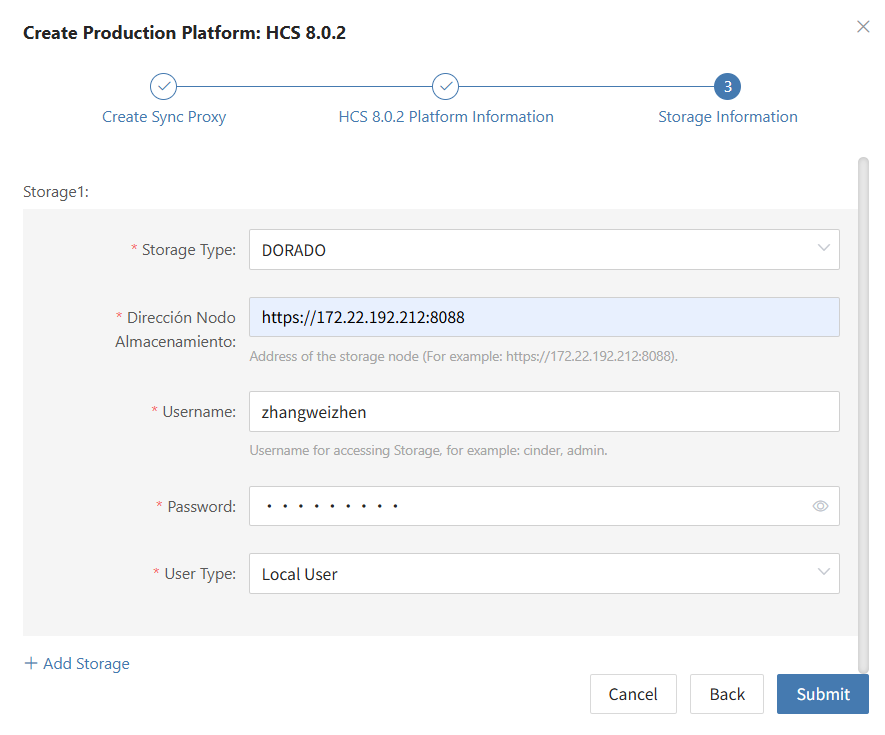
Complete HCS 8.0.2 Addition
After confirming all authentication details and storage backend configurations are correct, click "Confirm" to submit. Wait until the platform status becomes "Normal" and the number of managed ECS cloud hosts is retrieved, indicating a successful connection.
Note:
- Repeat the above steps to add multiple HCS regions or tenant environments.
Action
In the HCS 8.0.2 production platform list, click the "Action" dropdown menu on the right side of the target platform row to perform operations such as Settings, Bind, Unbind, Reload Virtual Machine, Modify Authentication Information, and Delete. For detailed instructions, refer to Production Site Management.
HCS Online
The HCS Online platform page on the production site is mainly used for adding, deleting, updating, and other related management operations for the HCS Online platform.
Add HCS Online Platform
Click "Production Site" in the left navigation bar, select HCS Online, and click the "Add" button. Follow the steps in the pop-up window to add the platform.
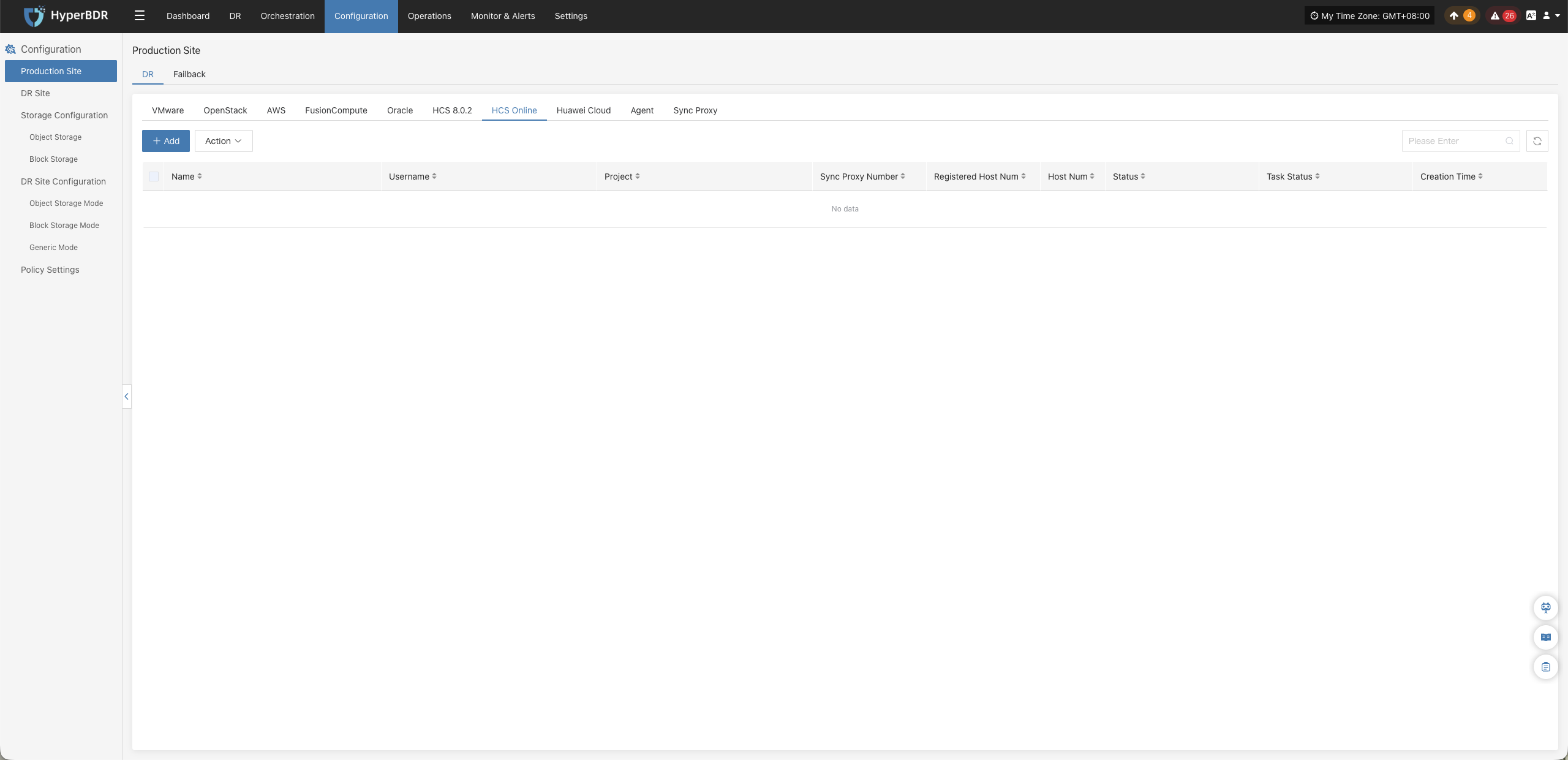
Deploy Sync Proxy
Deploy the Source Sync Proxy in your HCS Online environment:
- Prepare Image & Create Cloud Host:
- Create a cloud host in the HCS Online platform using the official Ubuntu 24.04 OS image;
- Recommended specifications: 4 vCPU / 8 GB RAM / 50 GB Disk.
- Network Connectivity Check:
- Ensure the instance can access the HyperBDR Console (ports 10443 and 30080) and has access permissions to HCS Online internal API endpoints.
- One-Click Installation & Registration:
- Copy the installation command from the wizard, log in to the Sync Proxy terminal as
root, and execute it; - Once completed, the node will automatically register with HyperBDR.
- Copy the installation command from the wizard, log in to the Sync Proxy terminal as
Note: For detailed node specifications and network planning, see Source Sync Proxy.
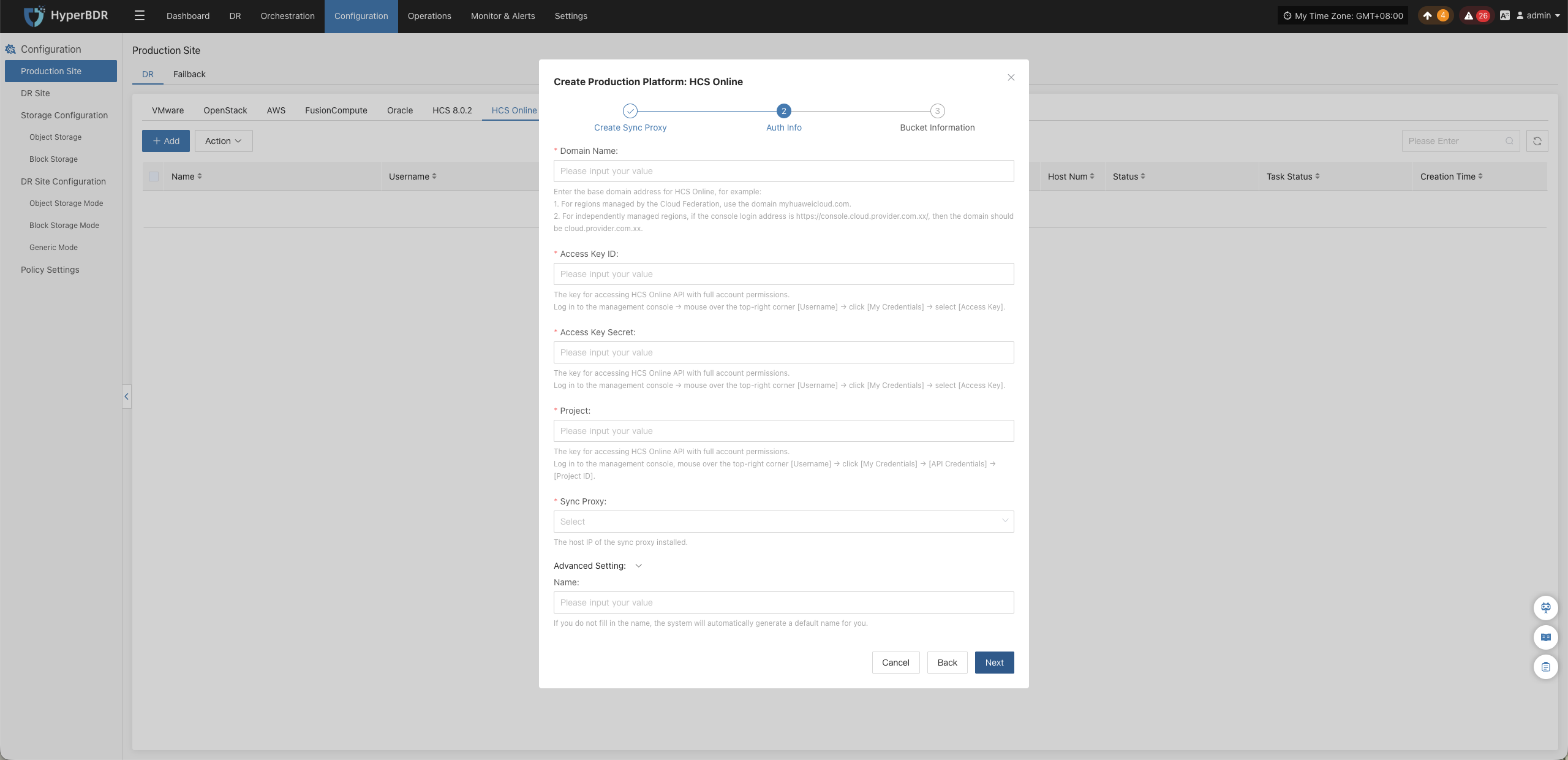
Create HCS Online Production Platform
- HCS Online Connection and Authentication Information
| Parameter | Input Method | Description & Acquisition Method |
|---|---|---|
| Domain | Enter domain name | Enter the base domain of HCS Online. For example: for regions uniformly managed by Cloud Federation, enter myhuaweicloud.com; for independently managed regions, enter the corresponding base domain based on the console login address. For example, if the console address is https://console.cloud.provider.com.xx/, enter cloud.provider.com.xx. |
| Access Key ID | Enter Access Key ID | Used for identity authentication when accessing HCS Online APIs. Log in to the management console, click the username in the upper-right corner, and go to "My Credentials" > "Access Keys" to obtain it. |
| Access Key Secret | Enter Access Key Secret | The secret access key paired with the Access Key ID for HCS Online API authentication. Log in to the management console, click the username in the upper-right corner, and go to "My Credentials" > "Access Keys" to obtain it. |
| Project | Enter project name or identifier | Enter the project required for calling HCS Online APIs. Log in to the management console, click the username in the upper-right corner, and go to "My Credentials" > "API Credentials" > "Projects" to view and obtain it. |
| Source Sync Proxy | Select proxy node | Select the host IP where the Source Sync Proxy is deployed. |
| Name | Optional | Identifier name for the connected production platform. If omitted, the system automatically generates a default name. |
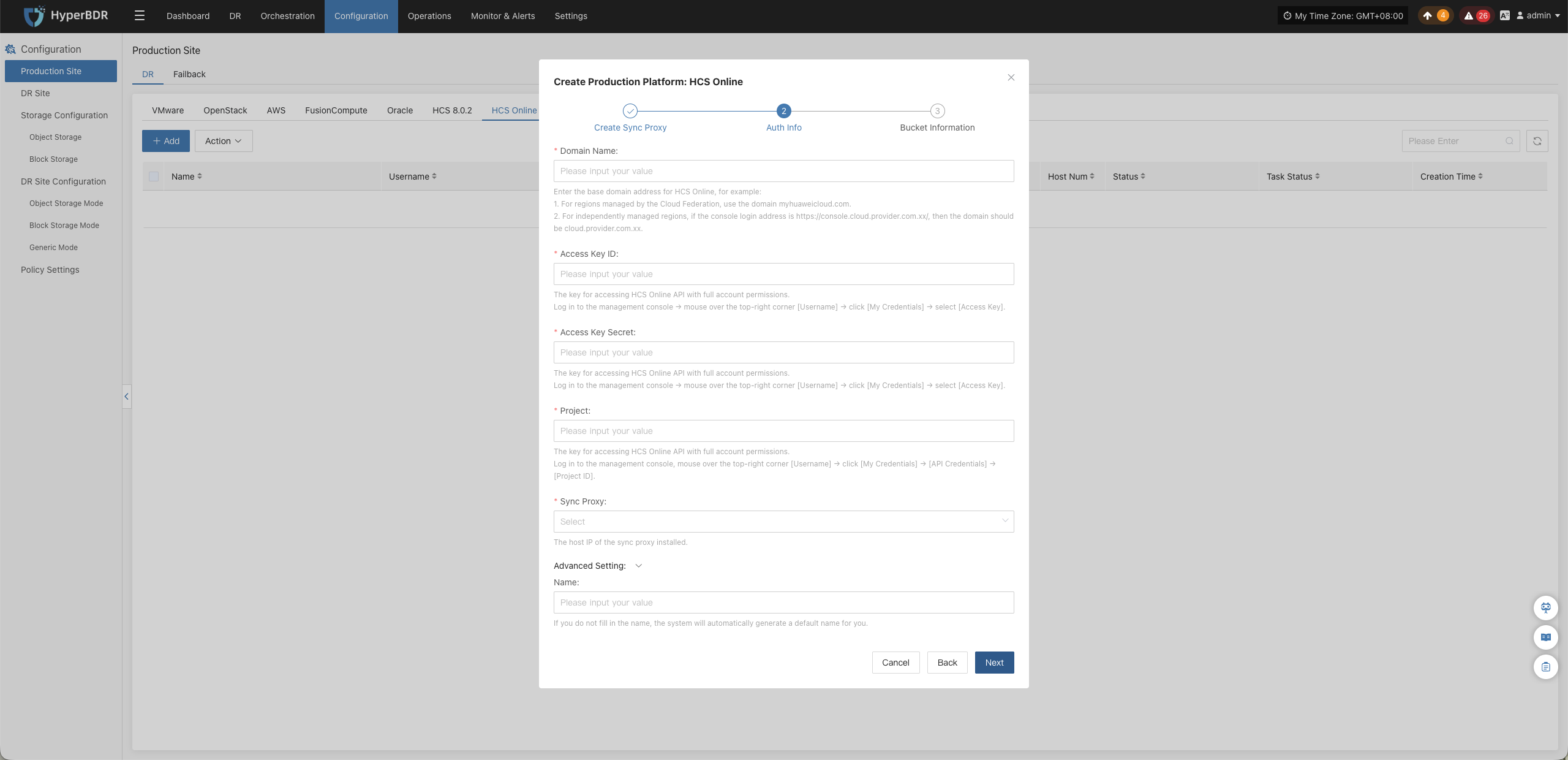
- Bucket Information
| Parameter | Description |
|---|---|
| Bucket Type | Supports three types: Existing Authorized Bucket, Create New Authorized Bucket, and Authorize Specified Bucket. Choose according to actual requirements. |
| Bucket Name | Select an existing bucket from the dropdown list, or create a new bucket as needed. |
- Network Policy Requirements:
| Source | Target | Port / Protocol | Description |
|---|---|---|---|
| Sync Proxy | HCS Online API / OBS Endpoint | 443 / TCP (HTTPS) | Accessing HCS Online APIs for authentication and communicating with OBS buckets for data transfer |
Complete HCS Online Addition
Once the HCS Online production platform configuration is complete, wait until the platform status becomes "Normal" and the number of managed ECS instances is retrieved before proceeding with subsequent steps.
Note:
- To protect workloads across multiple regions or tenant environments, repeat the steps above to add each environment independently.
Action
In the HCS Online production platform list, click the "Action" dropdown menu on the right side of the target platform row to perform operations such as Settings, Bind, Unbind, Reload Virtual Machine, Modify Authentication Information, and Delete. For detailed instructions, refer to Production Site Management.
Huawei Cloud
The Huawei Cloud page is used to configure and manage the Huawei Cloud agentless (Agentless) production platform, including access keys, project endpoints, OBS staging bucket configuration, Sync Proxy binding, and connection status monitoring.
Warning
The Huawei Cloud agentless mode relies on the Huawei Cloud CBR (Cloud Backup and Recovery) standard snapshot export API and CBR bucket agency interface. Access to these features in certain regions requires submitting a service ticket to Huawei Cloud for whitelist approval.
Add Huawei Cloud Platform
In the left navigation bar of the console, click "Production Site" > "Huawei Cloud", and click the "Add" button. Follow the wizard to complete platform connection.

Deploy Sync Proxy
Launch an ECS instance in the target Huawei Cloud Region to deploy the Source Sync Proxy (Sync Proxy):
- Launch ECS Instance:
- In the Huawei Cloud console, launch an ECS instance using the official native Ubuntu 24.04 image (recommended specification: 4 vCPU / 8 GB RAM / System Disk 50 GB or larger, filesystem recommended as ext4 or xfs, non-LVM partition).
- Configure Network & Security Group:
- Ensure the instance can access the HyperBDR Console (ports 10443 and 30080) and has outbound network permissions to access Huawei Cloud IAM, ECS, and OBS service endpoints.
- One-Click Installation & Registration:
- Log in to the ECS instance, paste and execute the installation command provided in the wizard terminal as
root. Upon completion, the instance will automatically register as a Sync Proxy.
- Log in to the ECS instance, paste and execute the installation command provided in the wizard terminal as
Note: For detailed specifications and network planning, see Source Sync Proxy.

Create Huawei Cloud Production Platform
- Huawei Cloud Credentials & Parameter Configuration
| Parameter | Example / Format | Description & Acquisition Method |
|---|---|---|
| Access Key ID | H******************K | Access Key ID for accessing Huawei Cloud APIs. Log in to the Huawei Cloud console → click [Username] in the upper-right corner → [My Credentials] → [Access Keys] to obtain it. |
| Secret Access Key | 4*************************A | Private secret access key paired with the Access Key ID. |
| Project (Region/Project) | cn-north-4 or tr-west-1 | Project region identifier where the target workload resides. View the [Project] name under [My Credentials] → [API Credentials] (please enter the project name like cn-north-4, not the project ID). |
| Source Sync Proxy | Select from dropdown | Select the deployed Source Sync Proxy node from the dropdown list. |
| Platform Name | Custom name (optional) | Identifier name for the production platform, supporting custom input or system auto-generation. |

- Temporary Staging Bucket Configuration (OBS)
Huawei Cloud agentless mode utilizes an OBS temporary staging bucket to transfer and read ECS disk snapshot data:
| Parameter | Example / Format | Description |
|---|---|---|
| Bucket Name | sync-proxy-temp-data-bucket-xxx | Supports creating a new bucket or selecting an existing OBS bucket. Used for temporary backup data staging; occupies transient storage only during synchronization and is automatically freed upon transfer completion. |
- Network Policy Requirements:
| Source | Target | Port / Protocol | Description |
|---|---|---|---|
| Sync Proxy | Huawei Cloud IAM / ECS / OBS Endpoints | 443 / TCP (HTTPS) | Calling Huawei Cloud APIs and communicating with OBS buckets to read data |
Complete Huawei Cloud Addition
Click "Confirm" to submit. Wait until the platform status becomes "Normal" and the total number of managed ECS instances in the target Region is retrieved, indicating a successful connection.
Note:
- To protect workloads across multiple Huawei Cloud regions or under different primary accounts, repeat the steps above to add each environment independently.
Action
In the Huawei Cloud production platform list, click the "Action" dropdown menu on the right side of the target platform row to perform operations such as Settings, Bind, Unbind, Reload Virtual Machine, Modify Authentication Information, and Delete. For detailed instructions, refer to Production Site Management.
Production Site Management
After an agentless (Agentless) production platform is connected, in the corresponding platform list, click the "Action" dropdown menu in the target platform row to perform routine management and lifecycle maintenance operations:
The following operations take the VMware platform as an example. The workflows and functions for other platforms are basically identical; refer to the actual capabilities provided by each platform.
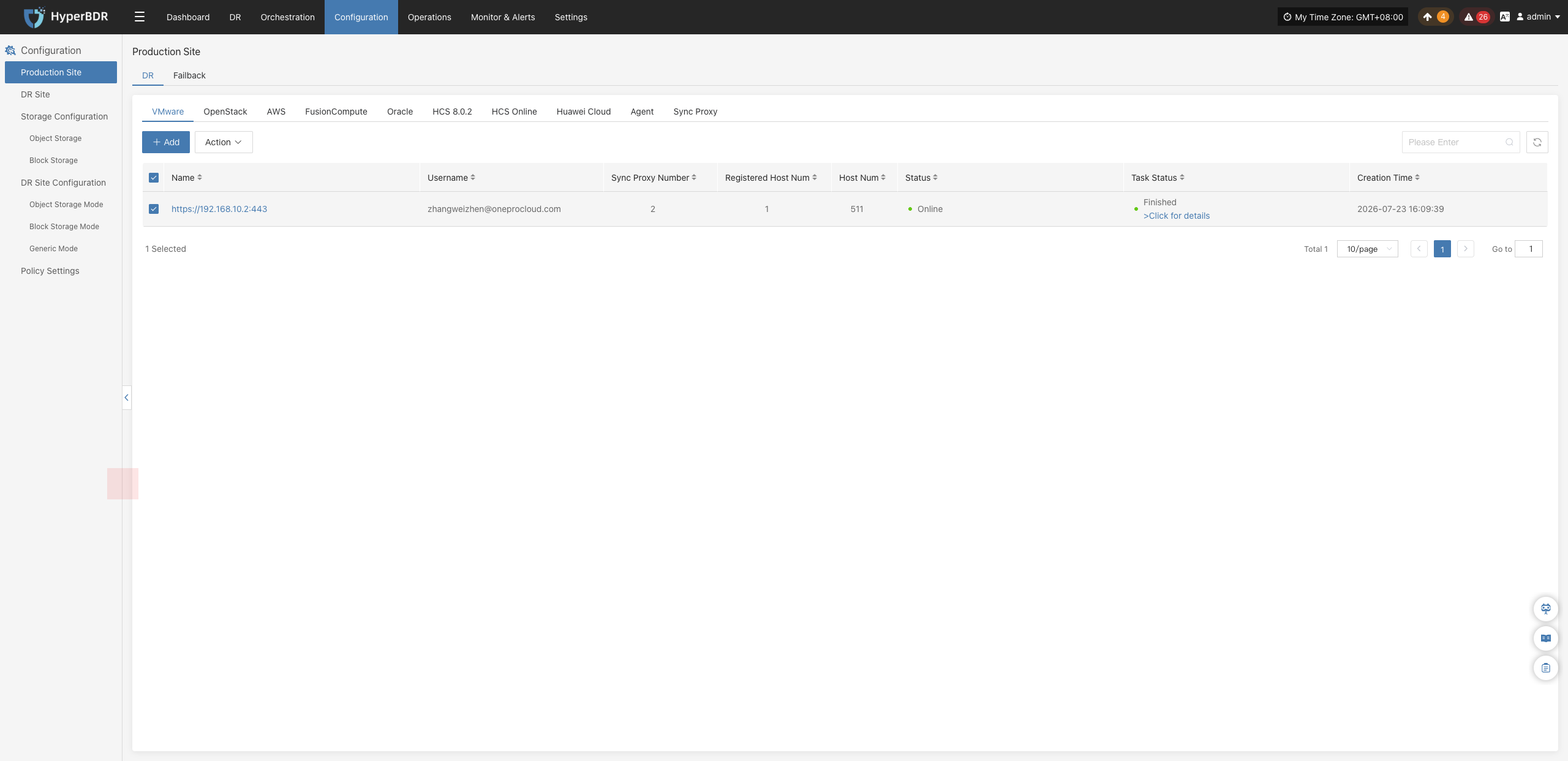
Settings
Click "Action" > "Settings" to adjust synchronization parameters for the current production platform:
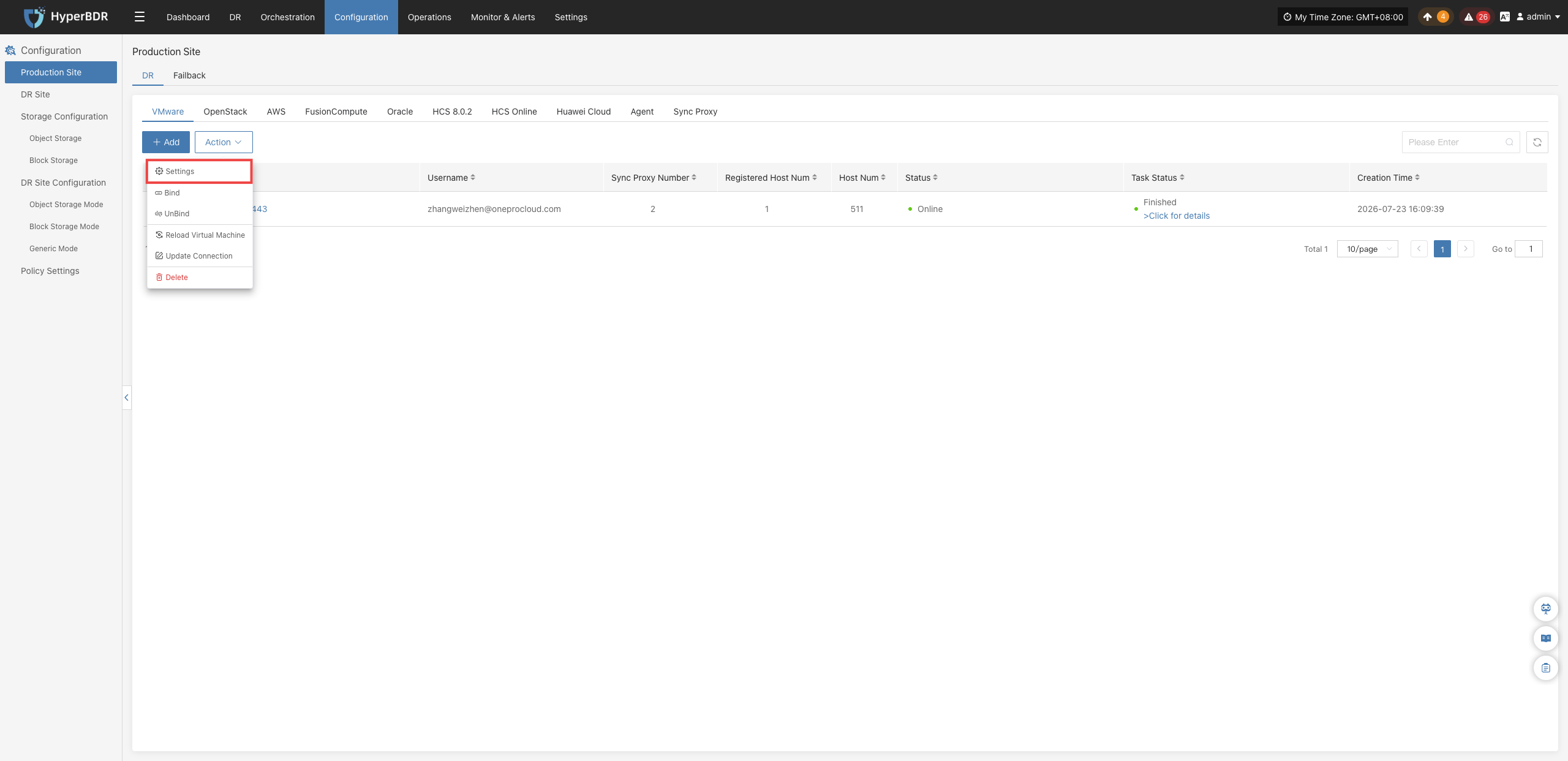
Configuration changes will not take effect immediately. The specific effective rules are as follows:
- Ongoing synchronization tasks: You must stop synchronization and restart it for modified configurations to take effect.
- Tasks not yet started: Modified configurations will take effect during the next synchronization run.
- Adjust relevant parameters based on actual requirements and on-screen prompts to achieve a more suitable synchronization configuration.
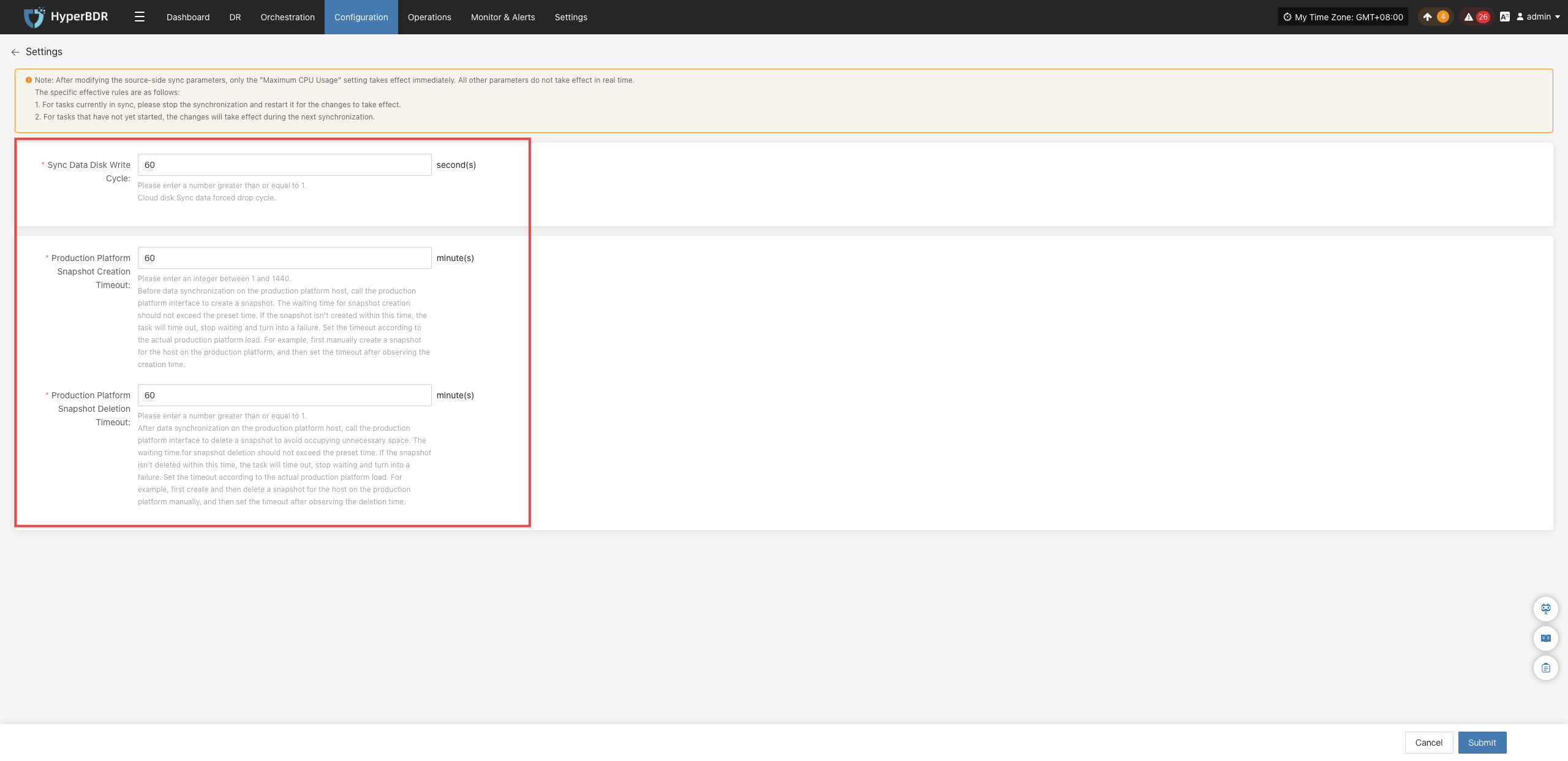
| Setting | Default Value | Description |
|---|---|---|
| Sync Data Disk Flush Interval | 60 seconds | Sets the time interval for force-flushing sync data to cloud disks. For example, setting it to 60 seconds means force-flushing once every 60 seconds. |
| Production Platform Create Snapshot Timeout | 60 minutes | Sets the maximum wait time for creating snapshots. If creation is not completed within the set time, the task fails. It is recommended to adjust this based on the production platform's actual workload, such as creating a manual snapshot first to observe the required time. |
| Production Platform Delete Snapshot Timeout | 60 minutes | Sets the maximum wait time for deleting snapshots. If deletion is not completed within the set time, the task fails. It is recommended to adjust this based on the production platform's actual workload, such as deleting a manual snapshot first to observe the required time. |
Bind
Click "Action" > "Bind" to associate ready Source Sync Proxy nodes with this production platform:
A single production platform supports binding multiple Sync Proxy nodes concurrently to expand the maximum number of attached disks supported by the platform. By default, a single host supports attaching up to 50 disks.
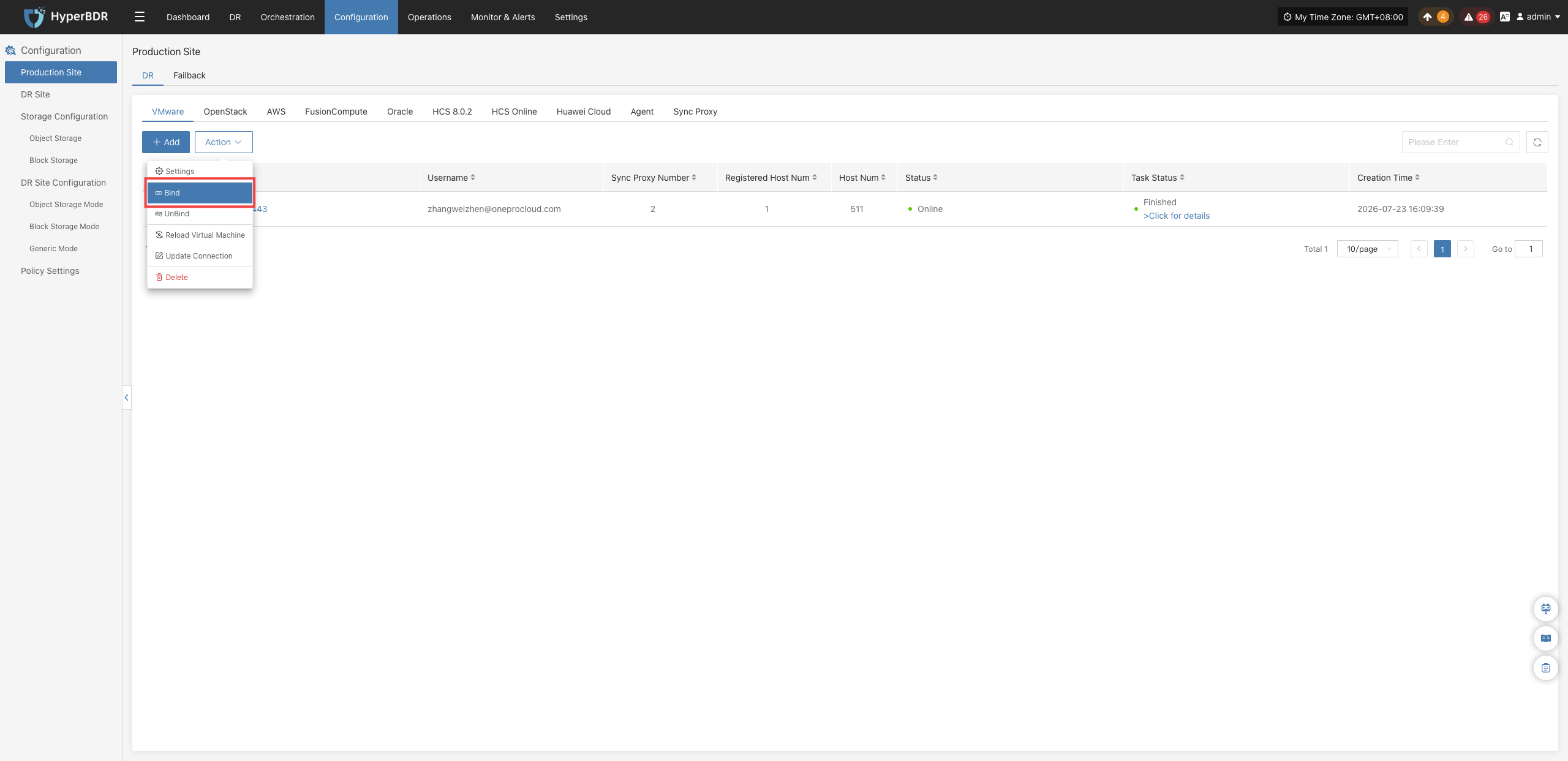
- In the pop-up dialog, select the target Sync Proxy node from the dropdown list, and click "OK" to complete the binding.
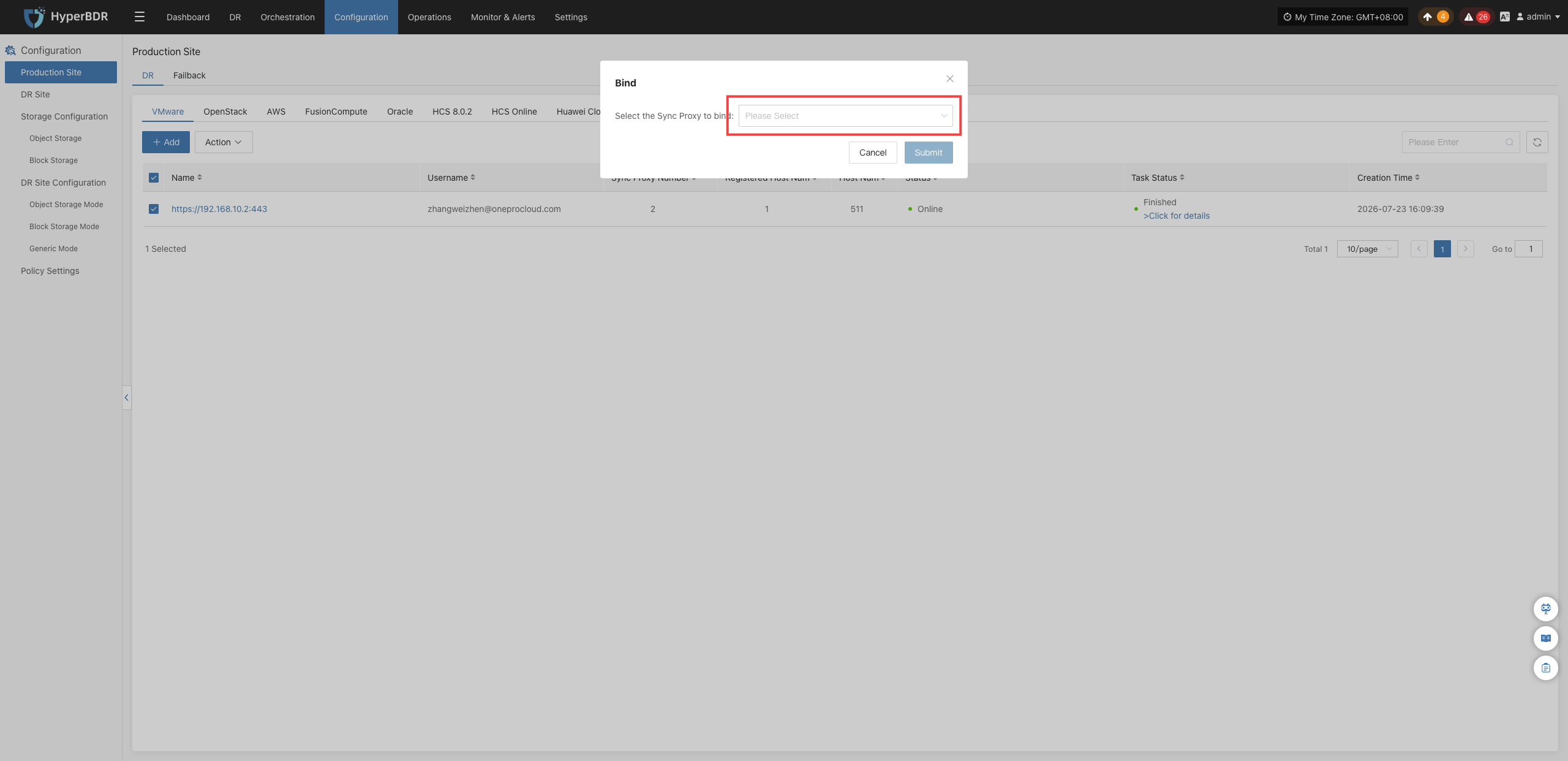
Unbind
Click "Action" > "Unbind" to disassociate a bound Source Sync Proxy node from the current production platform:
Before unbinding, ensure that the proxy node has no ongoing data synchronization or disaster recovery backup tasks. Once unbound, the proxy stops processing replication jobs for this platform and can be rebound to other platforms or retired as needed.
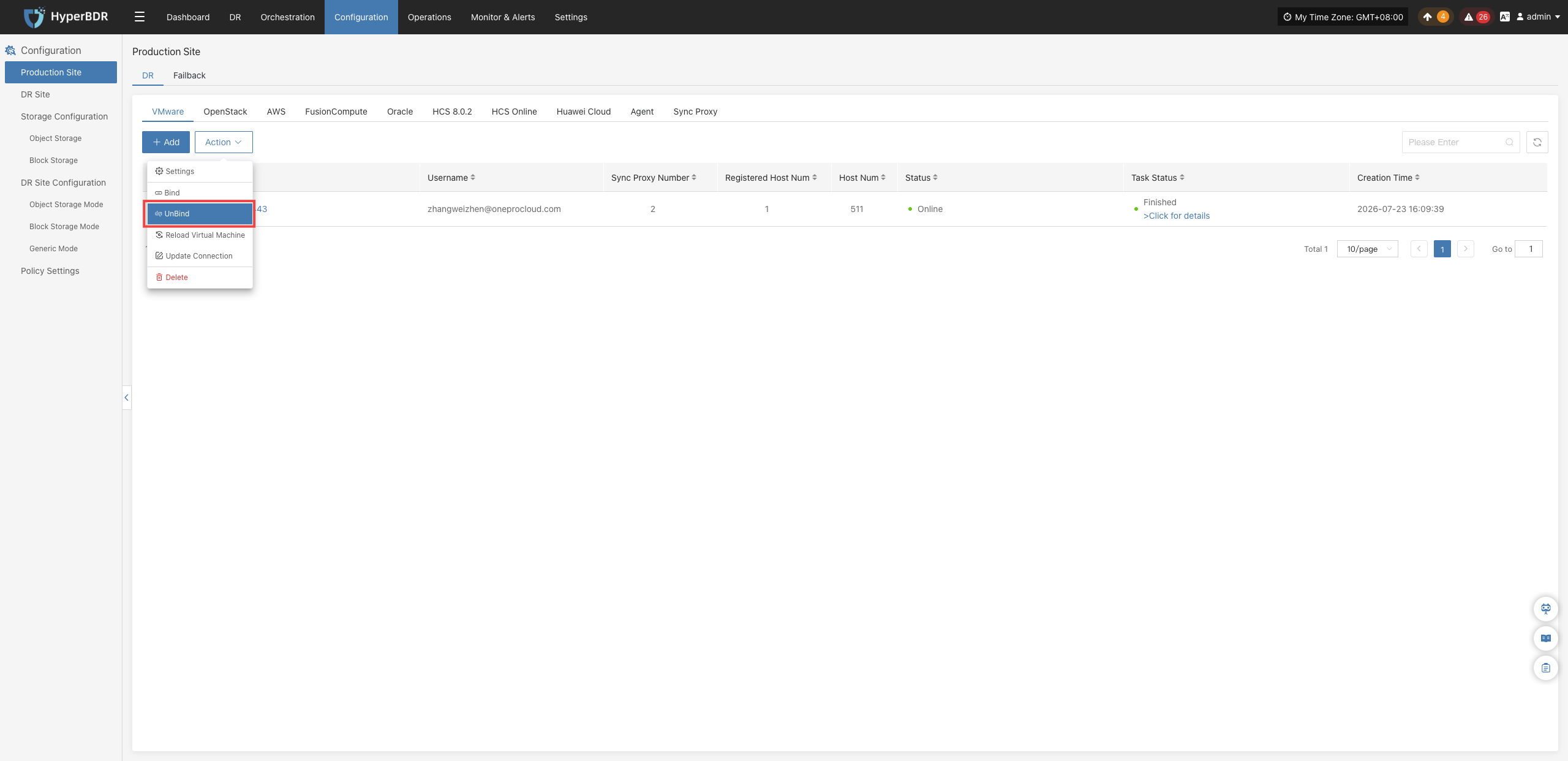
- In the pop-up dialog, select the target Sync Proxy node from the dropdown list, and click "OK" to complete the unbinding.
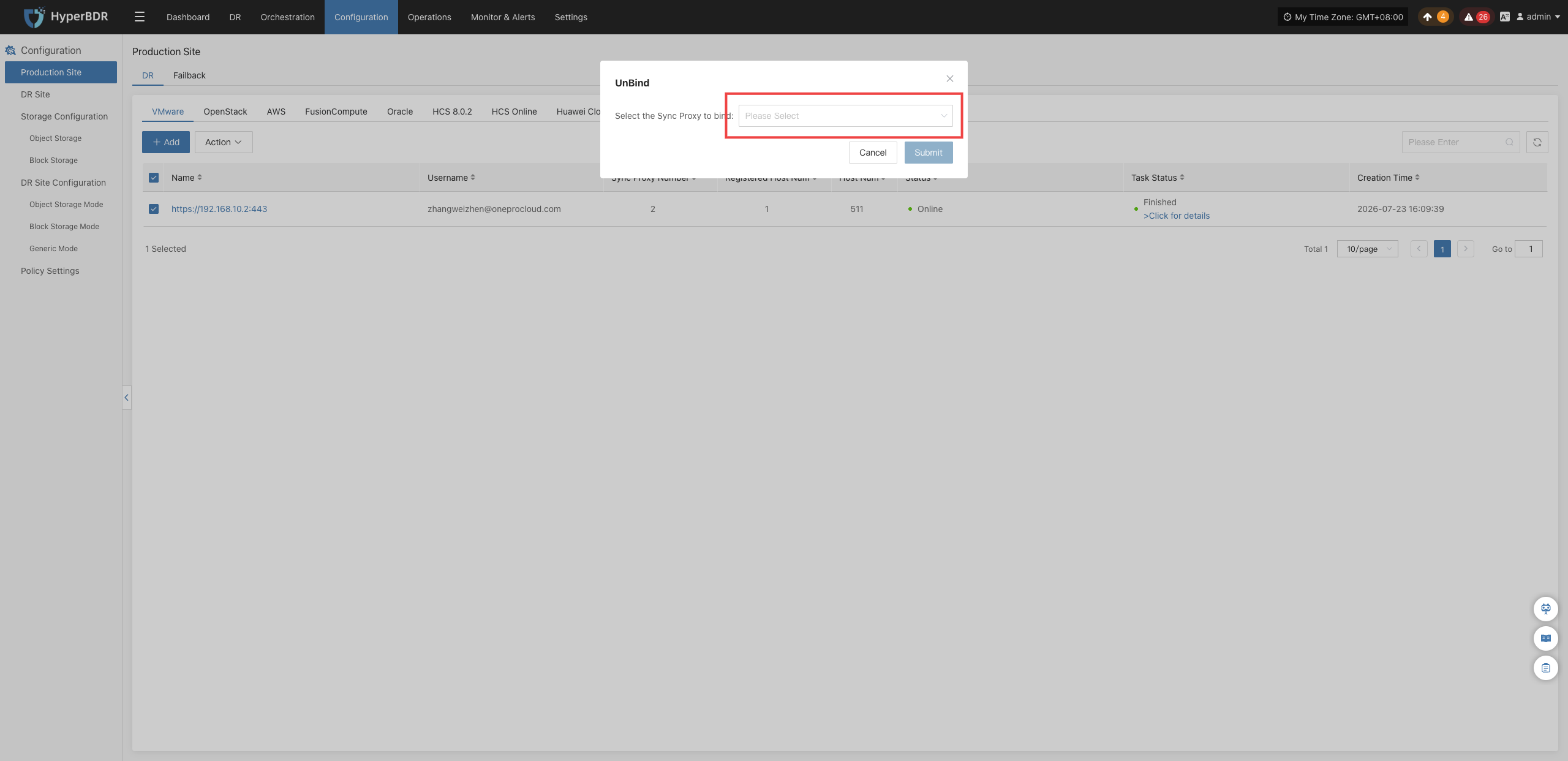
Reload Virtual Machine
Click "Action" > "Reload Virtual Machine" to force HyperBDR to immediately call source native APIs and synchronize the latest host and virtual machine inventory:
When new virtual machines/instances are added to the source environment and the console has not updated in real time, you can manually refresh the asset list using this function.
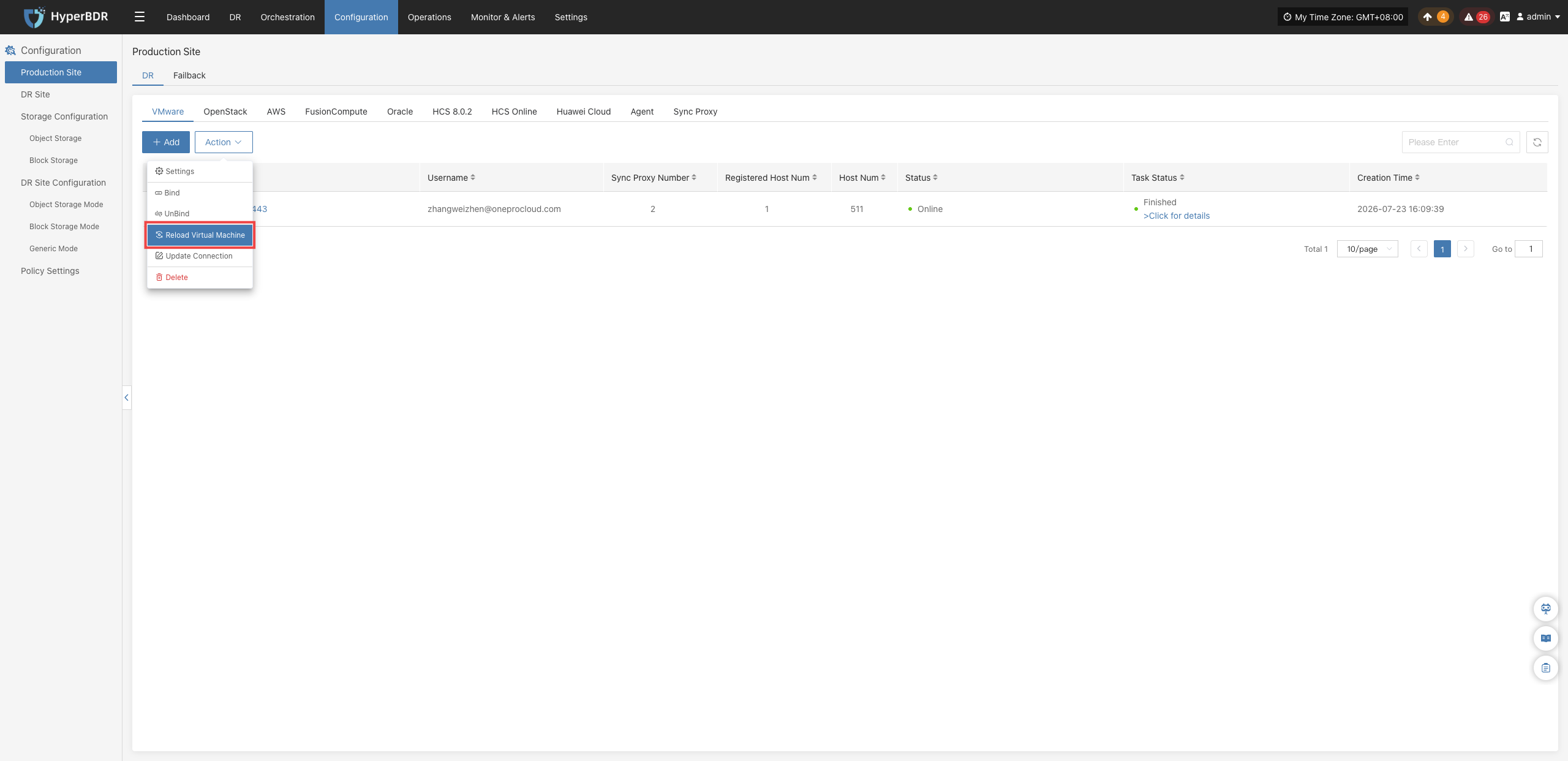
- In the pop-up dialog, review the precautions and click "OK" to start reloading virtual machines.
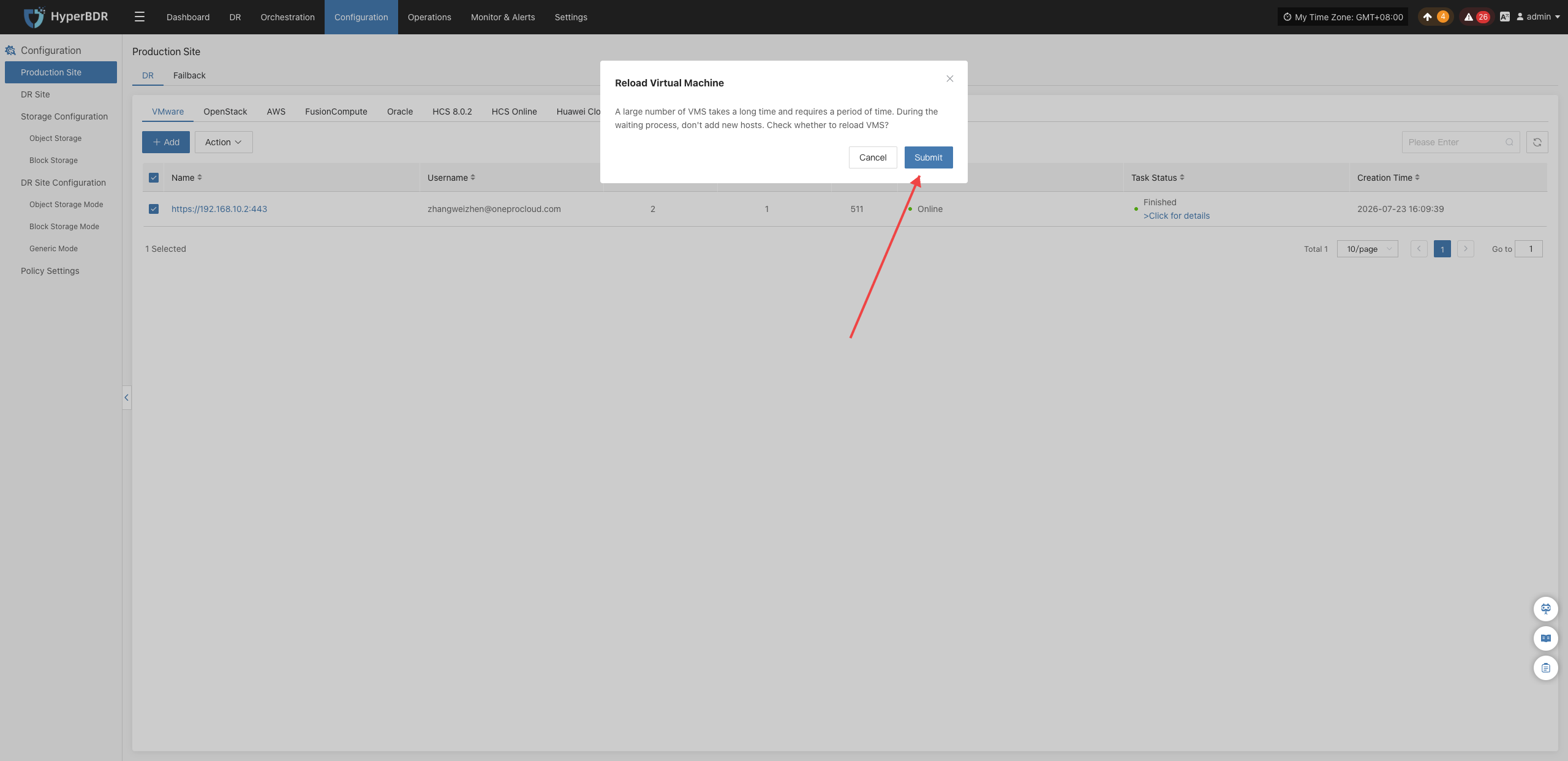
Modify Authentication Information
Click "Action" > "Modify Authentication Information" to directly modify credentials and connection parameters for the connected production platform.
When the source platform management IP, access endpoint, administrator credentials, API access keys, connection ports, or SSL certificates change causing abnormal connection status, update configurations via this function. After updating, the system will re-verify connectivity and update the platform status without needing to delete and recreate the platform, fully preserving existing disaster recovery protection policies and historical backup data.
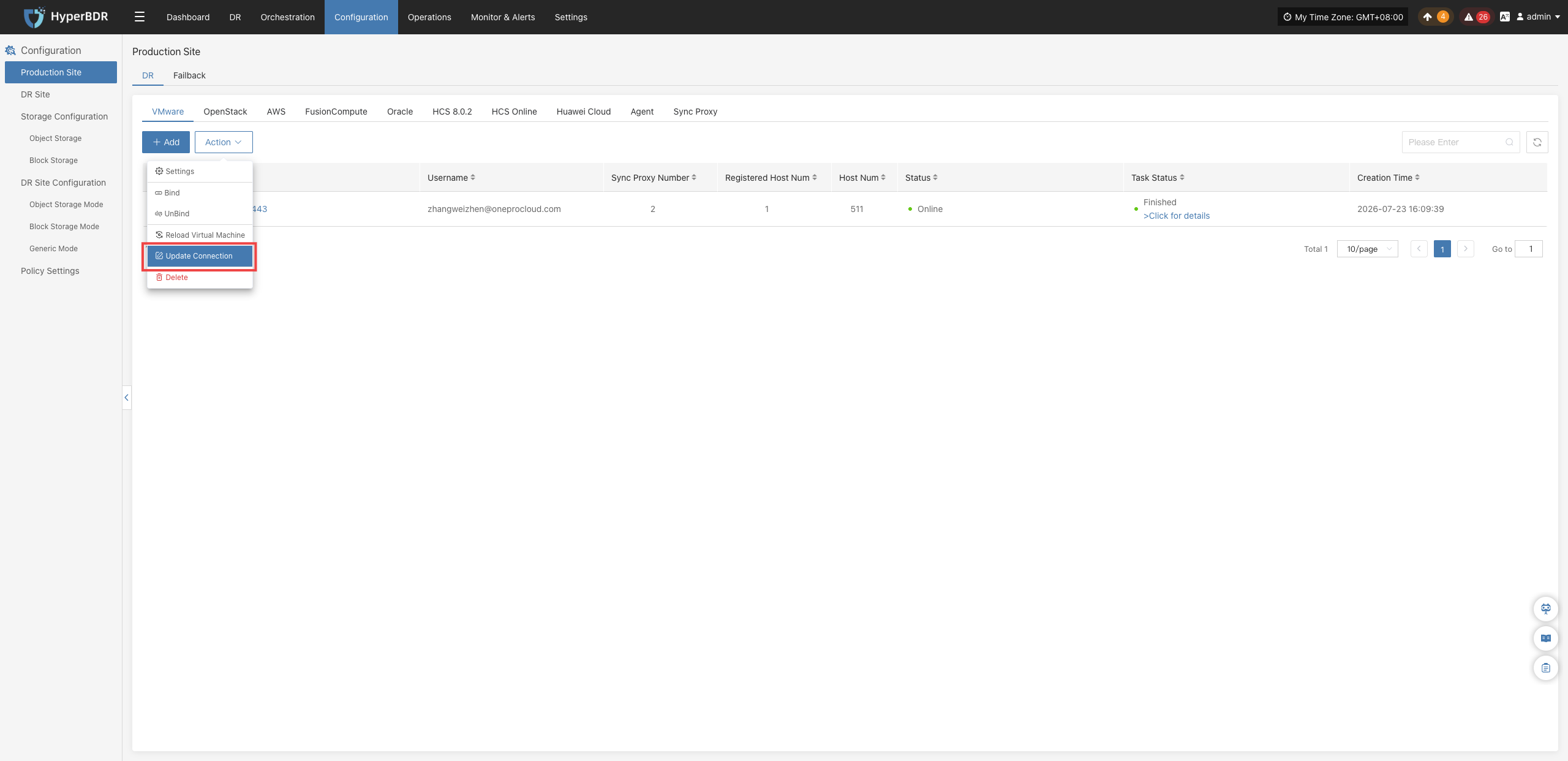
- In the pop-up dialog, update the required authentication information or connection parameters. Click "OK" to submit changes and initiate connection re-verification.
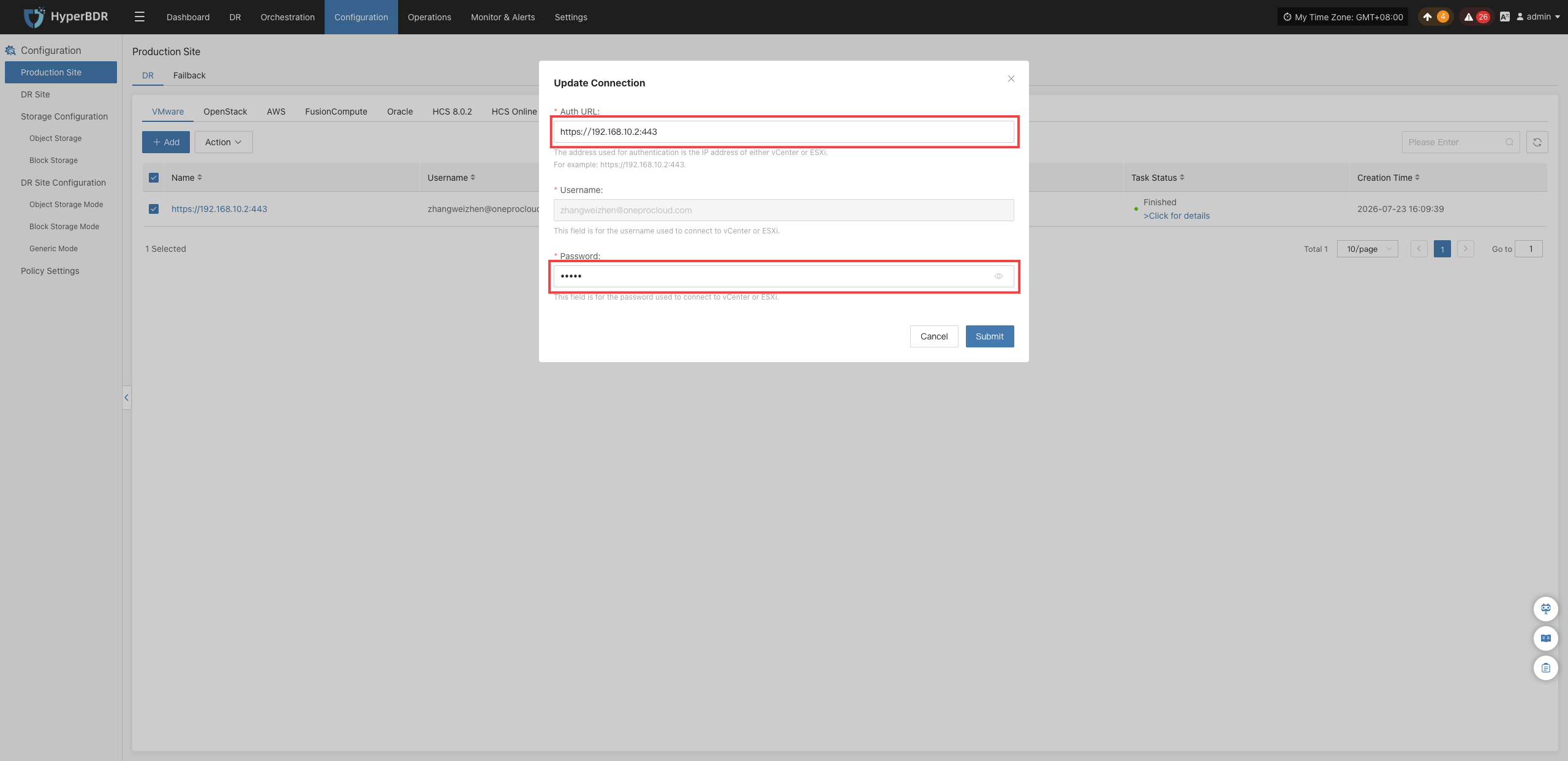
Delete
Click "Action" > "Delete" to permanently remove the production platform from HyperBDR:
Before deleting, ensure that the production site is not associated with any Sync Proxy.
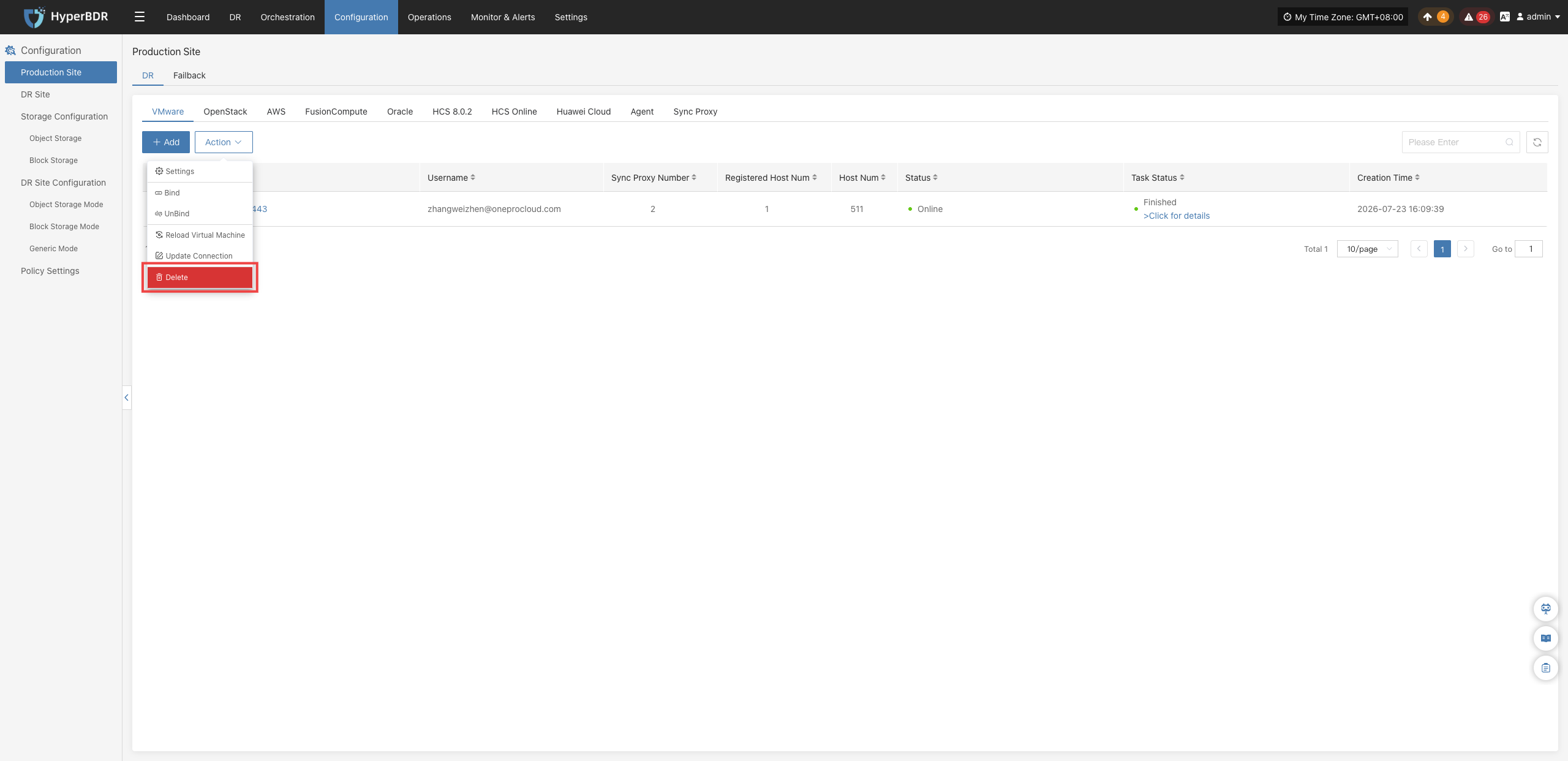
- Once prerequisites are met, click "OK" in the confirmation dialog to complete the permanent deletion of the platform.
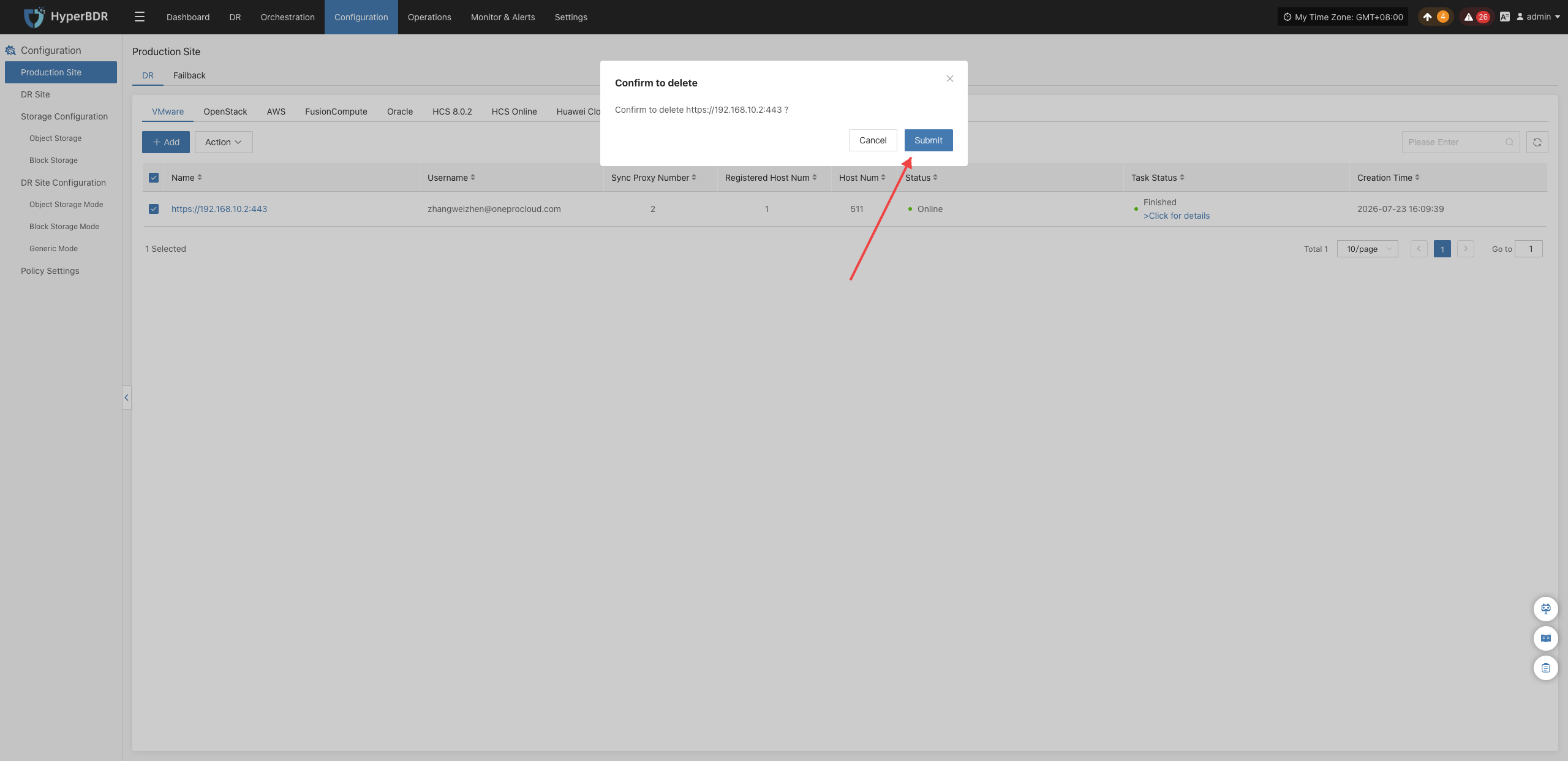
Source Agent
When the source workload is a physical server, a standalone virtual machine (such as KVM, Xen, or Hyper-V), or a cloud host without native snapshot API access, install the Source Agent inside the guest operating system to capture disk data and drive replication.
- Use Cases: Universally applicable across diverse heterogeneous environments, including x86 physical servers, private cloud hypervisors, and public cloud instances;
- Support Matrix: View Source Agent OS Compatibility Matrix.
Prerequisites & Network Policies
Environment Preparation
- Administrator access credentials for the host to be protected (Linux
root, WindowsAdministrator); - HyperBDR platform and Cloud Sync Gateway basic deployment completed;
- For Windows hosts running antivirus or security software, add the Agent installation directory to the trusted whitelist in advance.
- Administrator access credentials for the host to be protected (Linux
Network Policy Requirements
| Source | Target | Port / Protocol | Description |
|---|---|---|---|
| Protected Host (Agent) | HyperBDR Console | 10443 / TCP | Authentication communication and task heartbeat |
| Protected Host (Agent) | HyperBDR Console | 30080 / TCP | Agent installation package download and auto-upgrade |
| Protected Host (Agent) | Cloud Sync Gateway | 13260 / TCP | Data transmission channel for block storage mode |
| Protected Host (Agent) | Cloud Sync Gateway | 443 / TCP (HTTPS) | Encrypted data transmission port for block storage mode |
| Protected Host (Agent) | Object Storage Services (OBS/S3/OSS) | 443 / TCP (HTTPS) | Direct transmission port for object storage mode (ensure valid certificates and DNS resolution) |
Linux Agent
Install Linux Agent
- Log in to the HyperBDR console, and click "Production Site" > "Source Agent".
- Under the Linux tab, click "Copy Command" to obtain the one-line installation command.

- Log in to the source Linux server, and execute the copied command in the terminal as
root.
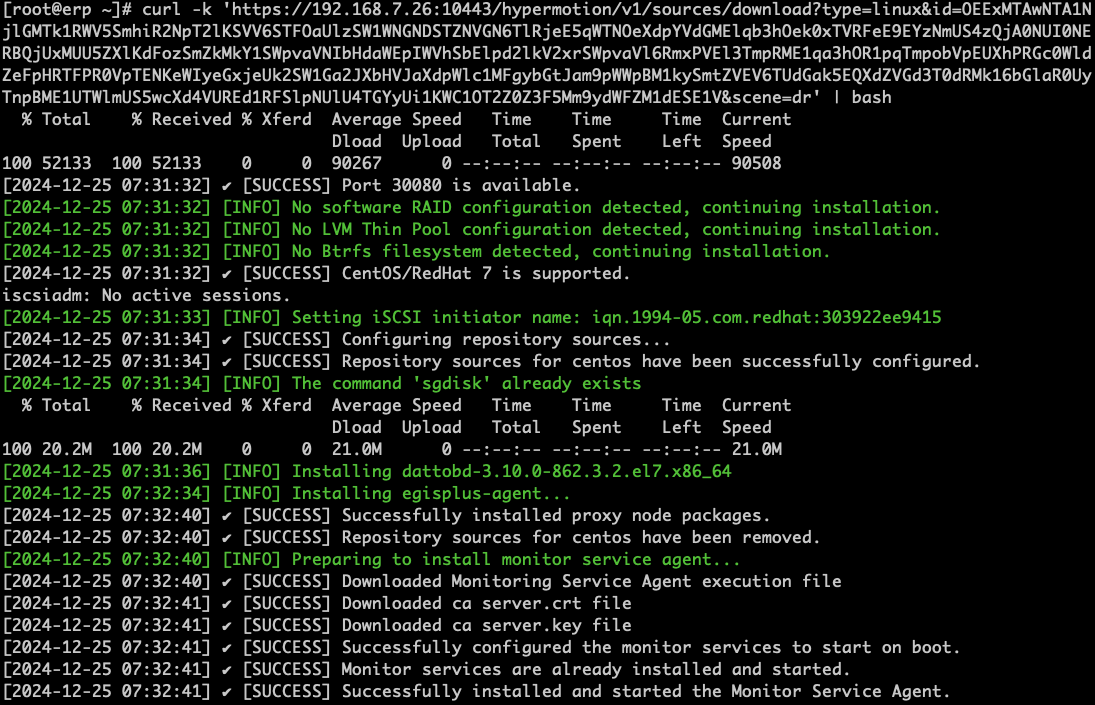
- Wait for the script to download dependencies, deploy services, and complete host registration automatically. Once the success message is output, you can view the registered host in the platform host list.
Uninstall Linux Agent
Note: Before uninstalling the Agent, ensure the host has been deregistered on the "Host DR" > "Select Host" page in the HyperBDR console.
- Log in to the source Linux operating system terminal.
- Execute the official one-click uninstallation script:
bash /var/lib/egisplus-agent/uninstall_agent.sh - When the console displays the uninstallation success prompt, system services and temporary dependencies are completely removed.
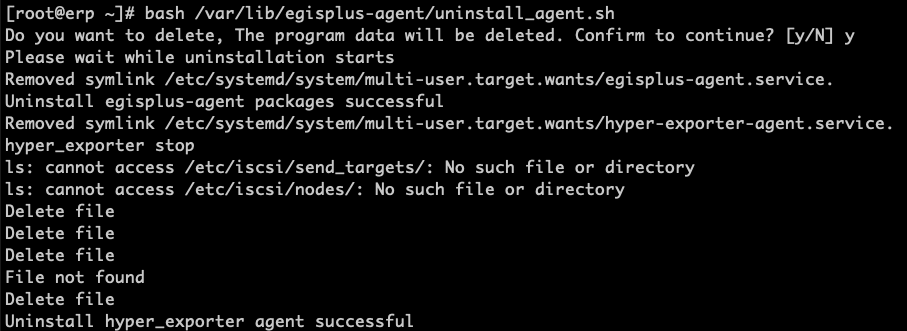
Windows Agent
Install Windows Agent
- On the console "Production Site" > "Source Agent" page, click "Download Now" to obtain the Windows Agent installation package (
windows-agent.zip).
- Extract the package to a local directory on the source Windows server.
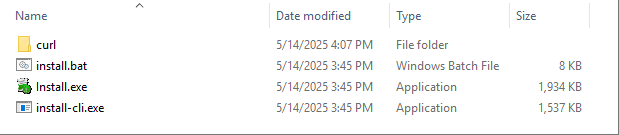
- Right-click
Install.exeand select "Run as administrator".
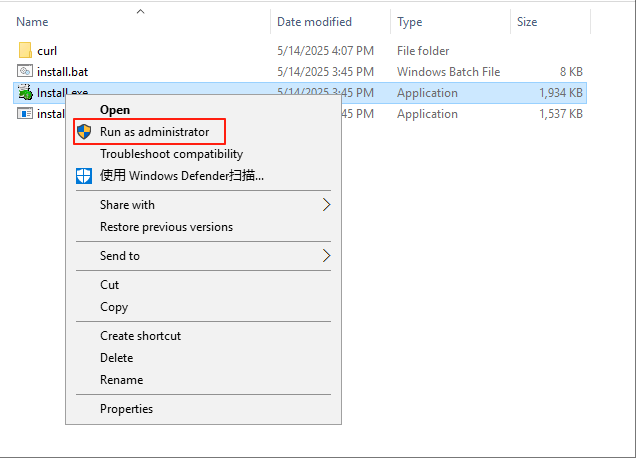
- In the installation wizard, click "Install >" to start the installation. If prompted about antivirus software, confirm that the Agent has been whitelisted and click "OK" to continue.
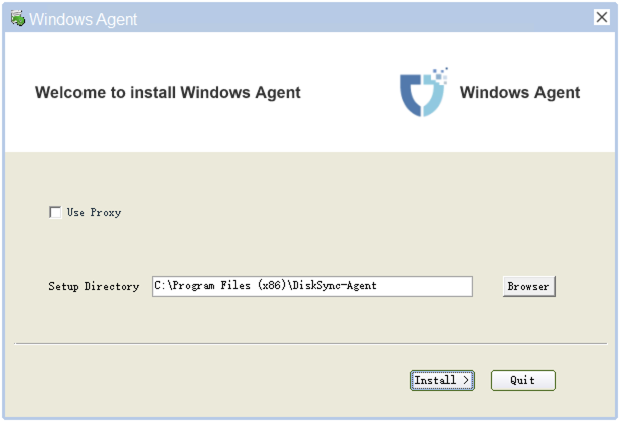
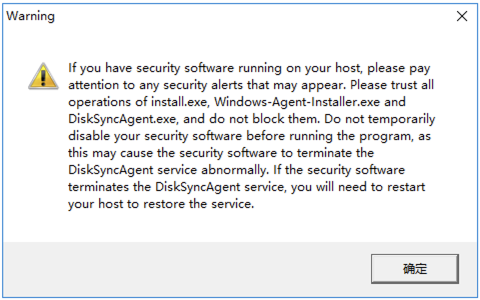
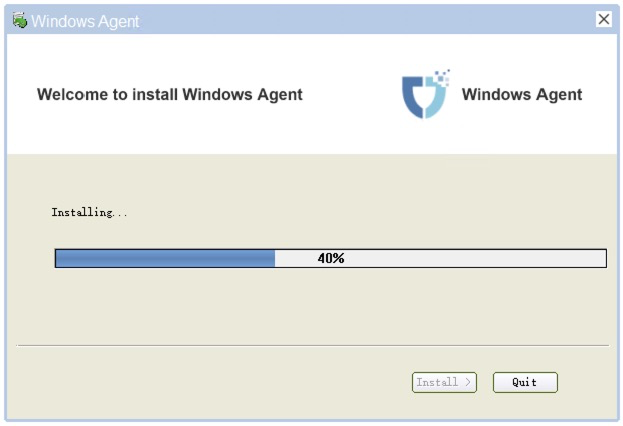
- Once installation is complete, a prompt will ask to start the service. Click "Yes" to enter the service initialization wizard.
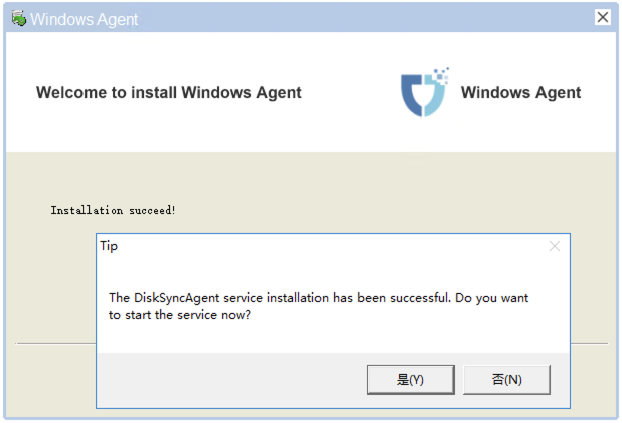
Start Windows Agent & Precheck
- In the service management window, click "Precheck" in the lower-left corner to perform an environment health inspection.
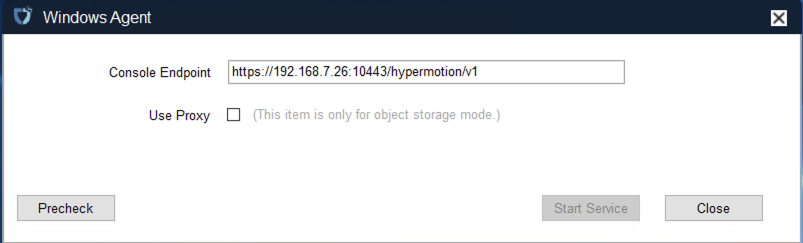
- Precheck Item Descriptions:
| Check Item | Item Name | Description & Recommended Action |
|---|---|---|
| 1/9 | Service Start Permission | Check whether the account has administrative permissions to start and query Windows services. |
| 2/9 | Language Environment Support | Check whether the system user display language supports English. |
| 3/9 | VSS Snapshot Command Permission | Verify whether the vssadmin command can successfully create and delete VSS volume shadow copies. |
| 4/9 | Antivirus Software Interception | Check whether any security software blocks Windows Agent service registration and startup. |
| 5/9 | Filesystem & Free Space | Check whether volume filesystems and free space meet synchronization cache requirements. |
| 6/9 | Volume Type Support | Ensure no unsupported dynamic volume types exist (RAID-5, Mirror, Stripe, and Spanned volumes are not supported). |
| 7/9 | Critical Patch Check | For Windows Server 2008 / 2008 R2, verify that patch KB4474419 is installed. |
| 8/9 | Third-Party VSS Conflicts | Check whether third-party backup software has left locked VSS shadow copies. |
| 9/9 | Windows Backup Schedule | Temporarily disable built-in Windows backup schedules to prevent volume locking conflicts. |
- Once all prechecks pass (showing green PASS), click "OK".
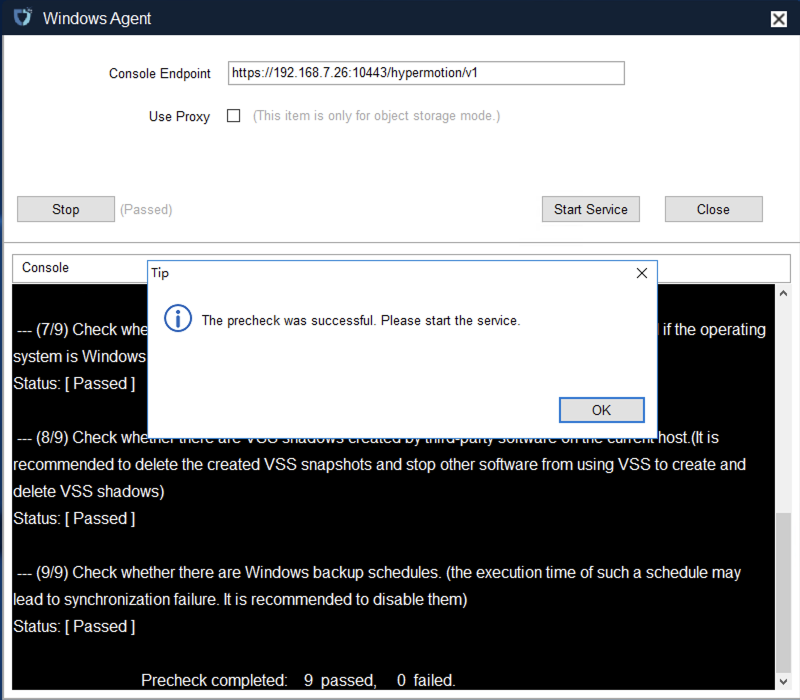
- Click "Start Services" to launch core synchronization services.
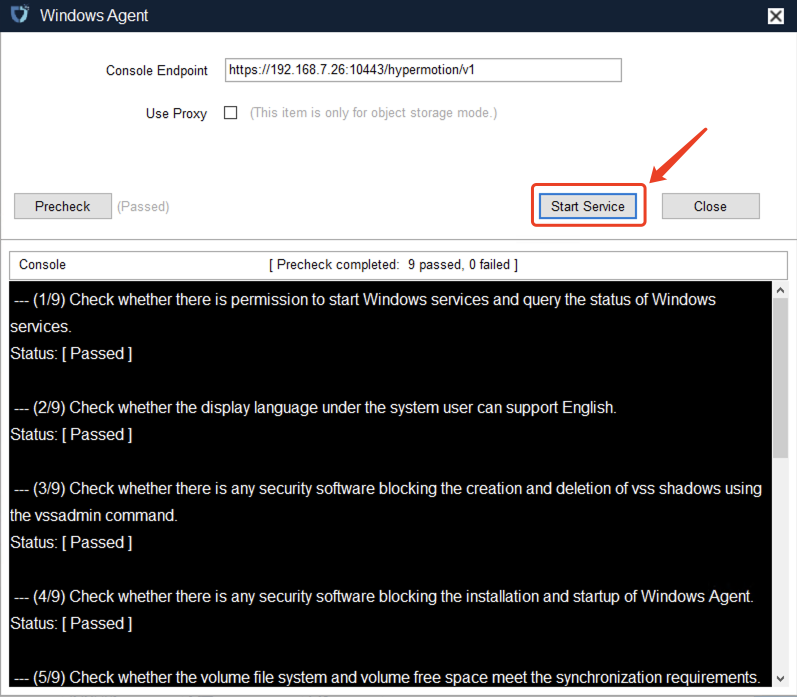
- Confirm that the service status shows Running, then click "OK" to complete configuration.
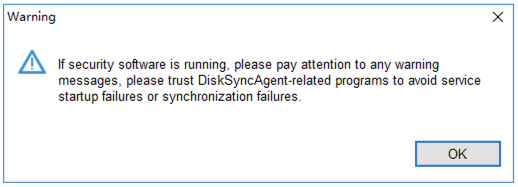
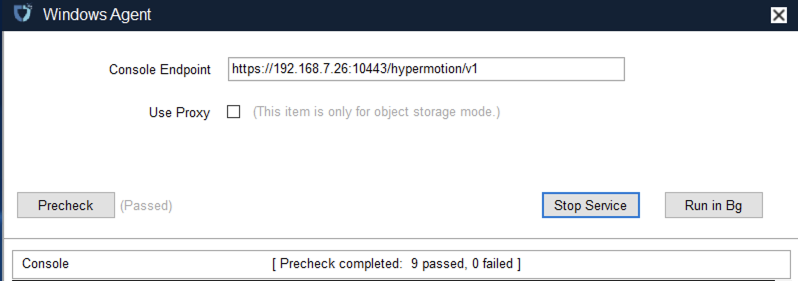
- Return to the HyperBDR console; the Windows host will appear in the host list as automatically registered and online.
Uninstall Windows Agent
- On the source Windows server, open "Control Panel" > "Programs and Features" (Uninstall a program).

- Locate Windows_Agent (Publisher: OneProCloud) in the list, right-click and select "Uninstall".

- In the confirmation dialog, click "Yes". Wait for the uninstaller to remove services and drivers, then click "OK" to finish.


Source Sync Proxy
Technical Architecture & Principles
The Source Sync Proxy (Sync Proxy) is HyperBDR's core data synchronization engine for agentless (Agentless) disaster recovery, designed for VMware, OpenStack + Ceph, AWS EC2, FusionCompute, Oracle Cloud, HCS, and Huawei Cloud source production environments.
By deploying a lightweight Sync Proxy within the source local network, HyperBDR captures virtualized or cloud disk snapshot data locally via native hypervisor/cloud APIs and transfers backup data securely and efficiently to the target DR site. This architecture eliminates the security risks and performance overhead of invoking production APIs across wide-area networks.
- Internal Communication: Sync Proxy only requires access to the source production platform's management network (API authentication and snapshot control) and storage network (disk data reading).
- External Transmission: Sync Proxy only communicates with the HyperBDR Console and the target DR site, isolating and protecting the source production platform's internal network topology.
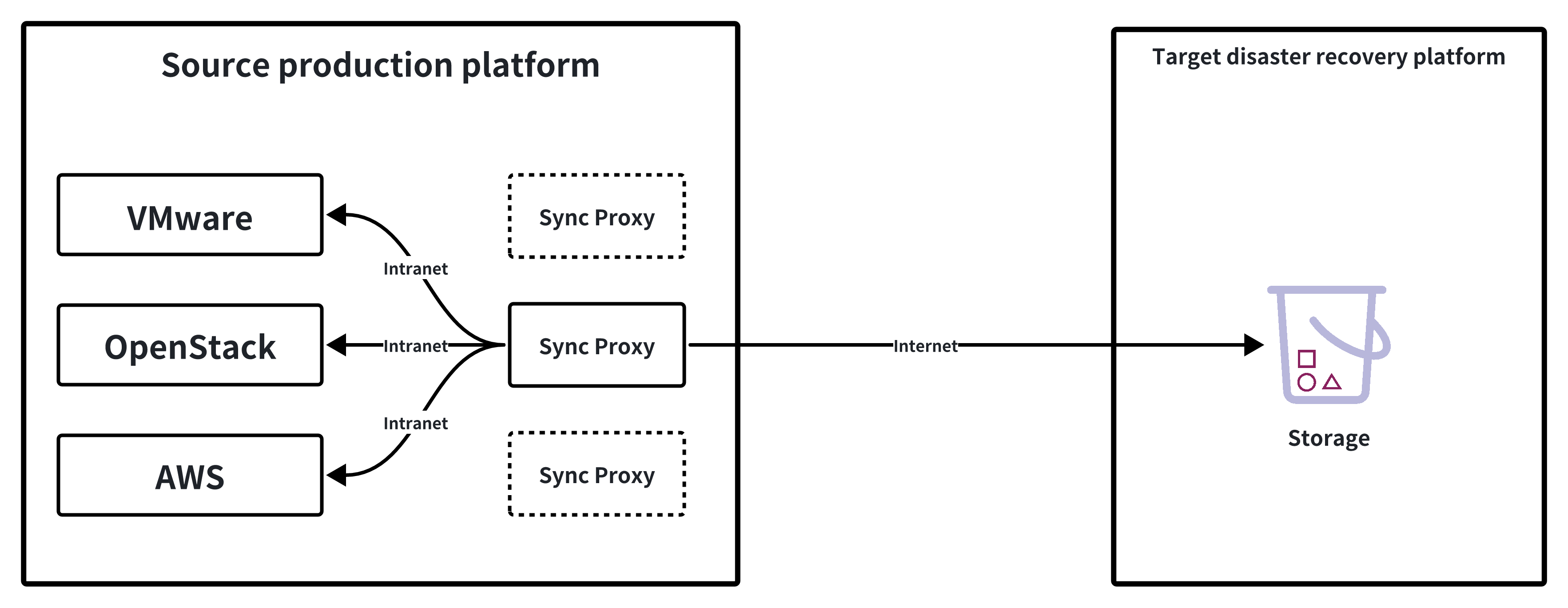
Node Specifications & Network Requirements
Recommended Specifications
Sync Proxy runs on an Ubuntu 24.04 operating environment. By default, a single Sync Proxy node supports concurrent mounting and synchronization of up to 50 disks. When protecting large numbers of hosts or high disk counts, you can scale out by deploying multiple Sync Proxy nodes at any time.
| Parameter | Recommended Specification | Description |
|---|---|---|
| Operating System | Ubuntu 24.04 LTS | Official standard image or provided OVA / QCOW2 template |
| CPU | 4 Cores (4 vCPU) | Can be increased for high concurrency scenarios as needed |
| Memory | 8 GB | Sufficient memory ensures adequate caching performance |
| System Disk | 50 GB | Used for system runtime and temporary log caching |
Network Policy & Port Requirements
The virtual machine or host deploying Sync Proxy must satisfy the following network connectivity requirements:
| Source | Target | Port / Protocol | Description |
|---|---|---|---|
| Sync Proxy | HyperBDR Console | 10443 / TCP | Control communication and bidirectional node authentication |
| Sync Proxy | HyperBDR Console | 30080 / TCP | Sync Proxy installation package download and component updates |
| Sync Proxy | Source Platform Management & Storage Planes | Platform native ports | Invoking source APIs (e.g., vCenter 443, Keystone 5000, etc.) and storage interfaces |
| Sync Proxy | DR Cloud Sync Gateway / Storage Services | 13260 / 443 / TCP | Transferring backup data to the disaster recovery target |
Node Management & Operations
After deploying and registering Sync Proxy via any production platform wizard, manage the node lifecycle on the "Source Sync Proxy" page.

Settings
In the Sync Proxy list, click "More Operations" (or "Action") > "Settings" on the right side of the target node row to fine-tune running parameters:


| Setting | Default Value | Description |
|---|---|---|
| HTTP Communication Timeout | 600 seconds | Timeout threshold for communications between the proxy node, the source production platform, and the console. Increase this value under poor network conditions or large-batch API calls to prevent retry failures. |
| Max Concurrent Disks | 50 | Maximum number of disks allowed to be mounted simultaneously for data reading on a single node. Increasing this requires higher CPU and memory allocations; the recommended upper limit is 150 per node. |
Bind
Click "More Operations" (or "Action") > "Bind" to associate the Sync Proxy with an added production platform. Once bound, the node can handle disk data synchronization tasks for that platform.


Multi-Node Concurrency Mechanism:
- One-to-Many: A single Sync Proxy node can be bound to multiple source production platforms simultaneously.
- Many-to-One: A single production platform can be bound to multiple Sync Proxy nodes. HyperBDR's load-balancing scheduler automatically distributes disk mounting and replication tasks across proxies, significantly boosting throughput for large-scale host migrations and backups.
Note: Multiple nodes provide concurrency scalability. If a proxy node experiences physical or network interruption, its active sync tasks will fail; resolve the proxy issue and retry. Active in-flight tasks do not automatically fail over to other nodes.
Unbind
Click "More Operations" (or "Action") > "Unbind" to disassociate the proxy node from the specified production platform.


Note: Before unbinding, ensure the Sync Proxy has no ongoing synchronization or backup tasks. After unbinding, the node can be rebound to another platform or deleted.
Delete
Click "More Operations" (or "Action") > "Delete" to permanently remove the Sync Proxy node from the system.

Note: A proxy node bound to any production platform cannot be deleted directly. You must first perform "Unbind" and ensure the node is completely unbound before deletion.
Failback
When configuring a Failback Production Site, the overall configuration logic is consistent with the DR Production Site workflow. The meaning and operation of each parameter can be directly referenced in the DR Production Site section. Once the configuration is complete, you can proceed with the Host Failback operation.

DR Site
Click "Configuration" in the top menu bar, then "DR Site". Select the target platform to add according to the target cloud platform provider, and choose the storage type. Both "Block Storage Mode" and "Object Storage Mode" are supported.
Note: If you can choose both block storage mode and object storage mode in the pop-up storage type selection, it means that the current cloud service provider has been integrated and supports both modes. If only one can be selected, it means that only one mode has been integrated.
Please follow the prompts to enter authentication information to configure the disaster recovery target platform.

Reference for disaster recovery target configuration cloud providers:
Storage Configuration
Defines the target storage for data during DR or backup. The system currently supports the following types of storage configurations.
Object Storage
Supported Cloud Platforms
| Cloud Vendor |
|---|
| Other Platforms |
| Alibaba Cloud |
| AWS |
| ctyun JC |
| ecloud |
| ecloud JC |
| GDS |
| HCS Online |
| Huawei Cloud |
| Open Telekom Cloud (SDK v3.1.86) |
| Tencent Cloud |
| TM CAE |
| Volcengine |
You can refer to the following 'Configuration Example' to complete the related setup. This article uses Huawei Cloud configuration as an example.
Configuration Example
Add Huawei Cloud
From the top navigation bar, select "Configuration" → "Storage Configuration" → "Object Storage" to enter the object storage page. Click the "Add" button to add a new object storage configuration.
Add Authentication Information
On the object storage configuration page, select "Huawei Cloud" as the platform type, then choose the required region (such as East China, North China, etc.). Fill in the following authentication information according to your actual environment:
| Field | Example Value | Description |
|---|---|---|
| Object Storage Platform | Huawei Cloud-CN North-Beijing4 | Select from the dropdown list, e.g. "Huawei Cloud-North China-Beijing 4" |
| Auth URL | obs.cn-north-4.myhuaweicloud.com | Authentication service address, do not add http:// or https:// prefix |
| Region | cn-north-4 | The region where the object storage is located, e.g. beijing. Leave blank for self-built storage |
| Access Key ID | ygOfXlSs2F4rYBmO | Access key ID for object storage |
| Access Key Secret | •••••••••••••••••••••••••• | Corresponding access key secret, hidden by default, used for authentication only |
| Protocol Type | s3 | Specify the object storage protocol type, currently only s3 is supported |
| S3 URL Style | path style / virtual hosted style | Select the S3 access style |
| Use TLS | Yes / No | Whether to enable encrypted transmission (HTTPS), choose according to your needs |
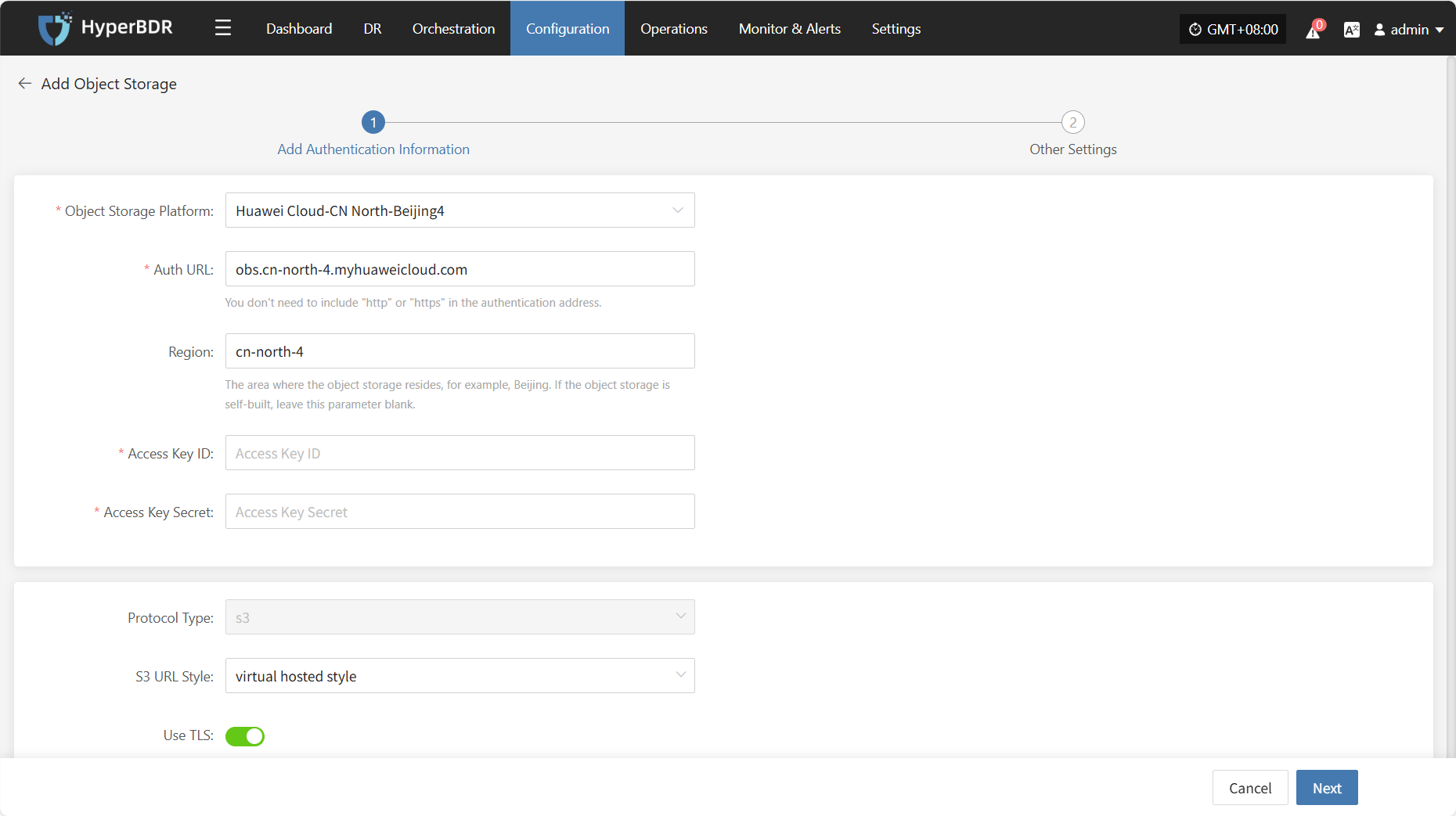
Other Settings
After completing the authentication information, click "Next" to continue configuring the bucket-related parameters and finish connecting the object storage.
| Field | Example Value | Description |
|---|---|---|
| Name | Huawei Cloud-North China-Beijing 4 | The name of the selected object storage platform. By default, it is the platform name chosen in the first step. |
| Bucket | Existing Bucket / New Bucket | Choose how to create the bucket: select an existing bucket or create a new one. |
| Bucket Name | As appropriate | If you select an existing bucket, choose from the dropdown list; if creating a new bucket, enter the name manually. Note: Custom names must be no more than 10 characters, using only numbers and lowercase letters. If left blank, the system will generate one automatically. Note: For Tencent Cloud as the target platform, APPID must be entered. |
| Public Domain | As appropriate | The address for public network access to the bucket. You can customize it or check "Same as Auth Domain Name". |
| Internal Domain | As appropriate | The address for internal network access to the bucket. You can customize it or check "Same as Auth Domain Name". |
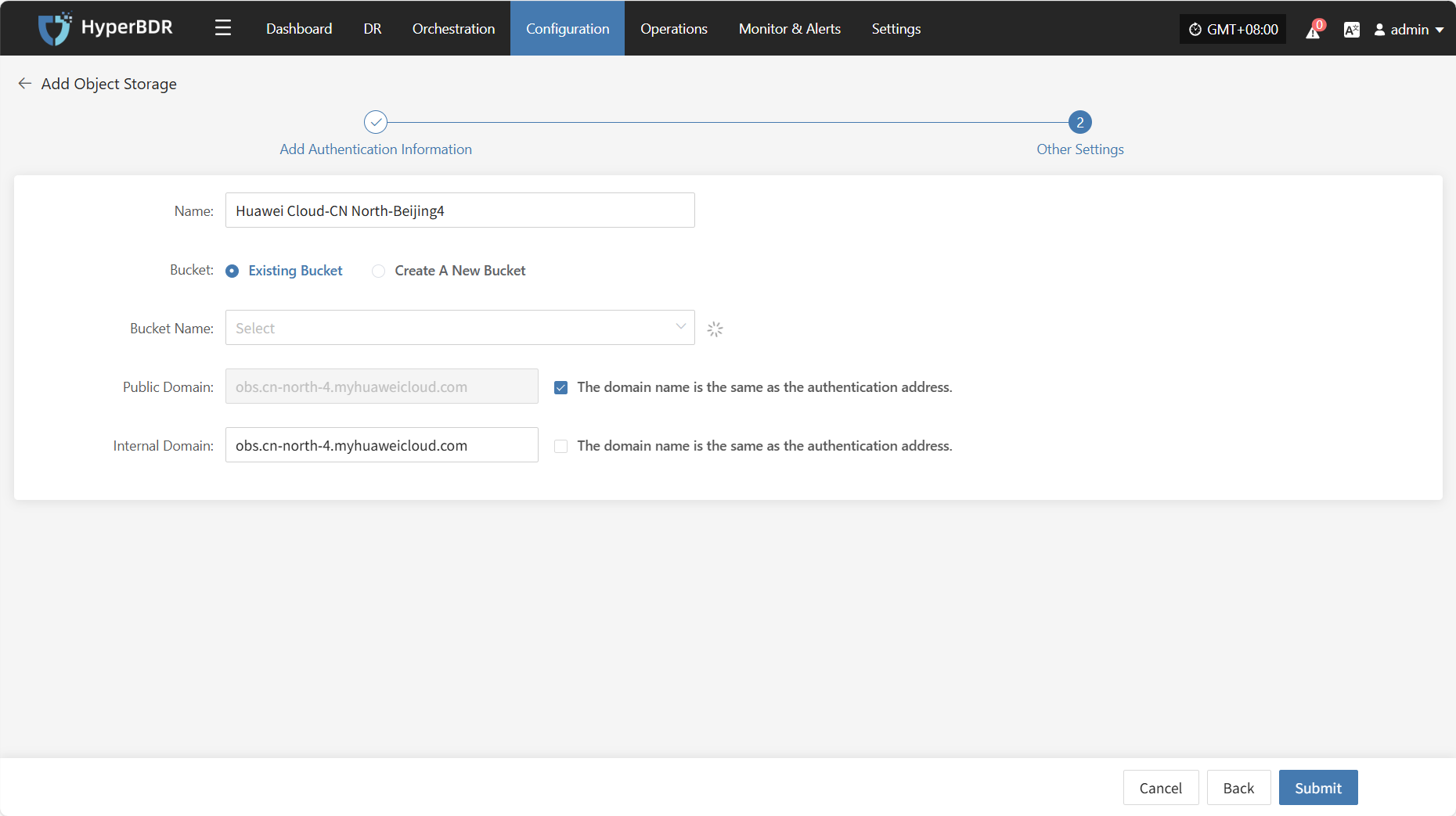
Failback
From the top navigation bar, select "Configuration" → "Storage Configuration" → "Object Storage" → "Failback" to enter the object storage page. Click the "Add" button in the upper right corner to add a new object storage configuration.
When entering the specific failback storage configuration stage, the configuration process is identical to the disaster recovery storage configuration process. Refer to the Disaster Recovery Object Storage Configuration section for parameter meanings and operation methods. Once configured, you can proceed with host failback operations.
Block Storage
Add Block Storage
From the top navigation bar, select "Configuration" → "Storage Configuration" → "Block Storage" to enter the block storage page. Click the "Add" button in the upper right corner to add a new block storage configuration.

You can click the "Configuration Guide" link next to each cloud platform in the list to view detailed operation steps.
Supported Cloud Platforms
| Cloud Vendor | Notes |
|---|---|
| Alibaba Cloud | Click to View |
| Alibaba Cloud Apsara Stack (v3.16.x) | |
| Alibaba Cloud Apsara Stack (v3.18.x) | |
| AWS China (SDK v1.34.93) | Click to View |
| AWS (SDK v1.34.93) | |
| ecloud | |
| ecloud JC | |
| eSurfingCloud4.0 | |
| FiXo Cloud BS | |
| Google Cloud (SDK v1.19.0) | Click to View |
| GridCloud | |
| Huawei Cloud Stack Online (v23.3) | |
| Huawei Cloud Stack (HCS) (v8.2.x/v8.3.x) | |
| Huawei Cloud (Recommended, SDK v3.1.86) | Click to View |
| Jinshan Cloud | |
| Microsoft Azure (SDK v30.3) | Click to View |
| Open Telekom Cloud (SDK v3.1.86) | |
| OpenStack Community (Uno+) | Click to View |
| Oracle Cloud (SDK v2.126.3) | Click to View |
| QingCloud | |
| SMTX OS (v6.x.x) | |
| Tencent Cloud | Click to View |
| Tencent Cloud Enterprise | Click to View |
| Tencent Cloud TStack Enterprise | |
| Tencent Cloud TStack Ultimate | |
| TM CAE | |
| UCloudStack | |
| XHERE (NeutonOS_3.x) | |
| ZStack (v4.x.x) |
DR Site Configuration
When the primary production site fails, the system can automatically or manually switch to a standby environment. To ensure business continuity and data availability during the DR switchover, you need to complete the DR platform configuration in advance.
The platform supports two business scenarios: DR and Failback:
- DR: When the source host fails or becomes unavailable, quickly switch business services to the standby platform to ensure business continuity and data security.
- Failback: After DR switchover and once the source site is recovered, smoothly migrate business services back to the source platform to restore the system to its original production state.
You can configure DR or failback policies according to actual business needs to achieve end-to-end business continuity management.
Object Storage Mode
Supported Cloud Platforms
| Cloud Vendor | Notes |
|---|---|
| Alibaba Cloud | Click to View |
| Alibaba Cloud Apsara Stack (wv3.16.x) | |
| Alibaba Cloud Apsara Stack (v3.18.x) | |
| Huawei Cloud | Click to View |
| Huawei Cloud HCS Online (v23.3) | |
| Volcano Engine | |
| Tencent Cloud | Click to View |
| Tencent Cloud Enterprise (TCE) | Click to View |
| CTyun Joint Cloud | |
| China Mobile Cloud (ecloud) | |
| AWS (SDK v1.34.93) | |
| AWS China (SDK v1.34.93) | Click to View |
| GDS Local Cloud | |
| Open Telekom Cloud (SDK v3.1.86) | |
| OpenStack Community (Juno+) | |
| TM CAE | |
| UCloud | |
| VMware | Click to View |
| XHERE (NeutonOs_3.x) |
Block Storage Mode
Tips
For all operations in [Block Storage Mode], please go to [Storage Configuration] > [Block Storage] > [DR]. 👉Click to View
Generic Mode (DR)
Generic Mode applies to environments that do not currently support automated DR or failback workflows. In this mode, users need to manually complete certain operations.
Transition Host
Add Transition Host
Navigate to [Configuration] > [DR Site Configuration] > [DR] > [Transition Host], and click the [Add] button in the upper-right corner. In the configuration dialog, read the precautions carefully and prepare the corresponding host according to the page prompts:
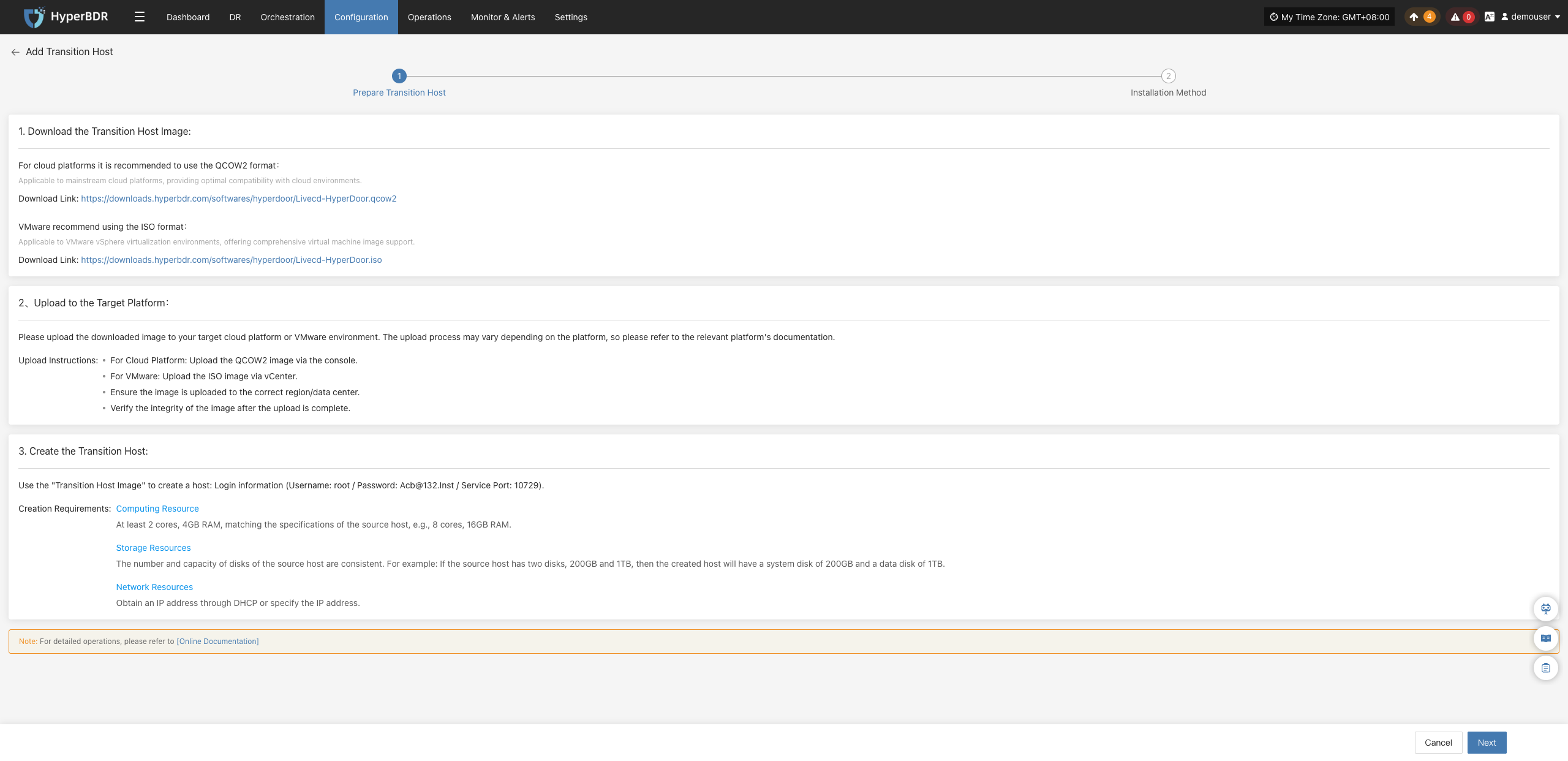
Once the target resources are prepared, click [Next] to continue. The system provides two installation methods; you can choose either one according to your network environment.
Installation Method 1: Console Access to Transition Host
The console can directly access the transition host network. When the transition host is in a private network or has a public IP, data synchronization to the transition host is initiated from the console:
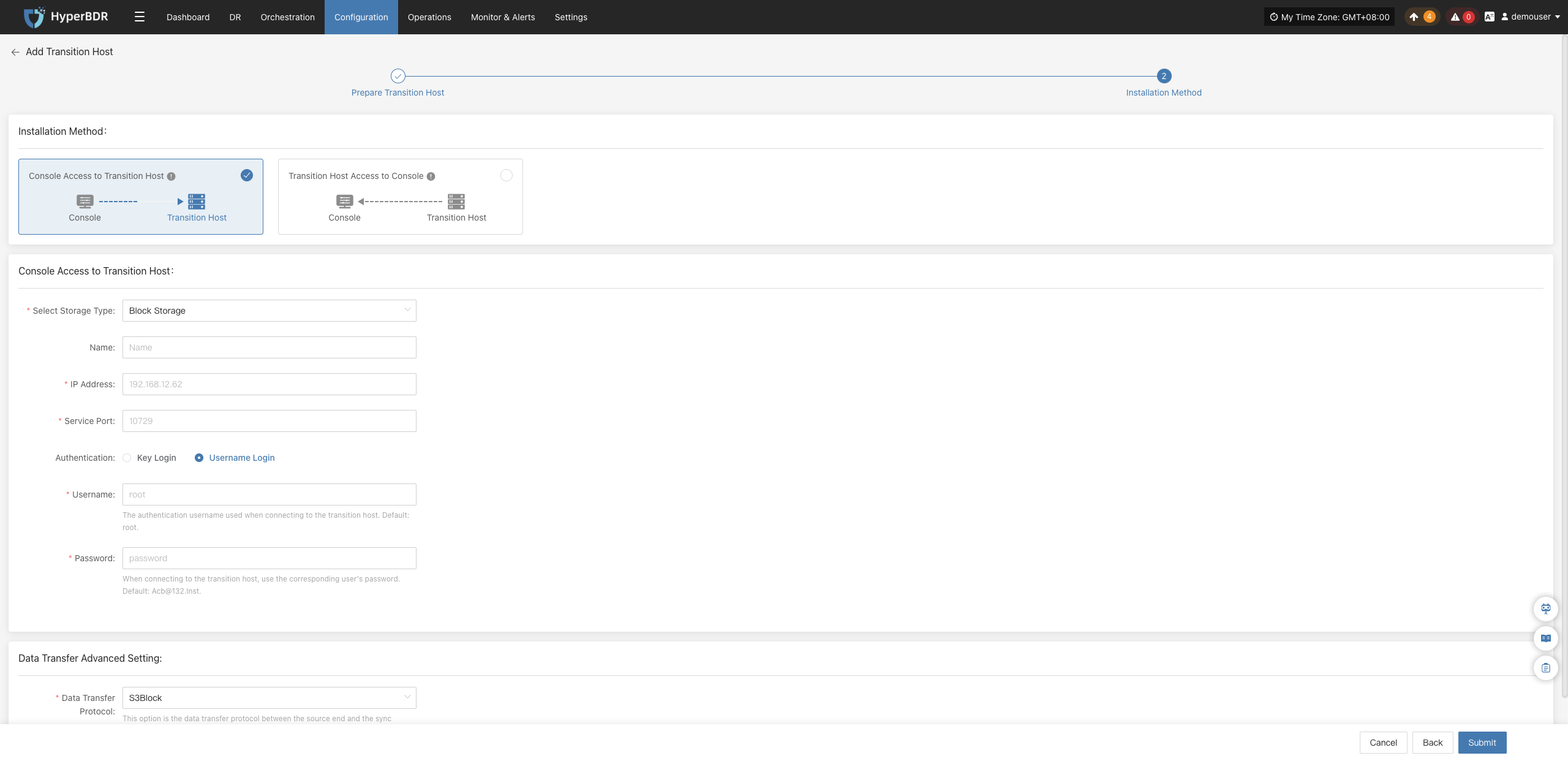
In the configuration window, select the storage method and enter the transition host information, such as name, IP address, and service port:
- Transition Host Configuration Instructions
| Configuration Item | Example Value | Description |
|---|---|---|
| Storage Type | Object Storage | Select the storage type for backup data writing. Both Block Storage and Object Storage are supported. |
| Name | test | A unique name used to identify the host in the HyperBDR platform. |
| IP Address | 192.168.7.146 | The IP address of the transition host. |
| Service Port | 10729 | The port listened to by the storage service, default is 10729. |
| Authentication | Username Login | Login authentication method for the transition host. Password or Key login is supported. |
| Username | root | Authentication username for connecting to the transition host. |
| Password | Acb@132.Inst | Authentication password for connecting to the transition host. It is recommended to change the default value after deployment. |
| Advanced Settings for Data Transmission | iSCSI | Data transmission protocol between the source and sync gateway, supporting S3Block and iSCSI: • S3Block: Suitable for WAN environments with high transmission efficiency; • iSCSI: Suitable for dedicated network scenarios with stable network connections. Note: This option is unavailable when the storage type is object storage. |
After filling in the information, click [OK]. The system will start creating the transition host. When the status displays as "Available", the addition is complete and subsequent operations can be performed:
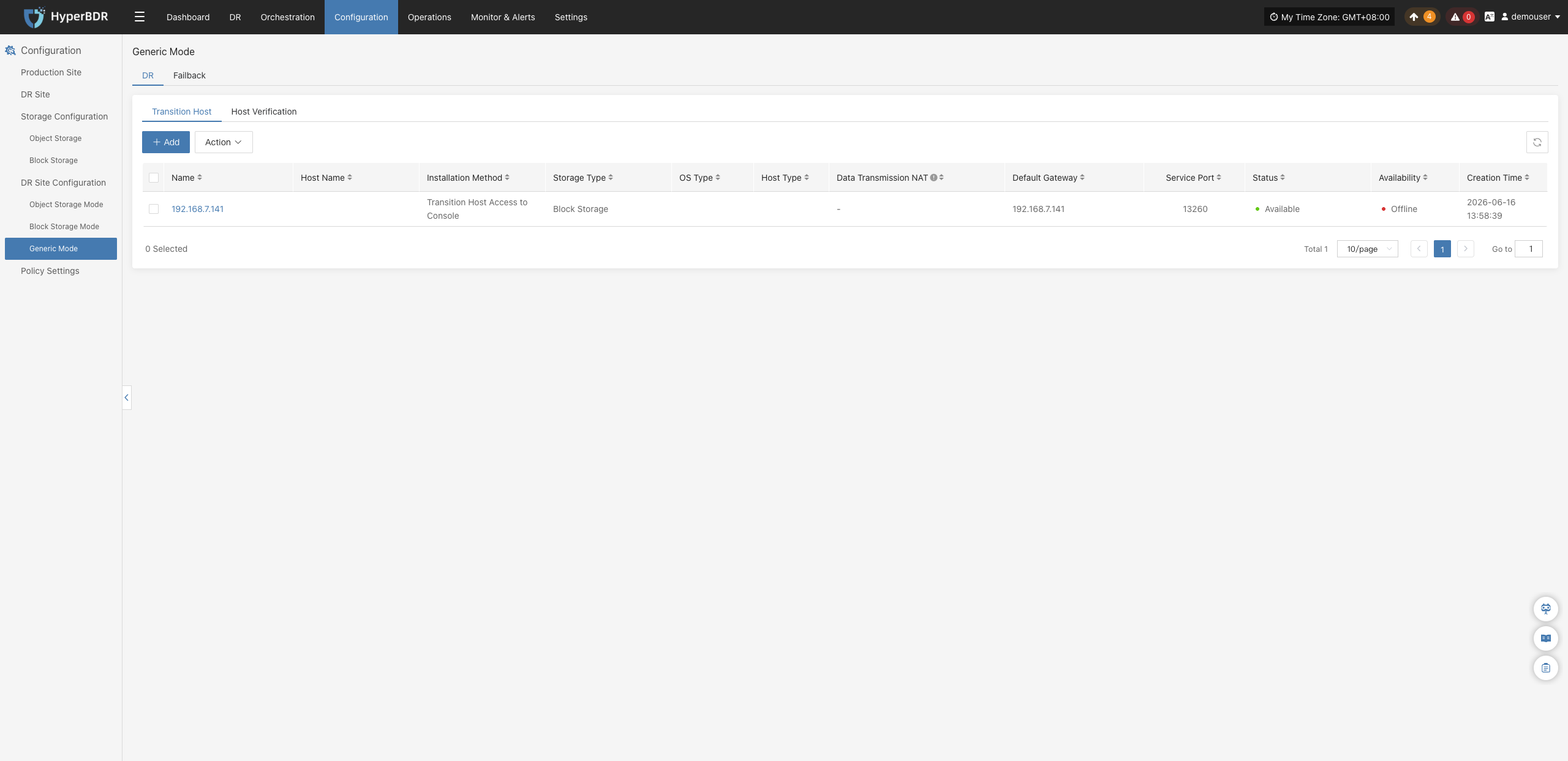
Installation Method 2: Transition Host Access to Console
The transition host can actively access the console network. When the console is in a private network or has a public IP, data synchronization needs to be initiated from the transition host to the console:
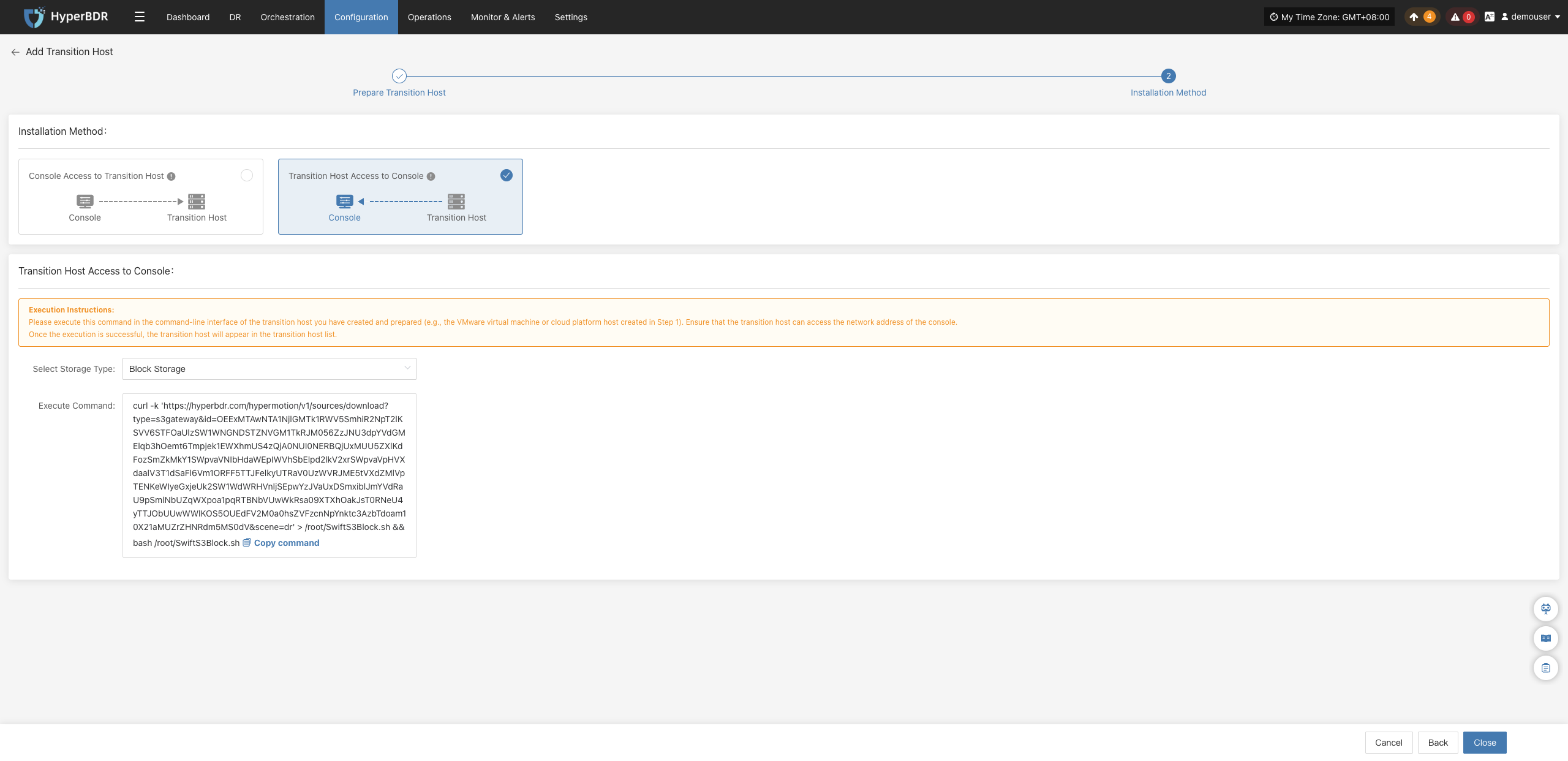
Copy and execute the command on the command-line interface of the prepared transition host, ensuring the transition host can reach the console network address:

After the command runs successfully, the transition host will automatically appear in the transition host list with the status updated to "Available":
Action
Select the target host and click the [Action] button on the page to perform more configurations:
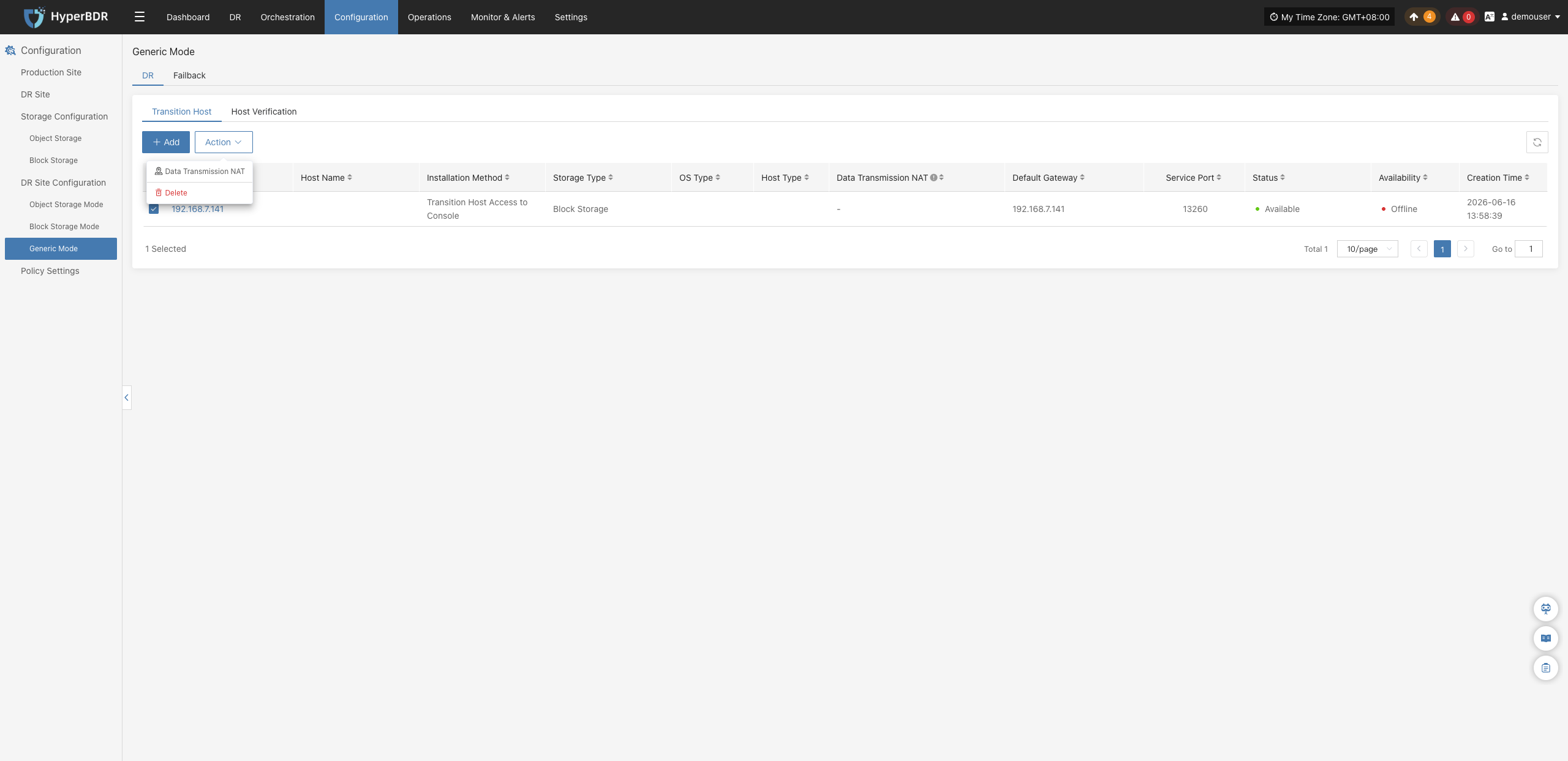
Data Transmission NAT
Select the target host and click [Action] > [Data Transmission NAT]:
In the pop-up window, configure the host NAT mapping address and data transmission port to ensure data stream connectivity across isolated networks or NAT environments:
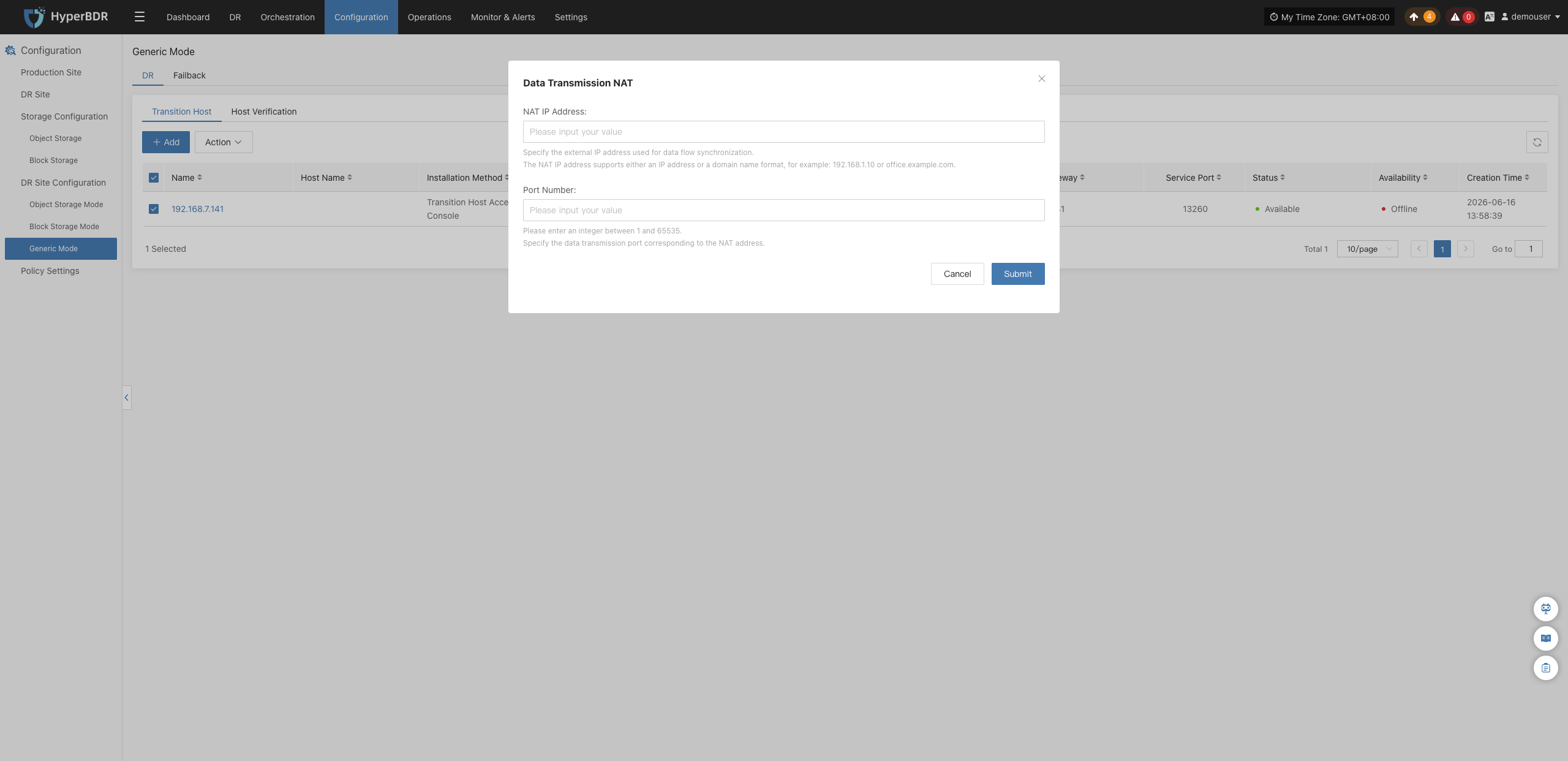
Delete
Select the target host and click [Action] > [Delete]. Confirm in the secondary confirmation dialog by clicking [OK] to remove the transition host:
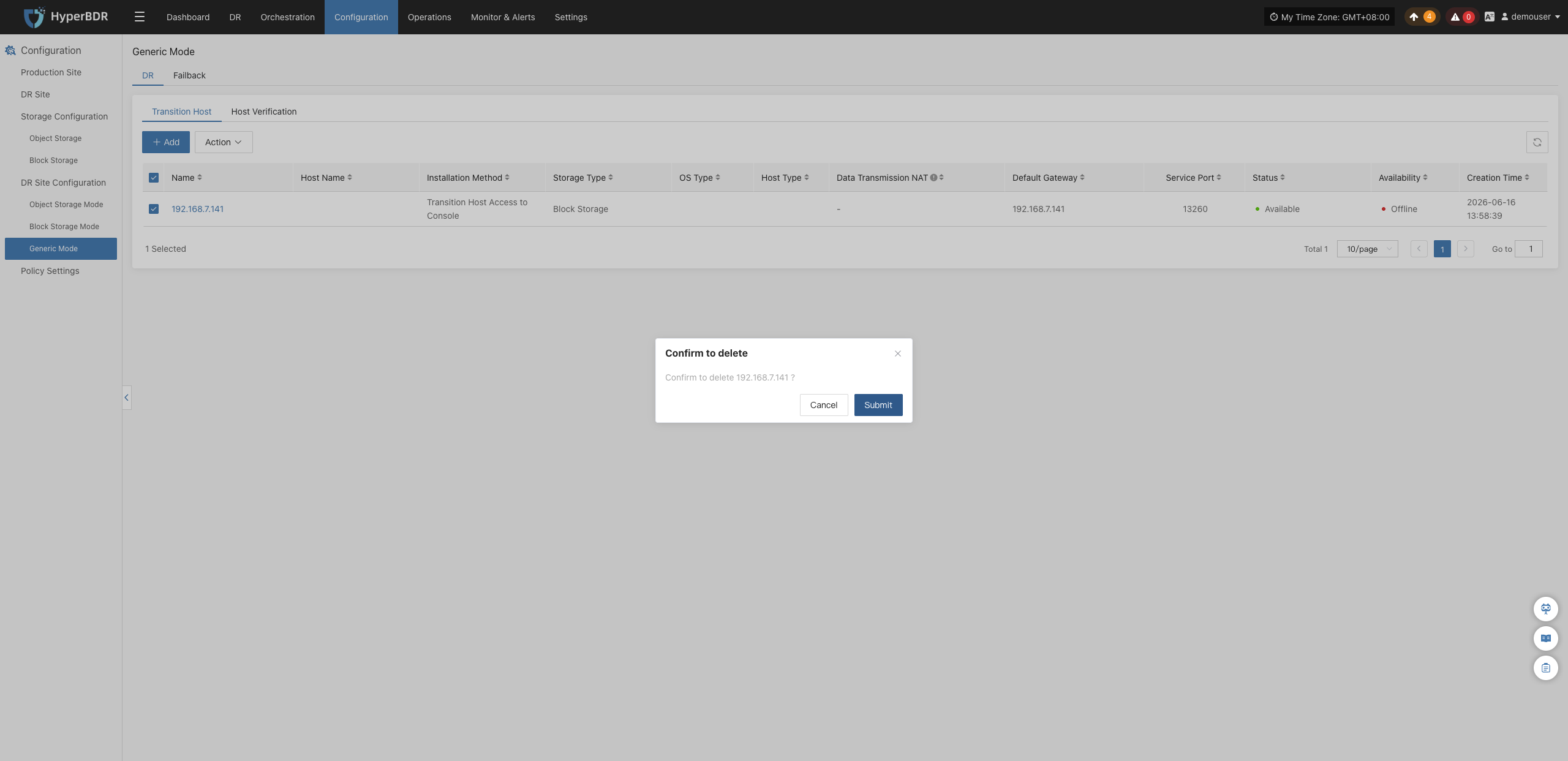
Host Verification
Note
Only hosts that have completed the "DR > Sync > Drill" process will appear in the "Host Verification" list. Hosts that have not completed data sync will not appear here.
After starting a DR drill, related hosts will appear in this list. Wait for the verification process to complete before proceeding:
Action
Select the target host and click the [Action] button on the page to perform driver repair or deletion operations:
Driver Repair
Select the target host and click [Action] > [Driver Repair]. In the pop-up "Driver Adaptation" window, verify the disk mapping, set the boot disk (and optionally choose whether to restart automatically), and click [Verify] to inject the necessary drivers and complete boot repair.
Delete
Select the target host and click [Action] > [Delete]. Confirm in the secondary confirmation dialog by clicking [OK] to remove the verified host.
Generic Mode (Failback)
Generic Mode applies to environments that do not currently support automated DR or failback workflows. In this mode, users need to manually complete certain operations.
Transition Host
Add Transition Host
Navigate to [Configuration] > [DR Site Configuration] > [Failback] > [Transition Host], and click the [Add] button in the upper-right corner. In the configuration dialog, read the precautions carefully and prepare the corresponding host according to the page prompts:
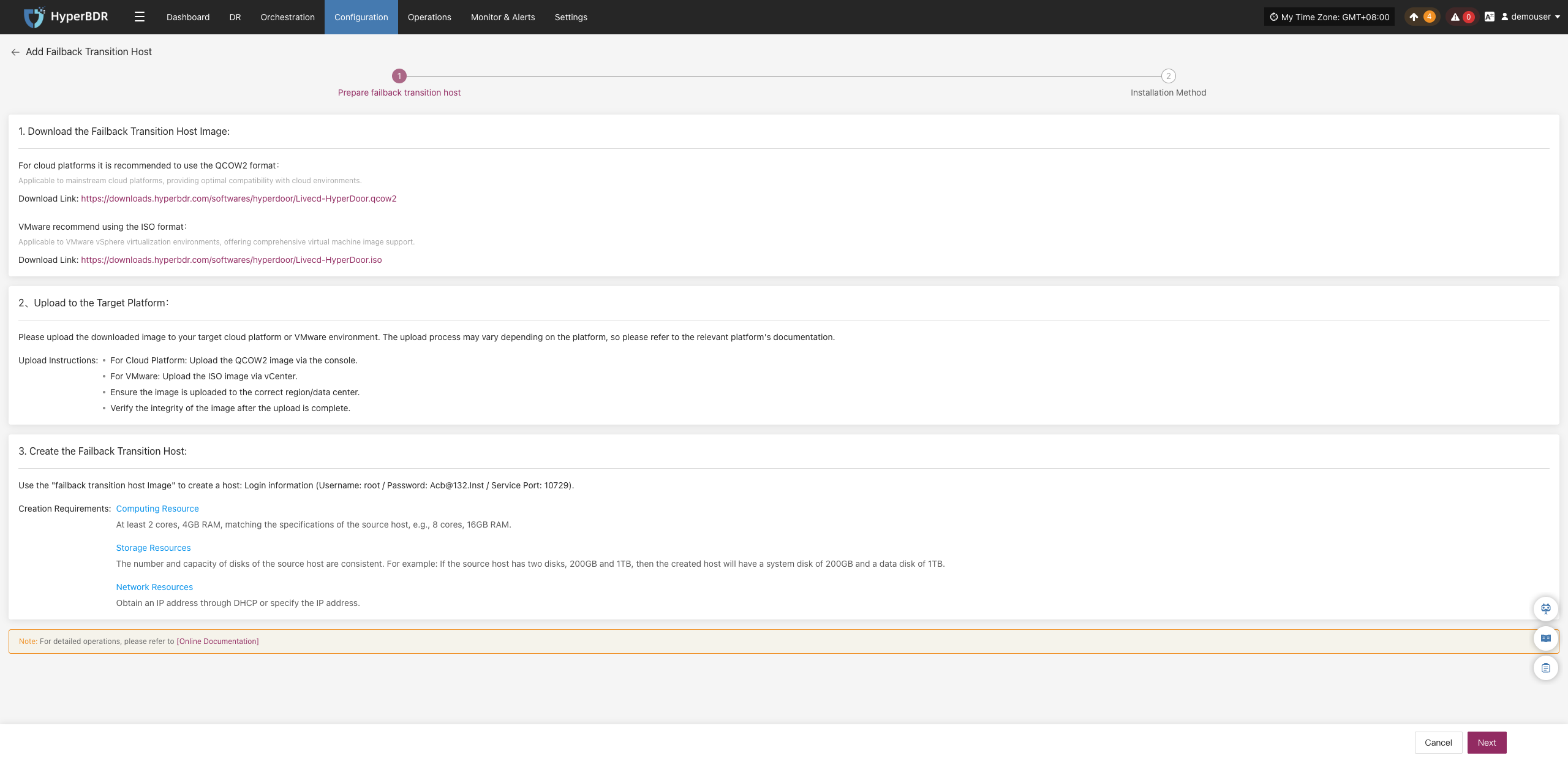
Once the target resources are prepared, click [Next] to continue. The system provides two installation methods; you can choose either one according to your network environment.
Installation Method 1: Console Access to Failback Transition Host
The console can directly access the transition host network. When the transition host is in a private network or has a public IP, data synchronization to the transition host is initiated from the console:
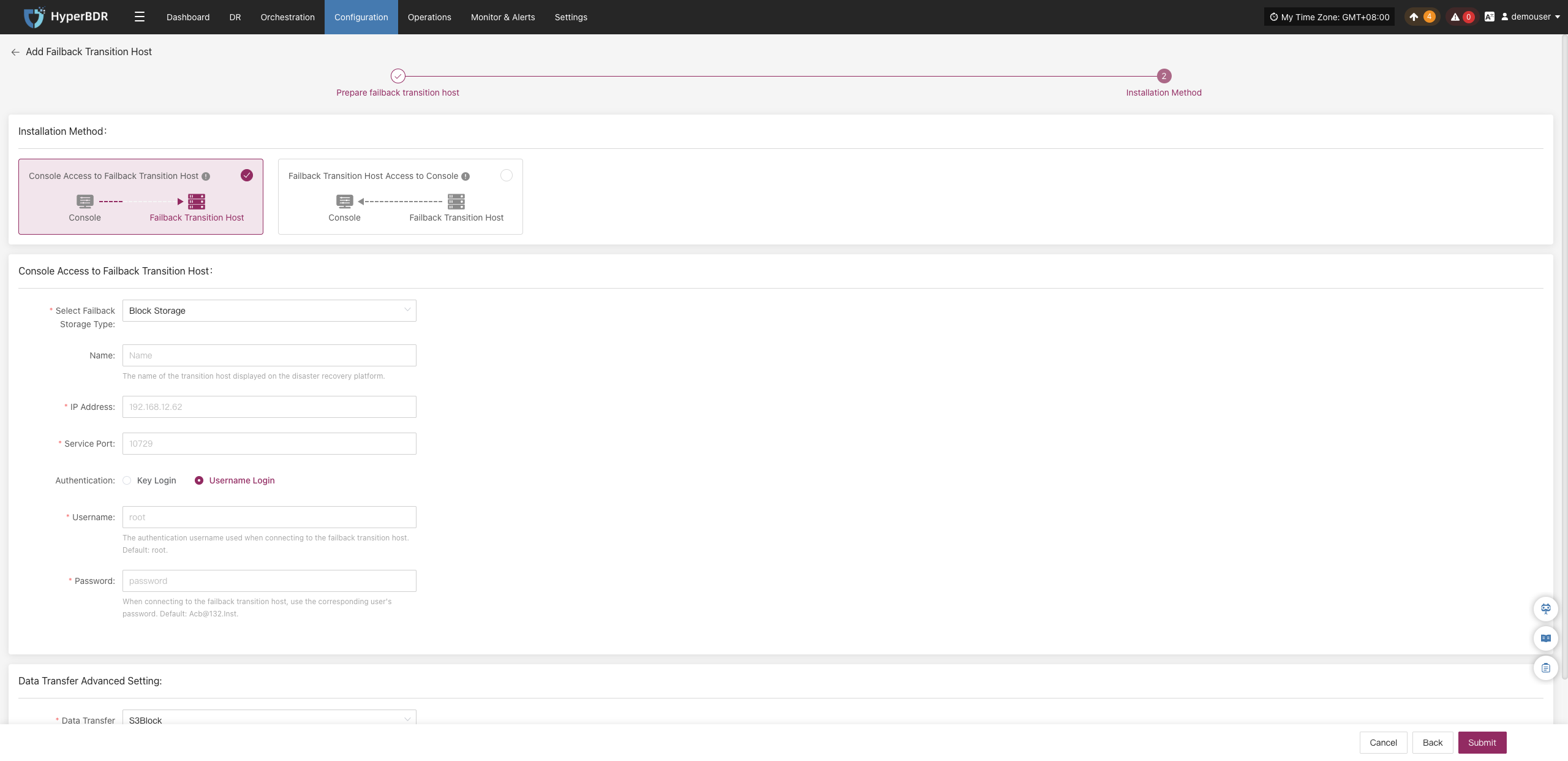
In the configuration window, select the storage method and enter the transition host information, such as name, IP address, and service port:
- Transition Host Configuration Instructions
| Configuration Item | Example Value | Description |
|---|---|---|
| Storage Type | Object Storage | Select the storage type for backup data writing. Both Block Storage and Object Storage are supported. |
| Name | test | A unique name used to identify the host in the HyperBDR platform. |
| IP Address | 192.168.7.146 | The IP address of the transition host. |
| Service Port | 10729 | The port listened to by the storage service, default is 10729. |
| Authentication | Username Login | Login authentication method for the transition host. Password or Key login is supported. |
| Username | root | Authentication username for connecting to the transition host. |
| Password | Acb@132.Inst | Authentication password for connecting to the transition host. It is recommended to change the default value after deployment. |
| Advanced Settings for Data Transmission | iSCSI | Data transmission protocol between the source and sync gateway, supporting S3Block and iSCSI: • S3Block: Suitable for WAN environments with high transmission efficiency; • iSCSI: Suitable for dedicated network scenarios with stable network connections. Note: This option is unavailable when the storage type is object storage. |
After filling in the information, click [OK]. The system will start creating the transition host. When the status displays as "Available", the addition is complete and subsequent operations can be performed:
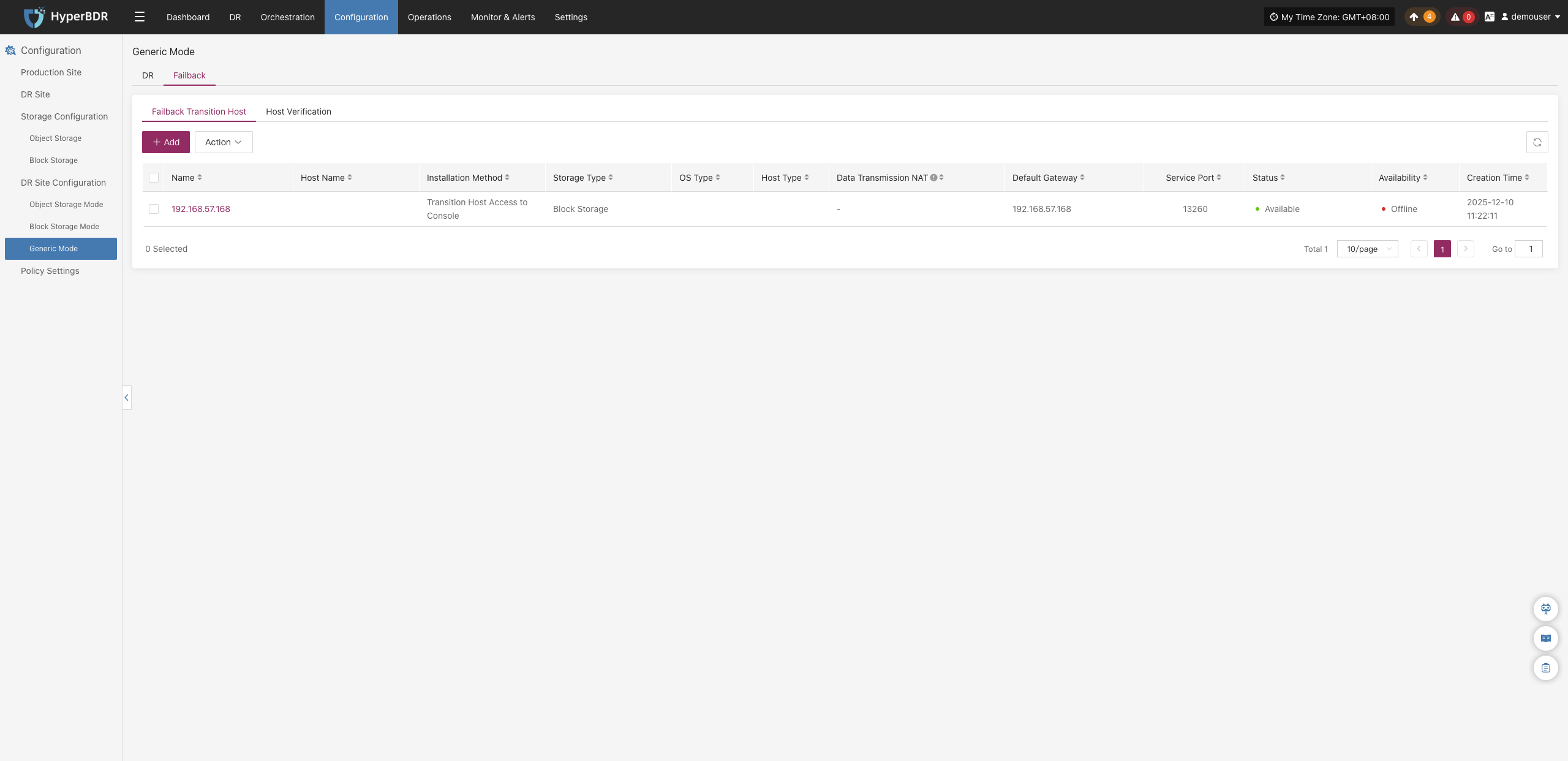
Installation Method 2: Transition Host Access to Console
The transition host can actively access the console network. When the console is in a private network or has a public IP, data synchronization needs to be initiated from the transition host to the console:
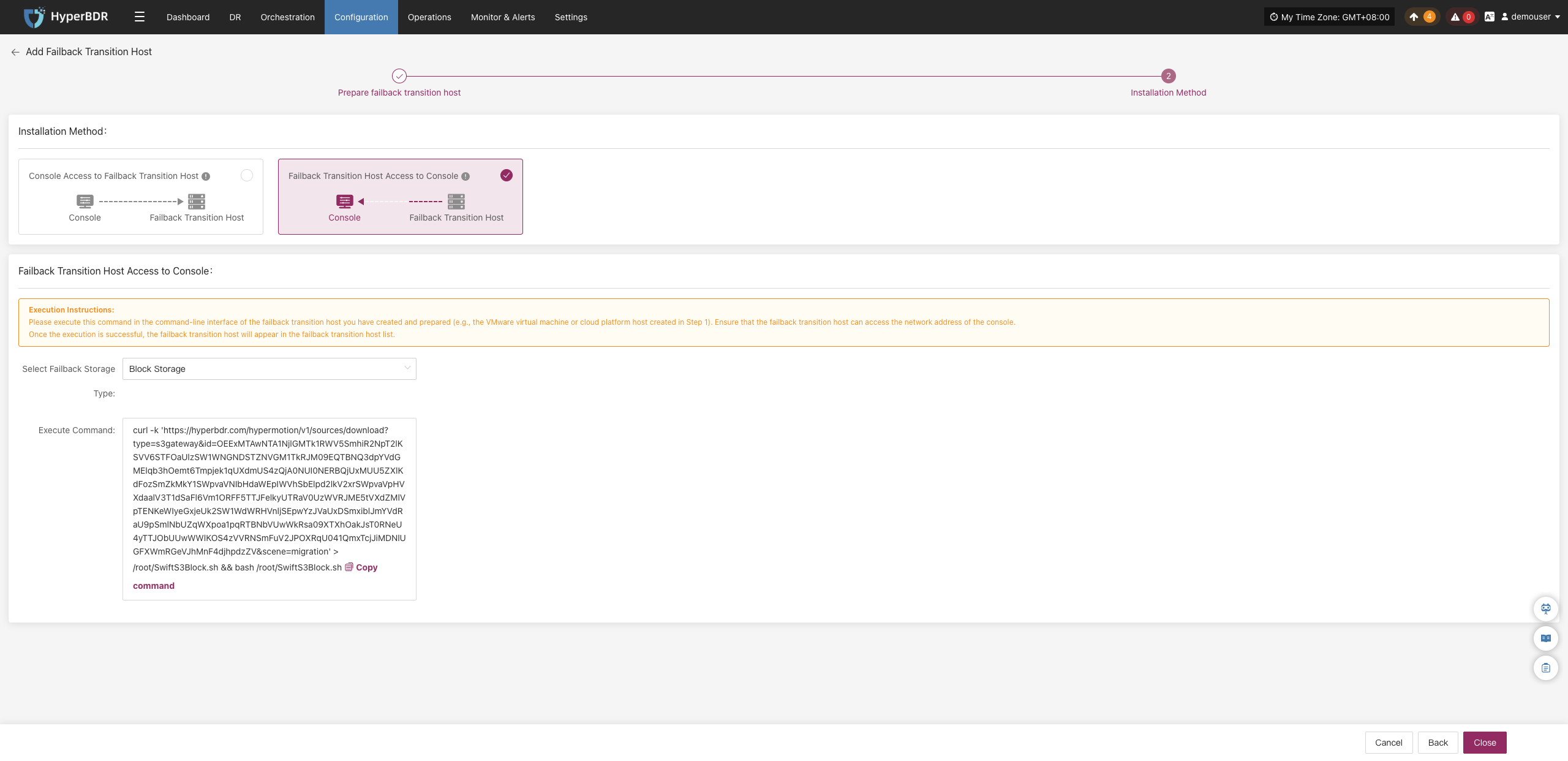
Copy and execute the command on the command-line interface of the prepared transition host, ensuring the transition host can reach the console network address:

After the command runs successfully, the transition host will automatically appear in the transition host list with the status updated to "Available":
Action
Select the target host and click the [Action] button on the page to perform more configurations:
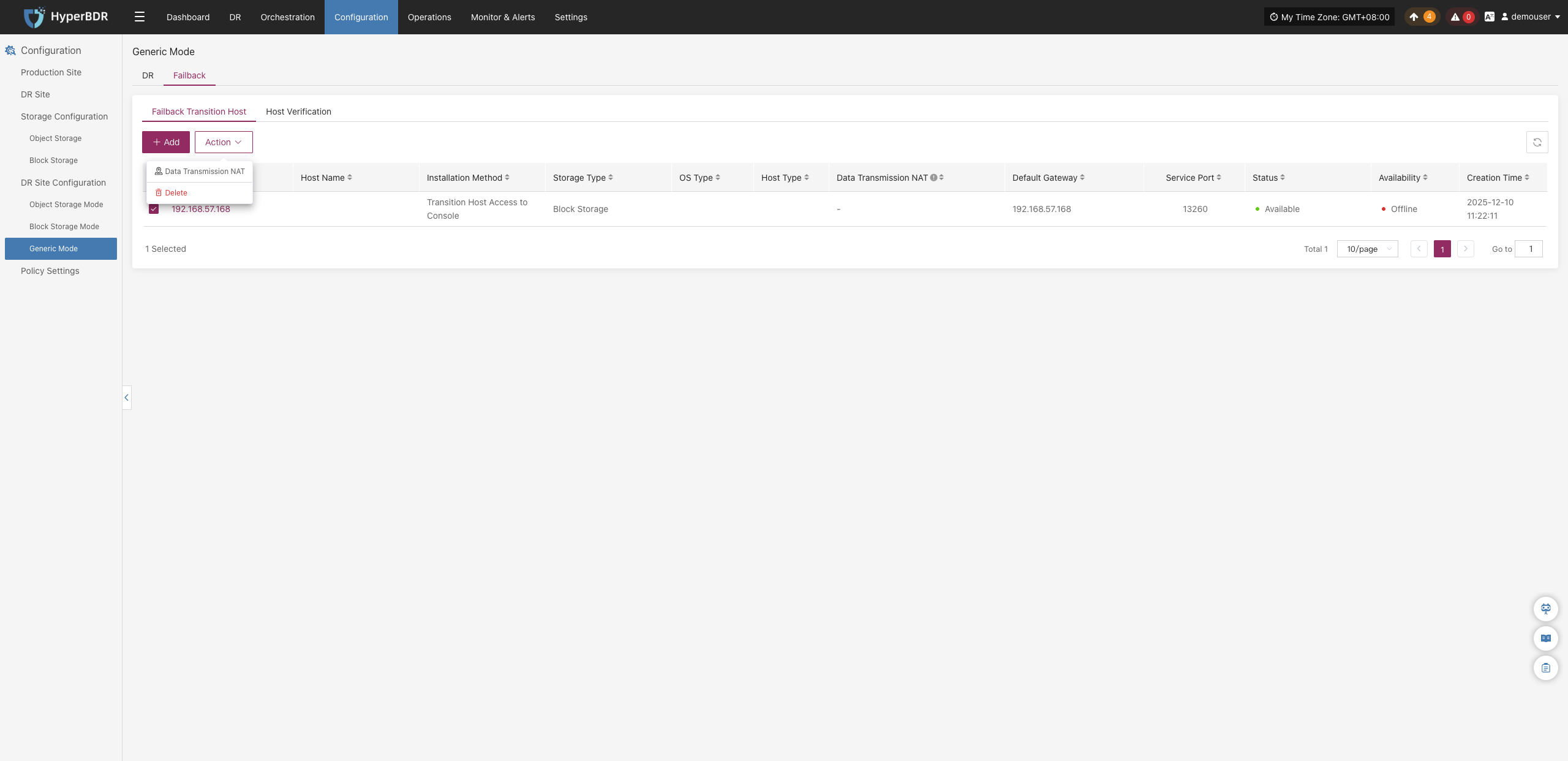
Data Transmission NAT
Select the target host and click [Action] > [Data Transmission NAT]:
In the pop-up window, configure the host NAT mapping address and data transmission port to ensure data stream connectivity across isolated networks or NAT environments:
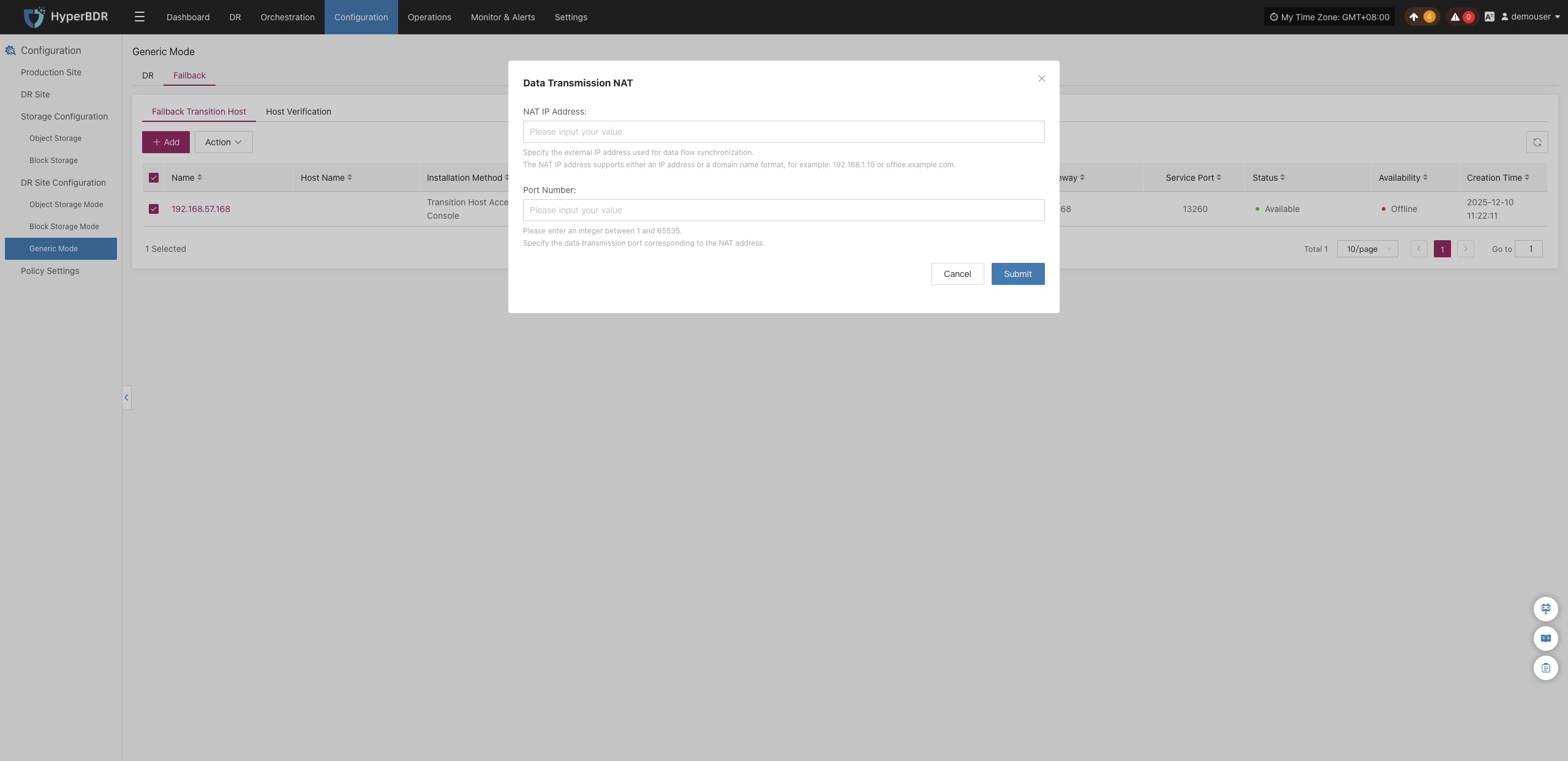
Delete
Select the target host and click [Action] > [Delete]. Confirm in the secondary confirmation dialog by clicking [OK] to remove the transition host:
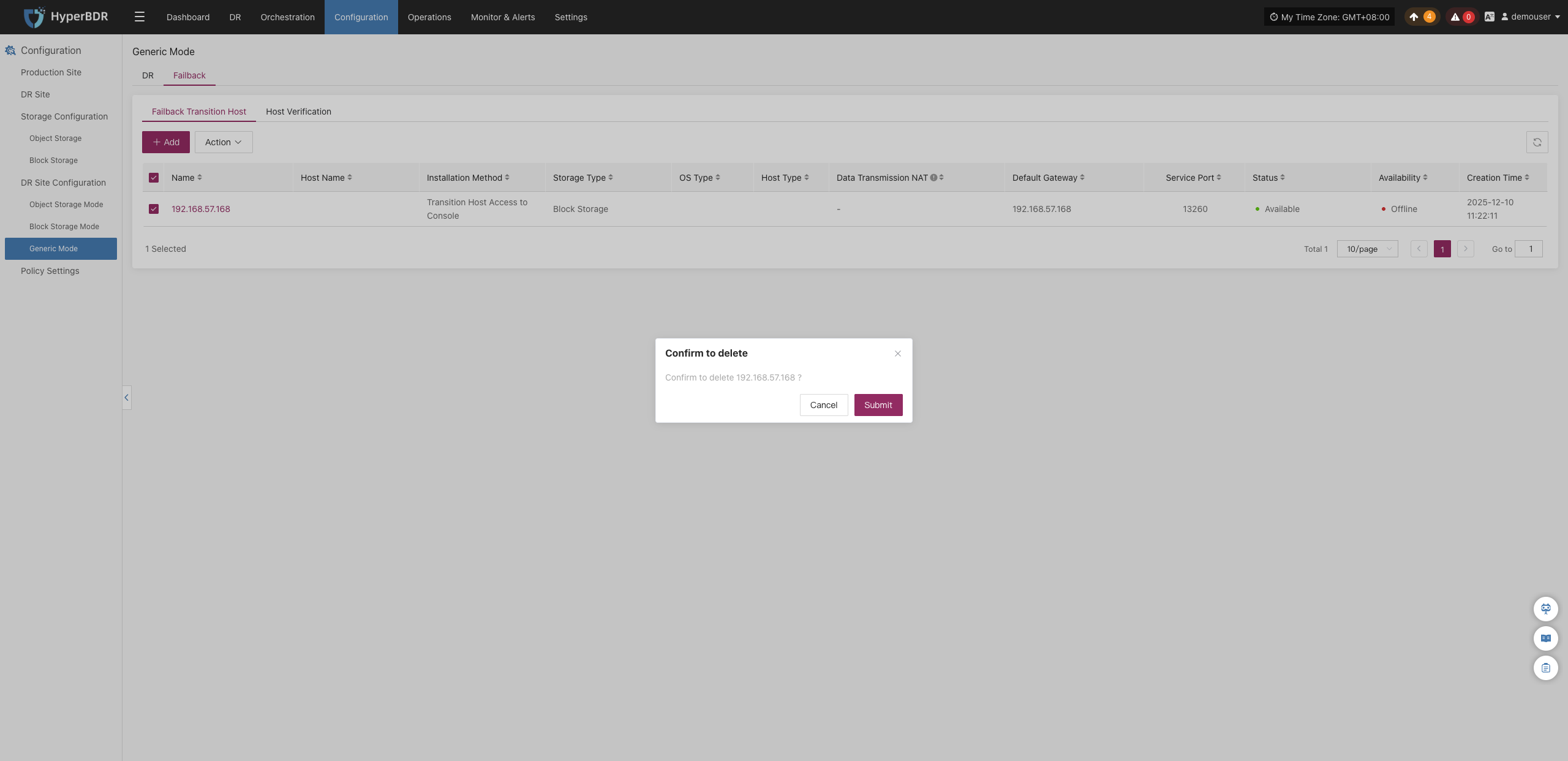
Host Verification
Note
Only hosts that have completed the "DR > Host Failback > Failback Drill" process will appear in the "Host Verification" list. Hosts that have not completed data sync will not appear here.
After starting a failback drill, related hosts will appear in this list. Wait for the verification process to complete before proceeding:
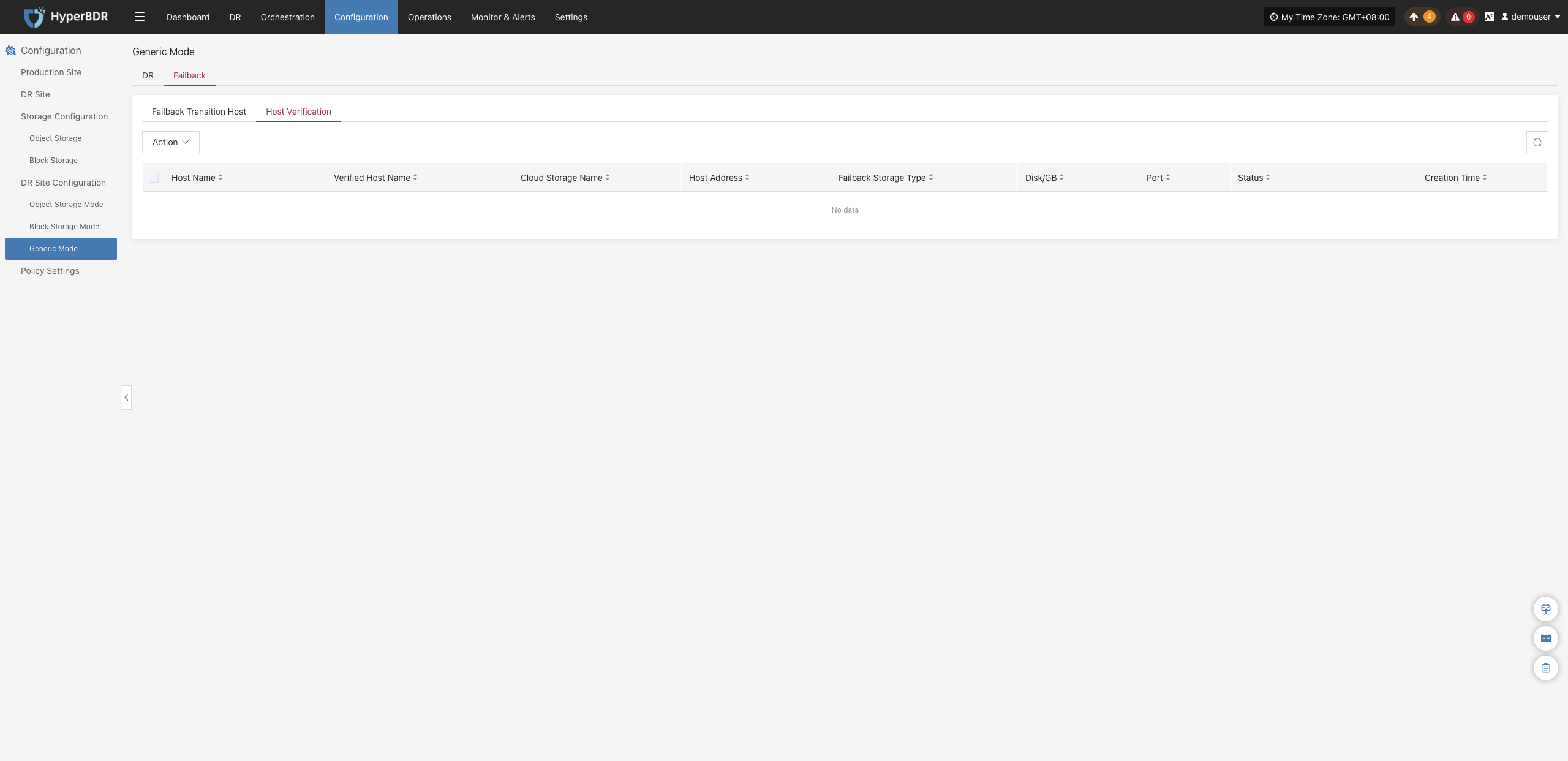
Action
Select the target host and click the [Action] button on the page to perform driver repair or deletion operations:
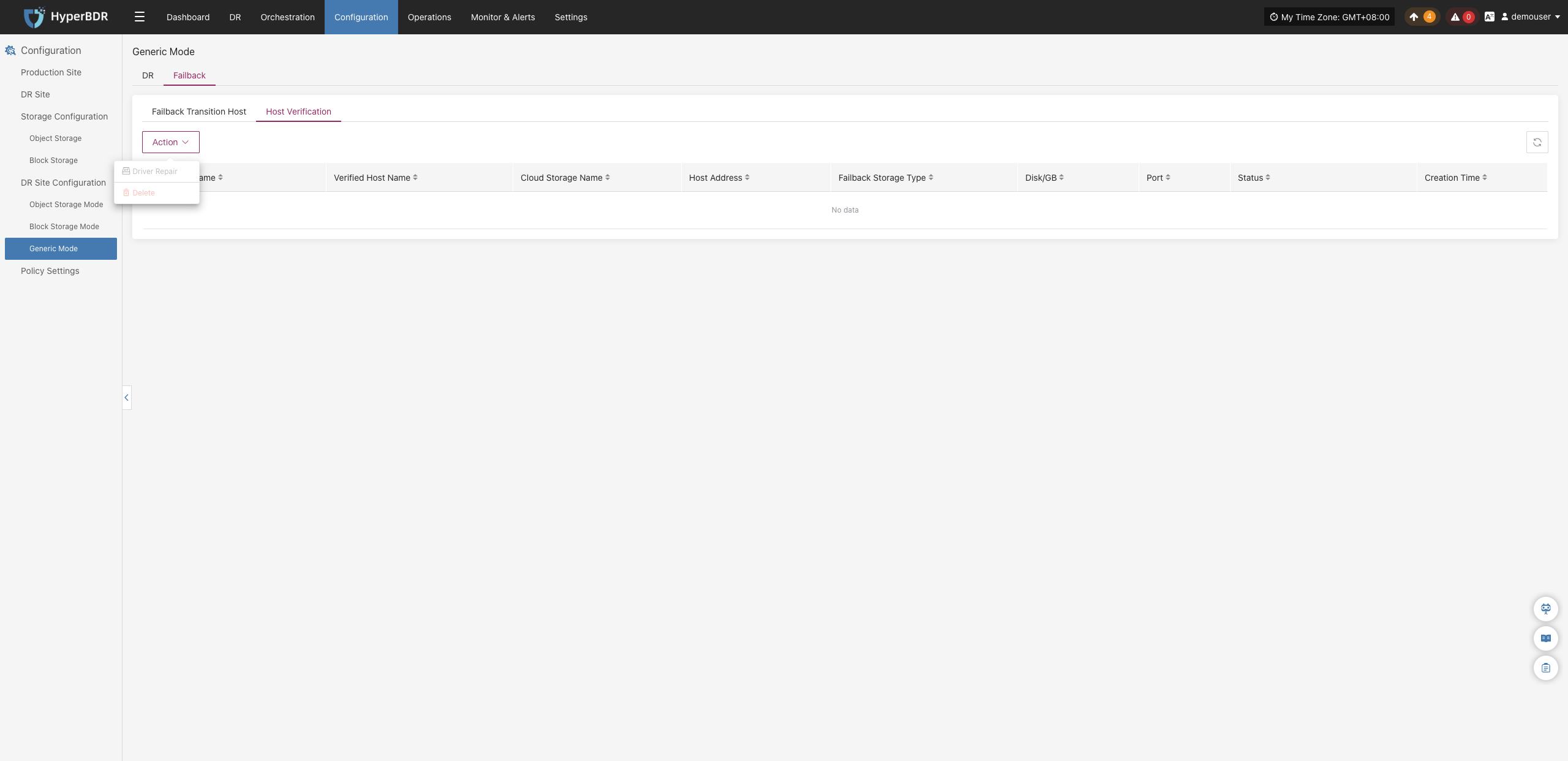
Driver Repair
Select the target host and click [Action] > [Driver Repair]. In the pop-up "Driver Adaptation" window, verify the disk mapping, set the boot disk (and optionally choose whether to restart automatically), and click [Verify] to inject the necessary drivers and complete boot repair.
Delete
Select the target host and click [Action] > [Delete]. Confirm in the secondary confirmation dialog by clicking [OK] to remove the verified host.
Policy Settings
The Policy Settings module is used to centrally configure and manage critical control policies during disaster recovery and failback, helping users flexibly design data sync schedules, network resource allocation, and storage snapshot retention plans. The system supports three core policy types:
- Sync Policy: Defines the trigger frequency and scheduling method for full and incremental data synchronization.
- Speed Limit Policy: Controls host network bandwidth consumption during data transmission based on peak and off-peak business hours.
- Retention Policy: Optimizes target storage space utilization and meets Recovery Point Objectives (RPO) by configuring retention periods and snapshot quantities.
Create Policy
Operational Steps
- Log in to the HyperBDR console, and navigate to 【Configuration】>【Policy Settings】 from the top navigation menu.
- Policies can be independently maintained in the 【DR】 and 【Failback】 modules; switch to the target business module.
- Click the 【+ Create Policy】 button in the upper right corner to open the full-screen policy configuration dialog.
- In the basic information area, enter the policy name, set the snapshot retention quota, and select the initial policy status.
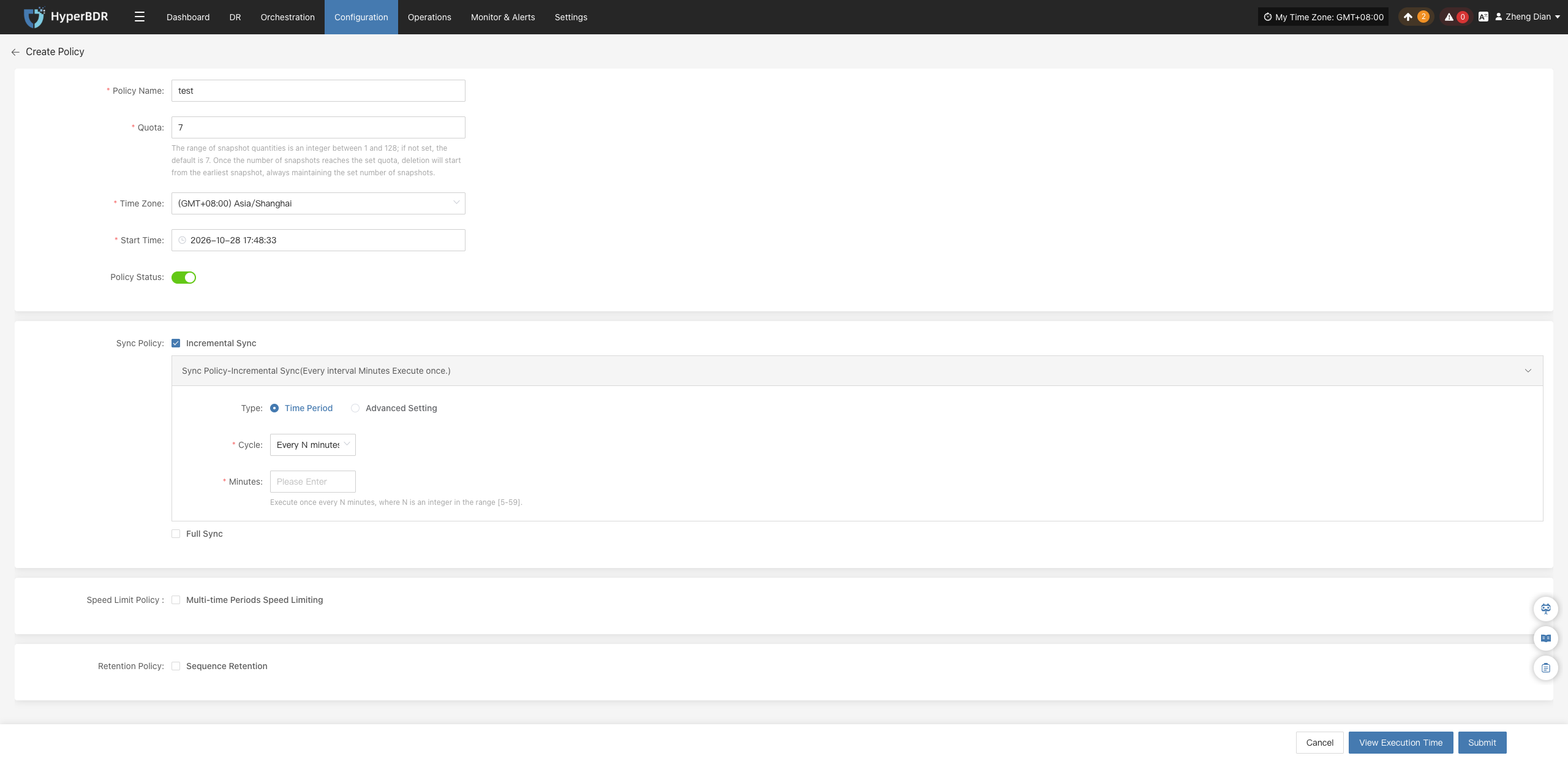
Basic Information Parameters
| Parameter | Description |
|---|---|
| Policy Name | Unique identifier for the policy. It is recommended to name it according to business systems or application levels. |
| Quota | Maximum number of snapshot replicas retained on the target end. When exceeded, snapshots will be automatically rotated and purged based on the retention policy. |
| Policy Status | Default operational status after creation (Enable / Disable). |
Sync Policy
In policy settings, users can configure both Incremental Sync and Full Sync modes to build flexible data synchronization plans.
Note
Incremental sync and full sync can be configured in parallel. To ensure smooth task execution, it is recommended to plan execution schedules reasonably to avoid schedule overlap causing network and storage I/O resource contention.
Incremental Sync
Incremental sync continuously replicates source changes at defined cycles after initial full backup, achieving lightweight, low-overhead continuous data protection. Two scheduling types are supported:
1. Time Period Mode
Trigger incremental sync tasks at fixed time intervals.
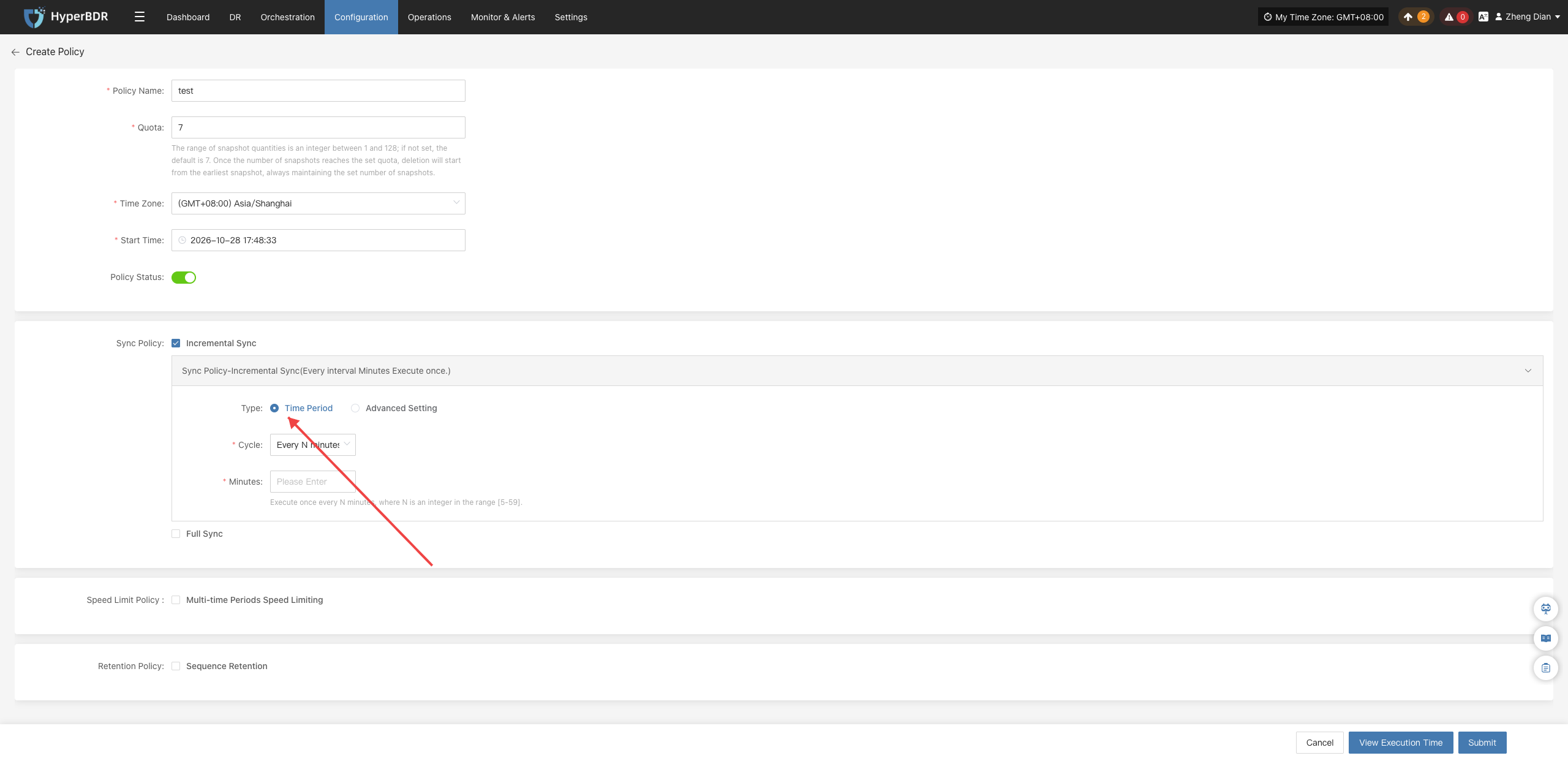
| Parameter | Example Value | Description |
|---|---|---|
| Type | Time Period | Basic periodic scheduling mode. |
| Cycle | Every N minutes | Triggers cyclically at fixed time intervals. |
| Minutes | 30 | Execution interval, valid range is an integer between 5 and 59. |
| Start Time | 2025-05-27 00:00:00 | Effective time of the first execution, followed by cycles based on this time. |
| Time Zone | (GMT+08:00) Asia/Shanghai | Reference time zone for task scheduling. Setting it explicitly avoids deviations. |
2. Advanced Setting Mode (Crontab)
Use standard 5-field Crontab expressions to configure flexible and complex timing rules.
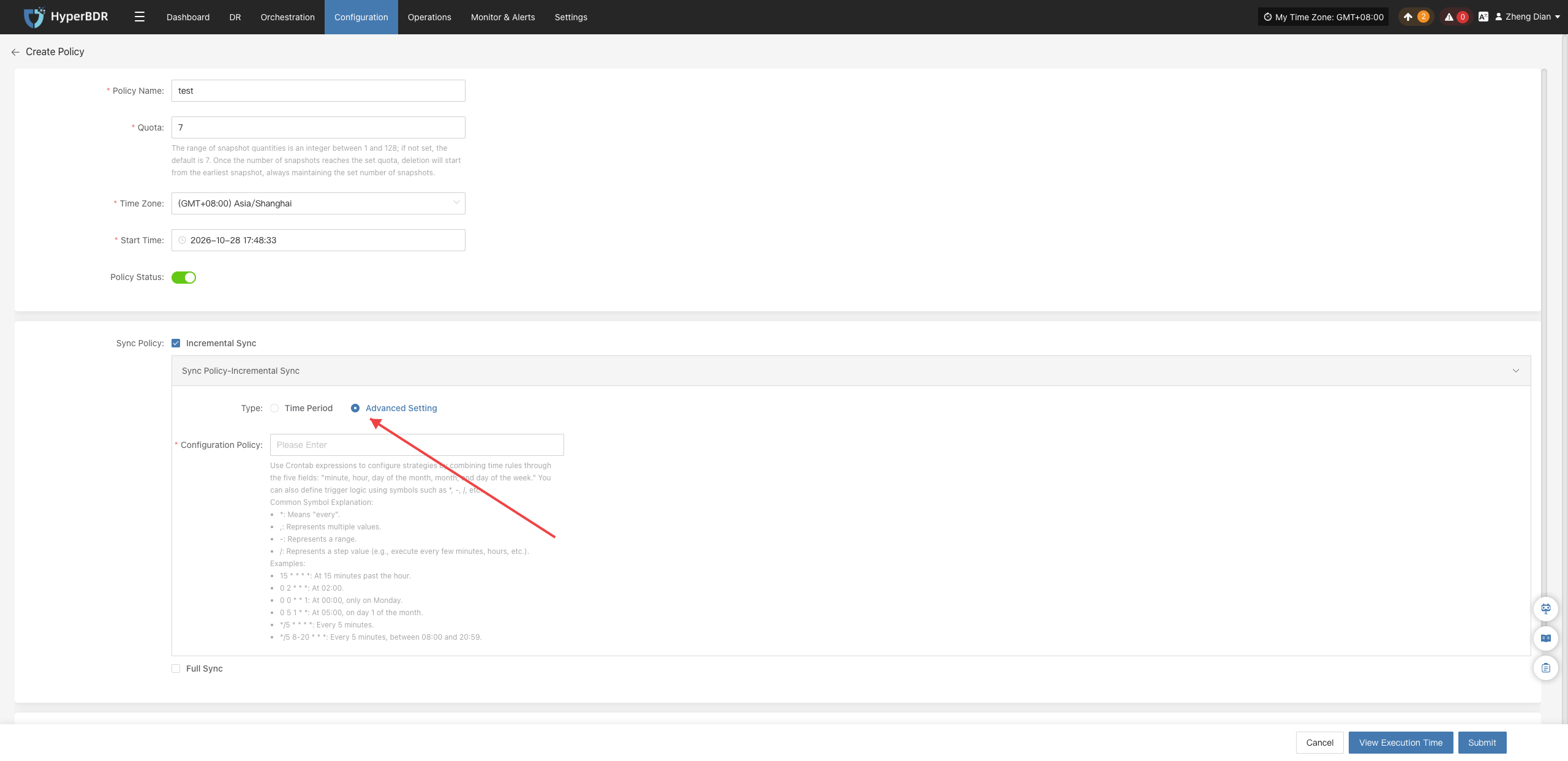
| Parameter | Example Value | Description |
|---|---|---|
| Type | Advanced Setting | Use Crontab expressions to customize complex scheduling rules. |
| Configuration | */30 * * * * | Combine time rules using five fields: minute, hour, day, month, weekday. Common Wildcards: • *: Every point in time;• ,: Enumerate multiple values;• -: Continuous range;• /: Step value (e.g., every N minutes/hours).Common Expression Examples: • 15 * * * *: Triggers at minute 15 of every hour;• 0 2 * * *: Runs daily at 2:00 AM;• 0 0 * * 1: Runs every Monday at 0:00 AM;• 0 5 1 * *: Runs on the 1st of every month at 5:00 AM;• */5 * * * *: Runs every 5 minutes;• */5 8-20 * * *: Runs every 5 minutes during working hours (8:00–20:00). |
| Start Time | 2025-05-27 00:00:00 | Base effective time for the policy. |
| Time Zone | (GMT+08:00) Asia/Shanghai | Reference time zone for scheduling. |
Full Sync
Full sync performs a complete data baseline synchronization for the source host. Since full sync reads the entire disk and consumes relatively high network bandwidth, it is usually recommended to schedule it during off-peak business hours.
1. Time Period Mode
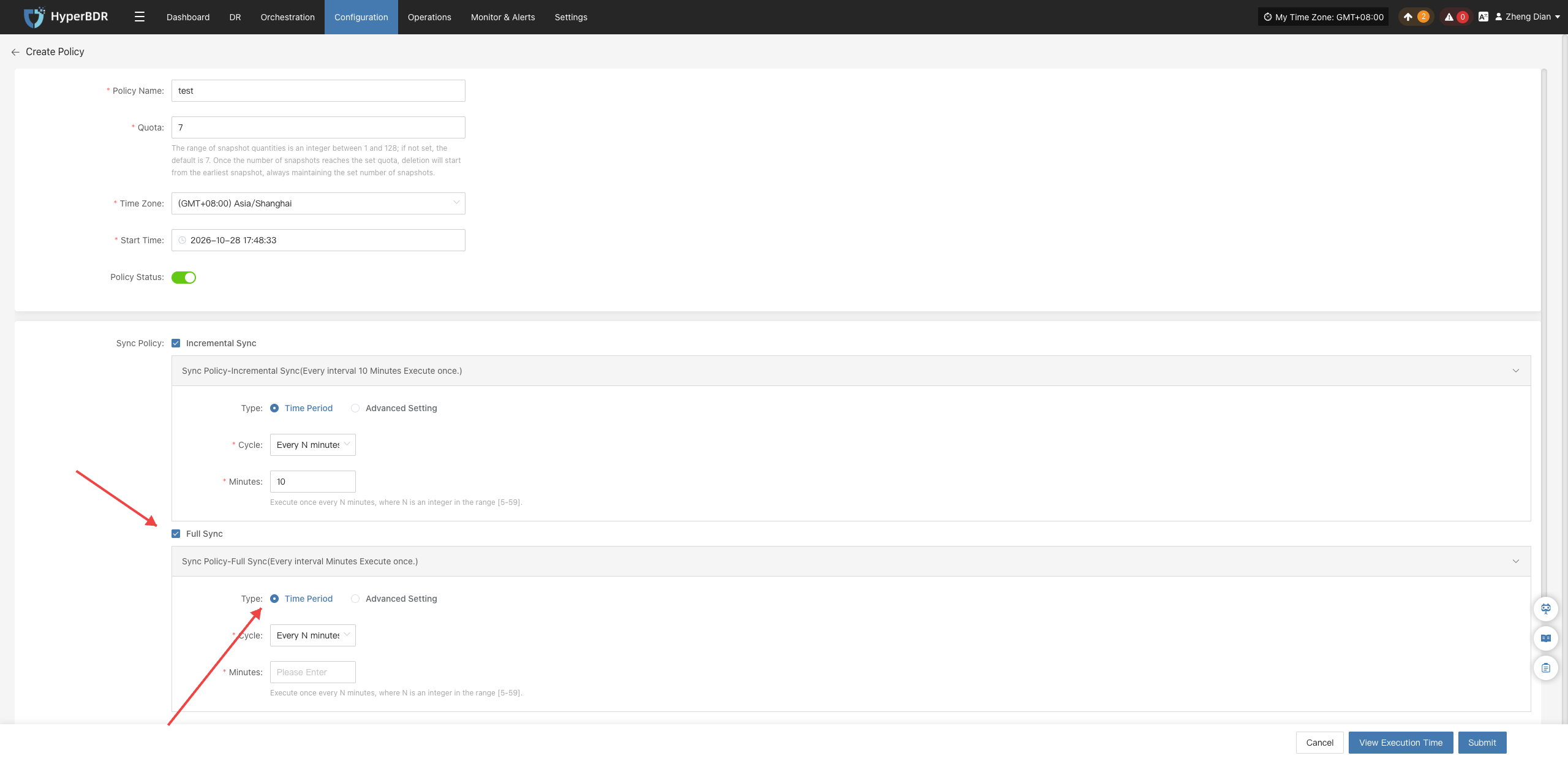
| Parameter | Example Value | Description |
|---|---|---|
| Type | Time Period | Schedules full sync tasks at fixed intervals. |
| Cycle | Every N minutes | Recurrence interval setting. |
| Minutes | 30 | Valid range is an integer between 5 and 59. |
| Start Time | 2025-05-27 00:00:00 | Scheduled effective time for full sync. |
| Time Zone | (GMT+08:00) Asia/Shanghai | Reference time zone for scheduling. |
2. Advanced Setting Mode (Crontab)
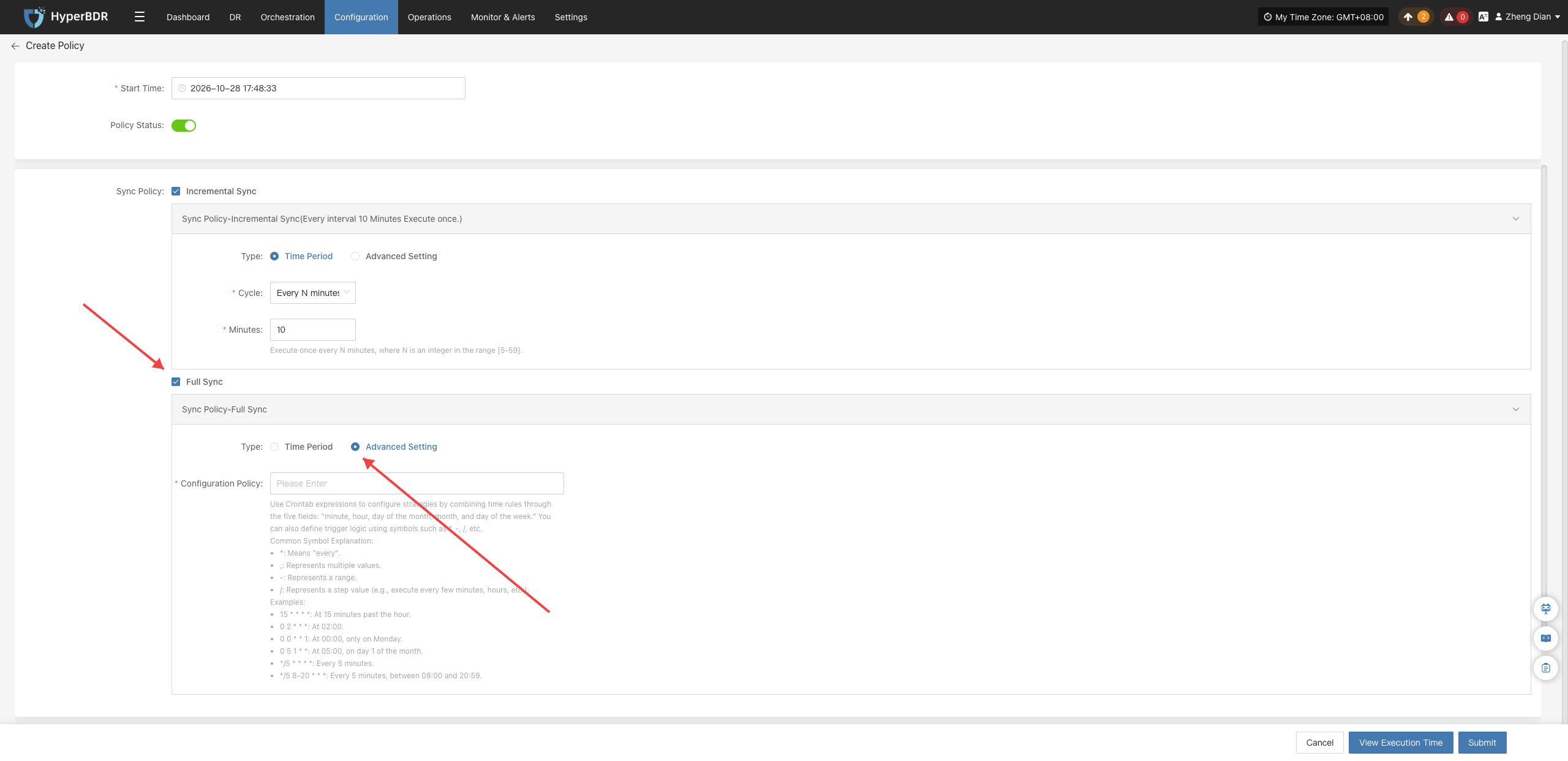
| Parameter | Example Value | Description |
|---|---|---|
| Type | Advanced Setting | Use Crontab expressions to customize full sync schedules. |
| Configuration | */30 * * * * | Executes according to standard Crontab rules (syntax identical to incremental advanced mode). |
| Start Time | 2025-05-27 00:00:00 | Effective time for the plan. |
| Time Zone | (GMT+08:00) Asia/Shanghai | Reference time zone for scheduling. |
View Execution Time
After configuring sync policy parameters, users can click the 【View Execution Time】 button at the bottom of the dialog. The system will automatically calculate upcoming execution timestamps based on the start time, interval minutes, or Crontab expression, making it easy to verify scheduling logic before saving.
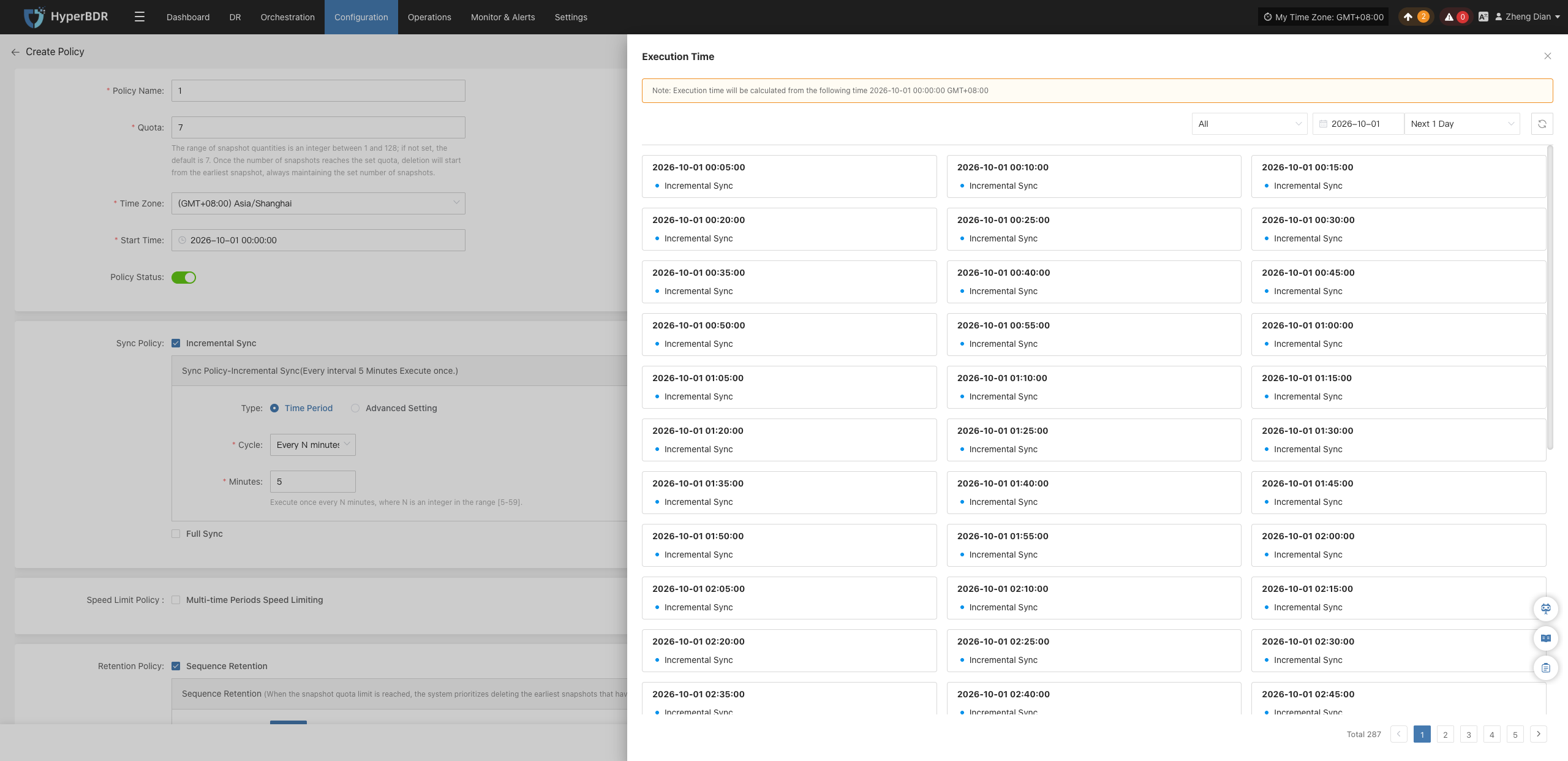
Speed Limit Policy
The speed limit policy allows users to set independent bandwidth caps for sync tasks across different time periods, preventing DR replication traffic from overwhelming daytime production network bandwidth.
Tips
Configuring multiple speed limit rules across different time periods within the same cycle is supported; switching the cycle type will reset and clear existing time period configurations.
Multi-time Periods Speed Limiting
Check to enable multi-period speed limiting, allowing you to configure host transmission bandwidth limits for different time slots.
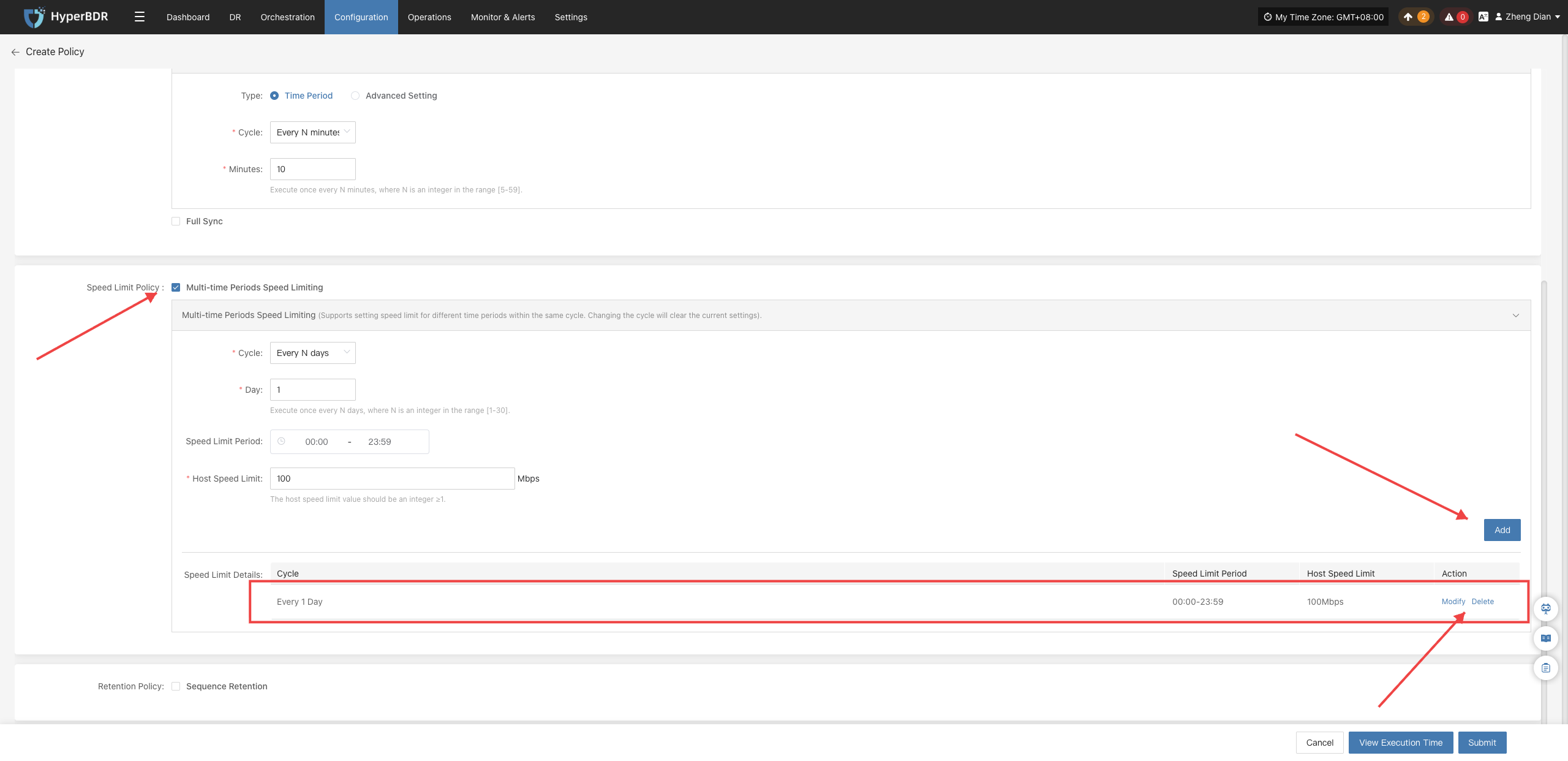
| Parameter | Example Value | Description |
|---|---|---|
| Cycle | Every N days / Weekly / Monthly | Recurrence cycle type for speed limits, supporting daily intervals, designated weekdays, or specific days of the month. |
| Days | 1 | When the cycle is "Every N days", represents the interval frequency, ranging from [1–30] as an integer. |
| Date | Monday, Wednesday | When the cycle is "Weekly", designates specific weekdays (supports multi-selection). |
| Date | Day 5 | When the cycle is "Monthly", designates specific calendar days of the month (supports multi-selection). |
| Speed Limit Time | 00:00 - 23:59 | Active time interval within a single day for this speed limit rule. |
| Time Zone | (GMT+08:00) Asia/Shanghai | Reference standard time zone for the speed limit interval. |
| Host Speed Limit | 10 Mbps | Maximum bandwidth limit for the host during sync, measured in Mbps. |
| Speed Limit Details | (Table summary) | After adding parameters, all active time-period speed limit rules will be summarized and displayed here. |
Retention Policy
Retention policies manage the lifecycle of target storage replicas, preventing unbounded data growth from exhausting storage resources.
Caution
When configuring retention policies, ensure the target storage has sufficient quota to support creating new snapshots. Snapshot creation failures may cause sync tasks to abort.
Sequence Retention
The system retains the latest copies according to the chronological sequence of sync backups. When the number of snapshots exceeds the set quota, older historical replicas are automatically pruned and reclaimed.
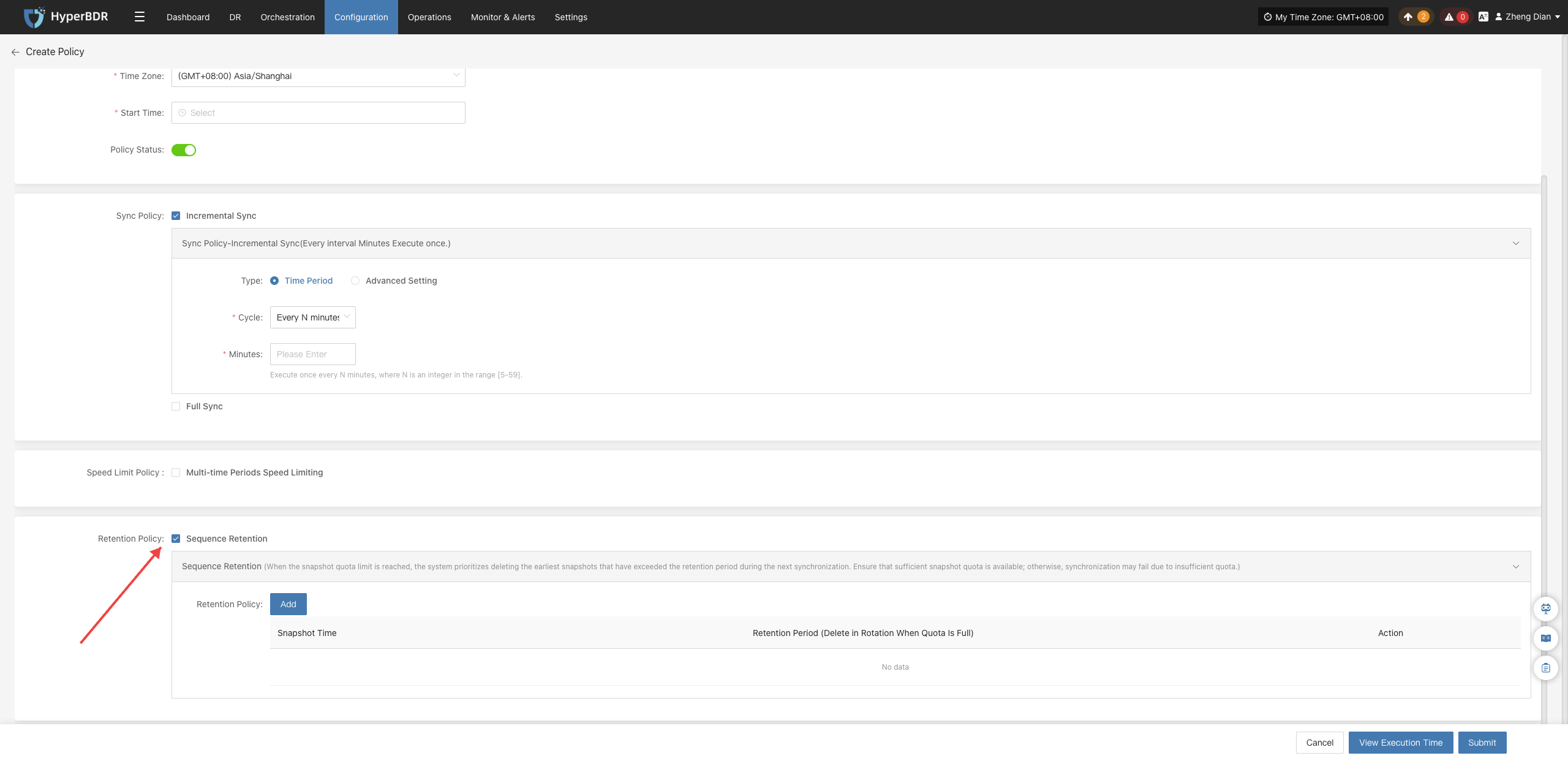
Sequence Retention Parameter Description
Users can flexibly configure the number of snapshot replicas across four time granularities: day, week, month, and year:
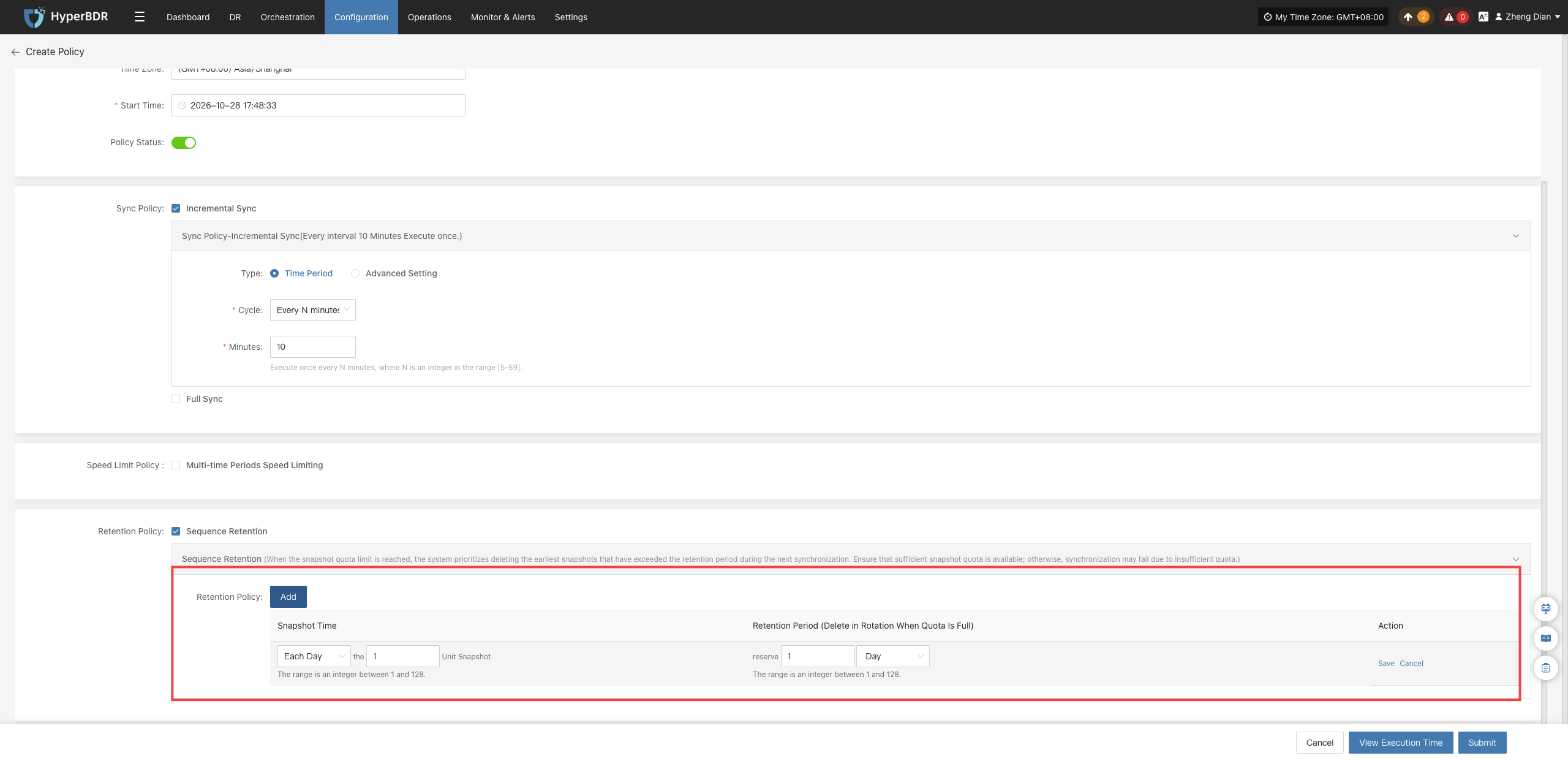
Note
The minimum retention count for each granularity is 1, and the maximum does not exceed 129. The system intelligently consolidates redundant backups to ensure the specified number of optimal recovery points is retained across granularities.
Action
In the Policy Settings list, select the checkbox before the target policy record, and click the 【Action】 dropdown button above the table to perform the following management operations:
Modify
When you need to adjust the policy name, snapshot quota, or sync schedule, use the modify feature:
- In the policy list, check the target policy and click 【Action】>【Modify】.
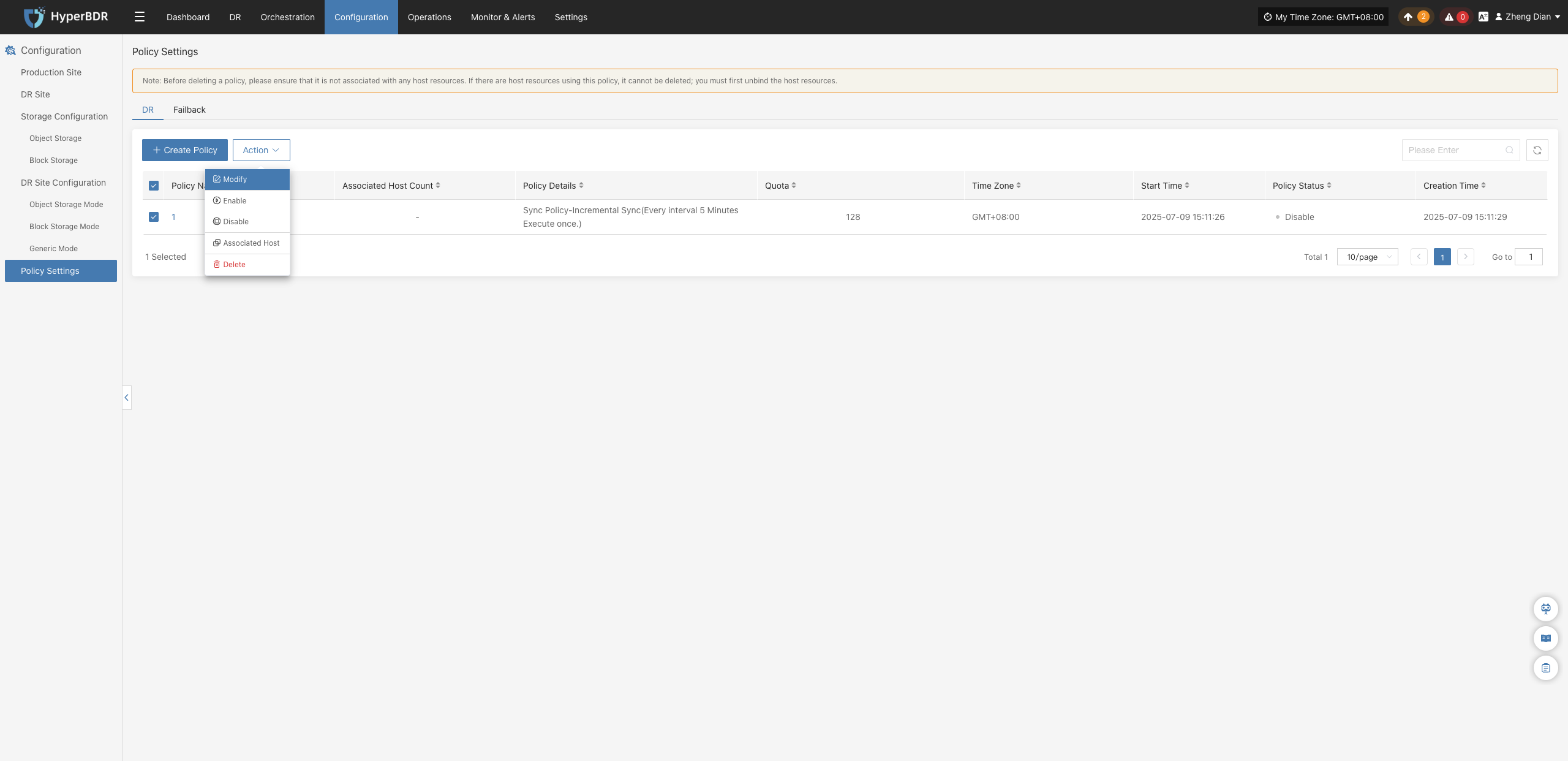
- In the popup Edit Policy dialog, adjust parameters as needed, and click 【Submit】 to save changes.
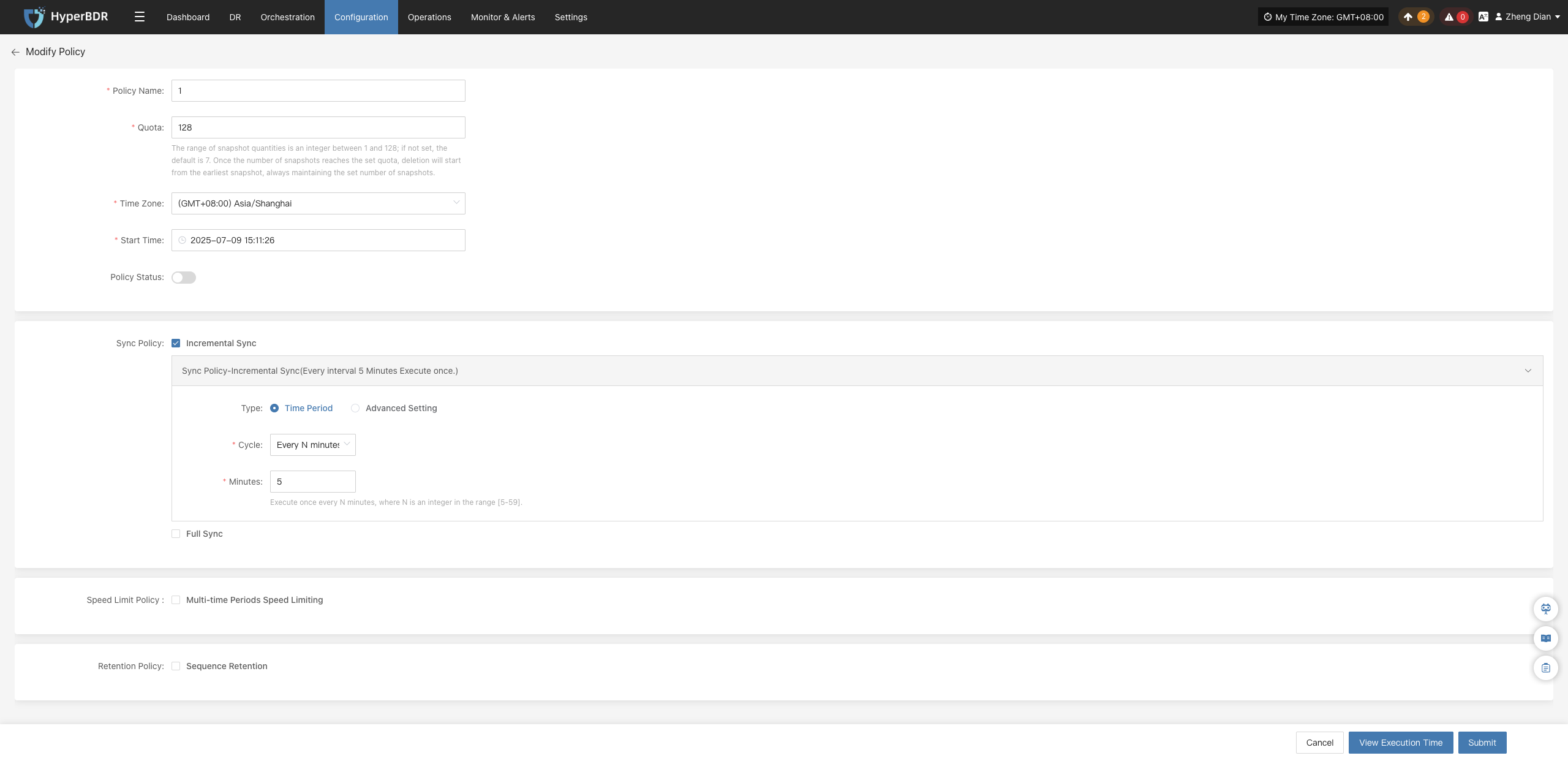
Enable
When a policy is disabled and needs to be reactivated:
- Select the checkbox for the target policy.
- Click 【Action】>【Enable】. The policy status will immediately switch to "Enable", resuming execution according to the schedule.
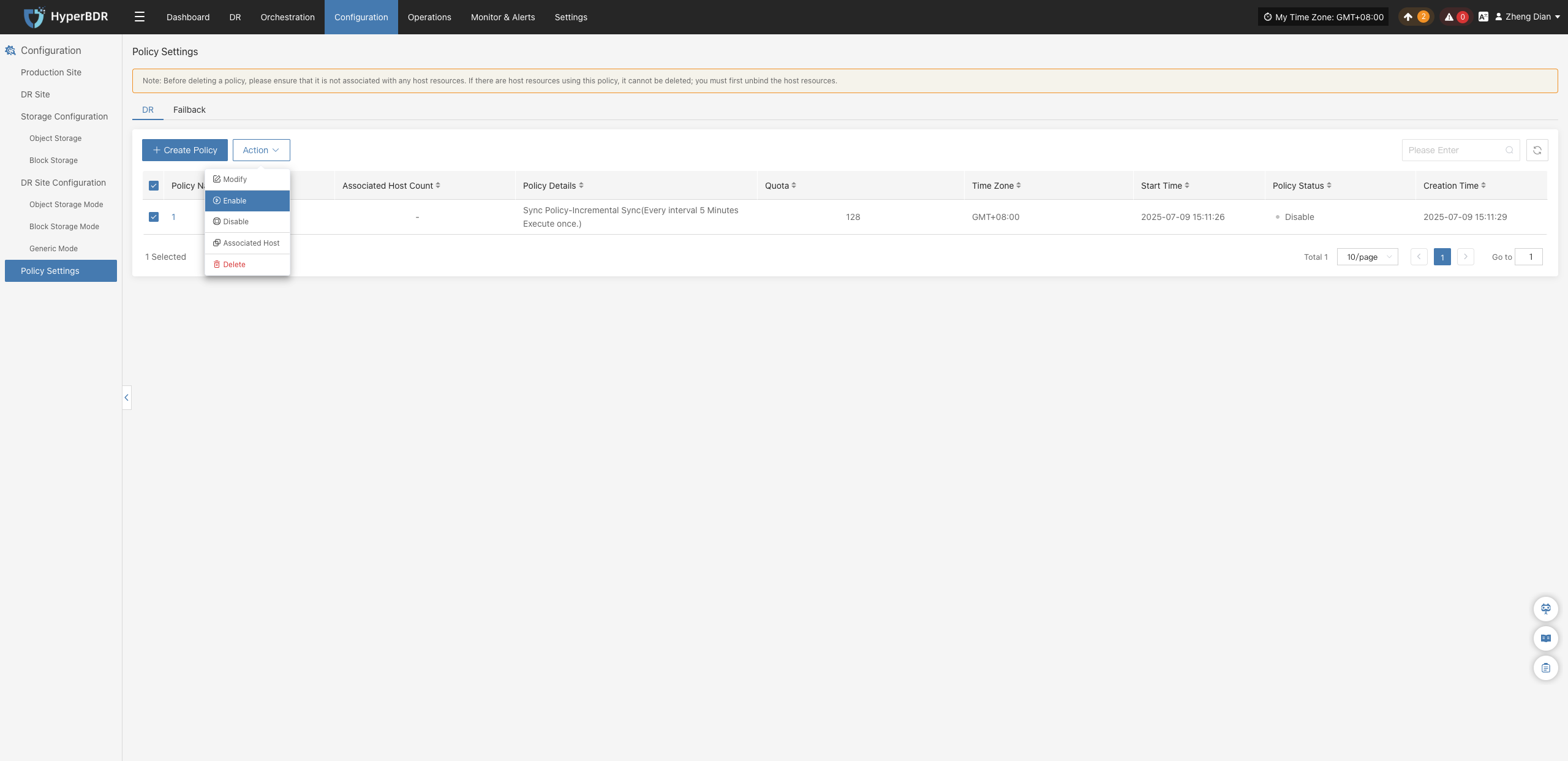
Disable
When you need to temporarily suspend scheduled tasks (e.g., during source maintenance or network inspection):
- Select the checkbox for the target policy.
- Click 【Action】>【Disable】. All scheduled sync and rotation tasks under this policy will pause.
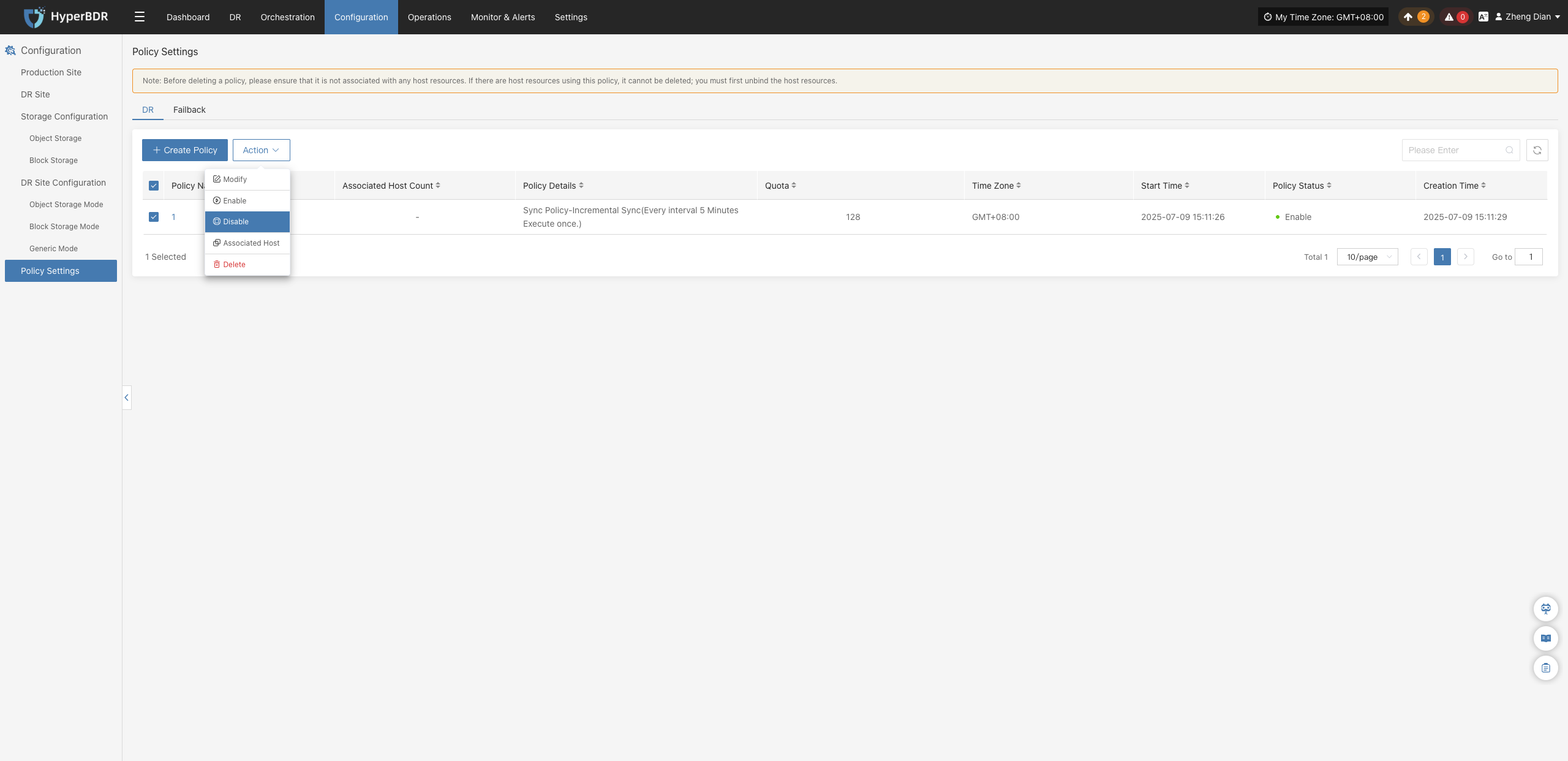
Associated Host
Batch-bind host resources that need protection under this policy:
- Select the checkbox for the target policy, and click 【Action】>【Associated Host】.
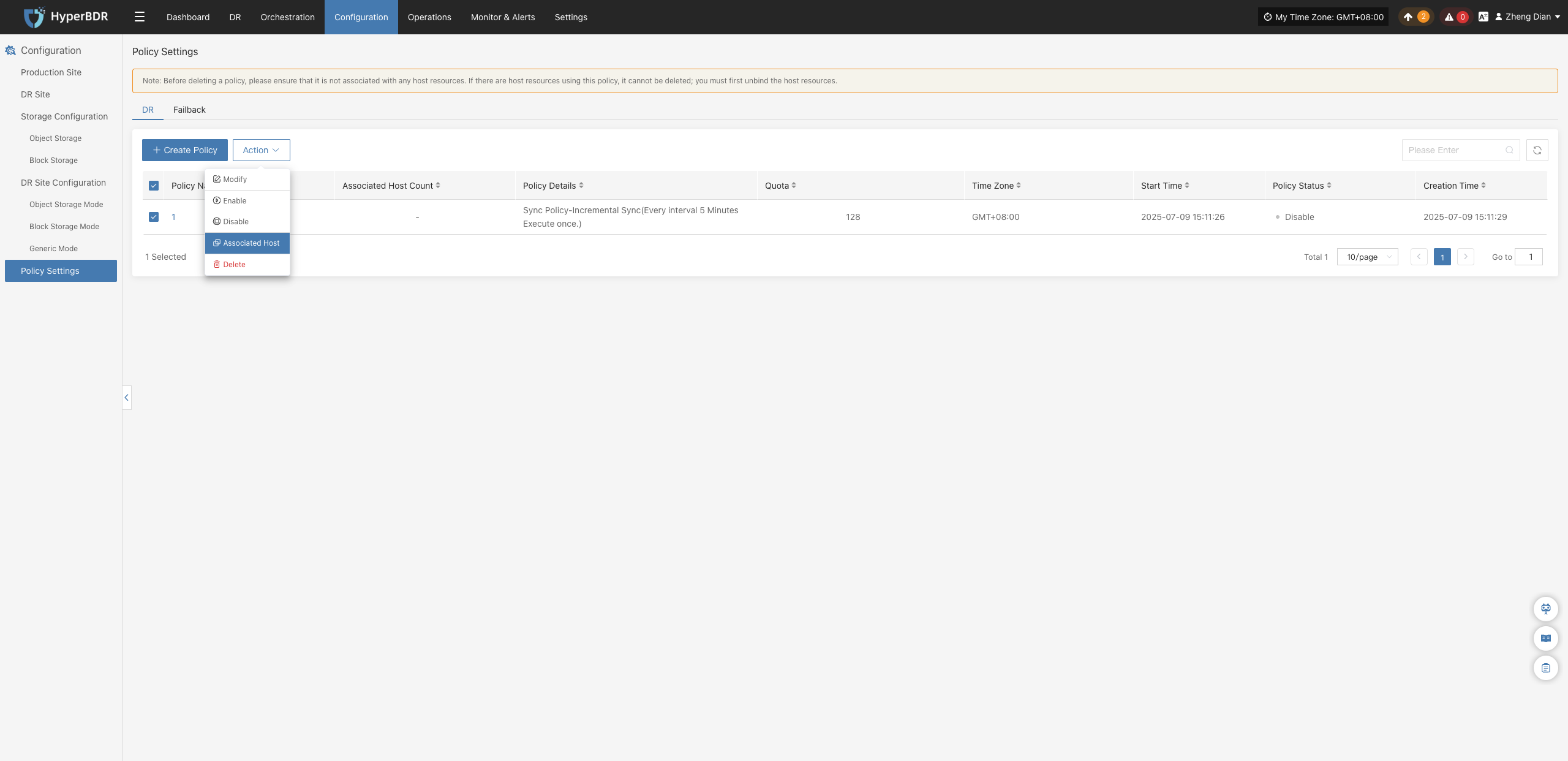
- In the popup Associated Host dialog, check the target hosts to protect, and click 【Submit】 to complete binding.
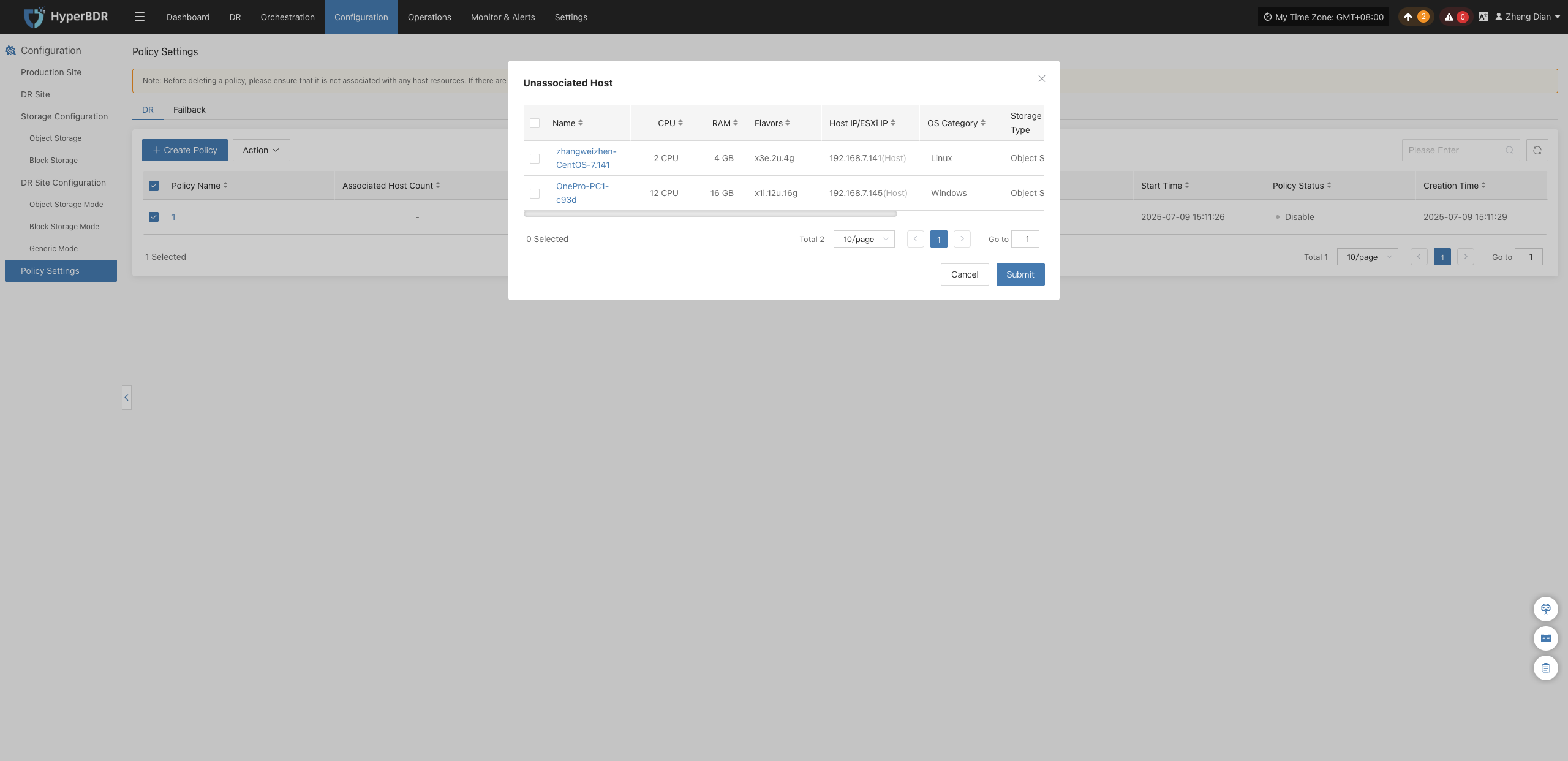
Delete
To permanently remove a policy configuration:
- Select the checkbox for the target policy, and click 【Action】>【Delete】.
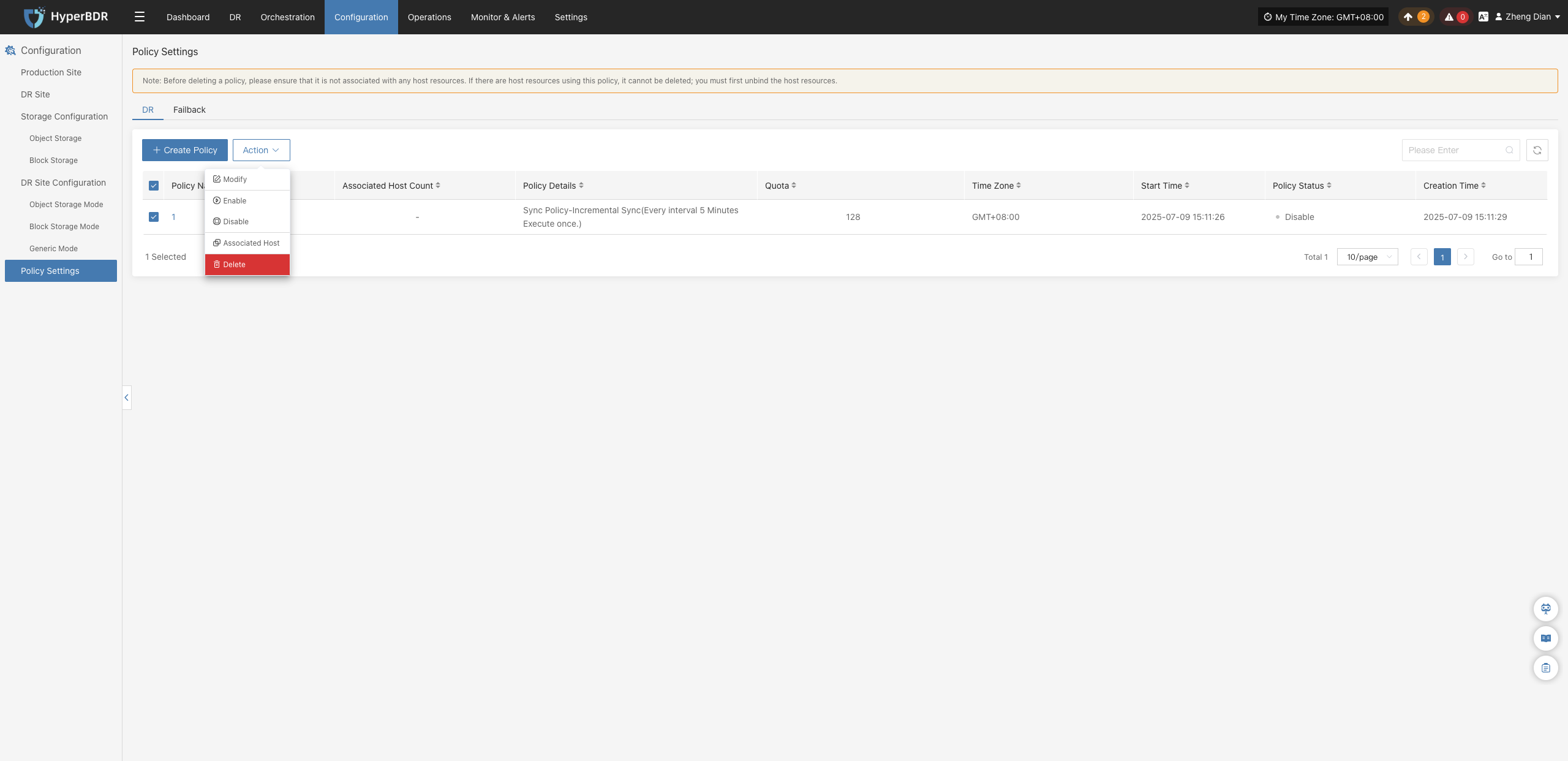
- A secondary confirmation alert dialog will appear. After verifying details, click 【Confirm】 to complete removal.
Warning
Before deleting a policy, ensure that no host resources are associated with this policy. If any hosts are currently using this policy, the system will intercept the deletion; you must unbind the hosts first before deleting.
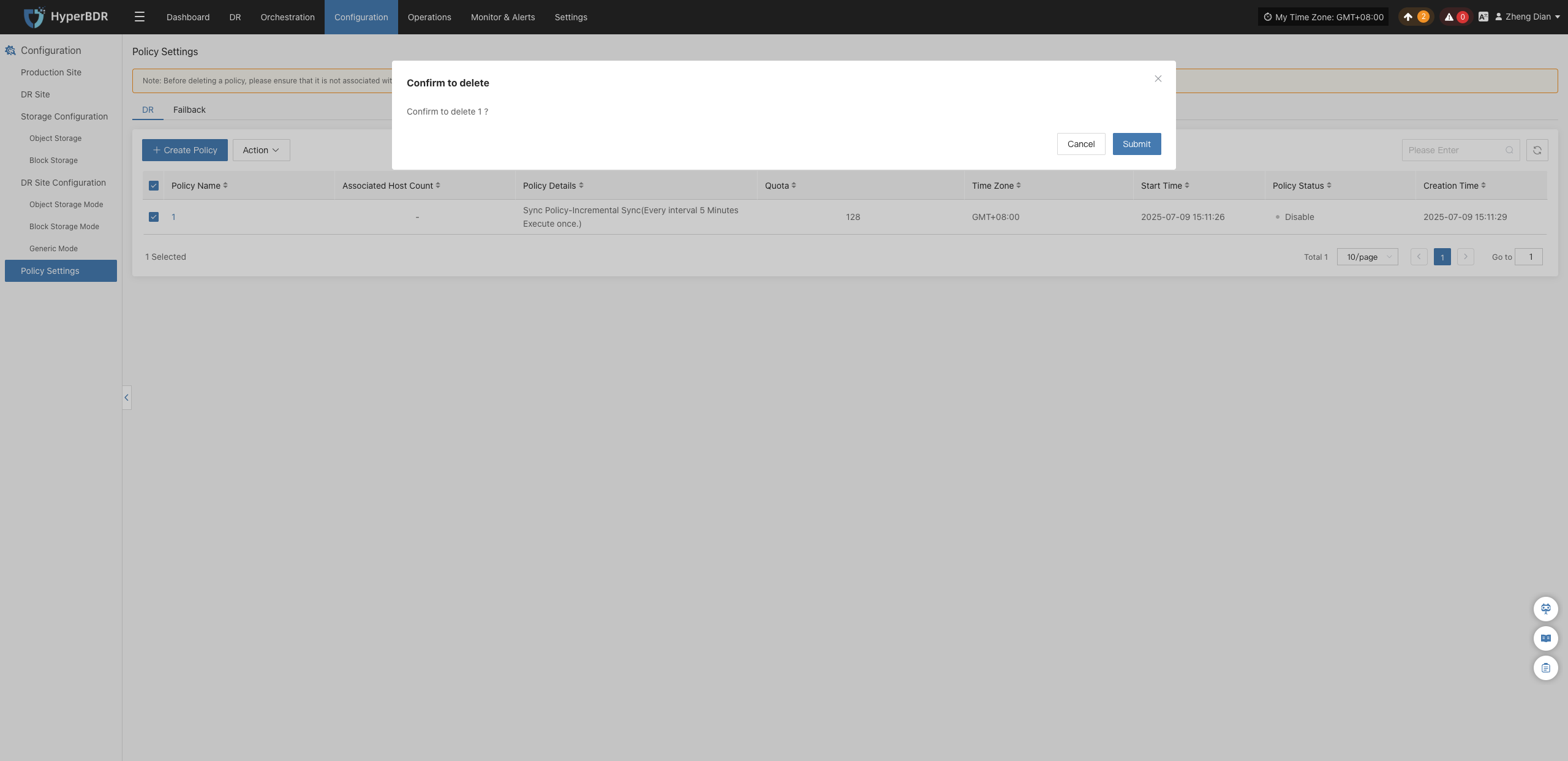
Policy Setting Details
Click any Policy Name in the policy list. The policy details drawer will slide out from the right, allowing users to verify configurations and association relationships.
Overview
On the 【Overview】 tab of the details drawer, you can view comprehensive summary information including basic configurations, sync modes (incremental/full), speed limit schedules, and snapshot quotas.
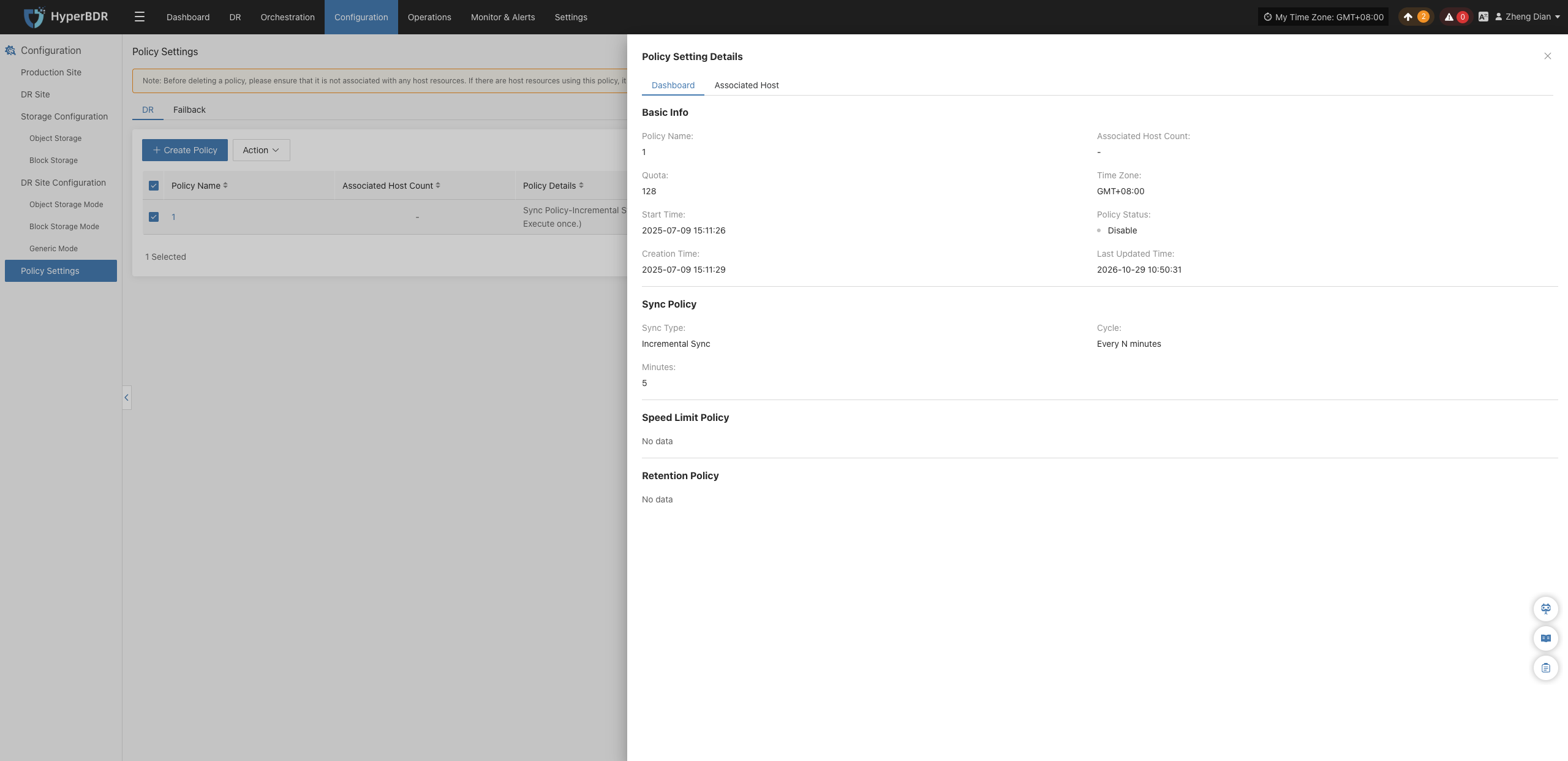
Associated Host
Switch to the 【Associated Host】 tab to inspect the complete list of hosts currently protected by this policy, including host names, IP addresses, platform types, and other details.
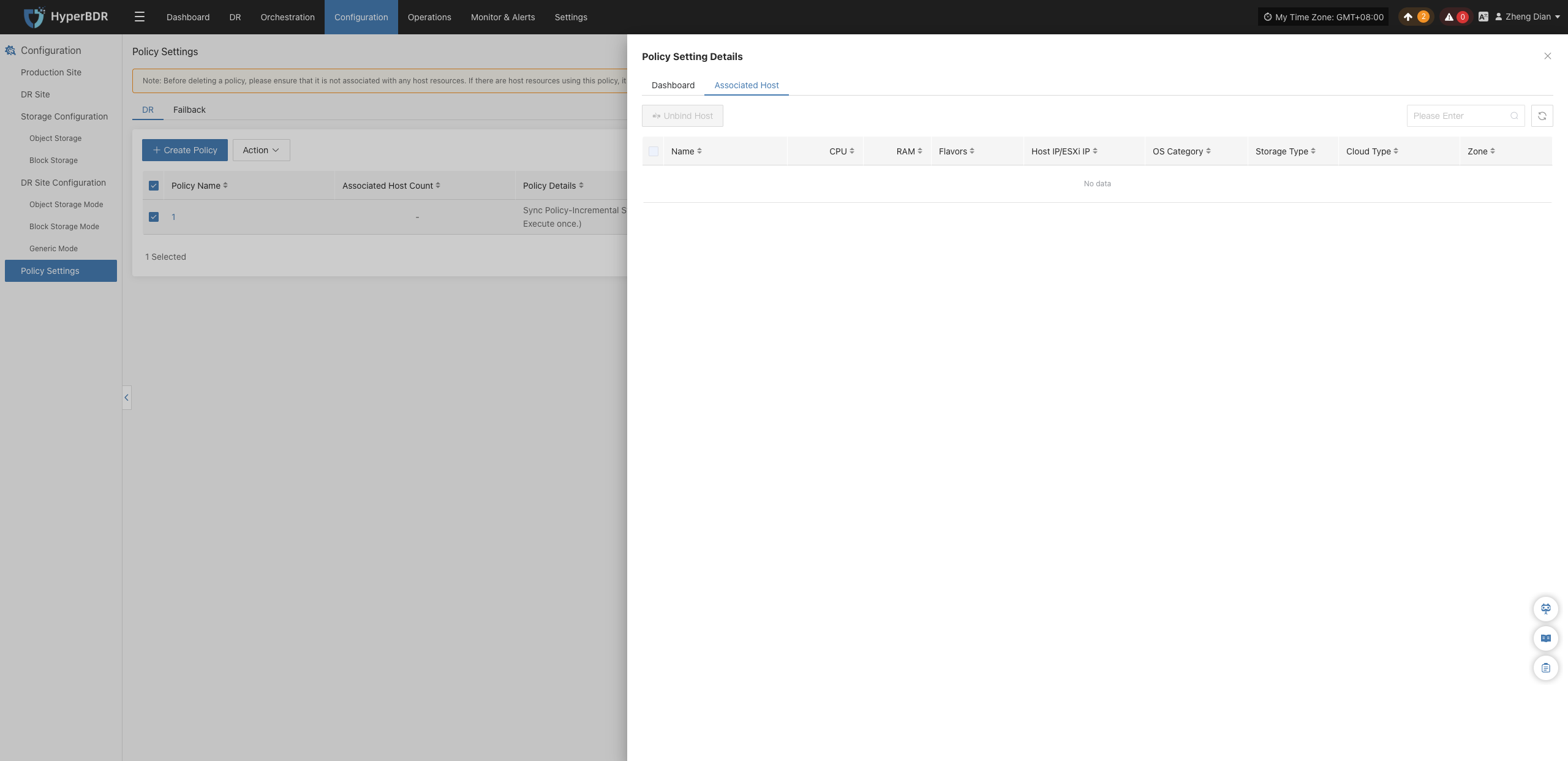
Unbind Host
If a host needs to change protection policies or no longer requires disaster recovery protection, you can unbind it here:
- In the Associated Host list, select the checkbox of the host to unbind.
- Click the 【Unbind Host】 button above the table, confirm the action in the popup prompt, and the host will be safely unbound from the current policy.
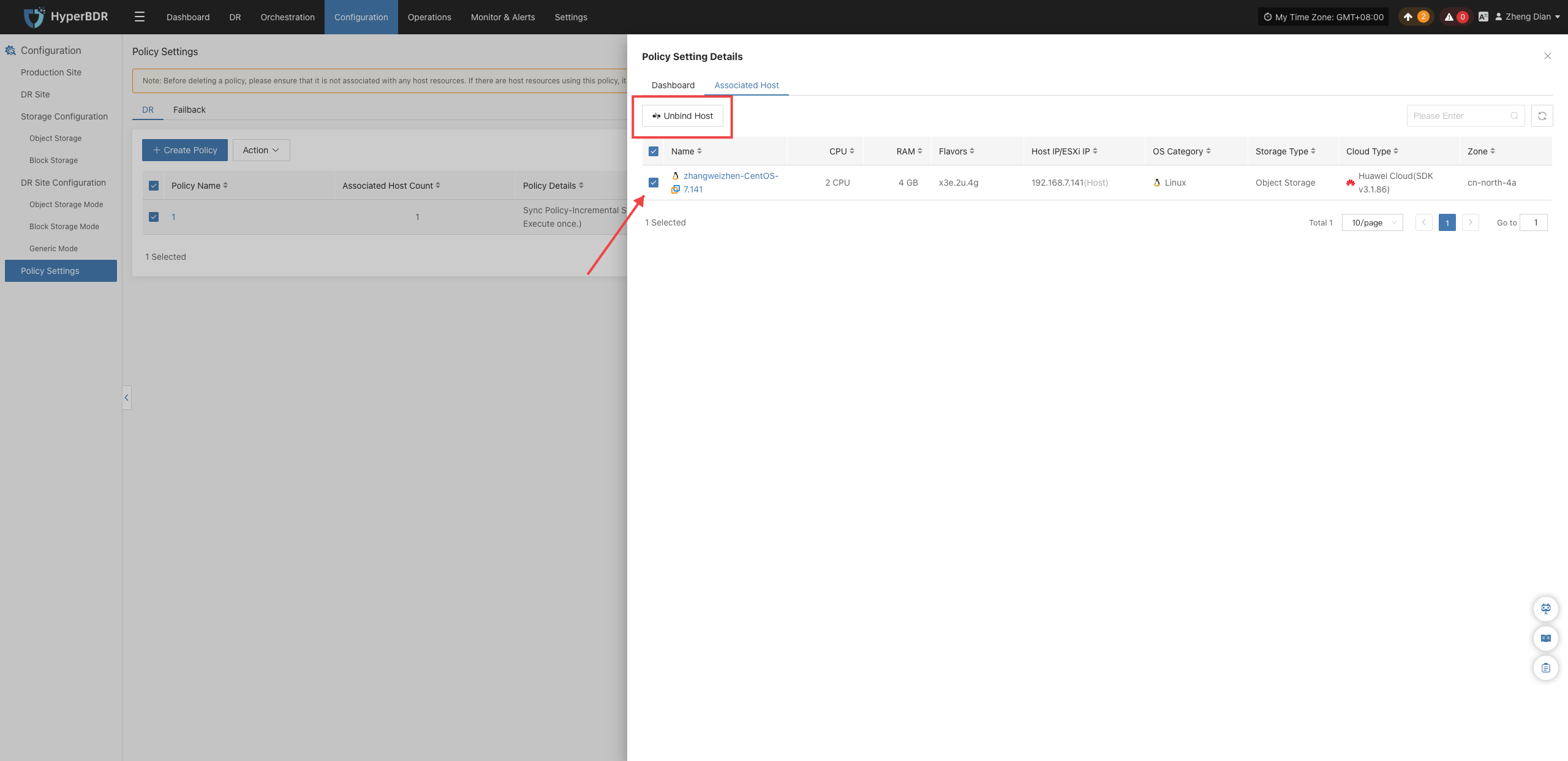
Operations
Event Logs
Event logs are used to record various user operations and critical system events across the entire lifecycle of daily operations, disaster recovery protection, drill & takeover, and business failback. They help operations personnel track activities, perform security and compliance audits, and troubleshoot issues. The system provides two log views: 【DR】 and 【Failback】, which share identical features and operational workflows.
Log in to the HyperBDR console, and navigate to 【O&M Management】>【Event Logs】 from the top navigation bar. The page defaults to the 【DR】 tab, and you can switch to the 【Failback】 tab as needed to review reverse failback operations.
Log Retrieval and Filtering
The event log list supports multi-dimensional combined search. Administrators can quickly filter and locate target log entries using the top filter bar:
- Resource Type: Filter by resource category involved in the operation (e.g., User Resource, DR Host Resource, Production Site Resources, etc.).
- Message Name: Enter keywords to search for specific operations (e.g., login, sync host, create policy, etc.).
- Resource Name: Enter the target resource name for precise matching.
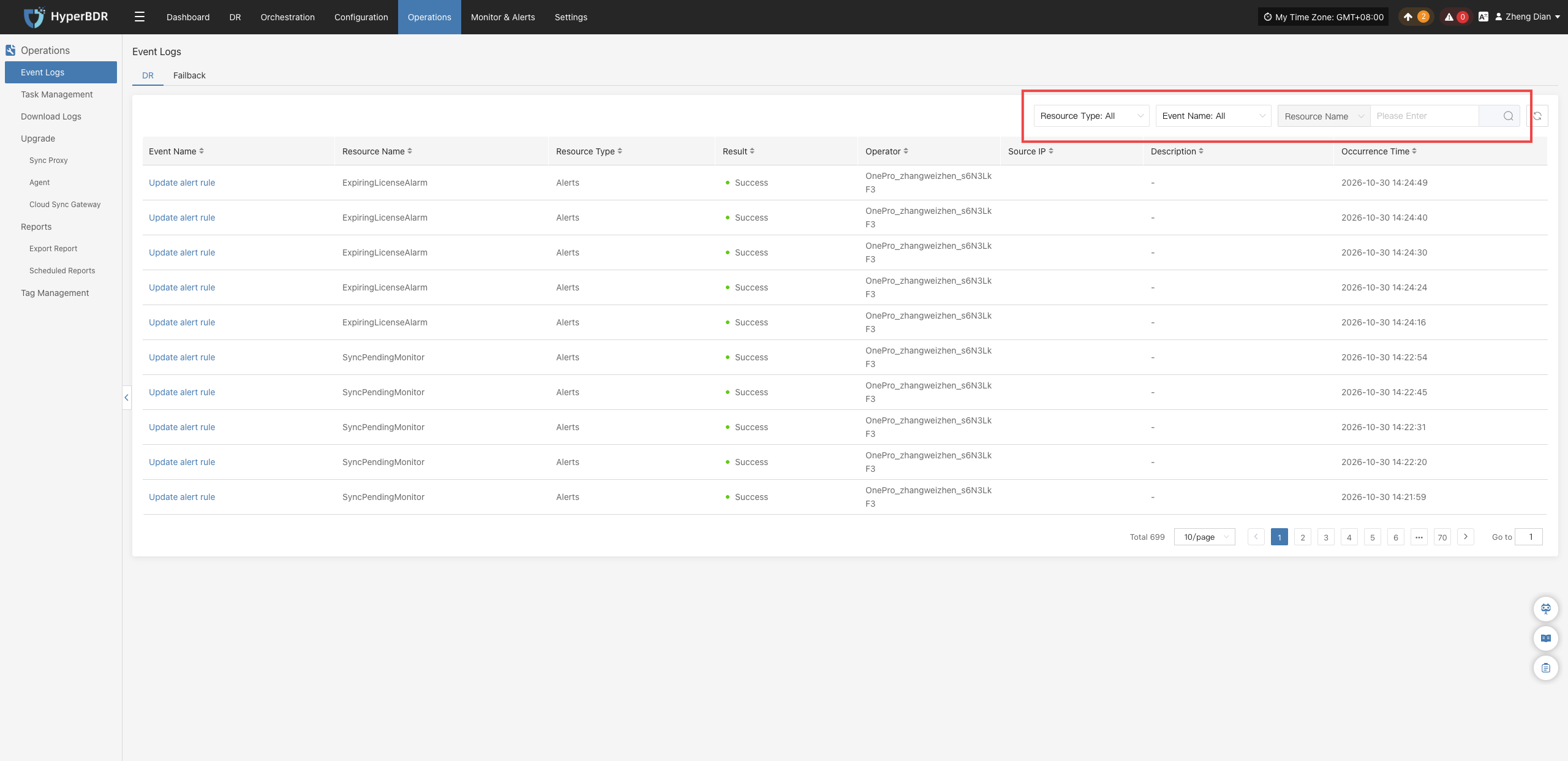
Field and Type Descriptions
Event Log Field Descriptions
Each record in the event log list includes the following fields:
| Field Name | Example | Description |
|---|---|---|
| Message Name | Login | The specific type of audit event triggered (click to view event details). |
| Resource Name | admin | The user or associated resource name that triggered the event. |
| Resource Type | User Resource | The system resource category involved in the audit event. |
| Event Result | Success | The final status of the operation, such as "Success" or "Failure". |
| Source IP | 172.30.1.33 | The client IP address that initiated the operation, facilitating security traceability. |
| Description | Login with username and password | Brief contextual description of the operation. |
| Occurrence Time | 2025-05-23 09:54:10 | The exact timestamp recorded by the system for the operation event. |
View Log Details
Click the specific Message Name in the list to open the operation details window, which displays the full execution context and extended information for the event.
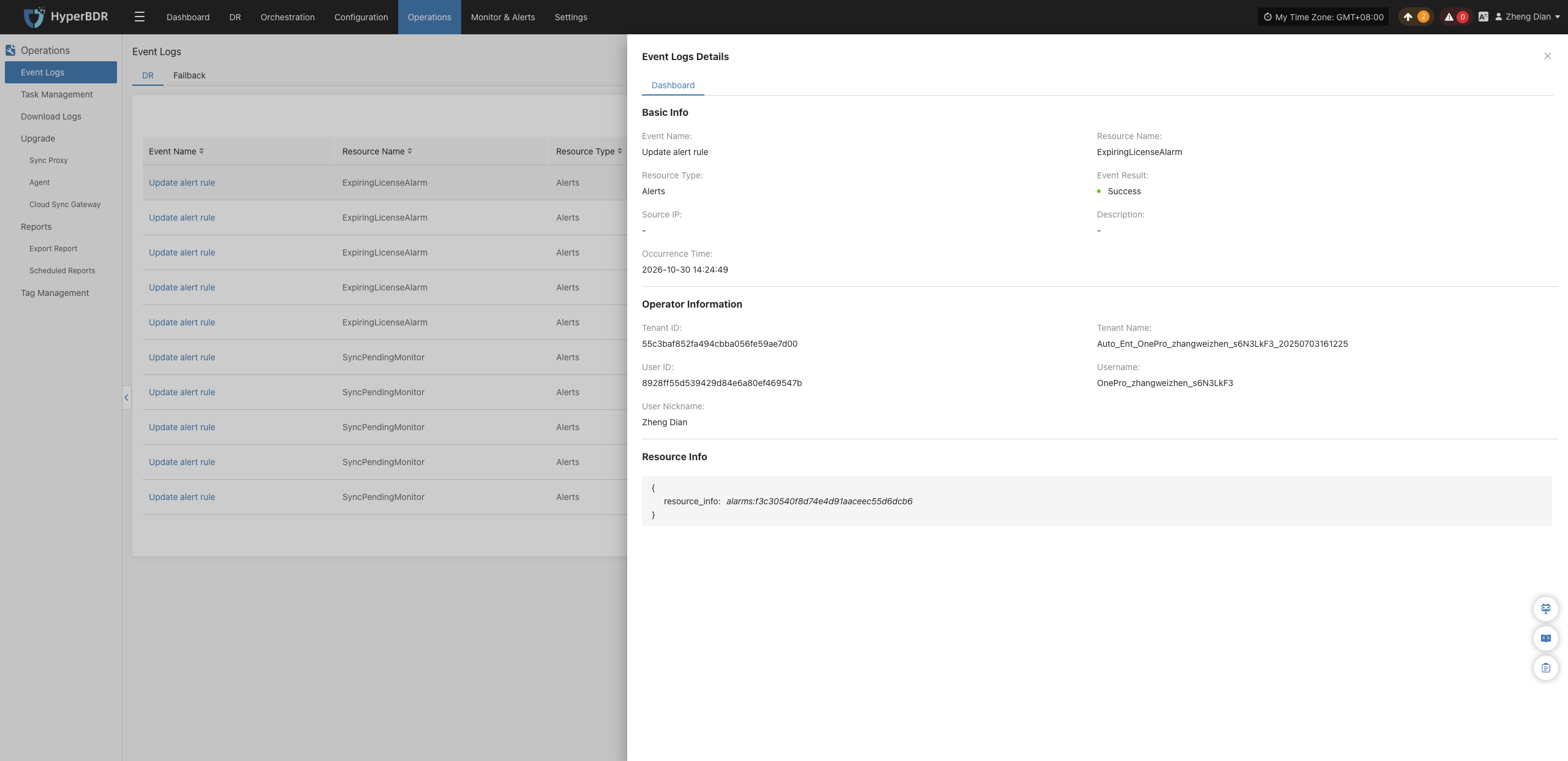
Resource Type Descriptions
The resource type classifications used in the system are defined as follows:
| Resource Type | Description |
|---|---|
| User Resource | Operations related to user accounts and authentication, such as login, logout, password modification, and permission updates. |
| DR Host Resource | Host resources involved in disaster recovery protection, including configuration changes, data synchronization, and status monitoring. |
| License Resource | Management operations and quota status records related to system licensing. |
| Production Site Resources | Agent deployments, node management, and cloud platform connection status changes in production environments. |
| DR Platform Resources | Cloud accounts, cloud sync gateways, and architecture components in the disaster recovery destination environment. |
| Monitoring Alarm | Creation and maintenance operations for alert rules, notification recipients, and other monitoring mechanisms. |
| Resource Group | Logical host resource groupings and orchestration management operations based on business logic. |
| Object Storage | Integration, configuration updates, and capacity events for disaster recovery backup object storage buckets. |
| DR Policies | Creation, association, unbinding, and execution plan modifications for disaster recovery policies. |
Note
Event logs serve as immutable audit trails of system behavior and cannot be manually edited or deleted. The page supports pagination (defaulting to 10 records per page), and you can use the top-right search box for keyword searches.
Task Management
The task management module is used to centrally monitor the execution status of all background asynchronous tasks across daily disaster recovery protection, data snapshots, incremental replication, emergency takeover, and business failback. The system supports real-time task status tracking, combined filtering, and log detail inspection, helping administrators comprehensively grasp execution progress and troubleshoot abnormal results.
The system provides two task views: 【DR】 and 【Failback】, which share identical features and operational workflows. Log in to the HyperBDR console, and navigate to 【O&M Management】>【Task Management】 from the top navigation bar. The page defaults to the 【DR】 tab, and you can switch to the 【Failback】 tab as needed to review reverse failback task execution records.
Task Retrieval and Filtering
Users can select the task type from the dropdown list at the top of the list and enter keywords such as the host name in the search box to query records. You can also use the advanced filter feature to configure more specific filter conditions to accurately locate target tasks:
- Name: Enter keywords to search for the host or resource name associated with the task.
- Task Type: Filter by specific task category (e.g., data synchronization, snapshot creation, host recovery, drill launch, etc.).
- Task Status: Quickly filter by execution status (e.g., All, In Progress, Success, Failed, etc.).
- Time Sorting: Supports sorting in ascending or descending order based on the task start time or end time.
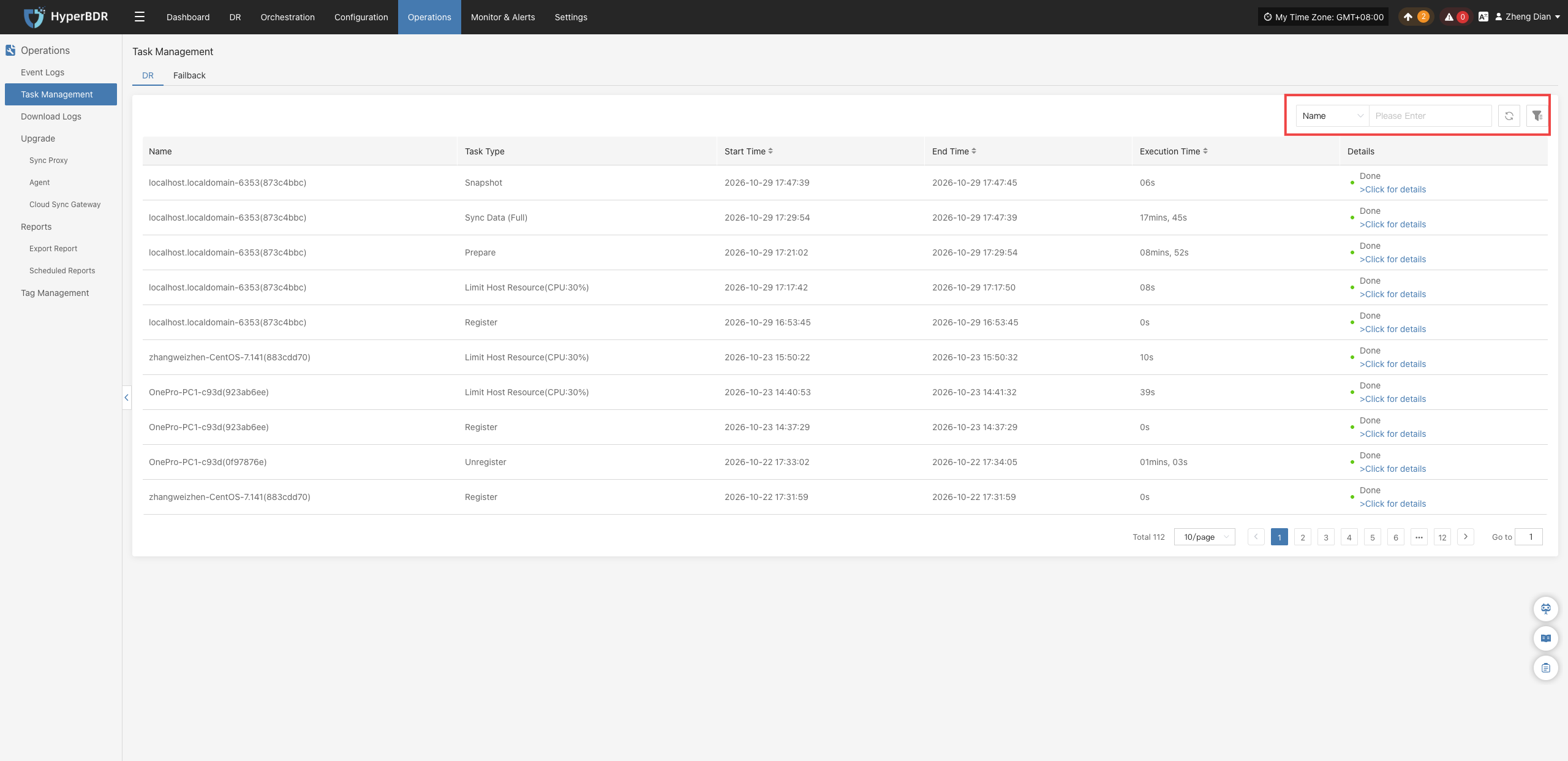
Task List Field Descriptions
Each record in the task list contains the following fields:
| Field Name | Description |
|---|---|
| Name | Displays the host or resource name associated with the executed task. |
| Task Type | Shows the specific type of task, such as registration, snapshot, sync, replica creation, disaster recovery, etc. |
| Start Time | The actual start time when the task was scheduled and initiated by the system. |
| End Time | The time when the task successfully finished, was manually aborted, or encountered an abnormal termination. |
| Execution Time | The total duration elapsed from the start of the task to its completion. |
| Details / Status | Displays the final execution status of the task (e.g., Success, Failed). Click the link to view task details. |
View Task Details
In the "Details" column of the list, click 【View Details】 to open the task details window, which displays the complete execution workflow, step-by-step progress, and detailed error logs.
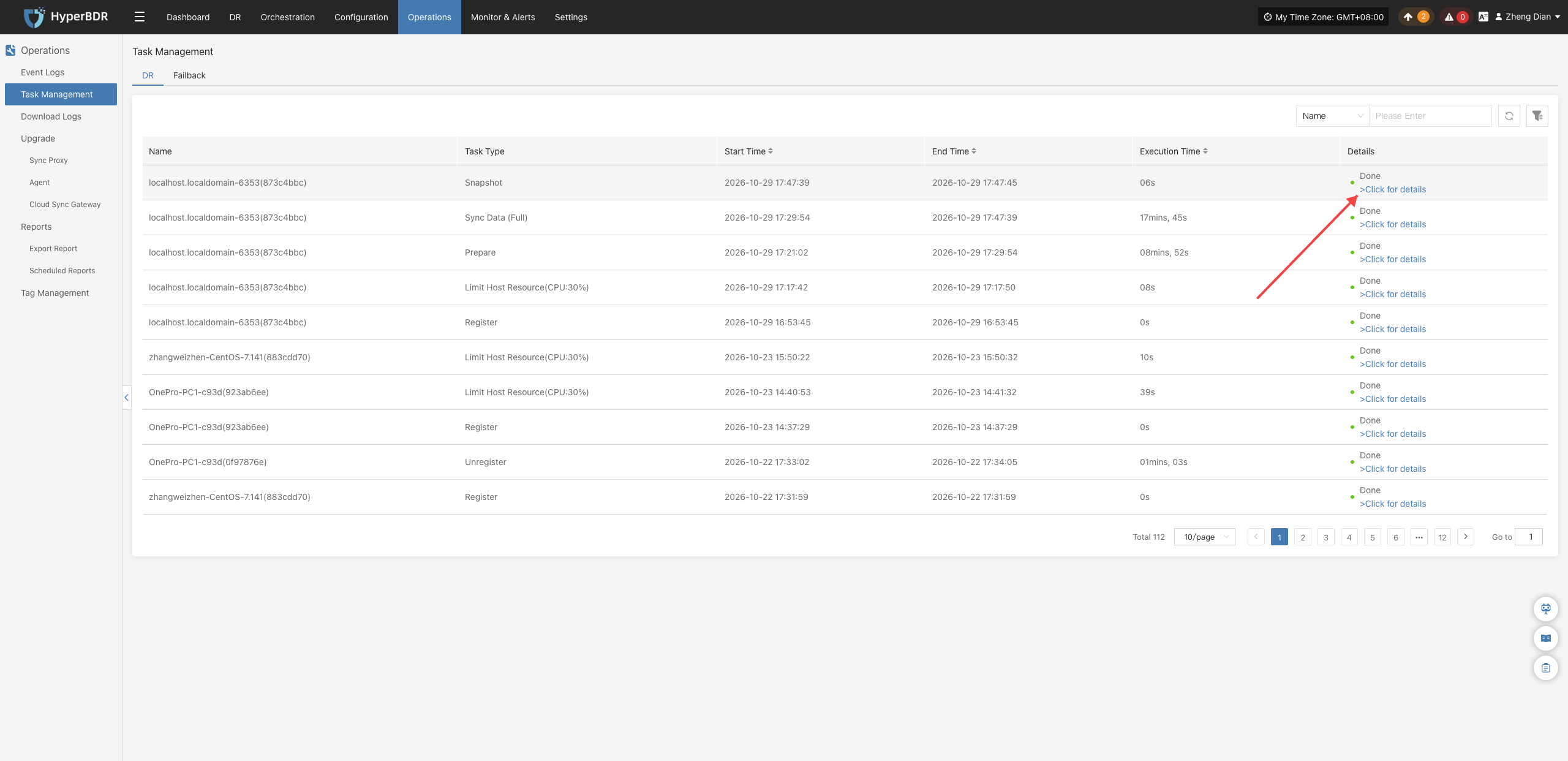
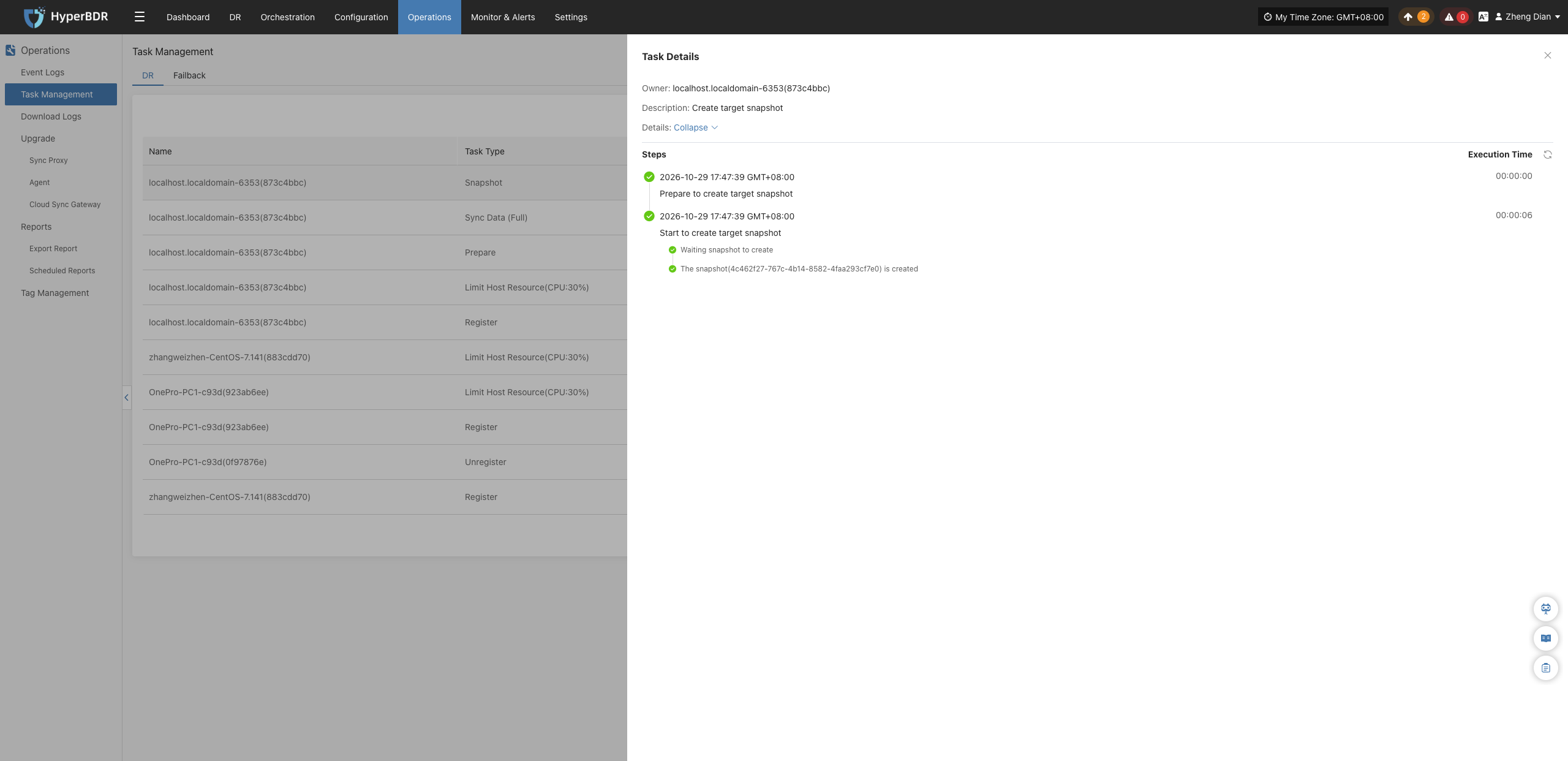
Note
Task management supports pagination (defaulting to 10 records per page). Administrators can adjust the number of items per page or navigate through pages to locate historical task records. All task logs are automatically recorded by the system for end-to-end audit tracking and troubleshooting.
Download Logs
In HyperBDR, users can access the 【O&M Management】>【Download Logs】 module from the top navigation bar to collect and download runtime logs from critical components on demand, facilitating in-depth troubleshooting, routine inspections, and failure diagnostics.
DR
Supported Resource Types
| Resource Type | Description |
|---|---|
| Console | Management node log collection, including platform core runtime service logs. |
| Sync Proxy | Agentless sync proxy hosts deployed via OVA templates. |
| Linux Host | Operating system host logs from Linux hosts with Agent installed. |
| Windows Host | Operating system host logs from Windows hosts with Agent installed. |
| Cloud Sync Gateway | Gateway hosts automatically created at the disaster recovery target cloud platform upon initiating DR. |
Page Field Descriptions
| Field Name | Example | Description |
|---|---|---|
| Host Name | onepro | Identifier name of the target host. |
| Host IP | 192.168.7.141 | Communication IP address of the target host. |
| Status | Online | Current connectivity status of the host (logs cannot be collected if the host is offline). |
| Log Status | Available | Current readiness status of the logs (click to expand the list of collection history records). |
| Action | Collect | Entry button to initiate the log collection task. |
Collection Example: Sync Proxy
Navigate to 【O&M Management】>【Download Logs】 and switch to the 【DR】>【Sync Proxy】 tab to collect and download log files for the specified sync proxy host:
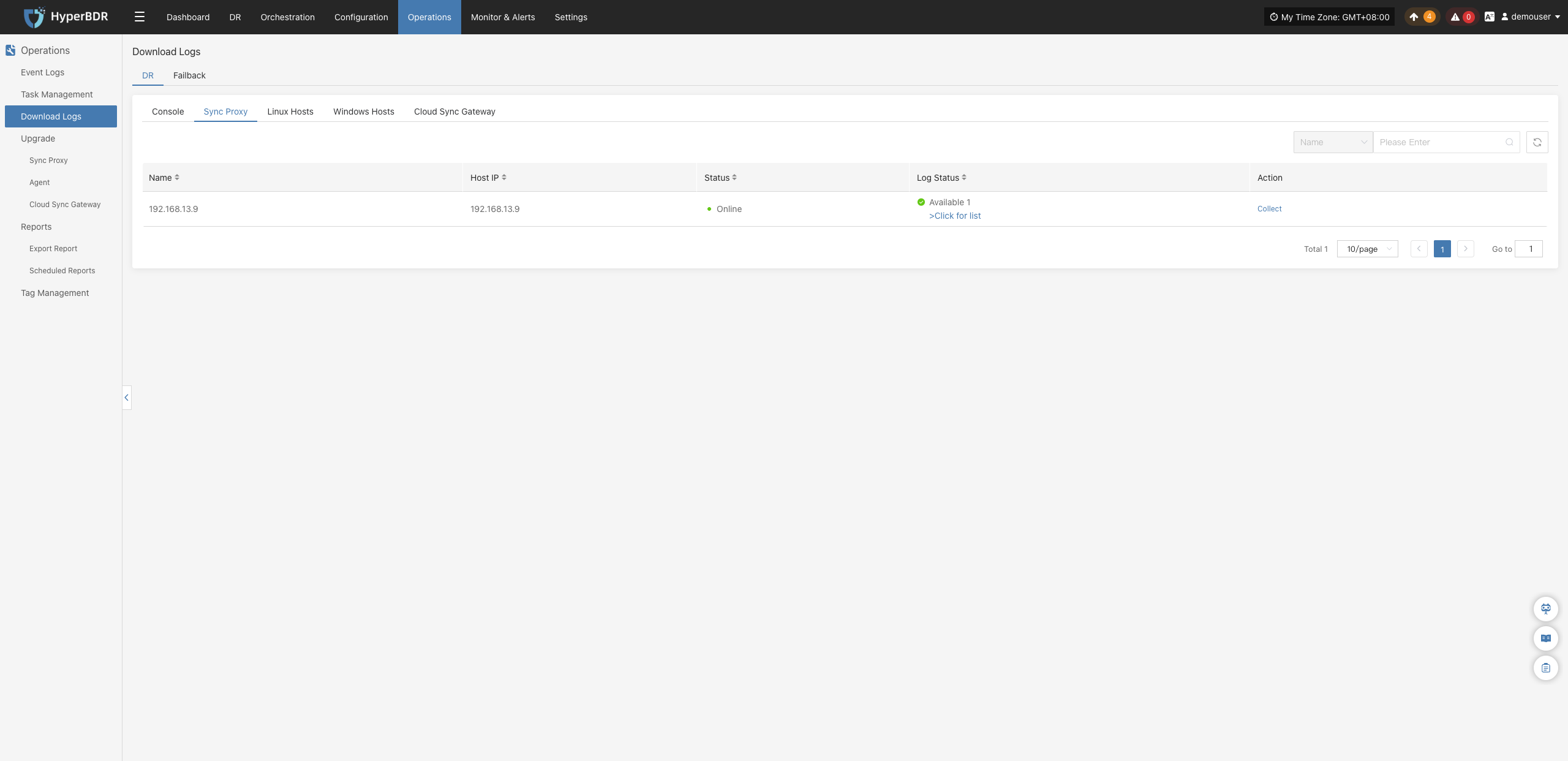
Log Collection
Select the target host and click the 【Collect】 button in the corresponding row:
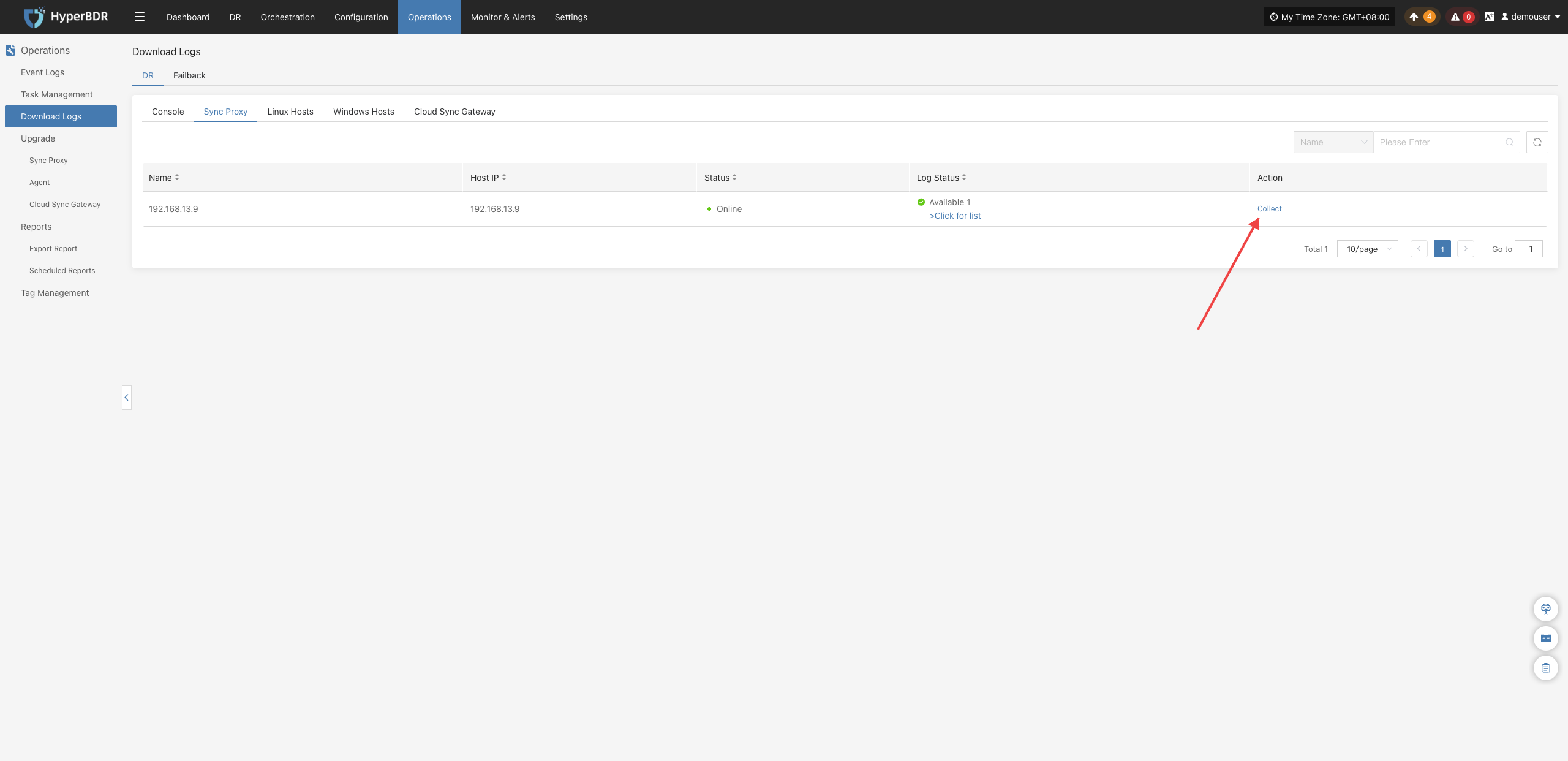
Select Time Range
In the popup dialog, specify the log time range to collect. The system provides convenient preset shortcuts (such as Last 15 minutes, Last 1 hour, Last 30 days) as well as custom date-time ranges via the calendar picker:
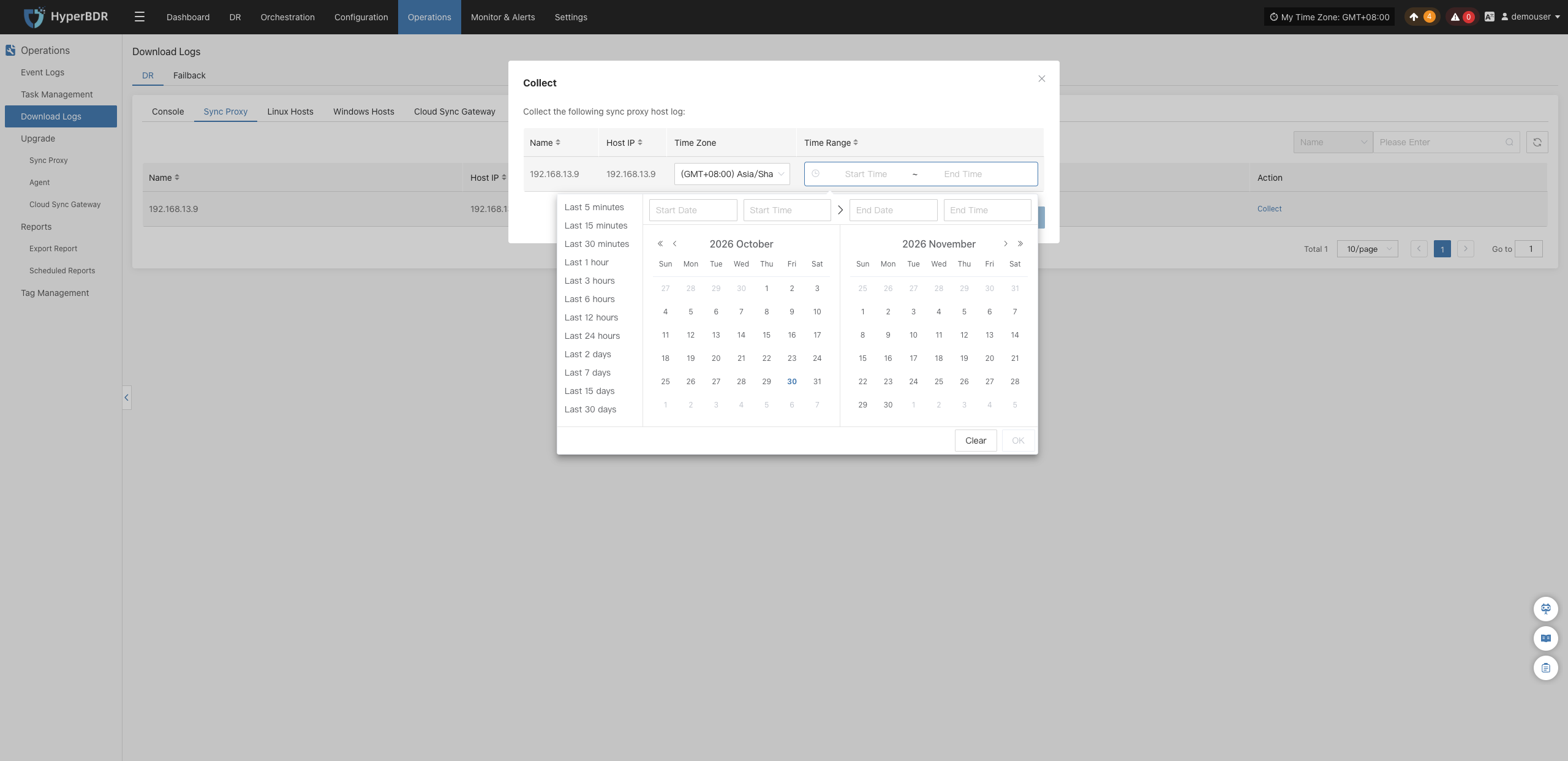
Start Collection
After confirming the selected time range and submitting, the system automatically launches the log collection task, and the log status changes to "Collecting":
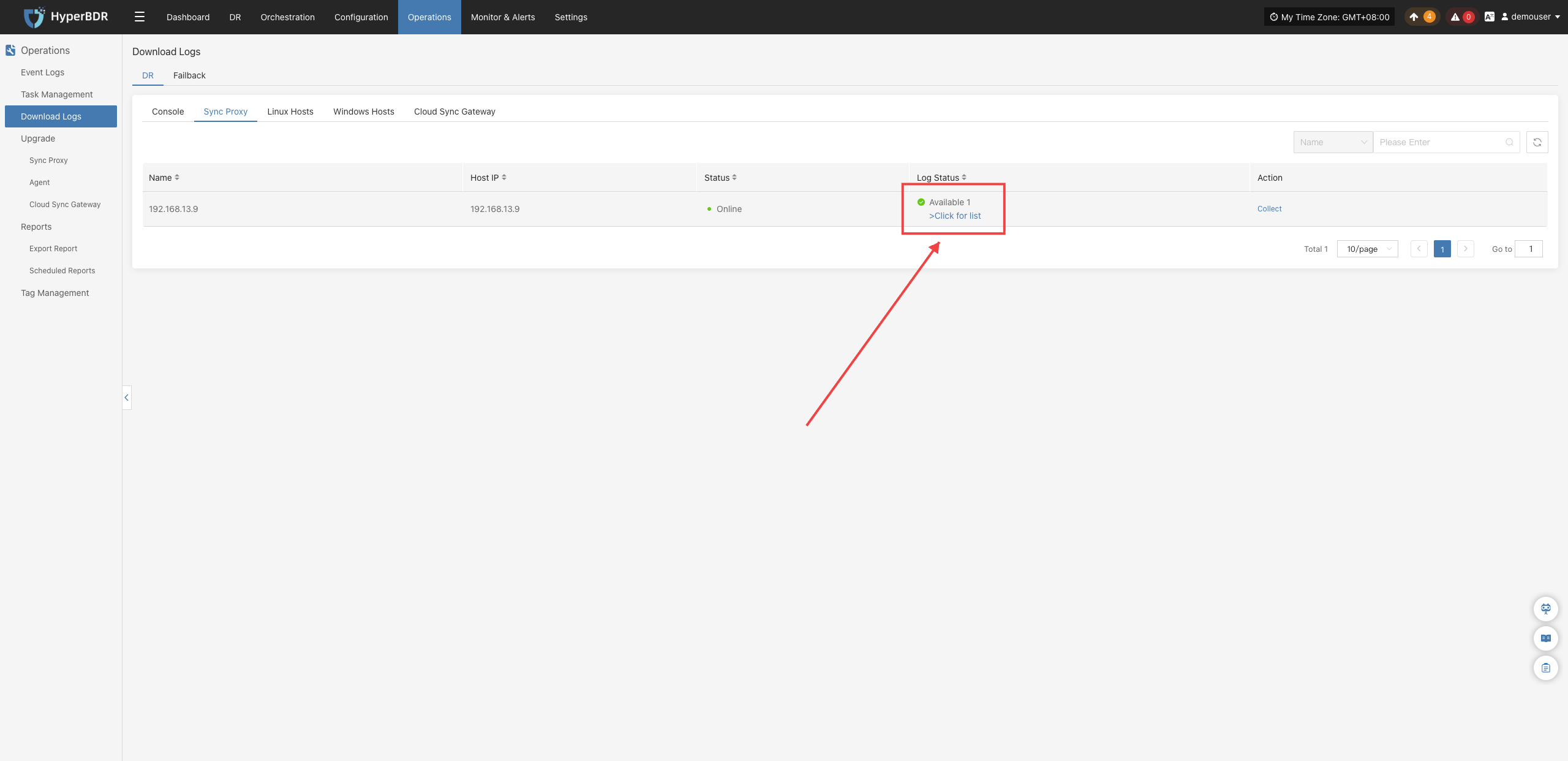
Download Logs
Once log collection is completed, the status updates to "Available". Click "Click for list" to open the Collect Record drawer, select the target log file, and click 【Download】 to complete the download:
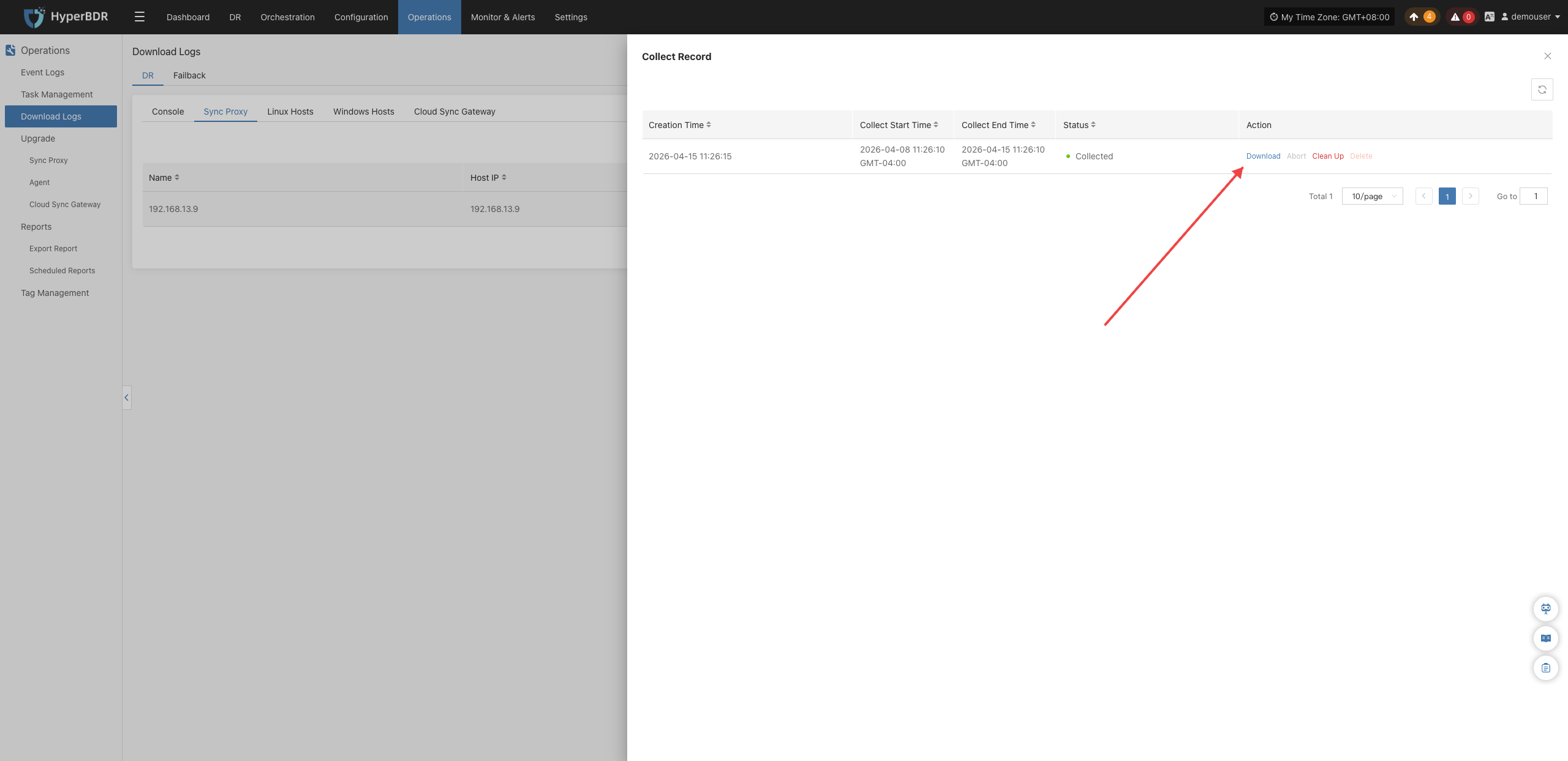
Failback
Supported Resource Types
| Resource Type | Description |
|---|---|
| Failback Sync Proxy | Agentless failback sync proxy hosts deployed via OVA templates. |
| Linux Host | Operating system host logs from Linux failback hosts with Agent installed. |
| Windows Host | Operating system host logs from Windows failback hosts with Agent installed. |
| Cloud Sync Gateway | Gateway hosts automatically created at the target cloud platform upon initiating reverse failback. |
Page Field Descriptions
| Field Name | Example | Description |
|---|---|---|
| Host Name | ubuntu-ova | Identifier name of the target host. |
| Host IP | 192.168.7.202 | Communication IP address of the target host. |
| Status | Online | Current connectivity status of the host (logs cannot be collected if the host is offline). |
| Log Status | Available | Current readiness status of the logs (click to expand the list of collection history records). |
| Action | Collect | Entry button to initiate the log collection task. |
Collection Example: Cloud Sync Gateway
Navigate to 【O&M Management】>【Download Logs】 and switch to the 【Failback】>【Cloud Sync Gateway】 tab to collect and download log files for the target gateway host:
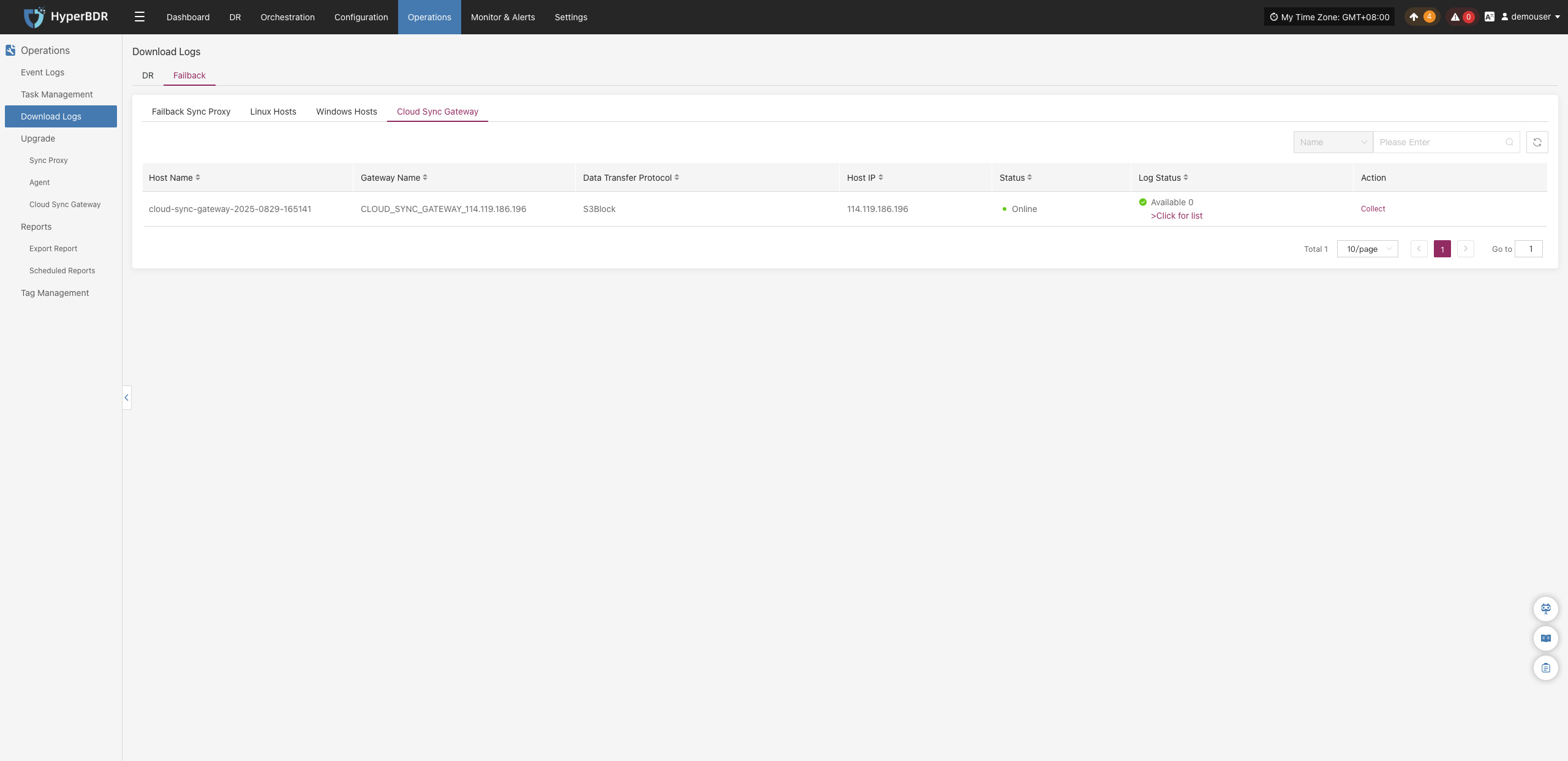
Log Collection
Select the target gateway host and click the 【Collect】 button in the corresponding row:
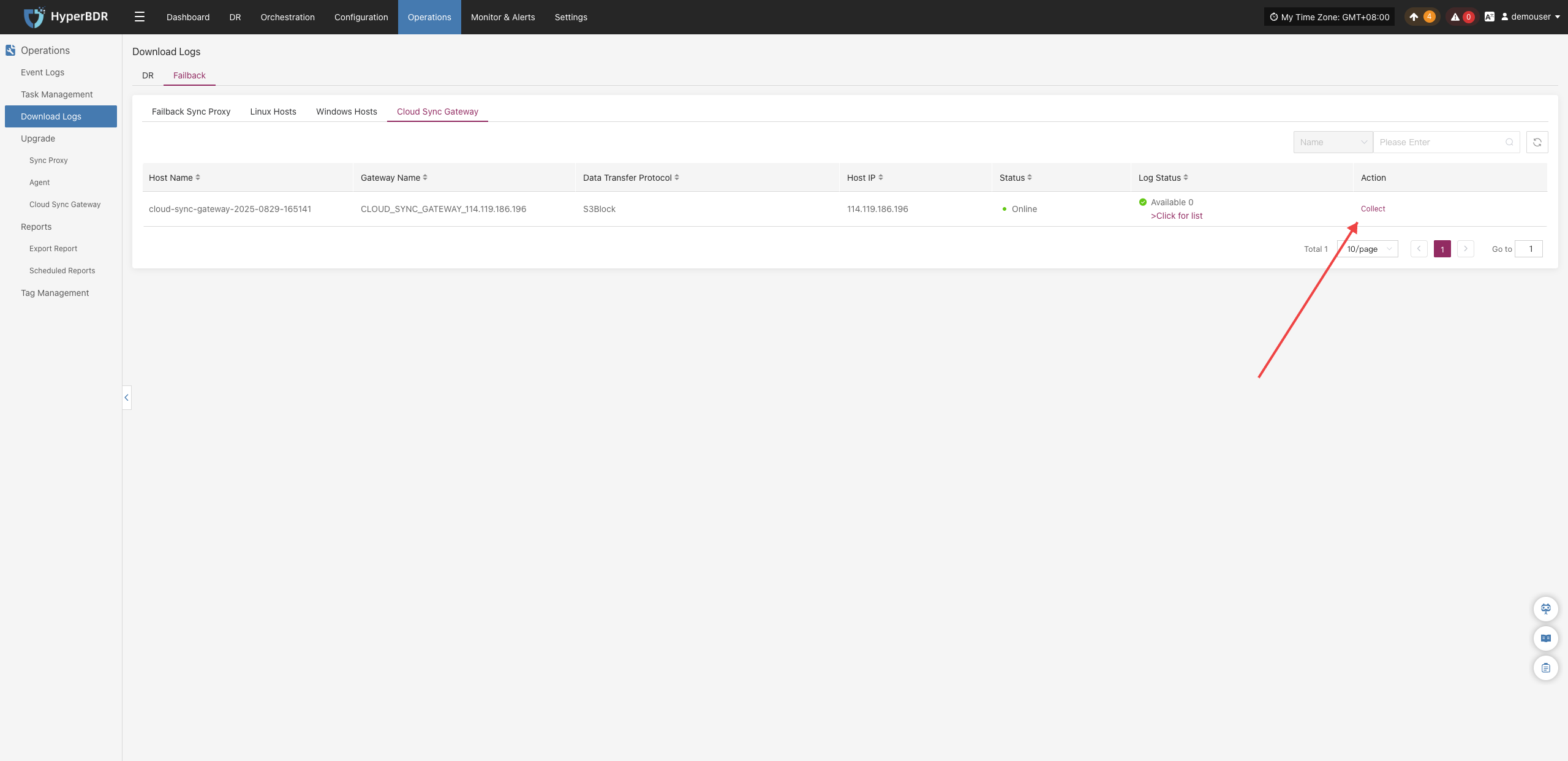
Select Time Range
In the popup dialog, specify the log time range to collect. The system provides convenient preset shortcuts (such as Last 15 minutes, Last 1 hour, Last 30 days) as well as custom date-time ranges via the calendar picker:
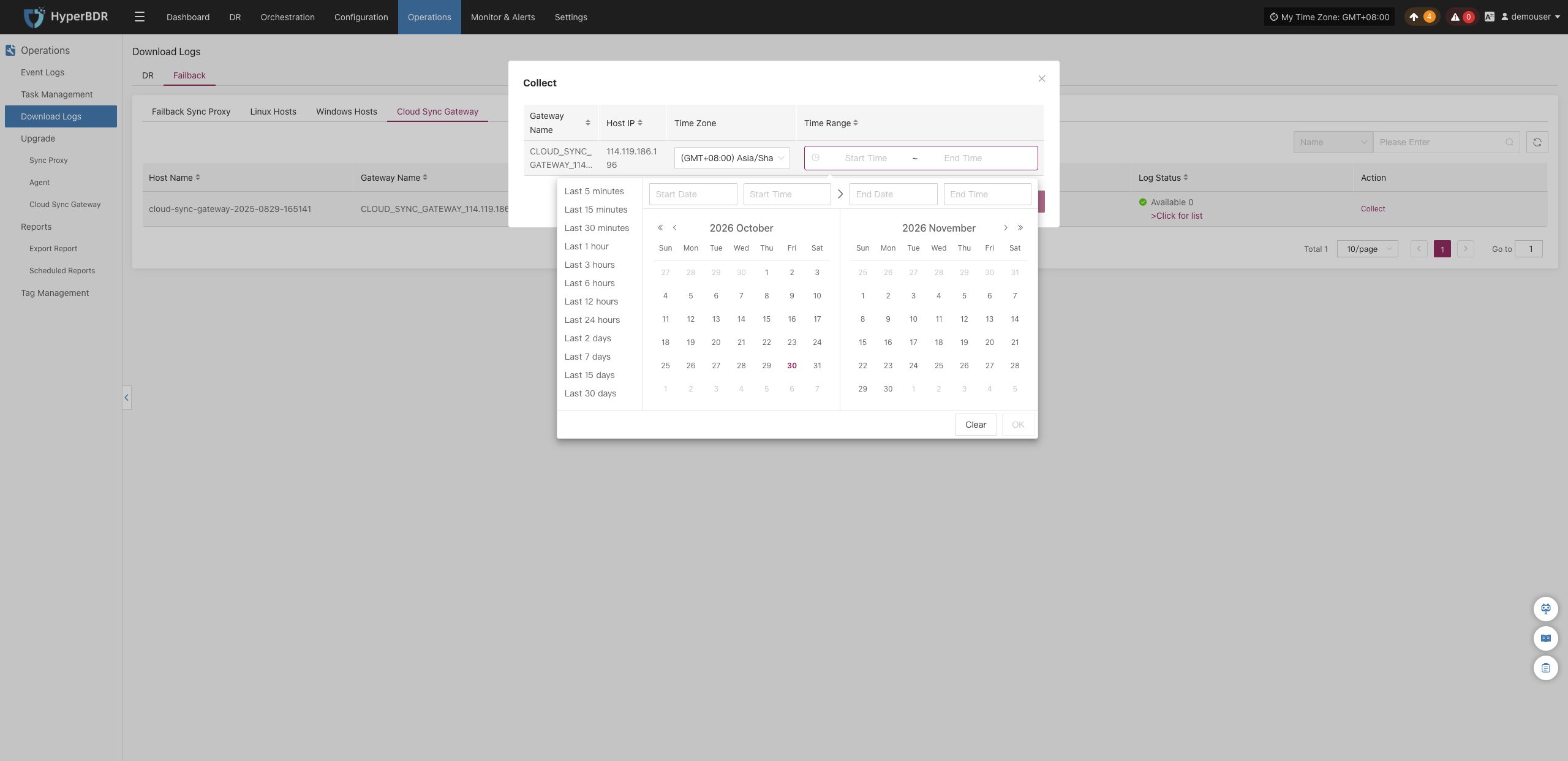
Start Collection
After confirming the selected time range and submitting, the system automatically launches the log collection task, and the log status changes to "Collecting":
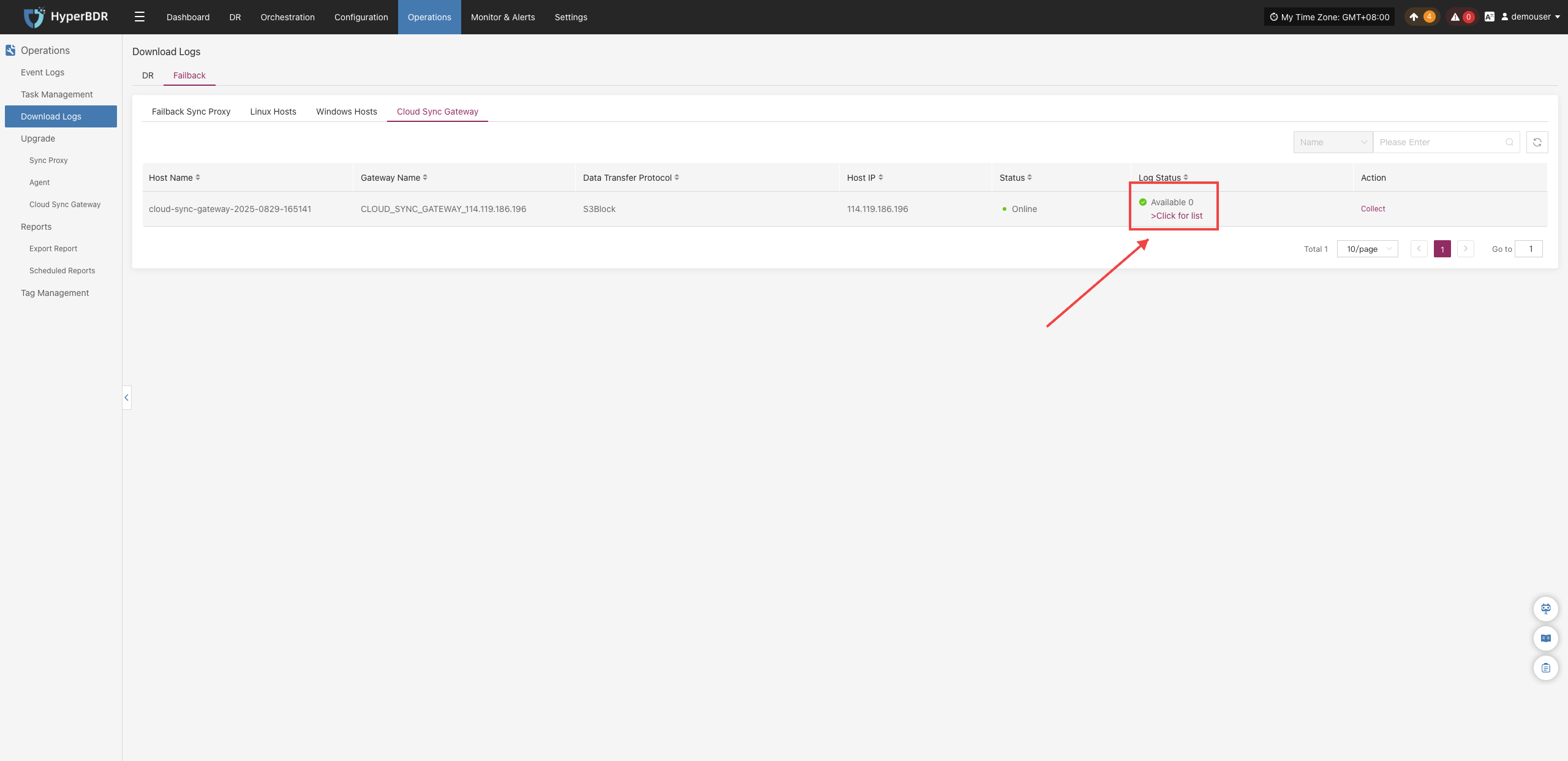
Download Logs
Once log collection is completed, the status updates to "Available". Click "Click for list" to open the Collect Record drawer, select the target log file, and click 【Download】 to complete the download:
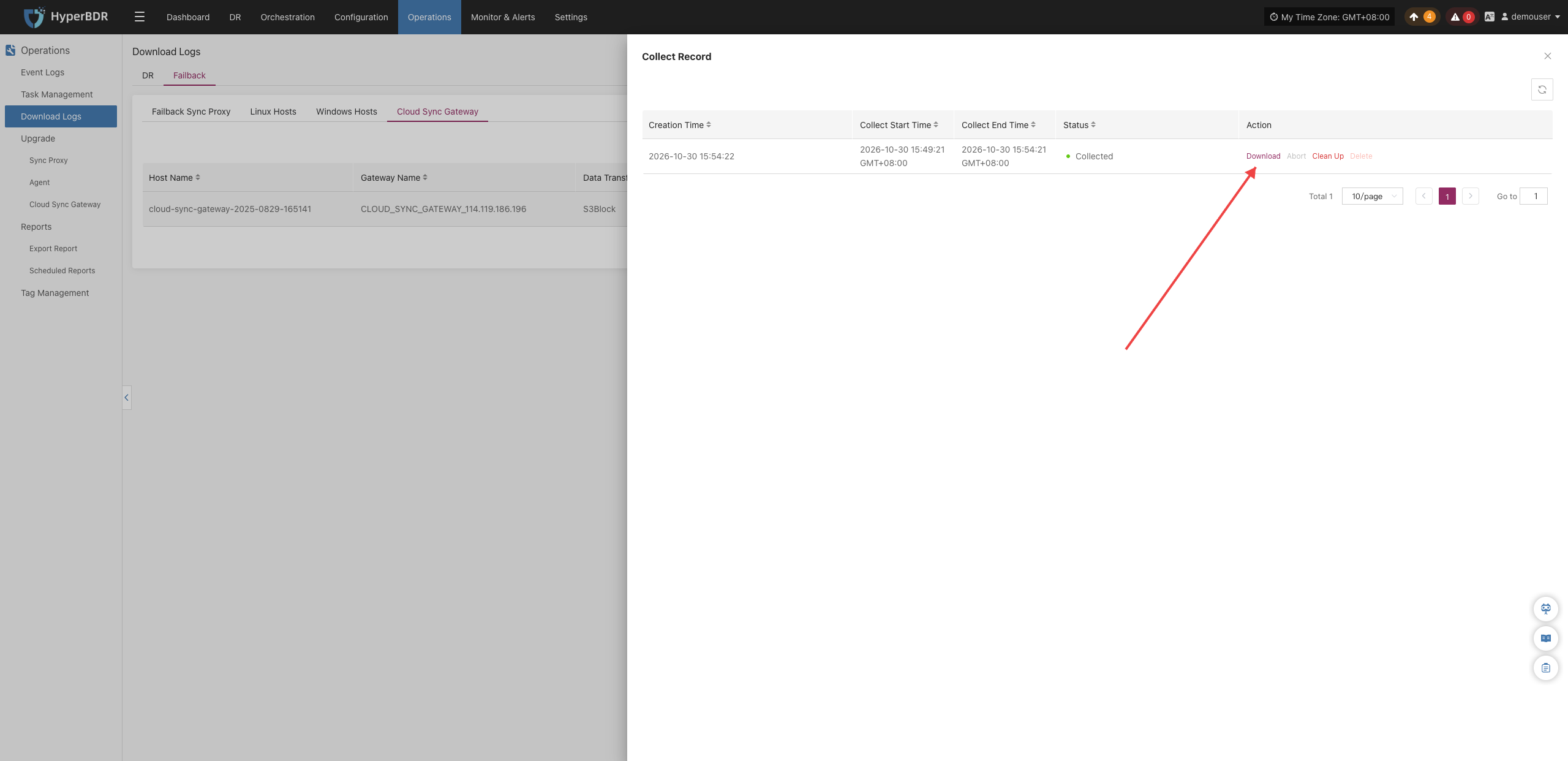
Upgrade Management
Upgrade management is used to centrally maintain and update the versions of various components managed by the platform (including source sync proxies, host agent programs, and cloud sync gateways), ensuring all modules remain on supported, stable releases.
The system provides two component upgrade views: 【DR】 and 【Failback】, which share identical interface layouts and upgrade workflows. Log in to the HyperBDR console, and navigate to 【O&M Management】>【Upgrade Management】 from the top navigation bar to start managing.
Prerequisites for Upgrade
Before upgrading any endpoint components via the console, the core console services must be upgraded first.
Only when updated component packages are loaded into the console will the interface detect and highlight new versions available for upgrade. For details on obtaining installation packages and upgrading the console, please refer to 【O&M Guide】>【Upgrade Management】>【Console】.
Supported Upgrade Components
Under the 【DR】 or 【Failback】 tab, users can perform online version detection and upgrades for the following three types of components:
Version Prompts and List Notes
When the system detects an available new version for a component, it will display a ▲ New Version indicator in the "Version" column of the list. If hosts of the corresponding component type have not yet been created or managed in the current environment, the list will appear empty.
| Component Name | Deployment Location | Upgrade Prerequisites and Notes |
|---|---|---|
| Sync Proxy | Sync Proxy Host | Proxy host created during production site configuration, used for agentless source-side data synchronization. |
| Agent | Protected Linux / Windows production hosts | Hosts with the client Agent installed. |
| Cloud Sync Gateway | Target disaster recovery cloud platforms | Data receiving gateway automatically created when configuring 【Block Storage】 for DR/Failback. Note: Only gateways using the S3Block transmission protocol support online upgrade. |
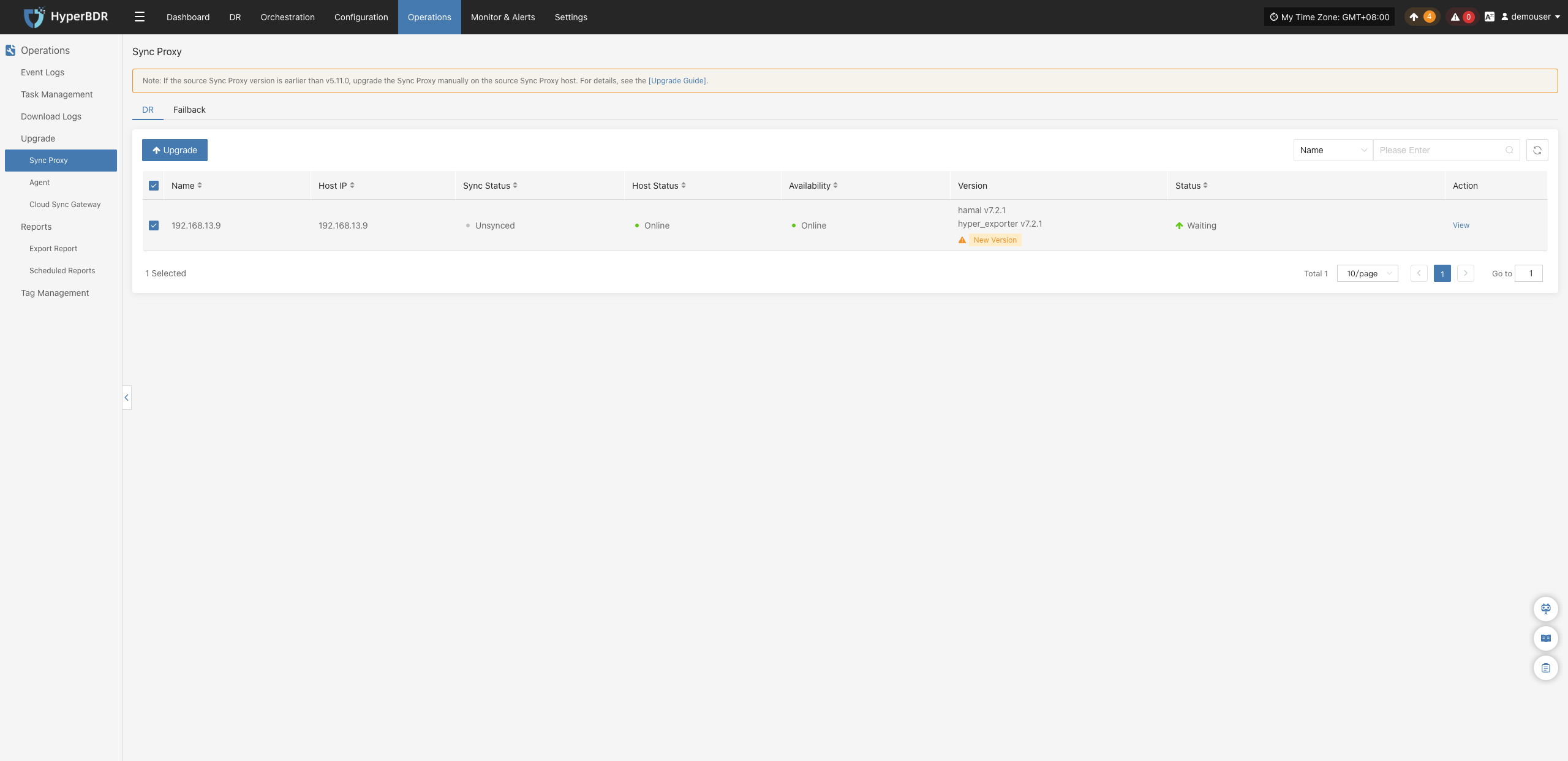
Component Online Upgrade Workflow
The upgrade interactions for all three components are identical, supporting both single-host quick upgrades and multi-node batch upgrades. The operational steps are as follows:
1. Select Upgrade Targets
In the left sidebar, select the component type to upgrade: 【Sync Proxy】, 【Agent】, or 【Cloud Sync Gateway】 to enter the corresponding component list page.
In the list, check the "Version" column to find hosts displaying new version prompts. Select the checkbox before the host name to choose the target component hosts to upgrade (supports single selection or batch selection).
Note
If the components to be upgraded belong to a failback scenario, first select the corresponding component type in the left sidebar, and then click the 【Failback】 tab at the top of the page to switch to the failback component list before making your selection.
2. Initiate Online Upgrade
Click the 【↑ Upgrade】 button in the upper left corner of the list. The system will automatically dispatch the upgrade task to the target hosts.
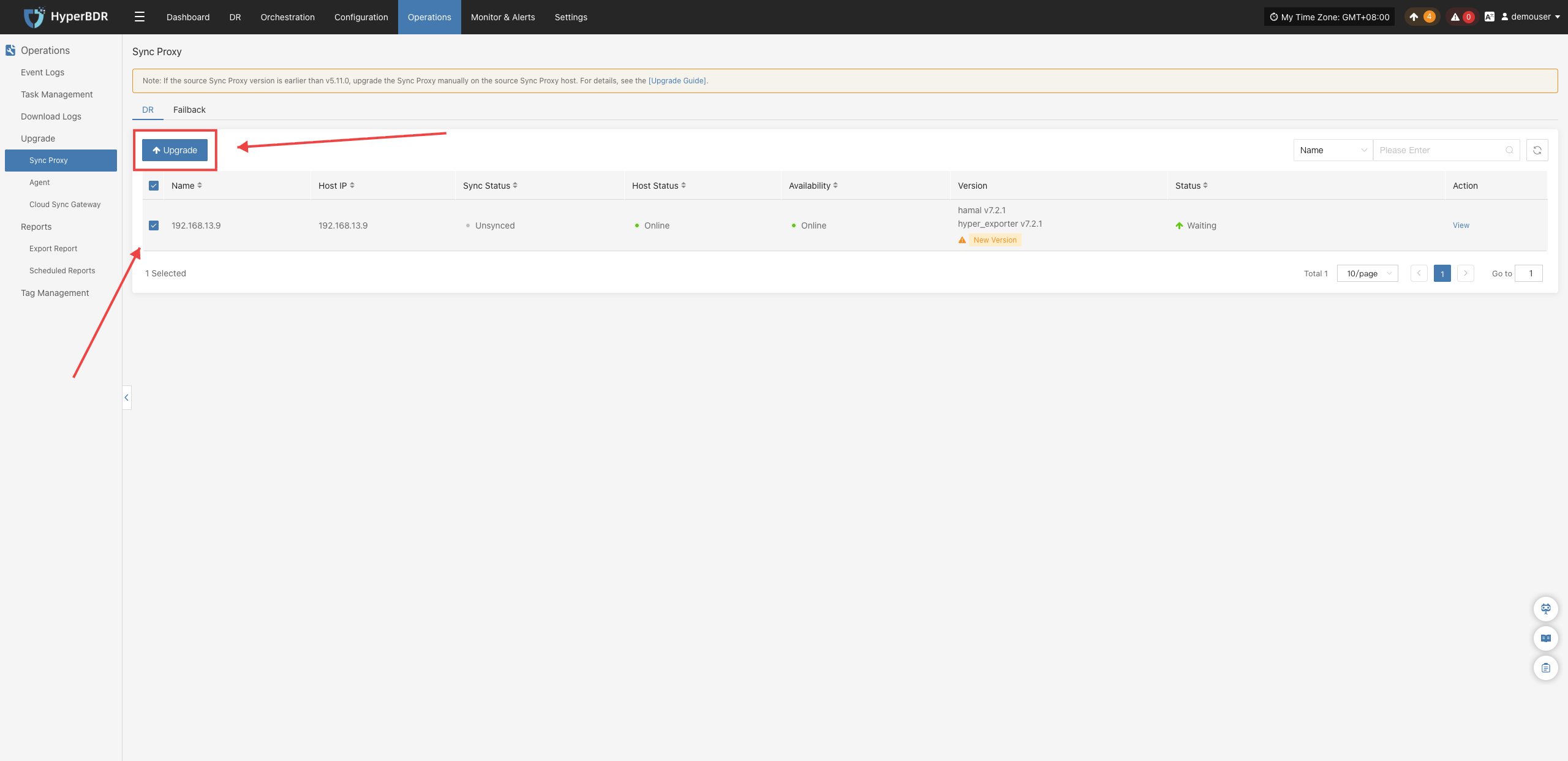
3. View Upgrade Records and Task Details
- View Upgrade History: Click 【Upgrade Records】 in the target host's action column to slide out the historical upgrade records drawer on the right, displaying upgrade start/end times, pre/post-upgrade versions, and the final status.
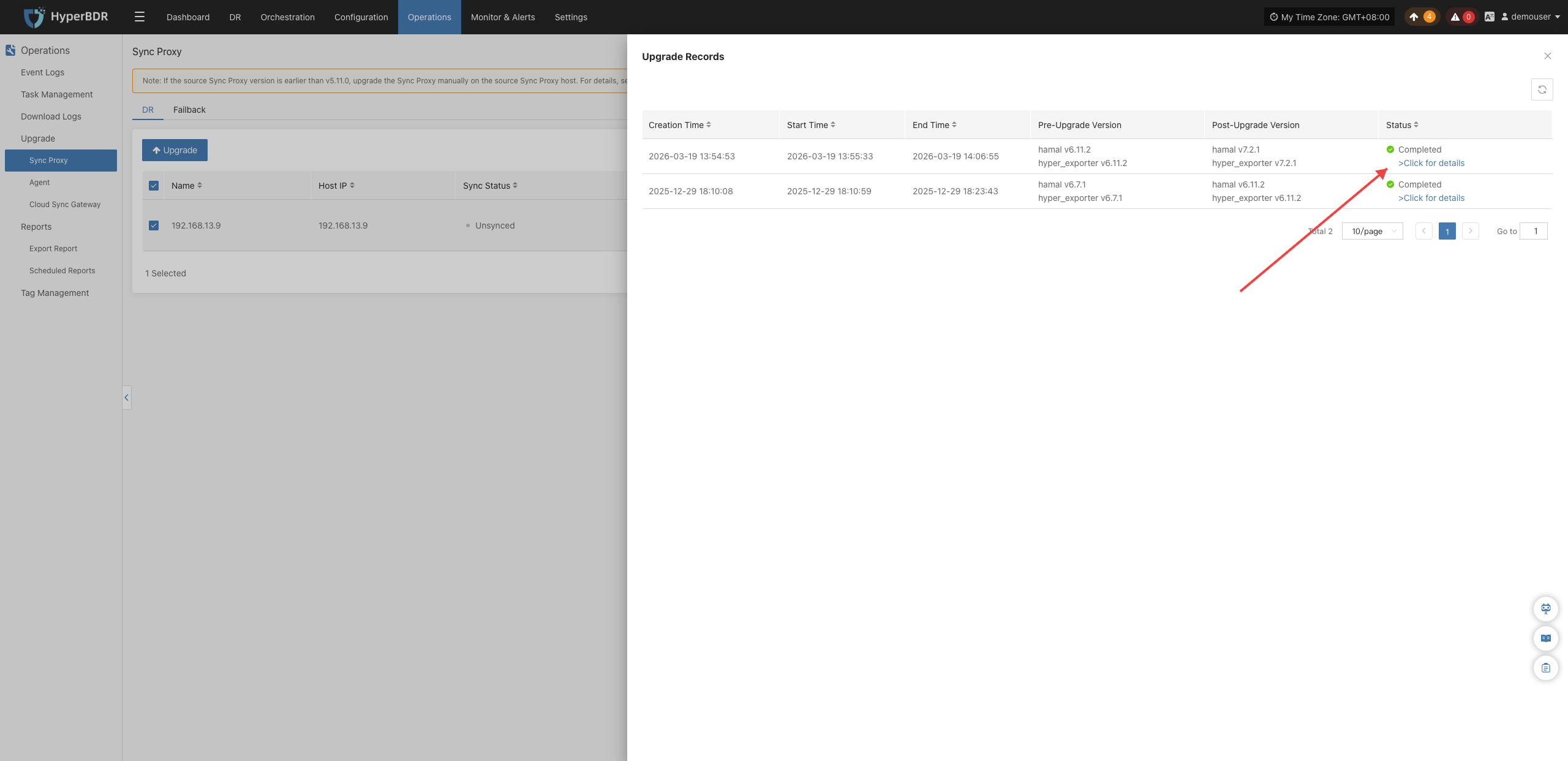
- View Detailed Execution Logs: In the Upgrade Records drawer, click 【Click for details】 to open the task details drawer and review the step-by-step logs and elapsed time for package download, installation, and verification.
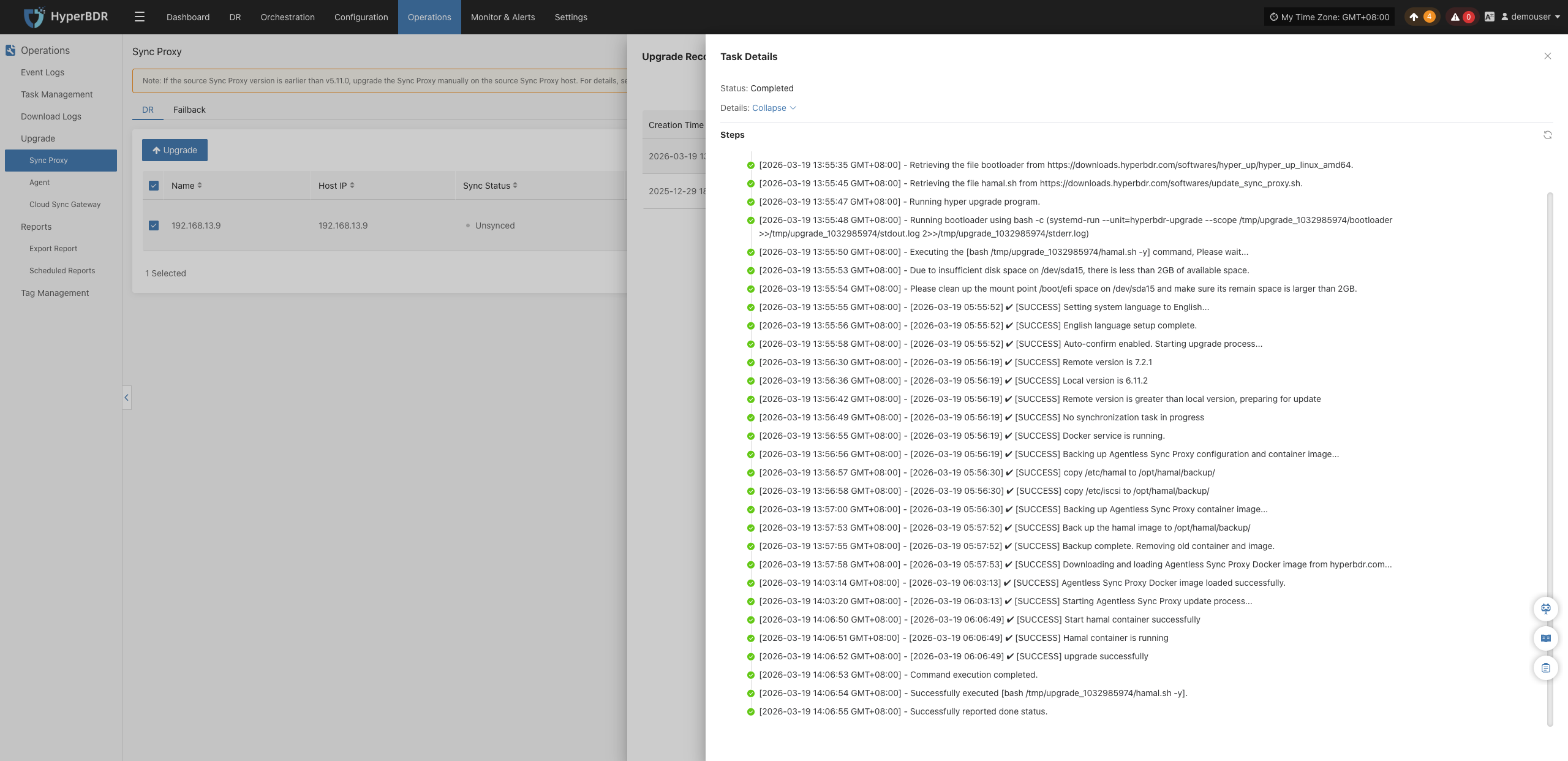
Reports
Currently, users can export various system operation and management reports for DR and Failback processes through the HyperBDR console. This feature helps users perform regular analysis and archiving of platform status, supporting O&M audit, issue tracking, and management evaluation.
Supported Report Types and Descriptions
| Report Type | Description |
|---|---|
| Host DR Summary Report | Summarizes basic info for all registered and unregistered hosts under the current tenant, including sync, drill, takeover counts, OS type, etc. |
| Host Sync Data Detailed Report | Details of sync tasks for all registered and unregistered hosts under the current tenant. |
| Host DR Drill Detailed Report | Details of drill tasks for all registered and unregistered hosts under the current tenant. |
| Host DR Takeover Detailed Report | Details of takeover tasks for all registered and unregistered hosts under the current tenant. |
| Host DR Cycle Summary Report (Day) | Daily statistics of disaster recovery cycle data for registered and unregistered hosts under the current tenant, showing sync, drill, and takeover frequencies, as well as capacity trends. |
| DR Cloud Sync Gateway Summary Report | Summarizes basic info for all cloud sync gateways under the current tenant. |
| DR Cloud Sync Gateway Detailed Report | Detailed info for all cloud sync gateways under the current tenant, down to each disk. |
Report Export Details
Host DR Summary Report
| Field Name | Description |
|---|---|
| Host Name | Host name, identifies the DR host. |
| Host IP | Host IP address for network identification and communication. |
| Step | Current step number in DR registration. |
| Status | Current task or operation status, e.g., Registered. |
| Host Status | Whether the host is successfully registered in the system. |
| Storage Type | Storage type, e.g., Block Storage or Object Storage. |
| Cloud Type | Cloud platform type and version, e.g., OpenStack Community (Juno+). |
| OS Type | Operating system type, e.g., Windows or Linux. |
| Sync Count (Succeeded) | Number of successful data sync tasks. |
| Sync Count (Failed) | Number of failed data sync tasks. |
| Drill Count (Succeeded) | Number of successful DR drills. |
| Drill Count (Failed) | Number of failed DR drills. |
| Takeover Count (Succeeded) | Number of successful DR takeovers. |
| Takeover Count (Failed) | Number of failed DR takeovers. |
| Sync Size (GB) | Cumulative synced data in GB. |
| Region | Cloud platform region identifier. |
| Zone | Availability zone (if any). |
| Flavors | Host specs (vCPU/memory/disk), e.g., 8 cores, 16GB RAM, 50GB disk. |
| Disk Count | Number of disks on the host. |
| Capacity (GB) | Total disk capacity on the host in GB. |
| Subnet | Subnet name the host belongs to. |
| Network | Network name connected to the host. |
| Security Group | Security group policy name applied to the host. |
| Fixed IP | Fixed private IP address of the host (unassigned). |
| Public IP | Public IP address of the host (unassigned). |
DR Cloud Sync Gateway Detailed Report
| Field Name | Description |
|---|---|
| Created Time | Creation time of the cloud sync gateway resource. |
| Cloud Sync Gateway Name | Name of the cloud sync gateway, used to identify the component. |
| Cloud Account Name | Cloud account name, indicating which cloud platform account the gateway is bound to. |
| Block Storage Platform | Cloud platform type, e.g., OpenStack, VMware, etc. |
| User Name | Tenant or username that created the gateway resource. |
| Status | Current working status of the gateway (e.g., "Enabled", "Disabled"). |
| Health Status | Operational health status of the gateway (e.g., "Normal", "Abnormal"). |
| Data Transfer Protocol | Protocol used for data transfer, e.g., TCP, iSCSI, etc. |
| Region | Region in the cloud platform. |
| Zone | Availability zone in the cloud platform. |
| Image | Image name used by the cloud sync gateway. |
| Flavor | Resource configuration template used by the cloud gateway (e.g., CPU/memory/disk specs). |
| System Disk Type | System disk type, e.g., SSD, SATA, etc. |
| System Disk Size | System disk capacity in GB. |
| Backup Volume | Name of the backup volume currently attached or used. |
| Max Backup Volume | Maximum backup volume count or capacity supported by the gateway. |
| Volume Name | Name of the volume currently in use. |
| Pool Uuid | Unique identifier of the storage pool where the volume is mounted. |
| Pool Name | Name of the storage pool where the volume is mounted. |
| Total Volume Capacity (GB) | Total capacity of the current volume in GB. |
| Usage Status | Resource usage status, e.g., "In Use" or "Idle". |
| Allocation Status | Allocation status, indicating whether the gateway is associated with a host. |
| Allocation Host | If allocated, indicates the host name to which the gateway is currently attached or bound. |
DR Cloud Sync Gateway Summary Report
| Field Name | Description |
|---|---|
| Created Time | Time the record was created, formatted as "YYYY/MM/DD HH:mm:ss". |
| Cloud Sync Gateway Name | Cloud sync gateway name, usually the gateway's IP address or unique identifier. |
| Cloud Account Name | Cloud account name, used to identify the specific cloud service account. |
| Block Storage Platform | Block storage platform type used, e.g., OpenStack, AWS, etc. |
| User Name | Username operating the sync gateway. |
| Status | Current status, e.g., "Creation Success". |
| Health Status | Health status, e.g., "Online" indicates the gateway is reachable. |
| Data Transfer Protocol | Data transfer protocol, e.g., "S3Block" indicates S3-based block storage transfer. |
| Region | Region name of the cloud platform. |
| Zone | Availability zone of the cloud platform, or "-" if none. |
| Image | Image name and unique identifier, usually the OS image. |
| Flavor | VM specs, combination of CPU, memory, and disk size. |
| System Disk Type | System disk type, e.g., default volume type "DEFAULT_VOLUME_TYPE". |
| System Disk Size | System disk size in GB. |
| Backup Volume | Current number of backup volumes. |
| Max Backup Volume | Maximum allowed number of backup volumes. |
| Total Volume Capacity (GB) | Total capacity of all volumes in GB. |
| Hosts Count | Number of associated hosts. |
Host DR Cycle Summary Report (Day)
| Field Name | Description |
|---|---|
| Serial Number | Unique entry number. |
| Period | Time period covered by the report. |
| Host Name | Host name. |
| Host IP | Host IP address. |
| Step | Current step or phase number. |
| Status | Status, e.g., "Registered" for registered. |
| Host Status | Host status, e.g., "Registered" for registered host. |
| Storage Type | Storage type, e.g., "Block Storage". |
| Cloud Type | Cloud platform type, e.g., "OpenStackCommunity(Juno+)". |
| OS Type | OS type, e.g., Windows, Linux. |
| Sync Count (Succeeded) | Successful sync count. |
| Sync Count (Failed) | Failed sync count. |
| Drill Count (Succeeded) | Successful drill count. |
| Drill Count (Failed) | Failed drill count. |
| Takeover Count (Succeeded) | Successful takeover count. |
| Takeover Count (Failed) | Failed takeover count. |
| Sync Size (GB) | Synced data size in GB. |
| Region | Cloud platform region. |
| Zone | Availability zone, or "-" if none. |
| Flavors | VM specs (CPU, memory, disk). |
| Disk Count | Number of disks. |
| Capacity (GB) | Storage capacity in GB. |
| Subnet | Subnet name. |
| Network | Network name. |
| Security Group | Security group name. |
| Fixed IP | Fixed IP, or "-" if none. |
| Public IP | Public IP, or "-" if none. |
Host DR Takeover Detailed Report
| Field Name | Description |
|---|---|
| Host Name | Host name. |
| Host IP | Host IP address. |
| Status | Current status, e.g., task completed, abnormal. |
| Task Status | Task status, reflects takeover progress. |
| Start Time | Task start time. |
| End Time | Task end time. |
| Execution Time | Task duration. |
| Storage Type | Storage type, e.g., Block Storage. |
| Cloud Type | Cloud platform type, e.g., OpenStackCommunity(Juno+). |
| Region | Cloud platform region. |
| Zone | Availability zone, "-" if none. |
| Flavors | VM specs (CPU, memory, disk). |
| Disk Count | Number of disks. |
| Capacity (GB) | Storage capacity in GB. |
| Network | Network name. |
| Subnet | Subnet name. |
| Security Group | Security group name. |
| Fixed IP | Fixed IP, "-" if none. |
| Public IP | Public IP, "-" if none. |
| Task Details | Task details, describes execution info/results. |
Host DR Drill Detailed Report
| Field Name | Description |
|---|---|
| Host Name | Host name. |
| Host IP | Host IP address. |
| Status | Current status, e.g., task completed, abnormal. |
| Task Status | Task status, reflects drill progress. |
| Start Time | Task start time. |
| End Time | Task end time. |
| Execution Time | Task duration. |
| Storage Type | Storage type, e.g., Block Storage. |
| Cloud Type | Cloud platform type, e.g., OpenStackCommunity(Juno+). |
| Region | Cloud platform region. |
| Zone | Availability zone, "-" if none. |
| Flavors | VM specs (CPU, memory, disk). |
| Disk Count | Number of disks. |
| Capacity (GB) | Storage capacity in GB. |
| Network | Network name. |
| Subnet | Subnet name. |
| Security Group | Security group name. |
| Fixed IP | Fixed IP, "-" if none. |
| Public IP | Public IP, "-" if none. |
| Task Details | Task details, describes execution info/results. |
Host Sync Data Detailed Report
| Field Name | Description |
|---|---|
| Host Name | Host name. |
| Host IP | Host IP address. |
| Status | Current status, e.g., task completed, abnormal. |
| Task Status | Task status, reflects sync progress. |
| Start Time | Task start time. |
| End Time | Task end time. |
| Execution Time | Task duration. |
| Capacity Size (GB) | Sync capacity in GB. |
| Sync Mode | Sync mode, e.g., full or incremental. |
| Average Sync Rate (Mbps/s) | Average sync rate in Mbps. |
| Synced Size (GB) | Synced data size in GB. |
| Task Details | Task details, describes execution info/results. |
Report Export
The report export module is used to collect and export various business statistical reports on the platform. It supports customized filter conditions such as report type, statistical time range, and host scope, allowing backup, host, and O&M-related data to be exported as local files for offline auditing, business archiving, and data reconciliation.
Tenant Data Isolation
Data of different tenants is isolated, and only the currently logged-in tenant account can export report data within its tenant scope. To download host information reports for other tenants, users belonging to the respective tenant must log in to the console.
Report Export Example
Collect Report
- Navigate to 【O&M Management】>【Report Export】 to enter the report management page:
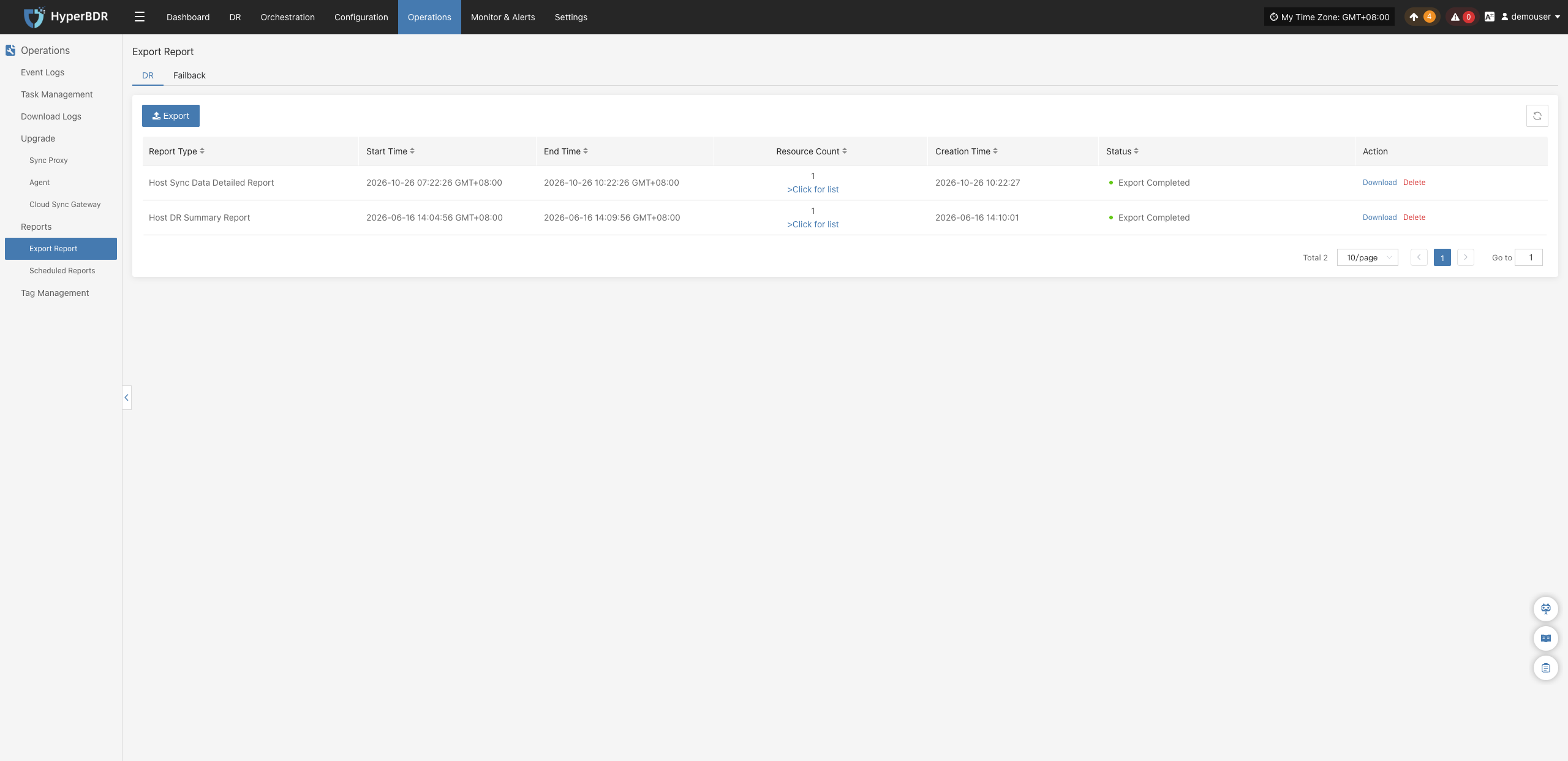
- Click the 【Export】 button, and select the report type, scope (Range), time zone, and time range as needed:
Range Description
- All Host: Includes all hosts under the current tenant in the report. After selecting this option, you do not need to proceed to the next step to select hosts. Click 【Submit】 directly to initiate report collection.
- Select Host: Includes only selected target hosts in the report. After selecting this option, click 【Next】 to enter the host selection interface, select the target hosts, and then click 【Submit】.
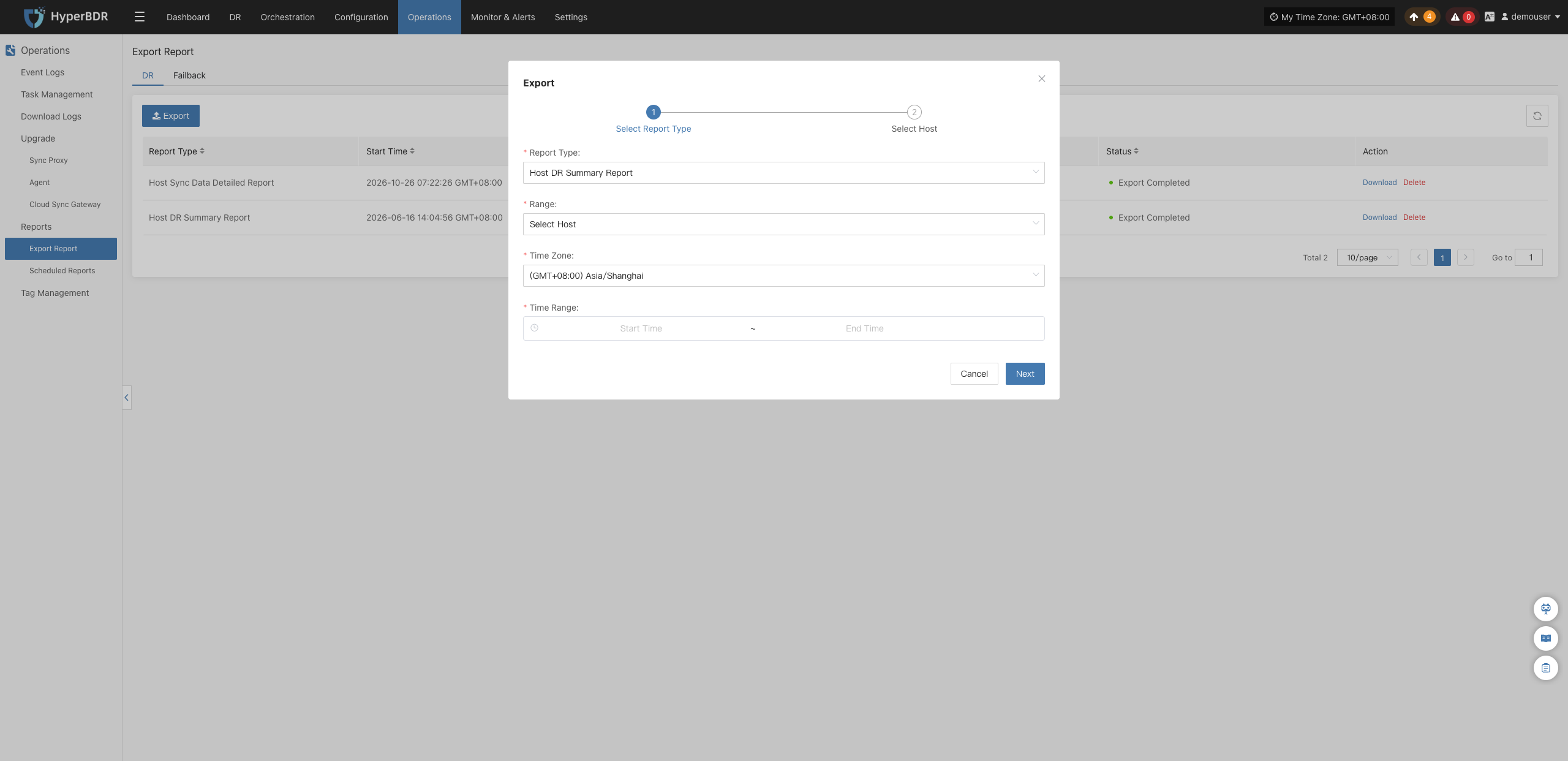
- If Select Host is selected for the range, the system will open the host selection interface. Select the target hosts and click 【Submit】 to initiate report collection:
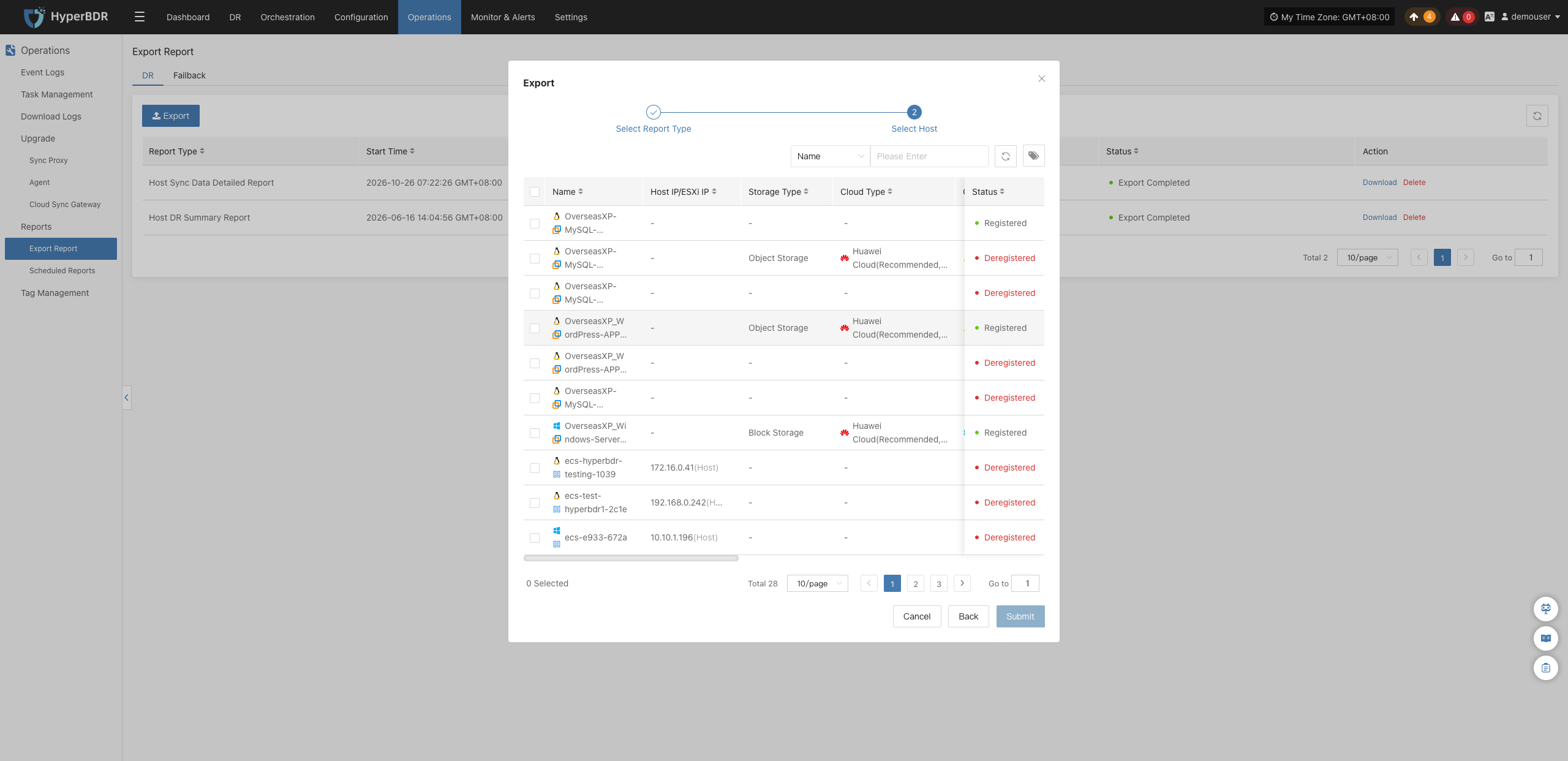
Download Report
Once report export is completed, locate the target report record in the list and click 【Download】 in the action column to download the generated report file:
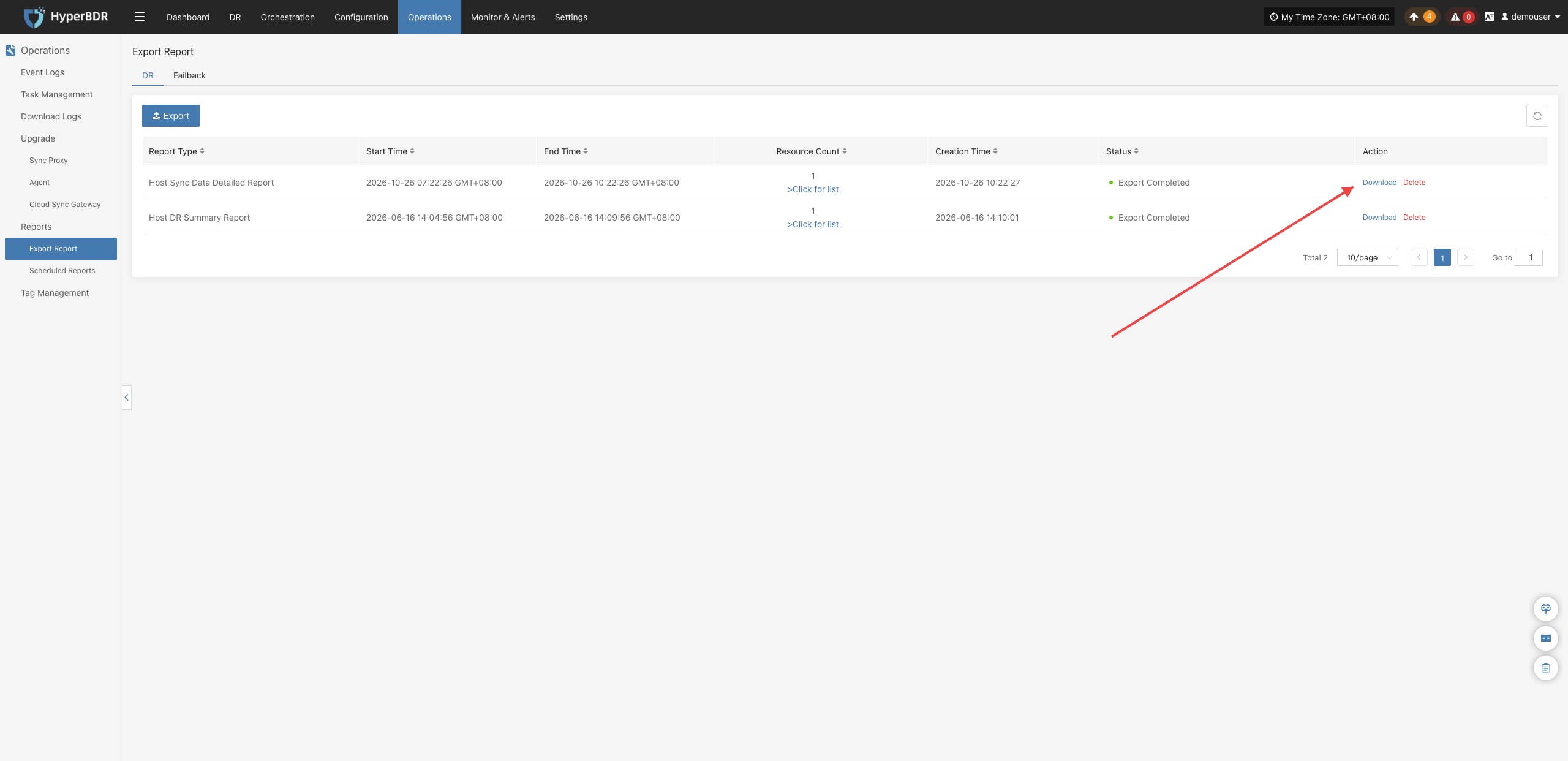
Scheduled Reports
The scheduled report module supports configuring periodic automatic report tasks. The system automatically collects business data within the specified scope according to the preset cycle, generates reports, and supports local download or email delivery, enabling regular archiving and automated auditing without repeated manual collections.
Tenant Data Isolation
Data of different tenants is isolated, and only the currently logged-in tenant account can configure and view its scheduled report tasks. To operate scheduled reports for different tenants, users belonging to the respective tenant must log in to the console.
Scheduled Report Example
Create Scheduled Report
- Navigate to 【O&M Management】>【Scheduled Reports】 to enter the scheduled report management page:
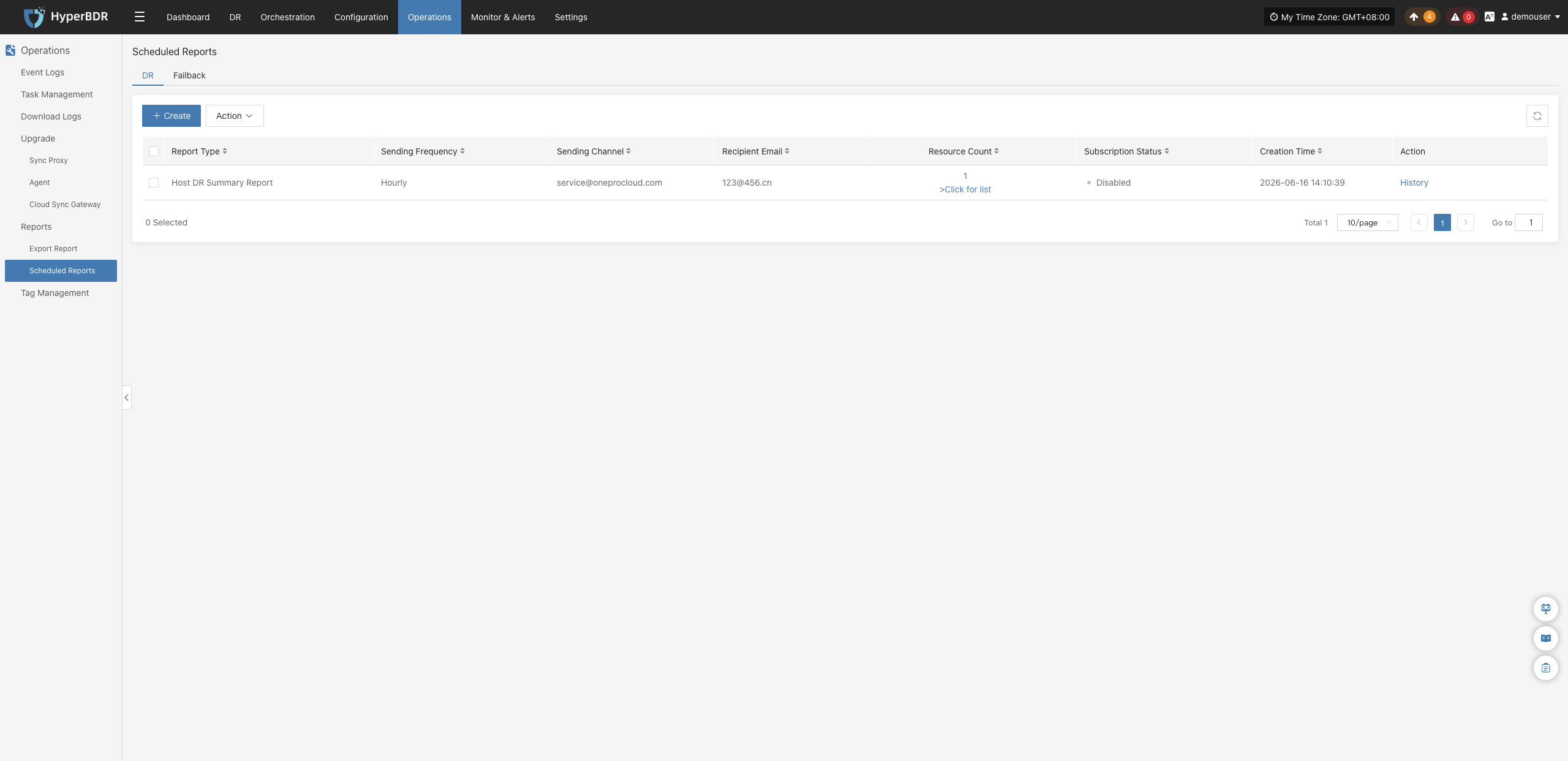
- Click the 【+ Create】 button, and configure the report type, scope (All Host / Select Host), sending channel, recipient email, frequency, and data time zone in the creation popup dialog:
Range Description
- All Host: Includes all hosts under the current tenant in the scheduled report. After selecting this option, you do not need to proceed to the next step to select hosts. Click 【Submit】 directly to complete creation.
- Select Host: Includes only selected hosts in the scheduled report. After selecting this option, click 【Next】 to enter the host selection interface, select the target hosts, and then click 【Submit】.
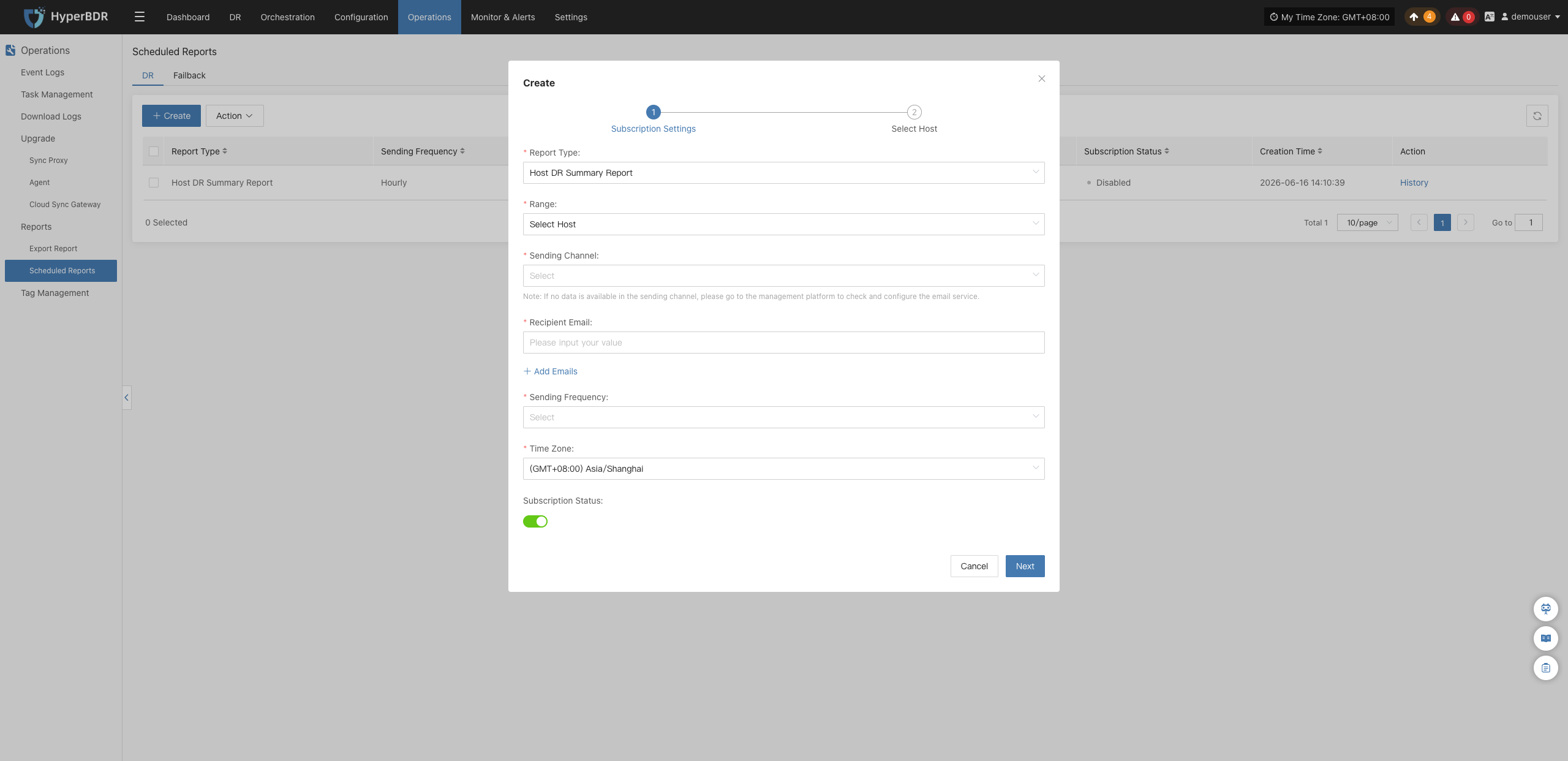
- If Select Host is selected for the range, the system will open the host selection interface. Select the target hosts to include in the report, verify all parameters, and click 【Submit】 to complete creation:
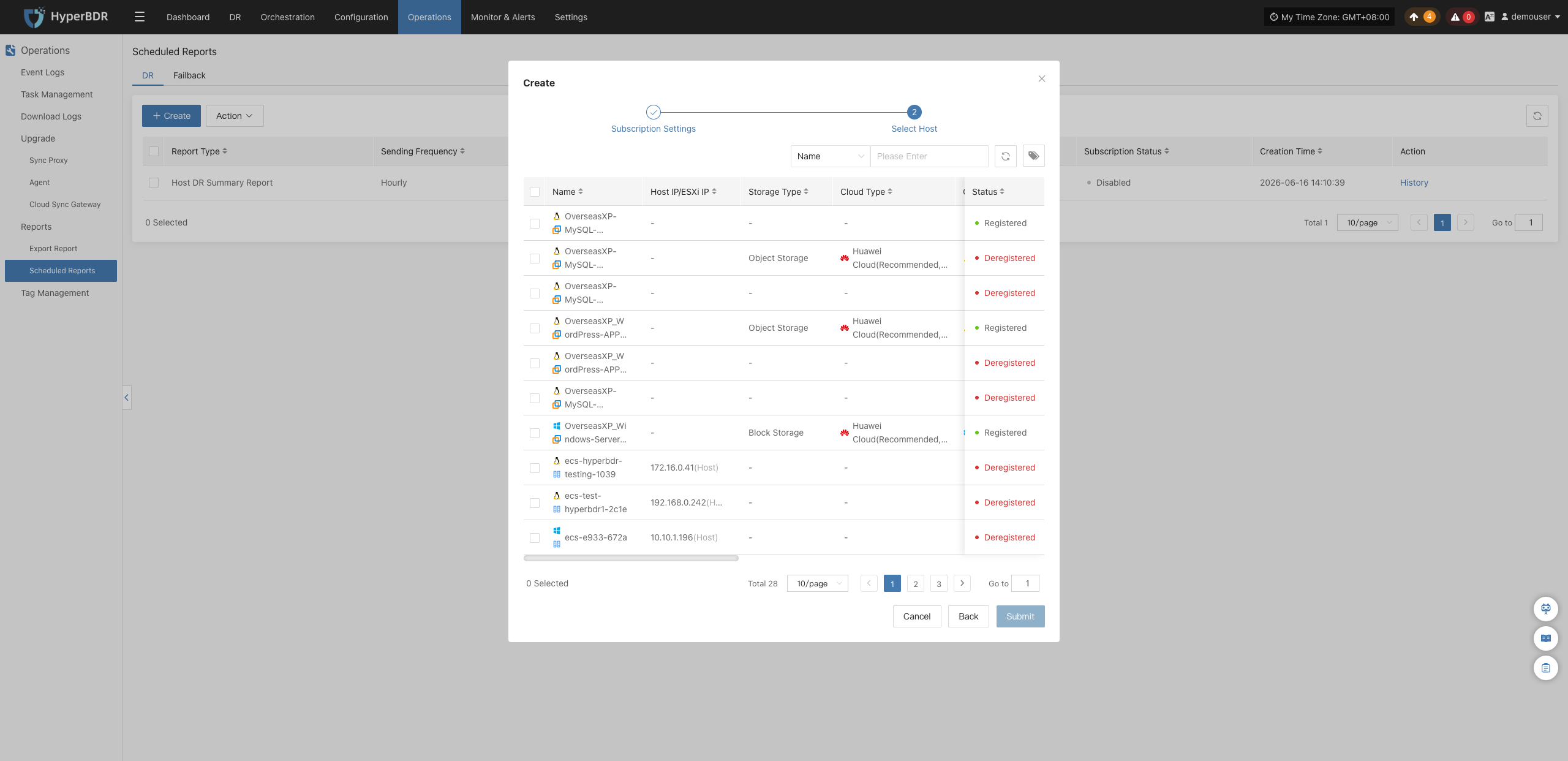
View History Records
In the scheduled reports list, users can inspect historical generation runs and reports for each scheduled task at any time:
- Click the 【History】 button in the action column of the target task to slide out the history drawer on the right:
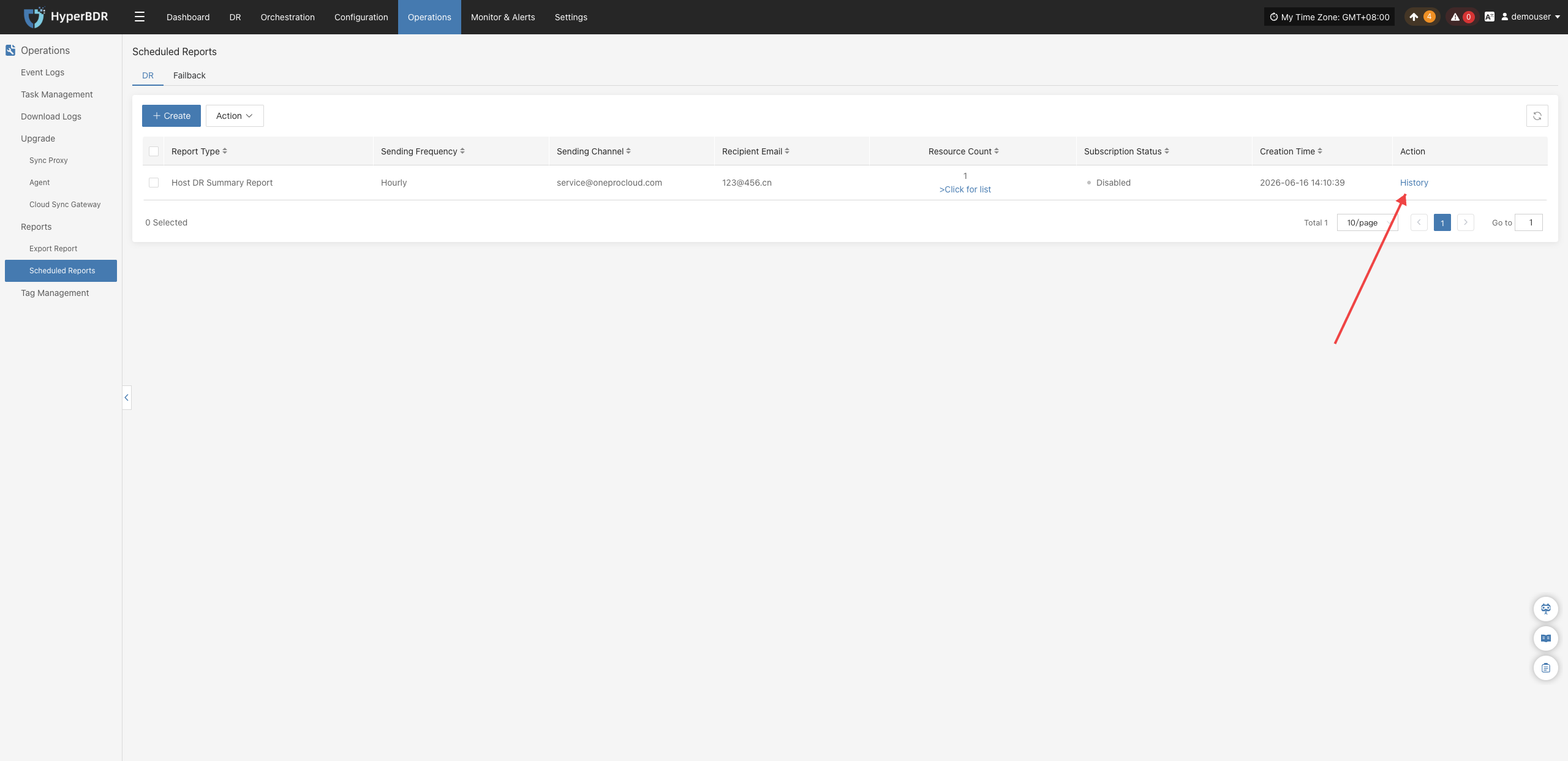
- In the history drawer, users can view the report type, task ID, statistical start/end time, and execution status of each automatic collection, and click 【Download】 to download historical report files directly:
Action
After selecting target scheduled report tasks in the list, click the 【Action】 dropdown button above the table to perform the following management operations:
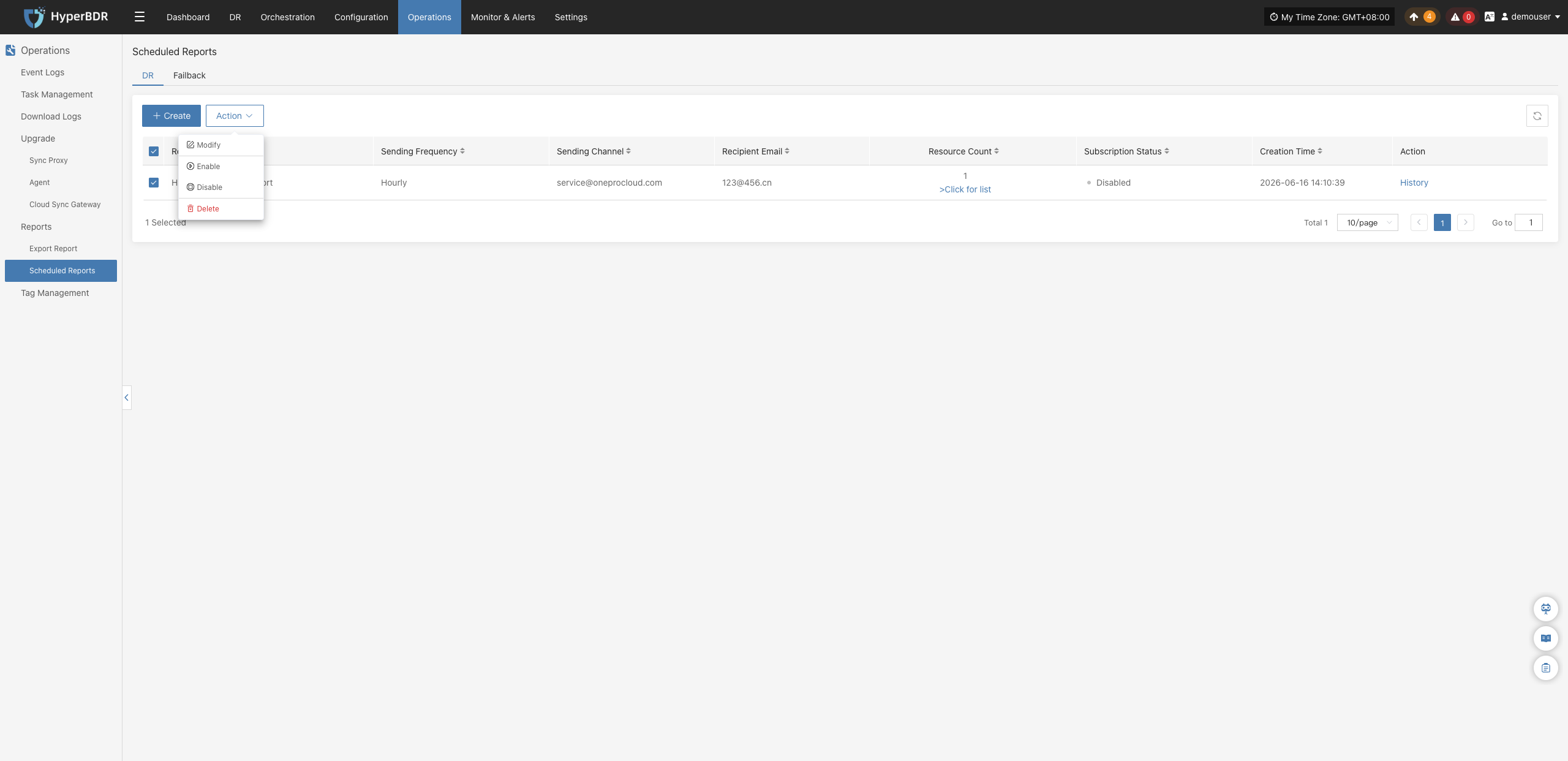
Modify
Select the target scheduled report task and click 【Modify】 to open the edit dialog. You can adjust the report type, scope, time zone, push channel, recipient email, target hosts, or execution frequency. After submission, changes take effect on the next cycle:
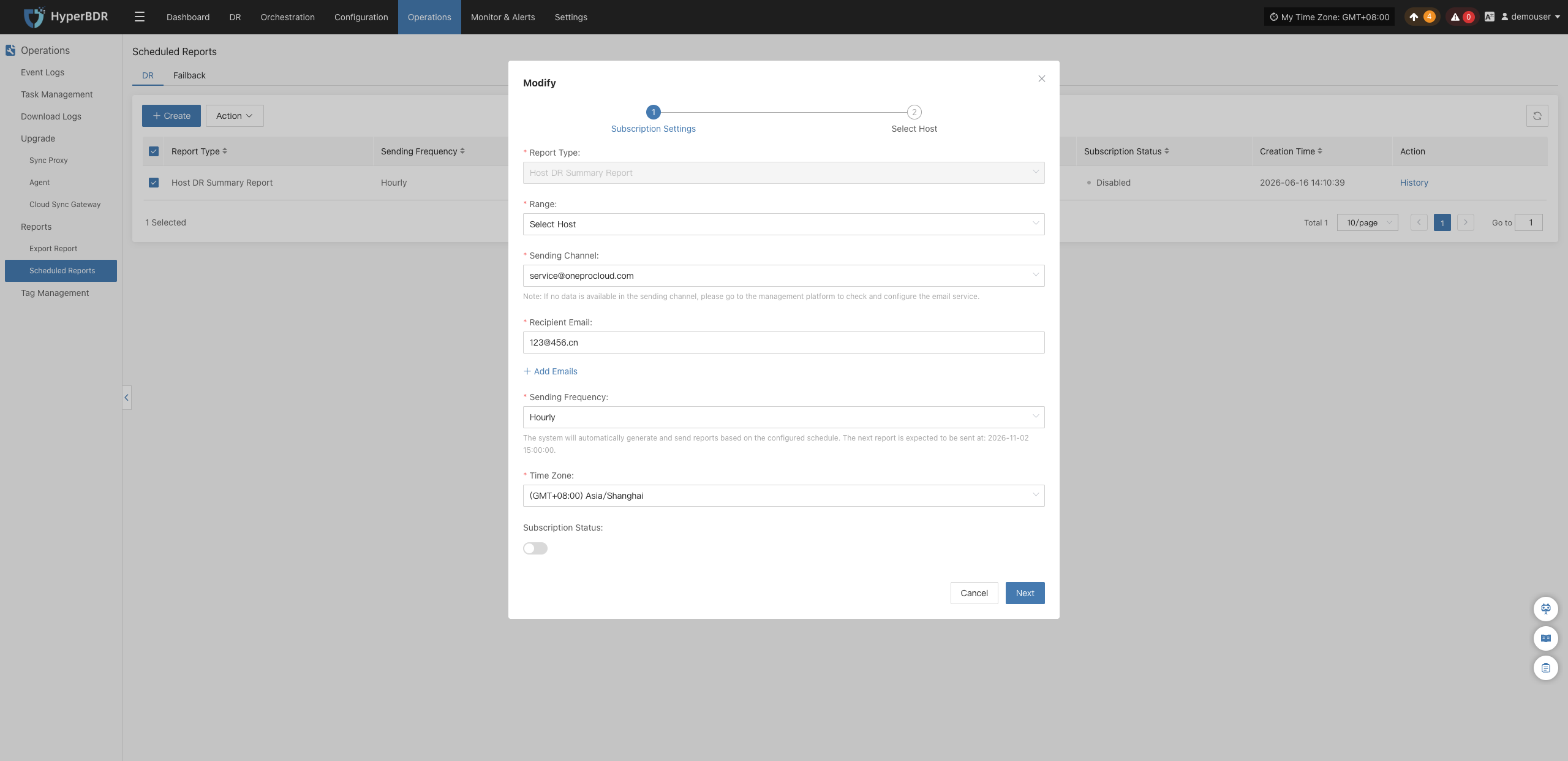
Enable
For a disabled scheduled task, select it in the list and click 【Action】>【Enable】 to resume automated periodic execution. The subscription status switches to "Enabled":
Disable
Select an active scheduled report task, check the row, and click 【Action】>【Disable】 to pause periodic execution while retaining task configuration. The subscription status switches to "Disabled":
Delete
Select a scheduled report task that is no longer needed, and click 【Action】>【Delete】. A secondary confirmation dialog will appear. Confirming will permanently remove the scheduled task:
Warning
The delete operation is irreversible. Once deleted, the system will no longer generate corresponding reports periodically. Please ensure there is no need for report archiving before deleting.
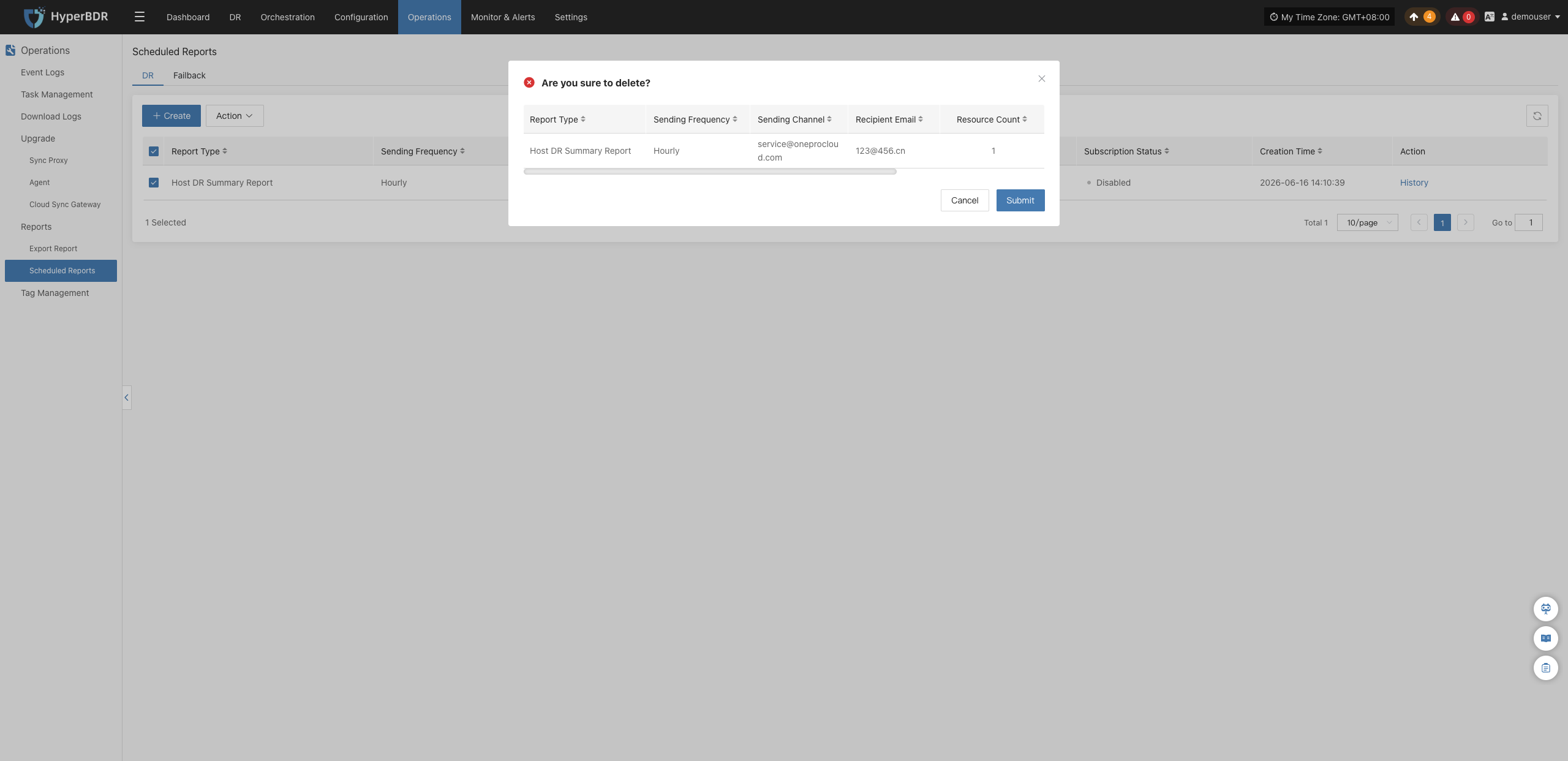
Tag Management
The Tag Management module is used to classify and multi-dimensionally label host resources in the system, enabling users to quickly search, group, and manage large-scale resources, thereby improving O&M efficiency.
Tag List
Log in to the HyperBDR console, and navigate to 【O&M Management】>【Tag Management】>【Tag List】 from the top navigation bar.
Create Tag
Click the 【+ Create Tag】 button in the upper left corner of the list. In the popup window, fill in the tag name, description, and select the tag color, then click 【Submit】 to complete creation:
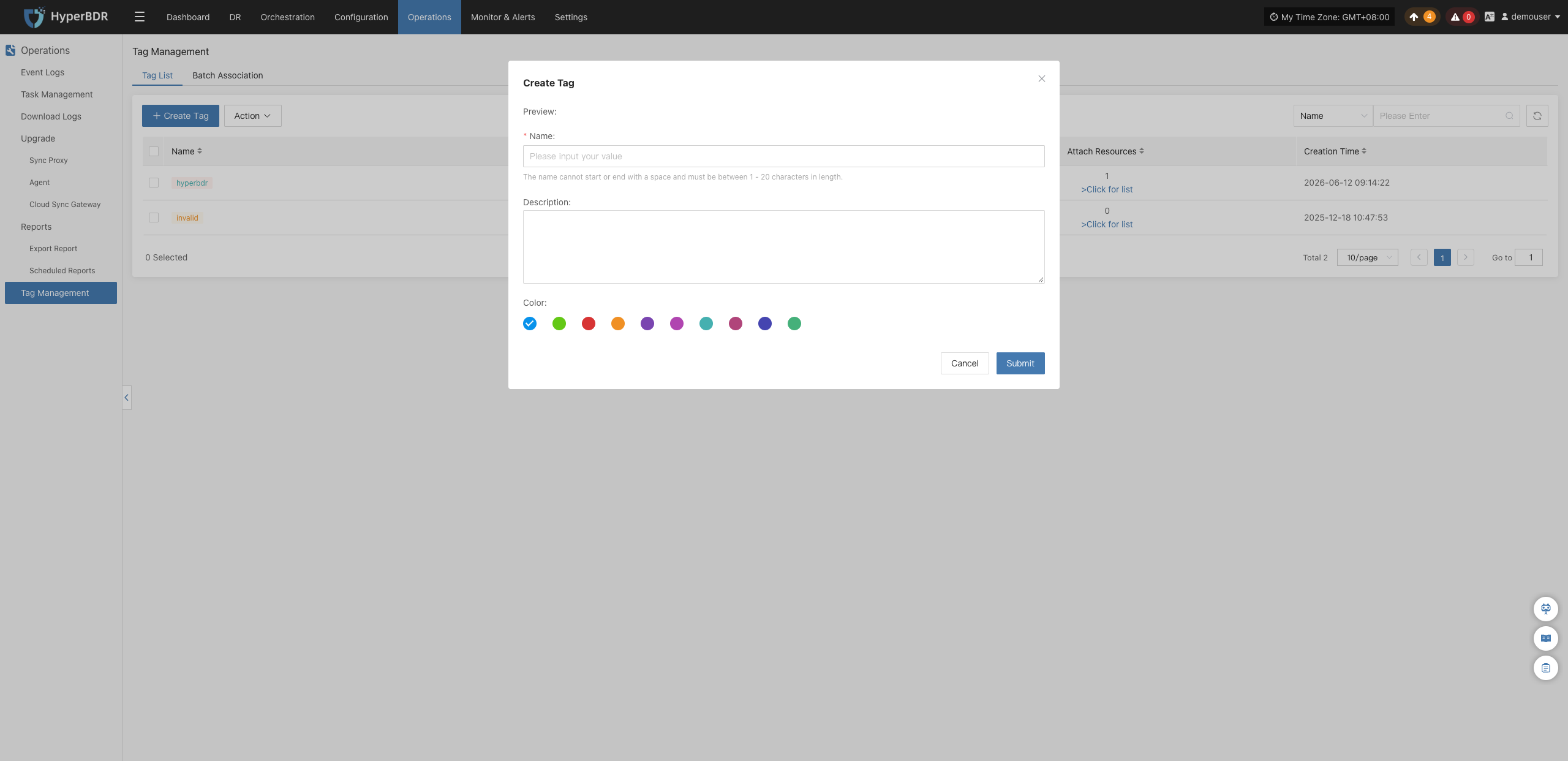
Action
Select a created target tag, and click the 【Action】 dropdown menu above the list to perform the following management operations:
Modify
Select the target tag, click 【Action】>【Modify】, edit the tag name, description, and color as needed, then click 【Submit】 to save changes:
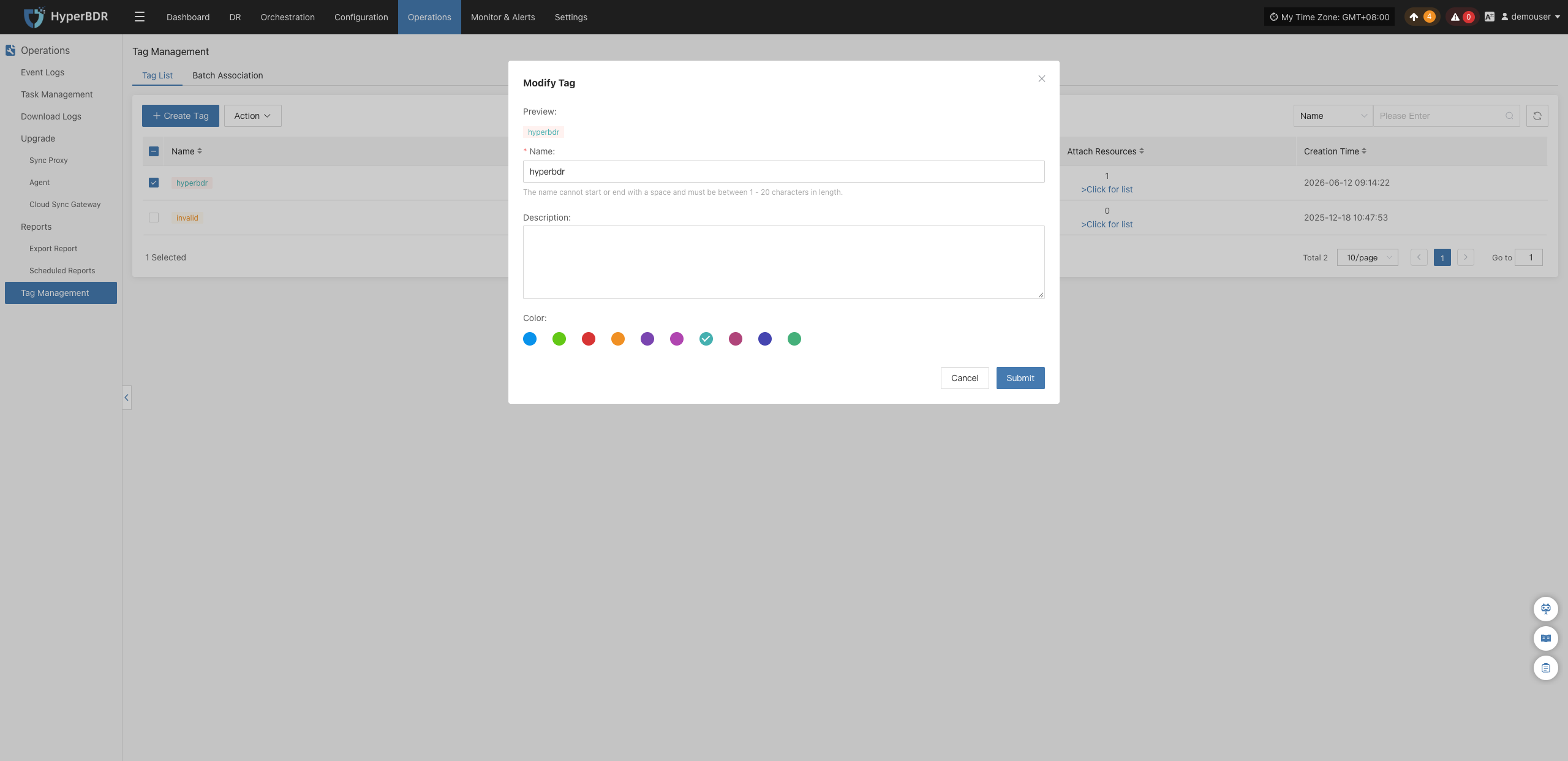
Attach Resource
Select the target tag, click 【Action】>【Attach Resource】, check the host resources to associate in the popup host list, and click 【Submit】 to complete binding:
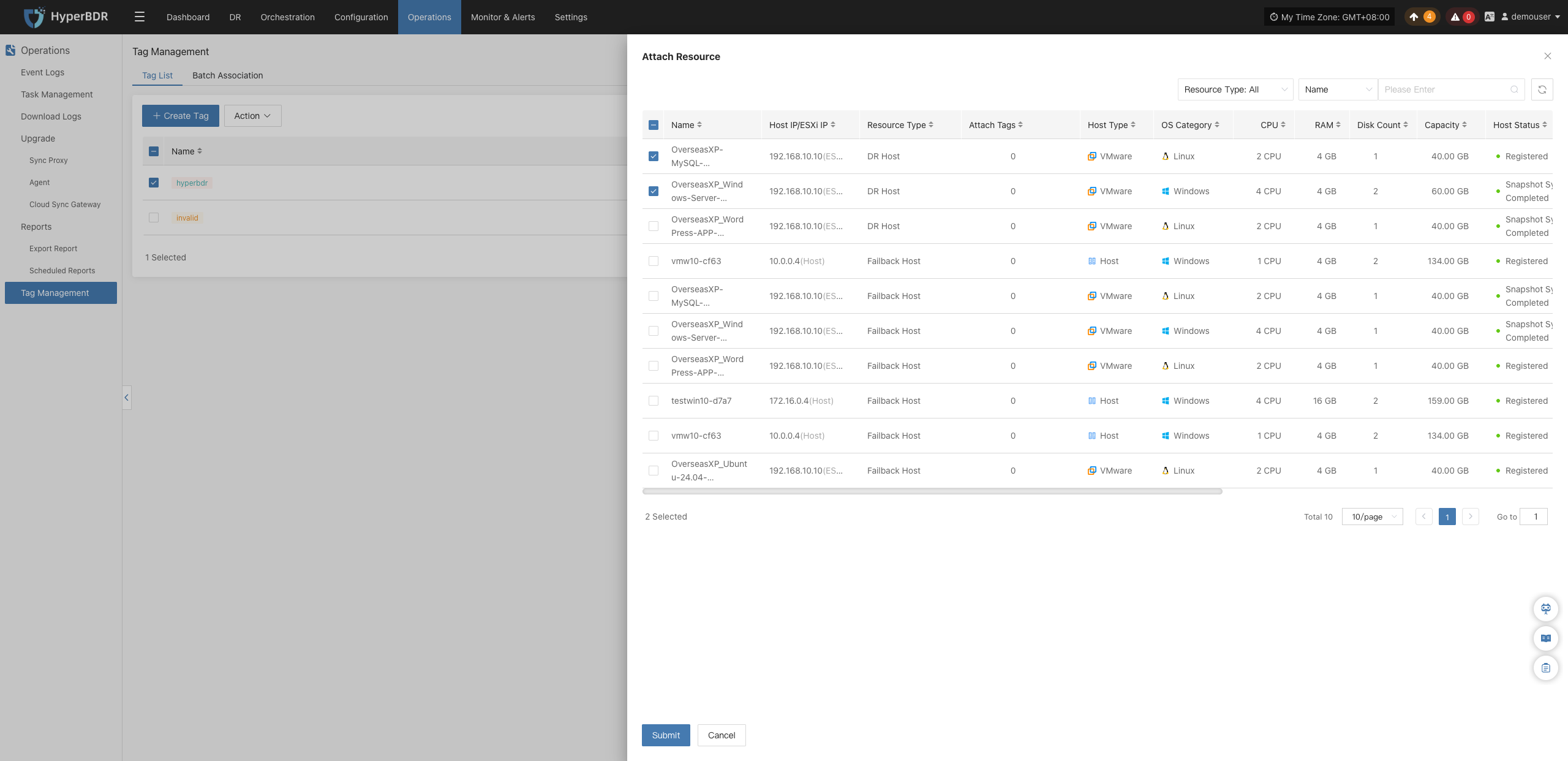
After association, click 【>Click for list】 in the target tag's row. The resource details drawer will slide out from the right, allowing you to centrally view all host resources currently bound to this tag:
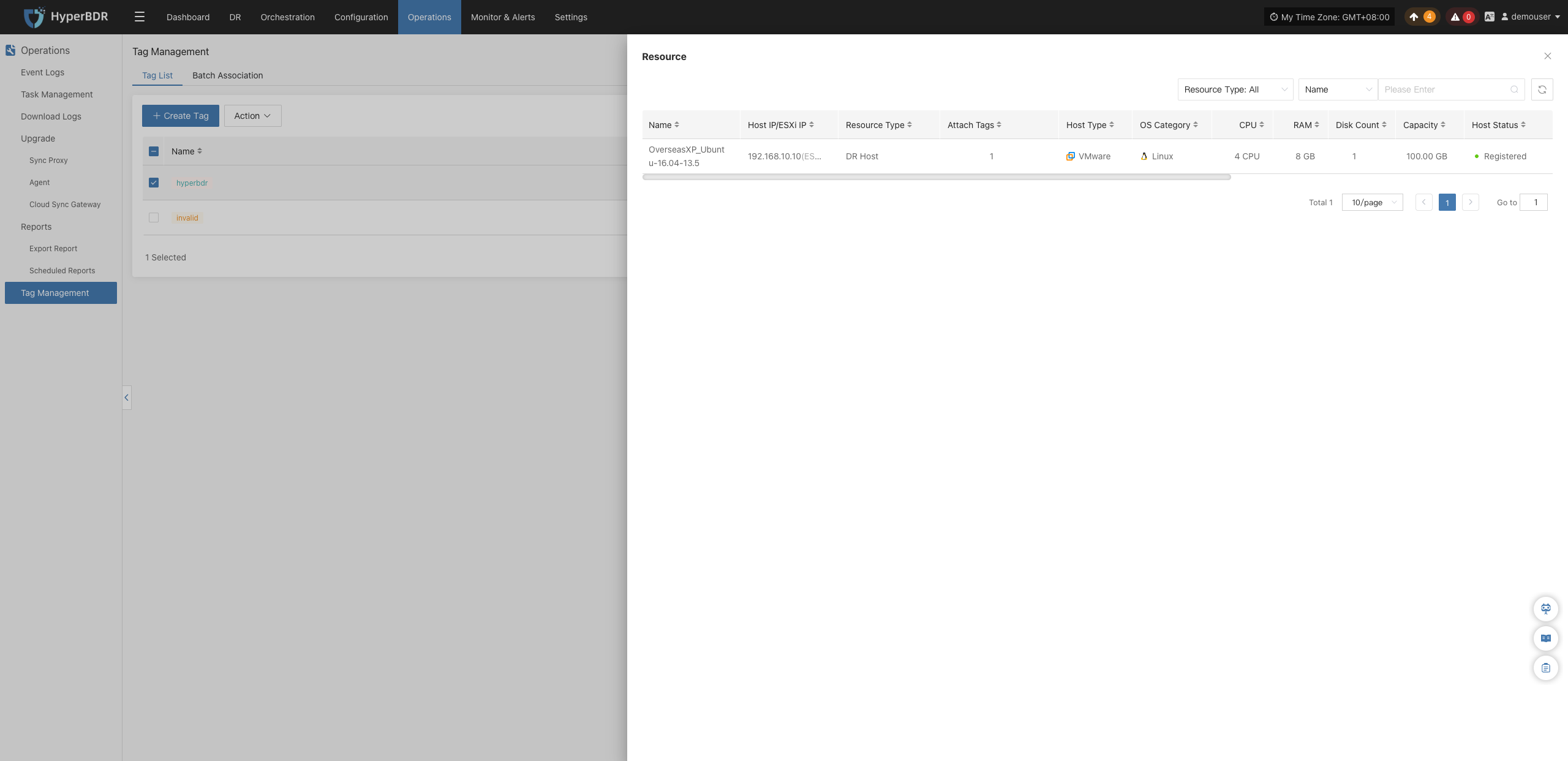
Detach Resource
Select the target tag, click 【Action】>【Detach Resource】, check the host resources to unbind, and click 【Submit】 to confirm detaching:
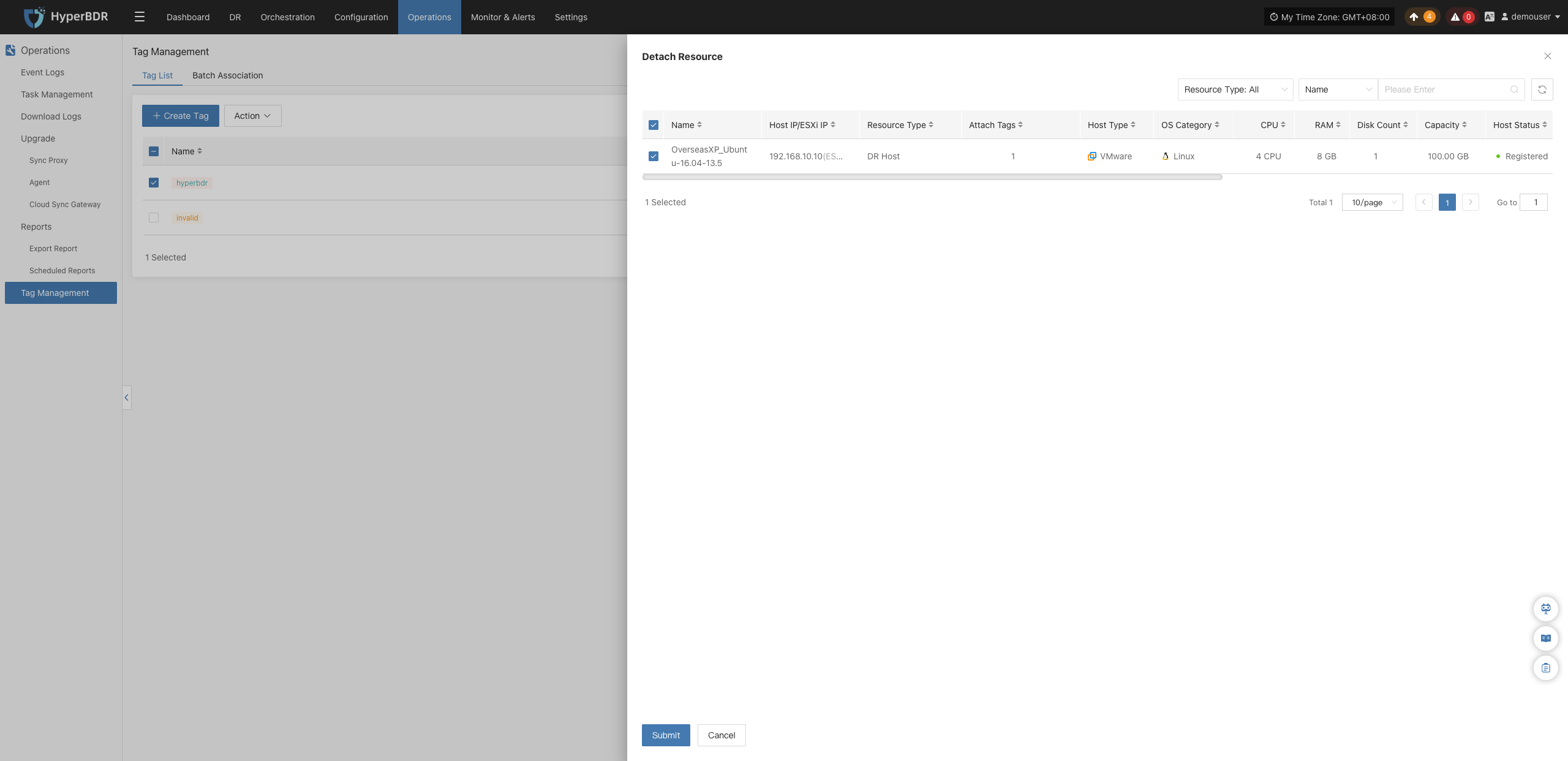
Delete
Select the tag that is no longer needed, click 【Action】>【Delete】, and a secondary confirmation dialog will pop up. Click 【Submit】 to permanently delete the tag:
Warning
The deletion operation is irreversible. Once a tag is deleted, all attached host resources will be automatically detached from it.
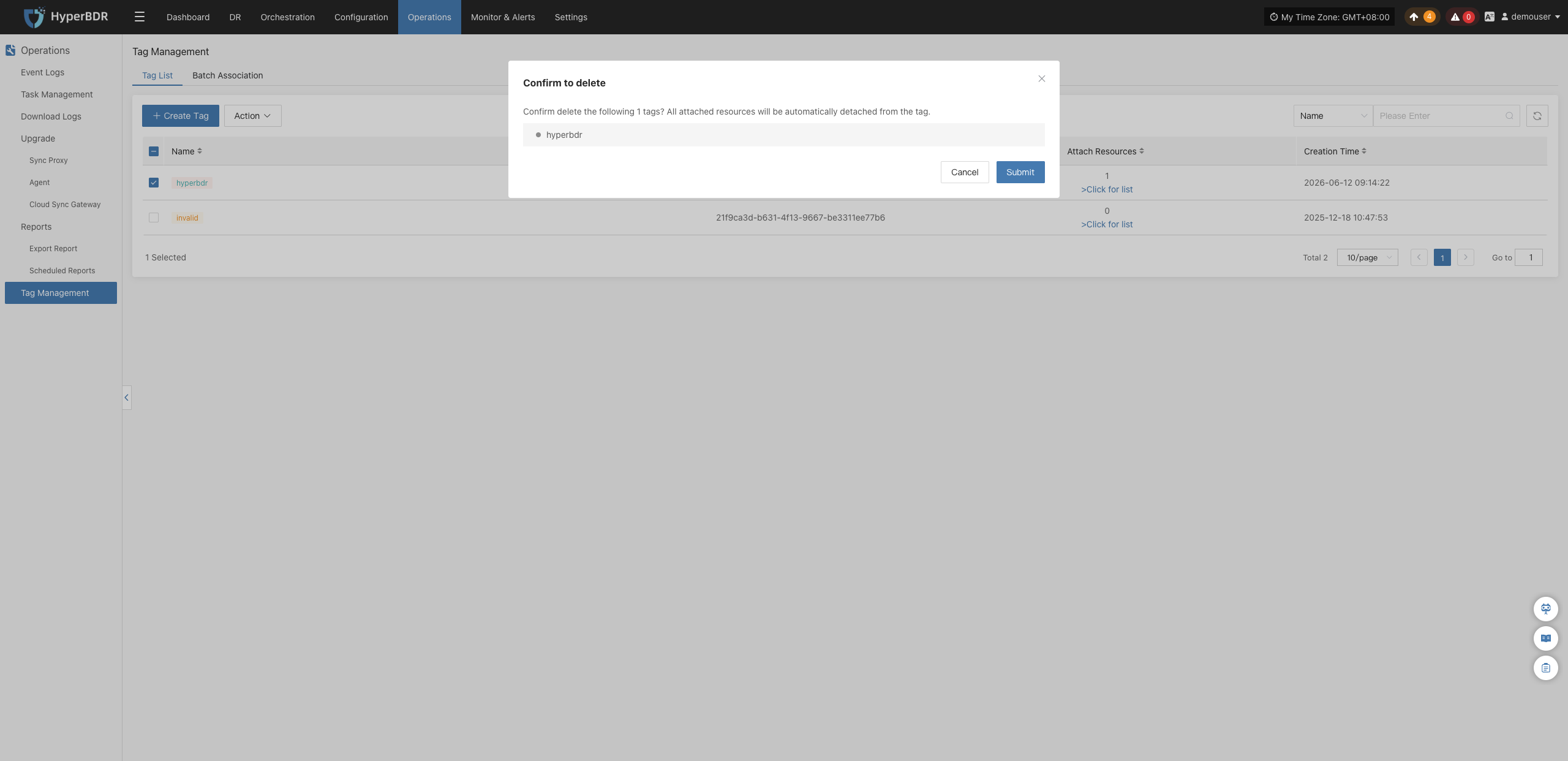
Batch Association
For scenarios requiring large-scale tag assignment, you can import CSV templates to achieve batch association. Navigate to 【O&M Management】>【Tag Management】>【Batch Association】.
Export Template
Click the 【Export Template】 button in the upper right corner of the page to download the host tag configuration template file (.csv format):
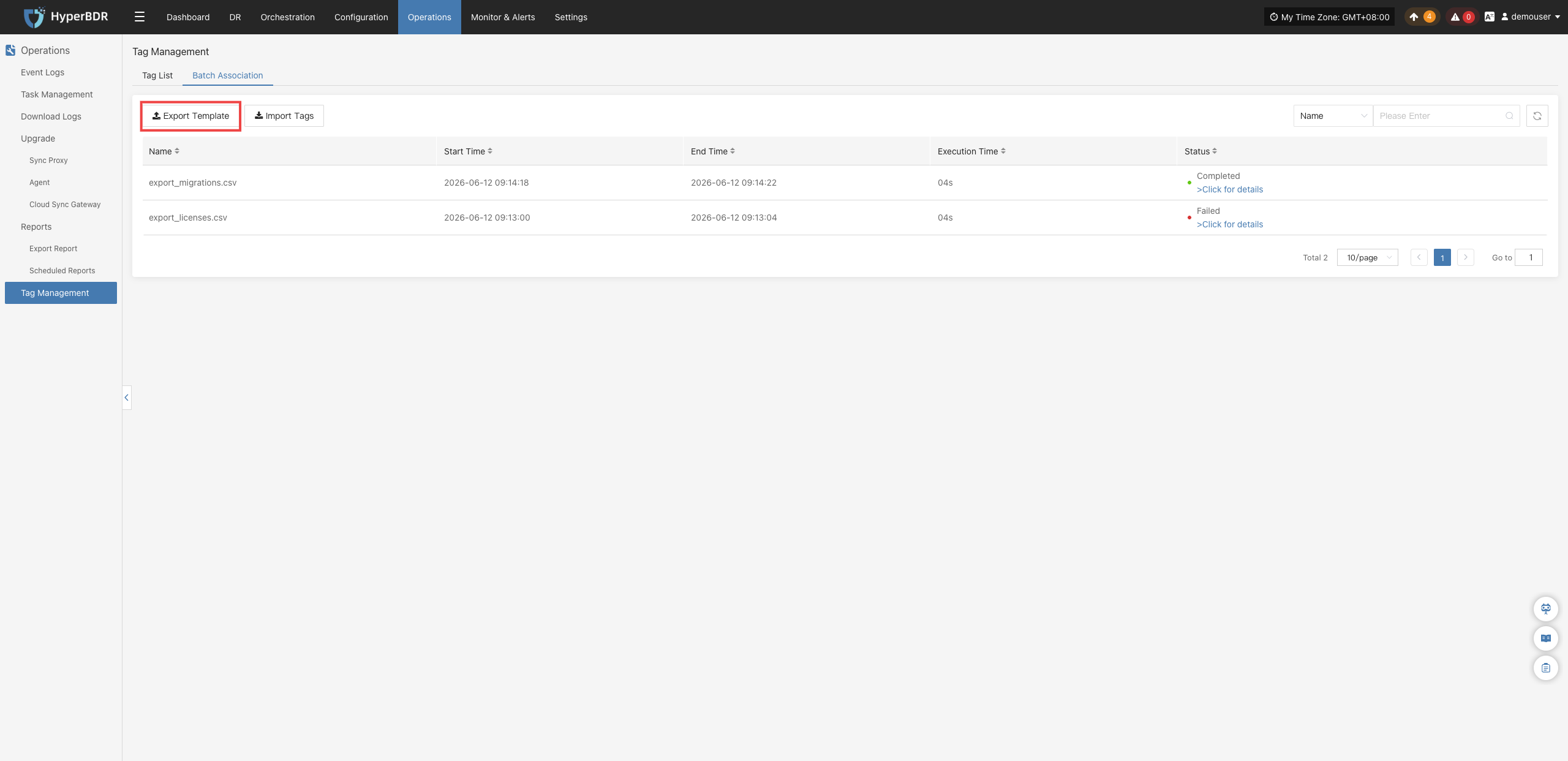
Template Field Description
| Field Name | Description |
|---|---|
| HOST ID | Unique host identifier, usually in UUID format. |
| NAME | Host name, custom or system-assigned name. |
| HOST NAME | Host network hostname. |
| HOST IP | Host IP address. |
| HOST MAC | Host MAC address, uniquely identifying the network interface. |
| HOST TAGS | Host tags, used to classify, group, or identify custom host information (multiple tags separated by English commas). |
Fill in and Save Template
Open the exported CSV template file, enter the target tag names in the HOST TAGS column for the corresponding hosts, and save the file:
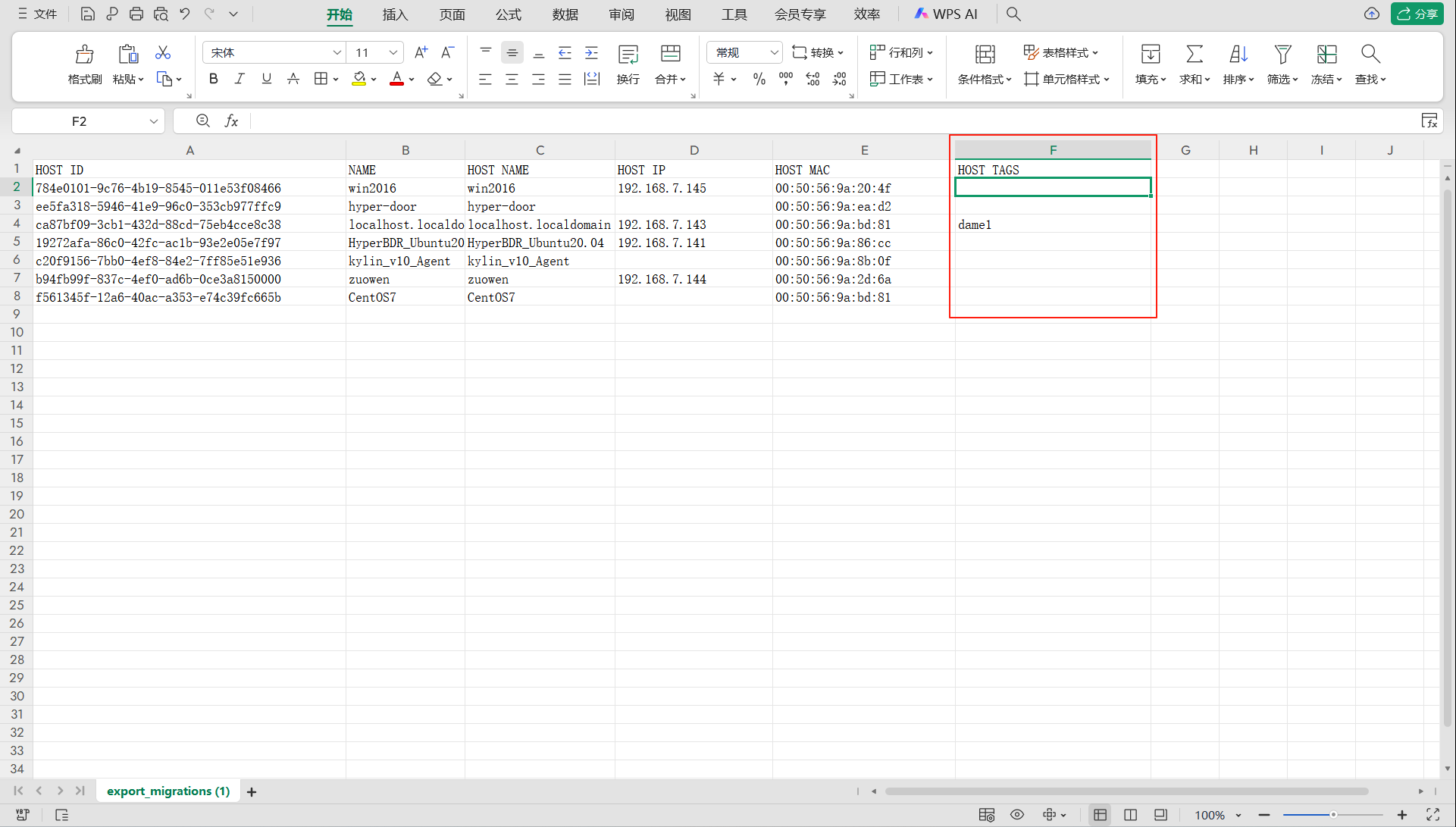
Import Tags
Click the 【Import Tags】 button in the upper right corner of the page, and drag or upload the filled CSV template file in the popup dialog (only .csv format is supported):
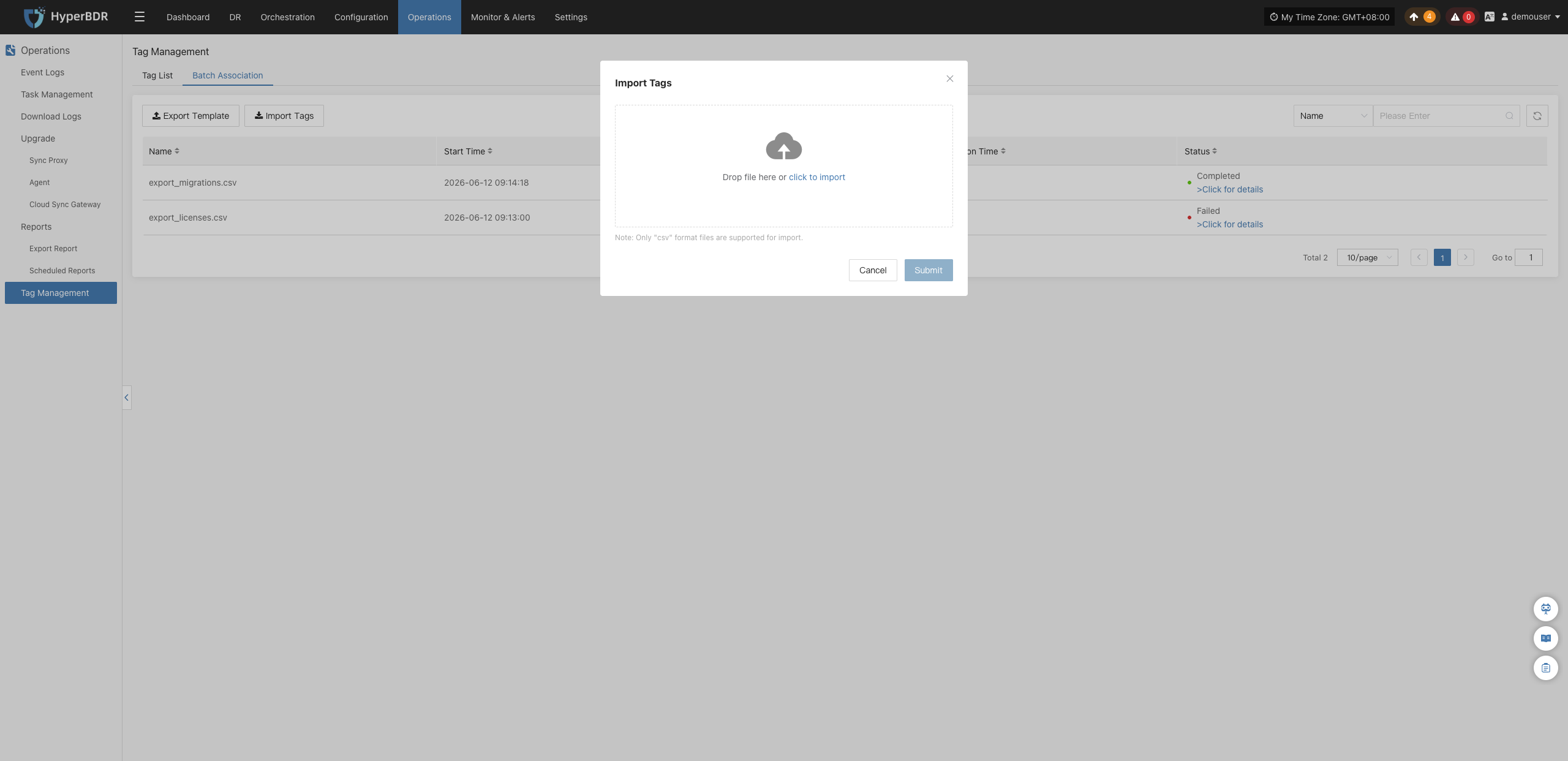
After uploading and submitting the file, the system will automatically create the corresponding tags in batch and attach host resources to them. You can view the import progress and execution results in the task details drawer:
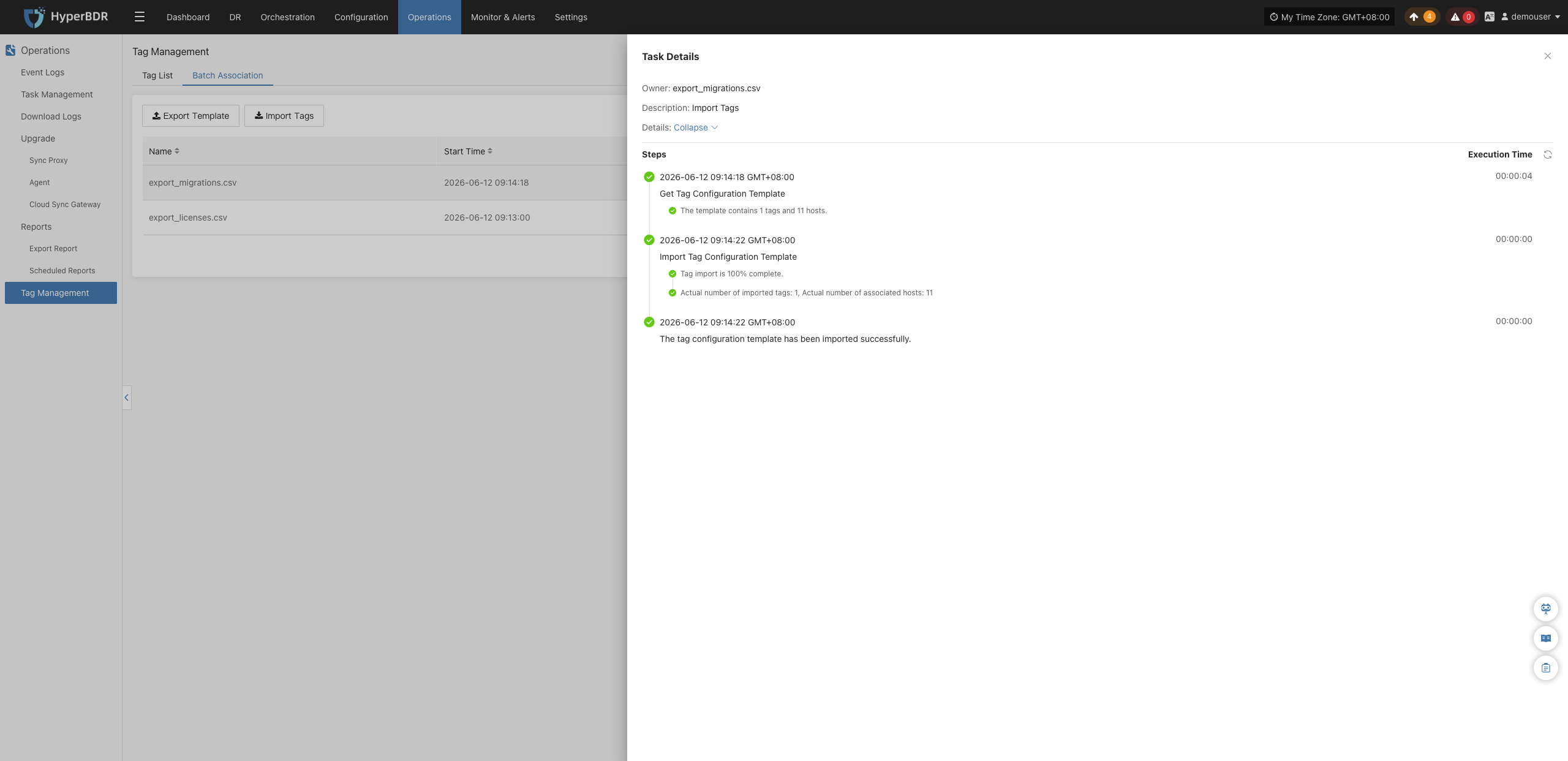
Monitor & Alerts
System Monitor
Provides a visual overview of the operating status of core platform resources, supporting real-time collection of metrics such as CPU, memory, disk, network, and load. This helps administrators fully understand the health of host resources. Users can switch views by resource type and node for unified, hierarchical monitoring.
System Monitoring Features
The system monitoring module provides real-time visualization and performance analysis of key resources across the platform. Taking "Sync Proxy" as an example, users can select a specific host to view detailed performance metrics for that node, helping quickly identify resource bottlenecks or potential failure risks.
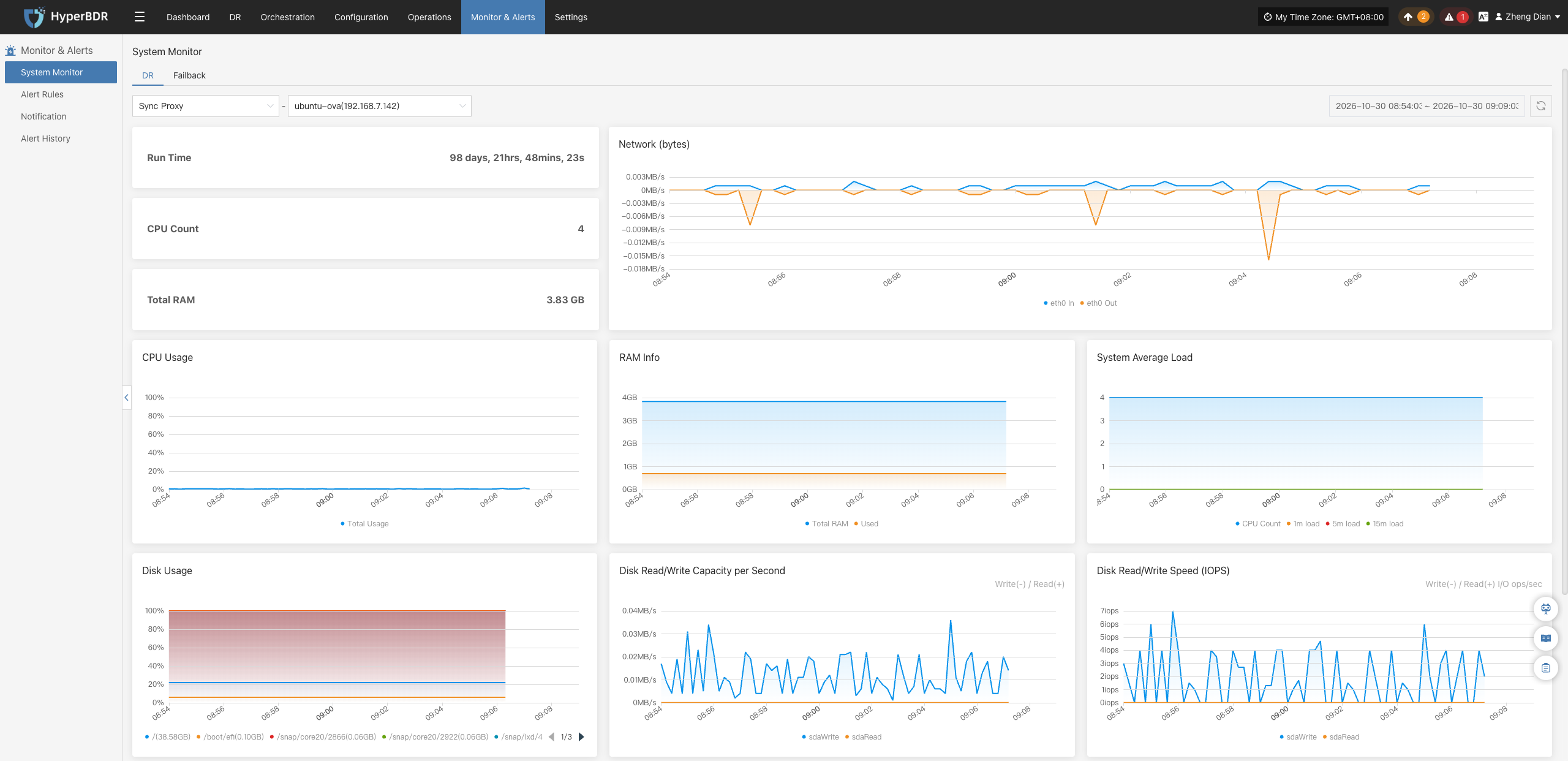
Basic Information
- Uptime: Displays how long the sync proxy has been running continuously since startup.
- CPU Cores: Displays the number of physical CPU cores on the current host.
- Total Memory: Displays the total physical RAM capacity of the current host.
Resource Usage
The system dynamically displays the usage of various resources through charts, enabling users to track operational loads and performance variations in real time.
| Metric | Description |
|---|---|
| CPU Usage | Line chart showing CPU usage variations over time. |
| RAM Info | Displays total, used, and remaining memory. |
| System Average Load | Shows average system load over the past 1, 5, and 15 minutes respectively. |
| Network (bytes) | Graphically illustrates inbound (In) and outbound (Out) traffic on the network interface. |
| Disk Usage | Displays space utilization percentages across mounted disk paths. |
| Disk Read/Write Capacity per Second | Real-time display of disk read and write throughput. |
| Disk Read/Write Speed (IOPS) | Displays disk write frequency measured in IOPS. |
| Count of iSCSI Processes in 'D' State | Tracks count changes in current iSCSI process states. |
Note
Supports flexibly switching views by resource type and host instance for targeted real-time performance monitoring.
DR
Log in to the HyperBDR console, and navigate to 【Monitor & Alerts】>【System Monitor】 from the top navigation bar. By default, the page opens on the 【DR】 tab. Users can use the component type dropdown menu and host list to flexibly inspect real-time metrics for each disaster recovery component.
Sync Proxy
Select 【Sync Proxy】 from the component type dropdown menu to inspect system resource utilization for the selected proxy node.
Cloud Sync Gateway
Select 【Cloud Sync Gateway】 from the component type dropdown menu to view resource consumption and workload metrics for the cloud sync gateway.
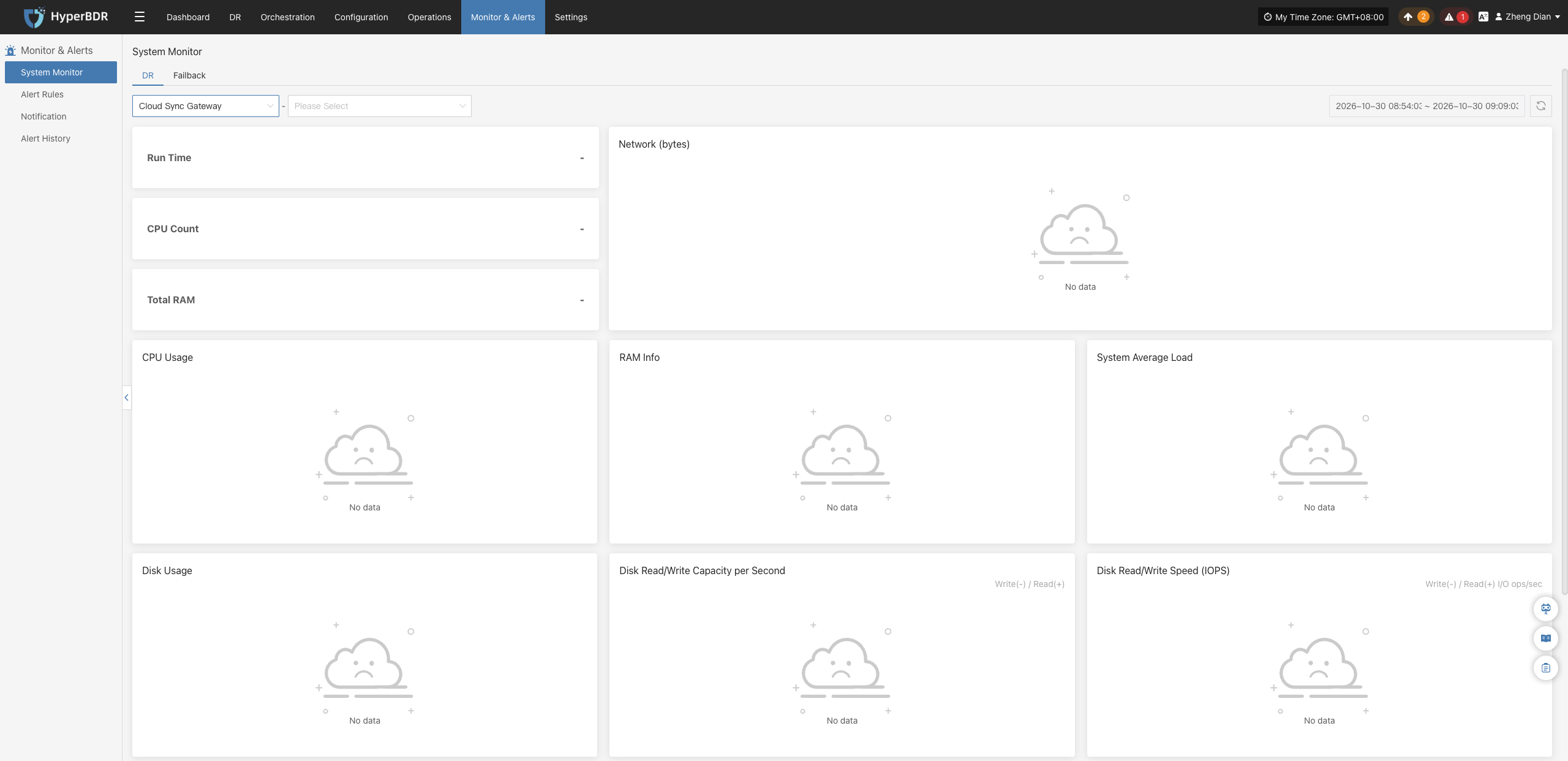
Linux Agent
Select 【Linux Agent】 from the component type dropdown menu, and pick a target Linux instance from the host list to pull up Agent resource monitoring details for that source Linux host.
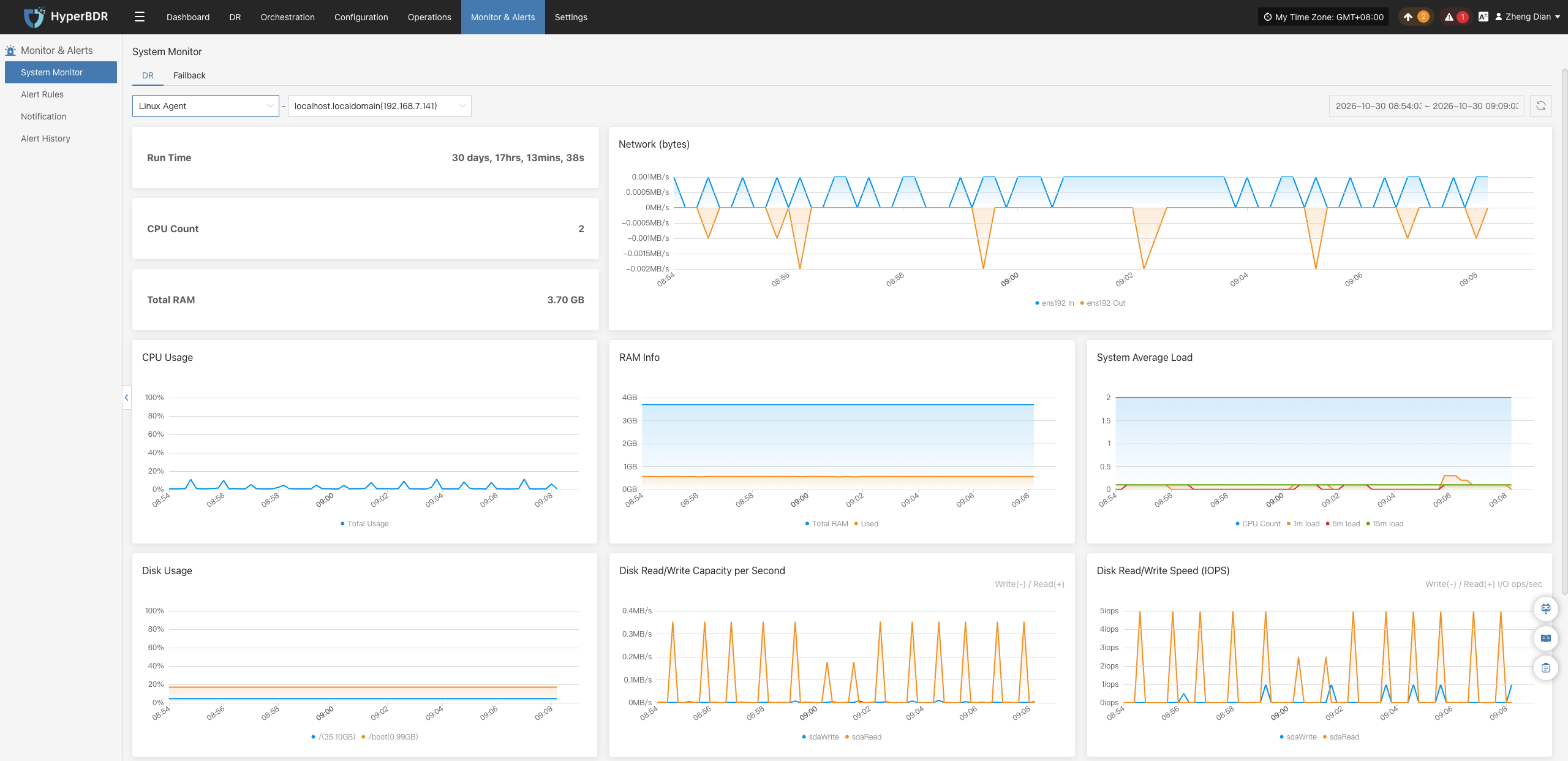
Windows Agent
Select 【Windows Agent】 from the component type dropdown menu, and pick a target Windows instance from the host list to monitor Agent metrics for that production Windows host in real time.
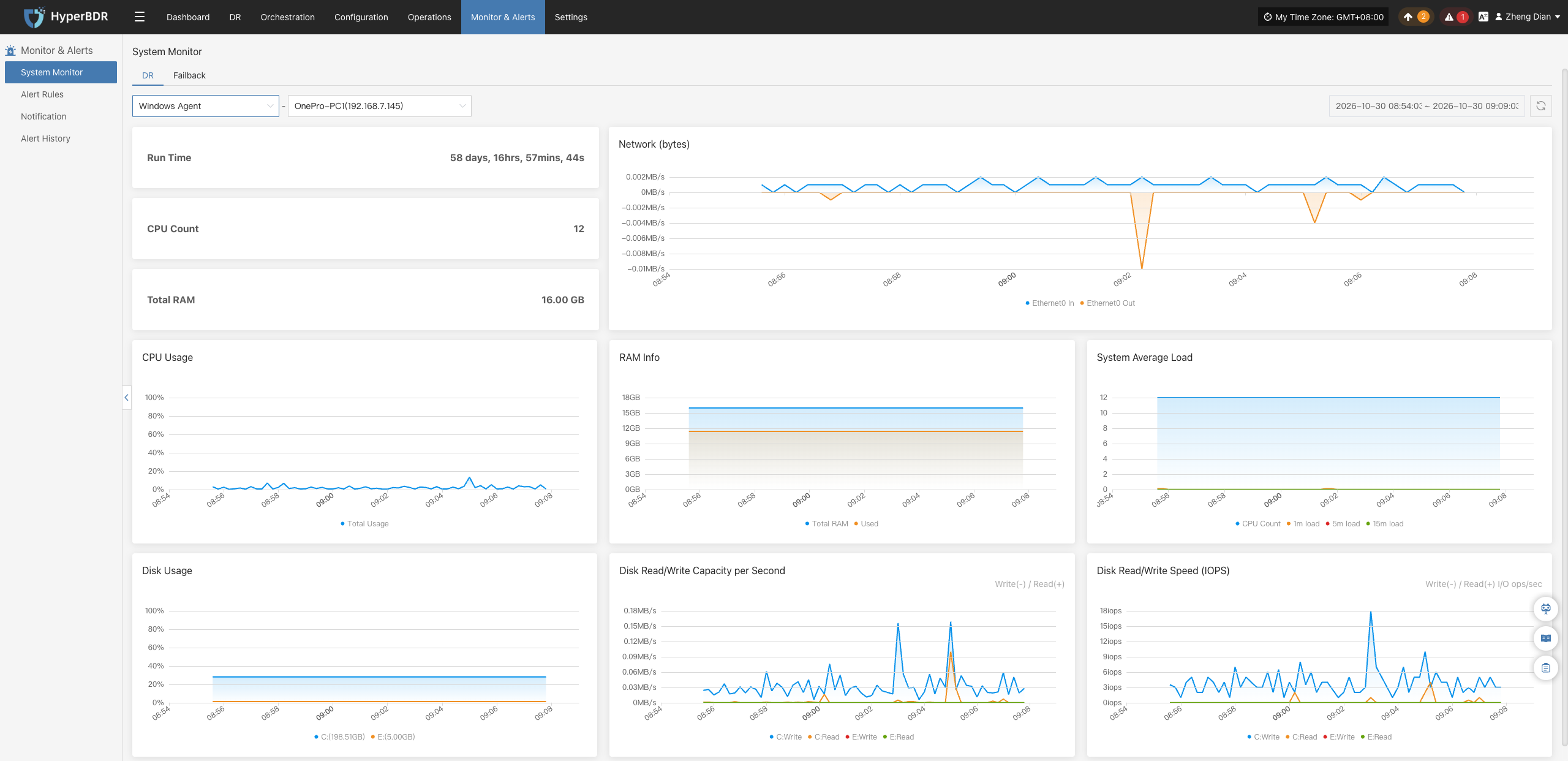
Failback
On the 【Monitor & Alerts】>【System Monitor】 page, switch to the 【Failback】 tab to monitor the real-time performance of various components involved in the reverse failback workflow.
Failback Sync Proxy
Select 【Failback Sync Proxy】 from the component type dropdown menu to inspect the operational monitoring dashboard for the selected proxy node.
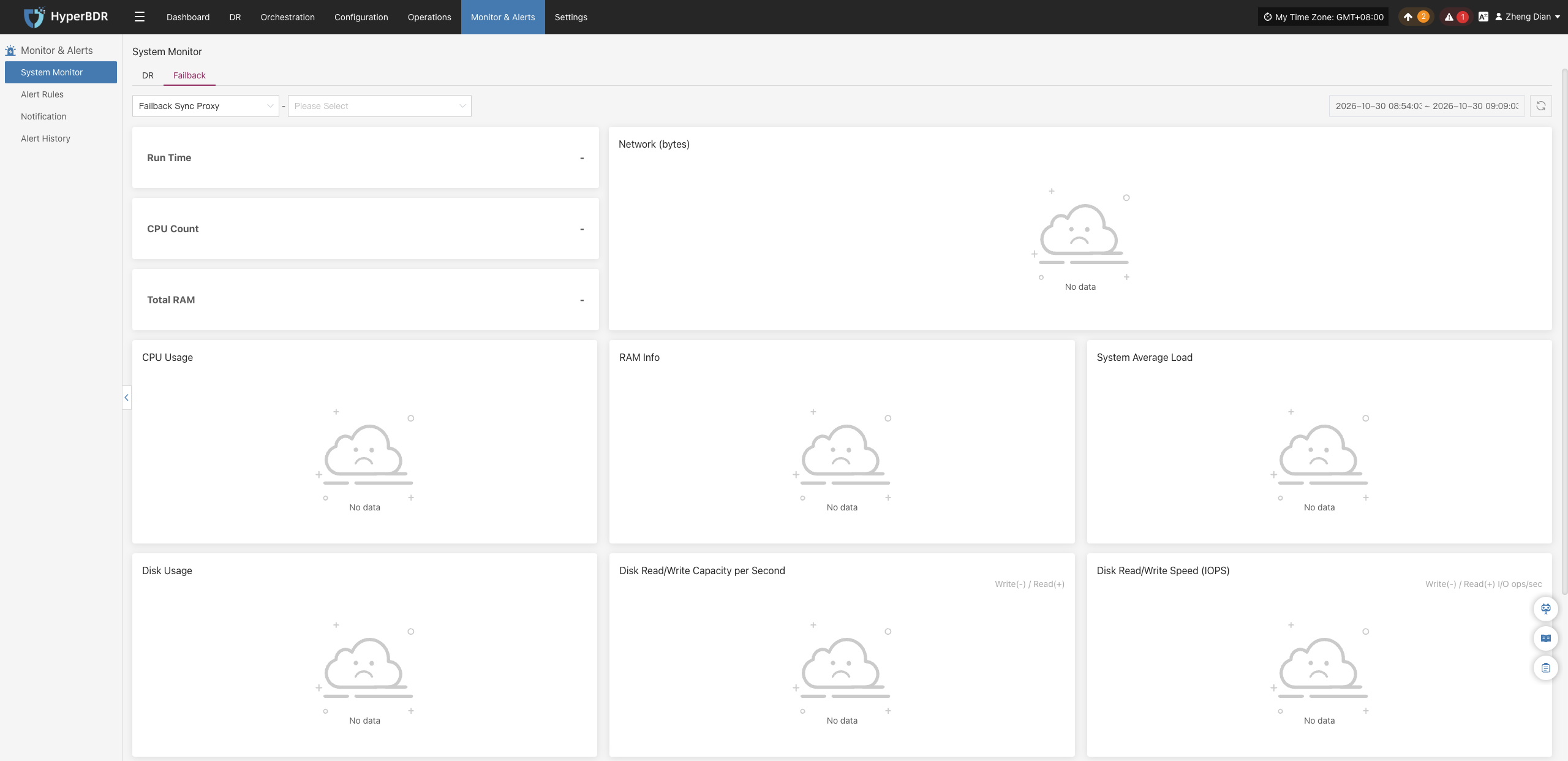
Failback Cloud Sync Gateway
Select 【Failback Cloud Sync Gateway】 from the component type dropdown menu to check operational metrics of data transfer gateways during failback.
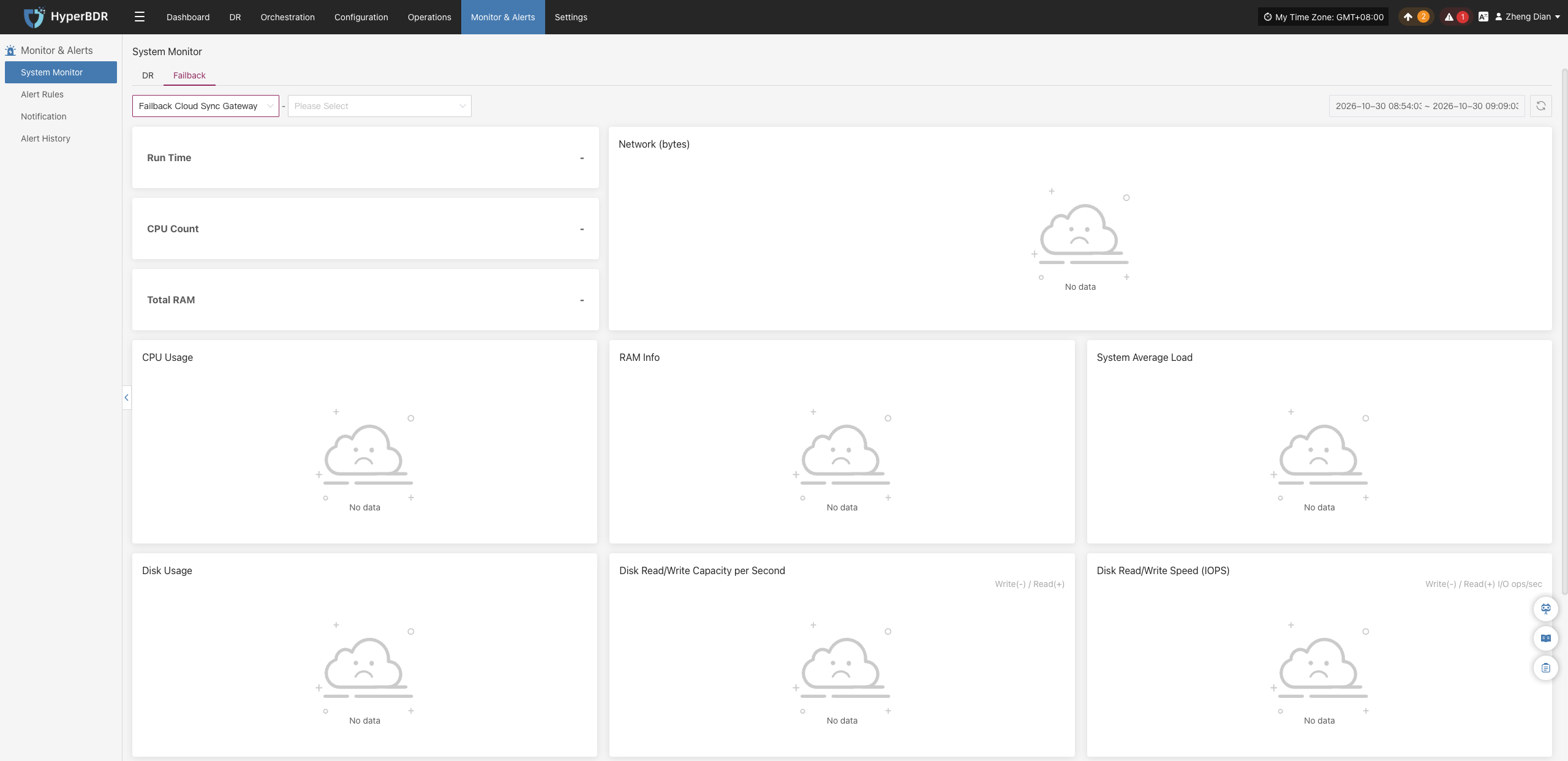
Failback Linux Agent
Select 【Failback Linux Agent】 from the component type dropdown menu and pick a target node from the host list to view Linux host monitoring status during reverse failback.
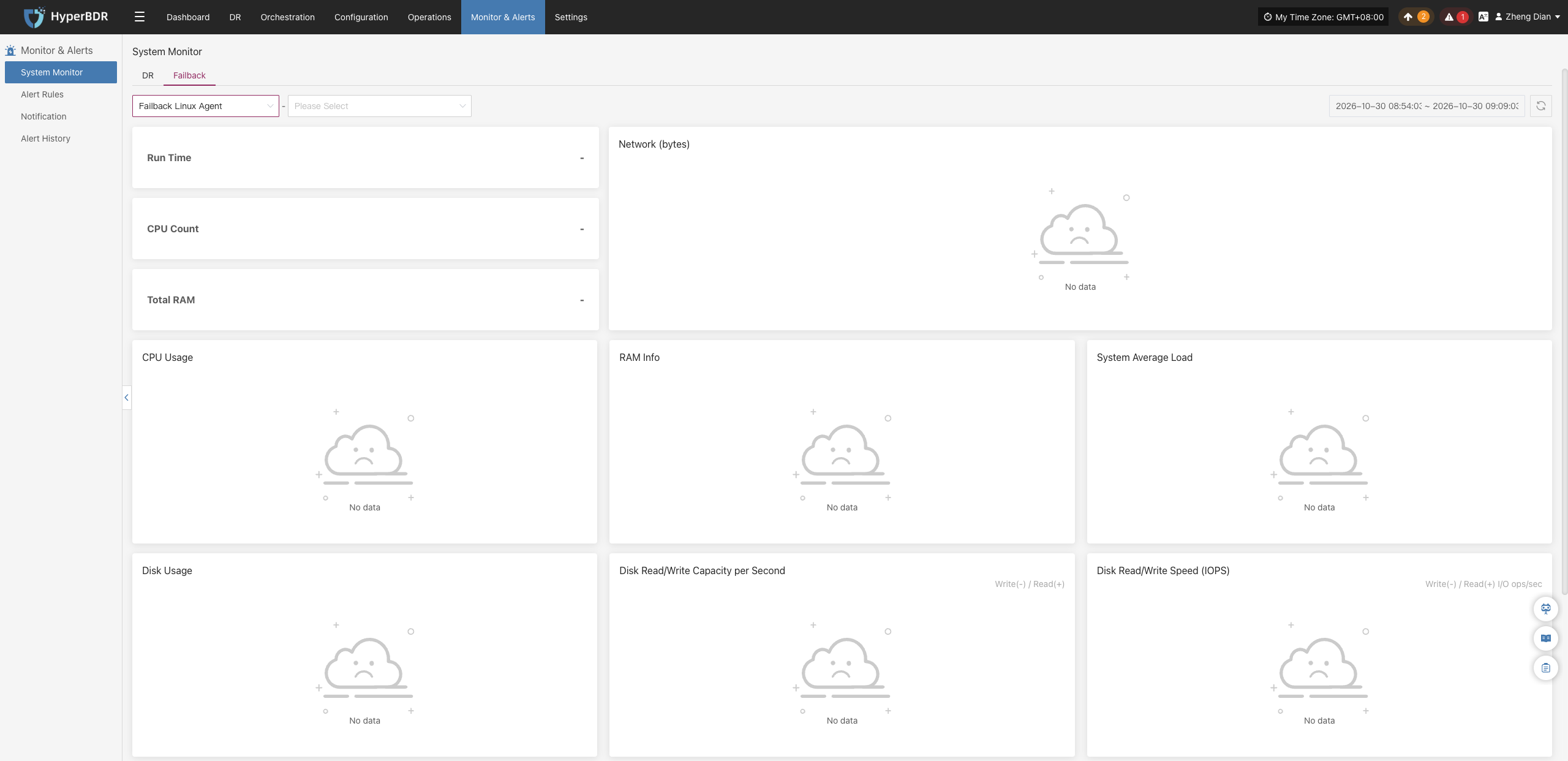
Failback Windows Agent
Select 【Failback Windows Agent】 from the component type dropdown menu and pick a target node from the host list to view Windows host system monitoring during failback.
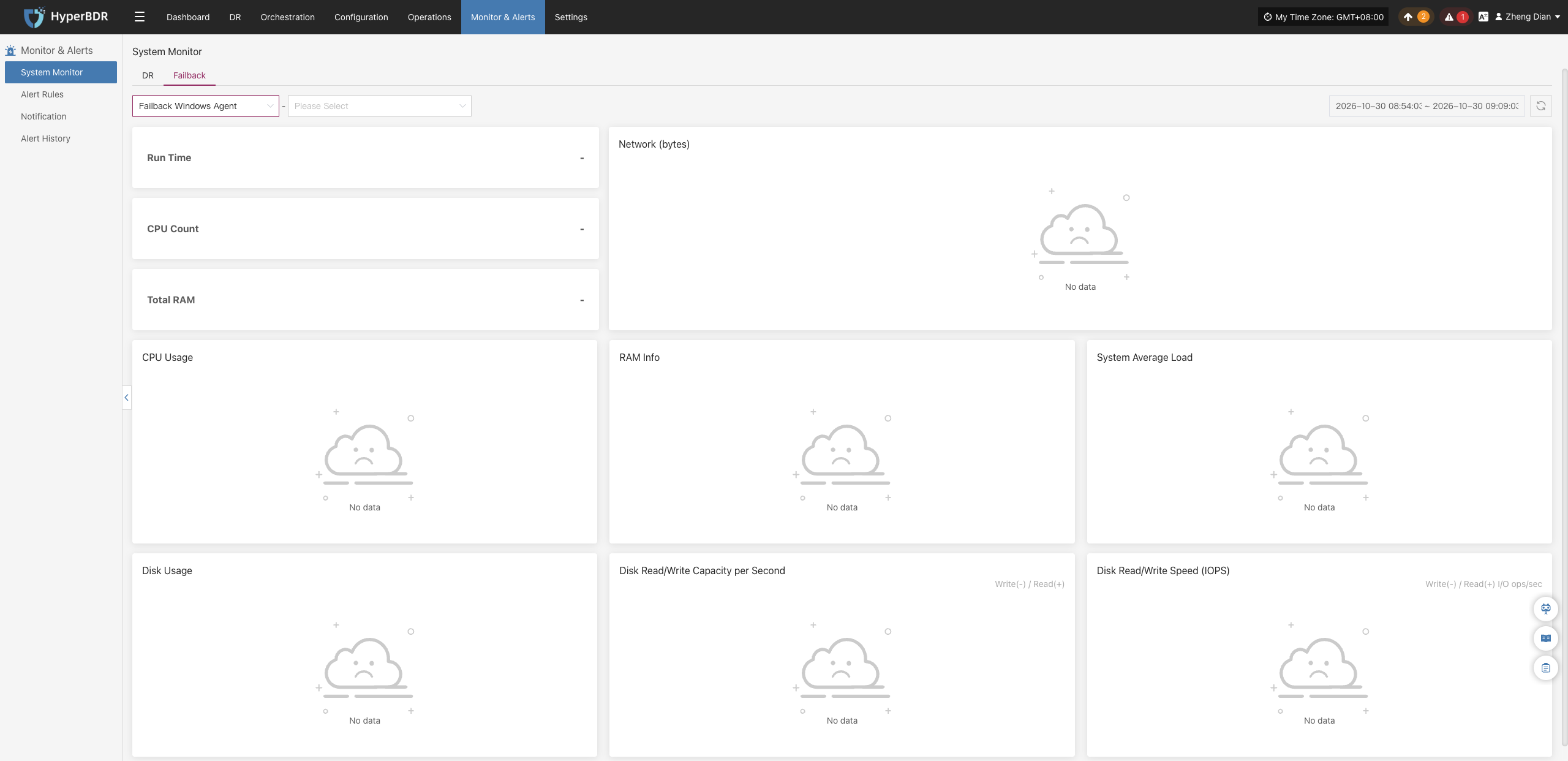
Alert Rules
To ensure system security, stability, and visibility into critical events, the platform includes built-in alert rule functionality. It monitors the operating status and resource utilization of disaster recovery hosts in real time and triggers alert notifications upon detecting anomalies, enabling operations personnel to promptly discover and address issues while minimizing the impact on business systems.
Tips
For best practices on configuring alert rules, refer to 【O&M Guide】>【Monitoring & Alerts】>【Alarm Best Practice】 for detailed recommendations and instructions.
Resource Rules
In the system menu, navigate to: 【Monitoring & Alerts】>【Alert Rules】>【Resource Rules】.
On the Resource Rules page, you can view, create, and manage resource monitoring rules in a centralized manner.
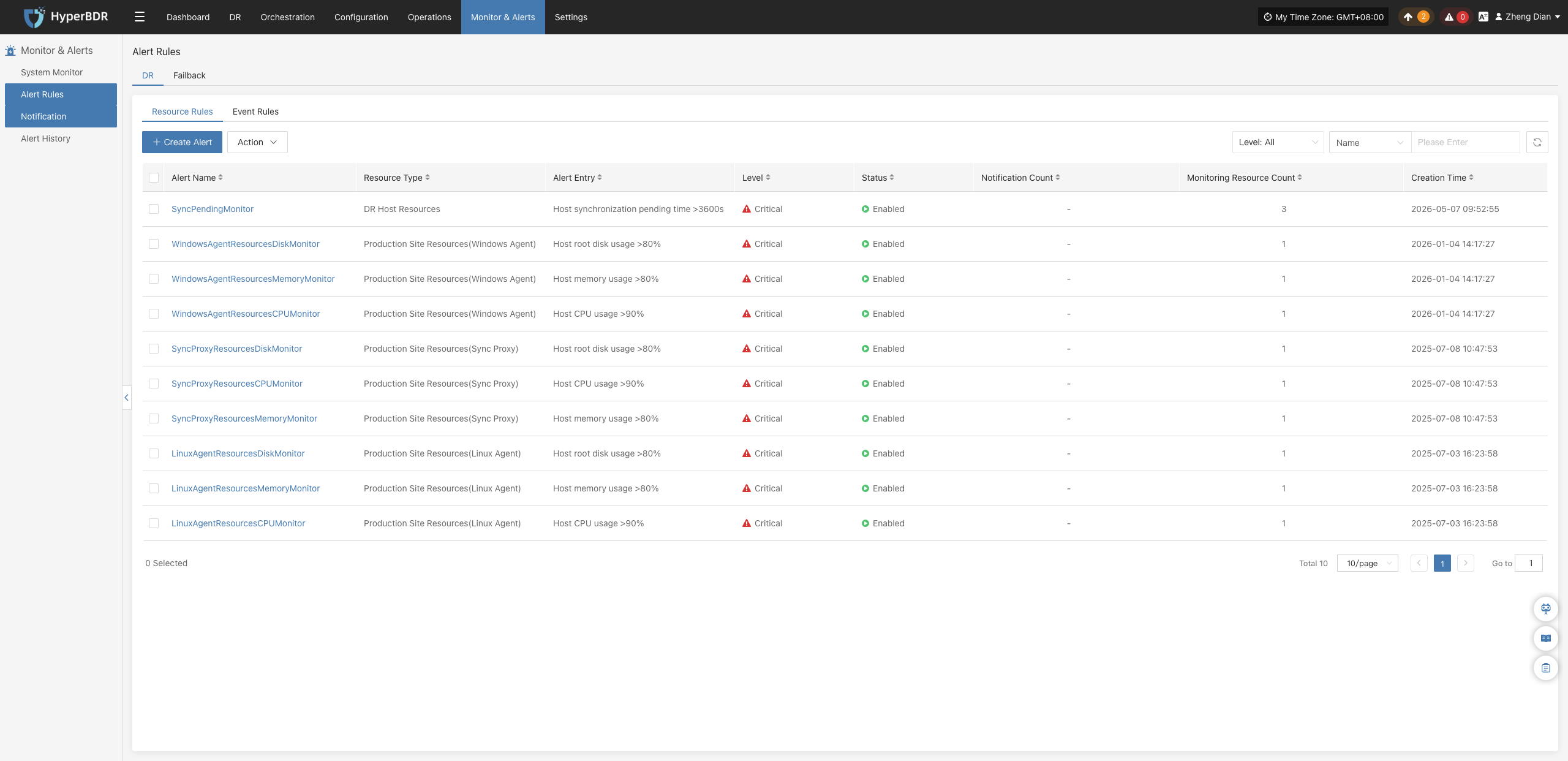
Create Alert Rule
Click the 【+ Create Alert Rule】 button in the upper left corner of the list to enter the resource alert rule creation page:
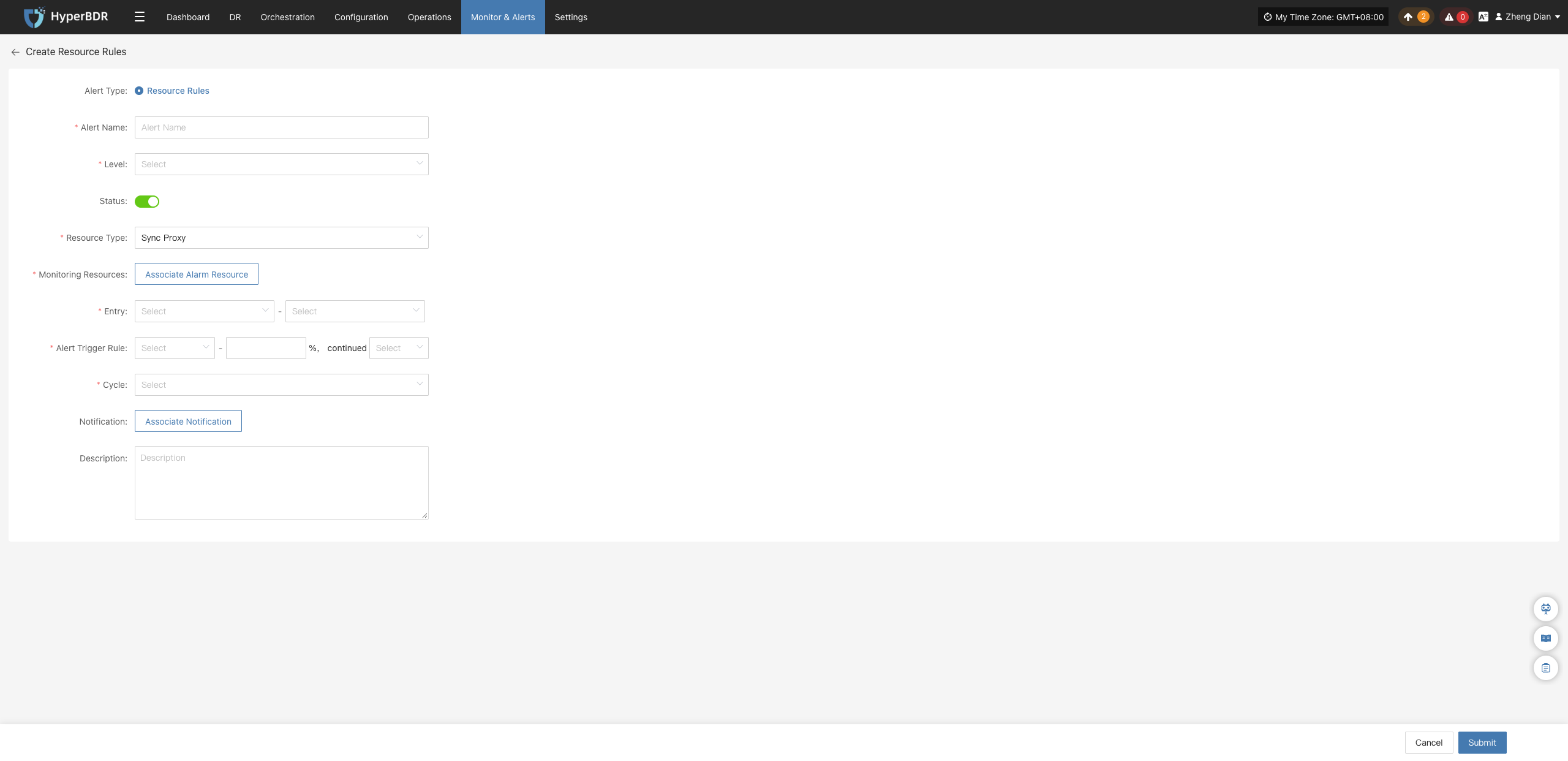
Alert Rule Configuration Field Description
| Field Name | Example | Description |
|---|---|---|
| Rule Type | Resource Alert Rule | Select the classification or intended purpose of the alert rule, used to distinguish between different monitoring strategies. |
| Rule Name | test | Custom name for the alert rule, used for identification and management. |
| Alert Level | Critical | Specifies the severity of the alert, such as: Info, Critical, Emergency. |
| Status | Enabled | Sets whether the alert rule is enabled. When enabled, the system monitors and alerts according to the configured rule. |
| Resource Type | Sync Proxy | The type of resource monitored by the alert rule. Common resource types include: • Sync Proxy • Cloud Sync Gateway • Linux Agent • Windows Agent • Object Storage Resources |
| Monitored Resource | ubuntu-ova | Select the target resource objects to monitor (multiple can be added). The system will continuously monitor them based on configuration. |
| Metric | CPU | Sets the specific metric items to monitor. Supported items include: • CPU • Disk • RAM • Process |
| Trigger Rule | ≥ 80%, for 5 minutes | Defines the condition that triggers an alert, e.g., when a metric exceeds a preset threshold for a specified duration. |
| Check Interval | 5 minutes | Sets the time interval at which the system checks metric statuses. |
| Notification Recipient | - | Specifies the recipients (users or notification groups) to notify once an alert is triggered. |
| Rule Description | - | Optional notes or description documenting the purpose of the alert rule for easier management and auditing. |
Monitored Resource Types
| Resource Type | Metrics | Description |
|---|---|---|
| Sync Proxy | CPU, RAM, Disk, Process | Monitors hardware resource utilization and process status of the source sync proxy. |
| Cloud Sync Gateway | CPU, RAM, Disk, Process | Monitors hardware resource utilization and service process status of the cloud sync gateway. |
| Linux Agent | CPU, RAM, Disk, Process | Monitors resource utilization and key process status of Linux Agents. |
| Windows Agent | CPU, RAM, Disk, Process | Monitors resource utilization and process status of Windows Agents. |
| Object Storage Resources | Object Storage Capacity | Monitors storage capacity usage and remaining quota. |
Note
Once an alert rule is created, the system will automatically trigger alerts when corresponding events occur and send notifications through designated channels based on associated notification recipients. Meanwhile, related alert messages will appear on the "Alert Messages" page for centralized review and resolution.
Action
Select the resource alert rule to manage and click the 【Action】 button to expand the action menu. Note that certain operations may not support batch execution; please refer to the actual interface display:
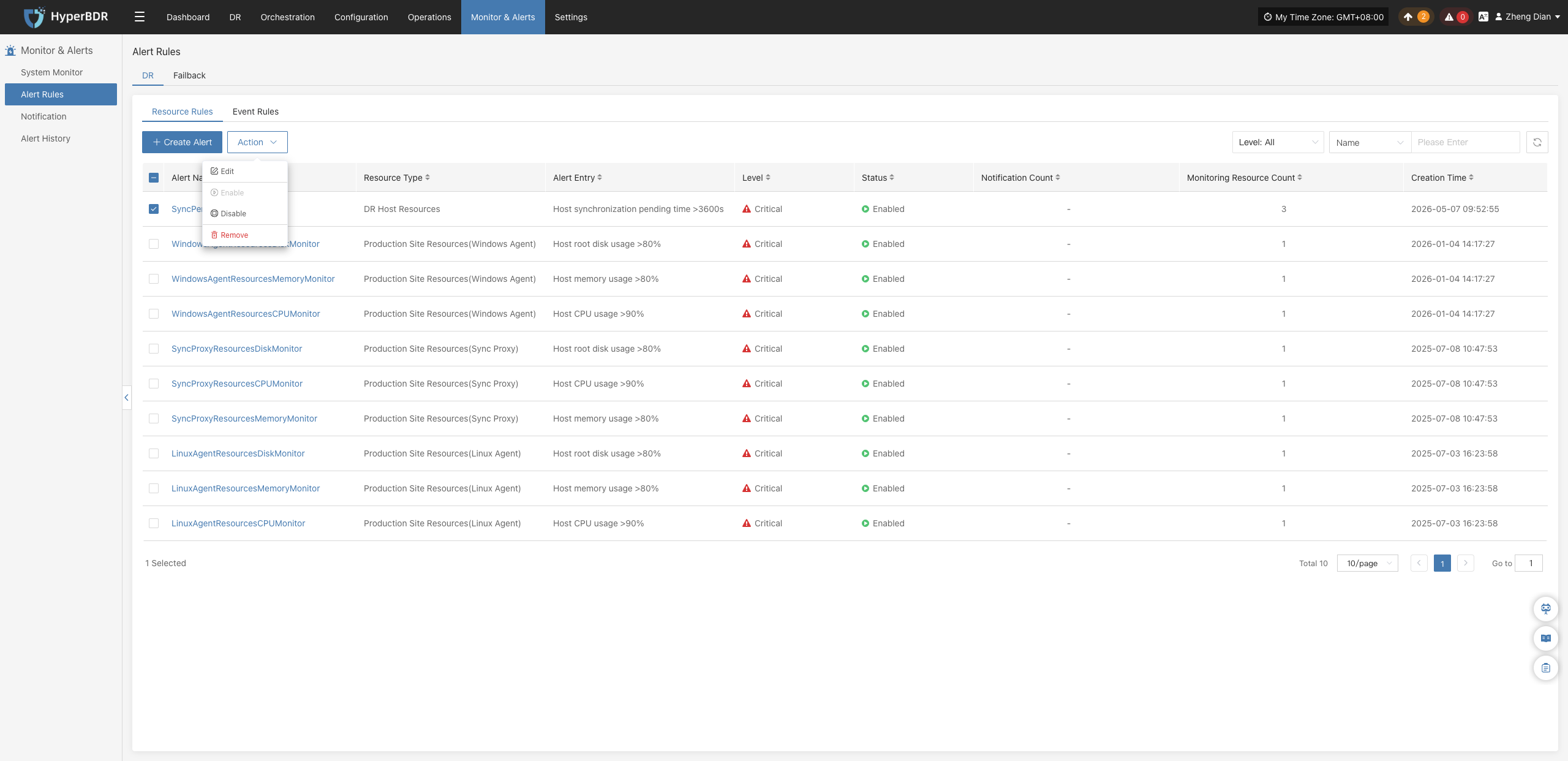
Modify
Click 【Modify】 to navigate to the editing page, where you can modify the configuration parameters of the created resource alert rule:
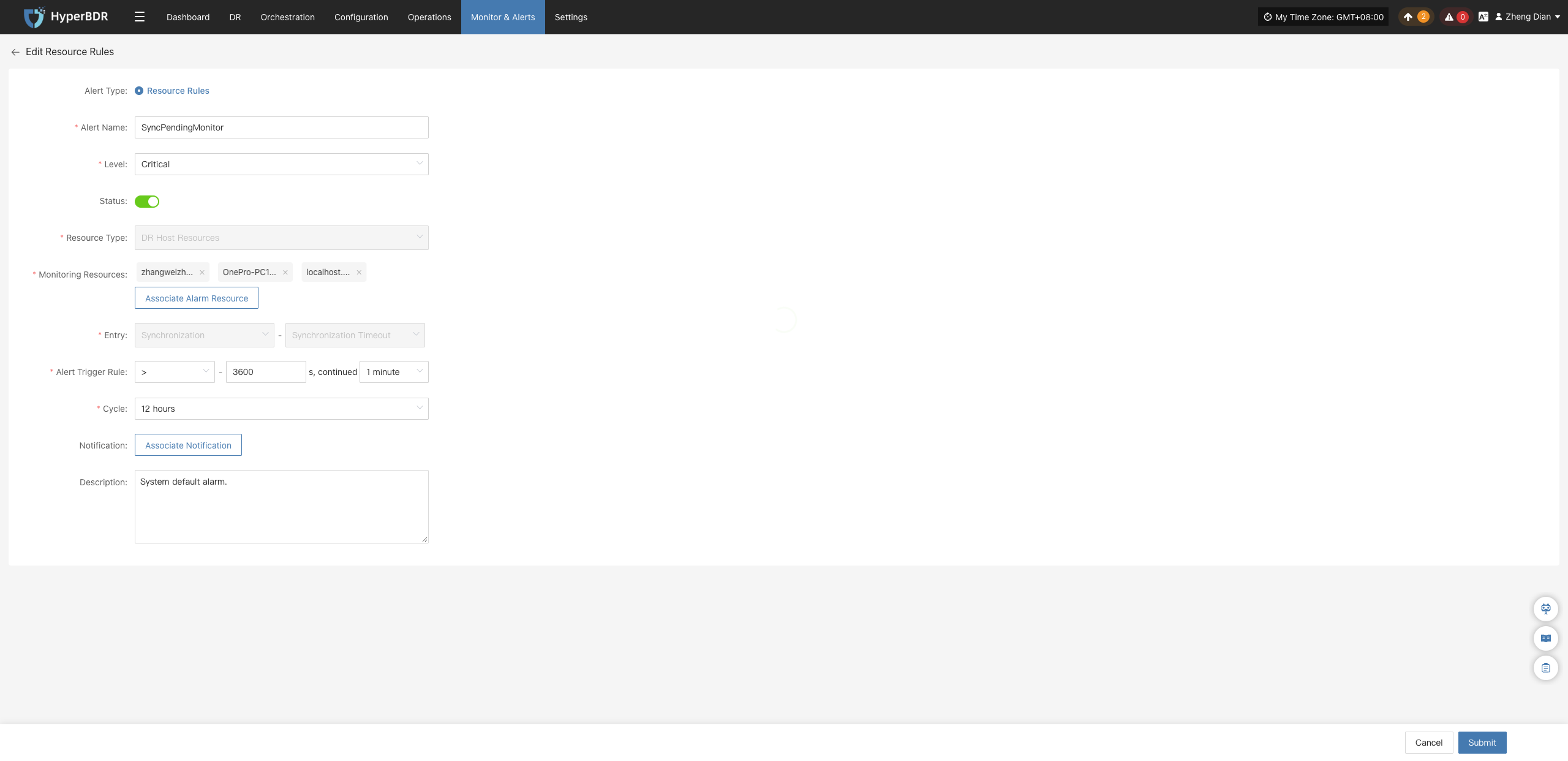
Enable
Click 【Enable】 to update the alert rule status to "Enabled":
Disable
Click 【Disable】 to update the alert rule status to "Disabled". Disabled rules will stop monitoring metrics:
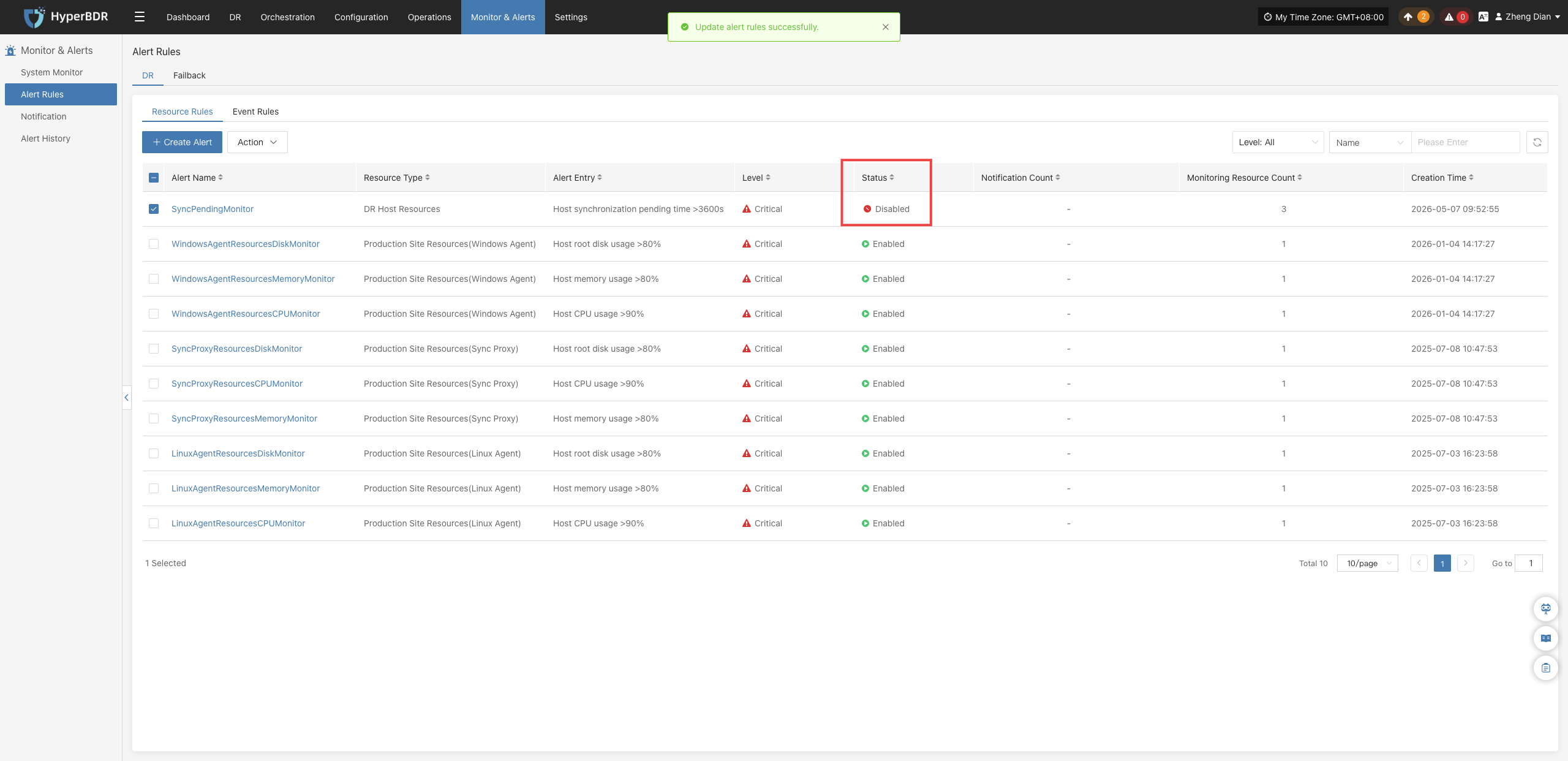
Remove
Click 【Remove】 to display a secondary confirmation dialog. After confirmation, the alert rule is permanently deleted:
Warning
The remove operation permanently deletes the alert policy configuration and cannot be undone. Please ensure there are no active dependencies before proceeding.
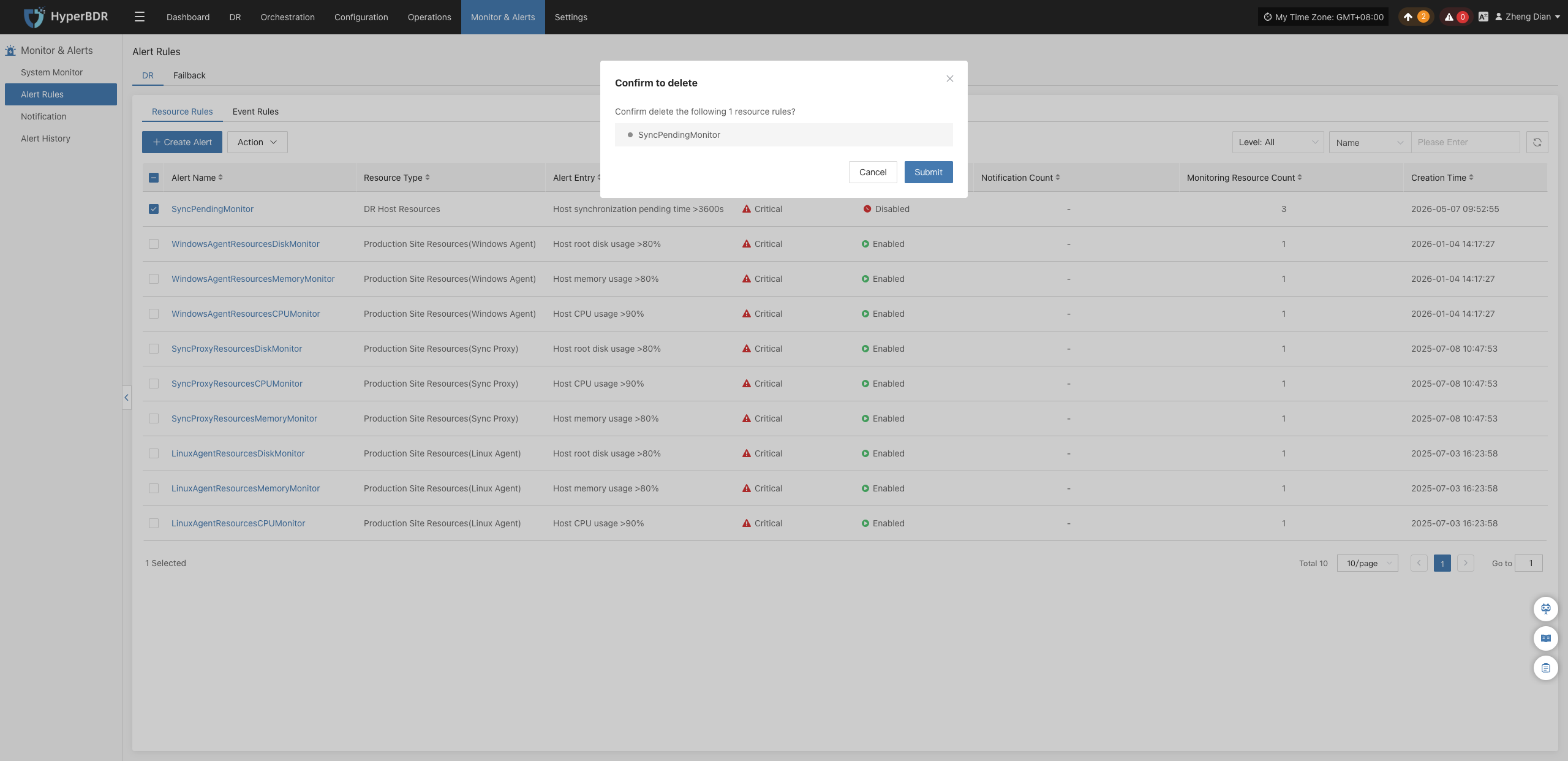
Event Rules
In the system menu, navigate to: 【Monitoring & Alerts】>【Alert Rules】>【Event Rules】.
On the Event Rules page, you can view, create, and manage various event monitoring rules in a centralized manner.
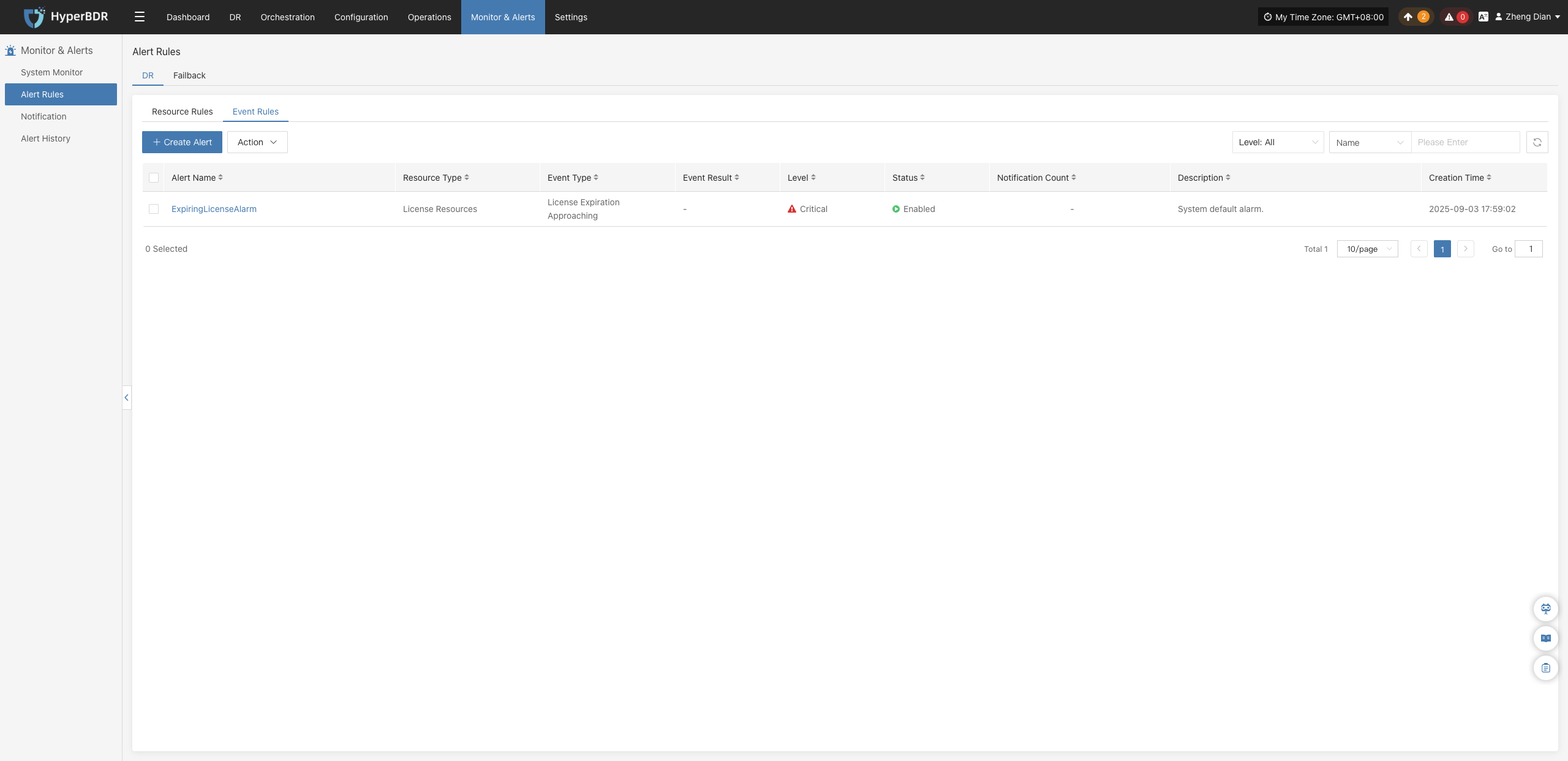
Create Alert Rule
Click the 【+ Create Alert Rule】 button in the upper left corner of the list to enter the event alert rule creation page:
Alert Rule Configuration Field Description
| Field Name | Example | Description |
|---|---|---|
| Rule Type | Event Alert Rule | Sets the type of alert rule. Event alert rules monitor critical operational actions and abnormal states, triggering alert notifications upon occurrence. |
| Rule Name | test | Custom name for the alert rule, used for identification and management. |
| Alert Level | Critical | Severity level when the event is triggered (e.g., Info, Critical, Emergency). |
| Status | Enabled | Specifies whether the current alert rule is active. When enabled, the system monitors and alerts based on the rule. |
| Event Type | User Resource / Login | Category of event to monitor. Supported categories include: • User Resource • DR Host Resource • License Resource • Production Site Resources • DR Platform Resources • Monitoring Alarm Resource Group • Object Storage • DR Policies |
| Event Result | Success | Specifies the execution outcome condition that triggers the alert (e.g., Success, Failure). |
| Notification Recipient | Associated Notification Recipient | The recipients (personnel or groups) notified when an alert triggers, enabling prompt response by stakeholders. |
| Rule Description | — | Brief overview of the alert rule's function or purpose for ease of recognition and maintenance. |
Event Type Descriptions
| Event Type | Alert Conditions (Examples) | Description |
|---|---|---|
| User Resources | Login, Logout, Modify phone number, Change password, Reset password | Events related to user account login, authentication, and credential modifications. |
| DR Host Resources | Add DR host configuration, Boot host, Clean resources, Force abort task, Host disconnected/recovered, Snapshot integrity check, Sync host, Takeover host, Resource limits, etc. | Key events relating to disaster recovery host tasks, status monitoring, and resource operations. |
| License Resources | Add License | Critical events relating to system license status, validity period, and authorization exceptions. |
| Production Site Resources | Add/Delete Linux or Windows agent, Add/Delete/Bind sync proxy and connections, Reload VM agent, Connection status changes, etc. | Events relating to agent deployment management and connection status in production environments. |
| DR Platform Resources | Add/Delete/Modify cloud platform, Create/Delete cloud sync gateway, and related process events | Operations relating to cloud disaster recovery platform infrastructure components and deployment status. |
| Monitoring Alarm | Create/Modify/Delete alert rules and notification recipients | Operational events relating to monitoring alert configurations and alert dispatch mechanisms. |
| Resource Groups | Create/Delete resource group, Clean verification resources, Drill/Takeover DR, Sync data, Modify resource group | Critical operations relating to multi-resource logical grouping and disaster recovery lifecycle management. |
| Object Storage | Add/Delete/Update object storage, Start add/delete operations | Events relating to storage integration, configuration changes, capacity updates, and access anomalies. |
| DR Policies | Create/Delete/Modify policies, Associate/Disassociate policies | Events relating to the full lifecycle management of disaster recovery plan policy configurations. |
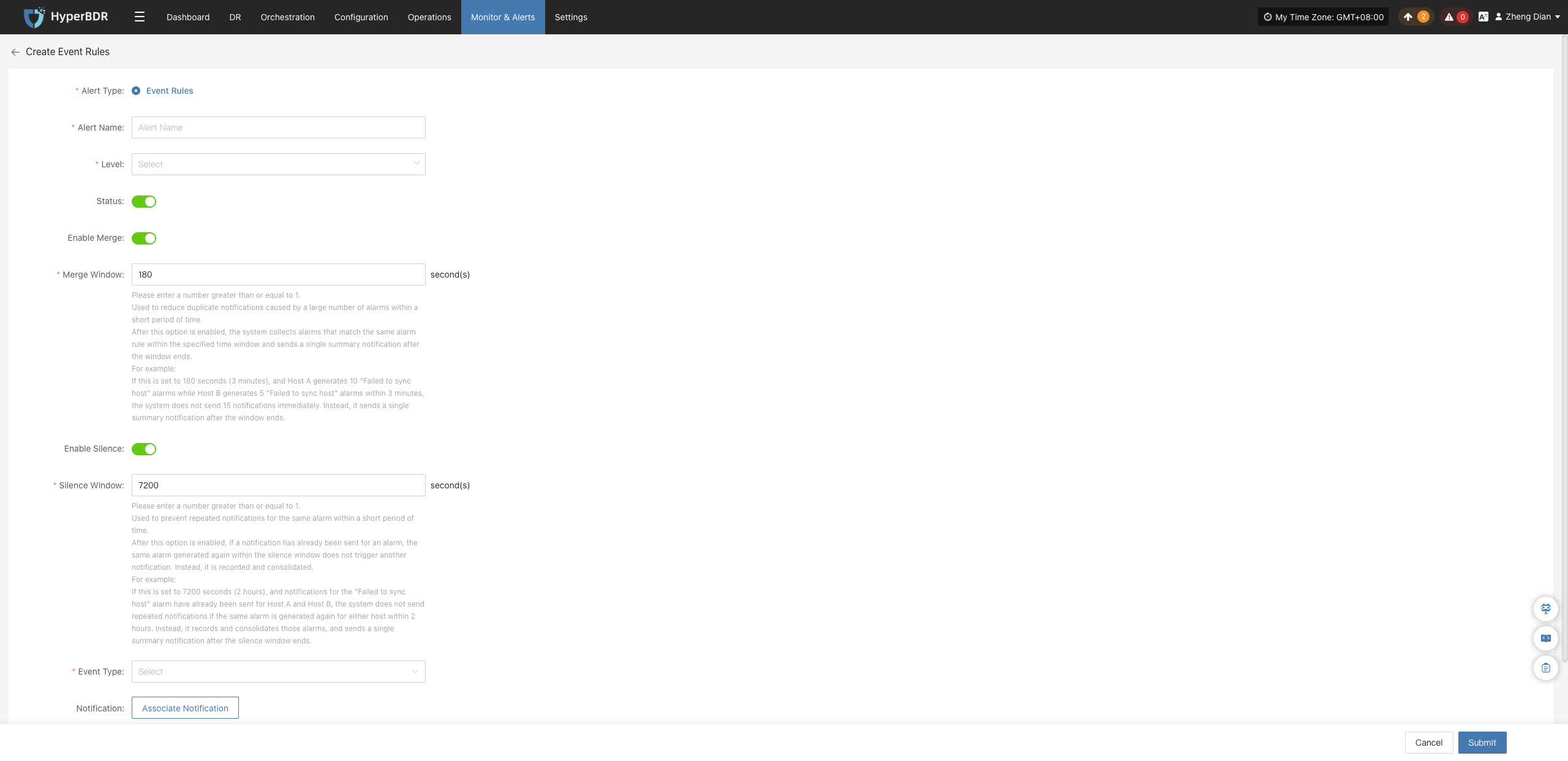
Note
Once an alert rule is created, the system will automatically trigger alerts when corresponding events occur and send notifications through designated channels based on associated notification recipients. Meanwhile, related alert messages will appear on the "Alert Messages" page for centralized review and resolution.
Action
Select the event alert rule to manage and click the 【Action】 button to expand the action menu:
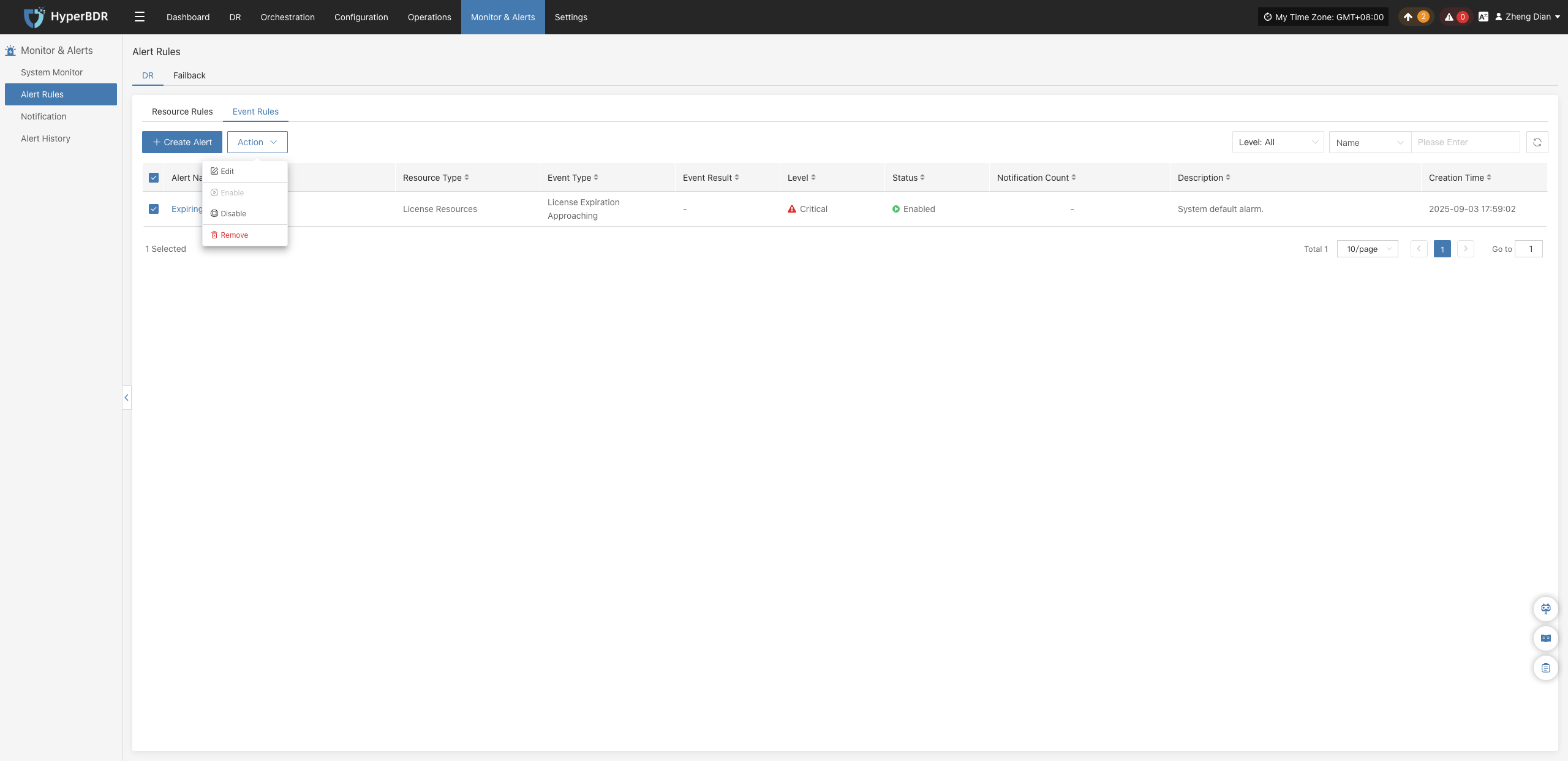
Modify
Click 【Modify】 to navigate to the editing page, where you can modify the configuration parameters of the created event alert rule:
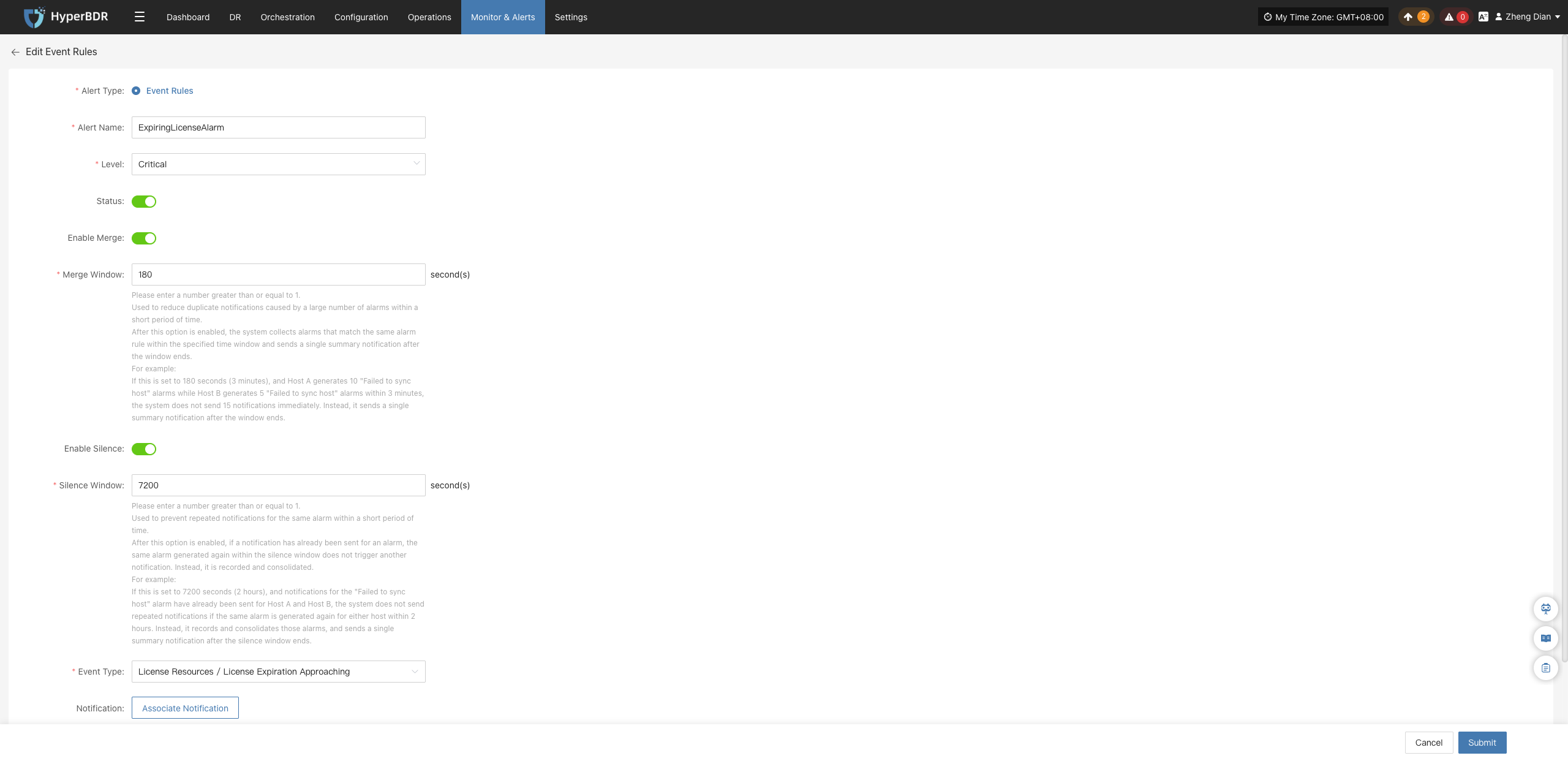
Enable
Click 【Enable】 to update the alert rule status to "Enabled":
Disable
Click 【Disable】 to update the alert rule status to "Disabled":
Remove
Click 【Remove】 to display a secondary confirmation dialog. After confirmation, the alert rule is permanently deleted:
Warning
The remove operation permanently deletes the event alert policy and cannot be undone. Please ensure there are no active dependencies before proceeding.
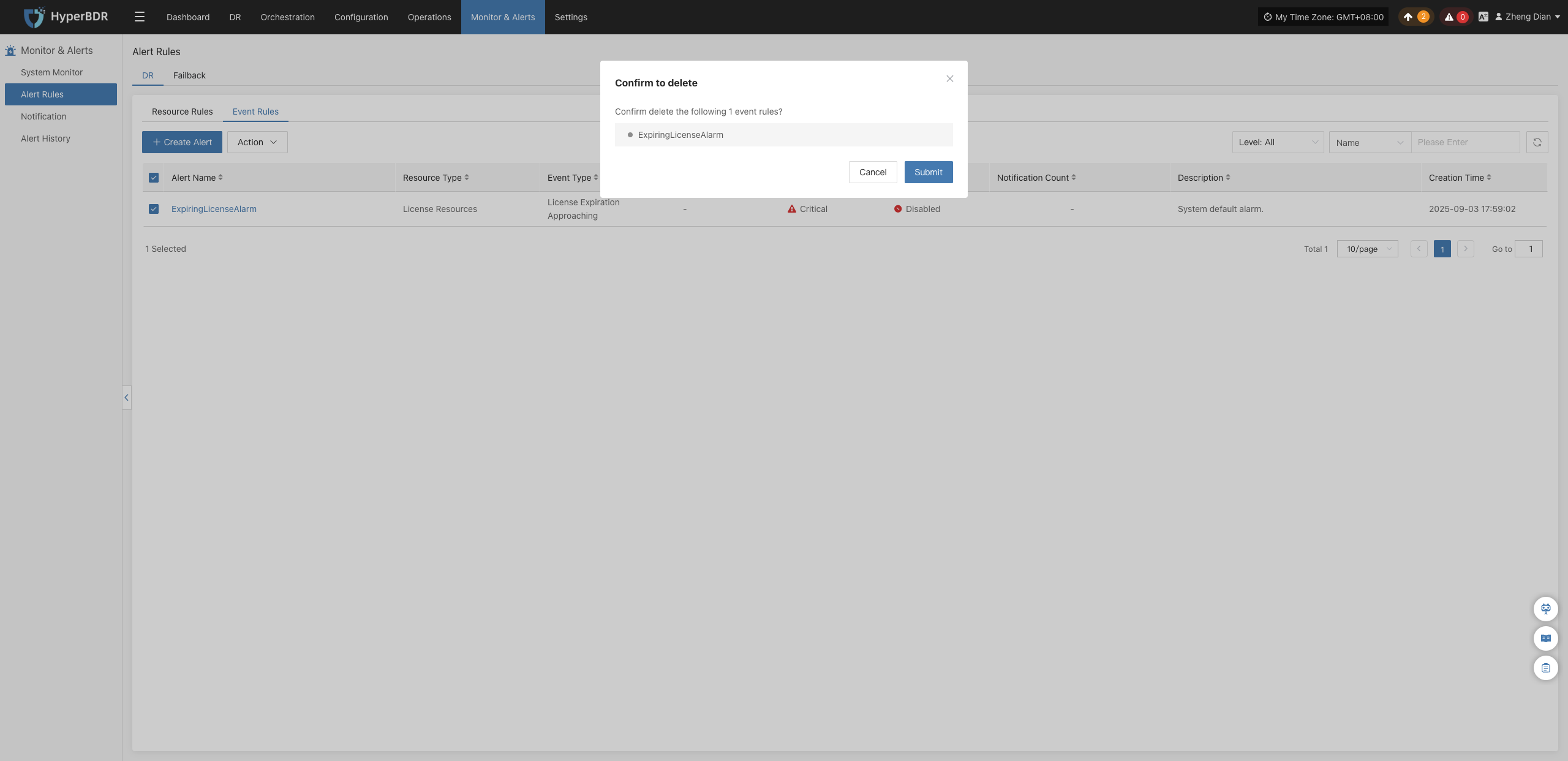
Notification
When an alert occurs, the system will notify designated people or groups. Notification recipients can receive alerts by email, SMS, phone, or other methods to ensure timely awareness and response.
Note
If no email or SMS service is configured for notification recipients, you cannot create notification users. Please go to 【O&M Platform】>【Notification Settings】 to configure them.
DR
Create Notification
Go to 【Monitoring & Alerts】>【Notification Recipients】, which defaults to the 【DR】 tab, and click 【Create Notification Recipient】. Fill in the relevant parameters and save as prompted to ensure personnel receive alerts in a timely manner.
| Field Name | Example | Description |
|---|---|---|
| Notification Name | test | Custom name of the notification recipient, used to identify different notification configurations. |
| Status | Enabled | Sets whether the notification recipient is active. When enabled, the system sends alert notifications whenever the conditions of associated alert rules are met. |
| Alert Rules | Associated Alert Rules | Click 【Associate Alert Rules】 to select the alert rules to link in the popup selection dialog. The notification recipient will receive and send notifications based on the associated alert rules. |
| Sending Channel | xxx@qq.com | Select a configured notification sending channel from the dropdown list. If no email channel is available in the list, please configure the service based on your deployment model: for on-premises/private deployments, configure email services in the management platform; for SaaS users, please contact technical support to Get Support. |
| Notification Email | XXX@qq.com | Destination email address to receive alert notifications. Click 【+ Add Email】 on the page to add multiple email addresses. |
| Notification Webhook | https://example.com/webhook | Configure the Webhook URL to receive alert notifications. Click 【+ Add Webhook】 on the page to add multiple Webhook URLs. |
| Description | - | Additional remarks or notes for the notification recipient. |
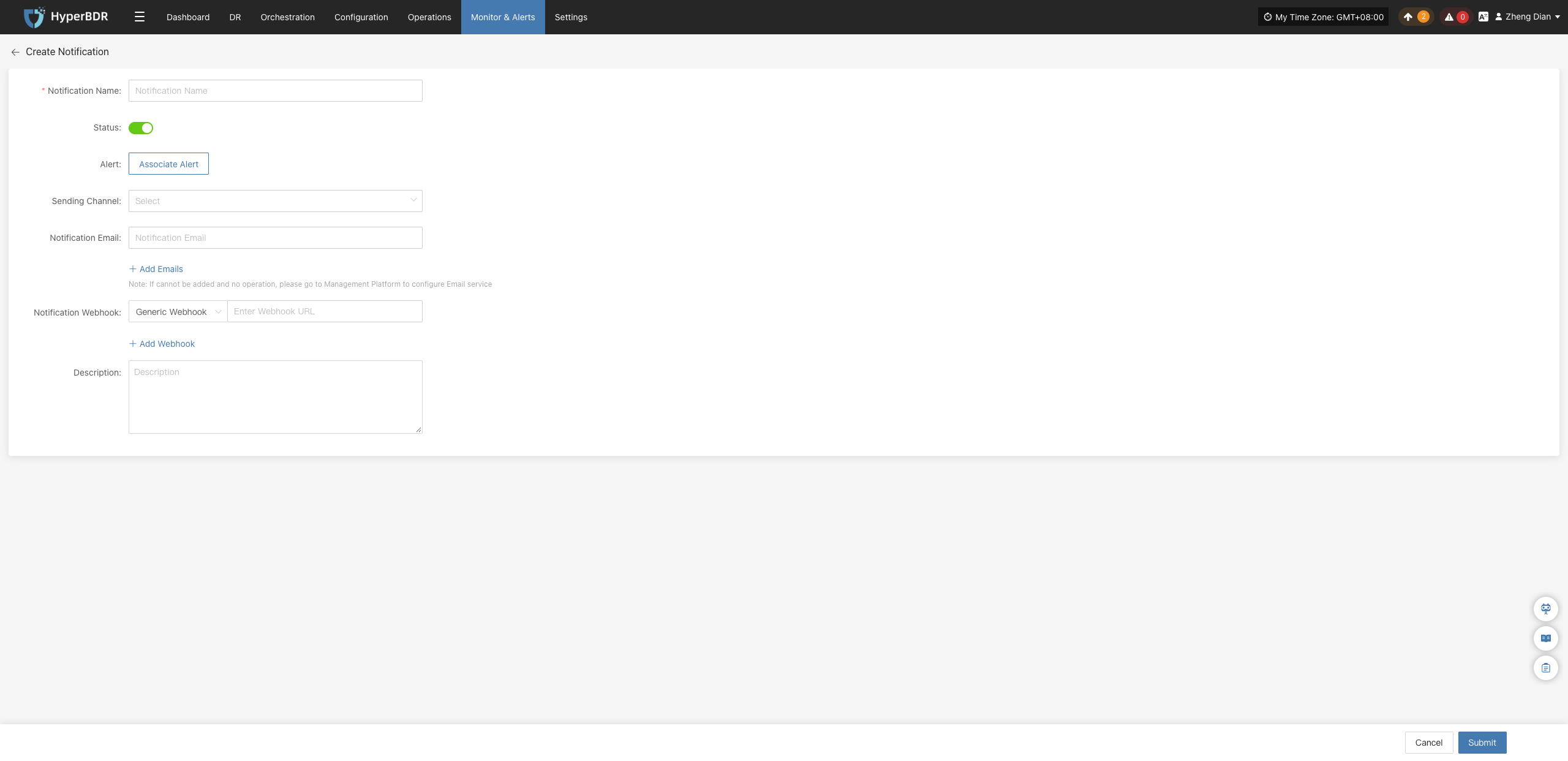
Action
After selecting a notification recipient, click the 【Action】 button to expand the action menu, where you can perform operations including modify, enable, disable, and remove:
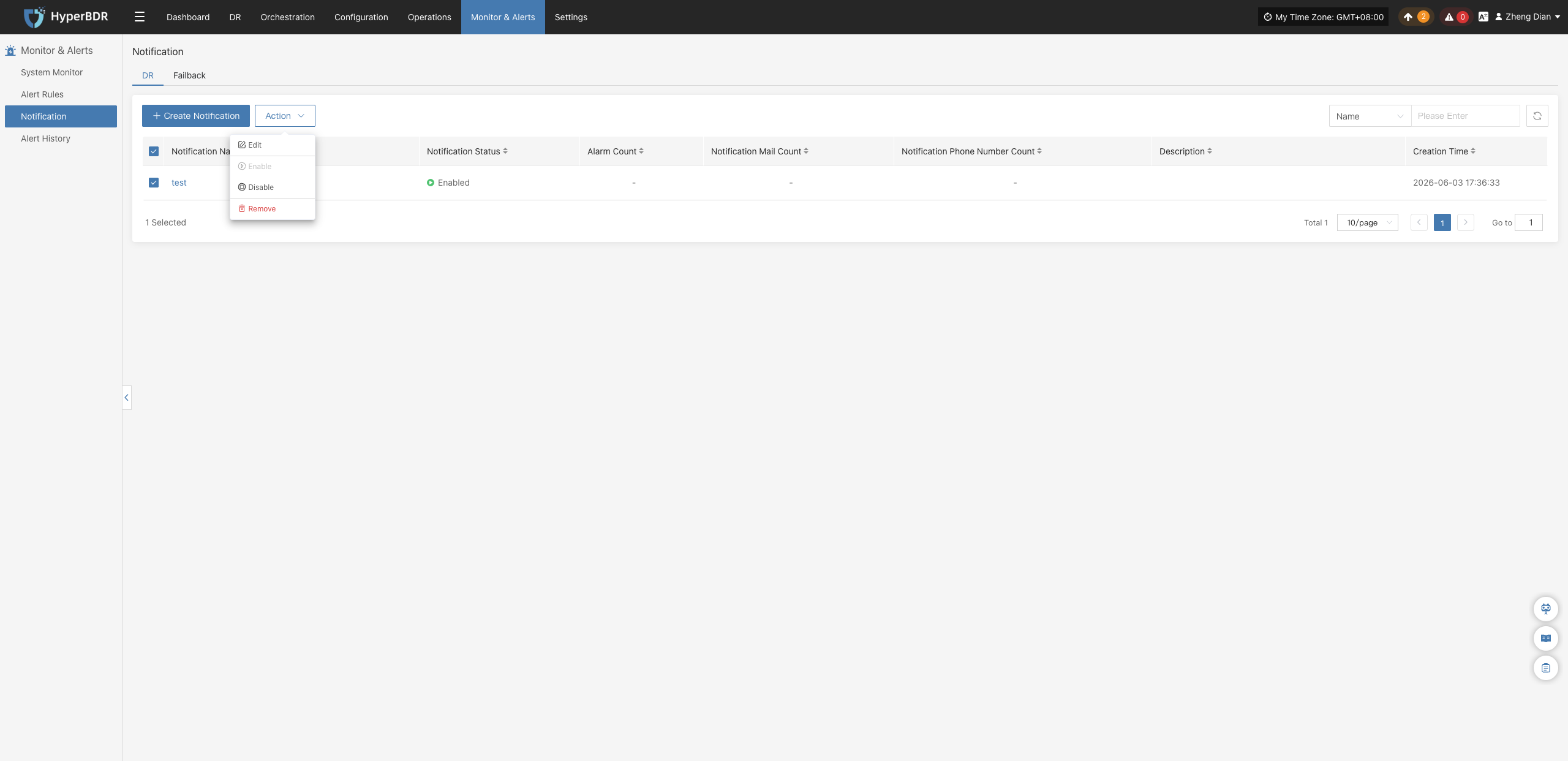
Modify
Click 【Modify】 to navigate to the editing page, where you can modify the configuration parameters of the created notification recipient.
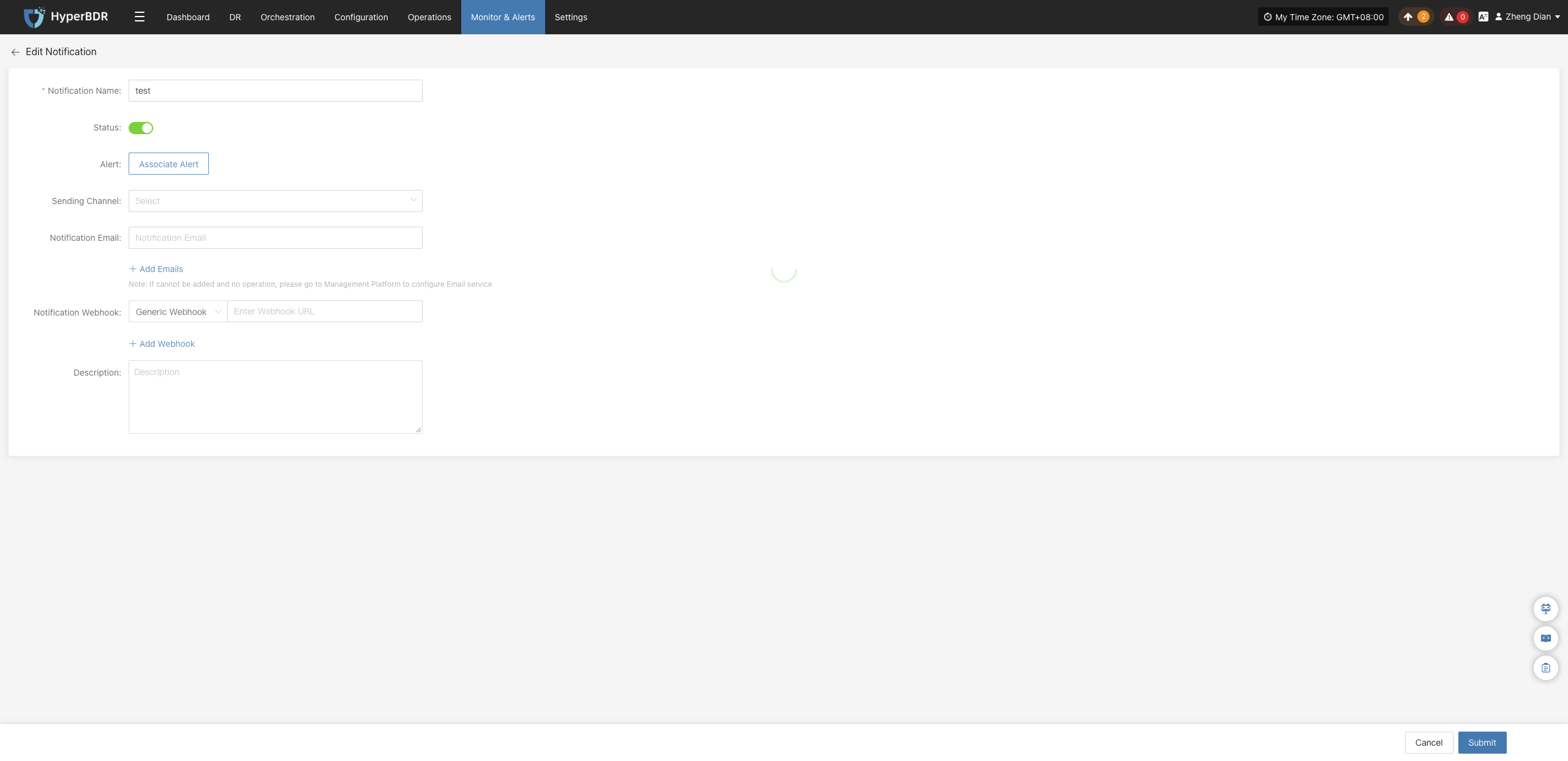
Enable
Click 【Enable】 to update the notification recipient status to "Enabled", resuming alert message notifications.
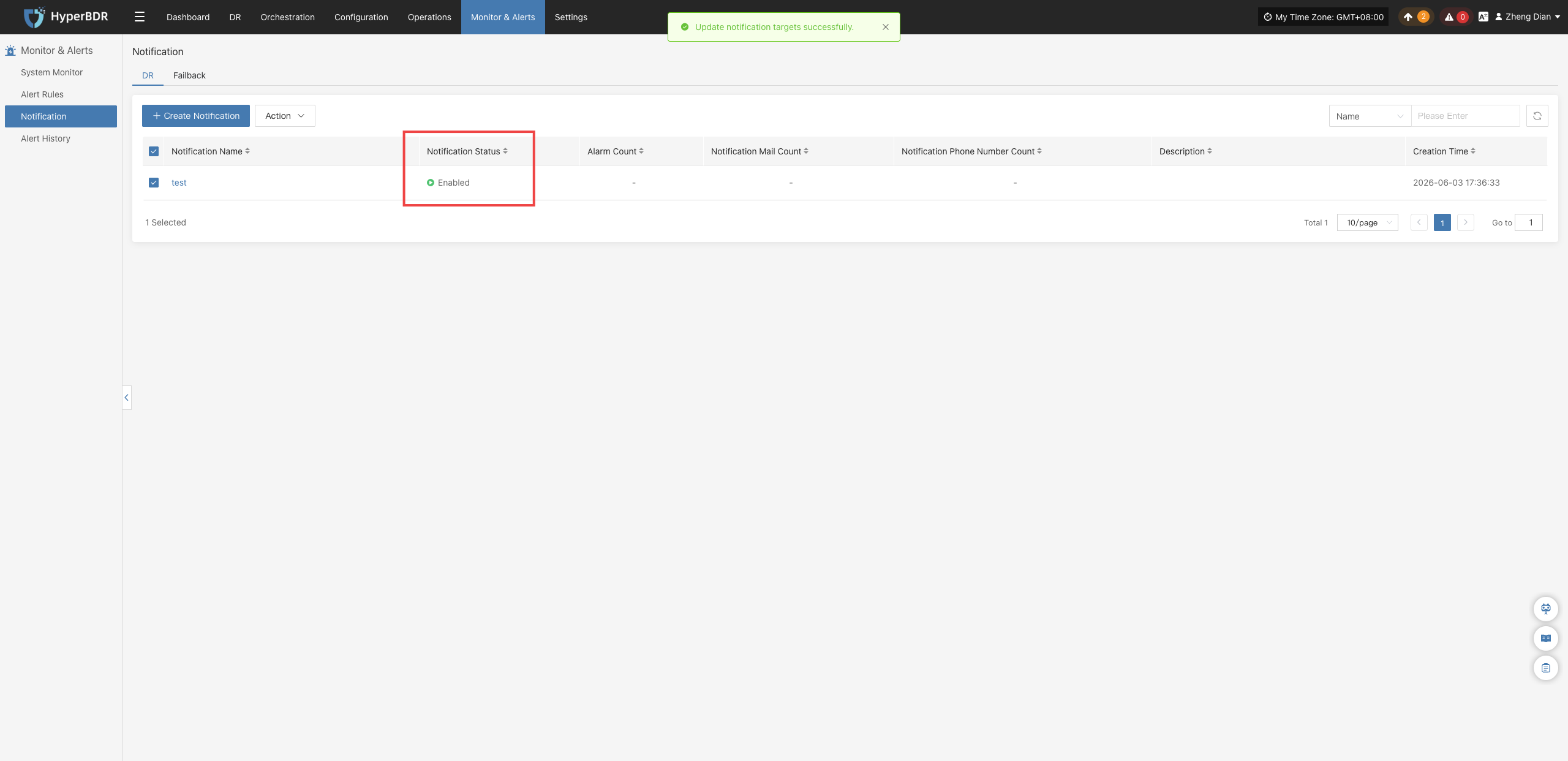
Disable
Click 【Disable】 to update the notification recipient status to "Disabled". No notifications will be sent while the recipient is in the disabled state.
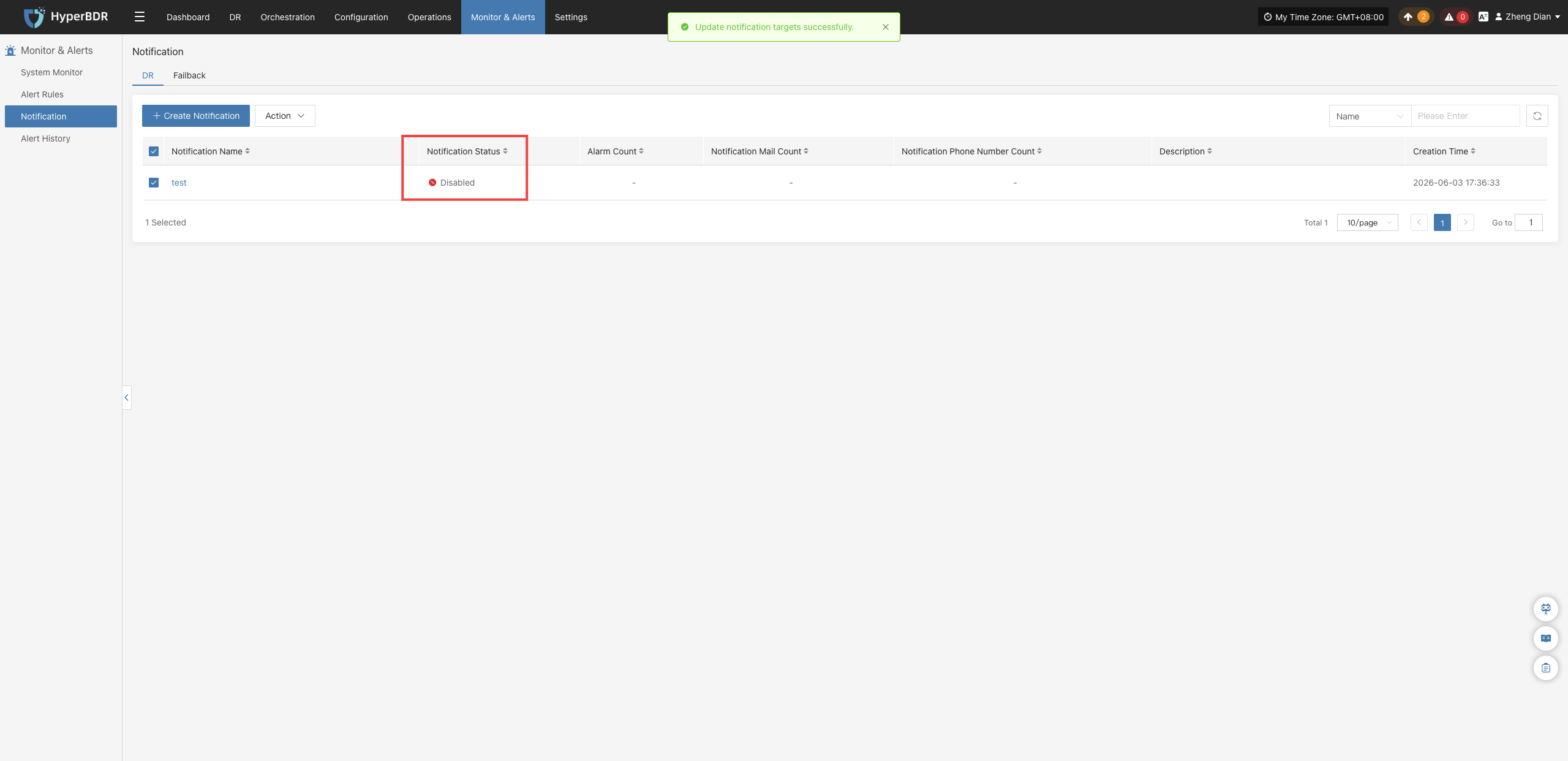
Remove
Click 【Remove】 to display a secondary confirmation dialog. After confirmation, the system will permanently delete the notification recipient and cancel its association with all related alert rules.
Warning
The remove operation completely unbinds the recipient from alert rules. Please verify that there are no active alert dependencies before proceeding.
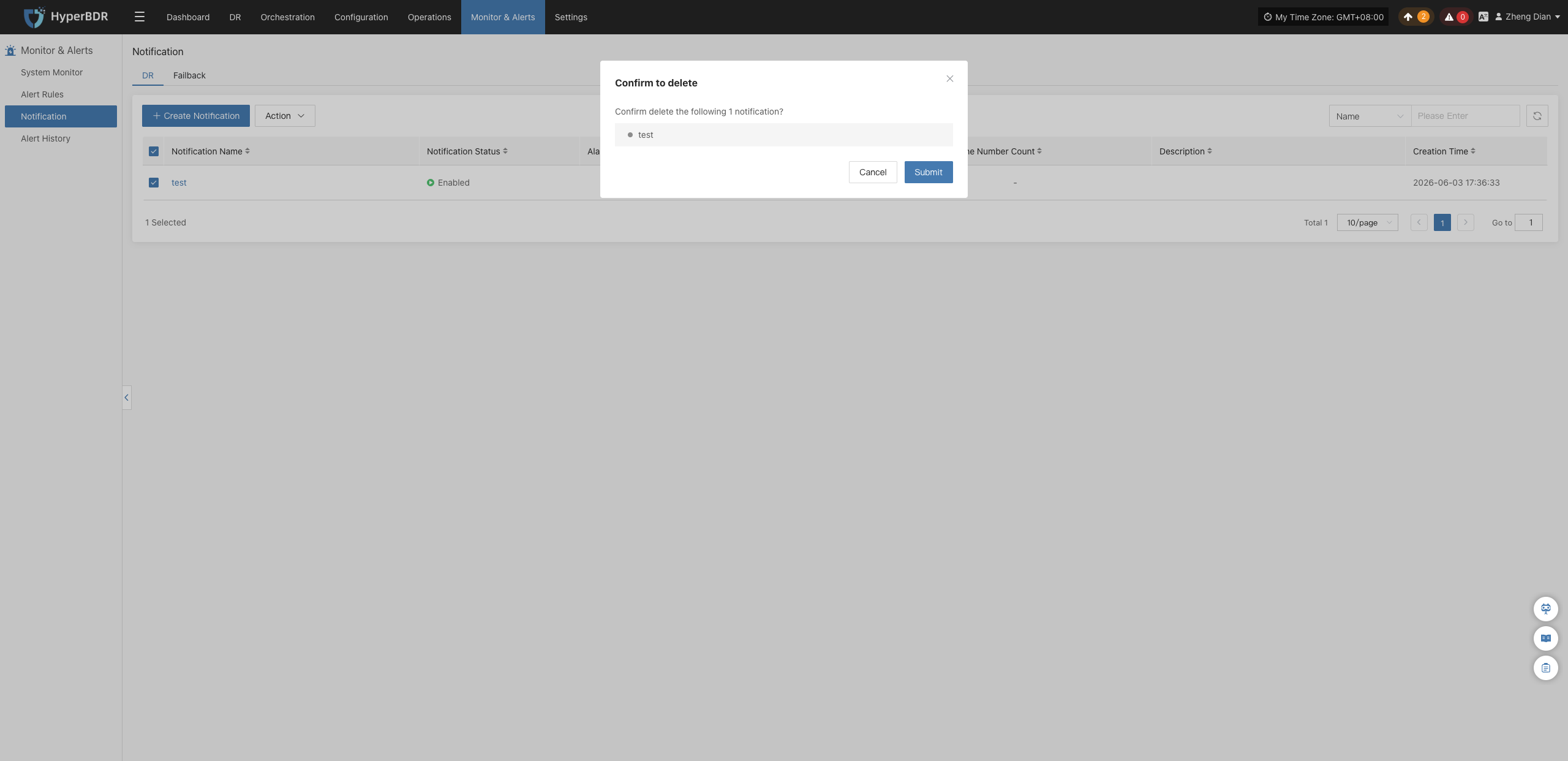
Failback
Create Notification
On the 【Monitoring & Alerts】>【Notification Recipients】 page, switch to the 【Failback】 tab, and click 【Create Notification Recipient】 to configure notification recipients for failback scenarios.
| Field Name | Example | Description |
|---|---|---|
| Notification Name | test | Custom name of the failback notification recipient, used to identify different notification configurations. |
| Status | Enabled | Sets whether the notification recipient is active. When enabled, the system sends alert notifications whenever the conditions of associated alert rules are met. |
| Alert Rules | Associated Alert Rules | Click 【Associate Alert Rules】 to select the alert rules to link in the popup selection dialog. The notification recipient will receive and send notifications based on the associated alert rules. |
| Sending Channel | xxx@qq.com | Select a configured notification sending channel from the dropdown list. If no email channel is available in the list, please configure the service based on your deployment model: for on-premises/private deployments, configure email services in the management platform; for SaaS users, please contact technical support to Get Support. |
| Notification Email | XXX@qq.com | Destination email address to receive alert notifications. Click 【+ Add Email】 on the page to add multiple email addresses. |
| Notification Webhook | https://example.com/webhook | Configure the Webhook URL to receive alert notifications. Click 【+ Add Webhook】 on the page to add multiple Webhook URLs. |
| Description | - | Additional remarks or notes for the notification recipient. |
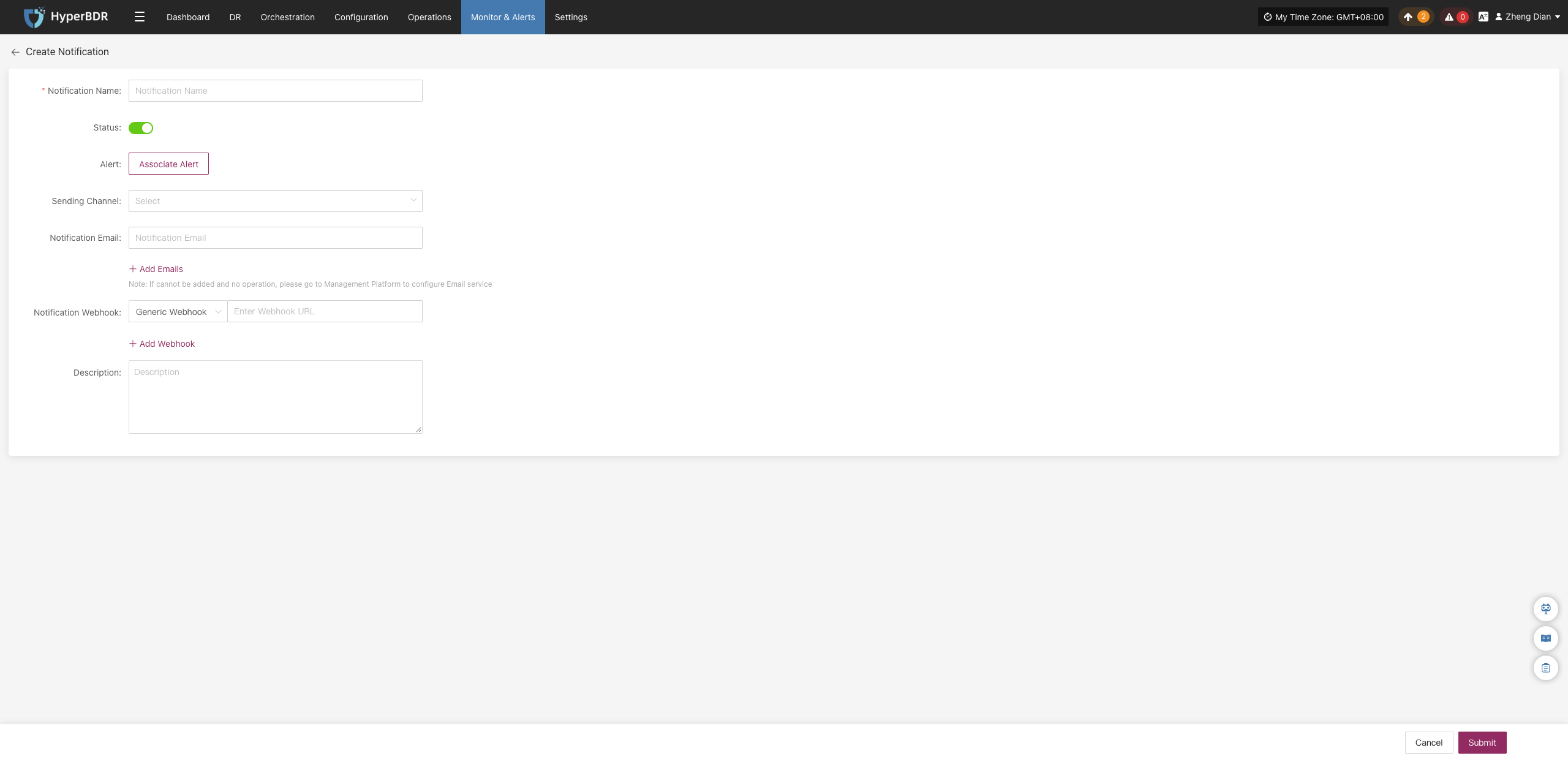
Action
After selecting a failback notification recipient, click the 【Action】 button to expand the action menu, where you can perform modify, enable, disable, and remove operations:
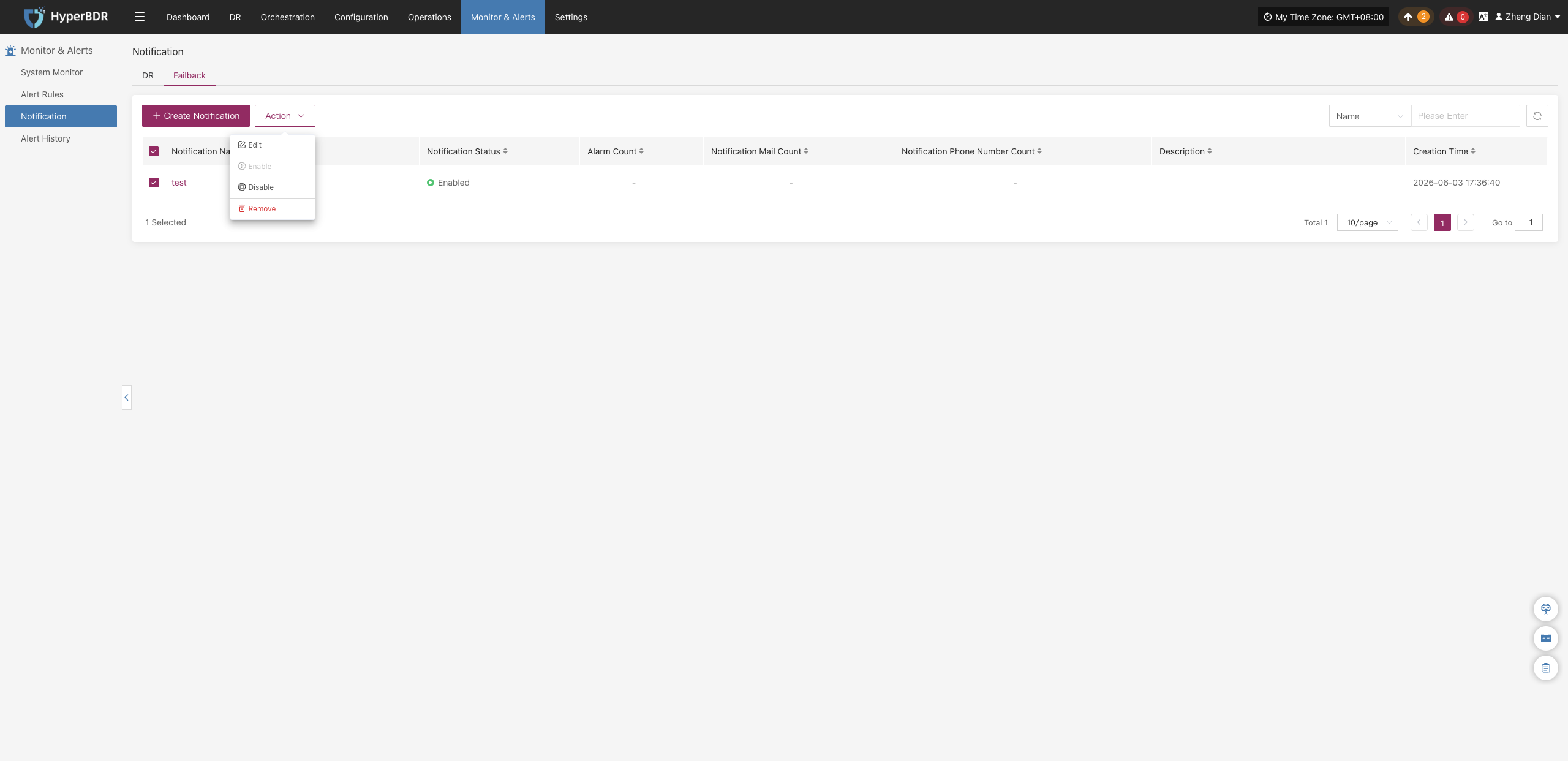
Modify
Click 【Modify】 to navigate to the editing page, where you can modify the configuration parameters of the created failback notification recipient.
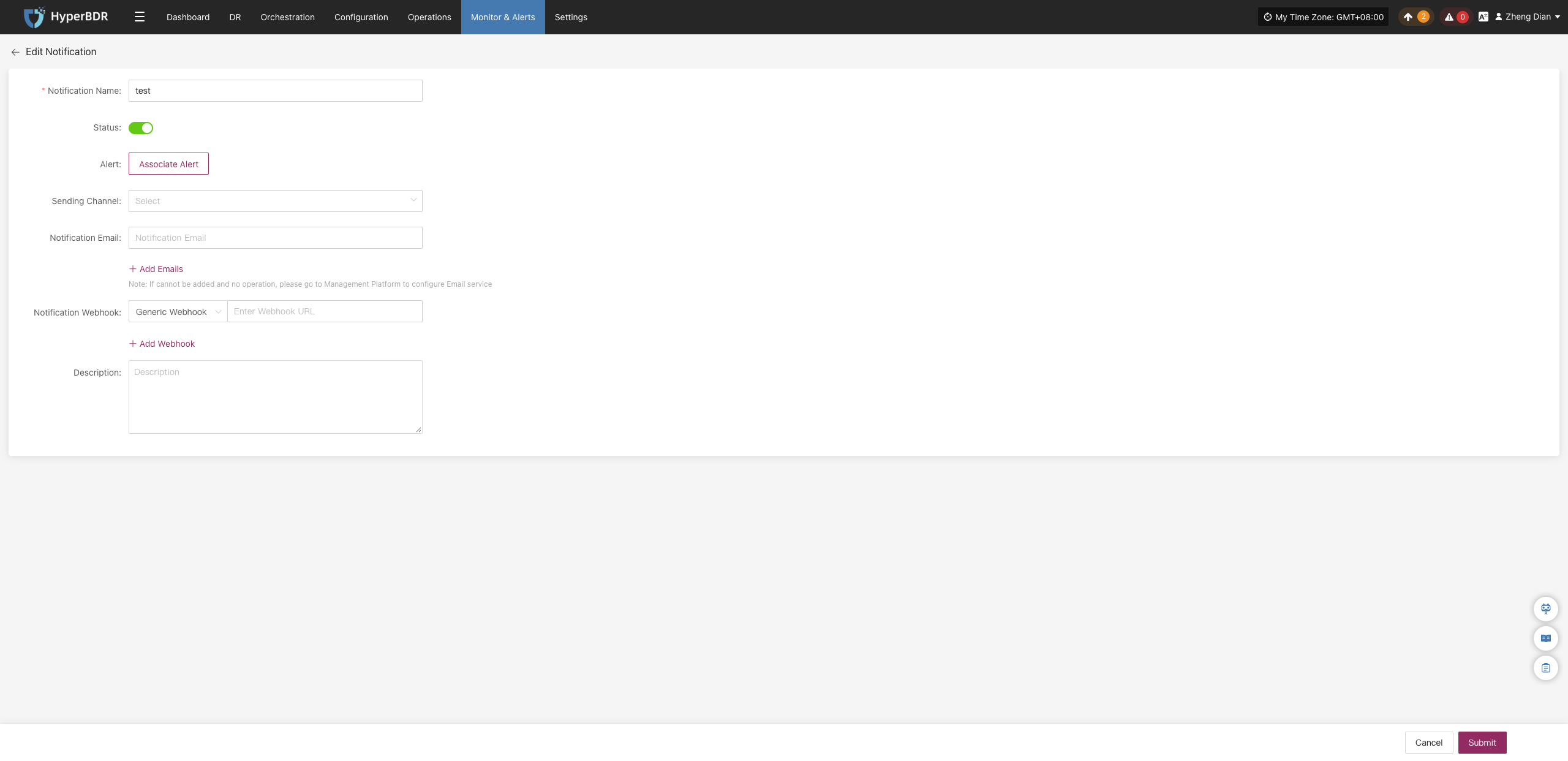
Enable
Click 【Enable】 to update the failback notification recipient status to "Enabled".
Disable
Click 【Disable】 to update the failback notification recipient status to "Disabled". No notifications will be sent while the recipient is in the disabled state.
Remove
Click 【Remove】 to display a secondary confirmation dialog. After confirmation, the system will permanently delete the notification recipient and cancel its association with all related alert rules.
Warning
The remove operation completely unbinds the recipient from alert rules. Please verify that there are no active alert dependencies before proceeding.
Alerts
The system monitors the status of various resources and key events based on alert rules you set. When abnormal metrics are detected or preset alert conditions are triggered, the platform will automatically generate alert messages.
Note
If you assign notification contacts when creating an alert, the system will notify them by email, SMS, or other methods as appropriate.
DR
Alert Message Fields
When the system detects a resource issue or event trigger, it generates an alert message. The main fields are:
| Field Name | Description |
|---|---|
| Alarm Name | The type of event that triggers the alarm, used to quickly identify the root cause of the issue. |
| Resource Name | The specific resource that triggered the alarm, such as a host name or service name. |
| Status | The current handling status of the alarm, for example, "Unprocessed" or "Processed". |
| Severity Level | The severity of the alarm event, commonly classified as "Info", "Critical", or "Emergency". |
| Alarm Type | The specific category of the alarm, such as "Event Alarm" or "Resource Alarm". |
| Resource Type | The types of resources involved, including: · Object Storage · Disaster Recovery Policy User Resources · Disaster Recovery Host Resources · License Resources · Production Platform Resources · Disaster Recovery Platform Resources · Monitoring Alarms · Resource Groups |
| Occurrence Time | The time when the system first detected the alarm event, used for tracing the issue and analyzing response time. |
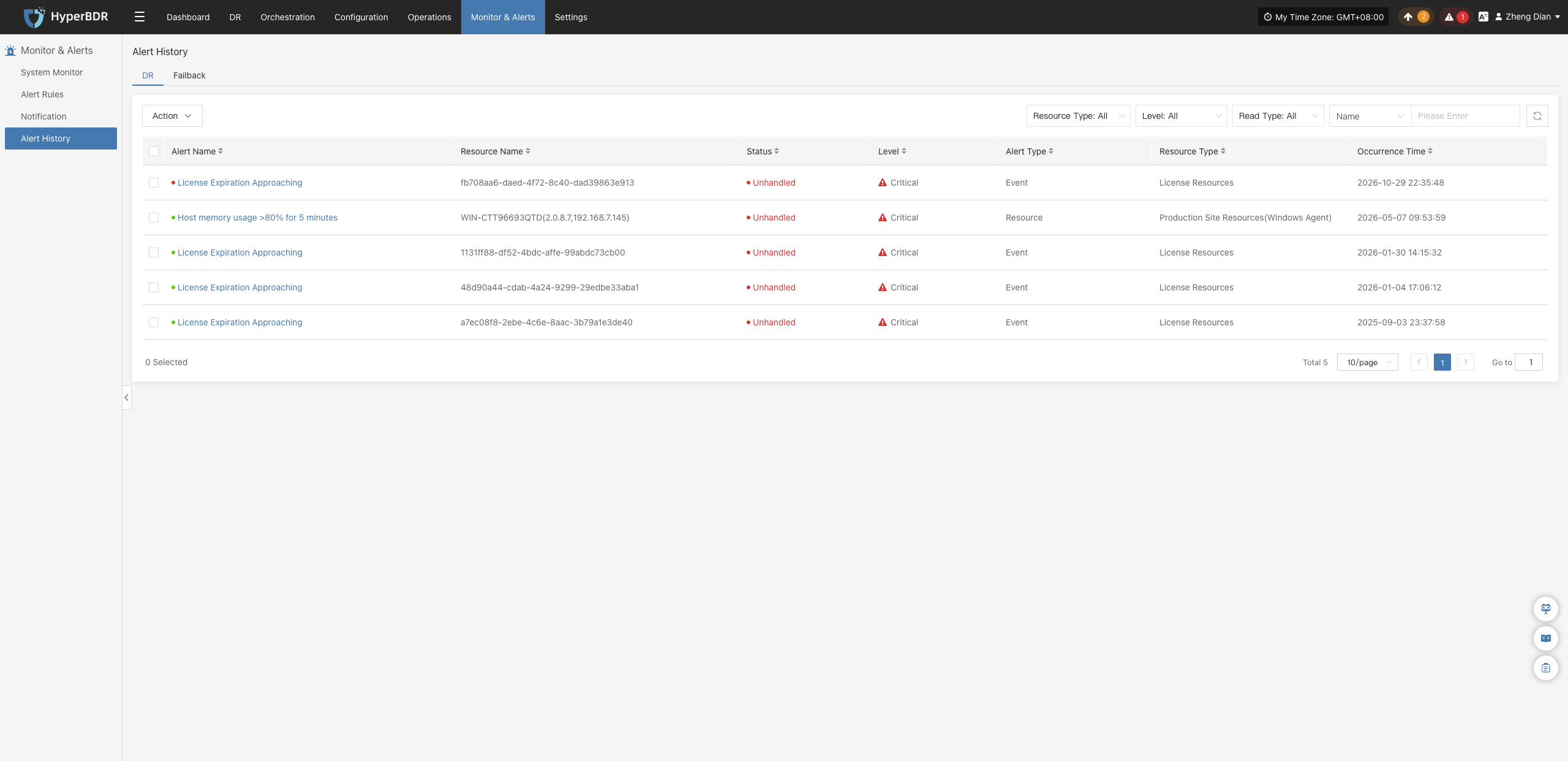
Search & Filter Alerts
In the upper-right corner of the alert list, you can filter alert messages by Resource Type, Severity Level, Read Type, or by entering a Resource Name:
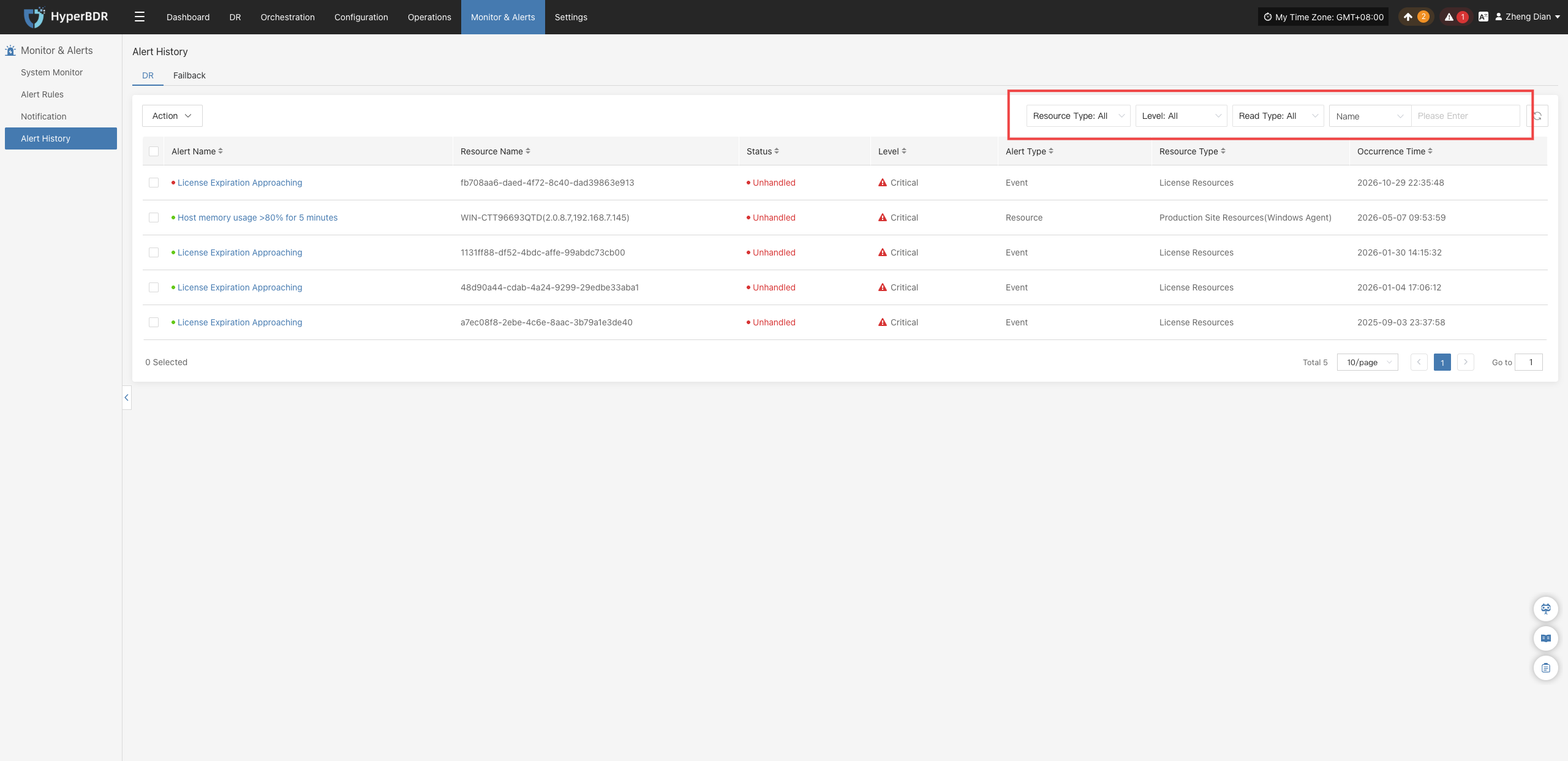
Action
On the alert messages page, users can perform batch actions on alerts. After selecting one or more alert records, click the Action button to expand the action menu:
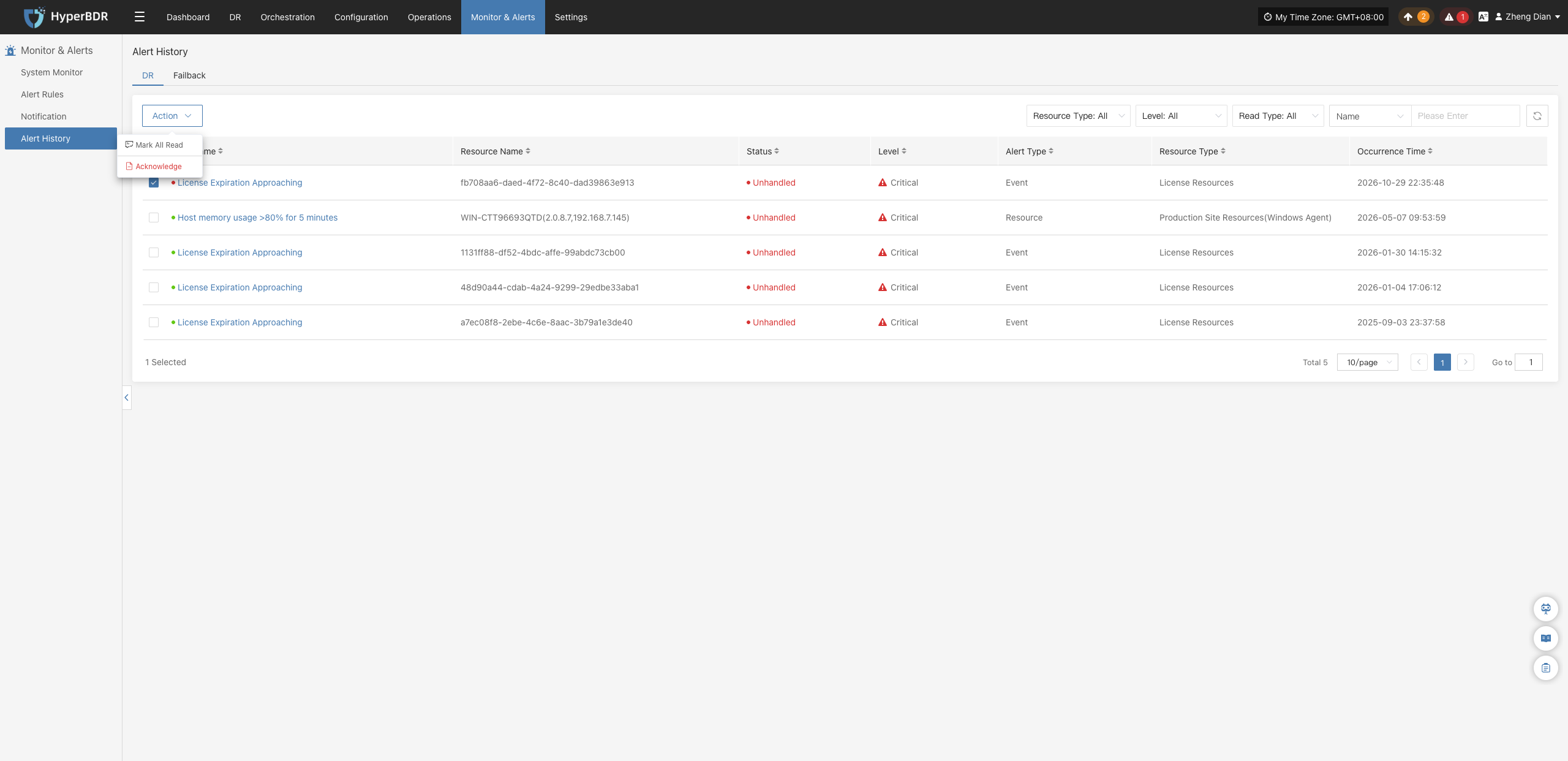
The following two batch actions are supported:
- Mark All Read: Click this option to open the confirmation dialog "Are you sure you want to mark all as read?". Confirming marks all selected alert messages as read.
- Acknowledge: Click this option to open the confirmation dialog "Confirm to deal message ?". Confirming updates the handling status of the selected alerts to processed.
Failback
Alert Message Fields
When the system detects a resource issue or event trigger, it generates an alert message. The main fields are:
| Field Name | Description |
|---|---|
| Alarm Name | The type of event that triggers the alarm, used to quickly identify the root cause of the issue. |
| Resource Name | The specific resource that triggered the alarm, such as a host name or service name. |
| Status | The current handling status of the alarm, for example, "Unprocessed" or "Processed". |
| Severity Level | The severity of the alarm event, commonly classified as "Info", "Critical", or "Emergency". |
| Alarm Type | The specific category of the alarm, such as "Event Alarm" or "Resource Alarm". |
| Resource Type | The types of resources involved, including: · Object Storage · Disaster Recovery Policy User Resources · Disaster Recovery Host Resources · License Resources · Production Platform Resources · Disaster Recovery Platform Resources · Monitoring Alarms · Resource Groups |
| Occurrence Time | The time when the system first detected the alarm event, used for tracing the issue and analyzing response time. |
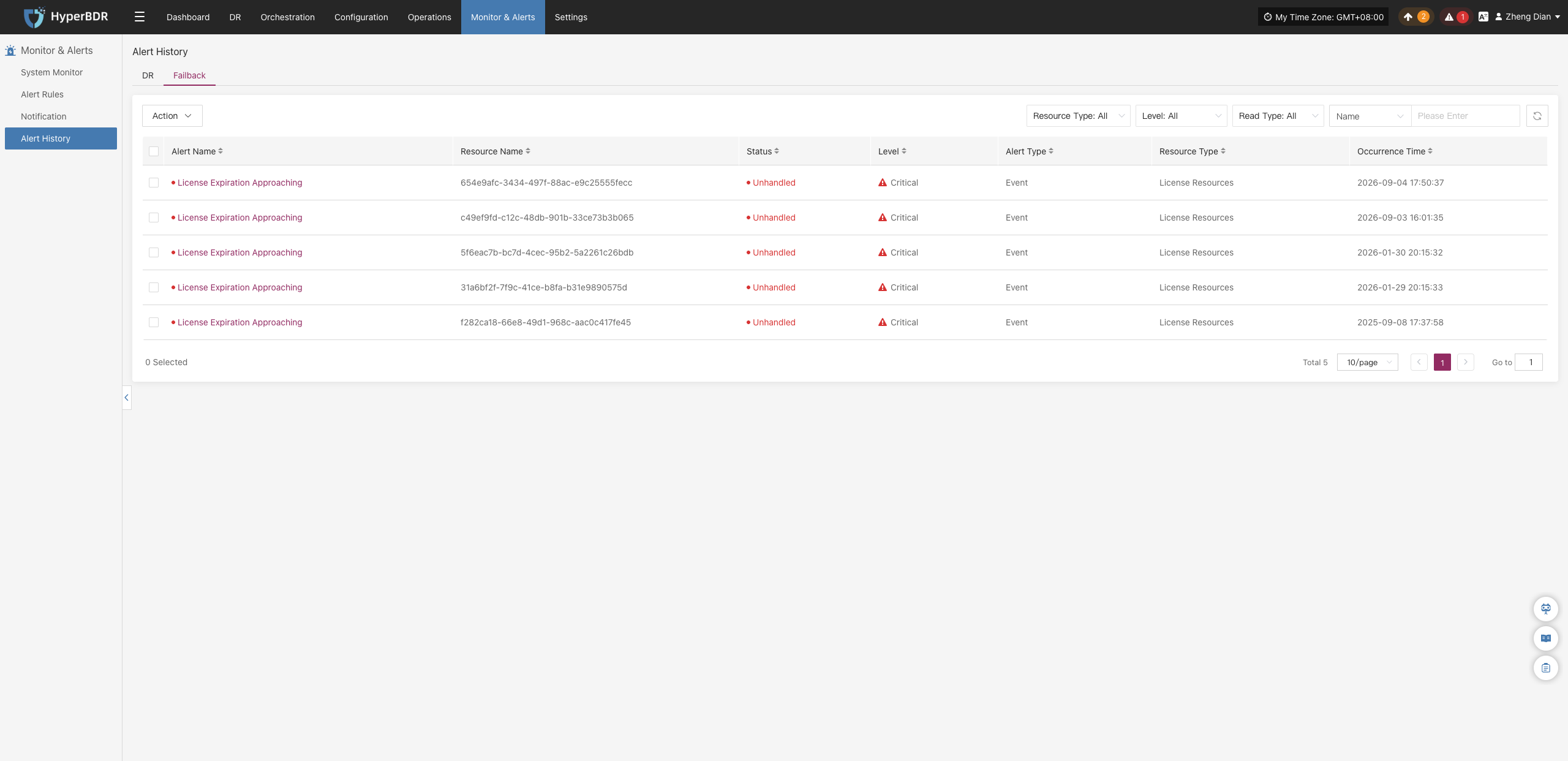
Search & Filter Alerts
In the upper-right corner of the Failback alert list, users can similarly search and filter failback alerts across multiple dimensions:
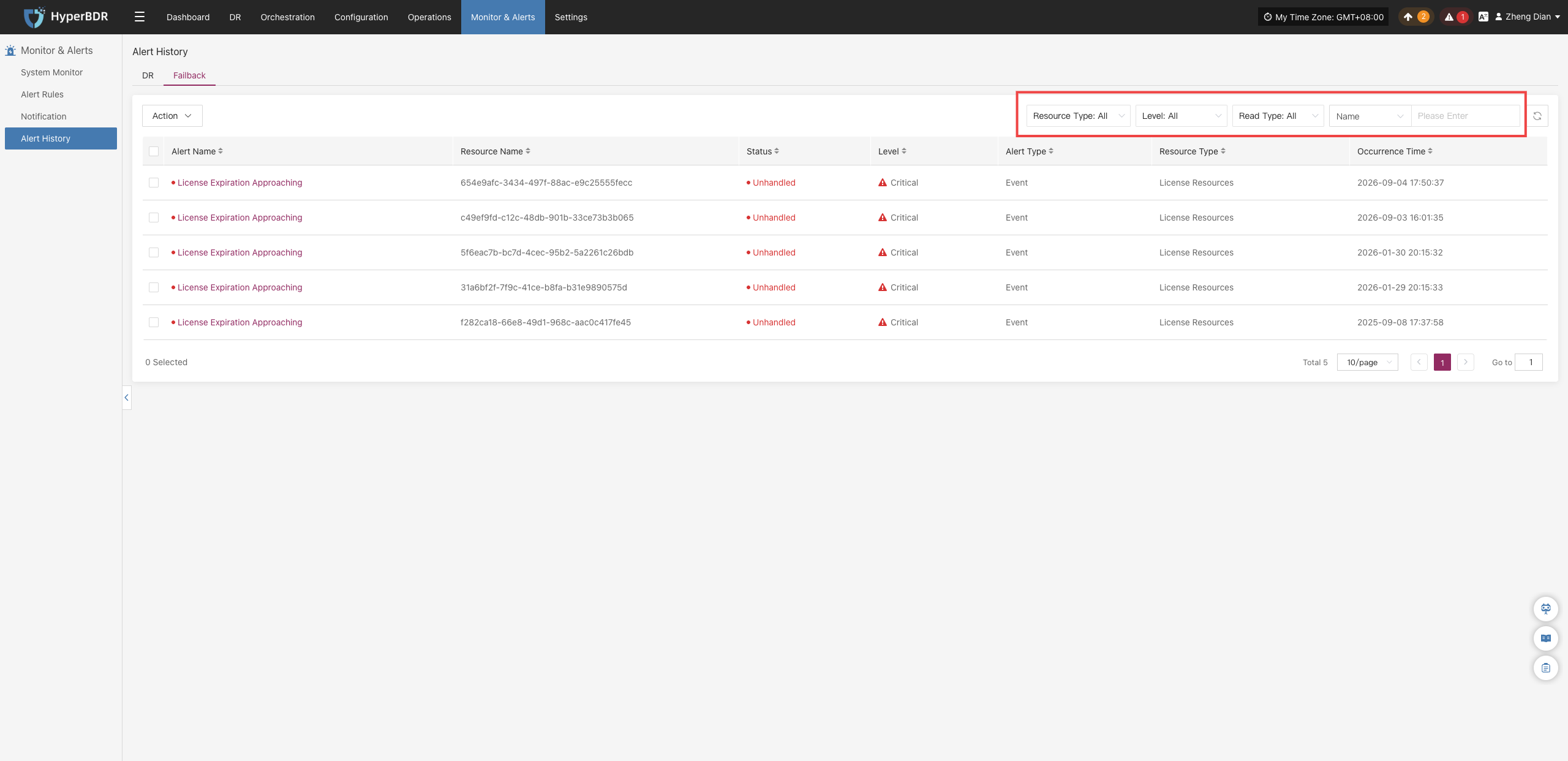
Action
On the Failback alert messages page, select records and click the Action button to expand the action menu:
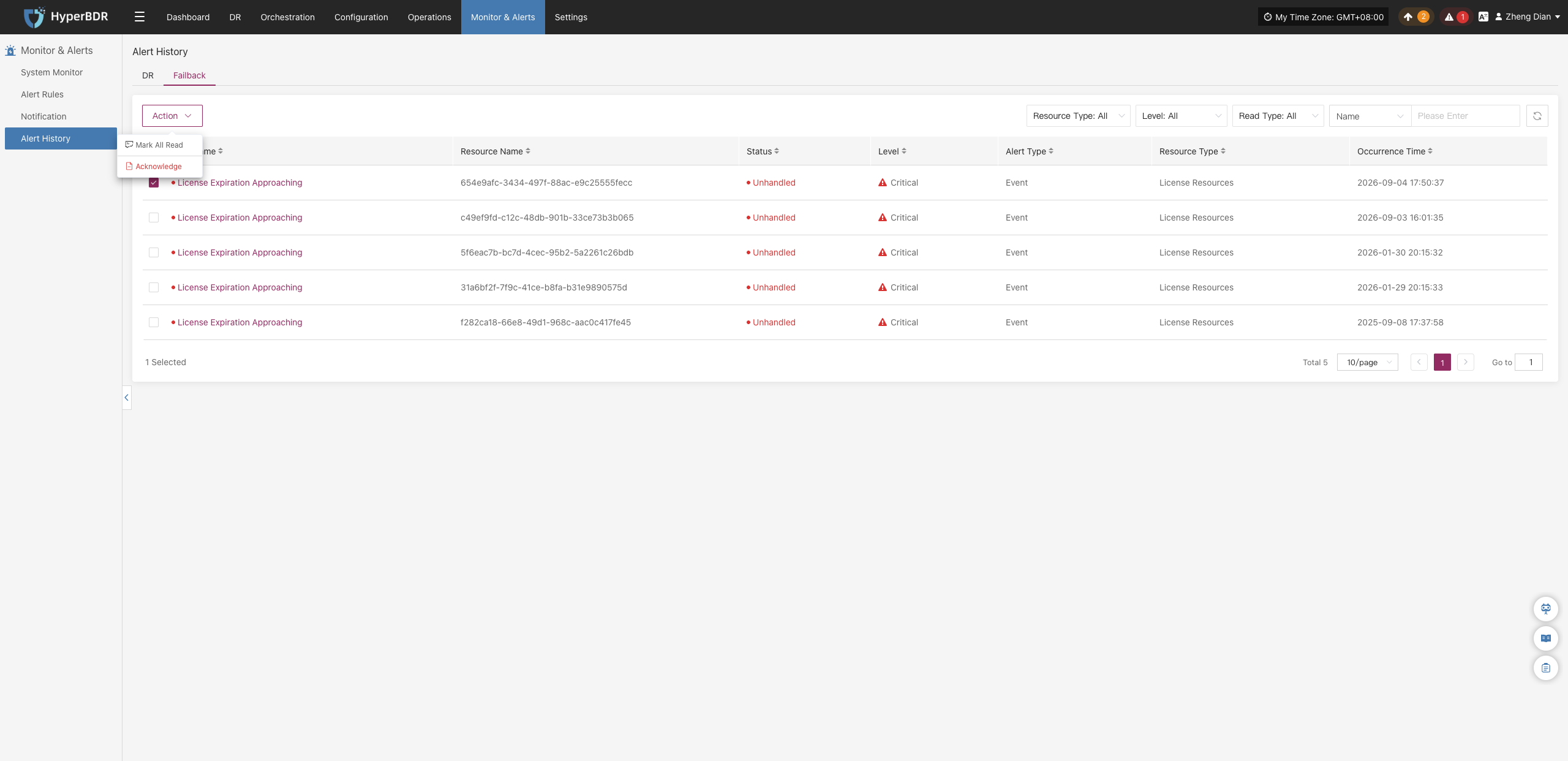
The following two batch actions are supported:
- Mark All Read: Click to open the confirmation dialog "Are you sure you want to mark all as read?". Confirming marks all selected failback alerts as read.
- Acknowledge: Click to open the confirmation dialog "Confirm to deal message ?". Confirming updates the handling status to processed.
Settings
Global Settings
The Global Settings module is used to configure the basic operating environment of the HyperBDR platform, including console interface display parameters, language preferences, system refresh frequency, and domain name and IP address mappings for the source sync proxy, console, and transition hosts.
General Settings
Configure basic operating parameters and interface display preferences on the platform based on actual business needs.
Configuration Method:
Go to Settings > Global Settings, which opens to the General Settings tab by default. Adjust the items per page, interface display language, and alert notification language as needed. After completing the configuration, click Save.
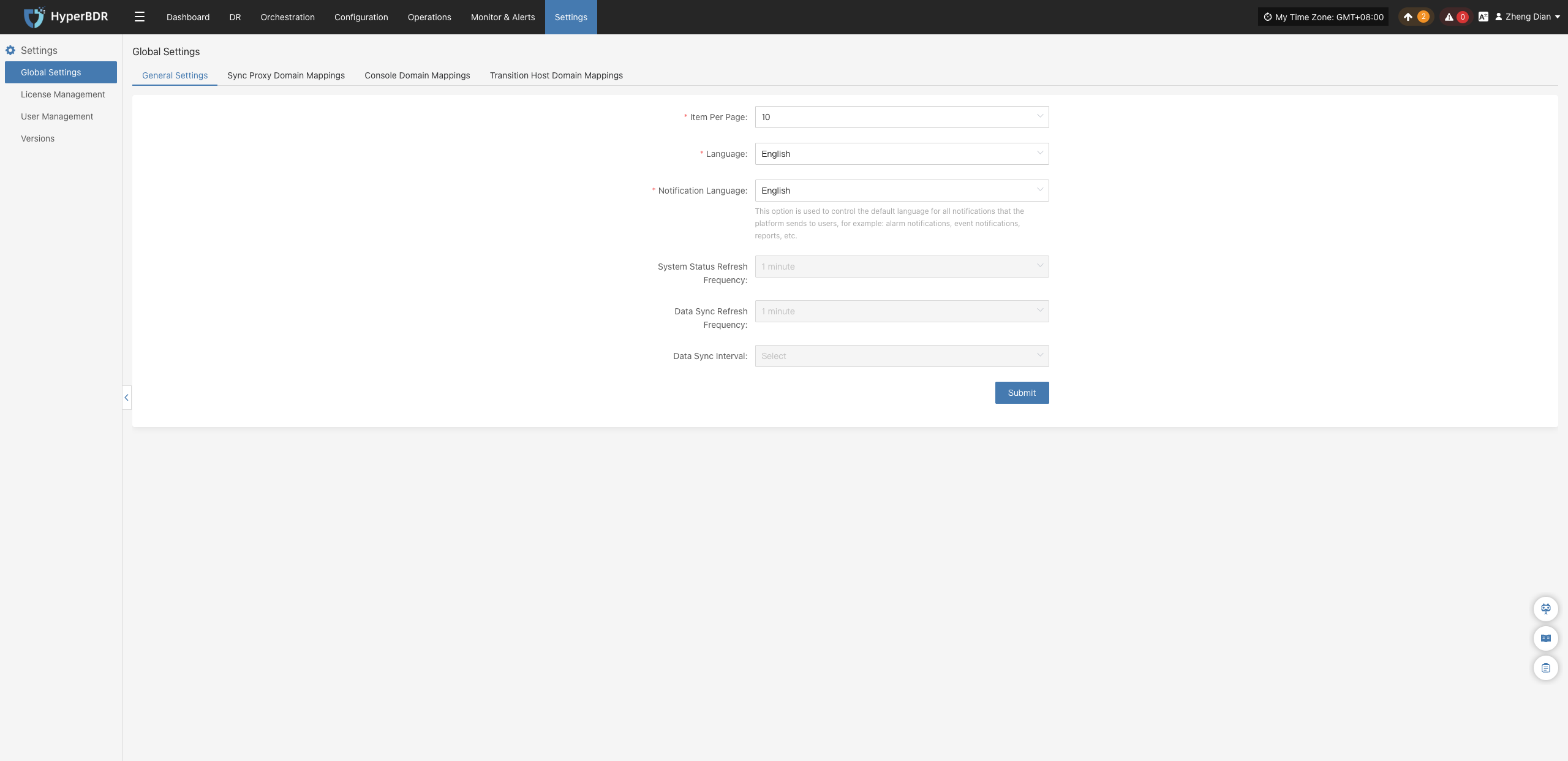
Parameter Description:
| Parameter | Options | Description |
|---|---|---|
| Items per page | 10 / 20 / 30 / 40 / 50 / 60 | Set the number of items displayed per page on platform table pages. Default is 10. |
| Language | Simplified Chinese / English / Español | The display language of the platform console. Affects only the current user. |
| Notification Language | Simplified Chinese / English | The language used for system alert notifications (applicable to Email, SMS, Webhook, etc.). |
| System Status Refresh Frequency | 1 minute | Default is 1 minute. Not configurable in the current version. |
| Data Sync Refresh Frequency | 1 minute | Default is 1 minute. Not configurable in the current version. |
| Data Sync Interval | N/A | Not configurable by default. |
Sync Proxy Domain Mappings
Used to add domain name and IP address mappings for the source production platform. The configuration format is consistent with /etc/hosts in Linux systems.
Configuration Method:
Go to Settings > Global Settings, and switch to the Sync Proxy Domain Mappings tab. Enter the mapping rules in the configuration box using the format [IP Address] [Domain Name], with one entry per line. After completing the configuration, click Save.
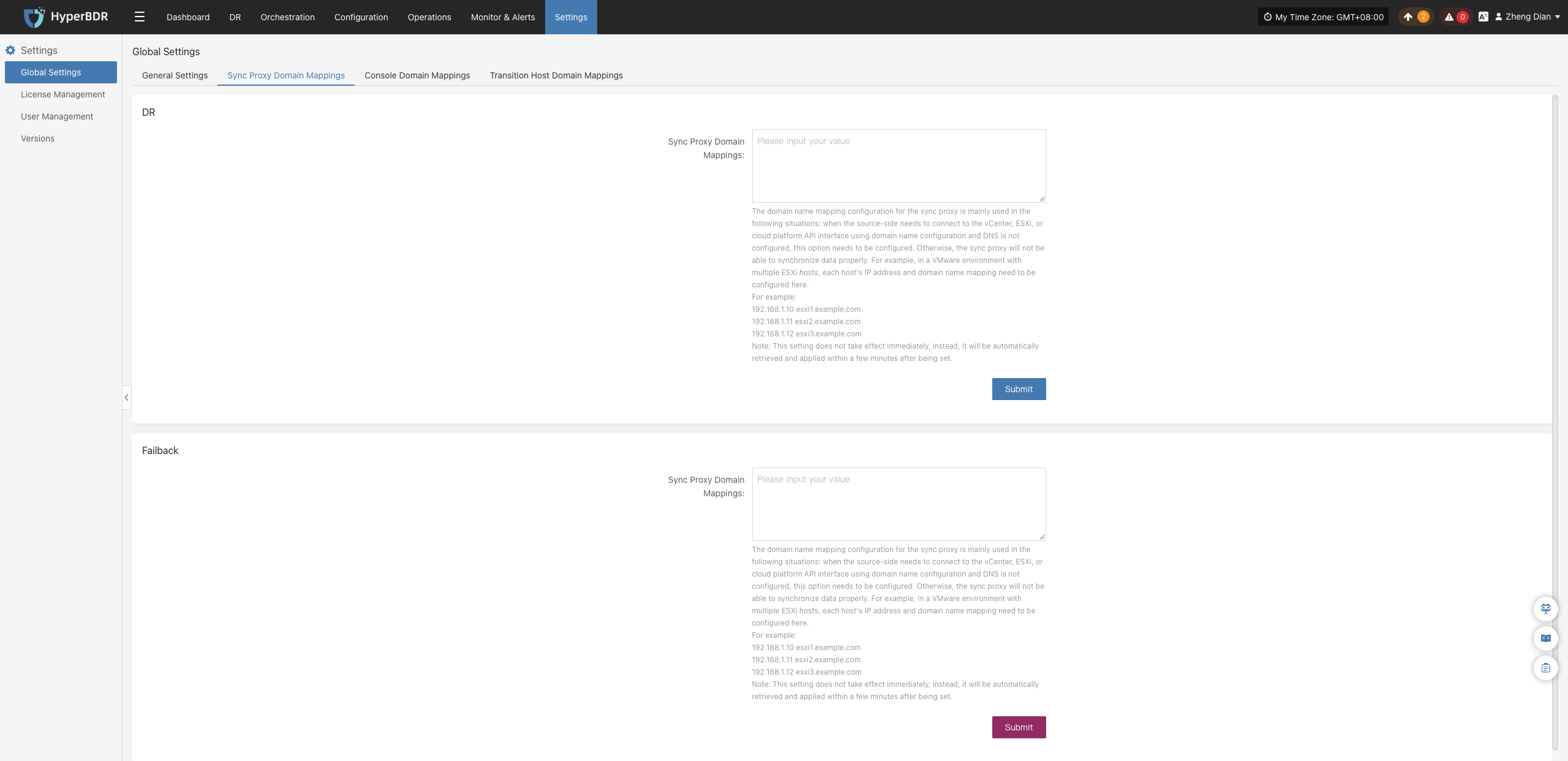
Configuration Example:
192.168.1.10 esxi1.example.com
192.168.1.11 esxi2.example.com
192.168.1.12 esxi3.example.com
Note
This setting does not take effect immediately. The system will automatically pull and apply it to the corresponding sync proxy nodes within a few minutes after saving.
Console Domain Mappings
Console domain mapping is mainly used when the target cloud platform API interfaces communicate via domain names, ensuring that the HyperBDR console can accurately resolve and invoke various API endpoints of the target platform services. For example, when connecting to an OpenStack platform whose service endpoints use domain names, you need to centrally configure domain mappings for Compute (Nova), Network (Neutron), Storage (Cinder), and Image (Glance) services here.
Configuration Method:
Go to Settings > Global Settings, and switch to the Console Domain Mappings tab. Enter the mapping rules in the configuration box using the format [IP Address] [Domain Name], with one entry per line. After completing the configuration, click Save.
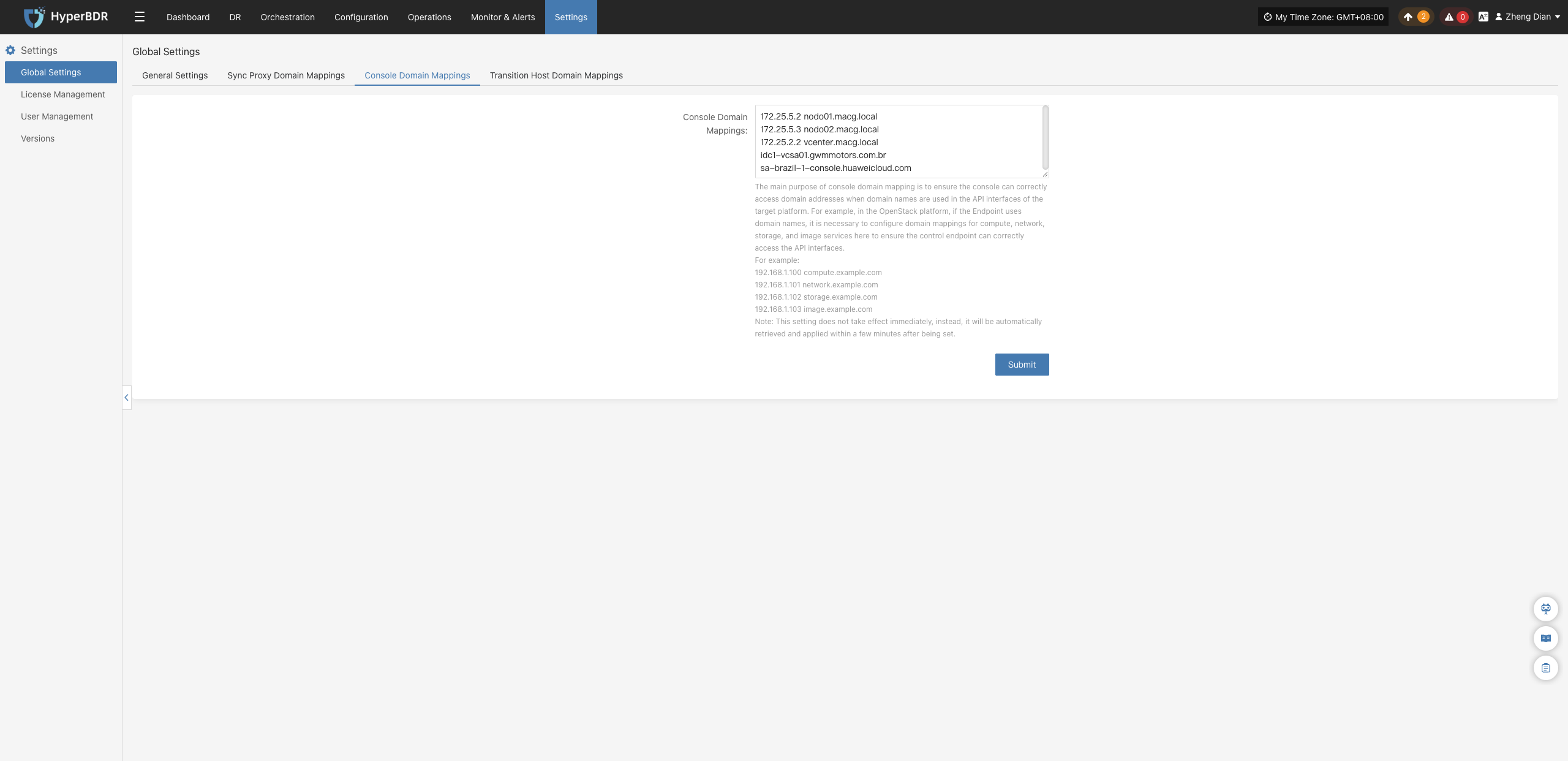
Configuration Example:
192.168.1.100 compute.example.com
192.168.1.101 network.example.com
192.168.1.102 storage.example.com
192.168.1.103 image.example.com
Note
This setting does not take effect immediately. The system will automatically pull and apply it within a few minutes after saving.
Transition Host Domain Mappings
The transition host is responsible for volume mounting, driver adaptation, and data format conversion during disaster recovery takeover and drill recovery. When the cloud service interfaces of the target platform (such as image service, block storage service, object storage endpoint) use domain names for communication and the intranet lacks DNS, domain mappings must be configured here to ensure that the transition host can smoothly resolve and communicate with the target cloud service endpoints upon startup.
Configuration Method:
Go to Settings > Global Settings, and switch to the Transition Host Domain Mappings tab. Enter the mapping rules in the configuration box using the format [IP Address] [Domain Name], with one entry per line. After completing the configuration, click Save.
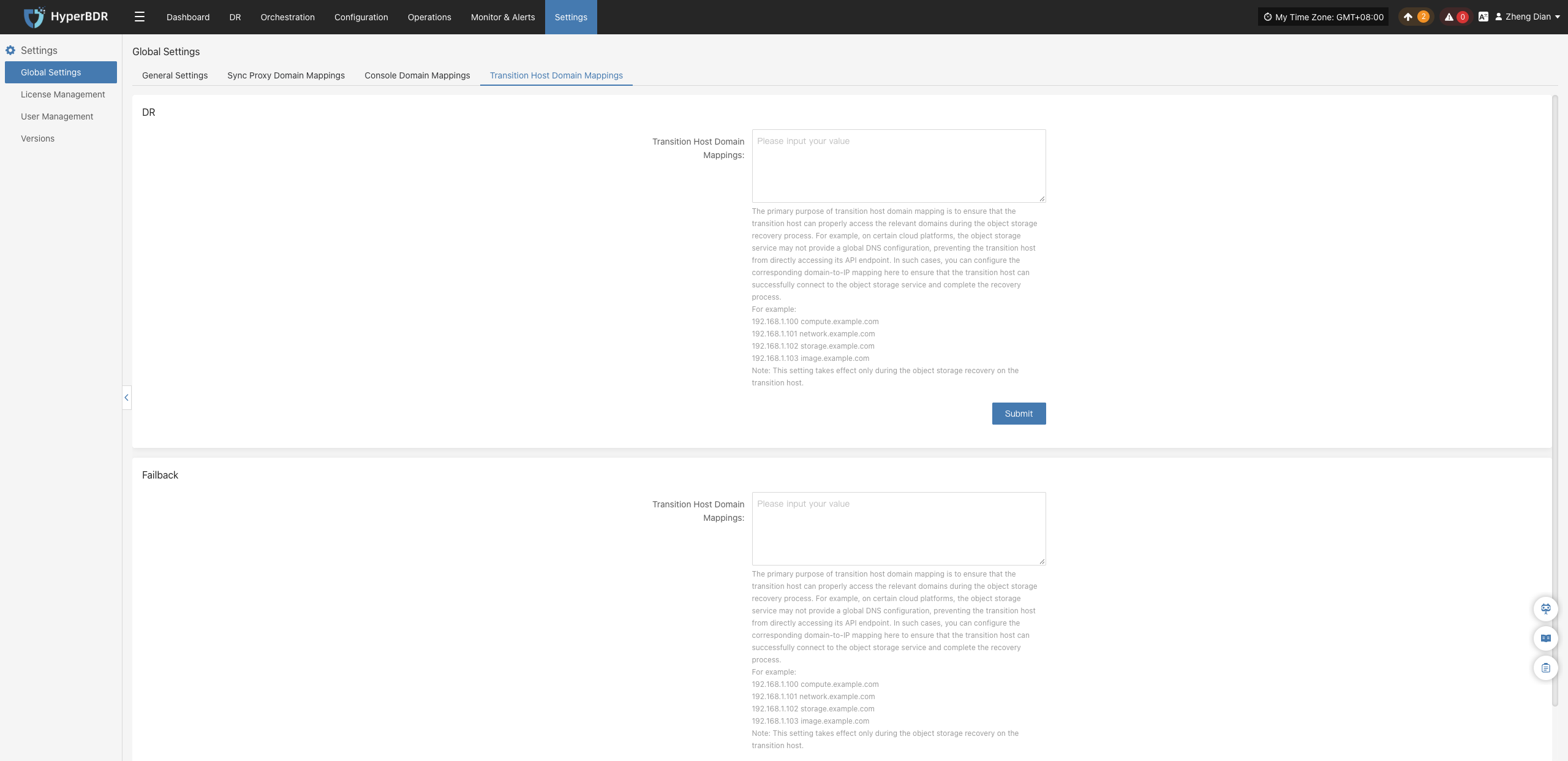
Configuration Example:
192.168.1.100 compute.example.com
192.168.1.101 network.example.com
192.168.1.102 storage.example.com
192.168.1.103 image.example.com
Note
This setting does not take effect immediately. The system will automatically pull and apply it within a few minutes after saving.
License Management
License Management is used to control usage permissions for various platform resources in disaster recovery and data migration features, ensuring users possess the corresponding authorization when performing data synchronization, disaster recovery Drill, Takeover, and failback operations.
The platform provides two core license categories: DR License and Failback License.
DR License
The DR License controls the license quota and validity period of managed hosts for data synchronization, disaster recovery Drill, and Takeover features.
Add
Go to Settings > License Management > DR License, and click the + Add button at the top of the page. An activation dialog will pop up, supporting two acquisition and activation methods:
- Method 1: Online Payment
- Billing Cycle: Supports subscription by month or year.
- Quantity: Enter the number of host quotas to purchase.
- Auto-Renewal: Choose whether to enable automatic renewal upon expiration. After verifying the order details, complete the payment. The license is usually issued automatically within 1–3 minutes after successful payment.
- Method 2: Activation Code
- If you already have an activation code, paste it into the code input box and click Activate to complete activation.
- If you do not have an activation code, copy the unique Registration Code displayed on the interface and contact the sales or technical support team (ecosys@oneprocloud.com) to obtain the corresponding authorization code.
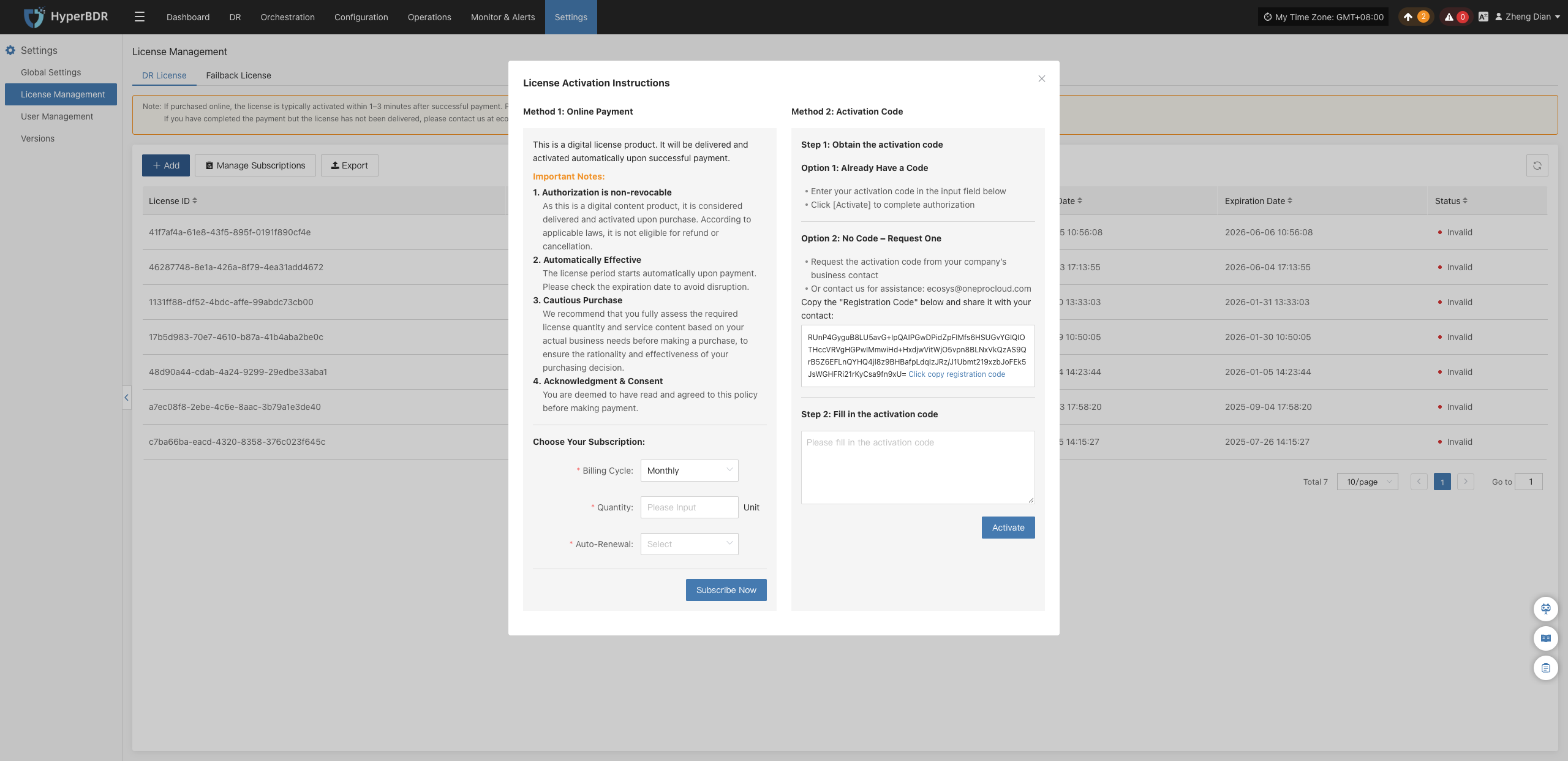
Manage Subscriptions
In the top operation bar of the DR License page, click the Manage Subscriptions button.
The system will open the subscription management console, allowing administrators to centrally review online subscription orders, renewal status, billing cycles, and historical procurement details.
Note
This feature is primarily used to inspect and manage automatic cloud subscription services purchased via online payment channels.
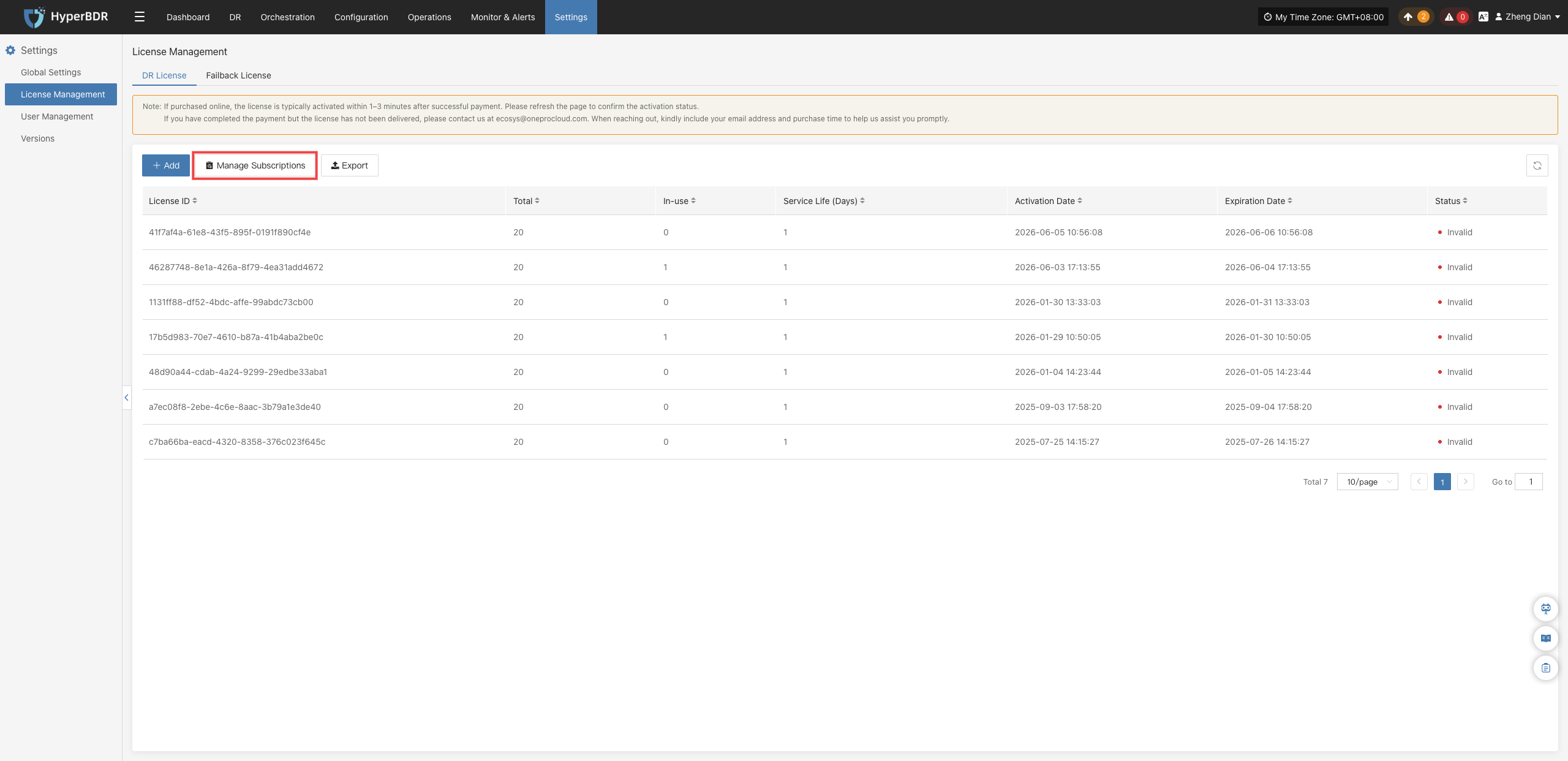
Export
In the top operation bar of the DR License page, click the Export button. The system will automatically generate and download an Excel/CSV file containing the license consumption details and key operation records of currently managed hosts.
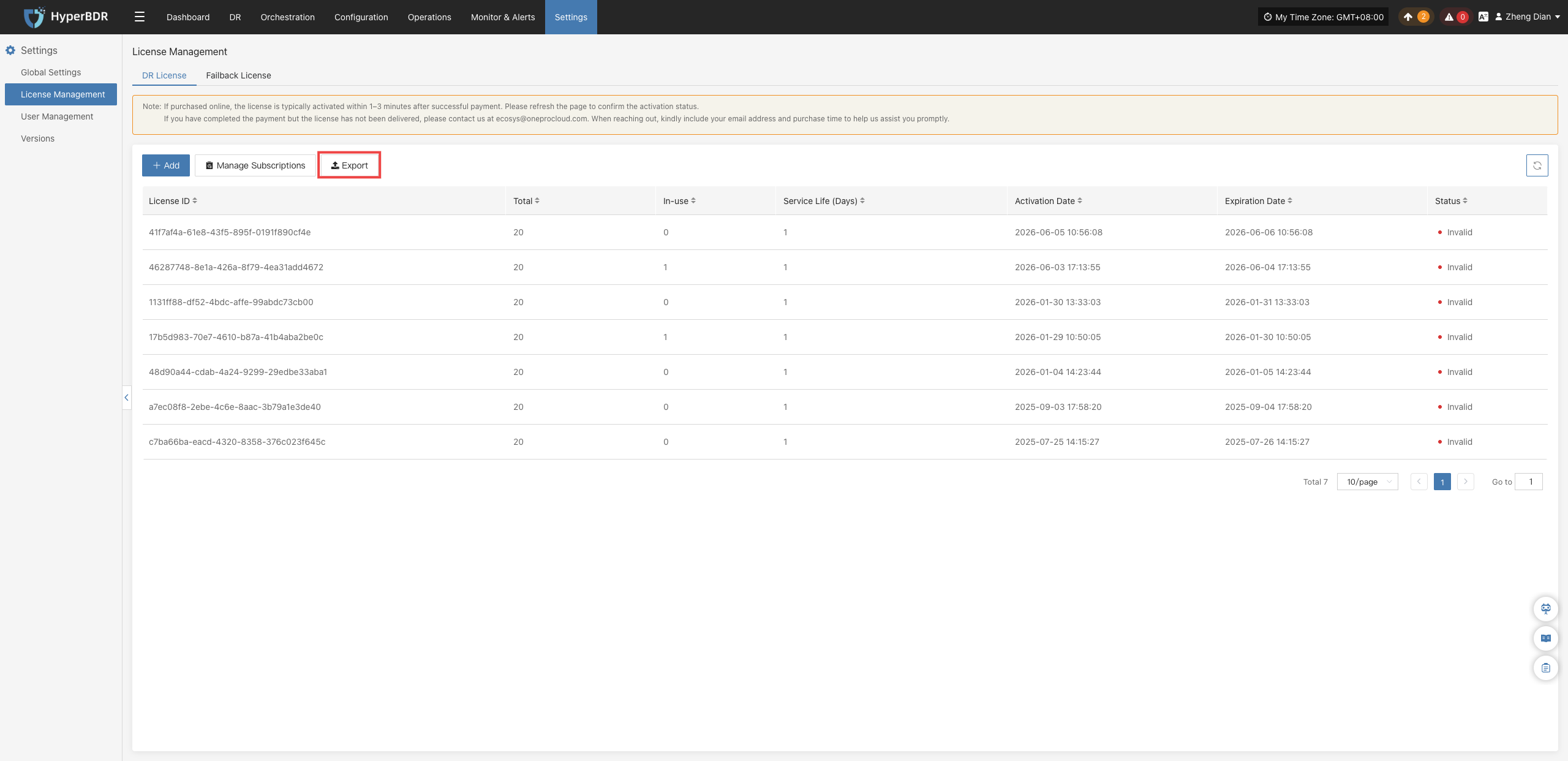
Failback License
The Failback License is used to manage authorization when migrating workloads smoothly back from the target cloud platform to the source site after Takeover. A valid failback license code is required to ensure the legality and integrity of the data migration and reverse recovery process.
Add
On the Settings > License Management page, switch to the Failback License tab and click the + Add button at the top. In the popup activation dialog, both Online Payment and Activation Code methods are supported, with the same operational workflow as the DR License.
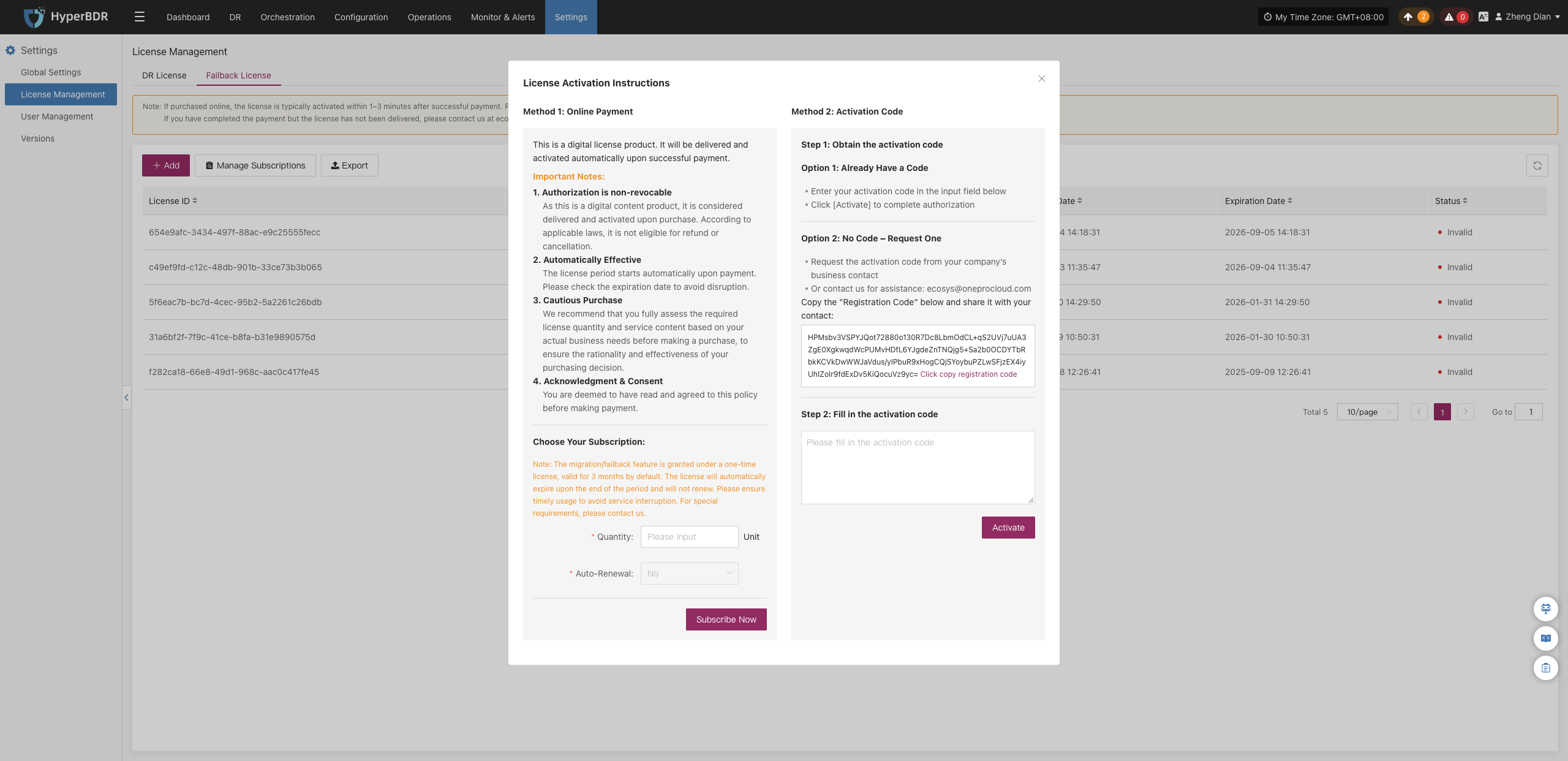
Manage Subscriptions
In the top operation bar of the Failback License page, click the Manage Subscriptions button to navigate to the subscription center to review and maintain the subscription quota and lifecycle for failback licenses.
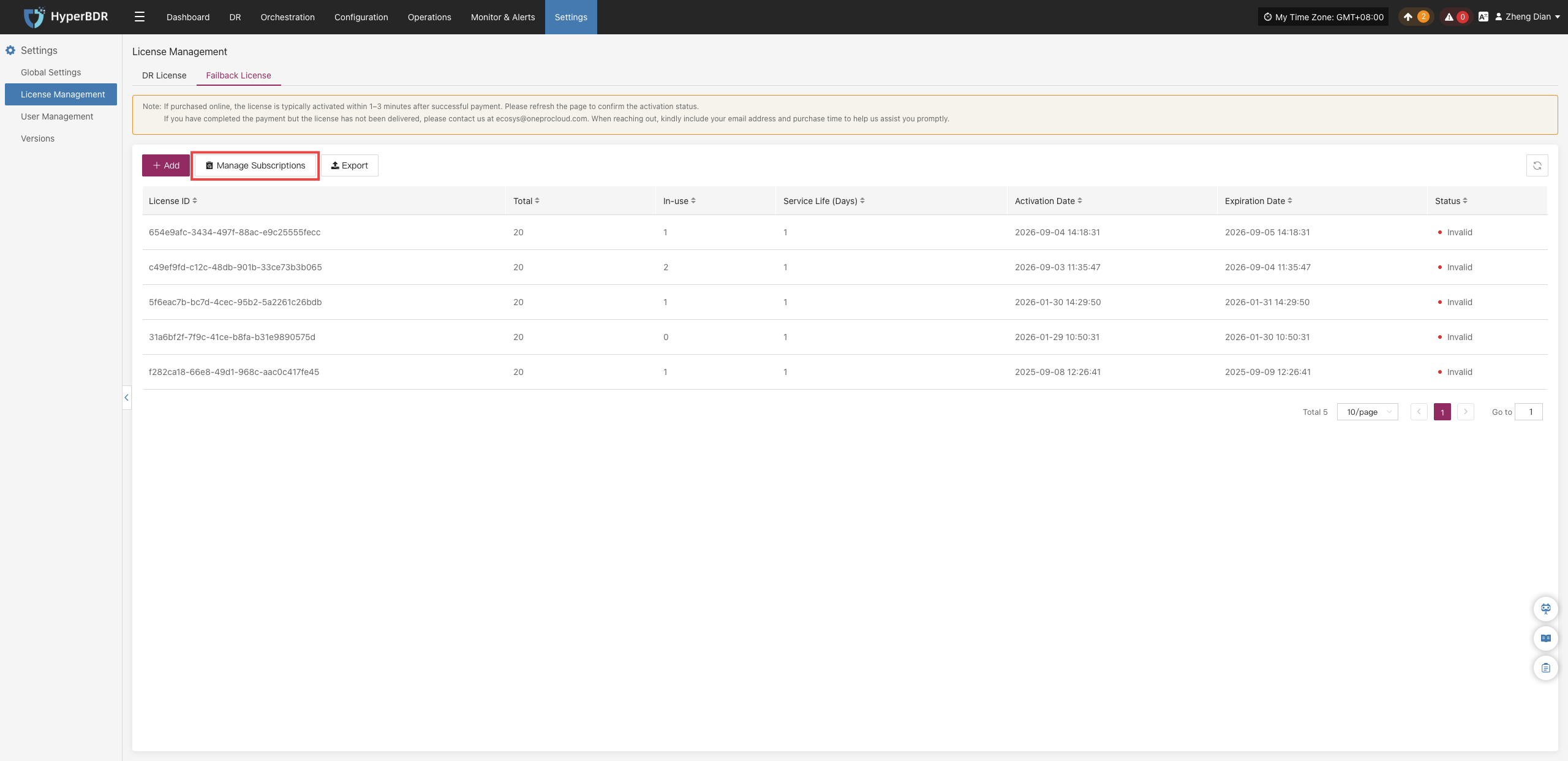
Export
In the top operation bar of the Failback License page, click the Export button to export the license usage records and operation history for current failback hosts.
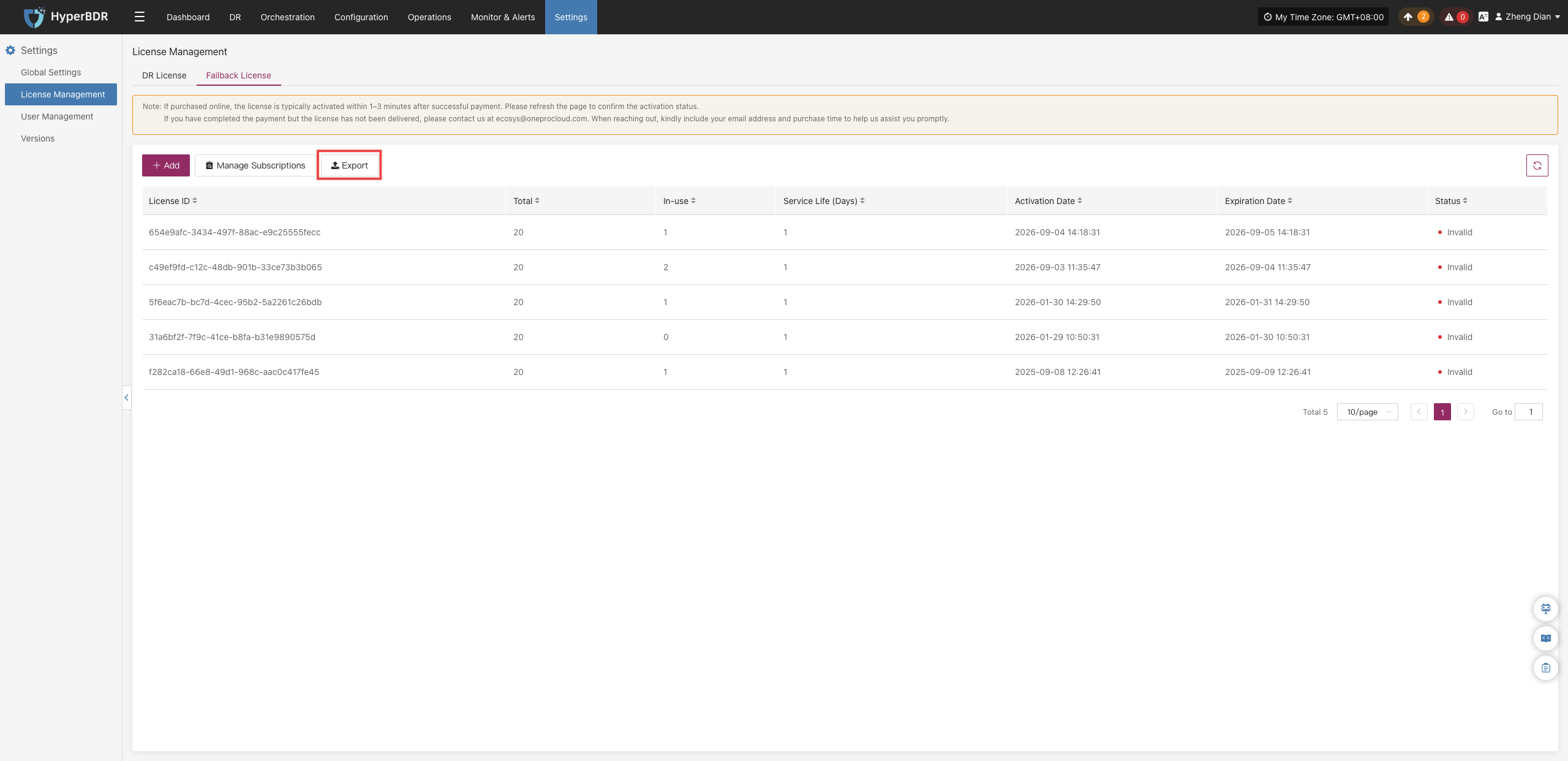
User Management
A core module for the full lifecycle management of tenant accounts, supporting capabilities such as adding system accounts, assigning role permissions, viewing account information, and searching/filtering accounts. It enables hierarchical and decentralized administration for multiple operators to ensure the operational security of the backup platform.
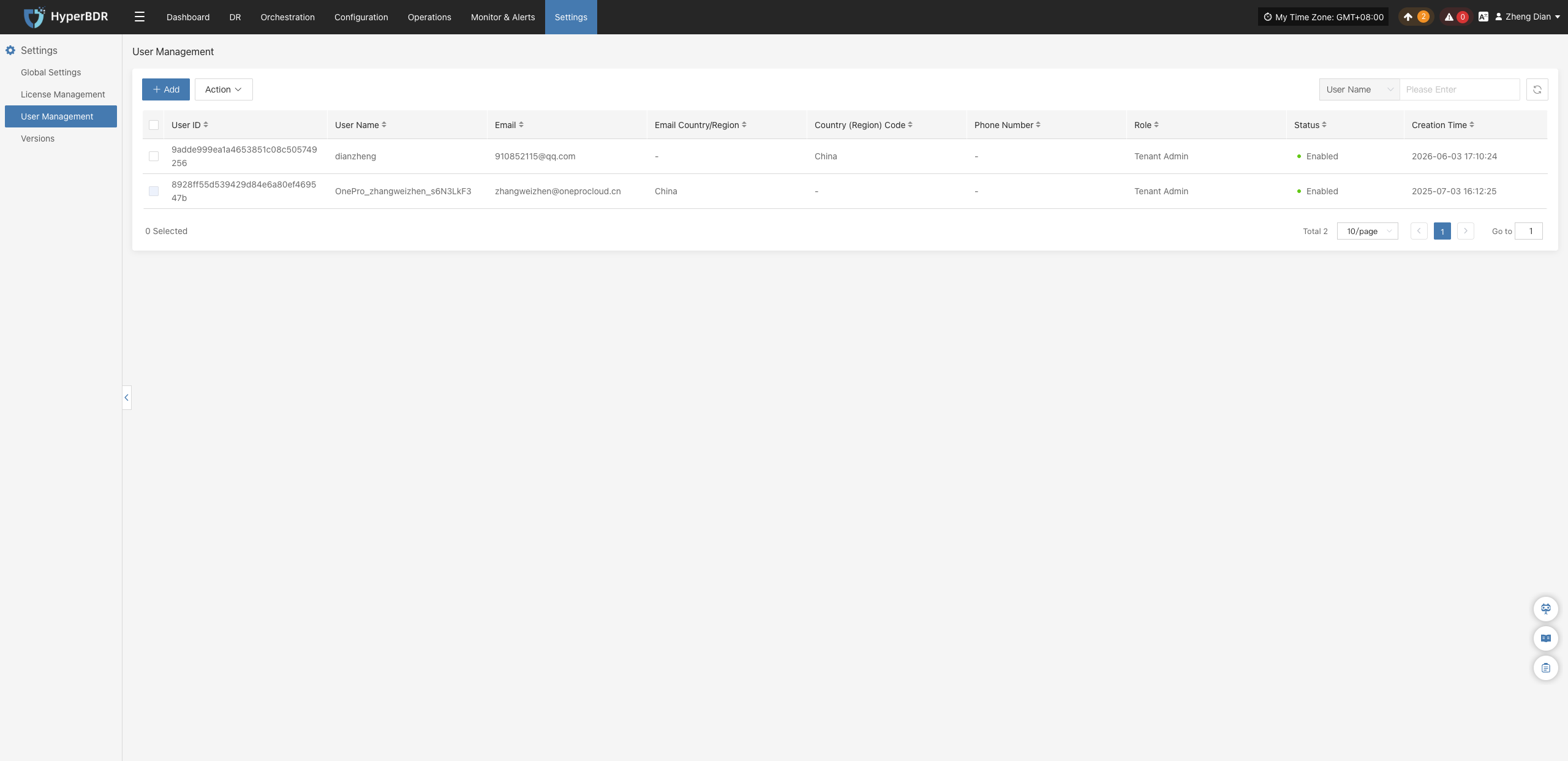
User List Field Description
Each user record in the list contains the following fields:
| Field Name | Description |
|---|---|
| User ID | A unique identifier automatically generated by the system. It cannot be modified and is used by the backend to identify accounts. |
| Username | The account name used to log into the system; a required credential for login. |
| The contact email bound to the user, used for password retrieval and alert notification emails. | |
| Email Country / Region | Identifier for the email region. Displays "-" if no specific region is set. |
| User Mobile Country (Region) Code | The country calling code for the mobile phone number (default: China +86). |
| User's Mobile Phone Number | The bound contact phone number used for account security verification. |
| Role | Account permission levels, categorized into three tiers: • Tenant Administrator: Highest privilege across the platform. • Configured User: Permissions limited to backup business operations. • Read-only User: Read-only access to view data across the platform without any editing permissions. |
| Status | Account login status: A green dot indicates enabled (can log in normally); disabled indicates login access is revoked. |
| Creation Time | The precise timestamp when the account was created. |
Add
Log in to the console, navigate to Settings > User Management, and click the + Add button at the top of the page. In the popup new user form, fill in the username, email, region, mobile phone number, and assigned role. After verifying the details, click save to complete account creation.
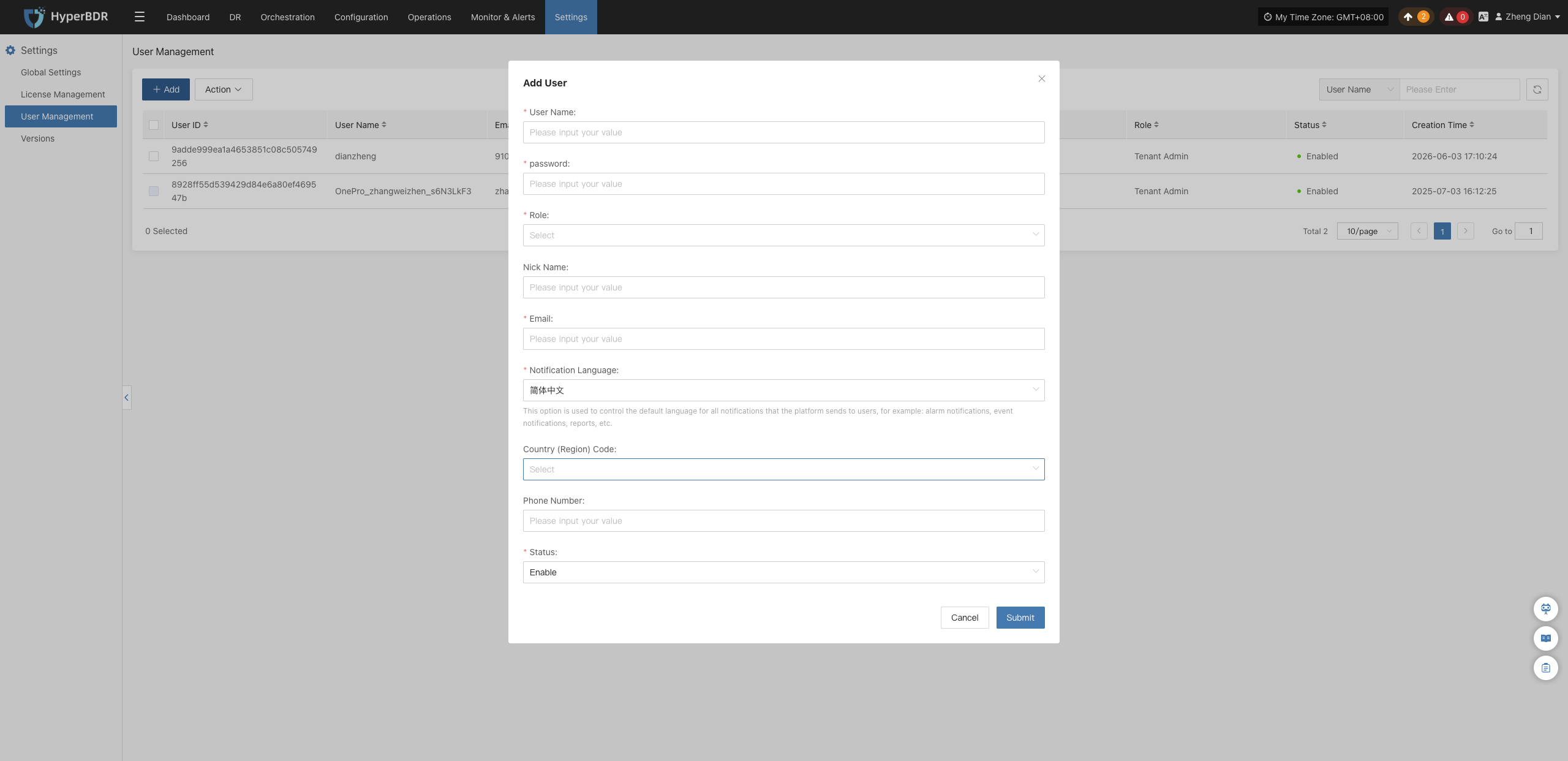
Action
In the user list, click Action on the right side of the target user row to perform management operations such as modify, reset password, enable, disable, and delete from the dropdown menu.
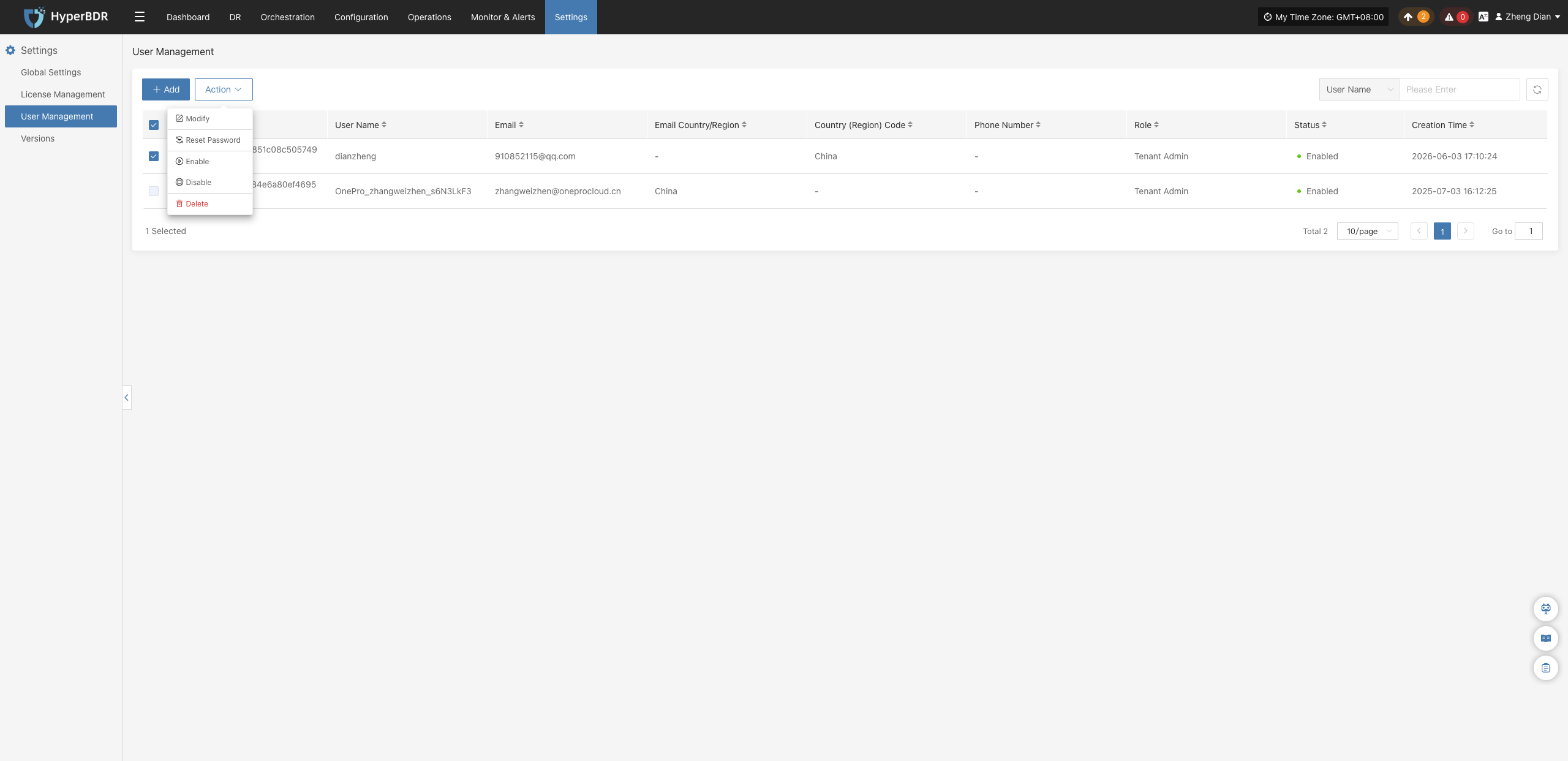
Modify
Click Action > Modify, and the Edit User dialog will appear. Administrators can modify the contact email, mobile phone number, role permissions, and enabled status for the account. Changes take effect immediately upon saving.
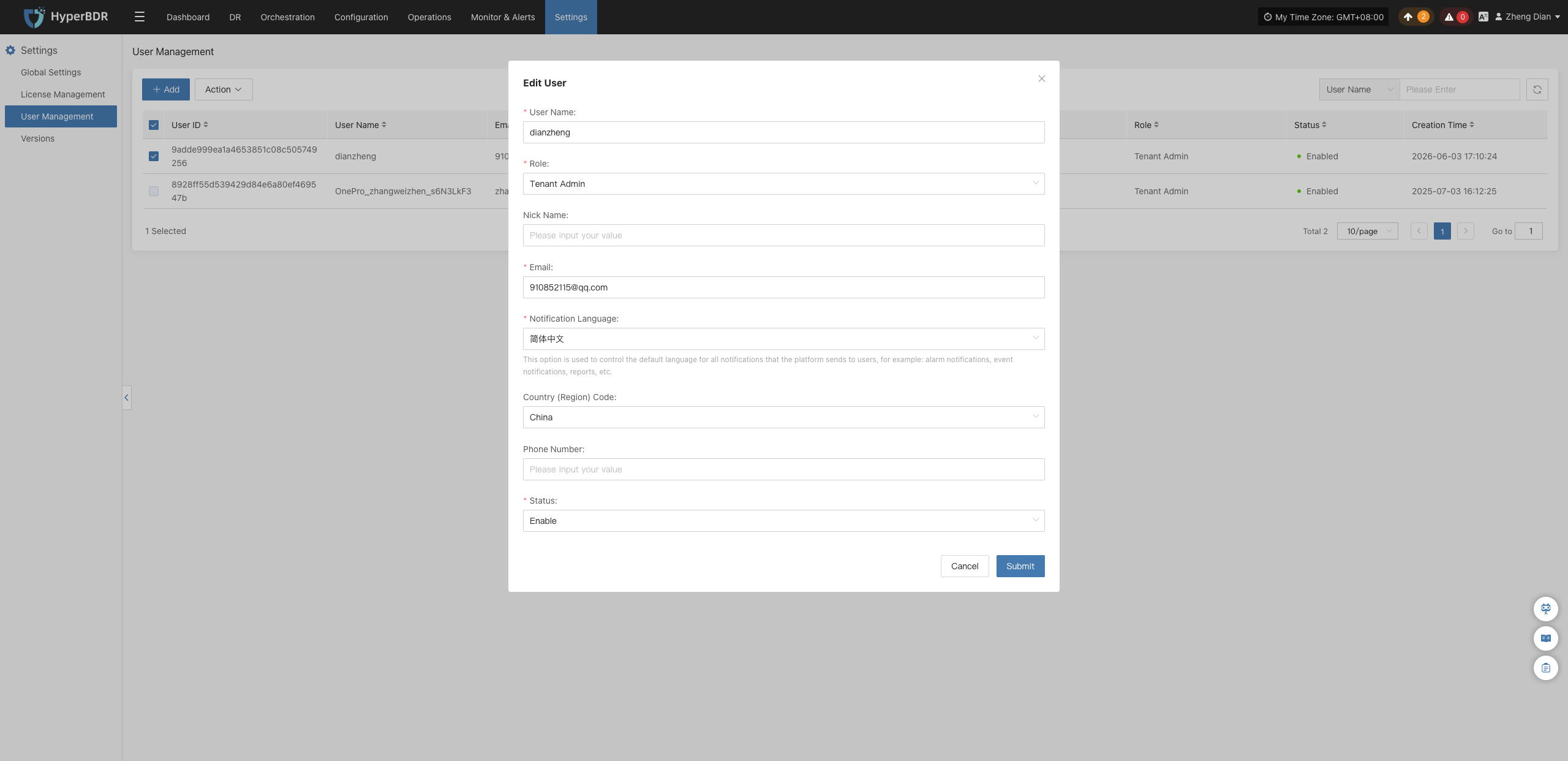
Reset Password
Click Action > Reset Password, enter the new password in the popup dialog, and confirm to complete the password reset.
Note
Once the password is reset, the original password becomes invalid immediately. Please deliver the new password to the user via a secure channel.
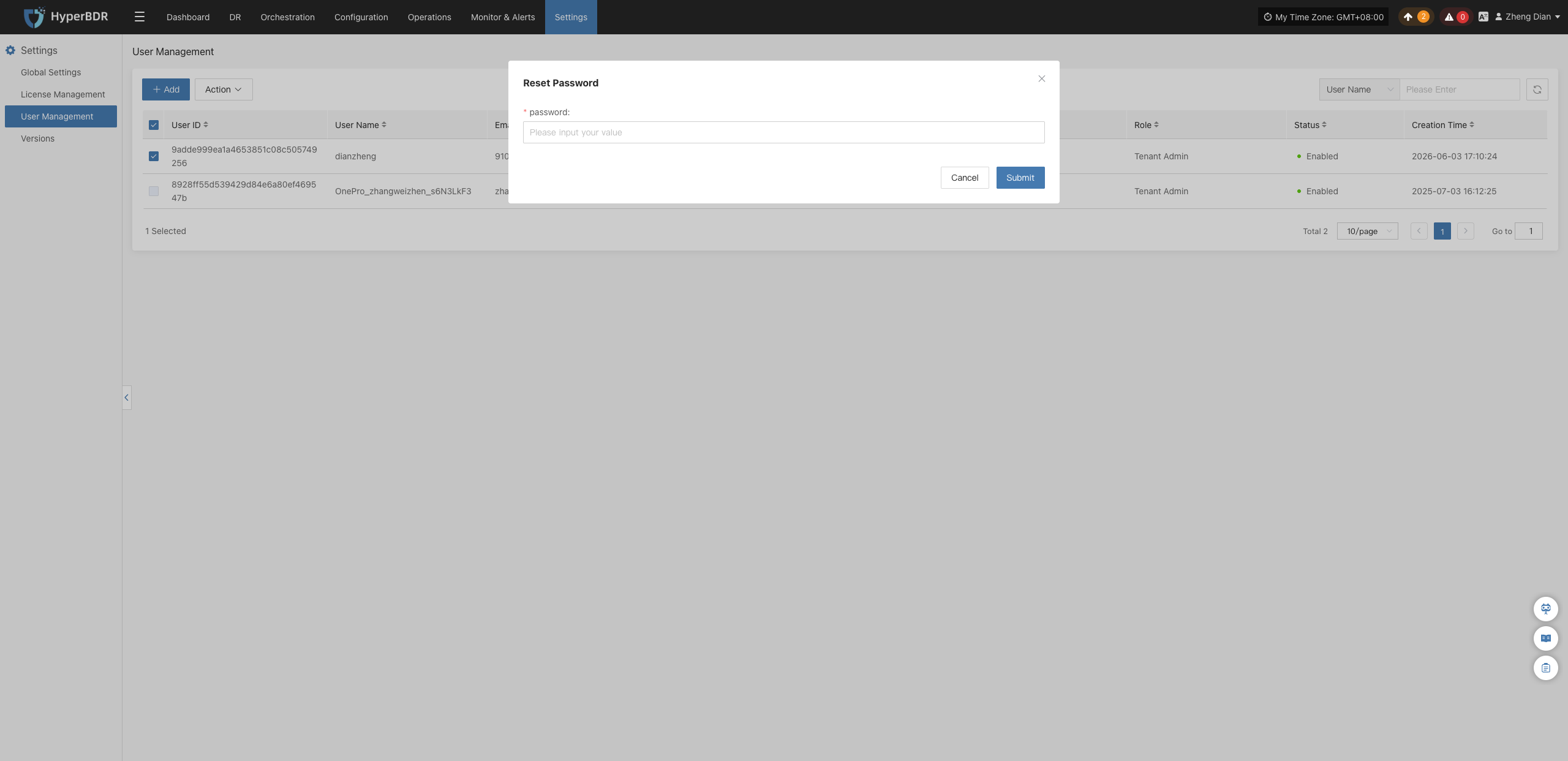
Enable
When the target account is disabled, click Action > Enable to enable the account. After successful activation, the account's login permissions are restored, and the status in the list updates to enabled.
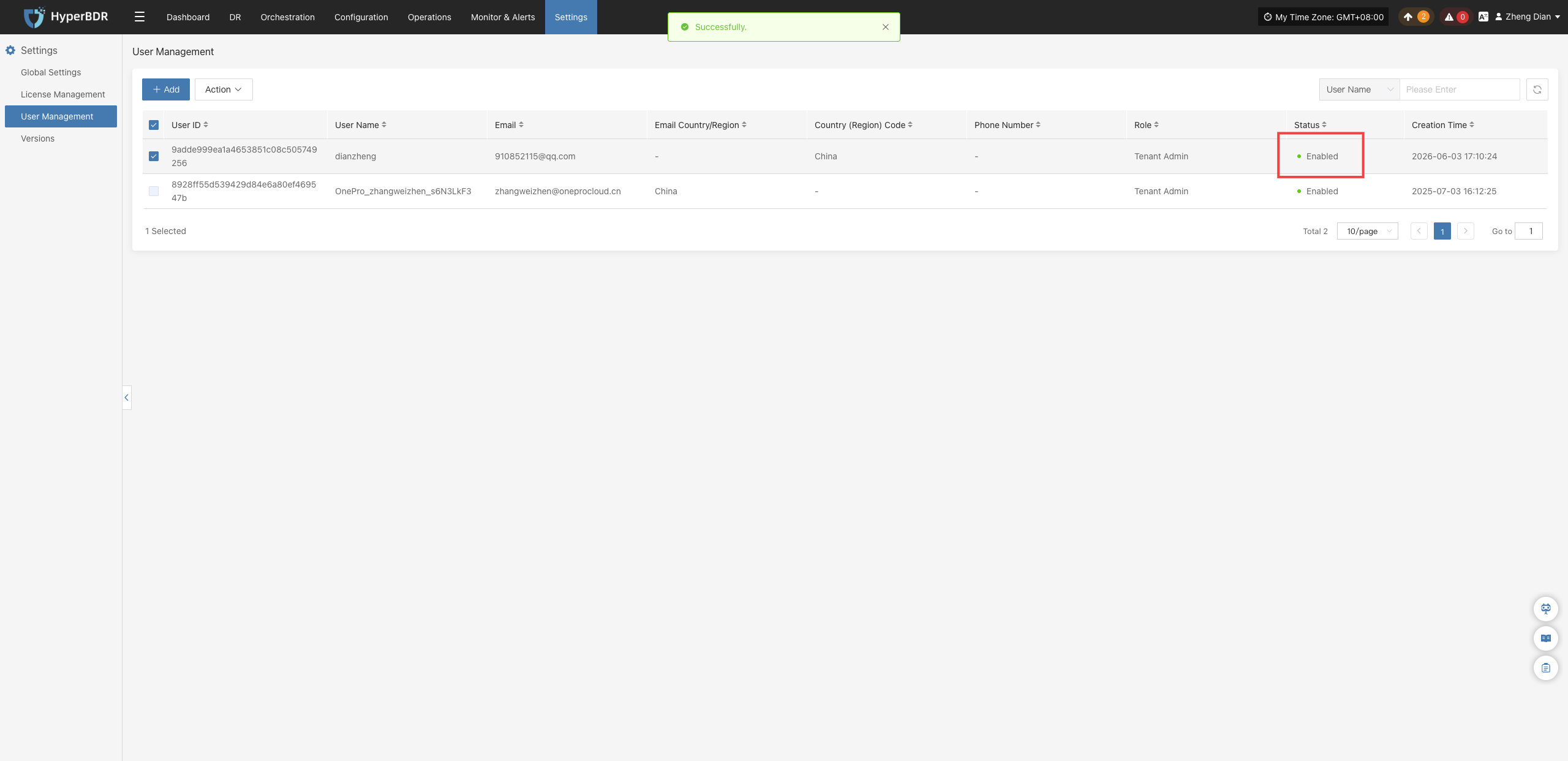
Disable
When the target account is enabled, click Action > Disable to disable the account. Once disabled, the account can no longer log in, and its status in the list updates to disabled.
Warning
After an account is disabled, any active sessions for that user will be unable to continue business operations. Please ensure relevant tasks are properly handed over before proceeding.
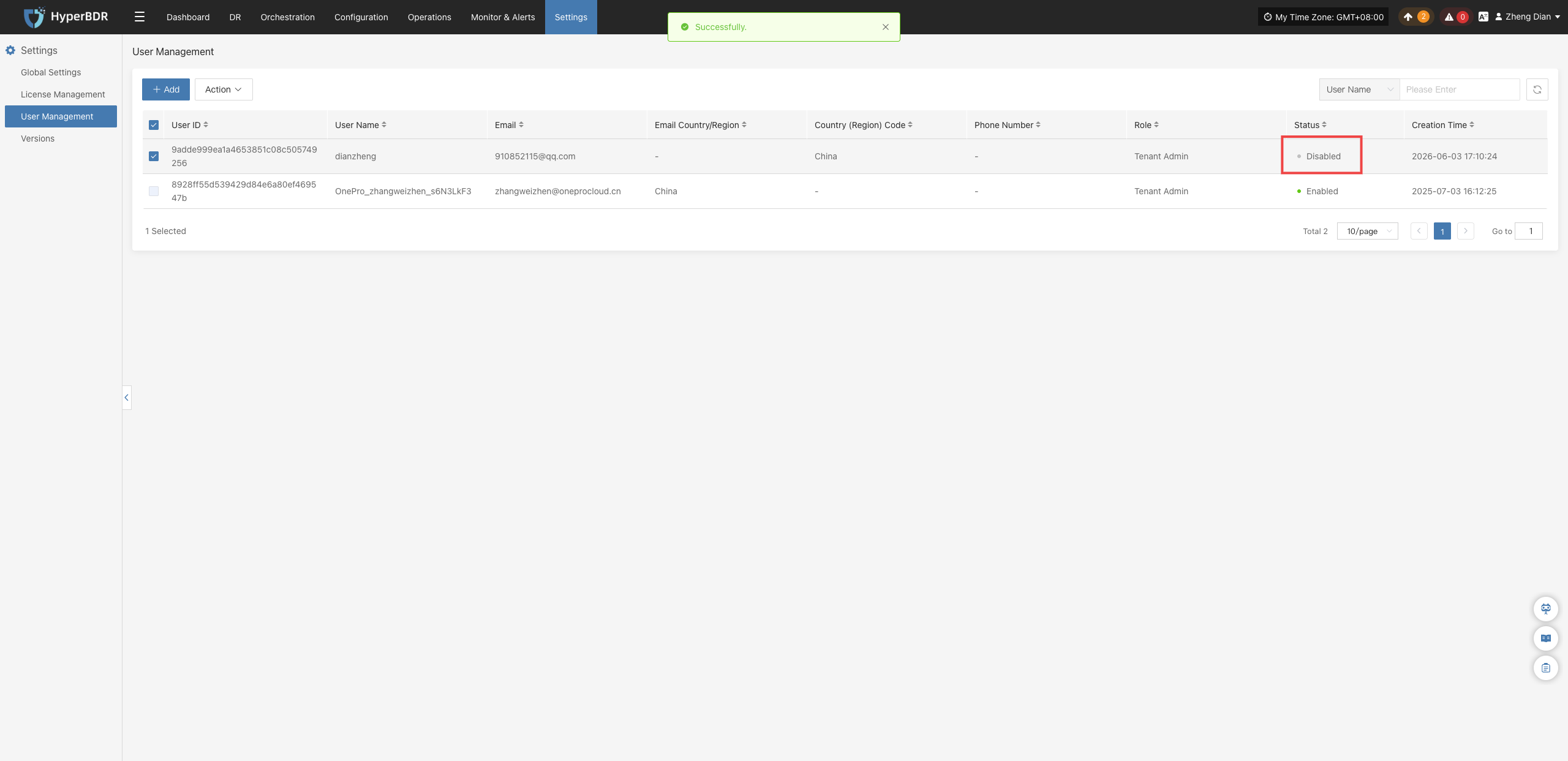
Delete
Click Action > Delete, and a secondary confirmation alert dialog will appear. Upon confirmation, the user account will be permanently removed, and all account configurations and associated login credentials will become invalid.
Caution
The deletion operation is irreversible. Before proceeding, confirm that the account has no ongoing tasks or associated dependent resources, verify the username carefully, and confirm with caution.
Versions
The Versions module is used to display the software version data currently running on the HyperBDR platform. The system supports quickly checking the overall software package version via the top navigation menu, or navigating to the Versions settings page to view detailed versions of each core microservice and operating component.
View System Package Version
After logging into the HyperBDR console, locate the menu icon (three horizontal lines) in the upper-left corner of the top navigation bar to view the currently deployed HyperBDR system package version.
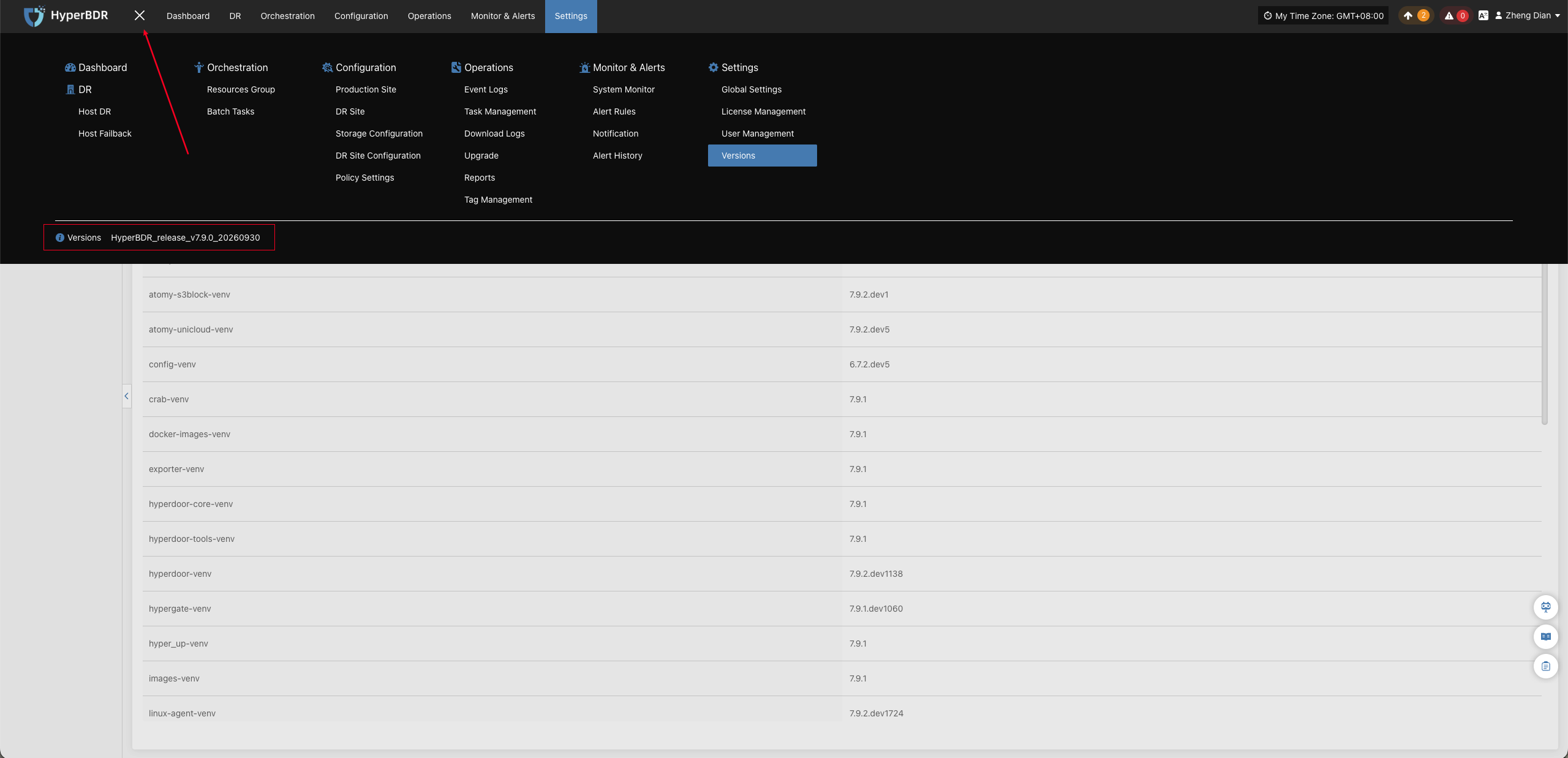
View Component Details
Log into the HyperBDR console, click Settings in the top navigation bar, and then click Versions in the left navigation menu. The page displays detailed version information for each microservice and runtime component in the current environment in card format.
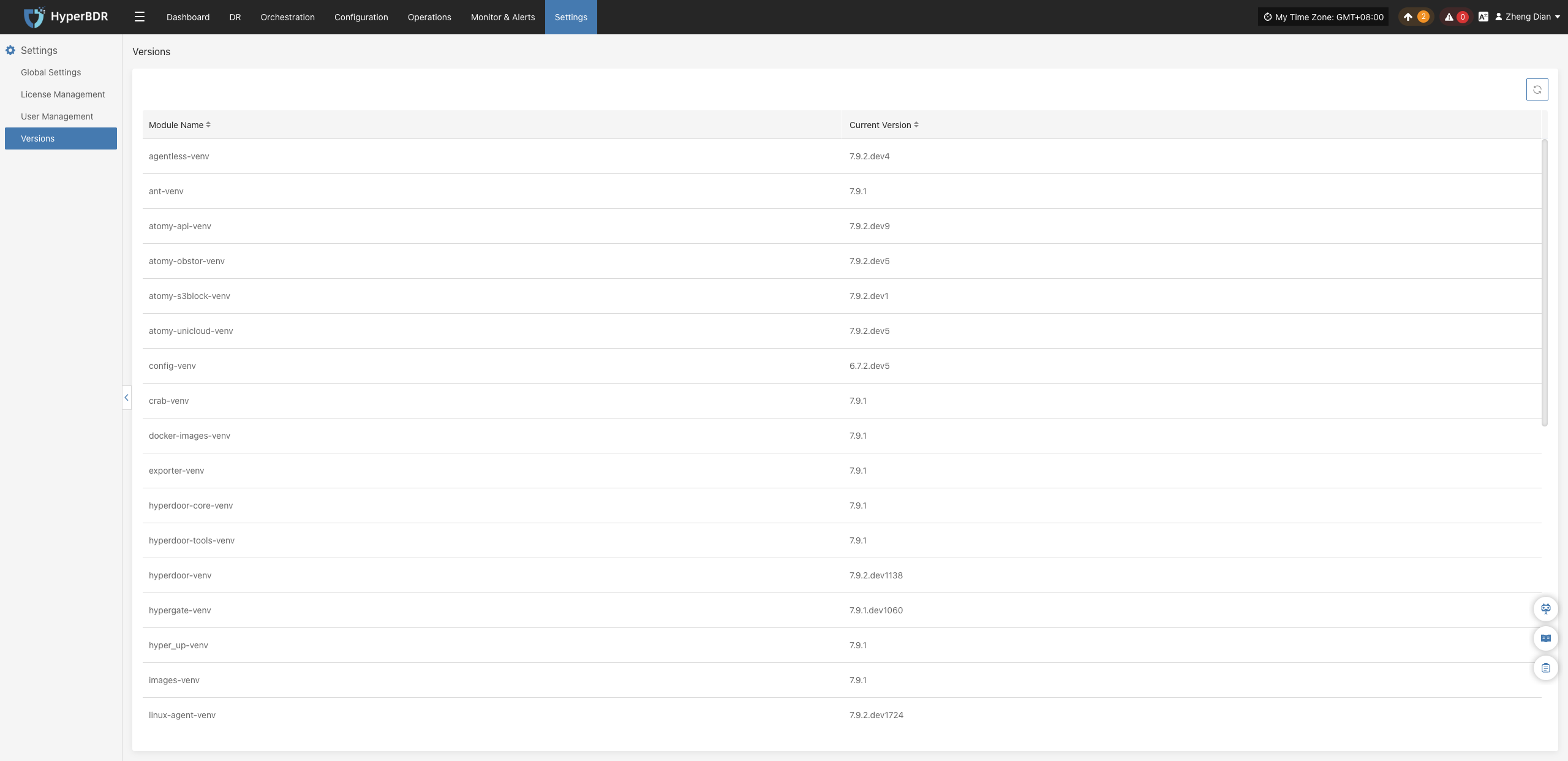
Technical Support Recommendation
If you encounter issues during daily operations and need technical support, it is recommended to take a screenshot of the system package version as well as the complete version information on this page, and attach them to the ticket so that support engineers can quickly assess the system environment and troubleshoot version compatibility. Get Support
Component Description
The page typically includes version data for the following core runtime components:
| Component Name | Description |
|---|---|
| Console Services | Current running version and Build ID for the HyperBDR core console, scheduling engine, and API gateway services. |
| Source Sync Proxy | Version of the data sync proxy component deployed within the source virtualization or cloud platform. |
| Source Agent | Version of the lightweight Agent client deployed inside the protected source host operating system. |
| Cloud Sync Gateway / Transition Host | Core runtime environment image and service version responsible for data receiving, driver adaptation, and takeover boot on the target disaster recovery site. |